Create a sub-administrator
This topic shows you how to create a sub-administrator account with the postmaster account.
Overview
This module is available only to the primary administrator account, postmaster. All other users cannot see or access the Administrators menu.
1. Module overview
The Administrators module allows you to build a tiered management system for your organization. Besides the single primary administrator, you can grant permissions to regular employee accounts, turning them into sub-administrators. This helps the primary administrator efficiently maintain the email system.
Core purpose: Enables permission delegation, which allows department heads or IT staff to manage resources within a specific scope.
Permissions: Within their authorized management scope, sub-administrators have nearly the same permissions as the primary administrator. Note: Sub-administrators cannot create other sub-administrators.
2. UI reference
Administrator list page (default view)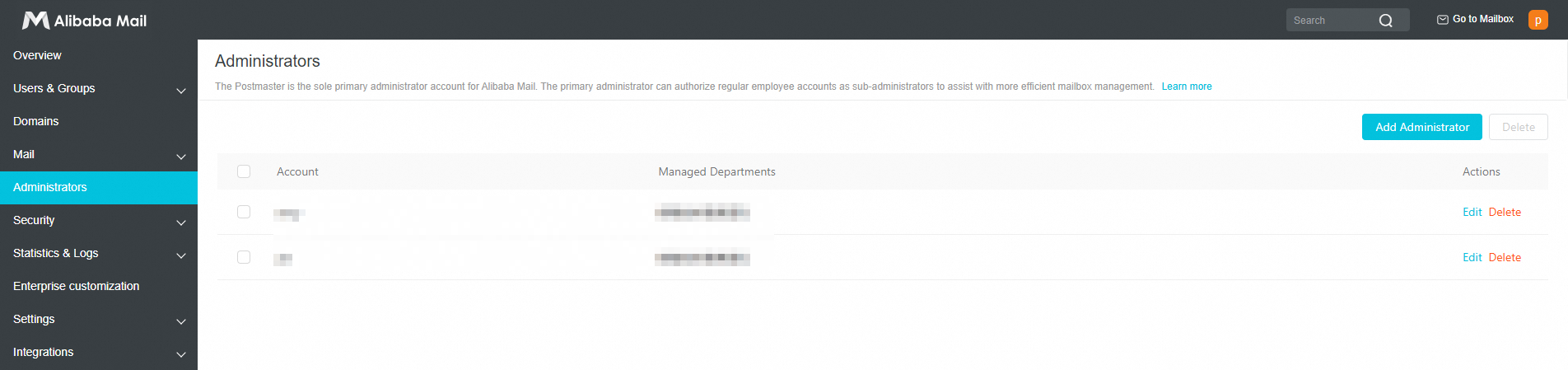
On this page, you can view all authorized sub-administrators and their status.
Account: The email address or name of the authorized employee.
Managed Departments: The organizational units the administrator manages, such as the Technology and Finance departments.
Actions:
Edit: Modify the administrator's management scope or permissions.
Delete: Revoke the user's sub-administrator status, reverting them to a regular user.
Add/edit sub-administrator
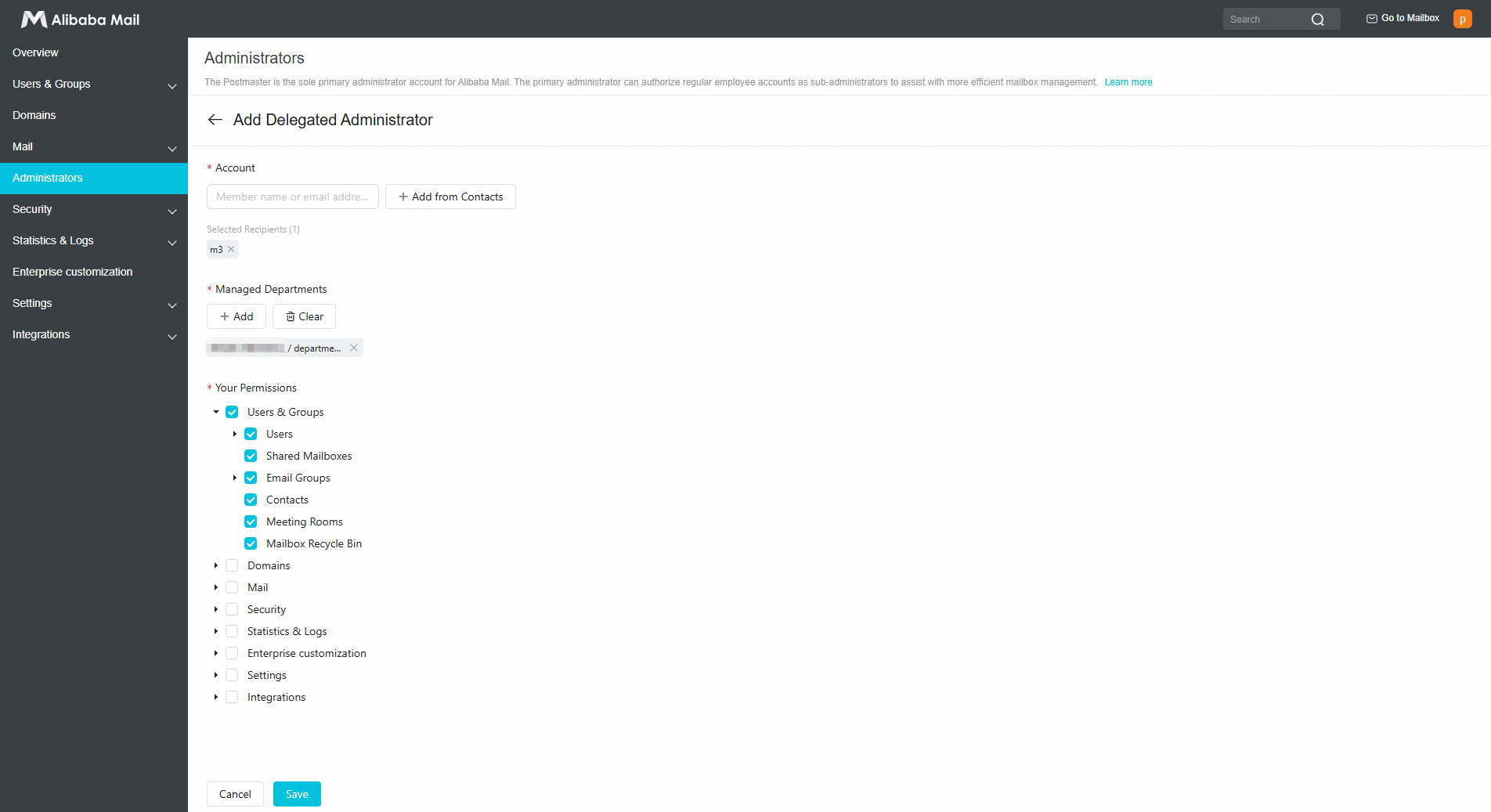
Click the Add Administrator button to open the configuration page. Complete the following three settings:
a. Specify account
Enter a member's name or email address directly, or click "Add from Address Book" to quickly select a user.
b. Set management scope
Managed Departments: Click the + Add button to select the departments this administrator will manage.
Purpose: Restricts the administrator to managing users and resources only within the selected departments.
c. Configure feature permissions (fine-grained control)
Permissions: All management console features are displayed in a permission tree. These features include Users and Groups, Domain Name, Mail, Security, Statistics and Logs, Enterprise Customization, Settings, and Integrations.
How to use: Select a parent module, such as Users and Groups, to expand its sub-items, including users, shared mailbox, and mailing group. This design allows you to follow the principle of least privilege.
3. Procedure
Log in to the Alibaba Mail management console with the primary administrator account (
postmaster@example.com).Go to the module: In the left-side navigation pane, click Administrators. In some versions, this option may be under Enterprise Customization.
Add a new administrator:
Click the Add Administrator button in the upper-right corner.
Enter the account information and select the departments the administrator will manage.
In the permission tree below, select which features the administrator can access. For example, if you select only Users and Groups > Users, the sub-administrator can only create, delete, and modify employee accounts, but cannot view mail logs.
Save the settings: Click Save. The user immediately gains the specified administrative permissions.
Frequently asked questions (FAQ)
Q: Can a sub-administrator create other administrators?
A: No. Only the primary administrator (postmaster) can access the Administrators module to delegate permissions. A sub-administrator cannot create other sub-administrators.
Q: How do I revoke permissions?
A: On the Administrator list page, find the account and click Delete to immediately revoke all management permissions.