Set up an Apache, MySQL, and PHP environment on Alibaba Cloud Linux 2

更新时间:
复制 MD 格式

Step 1: Install Apache

  1. Run the following command to install the Apache service and its extension packages.

    yum -y install httpd httpd-manual mod_ssl mod_perl
  2. Run the following command to check the Apache version number.

    httpd -v

    The following output indicates that Apache version 2.4.6 is installed.

    [root@iZbp1j5vab2og8x6amc**** ~]# httpd -v
    httpd -v
    Server version: Apache/2.4.6 (AlibabaCloudLinux)
    Server built:   Mar 30 2022 17:14:52
  3. Run the following commands to start the Apache service and set it to automatically start at boot.

    systemctl start httpd
    systemctl enable httpd
  4. Verify the installation.

    1. Log on to the ECS console.

    2. In the navigation pane on the left, click Instances & Images > Instances.

    3. On the Instances page, find the instance and copy its public IP address from the IP Address column.

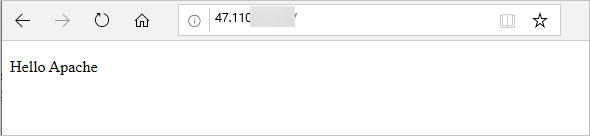
    4. In the address bar of your browser, enter http://<public IP address of the instance> and press Enter.

      If a page similar to the following one is displayed, the Apache service has started successfully.dasd56

Step 2: Install MySQL

  1. Run the following command to update the YUM repository.

    rpm -Uvh  http://dev.mysql.com/get/mysql57-community-release-el7-9.noarch.rpm
  2. Run the following command to install MySQL.

    Note

    If your operating system uses the el8 kernel, the "No match for argument" error may be reported. In this case, run the yum module disable mysql command to disable the default MySQL module, and then install MySQL.

    yum -y install mysql-community-server --nogpgcheck
  3. Run the following command to check the MySQL version number.

    mysql -V

    The following output indicates that MySQL is successfully installed.

    mysql  Ver 14.14 Distrib 5.7.38, for Linux (x86_64) using  EditLine wrapper
  4. Run the following command to start MySQL.

    systemctl start mysqld
  5. Run the following commands to set MySQL to automatically start at boot.

    systemctl enable mysqld
    systemctl daemon-reload

Step 3: Install PHP

  1. Update the YUM repository.

    1. Run the following command to add the EPEL repository.

      yum install -y \
      https://repo.ius.io/ius-release-el7.rpm \
      https://dl.fedoraproject.org/pub/epel/epel-release-latest-7.noarch.rpm
    2. Run the following command to add the Webtatic repository.

      rpm -Uvh https://mirror.webtatic.com/yum/el7/webtatic-release.rpm
  2. Run the following command to install PHP.

    yum -y install php70w-devel php70w.x86_64 php70w-cli.x86_64 php70w-common.x86_64 php70w-gd.x86_64 php70w-ldap.x86_64 php70w-mbstring.x86_64 php70w-mcrypt.x86_64  php70w-pdo.x86_64   php70w-mysqlnd  php70w-fpm php70w-opcache php70w-pecl-redis php70w-pecl-mongodb
  3. Run the following command to check the PHP version.

    php -v

    The following output indicates a successful installation.

    PHP 7.0.33 (cli) (built: Dec  6 2018 22:30:44) ( NTS )
    Copyright (c) 1997-2017 The PHP Group
    Zend Engine v3.0.0, Copyright (c) 1998-2017 Zend Technologies
        with Zend OPcache v7.0.33, Copyright (c) 1999-2017, by Zend Technologies                
  4. Run the following command to create a test file in the Apache website root directory.

    echo "<?php phpinfo(); ?>" > /var/www/html/phpinfo.php
  5. Run the following command to restart the Apache service.

    systemctl restart httpd
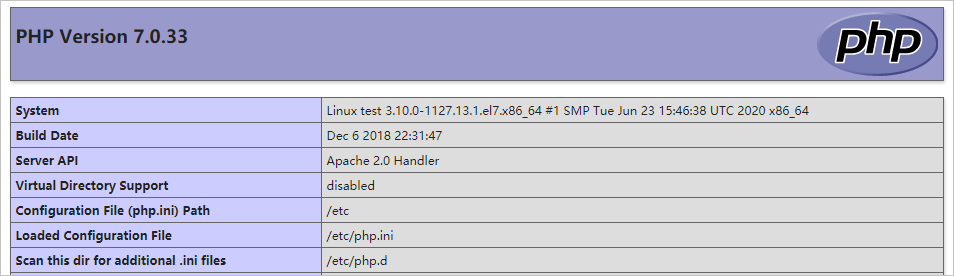
  6. In the address bar of your browser, enter http://<public IP address of the instance>/phpinfo.php and press Enter.

    If a page similar to the following one is displayed, the installation is successful.PHP