Real-time monitoring
Updated at:
This topic describes the real-time monitoring feature of the Operation Center and explains how to use it.
Overview
The real-time monitoring feature of the Operation Center provides the following capabilities:
- Monitors data from your app, such as logon, network configuration, and third-party voice data, to help you configure alerts for device issues.
- Provides access to alert records. When a device encounters an issue, it sends information to the Operation Center. The platform then uses configured rules to send alerts to developers.
- You can configure rules and recipients for alert notifications.
Real-time monitoring details
- Performance statistics from your app
In the Operation Center, you can monitor performance statistics reported by your app for the Third-party App Logon API and Monitoring Details, as shown in the following figure:
- Monitoring details
In the Monitoring Details section, you can search for and view status codes, APIs, and per-minute data reported by your app.
Note The data in the Monitoring Details section auto-refreshes every 60 s. You can click the Update On button to turn off auto-refresh.
Monitoring alerts
- View alert records
-
You can click View Alert Records to open the View Alert Records side pane.
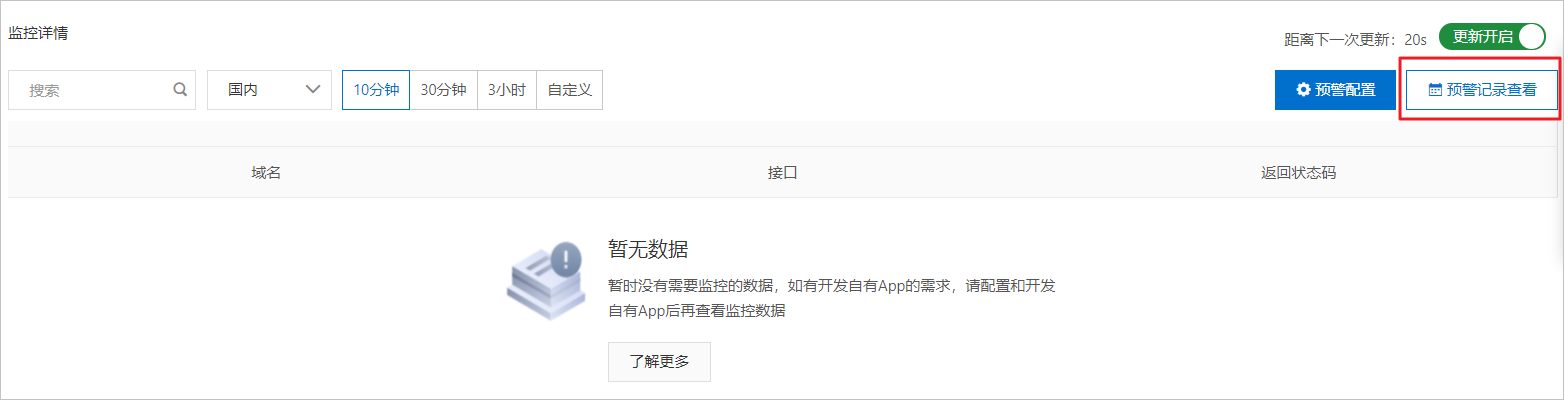
- You can search for alert records by region or time range.
Note You can view alert records for the last 30 days.
-
- Configure alerts
You can click Alert Configuration to open the Alert Configuration side pane.
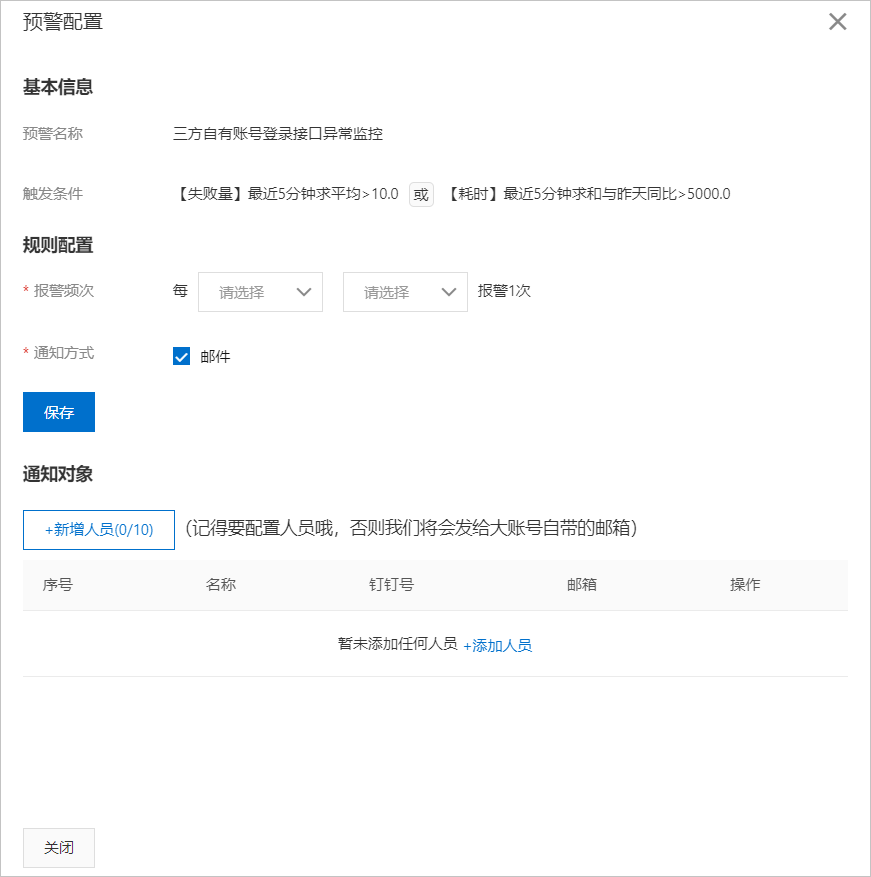
- Term Description Basic Information Alert Name Monitors for exceptions in the third-party account logon API. Trigger Condition Failed Count over the last 5 minutes is greater than 10.0, or the sum of Time Consumed over the last 5 minutes compared to the same time yesterday is greater than 5000.0. Rule Configuration Alert Frequency Configure the alert frequency. Select a number and a time unit from the drop-down lists. For example, once every 3hours. Notification Method By default, the platform sends notifications by email. Select the checkbox to enable this notification method. Notification Recipient - Add the people who need to be notified about alerts. To configure recipients:Note If no recipients are configured, the platform sends alerts to the email address associated with the IoT Platform logon account.You can add a maximum of 10 people.
- Click Add Person or Add People.
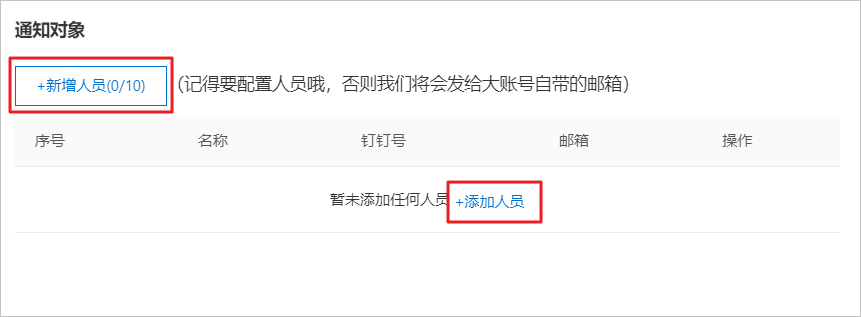
- In the Add Person dialog box that appears, enter the information for the person you want to add.
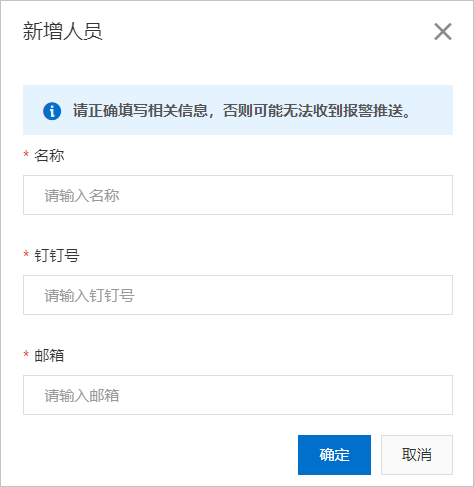 Note The email address you enter will receive alert notifications.
- Click Add Person or Add People.
Is this page helpful?