Generate H5 offline packages
Package different business modules into H5 offline packages. You can then use a release platform to deliver these packages and update client resources.
You can generate an H5 offline package in two main steps:
Build a frontend .zip package
The path configuration depends on the type of offline package:
Global resource package
Standard resource package
A global resource package and a standard resource package cannot coexist in the same H5 offline package.
The offline package ID, which corresponds to the first-level directory, must be an 8-digit number.
Global resource package
A global resource package contains common resources used by multiple standard resource packages. Specify the resource paths within the package as follows.
First-level directory: The ID of the global resource package, for example,
77777777.Second-level directory: The server domain name where the resources are accessible.
public cloud: In a public cloud, the second-level directory must be
mcube-prod.mpaascloud.com. Otherwise, you cannot use the acceleration feature integrated with real-time release.private cloud: Use the server domain name of the mdsweb server deployed in your private cloud.
Third-level directory:
appId_workspaceId, for example,53E5279071442_test.The directories beyond the third-level directory contain your custom public resource files. Avoid using special characters in the folder names, filenames, and content of these files. Special characters are those converted by the urlencode function.
Once the files are organized according to these rules, the resource file path has the following format.
Public cloud:
http://domain/appID_workspace/resource_file_path.Private cloud:
http://domain/mcube/appID_workspace/resource_file_path.ImportantIn a private cloud, you must add
/mcubeafter the server domain name (the second-level directory) in the resource file path.Example:
In a private cloud, the second-level directory is the server domain name of the deployed mdsweb server. This example uses
mdsweb-outer.alipay.net. In the image below, the path to the resource filecommon.jsishttps://mdsweb-outer.alipay.net/mcube/53E5279071442_test/common.js.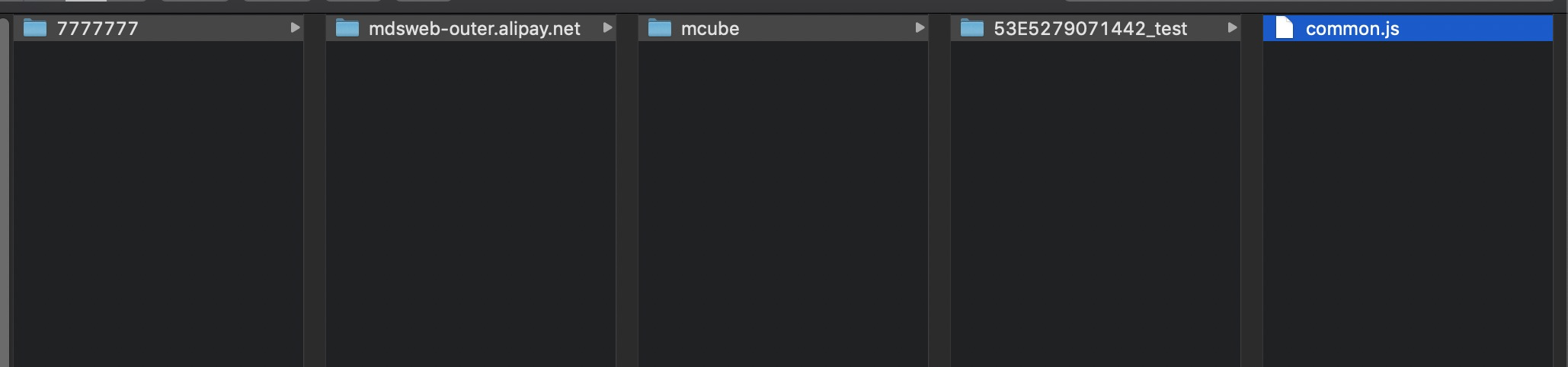
The absolute path of a public resource must not exceed 100 characters. Longer paths may cause client loading failures or a blank screen issue.
The server does not provide unified version control for global resource packages. To manage versions, add custom directory structures after the third-level directory.
In a private cloud, you must add an extra directory level before the third-level directory path if the server uses HDFS or AFS for storage, or if it uses HBase and the bucket configuration is not set to
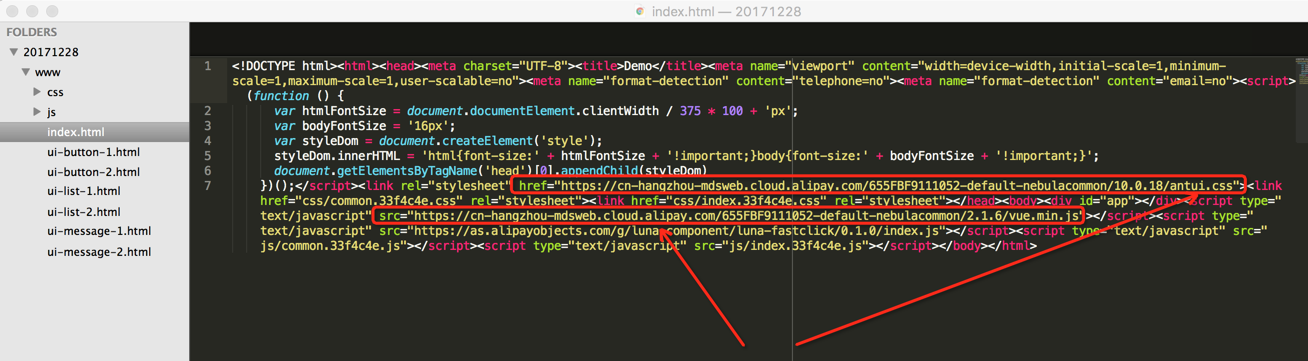
NOT_NEED_BUCKET. The name of this directory must match the bucket name configured in the mdsweb server.When referencing public resources from within a standard resource package, you must use an absolute path, such as https://mcube-prod.mpaascloud.com/53E5279071442_test/common.js.
Standard resource package
Group related frontend resources for a business module, such as HTML, CSS, JavaScript files, and images, into a single offline package.
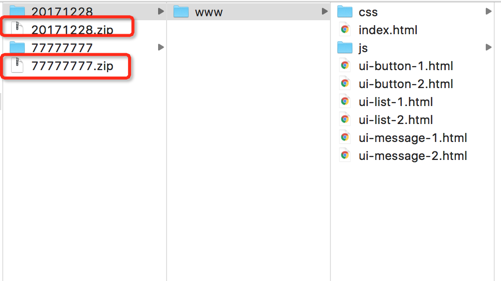
First-level directory: The ID of the standard resource package, for example, 20171228.
Second-level directory and beyond: Your custom resource files for the business module. We recommend storing all frontend files in a unified directory, such as
/www, and setting a default main entry file for the offline package, such as/www/index.html.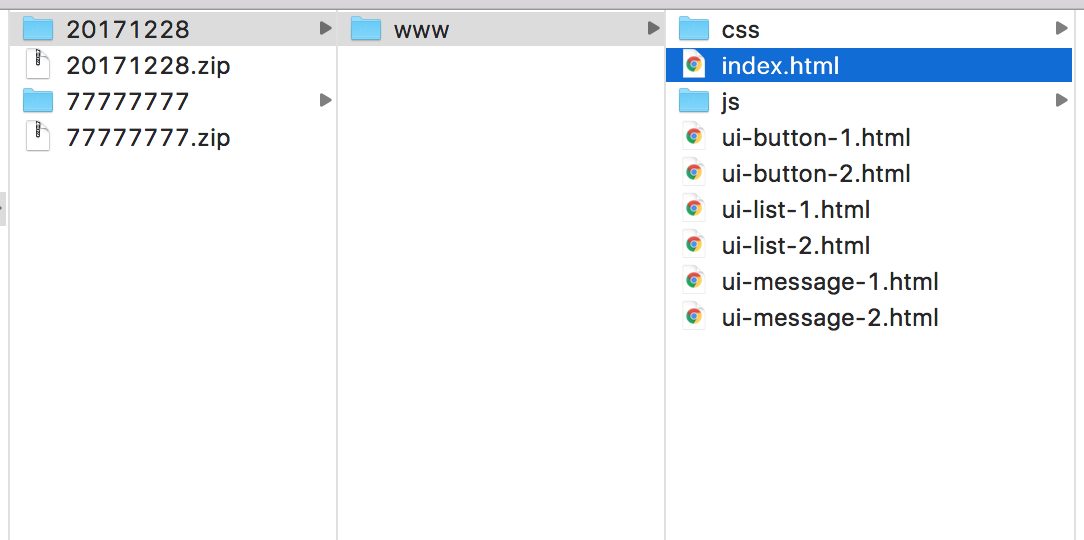
Generate the .zip package
After configuring the resource package paths, compress the first-level directory, which is named with the offline package ID, into a .zip package.
Generate an .amr package online
Go to the Real-time Release > Offline Package Management page in the console. Upload the .zip package from the previous step to the MDS release platform to create an .amr package. For detailed steps, see real-time release > create offline package.
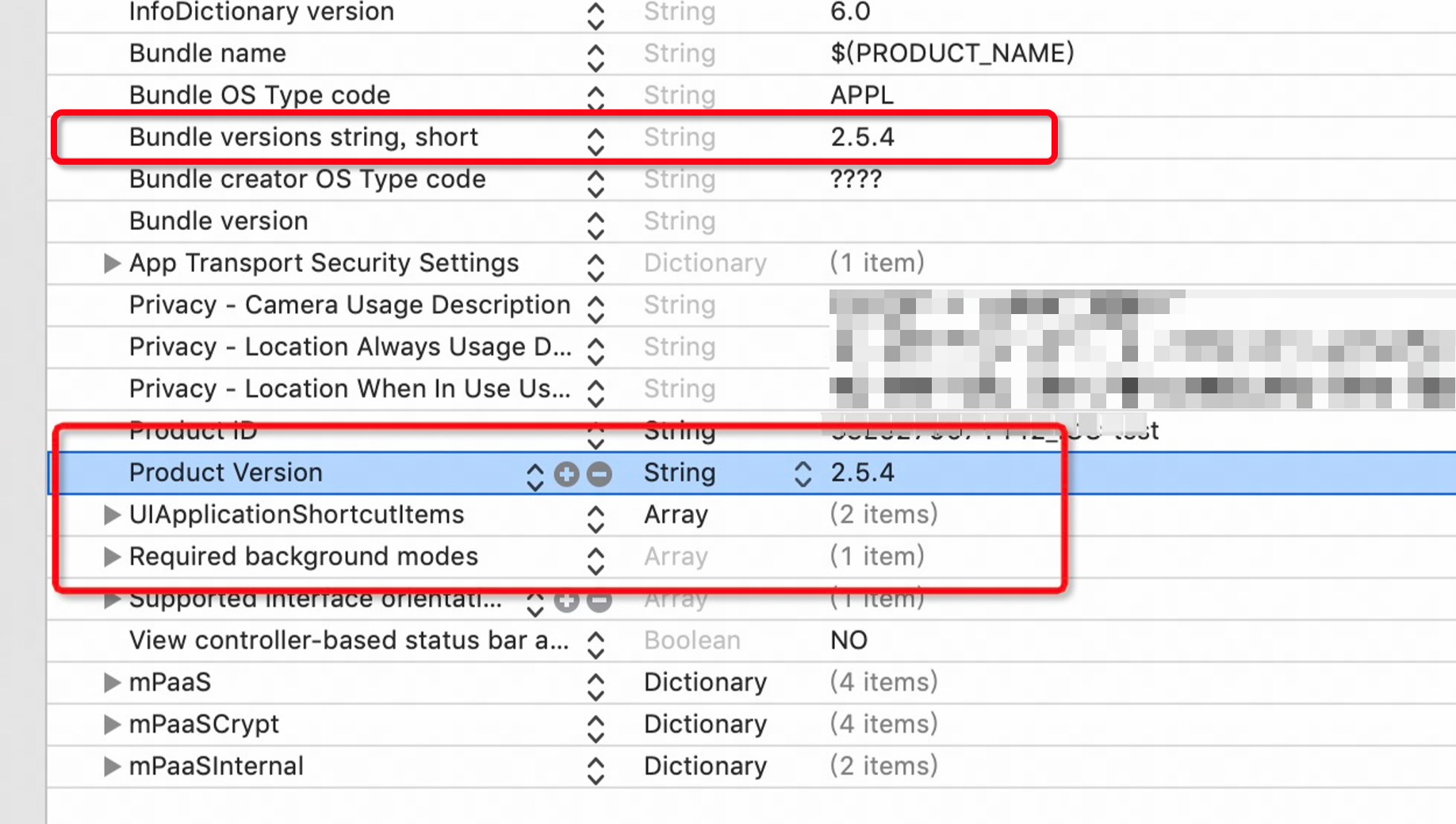
When configuring the new offline package, set the minimum iOS version in the client scope to a value lower than the
Product Versionkey in the client's info.plist file (see the image below). We recommend setting the minimum iOS version to 1.0.0.We recommend that the values for
Product VersionandBundle versions string, shortin the info.plist file match. If they differ, the offline package may not function correctly.