D100 support FAQs
This topic introduces common issues you may encounter when using D100 instances of Database Audit and provides their solutions.
Agent-related issues
Database Audit instance configuration issues
Installation directory for Cloud Assistant agent
Linux: /usr/local/rmagent.
Windows: C:\rmagent.
You can use one-click installation for the agent only on ECS instances that have Cloud Assistant installed. The agent starts automatically after installation.
Log directory for Cloud Assistant agent
Linux
Log directory:
/tmp/rmagent/.Log file:
rmagent.log.
Windows
Log directory: C:\TEMP\rmagent\.
Log file:
rmagent.log.
If the agent cannot connect to the Database Audit service, the log file contains the message failed to connect to server, ret: -1..
Missing wpcap.dll file during agent installation
When installing the agent on Windows, you may see the error message The program can't start. This error occurs if WinPcap is not installed, which causes the wpcap.dll file to be missing.
To install WinPcap, follow these steps:
Uninstall rmagent from Add or Remove Programs.
Go to the WinPcap official website, download WinPcap 4.1.3, and install it on your server.
Reinstall the agent. For more information, see Manually install an agent.
Agent installation in a Docker environment
Yes. You can install the agent inside a Docker container or on its host server. If containers are deployed in a Kubernetes cluster, you must manually install the agent on the host server of each new node. For more information, see Install an agent.
Uninstalling the agent
Uninstall a Cloud Assistant agent
On the Agent Management page, on the Install Agent tab, in the Install by Using Cloud Assistant section, click Start Installation. In the Install Agent by Using Cloud Assistant dialog box, find the instance and click Uninstall in the Actions column.
Uninstall a manually installed agent
Linux server
-
Log on to the Linux server as the root user.
-
Navigate to the agent installation directory.
-
Run
./stop_rmagent.shto stop the agent service and delete all files in the agent installation directory.
Windows server
Press Win+R. In the Run dialog box, enter appwiz.cpl and click OK. In the Uninstall or change a program dialog box, find and uninstall the rmagent program and the WinPcap or Npcap program.
Unclickable installation link for Cloud Assistant agent
This issue may occur if the VPC and security group information is incorrectly configured. Before you install the agent by using Cloud Assistant, you must first configure the VPC, vSwitch, and security group for the target ECS instance in the D100 console.
Repeated installation prompts for Cloud Assistant agent
This issue may occur if the ECS instance cannot access the corresponding OSS address for Database Audit. You can check the logs for commands that contain das_agent in Cloud Assistant on the ECS instance for the relevant time period.
The execution information shown in the following figure confirms that the ECS instance cannot access the OSS address for Database Audit.
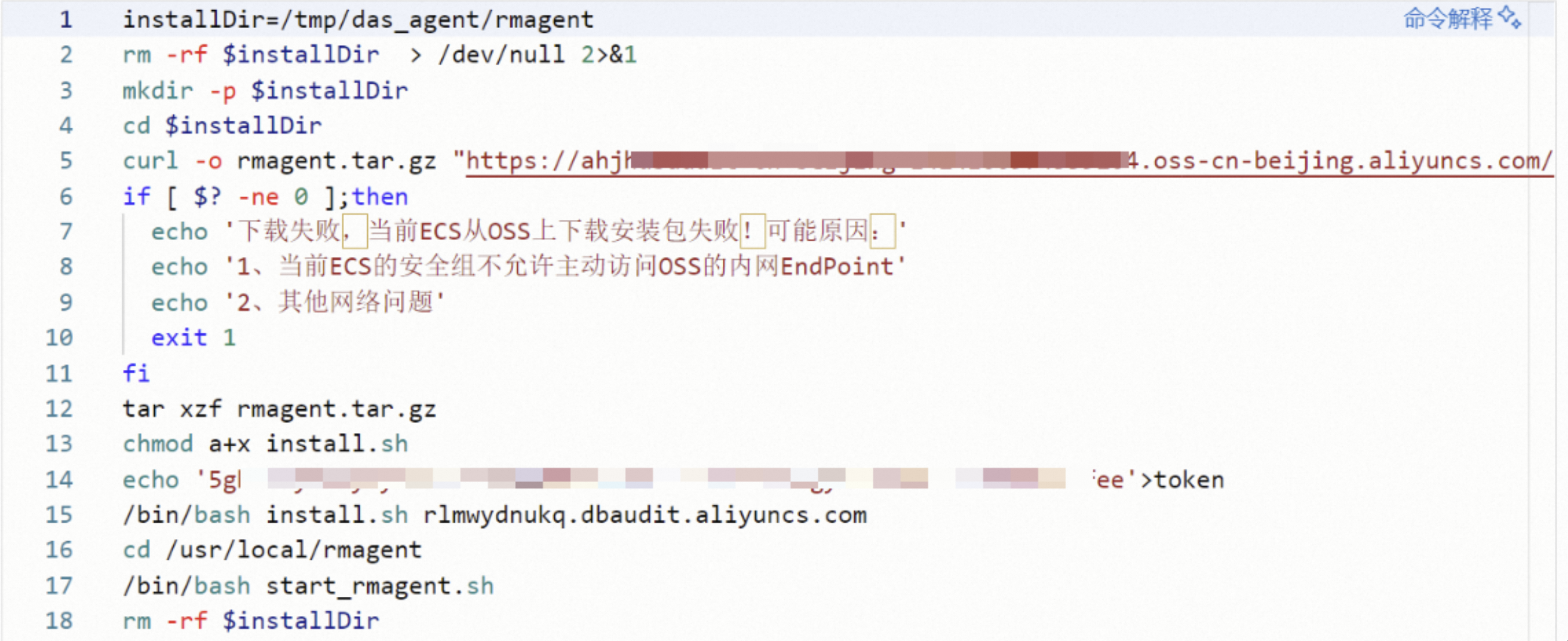
Check your firewall or security group policies to ensure access is allowed from the ECS instance.
Agent status is "Not installed or stopped"
Log on to the server where the agent is installed and view the agent log file rmagent.log in the /tmp/rmagent/ directory.
If the log contains the < failed to connect to server, ret: -1.> message, it confirms that the agent cannot connect to the Database Audit D100 instance. Follow these steps to troubleshoot the issue.
Obtain the D100 instance address: Check the value of the
server_hostparameter in the/usr/local/rmagent/rmagent.iniconfiguration file.Check the server connectivity: Run the following command on the server to check whether it can connect to the D100 instance address.
Replace
<D100_instance_address>with the D100 instance address that you obtained in Step 1.telnet <D100_instance_address> 9266If the connection is successful, verify that the value of the
server_hostparameter in the /usr/local/rmagent/rmagent.ini configuration file matches the address that you obtained in Step 1. If they do not match, modify the file and restart the agent by following these steps.Log on to the Database Audit console. In the left-side navigation pane, click D100 Instances. In the top navigation bar, select the region where the instance is deployed.
In the D100 Instances section, click Configure.
On the Configuration (VPC) panel, copy the Domain Name.
Return to the server where the agent is installed. Run the
vi /usr/local/rmagent/rmagent.inicommand, press i, and change the value of the server_host parameter to the domain name that you copied in Step 3.c.If your application and database are deployed on the same server, you must change the value of the loopback parameter to 1.
Press the Esc key, and then enter :wq to save the changes and exit.
In the /usr/local/rmagent directory, run the
./stop_rmagent.shcommand to stop the agent process.In the /usr/local/rmagent directory, run the
./start_rmagent.shcommand to start the agent.
If the connection fails, modify your network settings to allow the ECS instance where the agent is installed to connect to the Database Audit D100 address on port 9266. For more information, see Add a security group rule.
Troubleshoot a failed agent installation
Use Cloud Assistant to troubleshoot the issue. On the Cloud Assistant page, go to the Command Execution Results tab, find the record with the command name DBAudit-Agent-Shell, and click View in the Actions column to see the execution details.
If the log indicates a failure to access OSS to obtain the agent installation package, copy the OSS address. Then, log on to the host where the agent is being installed and run the wget command to confirm access to this address. An example of the command format is as follows:
wget <OSS_address>Agent in an IDC fails to resolve domain name
A network issue between the IDC database server and the Database Audit instance is preventing the agent from connecting correctly. You need to add the Alibaba Cloud internal DNS addresses to your IDC network environment to connect to Alibaba Cloud services through the VPC. For more information, see Overview of internal DNS resolution.
Log loss when an agent is offline
Yes. An agent may go offline if it cannot connect to the Database Audit D100 instance. In this case, the agent log contains the message failed to connect to server, ret: -1..
Check for an abnormal agent status
Not connected to the Database Audit instance
In the Database Audit console, on the page for your D100 instance, check whether the ECS information (agent server IP) is displayed.
If the ECS information is not displayed, log on to the ECS instance by using SSH and run the command
ps aux|grep rmagentto check whether the agent process is running.If the agent process is not running, run the
/usr/local/rmagent/start_rmagent.shcommand to manually start the agent and then check if the process exists.If the process still does not exist, check the agent log.
The latest logs are at the end of the file. First, check whether the date and time in the log header are current.
If the time is not current:
On the page for your D100 instance, go to the Agent Installation tab and download the latest token file.
Update the token file in the
/usr/local/rmagentdirectory on the ECS instance.Run the
start_rmagent.shcommand to start the agent.
If the date and time are current, diagnose the issue based on the log output.
Suspended due to resource limits
In the Database Audit console, on the page for your D100 instance, check the agent's ECS information.
If an agent is abnormal, an error message is displayed. You can make adjustments based on the message.
A common error message indicates that the agent is suspended due to exceeding CPU or memory limits. The default suspension thresholds are as follows:
ECS CPU utilization (cpu_limit): 100% by default.
Agent's percentage of ECS CPU (my_cpu_limit): 20% by default.
ECS memory utilization (mem_limit): 100% by default.
Agent's percentage of ECS memory (my_mem_limit): 10% by default.
To increase the thresholds, on the Agent Connection Management tab, find the agent's server, click Configure in the Actions column, modify the threshold values, and then click Save.
Select the number of instances
Database Audit is priced based on the number of databases you plan to audit. You must select the number of instances to purchase accordingly.
For example, if you need to audit one ApsaraDB RDS for MySQL instance and one self-managed MySQL database, select 2 instances.
You do not need to consider the database type when you select an edition of Database Audit.
Configure Database Audit after purchase
After purchasing a Database Audit instance, follow these steps to configure the service:
Enable the Database Audit instance: After the purchase, the instance appears on the D100 tab of the Database Audit console. By default, it is not enabled. Click Enable and wait 10 to 15 minutes for the process to complete.
Configure the Database Audit instance: After the instance is enabled, click Configure to open the Network Configuration page for the D100 instance. You must select the same VPC as the ECS instance on which you plan to deploy the agent. After the configuration is complete, the address for the D100 instance is generated.
Log on to the Database Audit system: Go to the homepage of the D100 instance.
ImportantAfter you configure the VPC information (network and security group) for the database to ensure network connectivity, the following conditions are met:
The ECS instances in the VPC can connect to the Database Audit system.
You can install the agent on ECS instances in the corresponding VPC by using Cloud Assistant. The VPC information configured here is also required for manual agent installation.
Manage database assets: Add the databases that you want to audit.
Install an agent: Install the agent on the user terminal, the target database server, or the application server that connects to the database. The agent collects database access traffic and forwards it to the audit system for analysis and recording.
If you need to configure audit rules and alert notifications, see D100 quick start.
Newly created security group is not found
Data synchronization for a newly created security group may be delayed. Wait for a moment and then refresh the page.
Abnormal D100 agent status
Log on to the Database Audit console. In the left-side navigation pane, choose . On the Agent Management page, go to the Agent Connection Management tab to check the agent status. If the IP address of the ECS instance where the agent is located is not displayed, perform the following operations:
Log on to the ECS server and run the
ps aux|grep rmagentcommand to check whether the agent process is running.If the process does not exist, run the
/usr/local/rmagent/start_rmagent.shcommand to start it manually.If the agent process still does not start after you run the preceding command, check the agent's runtime logs. Log on to the server where the agent is installed and check the
rmagent.logfile in the/tmp/rmagent/directory.At the end of the log file, check whether the date and time in the log header are current.
If not, the process has not started. On the Agent Management page, go to the Agent Installation tab, click Authorization Token to download the latest token, update it in the
/usr/local/rmagentdirectory, and then perform Step b again.
If the agent status is Abnormal, click Configure in the Actions column and adjust the configuration parameters of the agent based on the provided information. For more information about the configuration, see the following table.
Parameter
Description
System CPU Utilization Threshold
If the system CPU utilization exceeds the specified value, the agent is suspended and stops capturing packets. The agent resumes after the utilization decreases. We recommend that you set a reasonable threshold based on your actual use case.
System Memory Utilization Threshold
If the system memory utilization exceeds this value, the agent is suspended and stops capturing packets. The agent resumes after the utilization decreases. We recommend that you set a reasonable threshold based on your actual use case.
Maximum Agent CPU Utilization
If the maximum CPU utilization of the agent exceeds the specified value, the agent is suspended. It continues to capture packets, which may lead to incomplete audit data. The agent resumes after the utilization decreases. We recommend that you set a reasonable threshold based on your actual use case.
Maximum Agent Memory Utilization
If the agent memory utilization exceeds the specified value, the agent is suspended and stops capturing packets. The agent resumes after the utilization decreases. We recommend that you set a reasonable threshold based on your actual use case.
If your issue persists, you can contact the relevant support staff for assistance through the DingTalk group.
Confirm that the D100 agent is sending packets
Log on to the Database Audit console.
In the left-side navigation pane, choose .
On the Agent Management page, go to the Agent Connection Management tab to check the values of Packets Sent (packets/s) and Traffic Sent (KB/s).
Permissions for RAM users
You can grant the following permission to a RAM user for Database Audit:
AliyunServiceRoleForDbaudit: Grants a RAM user permissions to manage Database Audit, including read and write permissions. For more information, see Manage permissions for a RAM user.
RAM user authorization applies to the entire Database Audit service, not to individual databases configured within it. This limitation applies to both ApsaraDB RDS and self-managed databases on ECS instances. A RAM user's ability to use Database Audit is not affected by permissions for individual databases.
Add database assets from multiple VPCs
Audit multiple VPCs in one account and region
D100 instances of Database Audit support adding multiple VPCs from the same account and region to the network configuration, which enables multi-VPC auditing.
NoteA single D100 instance of Database Audit can be associated with up to five VPCs.
The number of supported VPCs varies based on the number of database instances. This is determined by bandwidth, where each VPC requires 100 MB of bandwidth. For more information about the relationship between bandwidth and the number of instances, see Billing methods.
You can also use VPC Peering Connection to connect the server where the agent is located and the D100 instance of Database Audit, and configure the network between the VPCs.
Cross-account and cross-region auditing
You must establish a network connection between the server where the agent is located and the D100 instance of Database Audit by using a service such as Express Connect, VPN Gateway, Cloud Enterprise Network, or Smart Access Gateway. This allows you to add database assets from different regions, VPCs, and accounts to the Database Audit system.
In some O&M scenarios, such as when a client in an IDC accesses an ApsaraDB RDS database over the Internet, you can configure an ECS instance within the D100 instance's VPC to act as an SSH tunnel if the client supports SSH tunnel access. Deploying the agent on this ECS instance within the VPC also enables auditing.
NoteIn this scenario, because the connection is made through a tunnel, the client IP address in the audit logs is the IP address of the tunnel ECS instance. Use this method with caution based on your use case.
We recommend that you use VPC Peering Connection for auditing.
No data captured by Database Audit
Log on to the Database Audit console. In the left-side navigation pane, choose . On the Audit Logs page, check whether any SQL statements have been audited. If the number of audited events in the last 5 minutes is zero, it means the service has not parsed any statements. You can follow these steps to troubleshoot the issue.
Log on to the Database Audit console and check the Database Audit instance.
If you have recently enabled the Database Audit instance, confirm that you have installed an agent and configured your database assets.
If you have not installed an agent or configured database assets, see Manage database assets and Install an agent.
Log on to the Database Audit console. In the left-side navigation pane, select D100 Instances. In the Storage Information section for the target instance, check whether the storage space for this instance is full.
If the storage is full, we recommend that you expand its capacity. For more information, see Configure a Database Audit instance. Alternatively, you can use the OSS Backup feature to back up existing data and then clear the storage.
NoteData written to Log Service may have a delay of 1 to 2 hours.
If another Log Service instance under your account has overdue payments, data cannot be written to your Database Audit instance.
Log on to the Database Audit console. In the left-side navigation pane, choose . On the Agent Management page, go to the Agent Connection Management tab to check the agent status.
If the agent status is abnormal, reinstall the agent by using Cloud Assistant. For more information, see Install an agent.
Troubleshoot the issue by using the agent logs.
The log directory for an agent installed by using Cloud Assistant is
/tmp/rmagent/. This directory containslogfiles that are named by date.
If your issue persists, you can contact the relevant support staff for assistance through the DingTalk group.
The server_host address is an IP address
The address for a D100 instance is typically a domain name, not an actual IP address. If an IP address is present, it is possible that an agent for an A100 instance was previously installed. You must uninstall the A100 agent and then redeploy the D100 agent. For information about how to uninstall the A100 agent, see A100 Support FAQs.
Handling full storage space
Database Audit records are stored in Alibaba Cloud Log Service, and the retention period can be set from 30 to 185 days. Log Service automatically deletes expired audit records based on the retention period. If your storage space becomes full, you can consider the following two solutions:
Expand storage capacity
Log on to the Database Audit console. In the left-side navigation pane, select D100 Instances.
In the Storage Information section for the target instance, click Expand Capacity.
On the Modify Configuration page, in the Log Storage section, select the amount of storage to add. You can add from 10 TB to 200 TB of storage.
Select I have read and agree to the Database Audit Service Agreement.
Click Buy Now and complete the payment.
Deliver data to OSS
Log Service supports automatically archiving data from a Logstore to OSS, which allows for more versatile use of logs. Data in OSS supports customizable lifecycle policies, which enables long-term log storage. You can follow these steps to create an OSS delivery task.
Prerequisites:
You have activated Log Service, created a project and a Logstore, and successfully collected log data. For more information, see Use Logtail to collect and analyze text logs from ECS instances.
You have activated OSS and created a bucket in the same region as your Log Service project. For more information, see Activate OSS.
The Log Service project and the OSS bucket must be in the same region. Cross-region data delivery is not supported.
Data delivered to OSS and then deleted from Log Service is considered a backup and cannot be viewed directly in Database Audit. If you need to view the backup data, you can import it from OSS into Log Service for analysis. After the import is complete, you can view the backup data. For more information, see Import OSS data.
Log on to the Database Audit console. In the left-side navigation pane, select D100 Instances.
In the Storage Information section for the target instance, click Configure.
In the Storage Management dialog box, click OSS Backup.
On the OSS Shipping Management page, create an OSS delivery task. For more information, see Create an OSS delivery task (Old version).
Impact of enabling Database Audit
Enabling Database Audit has no impact on your database performance because it is deployed out-of-band and uses an agent to collect and forward traffic.
Differences between C100 and D100 instances
They support different database types. For more information, see Supported database types.
They support different regions. For more information, see Purchase a Database Audit instance (New purchases are discontinued).
The number of auditable databases, performance, and pricing are different. For more information, see Billing methods.
The logic for dynamically expanding storage space is different.
C100: Uses Log Service (SLS) for real-time log analysis and storage, with support for dynamic storage scaling. A single C100 instance can audit a fixed number of database instances: 3, 5, 10, 25, 50, or 80.
D100: Built on a cloud-native architecture, this series uses Log Service (SLS) for real-time log analysis and storage with dynamic scaling. It leverages native components like cloud-native databases, load balancing, and Log Service to provide Database Audit Service as a SaaS solution. Ideal for auditing scenarios that require high concurrency, high traffic, and unified management of multiple instances. A single D100 instance can audit from 1 to 150 database instances, and you can scale the number of audited instances and expand log storage on demand, up to a maximum of 200 TB.
The "unknown user" issue in audit results
When you start auditing a database that uses the MySQL protocol, existing active sessions may produce audit logs with "unknown user". User information for these sessions was established before auditing began. SQL statements from new sessions that are created after auditing starts show the correct user information.
To immediately see user information for all sessions, disconnect your applications from the database and then reconnect.
When you access a SQL Server database by using a client application such as SqlDbx, the Tabular Data Stream (TDS) protocol is used for data transmission. During authentication, the user credentials are sent over a strongly encrypted SSL connection. As a result, Database Audit cannot decrypt the user information.
To ensure that user information is audited, we recommend that you do not access the SQL Server database through such client applications.