Create application-consistent snapshots
Ensure data consistency within applications such as databases when restoring from snapshots, by flushing in-memory data to disks before snapshot creation.
Background
When you create a snapshot-consistent group with the application-consistent snapshot feature enabled, the system creates one of the following snapshot types based on your scenario.
Item | Application-consistent snapshot | File system-consistent snapshot |
Data consistency | Ensures data consistency within applications, such as databases. | Ensures data consistency within file systems. |
Implementation |
|
|
Supported scenarios | Suitable for applications that require data consistency, such as databases and critical business systems. | Suitable for scenarios that require overall file system consistency, such as file servers and document management systems. |
Tags | APPConsistent:True | FsConsistent:True |
How it works
The snapshot creation workflow differs between Linux and Windows instances.
Linux instance
By default, the system creates file system-consistent snapshots. After you upload prescript.sh and postscript.sh scripts, the system checks application consistency based on the scripts. If the check passes, snapshots are marked as application-consistent; otherwise, they remain file system-consistent.
The following table describes the two scripts.
Script name | Functionality | Type | Path | Permissions | Content |
prescript.sh | Suspends all write operations to the application before snapshot creation to prevent data inconsistency. | Shell | /tmp/prescript.sh | Only the root user has read, write, and execute permissions on the scripts. | Compile custom scripts based on your business requirements. For example, follow the procedure in Step 1: Create the prescript.sh and postscript.sh scripts. |
postscript.sh | Restores the application and resumes write operations after snapshot creation completes. | Shell | /tmp/postscript.sh |
The script name, type, and storage path are fixed. Use the exact values listed above, or the scripts will fail to run.
Enable the application-consistent snapshot feature and verify that Cloud Assistant is installed on the instance.
NoteIf Cloud Assistant is not installed and you select Enable Application-consistent Snapshot, the Cloud Assistant plug-in is automatically installed.
Cloud Assistant runs the prescript.sh script, suspends I/O operations, and creates snapshots.
If the script settings are correct and the script runs successfully, application-consistent snapshots are created.
If the script settings are invalid or the script fails to run, file system-consistent snapshots are created instead.
Cloud Assistant runs the postscript.sh script to resume I/O operations.

Windows instance
After you enable the application-consistent snapshot feature for a Windows instance, Cloud Assistant performs an application-consistent check with VSS. If the check passes, snapshots are marked as application-consistent; otherwise, they are marked as file system-consistent.
Enable the application-consistent snapshot feature and verify that Cloud Assistant is installed on the instance.
NoteIf Cloud Assistant is not installed and you select Enable Application-consistent Snapshot, the Cloud Assistant plug-in is automatically installed.
Cloud Assistant suspends I/O operations and creates snapshots.
Cloud Assistant invokes VSS and suspends all I/O operations.
Check the Contain Writers by Default option.
If selected, application-consistent snapshots are created.
If deselected, file system-consistent snapshots are created.
Resume I/O operations.

Limitations
Supported only on ESSDs with the multi-attach feature disabled.
You can create application-consistent snapshots only for cloud disks attached to the same ECS instance, not across different instances.
Prerequisites
An ECS instance is created and runs one of the following operating systems:
Windows: Windows Server 2012 R2 or later.
Linux: CentOS 7.6 or later, Ubuntu 18.04 or later, or Alibaba Cloud Linux 2.
The ECS instance is in the Running state. Cloud Assistant is in Normal state on the instance. To view Cloud Assistant status, see Check Cloud Assistant status and troubleshoot exceptions.
A RAM role with a custom policy for application-consistent snapshots is attached to the ECS instance. See Create a RAM role and attach it to an ECS instance.
NoteCloud Assistant requires specific permissions to access the ECS instance and run commands. Grant these permissions through the RAM role.
Configure a custom RAM role, such as AppSnapshotRoleName.
Attach a custom policy to the RAM role. The following sample policy grants permissions to query snapshots, create snapshots, add tags, and query disk information.
{
    "Version": "1",
    "Statement": [
        {
            "Effect": "Allow",
            "Action": [
                "ecs:DescribeSnapshot*",
                "ecs:CreateSnapshot*",
                "ecs:TagResources",
                "ecs:DescribeDisks"
            ],
            "Resource": [
                "*"
            ],
            "Condition": {}
        }
    ]
}
Procedure
Use the ECS console
Linux instance
Upload the prepared prescript.sh and postscript.sh scripts to the ECS instance.
See Use Workbench.
NoteFor script details, see How it works.
In the upper-left corner of the page, select a region and resource group.
On the Snapshot-consistent Groups tab, click Create Snapshot-consistent Group.
In the Create Snapshot dialog box, configure the following parameters to create a snapshot-consistent group.
By default, the Resource Type parameter is set to Instance.
Select a Linux instance from the Select Instances drop-down list. In the Select Cloud Disks section, select the ESSDs for which you want to create snapshots.
Expand Advanced Settings and configure application-consistent snapshot settings.
If you select Enable Application-consistent Snapshot and correctly configure scripts, application-consistent snapshots are created.
If you select Enable Application-consistent Snapshot but do not correctly configure scripts, file system-consistent snapshots are created.
NoteIf Cloud Assistant is not installed and you select Enable Application-consistent Snapshot, the Cloud Assistant plug-in is automatically installed.
You can also enable the File System I/O Suspension and Resume feature and specify a timeout period.
NoteIf you enable File System I/O Suspension and Resume, the system suspends I/O operations during snapshot creation to prevent data inconsistency. If the timeout period exceeds 16 seconds and the suspension does not complete within that period, the suspension fails, which may cause data inconsistency.
For parameter details, see the Procedure section.
Click OK.
After creation, a message displays the Cloud Assistant command ID and the task ID. Use the task ID to verify whether application-consistent snapshots were created.
On the Command Execution Result tab of the ECS Cloud Assistant page, click the task ID and check whether application-consistent snapshots are created.
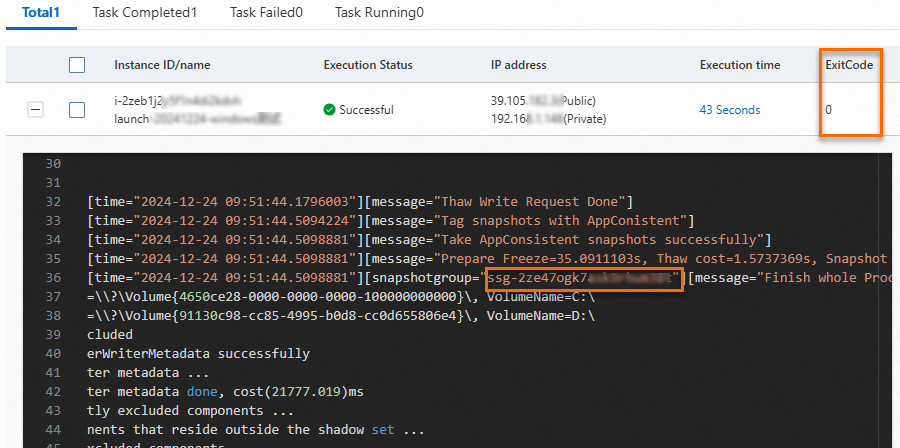
The value of ExitCode is
0as shown in the preceding figure, indicating that application-consistent snapshots are created successfully. The snapshot-consistent group ID appears in the command output.NoteIf ExitCode is not
0, an error occurred. Troubleshoot based on the ExitCode value. See the Error codes section.View information about the created snapshot-consistent group and snapshots in the group.
On the Snapshot-consistent Groups tab, find the snapshot-consistent group that you created and click the ID of the snapshot-consistent group to view snapshot details.
In the Snapshot Information section, check whether a snapshot is an application-consistent snapshot or a file system-consistent snapshot based on the tag.
If the
AppConsistent:Truetag appears, an application-consistent snapshot is created.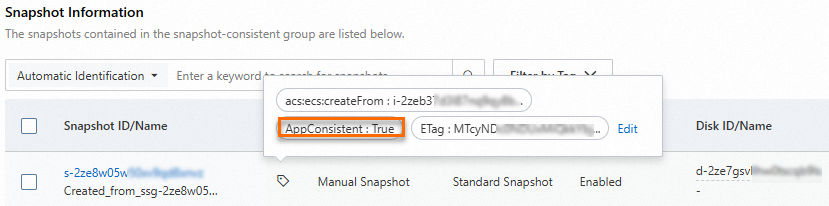
If the
FsConsistent:Truetag appears, a file system-consistent snapshot is created.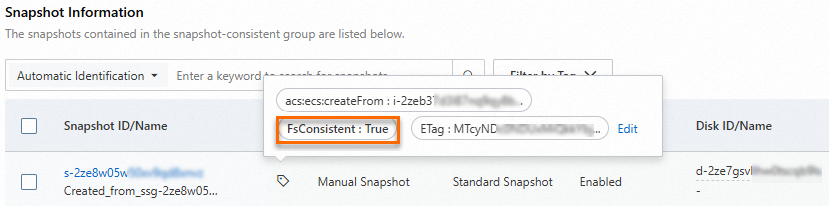
Windows instance
In the upper-left corner of the page, select a region and resource group.
On the Snapshot-consistent Groups tab, click Create Snapshot-consistent Group.
In the Create Snapshot dialog box, configure the following parameters to create a snapshot-consistent group.
By default, the Resource Type parameter is set to Instance.
Select a Windows instance from the Select Instances drop-down list. In the Select Cloud Disks section, select the ESSDs for which you want to create snapshots.
Expand Advanced Settings and configure application-consistent snapshot settings.
If you select Enable Application-consistent Snapshot and Contain Writers by Default, application-consistent snapshots are created. After selecting Enable Application-consistent Snapshot, you can see the option Contain Writers by Default.
If you select only Enable Application-consistent Snapshot, file system-consistent snapshots are created.
NoteIf Cloud Assistant is not installed and you select Enable Application-consistent Snapshot, the Cloud Assistant plug-in is automatically installed.
For parameter details, see the Procedure section.
Click OK.
After creation, a message displays the Cloud Assistant command ID and the task ID.
On the Command Execution Result tab of the ECS Cloud Assistant page, click the task ID and check whether application-consistent snapshots are created.

The value of ExitCode is
0as shown in the preceding figure, indicating that application-consistent snapshots are created successfully. The snapshot-consistent group ID appears in the command output.NoteIf ExitCode is not
0, an error occurred. Troubleshoot based on the ExitCode value. See the Error codes section.View information about the created snapshot-consistent group and snapshots in the group.
On the Snapshot-consistent Groups tab, find the snapshot-consistent group that you created and click the ID of the snapshot-consistent group to view snapshot details.
In the Snapshot Information section, check whether a snapshot is an application-consistent snapshot or a file system-consistent snapshot based on the tag.
If the
AppConsistent:Truetag appears, an application-consistent snapshot is created.If the
FsConsistent:Truetag appears, a file system-consistent snapshot is created.
Call an API operation
Call the RunCommand operation to create application-consistent snapshots for one or more ECS instances via Cloud Assistant.
Configure parameters such as
RegionId,Type,CommandContent, andInstanceId. The following section providesCommandContentsamples and describes the parameters in the command content.Linux instance
acs-plugin-manager --exec --plugin app-snapshot-plugin --params=-RamRoleName=\"AppSnapshotRoleName\",-EnableFsFreeze=true,-TimeoutInSeconds=30,-PreScriptPath=\"/tmp/prescript.sh\",-PostScriptPath=\"/tmp/postscript.sh\",-ExcludeDiskId=\"\",-Name=\"LinuxApp1\",-Description=\"LinuxApp\"acs-plugin-manager --exec --plugin app-snapshot-pluginspecifies the app-snapshot-plugin plug-in for Cloud Assistant.--params=specifies plug-in parameters. The following table describes these parameters.Parameter
Type
Required
Description
RamRoleName
String
Yes
The RAM role attached to the ECS instance.
EnableFsFreeze
Boolean
No
Specifies whether to enable Linux FsFreeze to set file systems to read-only before snapshot creation.
Default value: True.
TimeoutInSeconds
Integer
No
The timeout period for I/O operations. Unit: seconds.
Default value: 30.
PreScriptPath
String
No
The path of the prescript.sh script. Example: /tmp/prescript.sh. The script must meet the following requirements:
Permissions: Set to 700 (only root can read, write, and execute).
Script content: Compile custom scripts based on your business requirements.
ImportantFor Linux instances, this parameter is required. If the script has invalid permissions, paths, or file names, file system-consistent snapshots are created instead.
PostScriptPath
String
No
The path of the postscript.sh script. Example: /tmp/postscript.sh. The script must meet the following requirements:
Permissions: Set to 700 (only root can read, write, and execute).
Script content: Compile custom scripts based on your business requirements.
ImportantFor Linux instances, this parameter is required. If the script has invalid permissions, paths, or file names, file system-consistent snapshots are created instead.
ExcludeDiskId
String
No
The cloud disks to exclude from the snapshots.
Name
String
Yes
The name of the snapshot-consistent group.
Description
String
No
The description of the snapshot-consistent group.
Windows instance
acs-plugin-manager --exec --plugin app-snapshot-plugin-win --params=-RamRoleName=\"AppSnapshotRoleName\",-EnableWriters=true,-ExcludeDiskId=\"\",-Name=\"APPSnapshot-1\",-Description=\"AppSnapshot\"acs-plugin-manager --exec --plugin app-snapshot-plugin-winspecifies the app-snapshot-plugin-win plug-in for Cloud Assistant.--params=specifies plug-in parameters. The following table describes these parameters.Parameter
Type
Required
Description
RamRoleName
String
Yes
The RAM role attached to the ECS instance.
EnableWriters
Boolen
No
Specifies whether to create application-consistent snapshots. Valid values:
true
false
Default value: true.
ExcludeDiskId
String
No
The cloud disks to exclude from the snapshots.
Name
String
Yes
The name of the snapshot-consistent group.
Description
String
No
The description of the snapshot-consistent group.
Call the DescribeInvocationResults operation with the returned
InvokeId.Check whether application-consistent snapshots are created.
ExitCodeindicates the result:0: Application-consistent snapshots are created.If the value of ExitCode is not
0, an error occurred. Fix the error based on the returned error code. See the Error codes section of this topic.
Outputcontains the command output. If the snapshot-consistent group is created, the group ID is displayed.[time=\"2025-03-04 16:09:25.8200239\"][message=\"Finish SnapshotGroup=ssg-2zefohc25d7n1grq**** Creation, TotalCost=3.8204978s, QueryCost=2.9307022s\"]\n[level=\"info\"][time=\"2025-03-04 16:09:25.8200239\"][message=\"Prepare to Thaw FileSystem or Applications\"]\n[requestor=\"\n\"]\n[level=\"info\"][time=\"2025-03-04 16:09:27.7133096\"][message=\"Thaw Write Request Done\"]\n[level=\"info\"][time=\"2025-03-04 16:09:28.0355042\"][message=\"Tag snapshots with AppConistent\"]\n[level=\"info\"][time=\"2025-03-04 16:09:28.0365941\"][message=\"Take AppConsistent snapshots successfully\"]
Error codes
Error code (ExitCode) | Description |
0 | The snapshot is created as expected. |
1 | One or more conditions are not met:
|
2 | The type or number of the parameters that follow the |
3 | One of the following errors occurred:
|
4 | The snapshot-consistent group cannot be created. |
5 | The snapshot-consistent group is not in the expected state. |
6 | The request to create the snapshot-consistent group timed out. |
7 | A disk snapshot in the snapshot-consistent group is not in the expected state. |
8 | Tags cannot be added to the snapshot. |
9 | The prescript.sh script cannot be run. |
10 | The postscript.sh script cannot be run. |
11 | I/O operations cannot be suspended. |
12 | I/O operations cannot be resumed. |
13 | No RAM role is attached to the instance. |
14 | The number of snapshots exceeded the upper limit. |
15 | The snapshot is not in the expected state. |
16 | The previous snapshot is being created, and new snapshots cannot be created. |
255 | An unknown error occurred. |
References
You can create application-consistent snapshots for MySQL or SQL Server databases. See Best practices for creating application-consistent snapshots for MySQL (Linux) or Best practices for SQL Server application-consistent snapshots (Windows).