CloudApp CLI user guide
This topic describes how to use the CloudApp command-line interface (CLI).
Introduction
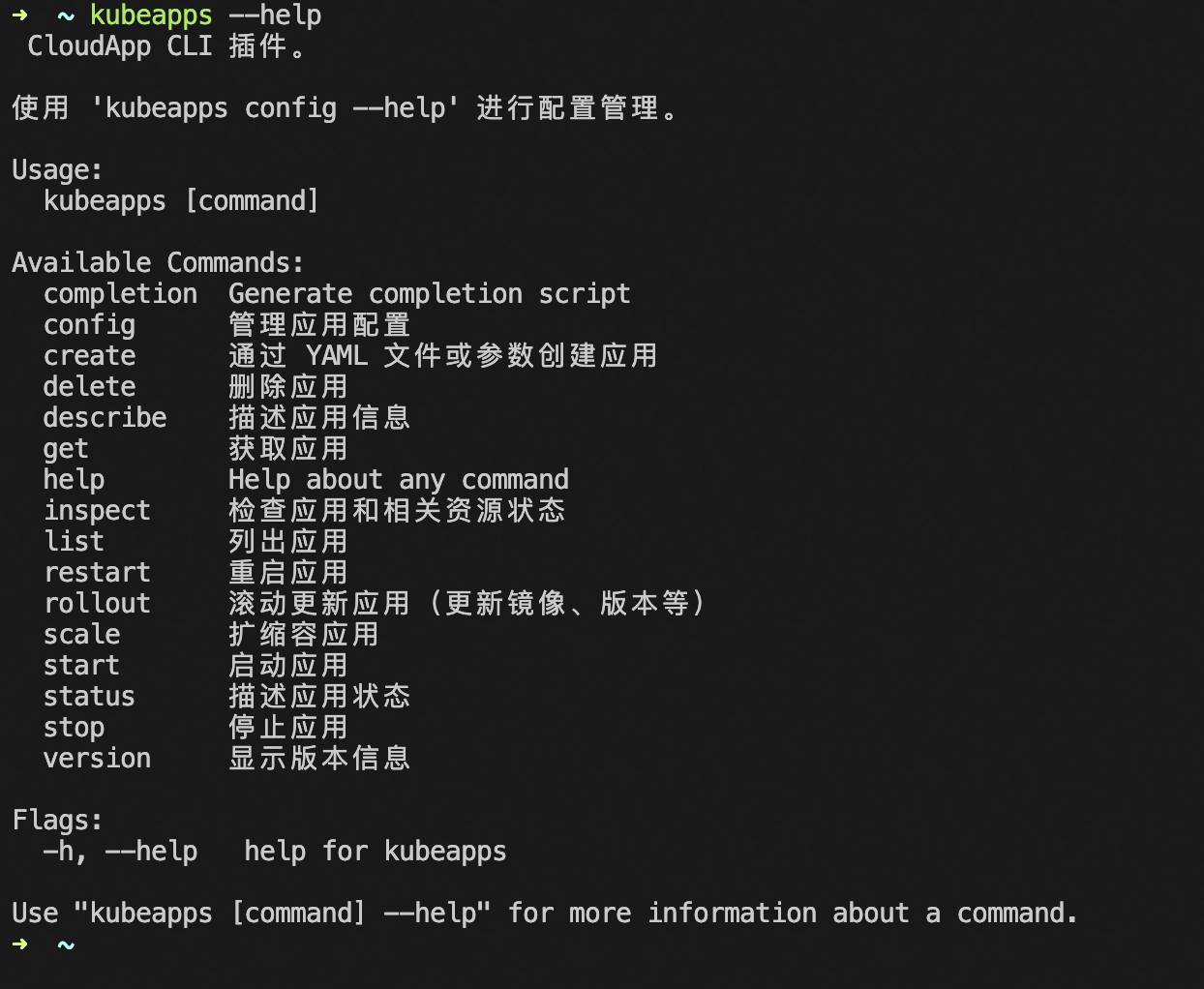
The CloudApp CLI is a standard Kubectl plugin provided by EDAS. It helps developers and O&M engineers manage the complete lifecycle of Kubernetes applications from the command line, including operations and releases. The following table lists the core commands.
Command classification |
Command |
Description |
Application lifecycle management |
create |
Creates a new application. |
delete |
Deletes an application. |
|
start |
Starts an application (scales out to the specified number of replicas). |
|
stop |
Stops an application (scales in to 0 replicas). |
|
restart |
Restarts an application. |
|
scale |
Scales an application out or in. |
|
Application deployment and updates |
rollout |
Performs an application deployment, such as updating the image or version. |
View application status |
get |
Gets basic information about an application. |
list |
Lists all applications. |
|
status |
Views the status of an application. |
|
describe |
Views detailed information about an application. |
|
inspect |
Inspects the status of an application and its related resources. |
|
Configuration management |
config |
Manages configurations. |
help |
Views help information for commands. |
|
Tool information |
version |
Views version information. |
Install tools
Linux/macOS
Download URLs
Linux
x86-64
wget -O kubeapps https://edas-hz.oss-cn-hangzhou.aliyuncs.com/cloudapp/cli/kubeapps-linux-amd64ARM64
wget -O kubeapps https://edas-hz.oss-cn-hangzhou.aliyuncs.com/cloudapp/cli/kubeapps-linux-arm64macOS
x86-64
wget -O kubeapps https://edas-hz.oss-cn-hangzhou.aliyuncs.com/cloudapp/cli/kubeapps-darwin-amd64ARM64
wget -O kubeapps https://edas-hz.oss-cn-hangzhou.aliyuncs.com/cloudapp/cli/kubeapps-darwin-arm64Install and verify
chmod +x kubeapps
sudo mv kubeapps /usr/local/bin/

# Verify the installation
kubeapps version
Windows
Download URL
https://edas-hz.oss-cn-hangzhou.aliyuncs.com/cloudapp/cli/kubeapps-windows-amd64.exeInstall and verify
# Download kubeapps.exe to a system path.
# Or, add it to the PATH environment variable.
kubeapps.exe version
Common commands
Configuration management
Configuration management lets you display all current configuration information, such as cluster connections and personal settings. You can also specify the path of the Kubernetes configuration file, the Kubernetes cluster context to use, and the language for the command-line help menu.
# View the current configuration
kubeapps config show

# Set the kubeconfig file
kubeapps config set kubeconfig ~/.kube/config

# Set the language
kubeapps config set language zh
Application management
You can create an application named example-app that uses a specified container image. You must specify the application name, registry address, workload type, and namespace. The default workload type is Deployment, and the default namespace is default.
# Create the application
kubeapps create example-app --image=registry.cn-hangzhou.aliyuncs.com/edas-demo-project/consumer:1.0 --workload-type=Deployment -n default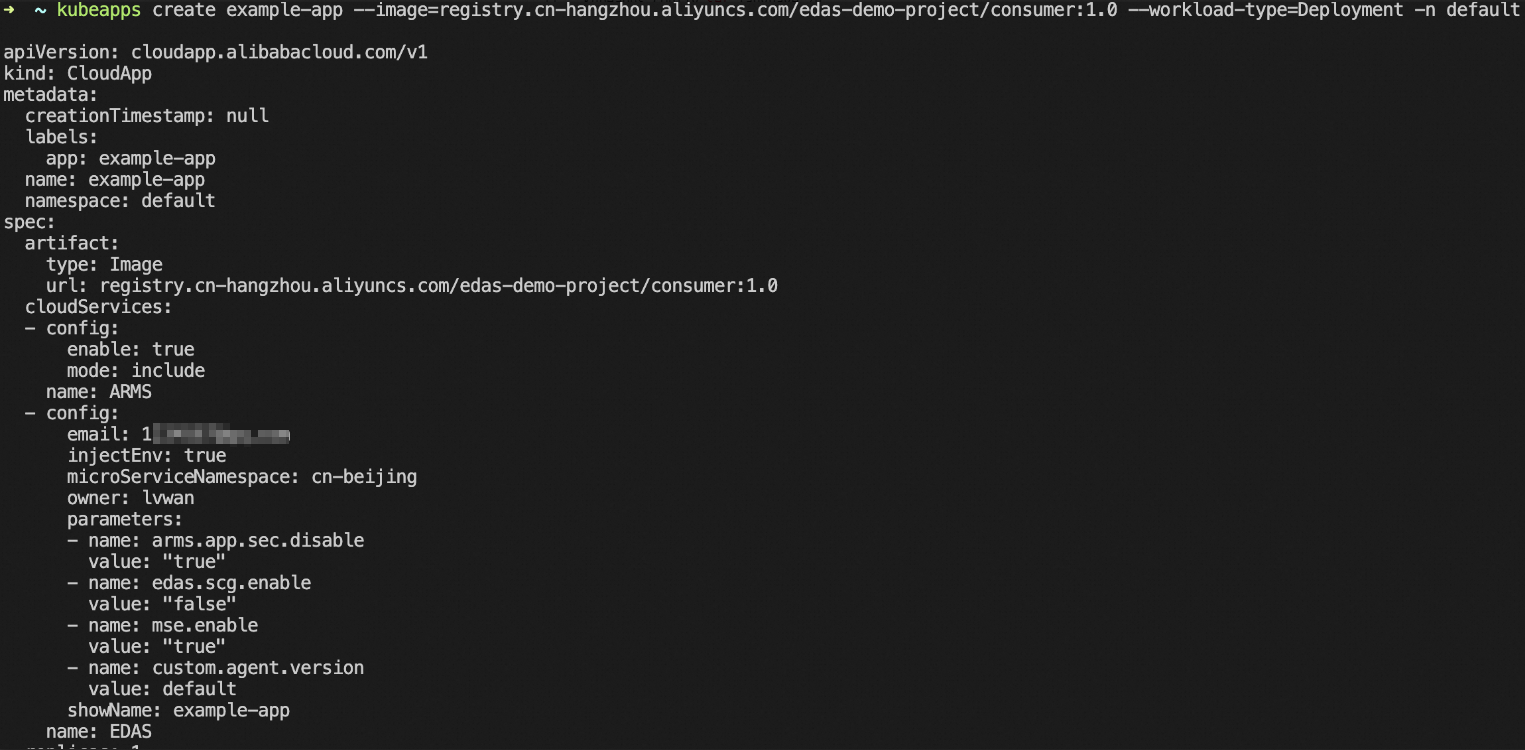
You can run the list command to check if the application was created. This command lists all CloudApp applications in the specified namespace.
# List all CloudApp applications in the specified namespace (default: default).
kubeapps list
You can run the get command to retrieve the basic information and status of the application.
# View application details
kubeapps get example-app
You can run the delete command to delete the application. If you run the get command again after the application is deleted, an error is returned.
# Delete the application
kubeapps delete example-app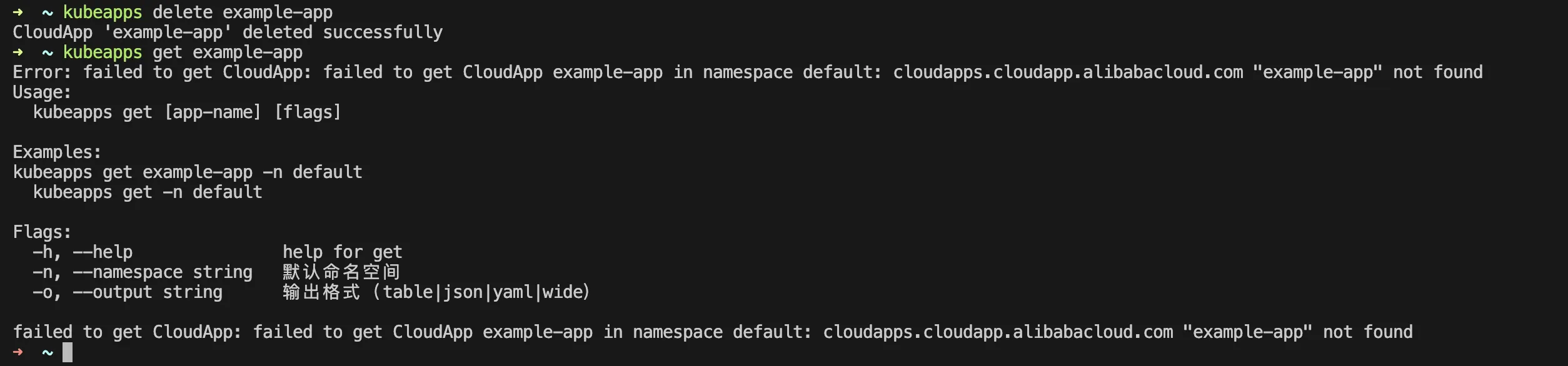
Deployments and updates
Direct deployment
You can run the rollout command and specify an image name to directly deploy the application.
# Update immediately
kubeapps rollout example-app --image=registry.cn-hangzhou.aliyuncs.com/edas-demo-project/provider:1.0
After the creation is successful, you can use the rollout history subcommand to view the publish history.
# View the deployment history
kubeapps rollout history example-app
Phased release
You can update the application in batches. Only a portion of replicas are updated in each batch to ensure service availability. For example, setting --batch=3 specifies that the update occurs in three batches. After a batch is deployed, you can run the status or inspect command to view the current status. When the application status is Paused, you can deploy the next batch.
For a phased release, the number of replicas must be greater than the number of batches. You can run the scale command to scale out the application.
# Scale out the application. The number of batches cannot be greater than the number of replicas.
kubeapps scale example-app --replicas=5
After the application is scaled out, you can run the rollout command and specify the batch parameter to perform a phased release.
# Update in batches
kubeapps rollout example-app --image=registry.cn-hangzhou.aliyuncs.com/edas-demo-project/provider:1.0 --batch=3
When the application status is Paused, the current batch is complete and you can proceed to the next batch.
# View the status
kubeapps rollout status example-app -n default
Run the promote subcommand of the rollout command to proceed to the next batch.
# Proceed to the next batch (the second batch)
kubeapps rollout promote example-app
Next, check the deployment status. A status of Progressing indicates that the batch is being processed. The status then changes to Paused.
Proceed to the next batch.
# Proceed to the next batch (the third batch)
kubeapps rollout promote example-app
After the deployment completes, the application status changes to Ready.
You can also run the inspect command to check the status of the CloudApp application and its resources.
kubeapps inspect example-app