CloudApps User Guide
CloudApps is a VS Code extension designed for developers who use Alibaba Cloud Enterprise Distributed Application Service (EDAS). It lets you view and edit your cloud applications in real time, just as you would on your local machine.
The extension currently supports VS Code and Qoder.
Core features
One-click connection: Connect directly to Kubernetes pods over SSH.
Intelligent search: Quickly search by pod name, IP address, or application name.
Remote development: Integrates with the VS Code Remote-SSH extension to support remote workspace development.
Secure connection: Automatically generates and manages SSH key pairs.
Getting started
1. Install the extension
In the extension marketplace, search for "CloudApps" and click Install.
Note:
For VS Code users: This extension depends on the official Microsoft "Remote - SSH" extension. Ensure that you install it as well.
For Qoder users: No additional installation is required because this feature is built into Qoder.
2. Configure credentials
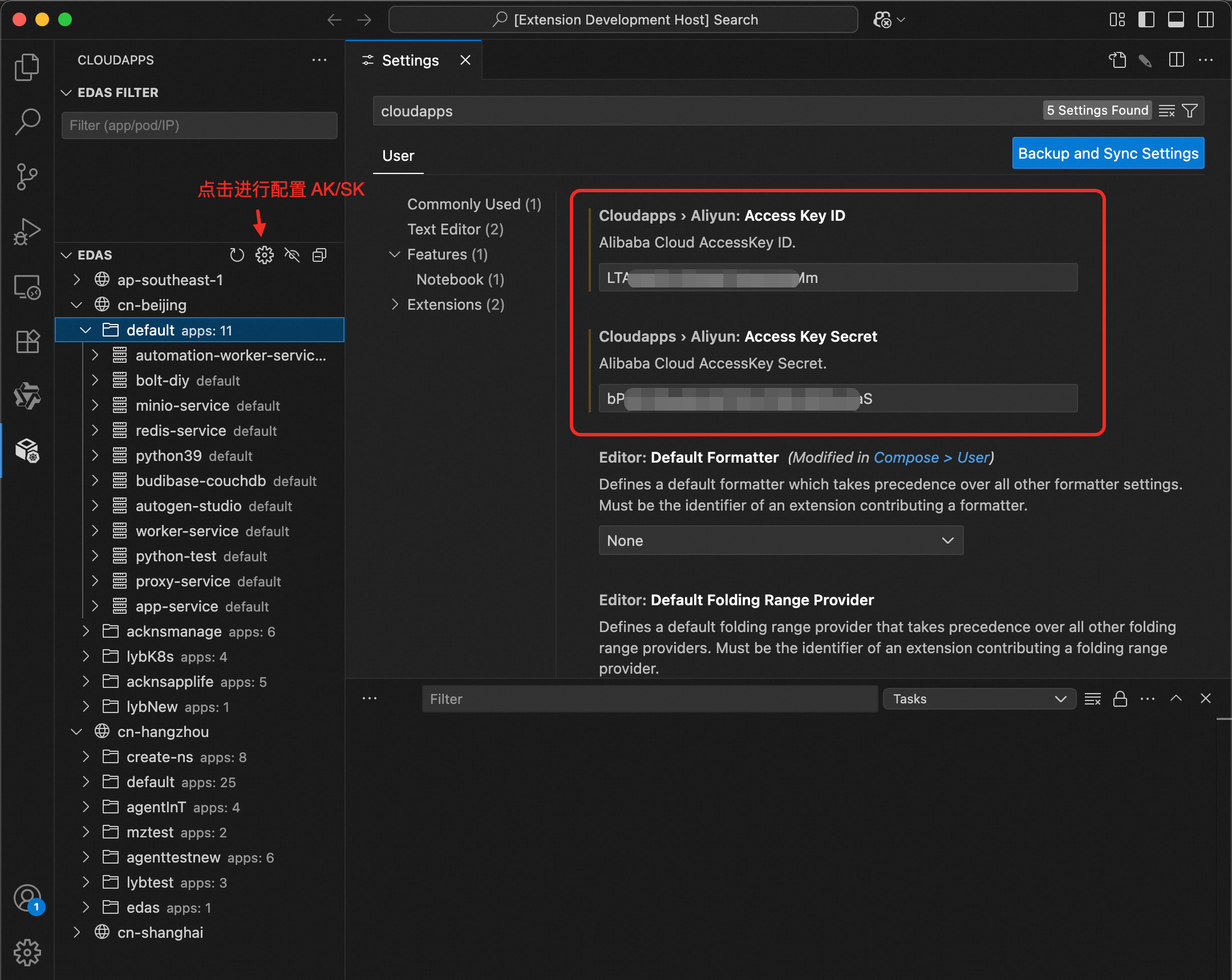
Go to the extension's settings page to configure your Alibaba Cloud AccessKey ID and AccessKey secret. After you complete the configuration, click the refresh button to retrieve the application list.
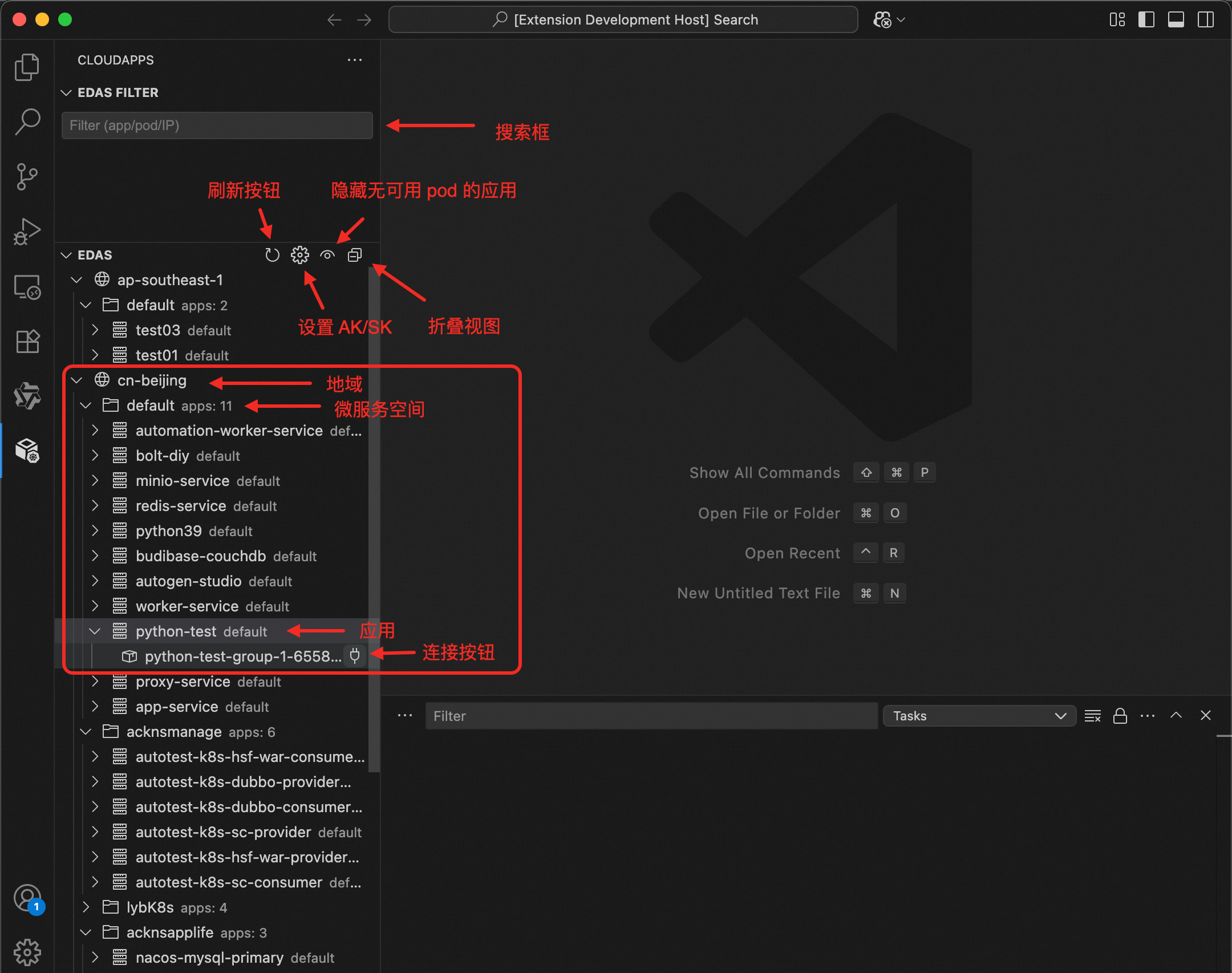
3. Find an application
You can enter an application name or IP address in the input box to filter the list, or find the application directly in the tree view.
For example, if you know a segment of a pod's IP address, such as 10.76.207, you can enter that segment into the EDAS FILTER input box. CloudApps automatically filters the list and displays all pods that match the IP prefix. This lets you quickly find the target container.
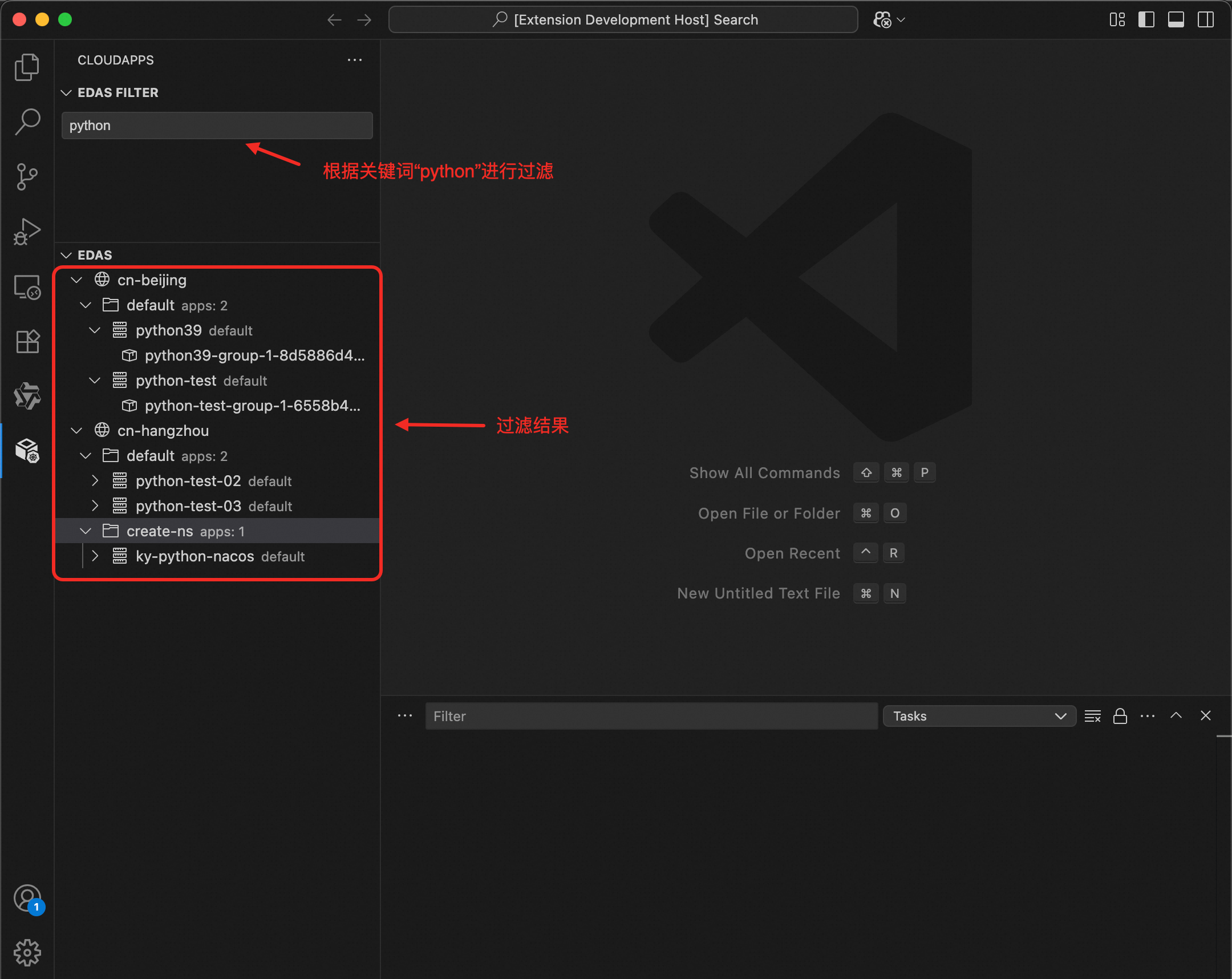
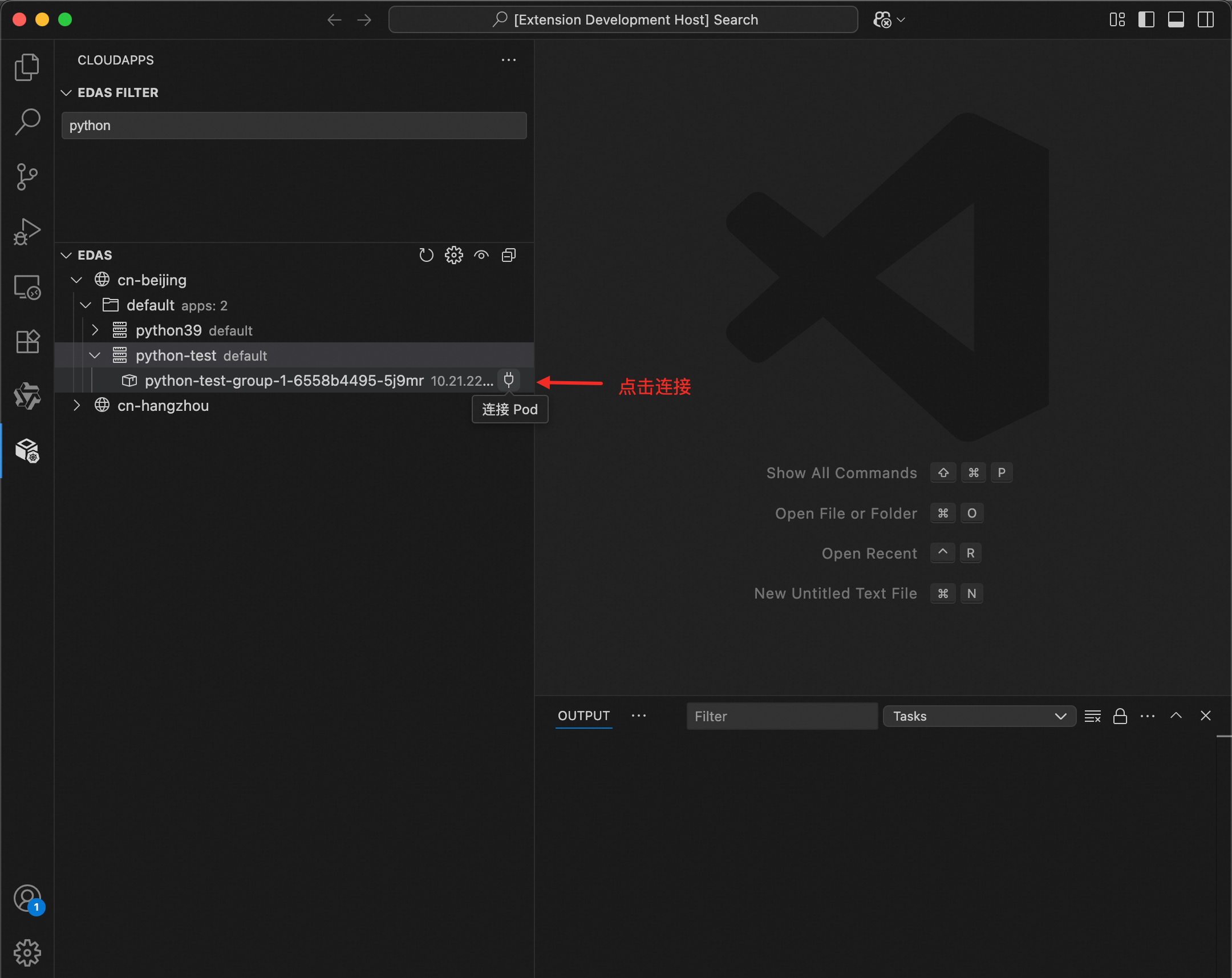
Similarly, to find all Python-related applications, you can simply enter the keyword python. CloudApps immediately filters the list to display all applications that contain the keyword, such as python39 and python-test, and all their pods.
4. Establish a connection
Click the Connect icon next to the target pod.
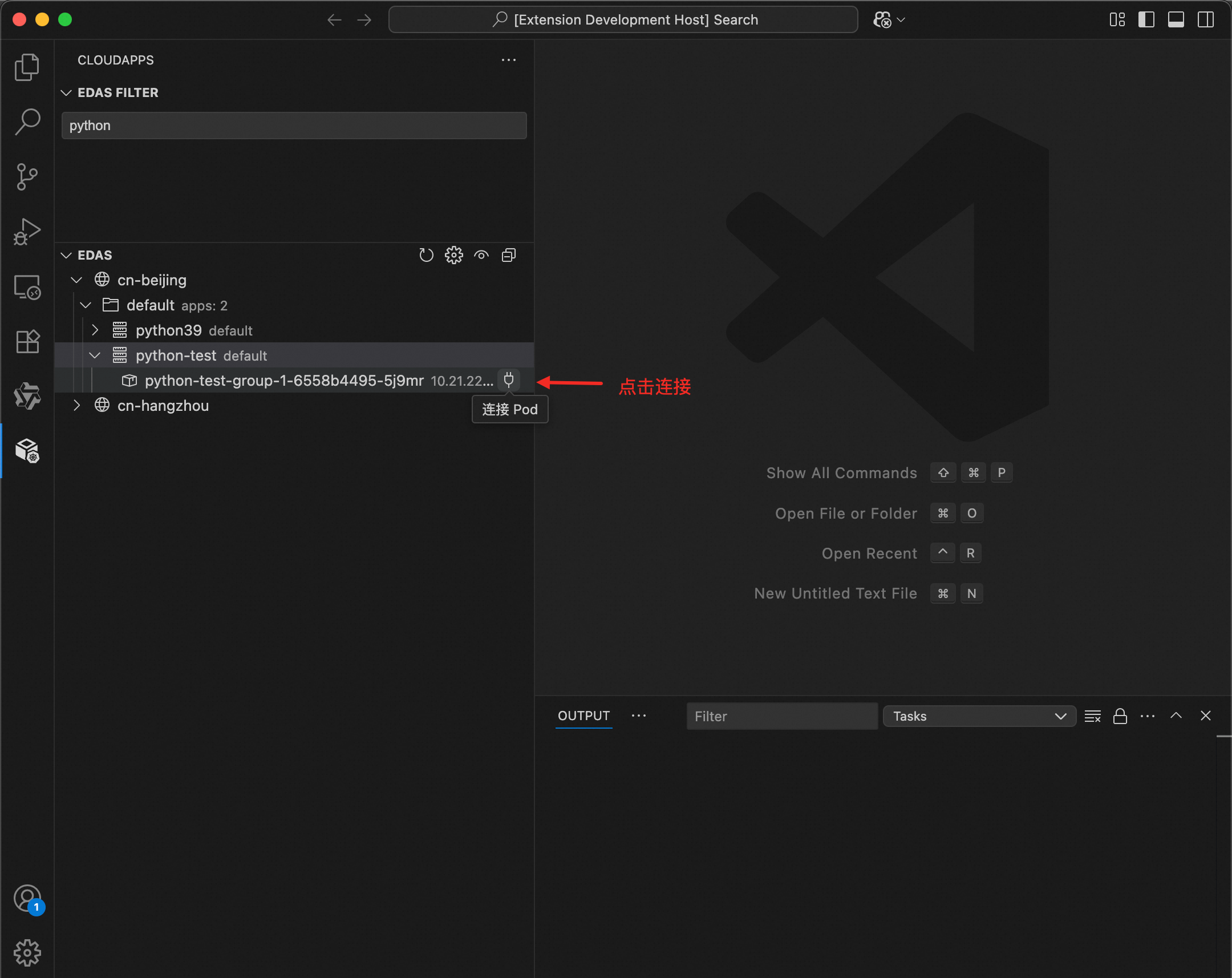
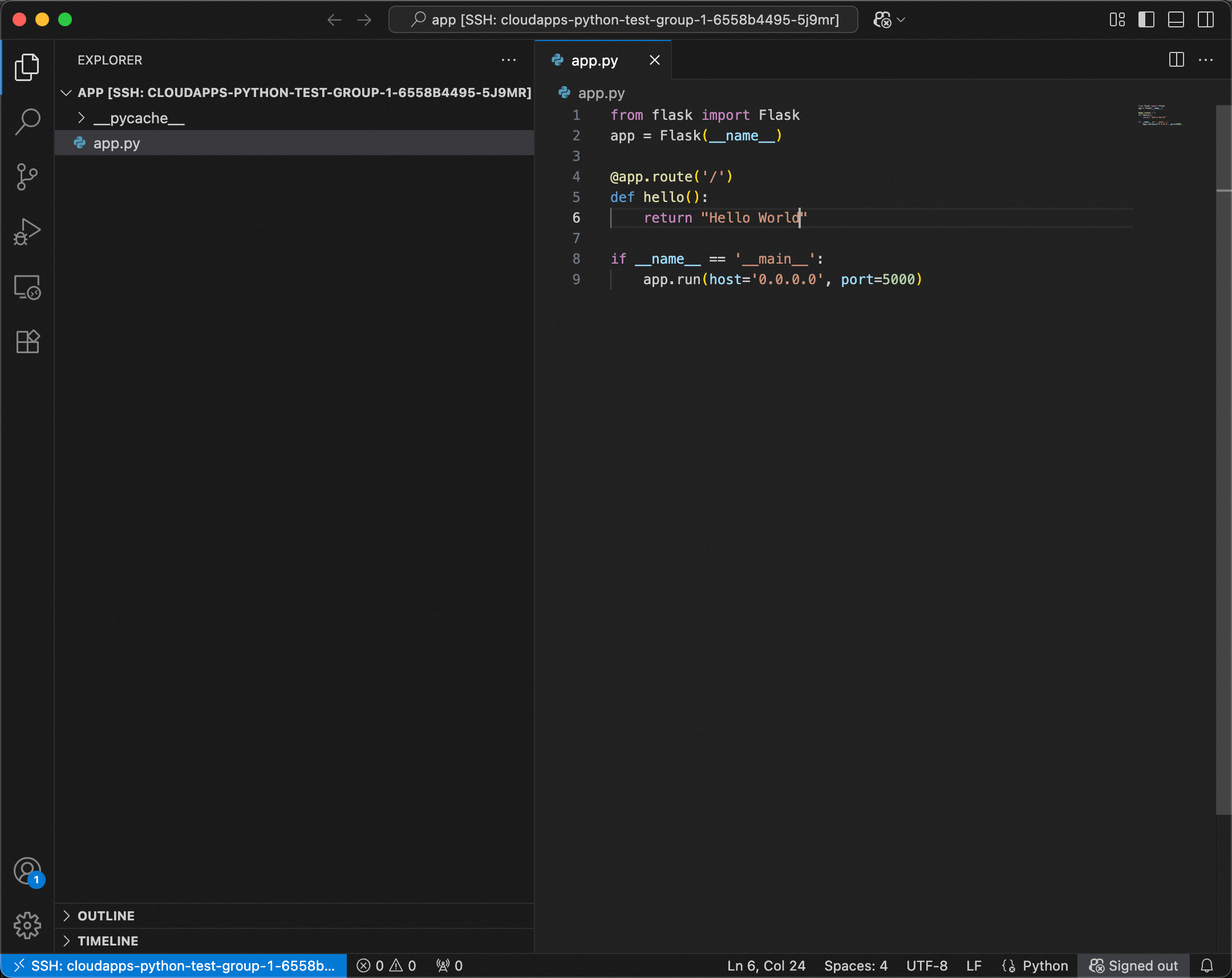
After a successful connection, VS Code automatically opens a new remote window where you can begin your cloud development.
Scenario: Make real-time changes to a Flask application in the cloud
Suppose you have a Flask application deployed on EDAS and need to quickly test a feature change. With CloudApps, you can complete the entire process in a few minutes:
1. Find and connect to the target pod
In CloudApps, enter an application name, such as python, in the EDAS FILTER input box to quickly locate your Flask application pod.
Click the Connect icon next to the target pod. CloudApps automatically completes the SSH configuration and opens a remote workspace.
2. View and edit the code
After a successful connection, VS Code opens a new window. The file tree on the left displays the directory structure of the pod. You can open source code files, such as app.py, and edit them directly. For example, you can change Hello from Flask to Hello World:
3. Verify the results
a) Port forwarding
Use kubectl port-forward to map the application port to your local machine:
kubectl port-forward -n default pod/python-test-group-1-6558b4495-5j9mr 8000:8000b) Reload the application
Flask development mode: The application automatically reloads after you save the file. No additional steps are required.
Gunicorn production mode (used in this example): You must manually restart the service. Run the following commands in the pod terminal:
ps aux | grep gunicorn  # Find the main process ID
kill -HUP <PID>         # Reload the configuration
c) View the result
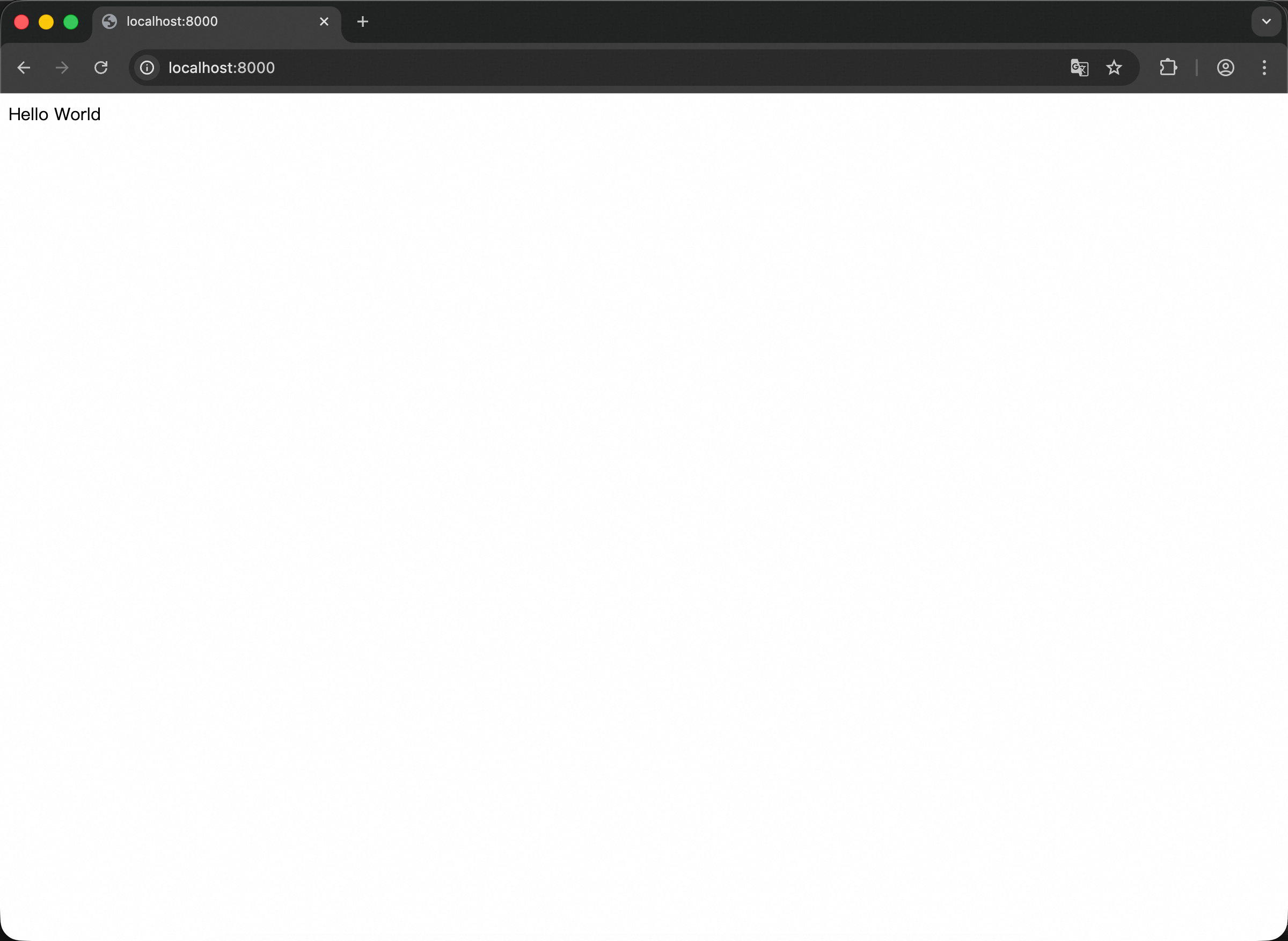
In your browser, go to http://localhost:8000 to immediately see the results of your code changes.
This entire process does not require rebuilding the image or restarting the pod, which greatly improves debugging efficiency.
FAQ
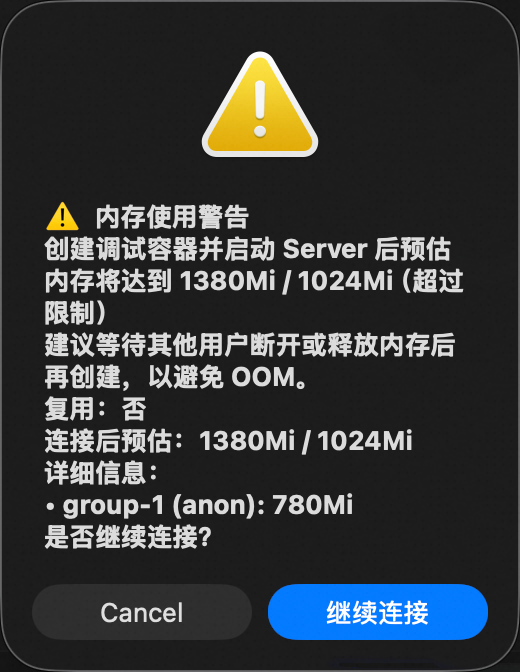
1. Why was my container OOMKilled (out-of-memory)?
Cause: CloudApps needs to run VS Code Server in the pod. This process consumes memory resources, typically several hundred MB. If your pod's memory limit is set too low, starting VS Code Server can cause the container to exceed its memory limit.
Solution: Increase the pod's memory limit in the EDAS console. A minimum of 2 GB is recommended.
2. Why do I see a "Forbidden" (permission denied) error?
Some CloudApps features, such as creating ephemeral containers, require Kubernetes Role-Based Access Control (RBAC) permissions. If you encounter permission issues, ensure that your cluster role includes the permission to create ephemeral containers.
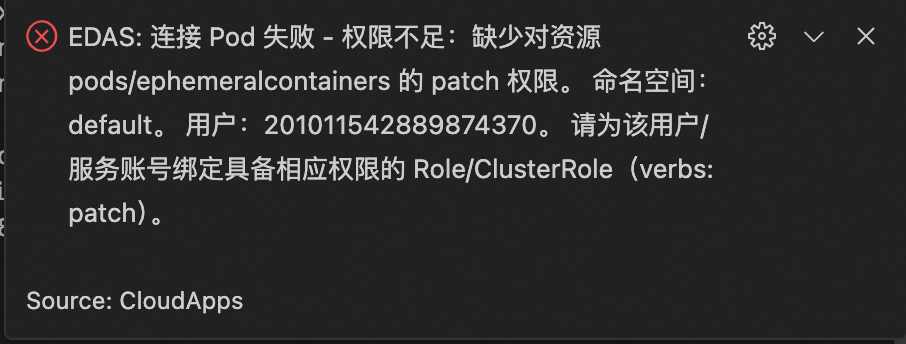
Configure the following custom ClusterRole. For more information, see Use custom RBAC to restrict resource operations in a cluster.
apiVersion: rbac.authorization.k8s.io/v1
kind: ClusterRole
metadata:
  name: pod-ssh-minimal
rules:
  - apiGroups: [""]
    resources: ["pods"]
    verbs: ["get", "list", "watch"]
  - apiGroups: [""]
    resources: ["pods/exec"]
    verbs: ["get", "create"]
  - apiGroups: [""]
    resources: ["pods/ephemeralcontainers"]
    verbs: ["patch"]