During development, developers and testers often need to call online services to debug deployed services or query live data. The service testing feature lets you enter call parameters, initiate service calls, and view the results in the EDAS console.
Background information
The service testing feature is in public preview and is free to use.
If you use a RAM user to test services, you must first grant the required permissions in the RAM console. For more information, see Grant permissions for service testing in RAM.
Procedure
-
Log on to the EDAS consoleEDAS console.
-
In the left-side navigation pane, choose .
In the navigation pane on the left of the Spring Cloud page, click Service Testing.
In the top menu bar, select a region. To the right of Service Testing, select a microservices namespace, and then click a service name.
On the Select Test Method panel, in the Interface Metadata list, find the class of the service that you want to test and click Test in the Request Path column.
On the Test Service panel, set the parameters and click Execute.
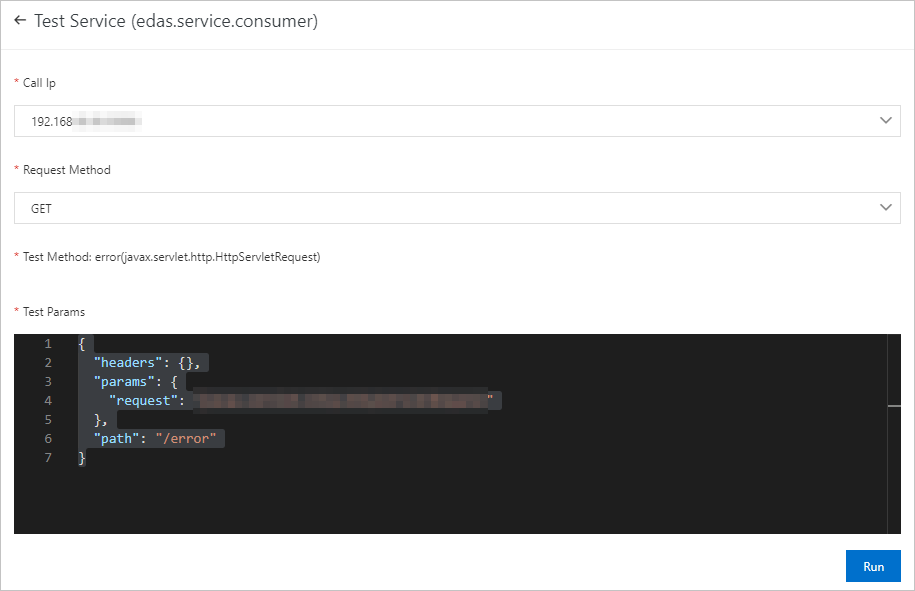
The following table describes the parameters.
Parameter
Description
Call IP
The IP address of the service instance, which can be an ECS instance or a pod. If the service is deployed on multiple instances, select one IP address from the list for the test. You can select only one.
Request Method
The request method of the class. If the class has multiple request methods, select one from the list. You can select only one.
Test Method
In the parameter section for the test method, set the specific parameters for the method based on the service code.
Verify the result
In the Result section, check whether the test is successful. The following test results are possible:
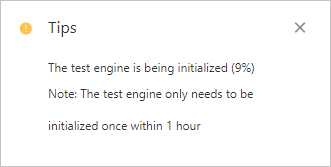
The Result indicates a failure, and the message The test engine is preparing. Please try again later. is displayed. This occurs because the test engine requires 30 to 50 seconds to initialize when a service test is run for the first time. Wait 30 to 50 seconds and then run the test again.
The Result indicates success and displays the service response.
The Result is Failed, and a failure response message is displayed. You can use the response to troubleshoot issues with the service port, network, or code.