Tag-based routing uses tags to assign service providers to a specific group. This confines traffic to that group, effectively isolating it. You can use tag-based routing for multi-version development and testing, traffic isolation for different versions of an application, and A/B testing. This topic describes how to configure tag-based routing for Spring Cloud services.
Background information
Tag-based routing is available only for applications that are deployed in Elastic Compute Service (ECS) clusters.
Scenarios
Multi-version development and testing
If you develop multiple versions in parallel, each version requires a separate development environment, which increases costs. To reduce costs, you can use tag-based routing to implement end-to-end traffic adjustment.
The end-to-end traffic isolation mechanism uses tag-based routing to route specific traffic to a designated development environment. For example, in development environment 1, you can create a Tag1 tag for application B (V1.1) and application D (V1.1) and configure corresponding routing rules. When the entry application A calls application B, the system checks whether the traffic matches the routing rule. If the traffic matches the rule, it is routed to version V1.1 of application B in development environment 1. Otherwise, the traffic is routed to version V1 of application B in the baseline environment. Similarly, when application C calls application D, the traffic is routed to either version V1 or V1.1 of application D based on the same logic.
Traffic isolation between multiple versions of the same application
If multiple versions of an application are running online in different environments, such as a standard environment and a special environment, you can use tag-based routing to isolate traffic. You can route traffic from flash sales or different order channels to the special environment, and route normal traffic to the standard environment. This way, if the special environment becomes abnormal, the traffic routed to it does not affect the standard environment.
A/B Testing
If multiple versions of an application are running online, you can perform A/B testing. You can use the end-to-end traffic adjustment feature to route traffic from customers in Region A to version V1 and traffic from customers in Region B to version V1.1. Validating different versions helps reduce the risks associated with releasing new products or features and supports product innovation.
Procedure
In this example, Application A is deployed in an ECS cluster. The application has a default group with three application instances.
The tag-based routing flow proceeds as follows:
Create two new groups for Application A: group1 and group2.
Move two application instances from the default group to group1 and group2.
Create tags for the group1 and group2 groups to enable tag-based routing.
Create a tag-based routing rule: Create tag-based routing rules that are based on the tags of group1 and group2.
After the tag-based routing rules are created, when Application B calls Application A, traffic is routed to group1 and group2 based on the rules. Traffic that does not match the routing rules for group1 and group2 is routed to the default group.
Create tags
Create a new group for the application, add instances to the group, and then create a tag for the group in its Java Virtual Machine (JVM) settings.
-
Log on to the EDAS consoleEDAS console.
Create an application group. For more information, see Create a group.
Add instances to the new group. You can move instances from the default group or scale out the new group. For more information, see Add an instance.
ImportantApplication instances that are moved from the default group must be restarted to recognize the tag. Instances that are added by scaling out the new group do not need to be restarted.
In the upper-right corner of the new group, click Group Settings, and then click JVM.
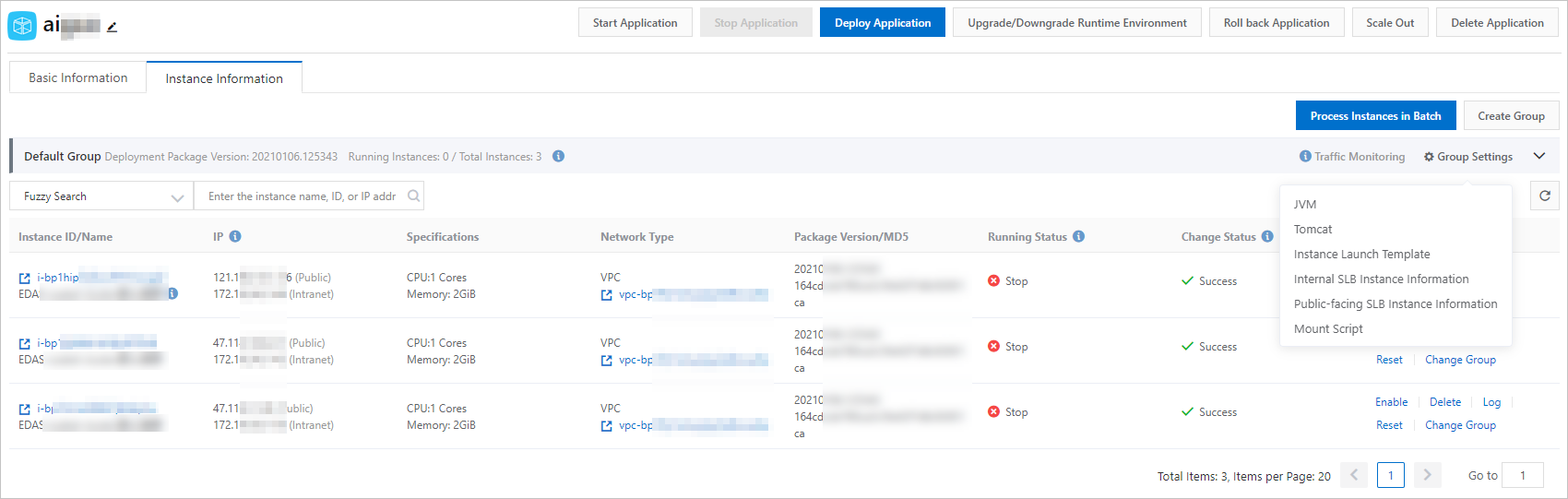
In the Group Settings dialog box, click Custom. In the Custom section that appears, enable the Custom switch, set the group tag in the Configuration Content text box, and then click Configure JVM Parameters.
Set the group tag as a custom parameter in the
-Dalicloud.service.tag=tag1format, where tag1 is the tag name. You can set the name as required.
Restart the application.
Method 1: On the Applications page, select the application and click Batch Restart. In the Confirm dialog box, click OK.
Method 2: On the Applications page, click the application name. In the upper-right corner of the Basic Information page, click Stop Application and Start Application.
NoteCustom JVM parameters take effect only after the application is restarted.
Create tag-based routing rules
After you create groups and add tags to them, you can create routing rules for the different tags.
-
Log on to the EDAS consoleEDAS console.
-
In the left-side navigation pane, choose .
In the navigation pane on the left of the Spring Cloud page, click Tag-based Routing.
On the Tag-based Routing page, select a Microservices Namespace, and then click Create Tag-based Routing.
In the Create Tag-based Routing panel, set the parameters and click OK.
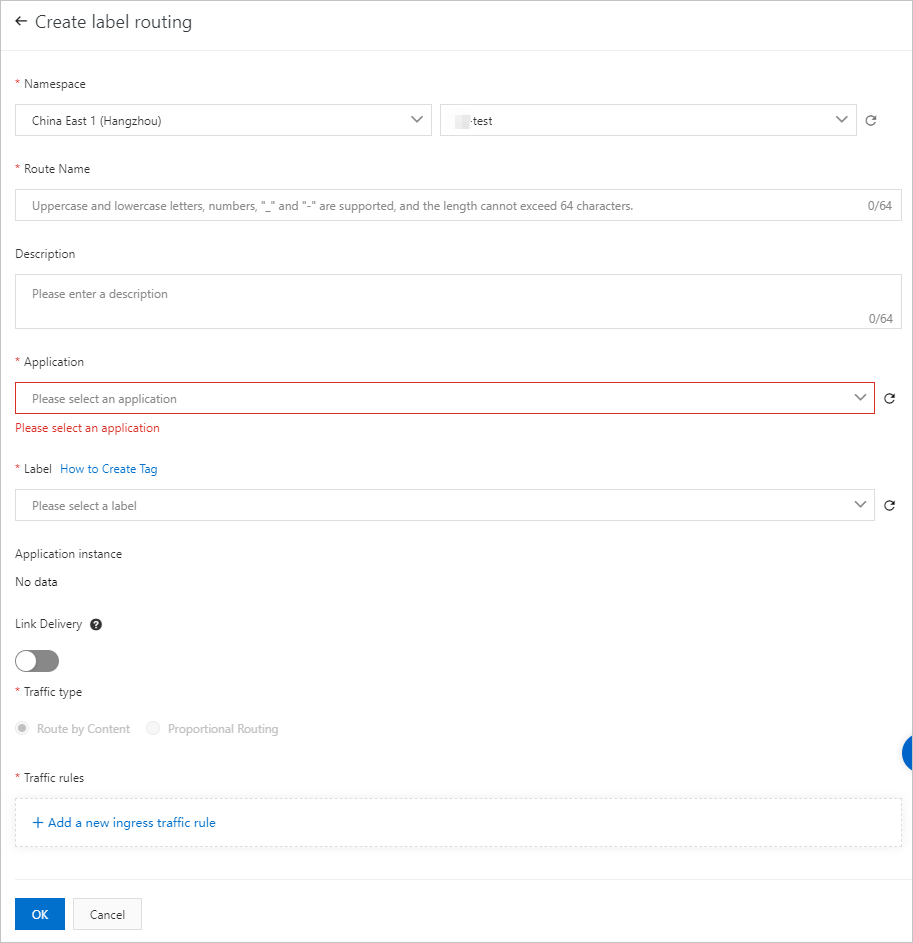
Tag-based routing parameters:
Configuration Item
Description
Microservices Namespace
The list of regions is on the left, and the list of microservices namespaces is on the right. Make a selection as needed.
Routing Rule Name
The name of the tag-based routing rule. For example,
label-routing-group1.Description
A description of the rule.
Application
Select an application from the drop-down list.
Tag
Select a tag from the drop-down list. The tag is the value of the custom JVM parameter -Dalicloud.service.tag that you set for the new application group.
After you select a tag, the IP addresses of the instances in the group are displayed in the Application Instances section.
Link Propagation
To use end-to-end traffic adjustment, turn on the Enable Link Delivery switch.
NoteThe end-to-end traffic adjustment feature is in canary release. To use this feature, join the DingTalk group (ID: 31723701) to contact EDAS support.
Traffic Rules
Framework Type
Valid values are Spring Cloud and Dubbo. Select a value based on the application framework.
Spring Cloud: You can set only the URL path, such as
/getIp.Dubbo: You can select a service and an interface.
Path
The relative path of the HTTP request.
Condition Mode
Valid values are Meet all of the following conditions and Meet any of the following conditions. Make a selection as needed.
Condition List
You can set parameters of the Parameter, Cookie, Header, and Body Content types. For example:
Parameter:
name=xiaomingCookie:
hello = "world" or "world2"
Result verification
You can validate as needed.
By default, 100% of the traffic is routed to the node with tag1 based on the traffic allocation settings.

Traffic that matches a rule is routed to the node with the corresponding tag.
