Enterprise Distributed Application Service (EDAS) sends alert notifications to contacts when a dispatch rule in a notification policy is triggered. Contacts can receive alerts through phone calls, text messages, emails, or DingTalk chatbots. This topic describes how to create, verify, and manage contacts.
Navigate to the contacts page
The following steps apply to all contact operations.
Log on to the EDAS console.
In the left-side navigation pane, choose Application Management > Applications.
In the top navigation bar of the Applications page, select a region. From the Microservices Namespace drop-down list, select a microservices namespace. From the Cluster Type drop-down list, select ECS Clusters. Click the name of the target application.
In the left-side navigation pane, choose Alert Management > Contact.
Create a contact
On the Contacts tab, click Create Contact in the upper-right corner.
In the Create Contact dialog box, enter the contact details and click OK.
ImportantProvide at least one of the following: Mobile Phone Number or Email. Each phone number or email address can belong to only one contact.
The new contact appears on the Contacts tab. To use a phone number for alerts, verify it first.
Verify a phone number
You must verify a phone number before you can use it in a notification policy. Verify phone numbers before adding them to notification policies.
On the Contacts tab, locate the contacts whose phone numbers require verification:
Single contact: Find the contact and click Not Verified next to the phone number.
Multiple contacts: Select the contacts and click Batch Verify.
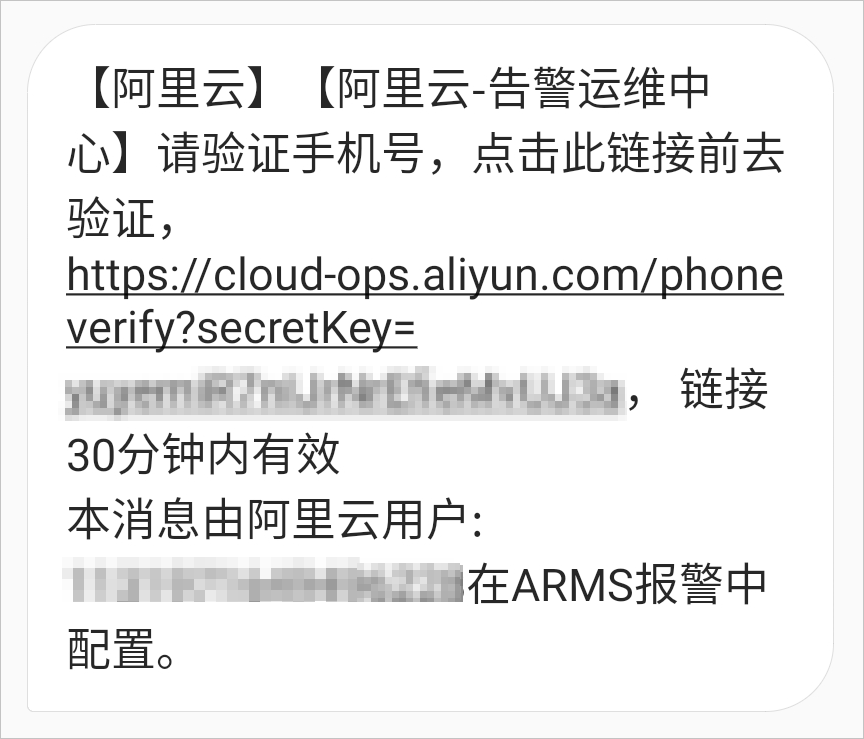
EDAS sends a verification text message to each selected contact.
Open the URL in the text message in a browser.
On the verification page, confirm the phone number and click Verify.
After verification, the phone number becomes available for use in notification policies.
Manage contacts
After you create a contact, you can search for, edit, and delete the contact on the Contacts tab.
Limits
| Item | Limit |
|---|---|
| Maximum contacts per Alibaba Cloud account | 100 |
| Phone number or email uniqueness | Each phone number or email address belongs to only one contact |
| Phone number verification | Only verified phone numbers can be used in notification policies |