Manage resource groups
You can use resource groups to control permissions for resource purchases made by an Alibaba Cloud account and for application management performed by Resource Access Management (RAM) users.
EDAS lets you grant resource group permissions to RAM users. A RAM user who has these permissions can manage all resources in the resource group. For more information, see Permission management overview.
Scenarios
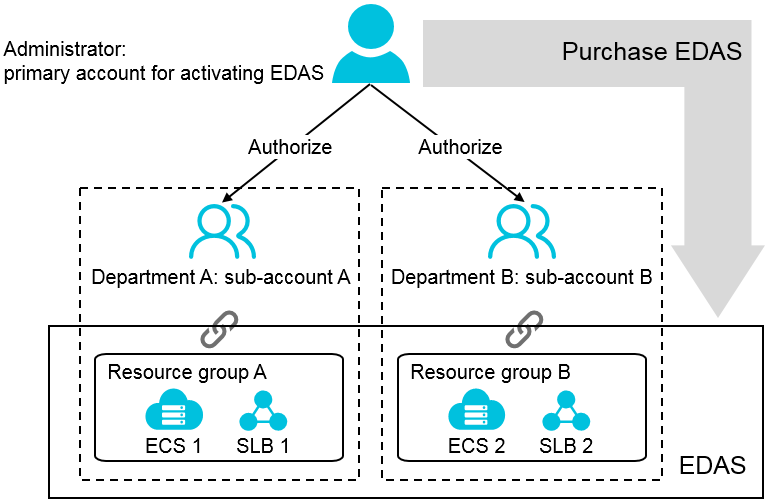
- A company uses EDAS to build its business applications. Department A is responsible for the User Center application, and Department B is responsible for the Product Hub application.
- Both departments share a single EDAS service that is managed by one Alibaba Cloud account. Each department has a separate RAM user. Department A has several dedicated ECS and SLB instances to deploy the User Center application.
- The company creates a resource group in EDAS. It adds Department A's ECS and SLB instances to this resource group. Then, it grants permissions on this resource group to Department A's RAM user.
- When Department A uses its RAM user, it can manage only the resources within this resource group. This prevents conflicts between Department A and Department B.
Go to the Resource Group Management page
Log on to the EDAS console.
- In the navigation pane on the left, choose .
- On the Resource Group page, select a region. You can view the resource groups in the selected region and the ECS and SLB instances within each resource group.
View resource groups
On the Resource Group page, you can view details about resource groups, such as the resource group name, description, ECS instances and their internal and public IP addresses, SLB instances, and clusters.
Create a resource group
- In the upper-right corner of the Resource Group page, click Create Resource Group.
- In the Create Resource Group dialog box, enter a Resource Group Name and Description. Then, click OK.
Add an ECS instance to a resource group
- In the resource group list, find the resource group and click Attach ECS in the Actions column.
- In the Attach ECS dialog box, select the ECS instances to attach and click OK.
Sync and add an SLB instance to a resource group
If you have purchased Alibaba Cloud SLB instances, EDAS syncs them to the EDAS console. This lets you use and configure the load balancing feature.
- In the resource group list, find the resource group and click Attach SLB in the Actions column.
- In the Attach SLB dialog box, click Sync SLB to manually sync SLB instances to the EDAS console.
- In the Attach SLB dialog box, select the SLB instances to attach and click OK.
Edit a resource group
- In the resource group list, find the resource group and click Edit in the Actions column.
- In the Edit Resource Group dialog box, edit the resource group name and description. Then, click OK.
Delete a resource group
- In the resource group list, find the resource group and click Delete in the Actions column.
- In the Delete Resource Group confirmation dialog box, click OK.
Grant resource group permissions to a RAM user
- Log on to the EDAS console using your Alibaba Cloud account.
- In the navigation pane on the left, choose .
- Find the user to whom you want to grant permissions and click Resource Group Authorized in the Actions column.
- In the Resource Group Authorized dialog box, select the resource groups and click OK.