Resource plans (Professional Edition)
Resource plans help you save costs by offering a fixed amount of resources for a lower price. This topic describes the types and prices of task scheduling CU resource plans. It also explains how to manage resource plans, including how to purchase and view them, and how to set quota alerts.
Background information
SchedulerX offers subscription-based resource plans for task scheduling CUs. These plans help you reduce costs by providing a specific quantity of task scheduling CUs at a lower price.
Resource plan types and pricing
SchedulerX offers one type of resource plan: the task scheduling CU resource plan. This plan is used to offset the costs of task scheduling CU usage for SchedulerX Professional Edition. The following table lists the specifications and prices of task scheduling CU resource plans.
Resource Plan Package | Resource Plan Quota (CU/month) | Price (CNY/month) |
Package 1 | 300,000 | 1675 |
Package 2 | 1,000,000 | 4285 |
Package 3 | 3,000,000 | 8456 |
Package 4 | 10,000,000 | 11600 |
Package 5 | 30,000,000 | 18490 |
Resource plan validity period
The validity period of a resource plan is the duration that you select at the time of purchase. The resource plan becomes effective at the time of purchase and expires at the end of the validity period. Any unused quota in the resource plan automatically becomes invalid after the plan expires.
During the validity period, any unused quota from the current month automatically expires at the end of the month. The full monthly quota is restored at the beginning of the next month.
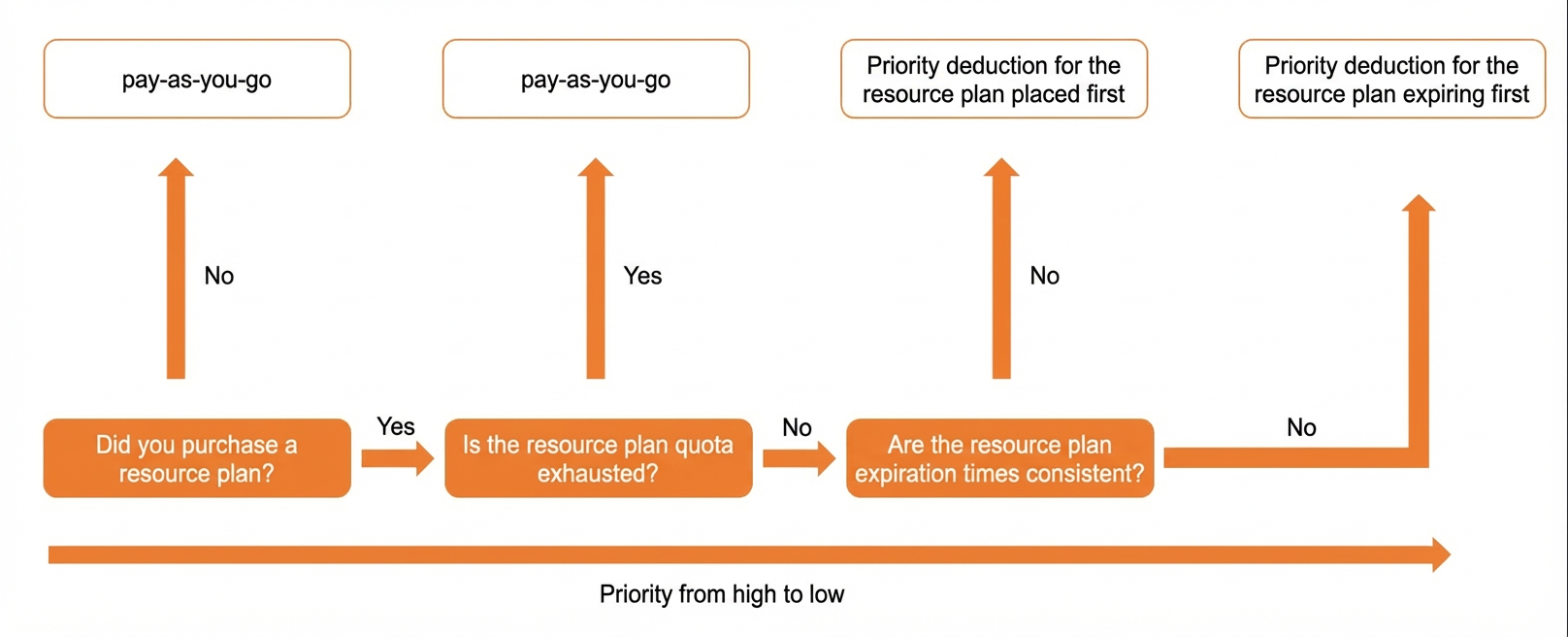
After a resource plan expires or its quota is used up, your usage is charged on a pay-as-you-go basis. For more information, see Billing overview.
Offset order
Overall offset order
Resource plan → Pay-as-you-go
Offset order for multiple resource plans
You can purchase multiple resource plans. The plans are used to offset fees based on their expiration dates, with the plan that expires soonest used first. If multiple plans have the same expiration date, the plan that was purchased first is used first.
The following billing example is for reference only. The actual cost is subject to the information on the console or purchase page of the Alibaba Cloud service.
Offset example
If you purchase a 300,000 CU/month resource plan and use 350,000 CU in that month (for example, 10,000 CU per day for the first 28 days, 30,000 CU on day 29, and 40,000 CU on day 30), your usage exceeds the plan's quota starting from day 29. The excess usage of 10,000 CU on day 29 and 40,000 CU on day 30 is charged on a pay-as-you-go basis. The total cost for the month is:
1675 + (10,000 - 30) × 0.008 + (10,000 - 30) × 0.008 + 30,000 × 0.006 = 2014.52 CNY
Purchase entry points
Method 1
Log on to the Distributed Task Scheduling Platform. In the Resource Plan area on the right side of the Overview page, click Buy Now to purchase the resource plan type and specifications that you need.
Method 2
Go to the SchedulerX product page, click Purchase Resource Plan, and then select a resource plan type and specifications that meet your needs.
Refund policy
You can request a full refund for a resource plan within 7 days of purchase if the plan has not been used. If the plan has been used, the cost of the used resources, calculated at the pay-as-you-go rate, is deducted from the refund amount. No refunds are provided after 7 days.
Manage resource plans
After you purchase a resource plan, you can view your purchase history and usage details in the Expenses and Costs console. To prevent service disruptions from quota exhaustion, you can also enable quota alerts for your resource plans. The system sends you reminders, such as text messages, when the remaining quota of a resource plan falls below a specified percentage.
The Unified Quota Alert Settings switch enables alerts for all your resource plans. To customize alerts, you can set rules for each resource plan individually in the resource plan list.
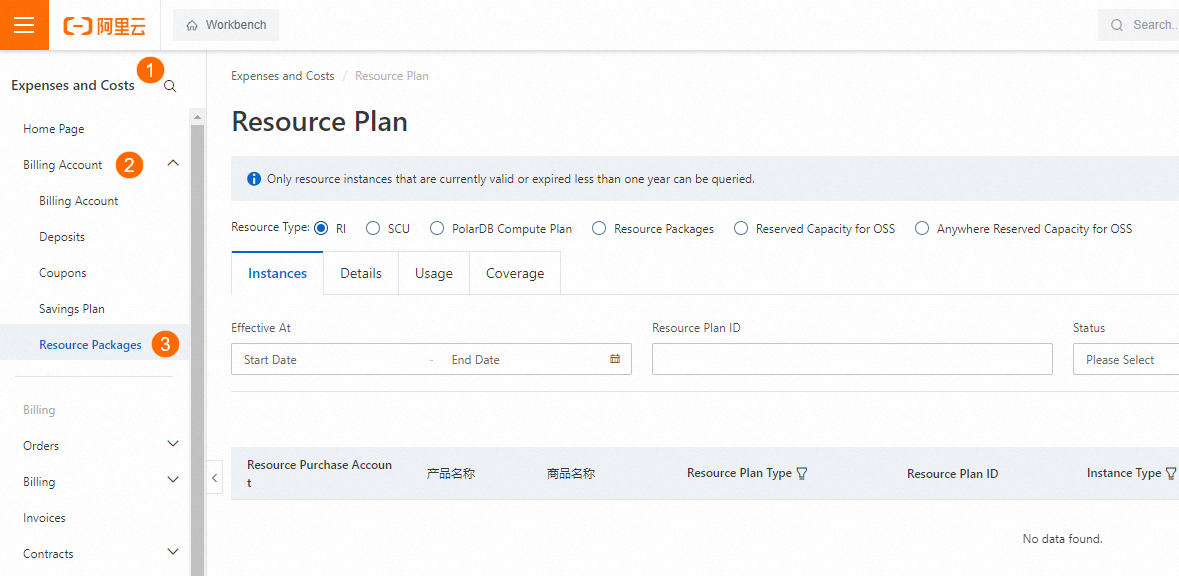
Navigate to the Expenses and Costs page. In the navigation pane on the left, click Account > Resource Plan.
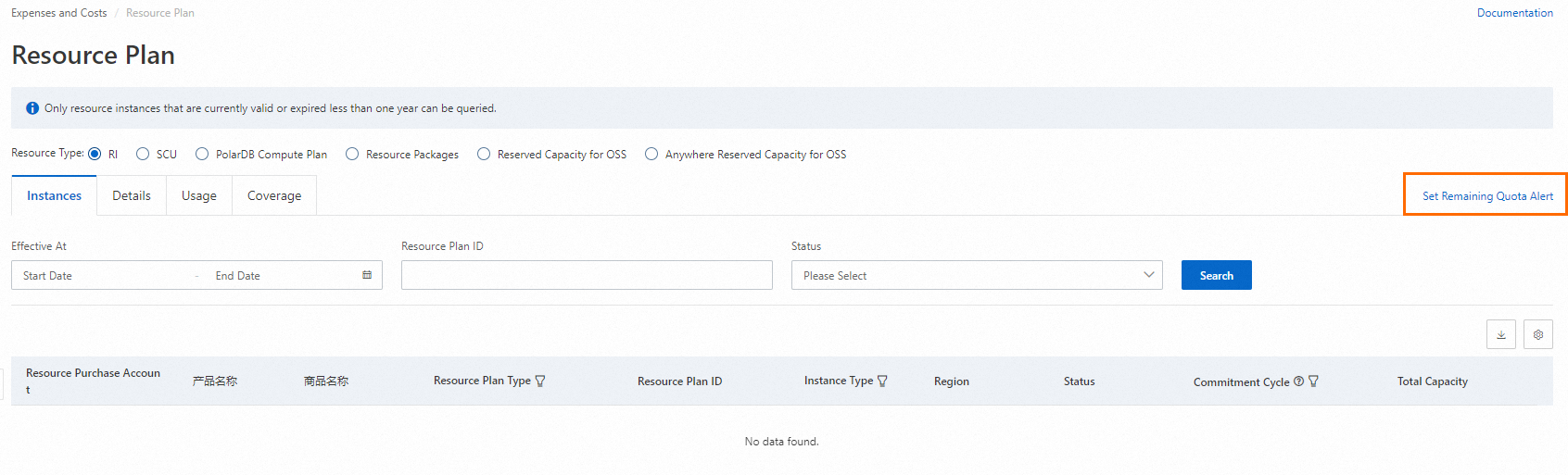
Click the Instance Summary tab to view the purchase history and statistics for your resource plan. This includes the plan status, remaining quota, effective time, and expiration time.
In the upper-right corner of the page, click Set Quota Alert, set the remaining quota threshold for the alert, and then click OK.