Create Pages by Importing a GitHub Repository
You can directly import a GitHub repository to quickly initialize and deploy a project using existing repository code.
Prerequisites
Functions and Pages is activated.
You have an active GitHub account and a code repository for storing Pages code.
Procedure
Pages integrates seamlessly with code management systems, enabling smooth synchronization between your development workflow and deployment process.
Log on to the ESA console. In the left-side navigation pane, choose .
On the Edge Functions page, click Create.
On the Import from GitHub Repo tab, click Add GitHub Accounts.
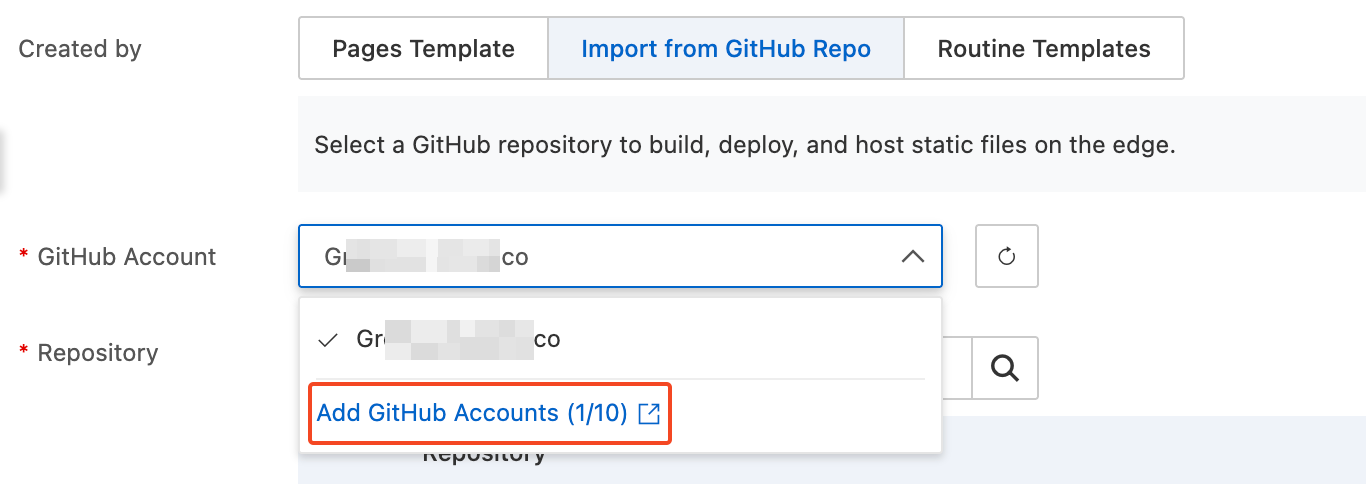
Log in to GitHub. On the authorization page, All repositories is selected by default. Click Install & Authorize to complete the repository authorization.
Configure the build information and click Start Deploy.
NoteAfter connecting your GitHub account, the repository list displays only public repositories by default. Private repositories are not shown automatically. To select a private repository, enter its name in the search box to search for it.
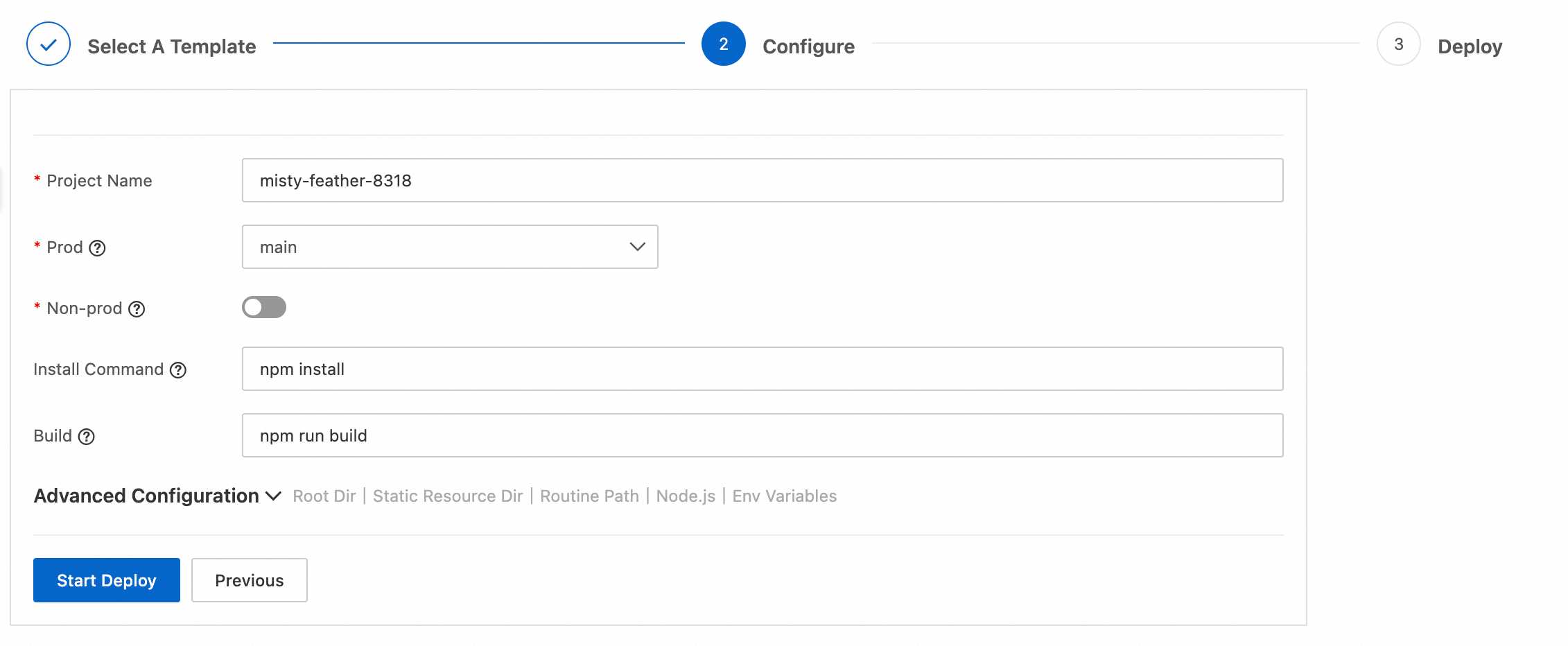
Configuration Type
Feature
Description
Basic Configuration
Prod
Defaults to the
mainbranch. Builds are automatically triggered based on the selected branch and deployed to the production environment.Non-prod
When enabled, new commits to non-production branches (e.g., branches other than
main) generate build versions but are not automatically deployed.Install Command
If dependencies need to be installed first, enter the command, such as
npm install. Supports npm, yarn, cnpm, and pnpm.Build
If a build step is required, enter the command, such as
npm run build. Supports npm, yarn, cnpm, and pnpm.Advanced Configuration
Root Dir
The build command is executed in this directory. Default is
/. For a monorepo, enter the path of the subproject to build (e.g.,/frontendor/packages/web).Static Assets Dir
The directory in the build output to be statically hosted, for example:
./public,./dist, or./build. You can specify the static asset directory in theassets.directoryfield of the esa.jsonc file. This configuration takes higher priority than the settings here.Function File Path
The entry file path of the function, which is the file that is actually executed. For example:
./src/index.ts. You can specify the function file path in theentryfield of the esa.jsonc file. This configuration takes higher priority than the settings here.Node.js
The Node.js version used for building. After modifying this configuration, you must retrigger the build for it to take effect. You can specify the Node.js major version in the
engines.nodefield of thepackage.jsonfile. This configuration takes higher priority than the settings here.Env Variables
Environment variables that can be accessed during the build process. You can retrieve them through the global object
process.env.After the build completes, a public domain link is generated for previewing your deployment. This public domain is for testing purposes only. To access the public domain, you must add a token for authentication. The token is valid for 60 minutes.
Bind a custom domain name
After deployment, bind a custom domain to your project for easier access. Domain name configuration.