This topic summarizes common issues and solutions for ComfyUI projects during the development, release, and online service phases. It is designed to help you quickly troubleshoot and resolve problems.
Project Development
Q: The workstation fails to start for a long time. How do I fix it?
Common Issues and Solutions
Cause Type | Symptom | Solution |
GPU reservation failed | Selected GPU type is in high demand | Wait for the resource pool to replenish, or try again later |
Selected GPU type reached account-level quota | Go to Quota Center to request a quota increase, or release GPUs of the same type from other projects | |
ComfyUI process startup timeout | Plugin import takes too long | |
ComfyUI source code dependency version error prevents startup | Roll back to the last saved state using manual workstation rollback | |
Other | Insufficient account balance | Check and ensure sufficient account balance |
Plugin Causes Startup Timeout
When the open source ComfyUI starts, it scans all plugins in the custom_nodes directory and executes each plugin's __init__.py file. During this process, some plugins check for and automatically install missing Python dependencies or auxiliary models. This can prolong the startup time or cause a timeout.
You can view the ComfyUI startup logs in . If a plugin installation process prevents the workstation from starting, ensure that the workstation can start normally, and then install the required plugins:
In File Management, delete any potentially problematic plugin directories from the
custom_nodesdirectory.Roll back the ComfyUI source code and dependencies to the last saved state by performing a manual workstation rollback.
After the workstation starts successfully, install the required plugins by following the instructions in the Plugin Installation Guide.
ComfyUI source code dependency version error: Changes in plugin versions may adjust some Python dependency versions. If these versions conflict with the versions that ComfyUI requires, ComfyUI will fail to start. In this case, you can roll back to the last saved state by performing a manual workstation rollback.
Manual Workstation Rollback
By default, the workstation starts using the most recently saved snapshot. If you accidentally save an environment that cannot start successfully, you can roll it back by performing the following steps:
Open File Management and go to the
snapshotsdirectory.Delete the most recent snapshot directory that has a
dev-prefix.Restart the workstation.
Deleting the snapshot directory discards all dependency changes made since the last save. Changes to the plugin source code, models, and workflows are not lost.
Q: Why does the workstation suddenly restart automatically?
When an open source ComfyUI process crashes, the FunArt platform automatically relaunches it. You can view the kernel logs from the crash in the .funart/crash_reports directory in File Management.
Common crash causes include RAM out-of-memory (OOM) or GPU memory out-of-memory (VRAM OOM). To fix this, adjust workflow parameters, such as reducing the image resolution, or change the GPU type.
Q: How do I check the ComfyUI version?
Method 1: Check in the workstation
Start the workstation and click the menu icon

Click to check the ComfyUI version.
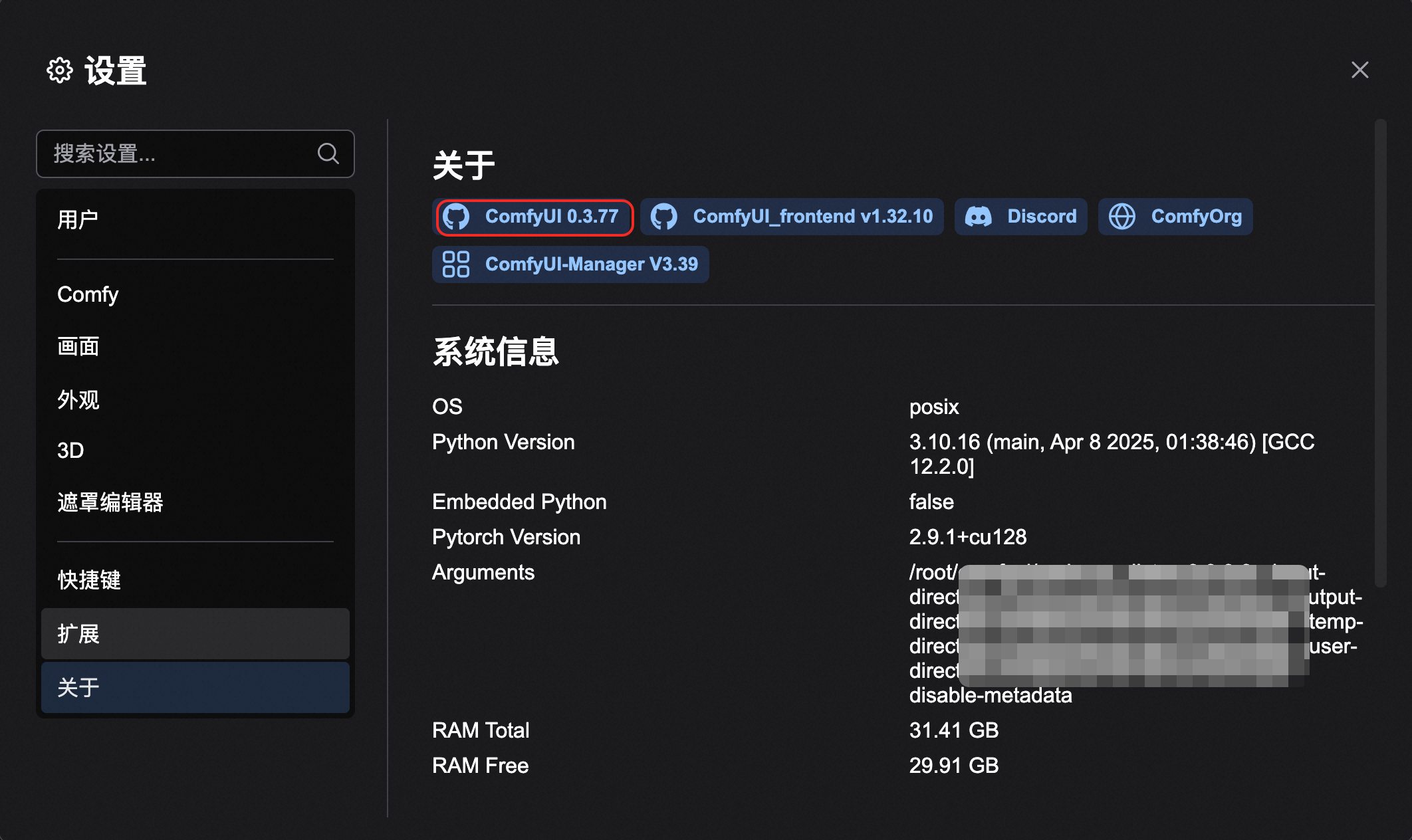
Frontend styles may vary between versions. This topic uses ComfyUI 0.3.77 as an example.
Method 2: Log on to the instance
Open the Instance List and click Log on to Instance.
In the terminal, run the following command:
cd comfyui && git log -1Q: How do I upgrade the ComfyUI version?
Log on to the instance and go to the directory
cd comfyuiAdd or update the remote image repository
git remote add mirror https://gh.llkk.cc/https://github.com/comfyanonymous/ComfyUI.gitIf you have already added this image repository, the system returns the message
fatal: remote mirror already exists.. You can ignore this message and proceed to the next step.Pull the latest information from the image repository
git fetch mirror --tagsSwitch to the specified version
# Replace v0.3.49 with the target version number
git checkout -f v0.3.49
Install dependencies for the new version
pip install -r requirements.txtRestart the workstation
In ComfyUI-Manager, restart the workstation. Confirm that the new version starts normally.
If the restart is successful: The next time you shut down the workstation, select Save Environment to persist the changes to the source code and dependencies.
If the restart fails: Troubleshoot the cause by checking the . When you shut down the workstation, do not select Save Environment. This will discard the changes.
If you encounter file permission errors during a git checkout operation, which is common when switching between Windows and Linux, first run git config --global core.fileMode false to configure Git to ignore file permission changes. Then, run the checkout command again.
Online Service Release
Q: What do I do if the directory size exceeds the limit when creating a snapshot?
An excessively large image generation environment can affect the snapshot creation and subsequent instance rotation speed. The platform validates the sizes of relevant directories during snapshot creation. If a directory size exceeds the default limit, the release is aborted.
Directory | Default Limit | Troubleshooting and Solution |
Plugin directory ( | 5 GB | Stores ComfyUI plugin source code. After logging on using , execute |
Cache directory ( | 5 GB | Stores auxiliary models and datasets downloaded on demand during workflow runtime. Clean up, then re-run the core workflow in the workstation. Nodes automatically pull the required cache. |
If the directory content is normal but your business requires a larger quota, you can submit a ticket to request an assessment and an increase to the quota.
Q: Why are configurations modified in the Function Compute console rolled back or cause deployment failures?
FunArt manages and overwrites Function Compute (FC) configurations through its release process to ensure environment consistency and version traceability. Manual changes made in the FC console do not sync back to FunArt and are overwritten by FunArt configurations during the next release.
Do not directly modify function configurations that are created and managed by FunArt in the FC console. All configuration changes must be made in .
If modifications in the FC console cause deployment failures, first correct the configuration in based on the error message. Then, retry the failed task in . Retrying the task skips snapshot creation and proceeds directly to service deployment.
Q: After a successful release, why are online configurations not effective and instances still on an old version?
A successful release only means that the new function configuration is written. For the configuration to take effect, the instances must rotate, which means new instances must start and replace the old ones.
If rotation does not occur after a long wait, it typically means that the new instances are failing to start. You can troubleshoot the issue by performing the following steps:
Determine the rotation status: In , you can distinguish between new and old instances by their runtime cycle and duration. New instances have a duration that starts from zero.
Troubleshoot startup failures: If no new instances appear after a long time, first check for instance startup error messages. Then, use this information along with the function logs to pinpoint the cause. For example, ComfyUI might be unexpectedly downloading auxiliary models dynamically.
Online Service
Q: How do I use model warm-up to avoid long first image generation times?
When a new instance starts, it loads models from the disk to the GPU memory. This loading process can take a long time, which slows down the first image generation request. After the models are loaded, they are cached in the GPU memory, which significantly speeds up subsequent image generation requests. Occasional slow requests may still occur because of configuration updates, resource rotation, or other reasons.
FunArt provides a model warm-up feature. After ComfyUI starts and before it accepts image generation requests, it automatically runs an image generation task. This pre-loads the models, which allows new instances to generate images faster.
Prepare the Model Warm-up Script
Create and validate the warm-up workflow in the . Then, export it as a usable warm-up workflow in JSON format.
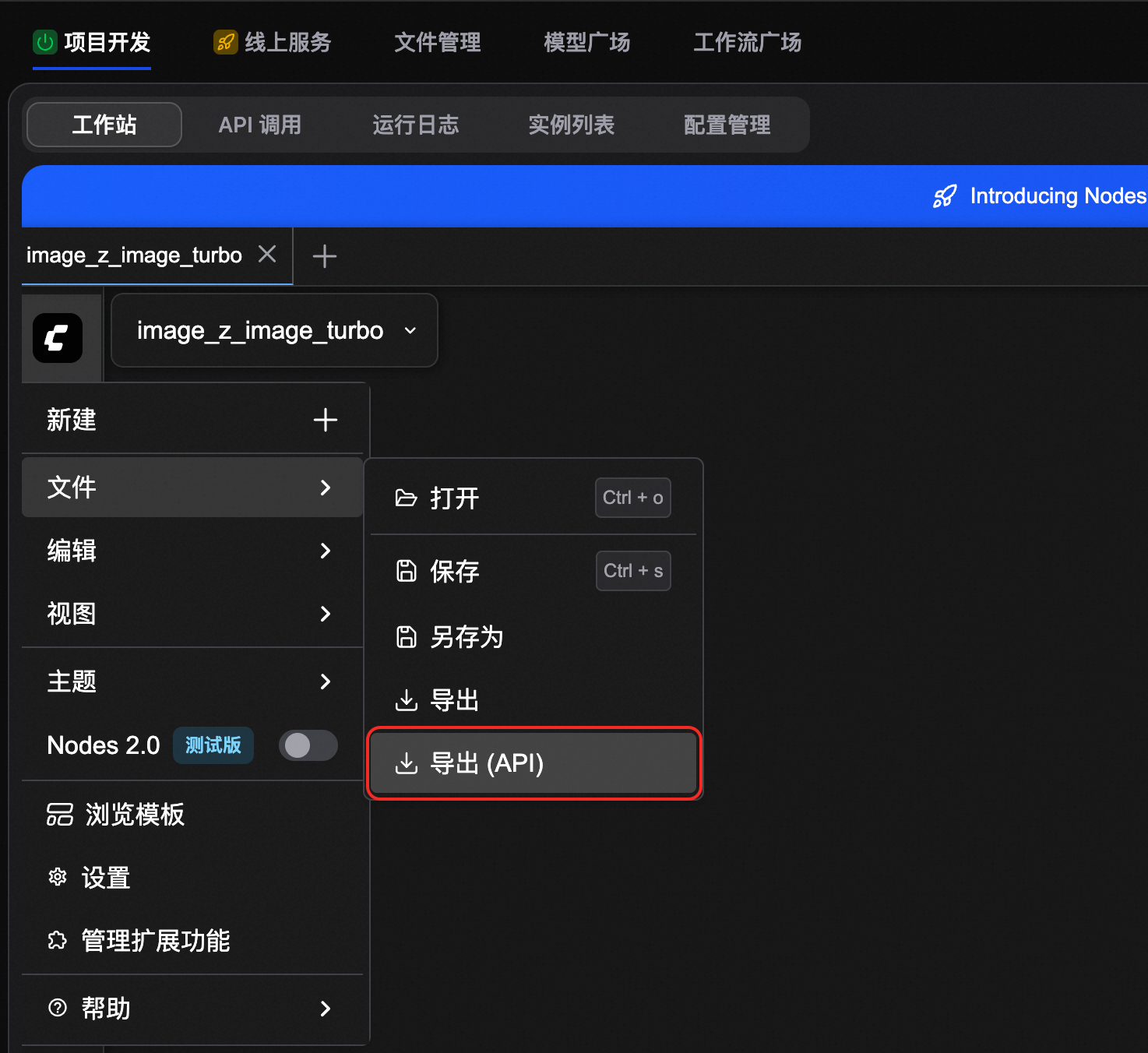
Warm-up workflow requirements:
The workflow must be able to run correctly. The required models, plugins, and custom nodes must be installed in the function instance.
If you are warming up multiple models, add multiple model loaders to the workflow or extend it to include sub-workflows.
The purpose of a model warm-up is to load models into the GPU memory, not to generate high-quality images. To shorten the warm-up time:
Set the sampler iteration steps,
steps, to 1.Set the image dimensions,
widthandheight, to the minimum value of 16×16.
The following is an example of a warm-up script:
  {
  "3": {
    "inputs": {
      "seed": 234571336938304,
      "steps": 1,
      "cfg": 8,
      "sampler_name": "euler",
      "scheduler": "normal",
      "denoise": 1,
      "model": [
        "4",
        0
      ],
      "positive": [
        "6",
        0
      ],
      "negative": [
        "7",
        0
      ],
      "latent_image": [
        "5",
        0
      ]
    },
    "class_type": "KSampler",
    "_meta": {
      "title": "K Sampler"
    }
  },
  "4": {
    "inputs": {
      "ckpt_name": "sd-v1-5-inpainting.ckpt"
    },
    "class_type": "CheckpointLoaderSimple",
    "_meta": {
      "title": "Load Checkpoint"
    }
  },
  "5": {
    "inputs": {
      "width": 16,
      "height": 16,
      "batch_size": 1
    },
    "class_type": "EmptyLatentImage",
    "_meta": {
      "title": "Empty Latent Image"
    }
  },
  "6": {
    "inputs": {
      "text": "beautiful scenery nature glass bottle landscape, , purple galaxy bottle,",
      "clip": [
        "4",
        1
      ]
    },
    "class_type": "CLIPTextEncode",
    "_meta": {
      "title": "CLIP Text Encode (Prompt)"
    }
  },
  "7": {
    "inputs": {
      "text": "text, watermark",
      "clip": [
        "4",
        1
      ]
    },
    "class_type": "CLIPTextEncode",
    "_meta": {
      "title": "CLIP Text Encode (Prompt)"
    }
  },
  "8": {
    "inputs": {
      "samples": [
        "3",
        0
      ],
      "vae": [
        "4",
        2
      ]
    },
    "class_type": "VAEDecode",
    "_meta": {
      "title": "VAE Decode"
    }
  },
  "9": {
    "inputs": {
      "filename_prefix": "ComfyUI",
      "images": [
        "8",
        0
      ]
    },
    "class_type": "SaveImage",
    "_meta": {
      "title": "Save Image"
    }
  }
}
Configure Model Warm-up
After you release online services for a ComfyUI project, go to . In the Workflow Warm-up section, enter the warm-up script in JSON format.
In the Elastic Policy section, select the appropriate GPU specifications and the minimum number of instances. Then, click Save and Deploy.
FunArt creates the instances. After ComfyUI starts, it automatically runs the warm-up workflow. You can view the warm-up status in the operational logs.
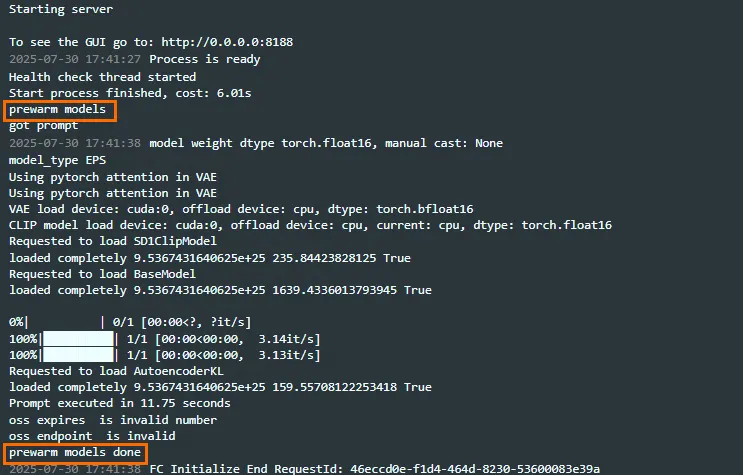
Q: How do I shorten instance startup (rotation) time?
The startup time of online instances depends on the startup time of the project development workstation at the time of the last release. You can optimize the workstation startup speed to shorten the rotation time.
Optimization Direction | Suggested Action |
Analyze plugin loading time | After you start the workstation, search for |
Check the warm-up workflow | If you configured Workflow Warm-up in , fully run the warm-up workflow once in the project development environment before releasing. This ensures auxiliary models and files are downloaded to the cache in advance. Otherwise, real-time downloads during new instance warm-up may take too long or cause a startup timeout. |
Q: How do I restrict RAM users from using release, configuration modification, and file management?
If you need more granular access control for RAM users, such as distinguishing between operations and maintenance (O&M) and designer roles, perform the following steps:
First, configure the necessary operational permissions for RAM users by following the instructions in Authorize RAM Users to Use Image Generation Projects.
Then, explicitly deny release, configuration modification, and file management operations using the following RAM policy:
{
  "Action": [
    "devs:DeployEnvironment",
    "devs:UpdateEnvironment",
    "devs:GetFileManagerTask",
    "devs:FileManager*"
  ],
  "Resource": "*",
  "Effect": "Deny"
}