This topic describes how to import data into a serverless instance.
Import a large volume of data from an HBase cluster to a serverless cluster
Writes to a serverless instance are limited by the number of purchased capacity units (CUs). If you write a large volume of data directly to a serverless instance using an API, the process can be time-consuming and consume an excessive number of CUs. A large volume of data can be tens of gigabytes (GB), hundreds of GB, or even terabytes (TB), depending on the number of CUs you purchase. Therefore, you must use LTS to import large volumes of data.
Notes
You cannot purchase new HBase Serverless instances.
You can only import data from HBase V1.x or later. This includes self-managed HBase and ApsaraDB for HBase.
Data import can fail if the serverless instance has insufficient storage space. The table size in the source cluster reflects the size after compression. However, storage for a serverless instance is billed based on the uncompressed size of key-value pairs. Therefore, ensure that you reserve sufficient storage space.
For more information about storage billing, see Serverless billing.
Procedure
Purchase a BDS instance. For more information, see Activate LTS. Because data import uses OSS for transit, select Purchase Cold Storage and specify an appropriate storage size during the purchase.
NoteThe instance must be in the same VPC as the source HBase cluster (the cluster from which data is exported). Otherwise, you must establish a network connection between them.
If the data import is a one-time task, you can use the pay-as-you-go billing method. After the data is imported, you can immediately release the BDS instance.
If you have already purchased an LTS instance, upgrade it to V2.5.4 or later. If your LTS instance is an earlier version, purchase a new one or submit a ticket.
Associate the source HBase cluster with LTS.
If the source cluster is an ApsaraDB for HBase cluster, click Add on the LTS console page. If the source cluster is a self-managed HBase cluster, you must manually add it as a data source. For more information, see HBase data source.
In the BDS web UI, create a backup of the tables that you want to import from the source cluster. The data import process involves backing up the source tables and then bulk-loading the backup data into the serverless cluster.
Go to the BDS system UI.
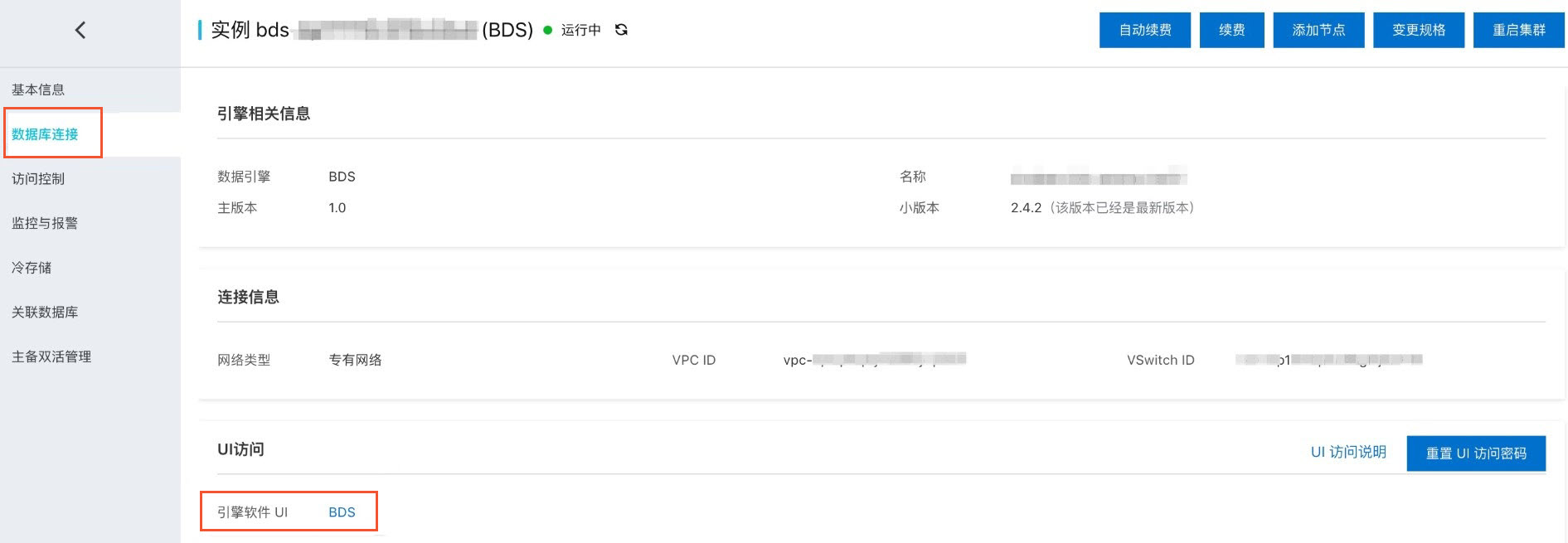
Create a backup and recovery plan. Select the tables that you want to back up. These are the tables that will be exported.
Back up the data.
After the backup is complete, obtain the backup plan ID and the backup record ID.
Import the backup data into the serverless cluster.
In the console of the serverless instance, enter the source BDS instance ID (SrcBDSInstanceID) from the BDS console, the backup plan ID (BackplanID) from the previous step, the backup record ID (BackupRecordID) from the previous step, and the tables to recover. For the tables, use the format namespace:tablename. If you have multiple tables, separate them with a line feed.
You can find the backup plan ID and backup record ID in the BDS system UI.
Click Create to start the recovery.
NoteYou do not need to create tables in the serverless instance beforehand. The system automatically creates tables based on the properties of the source tables.
Import a small volume of data from HBase to a serverless cluster
You can use this method to import a small volume of data or sync HBase data to a serverless cluster in real time. This method uses the HBase API to write data to the serverless cluster and is limited by the number of purchased CUs. For example, if you purchase 100 CUs, you can write data at a maximum rate of 100 CUs per second.
Preparations
Purchase a BDS instance. For more information, see Activate LTS.
In BDS, add the serverless instance as a data source.
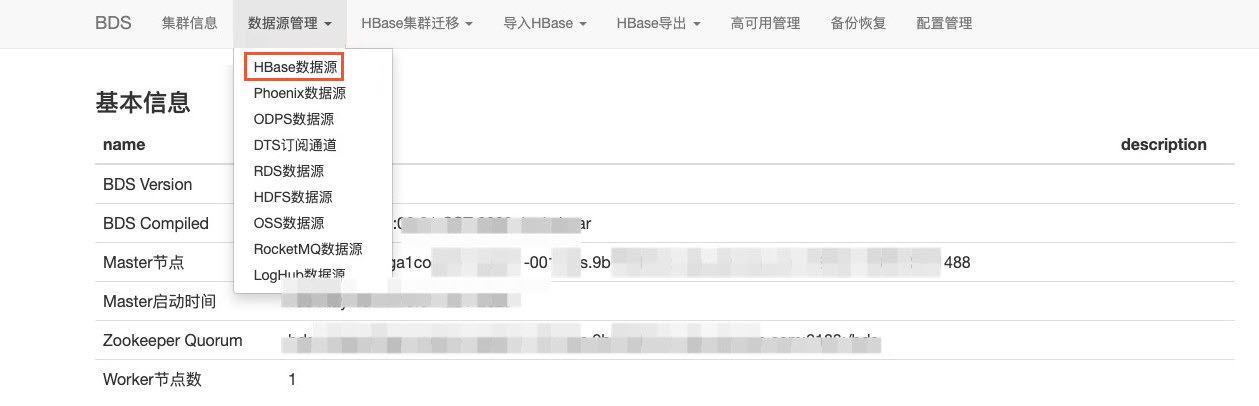
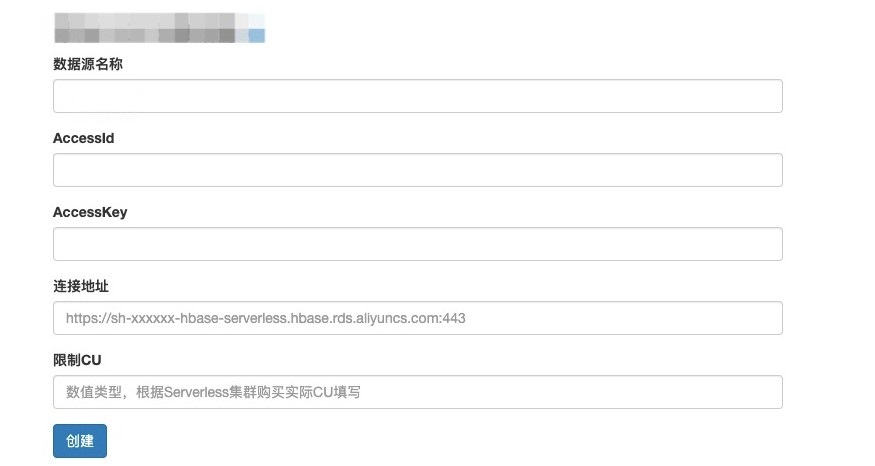
In BDS, add the instance from which you want to export data, such as an HBase or RDS instance, as a data source. For more information about how to add an HBase data source, see HBase data source.
Import data from other systems to a serverless cluster
If your data resides in another system, such as RDS, MongoDB, Elasticsearch, or Tablestore, or if you do not want to purchase a BDS instance, you can use DataX to import the data. For more information about the data sources that DataX supports, see the official DataX documentation.
Preparations
Download the version of DataX that includes the HBase Serverless plugin. Click here to download.
Usage
In DataX, you can use the hbase11xwriter plugin to write data to HBase Serverless. For more information about how to configure this plugin, see the hbase11xwriter help documentation.
{
 "job": {
     "content": [
           {
           "reader": {
                "name": "hbase11xreader",
                "parameter": {
                        "encoding": "utf-8",
                          "hbaseConfig": {
                                "hbase.client.connection.impl" : "com.alibaba.hbase.client.AliHBaseUEConnection",
                                "hbase.zookeeper.quorum" : "ld-xxxx-proxy-hbaseue-pub.hbaseue.rds.aliyuncs.com:30020"
,                              "hbase.client.username" : "xxx",
                                "hbase.client.password" : "xxx"
                               },
                                    "mode": "normal",
                                     "column": [
                                        {
                                          "name": "rowkey",
                                           "type": "string"
                                                          },
                                        {
                                           "name": "f:f0",
                                           "type": "string"
                                                          }
                                       ],
                                       "range": {
                                                 "endRowkey": "",
                                                 "isBinaryRowkey": true,
                                                  "startRowkey": ""
                                                 },
                                              "table": "table1"
                                                             }
                                        },
                                              "writer": {
                                               "name": "hbase11xwriter",
                                               "parameter": {
                                                 "column": [
                                           {
                                                  "index":1,
                                                  "name": "f:f0",
                                                  "type": "string"
                                            }
                                            ],
                                             "encoding": "utf-8",
                                            "writeBufferSize" : 1048576,
                                     "hbaseConfig": {
                                     "hbase.client.connection.impl" : "com.alibaba.hbase.client.AliHBaseUEConnection",
                                     "hbase.zookeeper.quorum" : "https://sh-xxxx-hbase-serverless.hbase.rds.aliyuncs.com:443",
                                     "hbase.client.username" : "AccessKey ID",
                                      "hbase.client.password" : "AccessKey secret",
                                      "hbase.client.cu.limit" : "5"
                                                    },
                                      "mode": "normal",
                                       "rowkeyColumn": [
                                       {
                                            "index":0,
                                             "name": "rowkey",
                                             "type": "string"
                                         }
                                         ],
                                          "table": "table1",
                                           "versionColumn": {
                                           "index": "-1",
                                           "value": "123456789"
                                                 }
                                       }
                              }
                     }
             ],
                                      "setting": {
                                                  "speed": {
                                                    "channel": "1"
                                                 }
                                          }
                       }
}
The preceding JSON file provides a sample configuration for a full data import from a table named table1 in an ApsaraDB for HBase Performance-enhanced Edition cluster to a serverless cluster. Pay attention to the following configurations in the writer section:
Configuration |
Description |
hbase.client.connection.impl |
Set to |
hbase.zookeeper.quorum |
The endpoint of the serverless instance. Note the VPC and public endpoints. The endpoint must start with |
hbase.client.username |
The AccessKey ID. |
hbase.client.password |
The AccessKey secret. |
hbase.client.cu.limit |
The CU limit. You can set this based on the number of CUs you purchased. Note that each DataX thread starts an HBase client, and the CU limit is applied at the client level. Therefore, this value must be coordinated with the channel setting. For example, if you want to limit writes to 100 CUs and you have 5 threads, set |
writeBufferSize |
The size of each batch for writes. Because serverless instances limit the size of each batch, do not set this value to more than 1048576 (1 MB). |
channel |
The number of concurrent threads. |
If you have any questions, submit a ticket.