Connect a terminal device
This topic shows how to connect a terminal device, using an IPC (IP Camera) as an example.
Prerequisites
You have activated the basic AI framework application (an application whose name starts with AIBox). For more information, see Deploy an application to an edge device.
You have an IPC device ready.
NoteThe IPC device used in this topic is a common, commercially available camera model.
Optional: Create a product
After you activate the basic AI framework application (an application whose name starts with AIBox), the system creates a Camera product and an NVR product by default. You can skip this step.
Log on to the IoT Platform console.
On the Instance Overview page, click the target Enterprise Edition instance to go to the instance details page.
In the left navigation pane, choose Device Management > Products. Click Create Product to create a product for the IPC device.
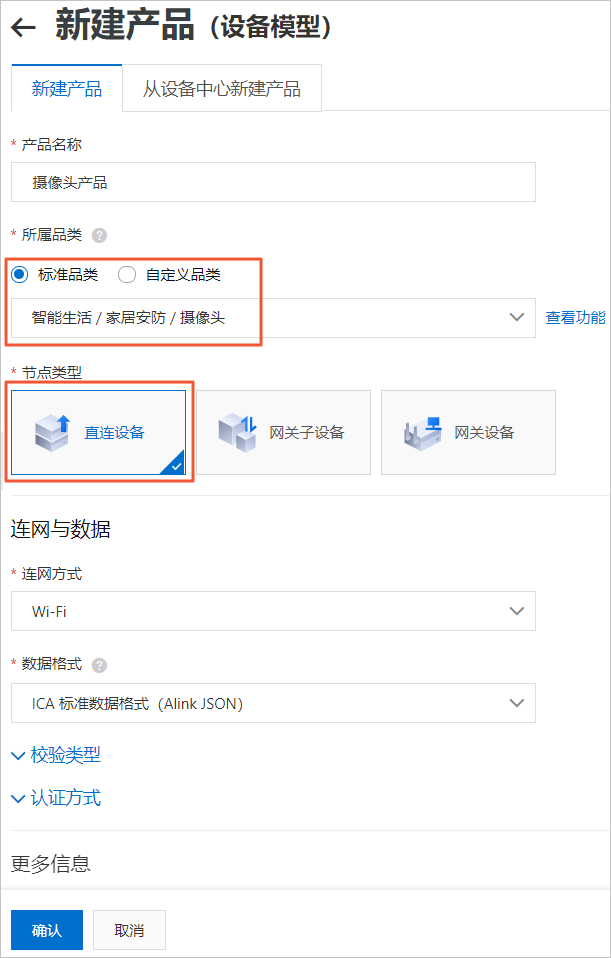
Configure the following parameters and keep the default values for the others. For detailed parameter descriptions, see Create a product.
Parameter
Description
Product Name
Set this to Camera Product.
Category
Select Standard Category > Smart Life > Home Security > Camera.
Node Type
Select Directly Connected Device.
Network Connection Method
Select the network connection method based on your IPC device. This example uses Wi-Fi.
Click Confirm.
Optional: Enable video services
After you activate the basic AI framework application (an application whose name starts with AIBox), the system creates a Camera product and an NVR product by default and enables Video Services for them. You can skip this step.
To add a video device to the product created in Step 1, you must first enable Video Services for it.
In the left navigation pane, choose Video Services > Video Streaming.
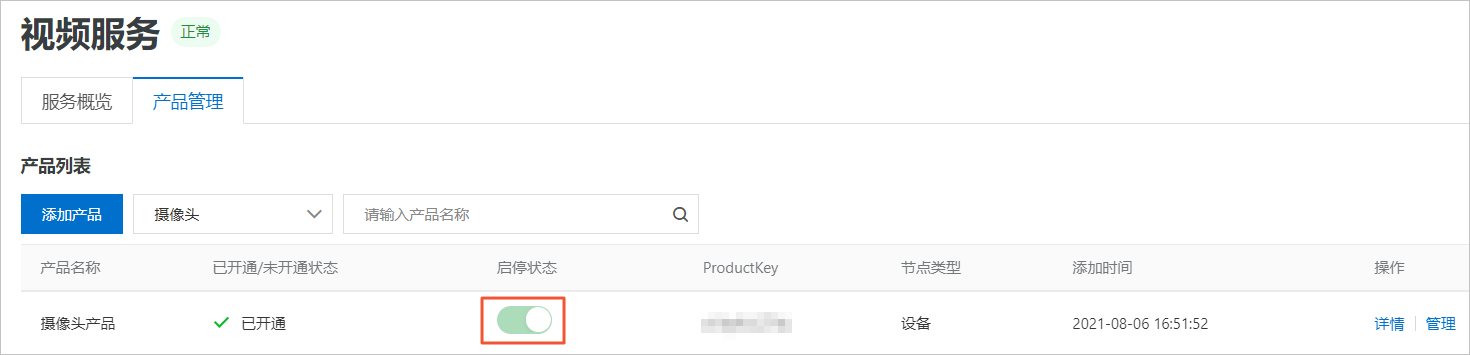
On the Video Streaming page, click the Product Management tab. Find the Camera Product that you created in Step 1, and turn on the switch in the Status column.
Add an IPC device
Log on to the Edge Computing console.
In the navigation pane on the left, choose Node Management > Endpoint Device Management.
On the Terminal Device Management page, find the LE-V-B015 edge device that you activated in Activate an edge device, and click IPC.
In the Device List section, click Add Device.
In the Add Device panel, enter the device parameters and click OK.
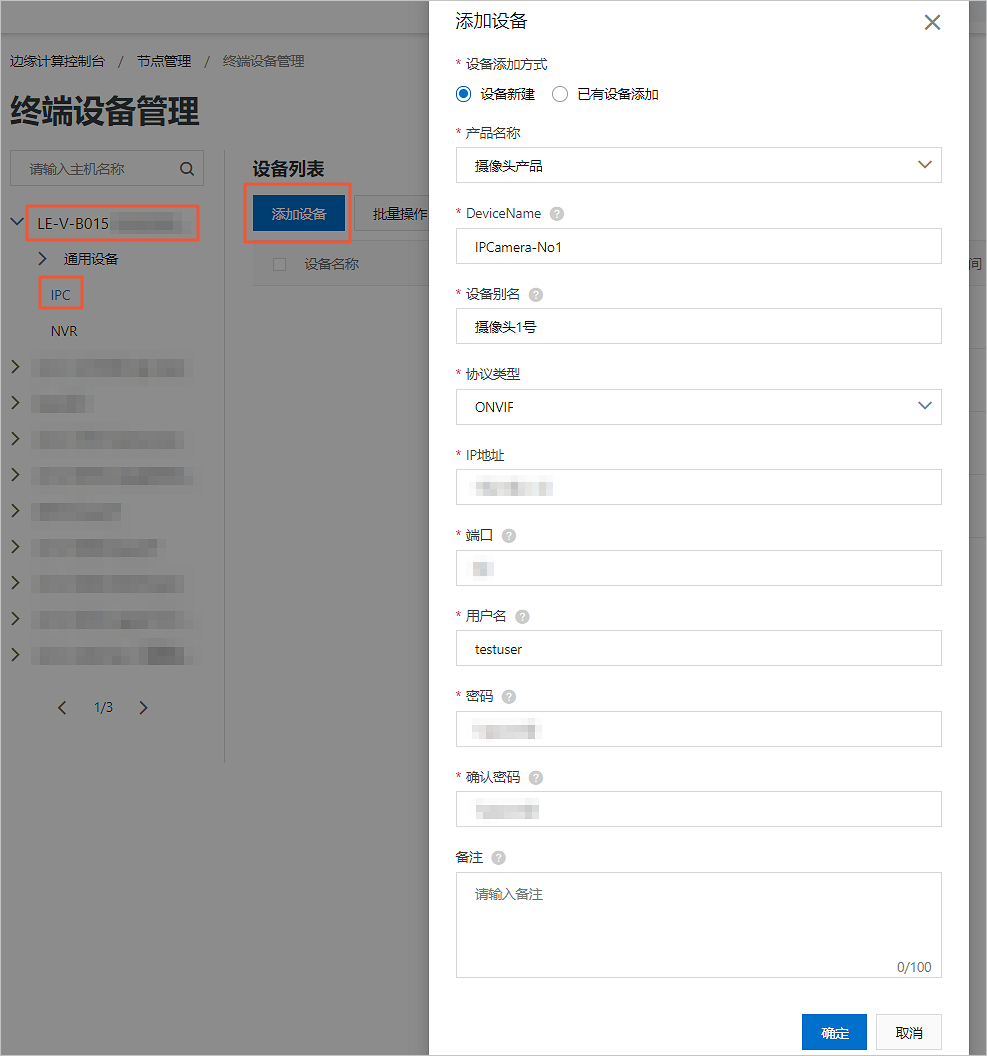
The following table describes the parameters. For more information, see Add an IPC device.
Parameter
Description
Method to Add Device
Select Create a device.
Product Name
Select the Camera Product that you created in Step 1.
DeviceName
Set this to IPCamera-No1.
Device Nickname
Set this to Camera No. 1.
Protocol Type
Select ONVIF.
IP
Enter the IP address and port number of your IPC device.
ImportantThe combination of
IP address:portmust be unique for each edge device.Port
Username
Set this to testuser.
Password
Specify a password for testuser. The password must be 2 to 15 characters and can contain uppercase letters, lowercase letters, digits, underscores (_), hyphens (-), colons (:), at signs (@), and periods (.).
Confirm Password
Enter the password again.
After the device is added, you can view its information and live stream.
In the Actions column for the IPC device, click Device Details.

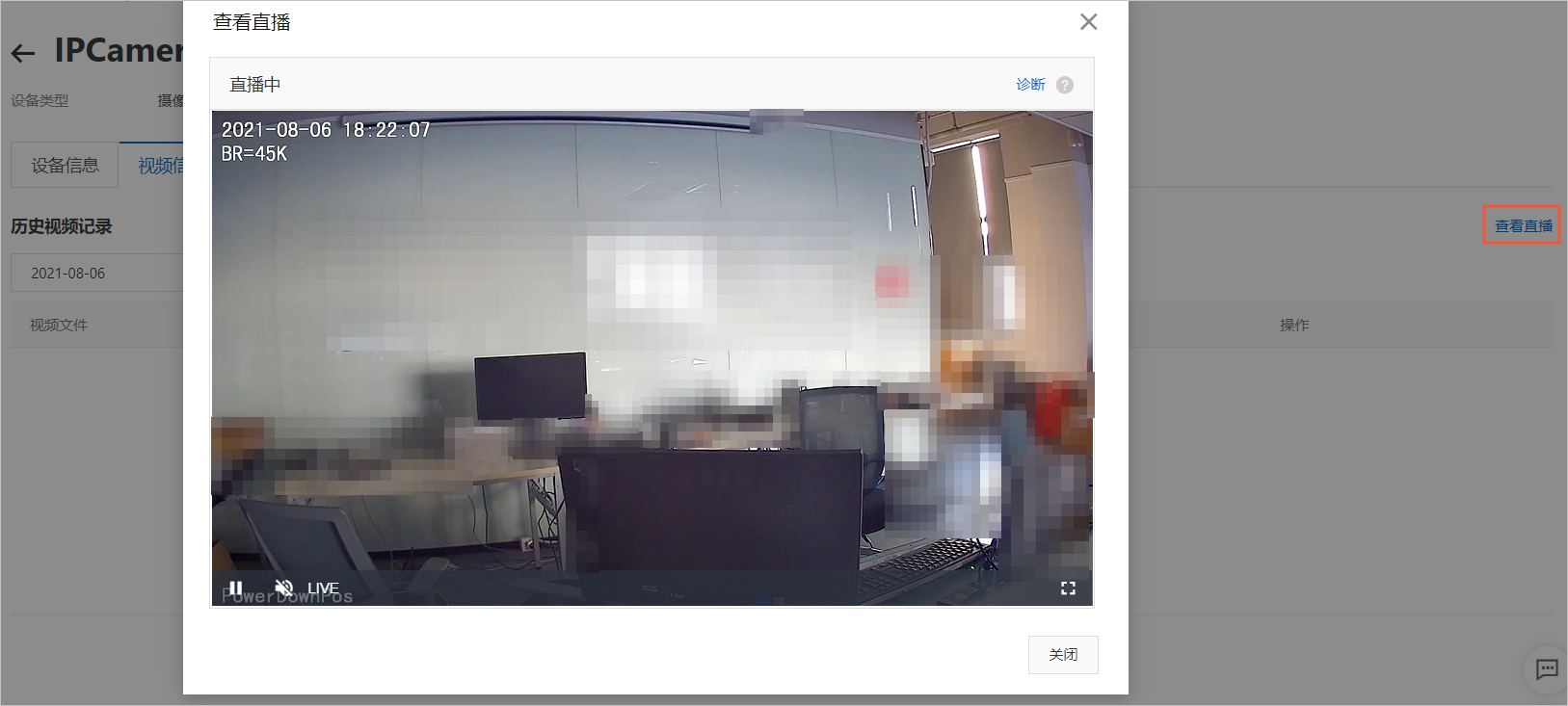
On the Device Details page, click the Video Information tab, and then click View Live Stream.
The live stream from the camera device appears, as shown in the following figure.