Publish from the cloud
You can publish drivers from the cloud or use built-in drivers. When you publish a driver from the cloud, the driver file is hosted on the Driver Management page in the console. A built-in driver is embedded into a gateway. This topic describes how to publish a driver from the cloud.
Prerequisites
- You have developed the driver. For more information, see Driver encoding.
- You have packaged the developed driver. For more information, see Driver packaging notes.
Procedure
- Log on to the Link IoT Edge console. In the navigation pane on the left, click Driver Management.
- On the Driver Management page, on the Custom Drivers tab, click Create Driver.
- On the Create Driver page, configure the driver parameters.
- Driver Information
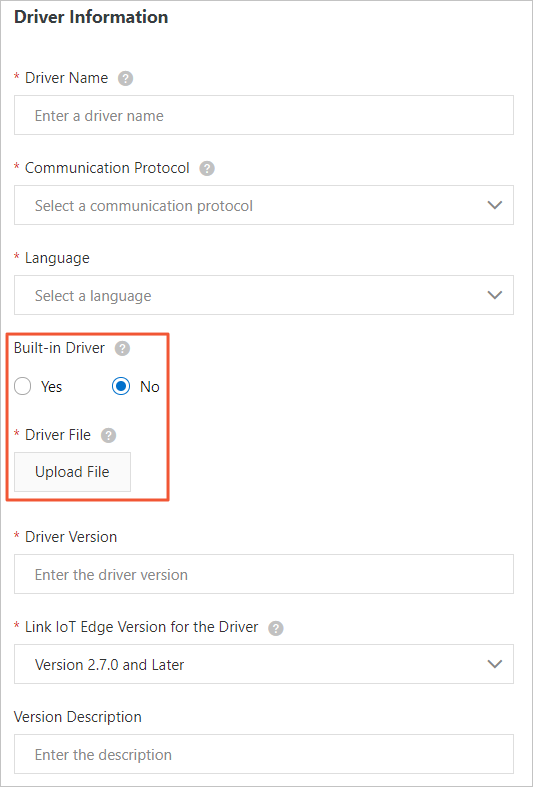
Table 1. Driver information parameters Parameter Description Driver Name A custom name for the driver. The name can contain uppercase letters, lowercase letters, digits, and underscores (_). It must start with a letter and be no more than 20 characters long. Communication Protocol Type The industry-standard communication protocol that the driver development depends on. Supported protocol types are Modbus, OPCUALoRa WANand Custom. Language type The programming language of the driver. Supported languages are Node.js 8, Python 3.5, C, and Java 8. If you select C, you must also select the CPU Architecture for the driver.
Is driver built-in Select whether to build in the driver file. - Yes: You do not need to upload a driver file. The local built-in driver is used. For more information, see Built-in publishing.
- No: You must upload a driver file. The driver is deployed directly through the cloud deployment channel.
To publish from the cloud, you must select No.
Driver File Is driver built-in to No, click Upload File to upload your driver file. Note Only .zip files are supported. The file size cannot exceed 50 MB.Driver Version Set the version of the driver. The version number must be unique for the driver. You cannot set the same version number for two versions of the same driver. Compatible Edge Version Select the compatible edge version. The driver can run only on gateways of this version or later. Driver Version Description A description of the driver you are creating. This can be left empty. - Driver Configuration
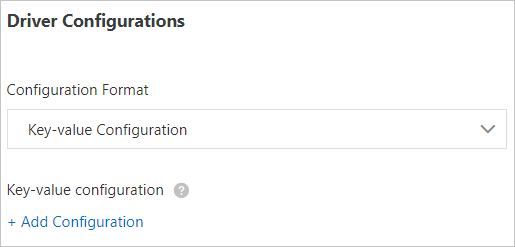
Table 1. Driver configuration parameters Parameter Description Configuration format The configuration format can be one of the following: - Key-value pairs
- JSON format
- Configuration file
Key-value pair table Configuration format is set to Key-value pairs. Click Add Configuration and set Configuration Name, Value, and Comment to configure the driver.
You can add up to 100 key-value pairs.
Configuration content Configuration format is set to JSON format. Enter the configuration content in JSON format. The content size cannot exceed 1 KB. The system automatically validates the format as you type. If the format is incorrect, follow the system prompts to correct it.
Upload configuration file Configuration format is set to Configuration file. You must create a configuration file on your local machine and upload it. For information about how to create a configuration file, see Driver encoding.
- Container Configuration
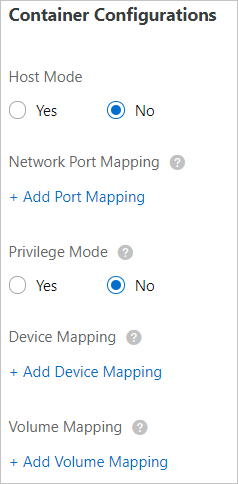
Parameter Description Use Host Network Specifies whether to isolate the container's network and use the host network environment directly. - Yes: The container's network is not isolated. The host network is used directly.
- No: The container's network is isolated. You must configure Port Mapping.
Port Mapping This parameter appears when Use Host Network is set to No. The network environment of the function is completely isolated from the host environment. Through port mapping, you can map the listening port of the function in the container to a port on the host. This allows client programs on different hosts to access the service provided by the function. You can map up to 10 network ports. For example, the
fc-http-serverfunction runs in a container on the host and provides services on port 80. In this case, client programs on other hosts cannot access thefc-http-serverfunction by accessing port 80 of the host. Therefore, you need to map the container port of thefc-http-serverfunction to a port on the host. For example, map port 80 in the container to port 8080 on the host. This allows client programs on other hosts to access thefc-http-serverfunction in the container by accessingHost IP address:8080.Enable Privileged Mode The root user in a container is actually a regular user on the host. To perform operations that require root permissions inside the container, such as modifying the system time or using the mount command, you must grant the container privileged mode.
Note In privileged mode, the container has root permissions on the host. All host devices are mapped to the container by default. You do not need to configure Device Mapping.Device Mapping This parameter appears when Enable Privileged Mode is set to No. The device management system is completely isolated from the host environment. When a function needs to access a host device, such as a serial port, you must map the device to the container where the function runs. You can add up to 10 device mappings. Volume Mapping The file system is completely isolated from the host environment. When a function needs to access a host file, you must map the file to the container where the function runs. You can add up to 10 volume mappings. Memory Limit Set the maximum memory for the container. - If the container's memory usage exceeds the limit, the container is restarted.
- If the memory limit is too small, the application in the container may fail to run.
The default memory is 1024 MB. Increase the memory limit based on the size of the application in the container.
- Configuration Validation
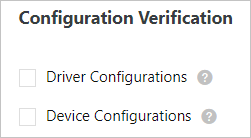
Table 3. Configuration validation parameters Parameter Description Driver Configuration If you select this option, you must set the Driver Configuration after you assign the driver to an edge instance and associate a sub-device. Only then can you deploy the driver to the edge instance. Device Configuration If you select this option, you must set the Device Configuration after you assign the driver to an edge instance and associate a sub-device. Only then can you deploy the driver to the edge instance.
- Driver Information
- After you configure the parameters and upload the driver file, click OK. The new driver appears on the Custom Drivers tab.
Related operations
- On the Driver Management page, on the Custom Drivers tab, click Version Management in the Actions column of the desired driver.

- In the Version Management panel, click the action buttons to manage the driver version information.
Action Description Add Version Click Add Version to add a new version for the driver. For detailed steps and parameter descriptions, see the set the driver parameters step above. Publish Click Publish. In the Confirm Publish Driver Version dialog box that appears, confirm the driver information and click Publish. Note After a driver version is published, you cannot delete it. You can only view or download it.Edit This action is available only when the driver version status is Unpublished. Click Edit to modify the information for this driver version. For parameter descriptions, see the set the driver parameters step above. Download Click Download to download the driver file for this version. Delete This action is available only when the driver version status is Unpublished. Click Delete to delete this driver version. View This action is available only when the driver version status is Published. Click View to view the information for this driver version. You can also modify the information. For parameter descriptions, see the set the driver parameters step above. - (Optional) In the Actions column of the desired driver, click List to list the custom driver as a product in the IoT Marketplace. For more information, see Driver Marketplace.
- After you publish the driver from the cloud, you can assign it to an edge instance and associate a sub-device. The driver and sub-device are deployed to the edge when you deploy the edge instance. For more information, see Driver debugging.