Create an event-triggered alert rule
IoT Platform imposes limits on the frequency of connection requests, the frequency of upstream and downstream communication, and the frequency of message forwarding. If the limits are reached, throttling is triggered. This may affect the daily operations of your business. This topic describes how to use the monitoring and alerting features of CloudMonitor to configure alert rules. After you configure alert rules, you can receive alert notifications when specific resources become abnormal and handle issues at the earliest opportunity.
Background information
For more information, see Limits.
Procedure
-
Log on to the Cloud Monitor console.
In the left-side navigation pane, choose .
On the Event Monitoring tab, click Save as Alert Rule.
Click Create Alert Rule.
In the Create/Modify Event-triggered Alert Rule panel, configure the parameters and click OK.
The following table describes the parameters.
Parameter
Description
Alert Rule Name
Follow the instructions as prompted to specify a valid rule name.
Product Type
Select IoT Platform.
Event Type
Default value: All Types. Use the default value.
Level
Default value: All Levels. Use the default value.
Event Name
Select the events that you want to monitor.
- The number of connection requests that a device sends per minute reaches the maximum limit.
- The number of connection requests that the current account sends to IoT Platform per second reaches the maximum limit.
- The number of requests that the current account publishes per second reaches the maximum limit.
- The number of messages that a device sends per second reaches the maximum limit.
- The number of requests that the current account sends to the rules engine per second reaches the maximum limit.
Resource Range
Select All Resources.
Notification Method
Select Alert Notification and configure the Contact Group and Notification Method parameters.
Test the alert rule.
On the Event-triggered Alert Rules tab, find the alert rule and click Test in the Actions column.
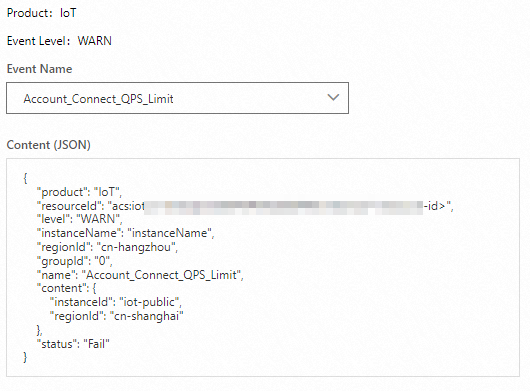
In the Create Event Test dialog box that appears on the right of the page, select an event name, modify the alert notification content, and then click OK to perform a test on the alert rule.
After you select an event name, the JSON-formatted alert notification content is displayed in the text box. You can modify the notification content.
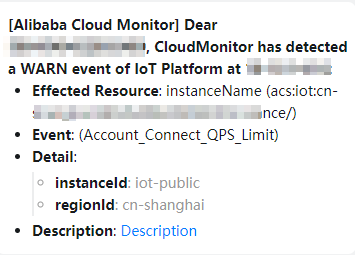
Check whether the contacts of the alert group can receive the modified alert notification.
For example, the members of a DingTalk group receive a message that contains the following content.