Thing Specification Language model communication
Devices and the cloud use the Alink protocol to communicate data based on a Thing Specification Language (TSL) model. This communication includes devices reporting properties or events to the cloud and the cloud sending messages to set properties or call services on devices. This topic provides a Java demo and explains the code configuration for TSL model communication.
Prerequisites
- You have activated the IoT Platform service.
- You have installed a Java development environment.
Create a product and devices
First, create a product and its devices, and then define features for the product. These features form the TSL model.
- Log on to the IoT Platform console.
On the Overview page, find the instance that you want to manage and click the instance ID or instance name.
- In the navigation pane on the left, choose .
- Click Create Product. Enter a custom product name, select Custom Category, leave the other parameters at their default values, and then click OK.For more information, see Create a product.
- On the Product Details page, on the Define Features tab, define the TSL model.
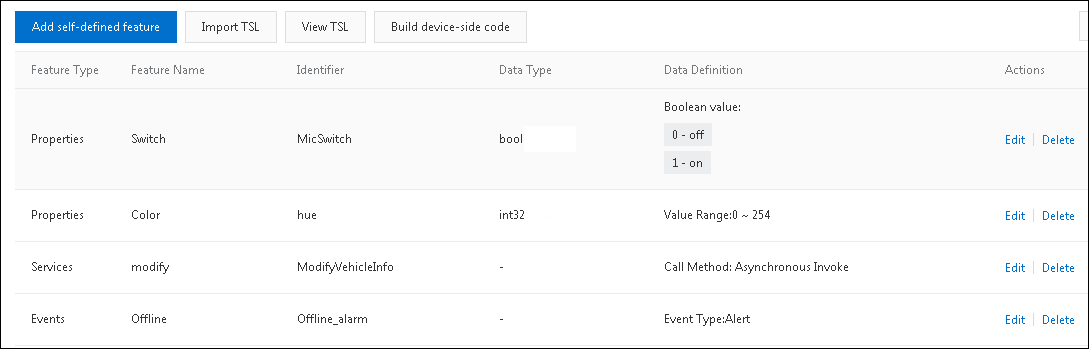
In this example, add the following properties, services, and events to the Default Module of the TSL model.
This topic provides a sample TSL model that you can import in a batch. For more information, see Add a TSL model in a batch.
- In the navigation pane on the left, click Devices and then create devices.The sample code in this topic involves setting properties and calling services for multiple devices in a batch. Therefore, you must create at least two devices. For more information, see Create multiple devices in a batch.
Download and install the demo SDK
The SDK demo provided in this topic includes both a server-side SDK demo and a device-side SDK demo.
- Download and decompress iotx-api-demo.
- Open your Java development tool and import the decompressed iotx-api-demo folder.
- In the pom.xml file, add the following Maven dependencies to import the Alibaba Cloud server-side and device-side SDKs.
<!-- https://mvnrepository.com/artifact/com.aliyun/aliyun-java-sdk-iot --> <dependency> <groupId>com.aliyun</groupId> <artifactId>aliyun-java-sdk-iot</artifactId> <version>7.33.0</version> </dependency> <dependency> <groupId>com.aliyun</groupId> <artifactId>aliyun-java-sdk-core</artifactId> <version>3.5.1</version> </dependency> <dependency> <groupId>com.aliyun.alink.linksdk</groupId> <artifactId>iot-linkkit-java</artifactId> <version>1.2.0</version> <scope>compile</scope> </dependency> - In the java/src/main/resources/ directory, open the config file and enter the initialization information.
user.accessKeyID = <your accessKey ID>
user.accessKeySecret = <your accessKey Secret>
iot.regionId = <regionId>
iot.productCode = Iot
iot.domain = iot.<regionId>.aliyuncs.com
iot.version = 2018-01-20
Parameter Description accessKeyID Your Alibaba Cloud account's AccessKey ID. Hover over your profile picture and select AccessKey Management. On the Security Information Management page, you can create or view your AccessKey.
accessKeySecret Your Alibaba Cloud account's AccessKey secret. To view the secret, follow the same steps as for the AccessKey ID. regionId The ID of the region where your IoT device resides. For information about region IDs, see Regions and zones.
Use the device-side SDK to report properties and events
Configure the device-side SDK to connect to IoT Platform and report property and event messages.
In the demo, the java/src/main/com.aliyun.iot.api.common.deviceApi directory contains the ThingTemplate file. This file is a demo for a device to report properties and events.
- Set the connection information.
Replace the productKey, deviceName, deviceSecret, and url values in the code with your device certificate information and MQTT endpoint. To obtain the endpoint, see View and configure instance endpoints. The endpoint must include port 1883.
public static void main(String[] args) { /** * Device certificate information. */ String productKey = "your productKey"; String deviceName = "your deviceName"; String deviceSecret = "your deviceSecret"; /* TODO: Replace with the endpoint of your IoT Platform instance. */ String url = "iot-6d***ql.mqtt.iothub.aliyuncs.com:1883"; /** * MQTT connection information. */ ThingTemplate manager = new ThingTemplate(); DeviceInfo deviceInfo = new DeviceInfo(); deviceInfo.productKey = productKey; deviceInfo.deviceName = deviceName; deviceInfo.deviceSecret = deviceSecret; /** * The server-side Java HTTP client uses TLSv1.2. */ System.setProperty("https.protocols", "TLSv2"); manager.init(deviceInfo, url); } - Initialize the connection.
public void init(final DeviceInfo deviceInfo, String url) {
        LinkKitInitParams params = new LinkKitInitParams();
        /**
         * Set MQTT initialization parameters.
         */
        IoTMqttClientConfig config = new IoTMqttClientConfig();
        config.productKey = deviceInfo.productKey;
        config.deviceName = deviceInfo.deviceName;
        config.deviceSecret = deviceInfo.deviceSecret;
        config.channelHost = url;
        /**
         * Specifies whether to receive offline messages.
         * This corresponds to the cleanSession field in MQTT.
         */
        config.receiveOfflineMsg = false;
        params.mqttClientConfig = config;
        ALog.setLevel(LEVEL_DEBUG);
        ALog.i(TAG, "mqtt connetcion info=" + params);

        /**
         * Set initialization parameters and pass in the device certificate information.
         */
        params.deviceInfo = deviceInfo;

        /**Establish a connection.**/
        LinkKit.getInstance().init(params, new ILinkKitConnectListener() {
            public void onError(AError aError) {
                ALog.e(TAG, "Init Error error=" + aError);
            }

            public void onInitDone(InitResult initResult) {
                ALog.i(TAG, "onInitDone result=" + initResult);

                List<Property> properties =   LinkKit.getInstance().getDeviceThing().getProperties();

                ALog.i(TAG, "Device property list" + JSON.toJSONString(properties));

                List<Event> getEvents  =   LinkKit.getInstance().getDeviceThing().getEvents();

                ALog.i(TAG, "Device event list" + JSON.toJSONString(getEvents));

                /* Report properties. TODO: Make sure that the reported property, such as MicSwitch, is part of the product's TSL model. Otherwise, an error is returned. */
                handlePropertySet("MicSwitch", new ValueWrapper.IntValueWrapper(1));

                /* Report events. TODO: Make sure that the reported event, such as Offline_alarm, is part of the product's TSL model. Otherwise, an error is returned. */
                Map<String,ValueWrapper> values = new HashMap<>();
                values.put("eventValue",new ValueWrapper.IntValueWrapper(0));
                OutputParams outputParams = new OutputParams(values);
                handleEventSet("Offline_alarm",outputParams);
            }
        });
    }
Note The property and event identifiers in the code must be the same as those defined in the TSL model. - Set properties to be reported by the device.
/** * The device reports properties in the Alink JSON format. * @param identifier: The property identifier. * @param value: The property value to report. * @return */ private void handlePropertySet(String identifier, ValueWrapper value ) { ALog.i(TAG, "Report property identity=" + identifier); Map<String, ValueWrapper> reportData = new HashMap<>(); reportData.put(identifier, value); LinkKit.getInstance().getDeviceThing().thingPropertyPost(reportData, new IPublishResourceListener() { public void onSuccess(String s, Object o) { // The property is reported. ALog.i(TAG, "Reported successfully. onSuccess() called with: s = [" + s + "], o = [" + o + "]"); } public void onError(String s, AError aError) { // Failed to report the property. ALog.i(TAG, "Failed to report. onError() called with: s = [" + s + "], aError = [" + JSON.toJSONString(aError) + "]"); } }); } - Set events to be reported by the device.
/**
     * The device reports events in the Alink JSON format.
     * @param identifyID: The event identifier.
     * @param params: The parameters for the event to be reported.
     * @return
     */
    private void handleEventSet(String identifyID, OutputParams params ) {
        ALog.i(TAG, "Report event identifyID=" + identifyID + "  params=" + JSON.toJSONString(params));


        LinkKit.getInstance().getDeviceThing().thingEventPost( identifyID,  params, new IPublishResourceListener() {

            public void onSuccess(String s, Object o) {
                // The event is reported.
                ALog.i(TAG, "Reported successfully. onSuccess() called with: s = [" + s + "], o = [" + o + "]");
            }

            public void onError(String s, AError aError) {
                // Failed to report the event.
                ALog.i(TAG, "Failed to report. onError() called with: s = [" + s + "], aError = [" + JSON.toJSONString(aError) + "]");
            }
        });
    }
Use the cloud SDK to send instructions to set properties and call services
- Initialize the SDK client.
In the demo, the java/src/main/com.aliyun.iot.client directory contains the IotClient file. This file is a demo for initializing the SDK client.
public class IotClient { private static String accessKeyID; private static String accessKeySecret; private static String regionId; private static String domain; private static String version; public static DefaultAcsClient getClient() { DefaultAcsClient client = null; Properties prop = new Properties(); try { prop.load(Object.class.getResourceAsStream("/config.properties")); accessKeyID = prop.getProperty("user.accessKeyID"); accessKeySecret = prop.getProperty("user.accessKeySecret"); regionId = prop.getProperty("iot.regionId"); domain = prop.getProperty("iot.domain"); version = prop.getProperty("iot.version"); IClientProfile profile = DefaultProfile.getProfile(regionId, accessKeyID, accessKeySecret); DefaultProfile.addEndpoint(regionId, regionId, prop.getProperty("iot.productCode"), prop.getProperty("iot.domain")); // Initialize the client. client = new DefaultAcsClient(profile); } catch (Exception e) { LogUtil.print("Failed to initialize the client! exception:" + e.getMessage()); } return client; } public static String getRegionId() { return regionId; } public static void setRegionId(String regionId) { IotClient.regionId = regionId; } public static String getDomain() { return domain; } public static void setDomain(String domain) { IotClient.domain = domain; } public static String getVersion() { return version; } public static void setVersion(String version) { IotClient.version = version; } } - Initialize and encapsulate the CommonRequest public class.
In the demo, the java/src/main/com.aliyun.iot.api.common.openApi directory contains the AbstractManager file. This file is a demo for encapsulating the CommonRequest public class for cloud APIs.
public class AbstractManager { private static DefaultAcsClient client; static { client = IotClient.getClient(); } /** * API request address. action: The API operation name. * domain: The online address. * version: The API version. */ public static CommonRequest executeTests(String action) { CommonRequest request = new CommonRequest(); request.setDomain(IotClient.getDomain()); request.setMethod(MethodType.POST); request.setVersion(IotClient.getVersion()); request.setAction(action); return request; } - Configure the server-side SDK to call the cloud APIs of IoT Platform to send instructions for setting properties and calling services.
The java/src/main/com.aliyun.iot.api.common.openApi directory contains the ThingManagerForPopSDk file. This file is a demo for using the server-side SDK to call APIs that set device properties and call device services.
- Call SetDeviceProperty to set device property values.
public static void SetDeviceProperty(String InstanceId, String IotId, String ProductKey, String DeviceName , String Items) { SetDevicePropertyResponse response =null; SetDevicePropertyRequest request=new SetDevicePropertyRequest(); request.setDeviceName(DeviceName); request.setIotId(IotId); request.setItems(Items); request.setProductKey(ProductKey); request.setIotInstanceId(InstanceId); try { response = client.getAcsResponse(request); if (response.getSuccess() != null && response.getSuccess()) { LogUtil.print("Set device properties successfully."); LogUtil.print(JSON.toJSONString(response)); } else { LogUtil.print("Failed to set device properties."); LogUtil.error(JSON.toJSONString(response)); } } catch (ClientException e) { e.printStackTrace(); LogUtil.error("Failed to set device properties! " + JSON.toJSONString(response)); } } - Call SetDevicesProperty to set property values for multiple devices in a batch.
/** * Sets properties for multiple devices in a batch. * * @param ProductKey: The ProductKey of the product to which the devices belong. * @param DeviceNames: The list of device names whose properties you want to set. * @param Items: The properties to set, in key:value pairs. This parameter is required and must be a JSON string. * * @Des: Description. */ public static void SetDevicesProperty(String InstanceId, String ProductKey, List<String> DeviceNames, String Items) { SetDevicesPropertyResponse response = new SetDevicesPropertyResponse(); SetDevicesPropertyRequest request = new SetDevicesPropertyRequest(); request.setDeviceNames(DeviceNames); request.setItems(Items); request.setProductKey(ProductKey); request.setIotInstanceId(InstanceId); try { response = client.getAcsResponse(request); if (response.getSuccess() != null && response.getSuccess()) { LogUtil.print("Set device properties in a batch successfully."); LogUtil.print(JSON.toJSONString(response)); } else { LogUtil.print("Failed to set device properties in a batch."); LogUtil.error(JSON.toJSONString(response)); } } catch (ClientException e) { e.printStackTrace(); LogUtil.error("Failed to set device properties in a batch! " + JSON.toJSONString(response)); } } - Call InvokeThingService to call a device service.
/** * @param Identifier: The identifier of the service. This parameter is required. * @param Args: The input parameters for the service to be called. This parameter is required. */ public static InvokeThingServiceResponse.Data InvokeThingService(String InstanceId, String IotId, String ProductKey, String DeviceName, String Identifier, String Args) { InvokeThingServiceResponse response =null; InvokeThingServiceRequest request = new InvokeThingServiceRequest(); request.setArgs(Args); request.setDeviceName(DeviceName); request.setIotId(IotId); request.setIdentifier(Identifier); request.setProductKey(ProductKey); request.setIotInstanceId(InstanceId); try { response = client.getAcsResponse(request); if (response.getSuccess() != null && response.getSuccess()) { LogUtil.print("Service executed successfully."); LogUtil.print(JSON.toJSONString(response)); } else { LogUtil.print("Failed to execute the service."); LogUtil.error(JSON.toJSONString(response)); } return response.getData(); } catch (ClientException e) { e.printStackTrace(); LogUtil.error("Failed to execute the service! " + JSON.toJSONString(response)); } return null; } - Call InvokeThingsService to call a service for multiple devices in a batch.
     /**
     * @param Identifier: The identifier of the service. This parameter is required.
     * @param Args: The input parameters for the service to be called. This parameter is required.
     */
    public static void InvokeThingsService(String InstanceId, String IotId, String ProductKey, List<String> DeviceNames,
                                           String Identifier, String Args) {
        InvokeThingsServiceResponse response =null;
        InvokeThingsServiceRequest request = new InvokeThingsServiceRequest();
        request.setArgs(Args);
        request.setIdentifier(Identifier);
        request.setDeviceNames(DeviceNames);
        request.setProductKey(ProductKey);
        request.setIotInstanceId(InstanceId);

        try {
            response = client.getAcsResponse(request);

            if (response.getSuccess() != null && response.getSuccess()) {
                LogUtil.print("Called device services in a batch successfully.");
                LogUtil.print(JSON.toJSONString(response));
            } else {
                LogUtil.print("Failed to call device services in a batch.");
                LogUtil.error(JSON.toJSONString(response));
            }

        } catch (ClientException e) {
            e.printStackTrace();
            LogUtil.error("Failed to call device services in a batch! " + JSON.toJSONString(response));
        }
    }
- Call SetDeviceProperty to set device property values.
The following code provides a sample request that sets properties and calls services:
public static void main(String[] args) {
        /**The device name of the online device and the ProductKey of the product to which the device belongs.*/
        String deviceName = "2pxuAQB2I7wGPmqq***";
        String deviceProductkey = "a1QbjI2***";

        /**For Enterprise Edition instances and new public instances, set InstanceId to the specific instance ID. You can view the ID of the current instance on the Instance Overview page in the IoT Platform console.
         *For old public instances, set InstanceId to an empty string ("").
         */
        String InstanceId = "iot-***tl02";

        //1. Set the properties of a device.
        SetDeviceProperty(InstanceId, null, deviceProductkey, deviceName,"{\"hue\":0}");
        //2. Set properties for multiple devices in a batch.
        List<String>  deviceNames = new ArrayList<>();
        deviceNames.add(deviceName);
        SetDevicesProperty(InstanceId, deviceProductkey, deviceNames, "{\"hue\":0}");
        //3. Call a service of a device.
        InvokeThingService(InstanceId, null, deviceProductkey, deviceName, "ModifyVehicleInfo", "{}");
        //4. Call a service for multiple devices in a batch.
        List<String>  deviceNamesService = new ArrayList<>();
        deviceNamesService.add(deviceName);
        InvokeThingsService(InstanceId, null, deviceProductkey, deviceNamesService, "ModifyVehicleInfo", "{}");
    }
Run and test
After you configure the device-side and server-side SDKs, run each SDK.
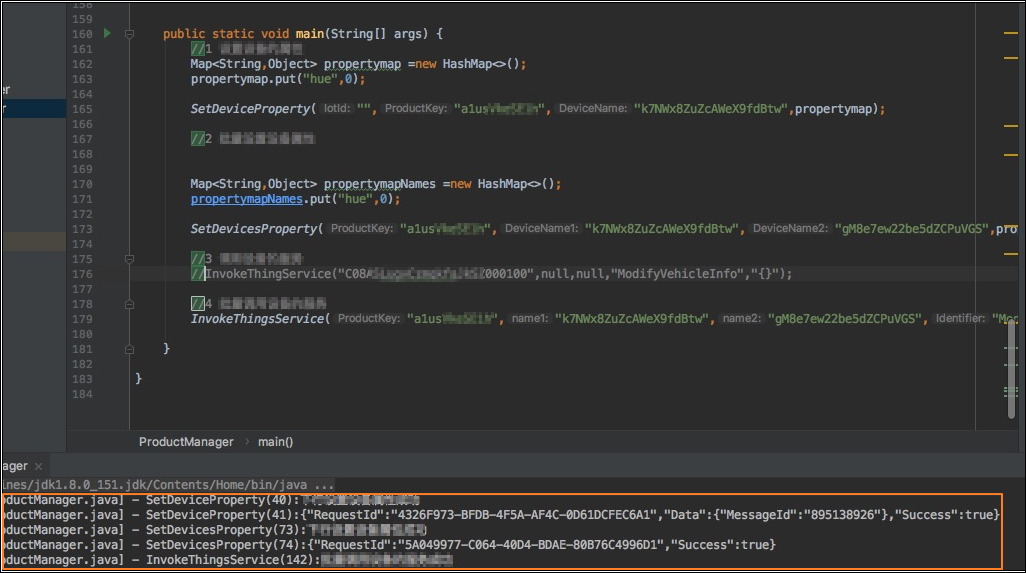
View the results:
- View the local logs.
- In the IoT Platform console, go to the Device Details page of a device. For the Default Module of your instance
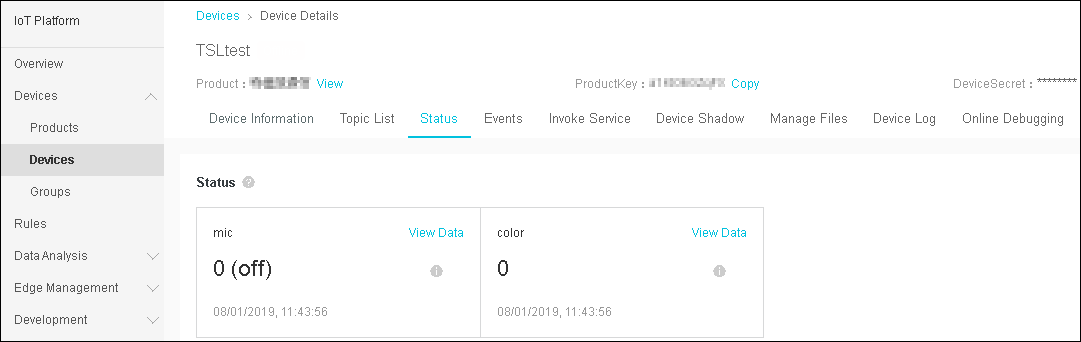
- Status tab: View the last reported property values and property data records.
- Event Management tab: View the event records reported by the device.
- Service Invocation tab: View the service call records sent from the cloud.