Transactions
This topic describes how to view order details and use other features in the Distributor Console.
Log on to the Distributor Console. In the navigation pane on the left, choose . In the list of active stores, find the desired store, and click Enter Store Operations to go to the Distributor Supply Console.
In the navigation pane on the left, choose Transactions. Click Order Details or After-sales Order Details to view the respective pages.
Orders
All recent orders
Click All recent orders to view a list of all your recent orders.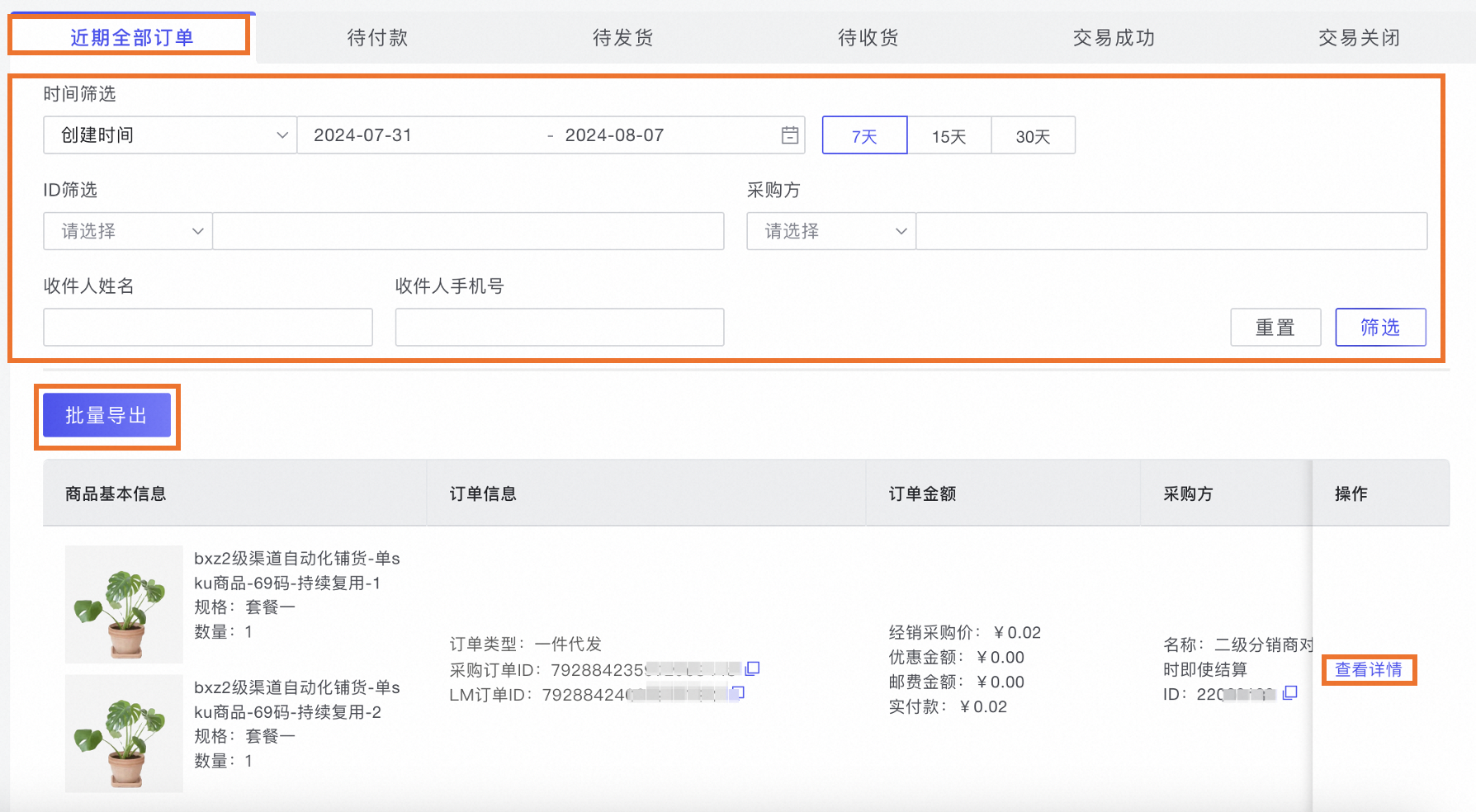
Filter orders: You can set the filter criteria and click Filter to view matching orders. You can also combine multiple filter criteria. The criteria are described as follows:
Filter by time: Filter orders by a date range based on the Creation Time, Payment Time, or Receipt Confirmation Time. You can also quickly filter by selecting a preset time span, such as the last 7 days, 15 days, or 30 days.
Filter by ID: Search by LM Order ID (the orderId field) or Purchase Order ID (the purchaseOrderId field).
Recipient Name, Recipient Phone Number: Filter by the recipient's name and phone number.
View order details: Click View Details to go to the Order Details page.
Order Status: Displays the status of the current order.
Order information: Switch between the tabs to view different categories of order information.
Basic information
As shown in the preceding figure:
Order information: Displays information such as the LM Order ID.
User information: Displays information such as the Recipient Name. The external distributor user ID is a custom user ID uploaded by the distributor and is not associated with user ID information on the Qianniu platform.
Basic product information: Displays information about the products and order amounts for the sub-orders included in the main order.
Initiate after-sales service: Click Initiate After-sales Service. Select or enter the after-sales information, and then click OK. When you specify the After-sales Type and Goods Status, you must provide accurate information to prevent system errors.
 Note
NoteCurrently, initiating after-sales service from the distributor console only supports full refunds.
Receipt & Logistics
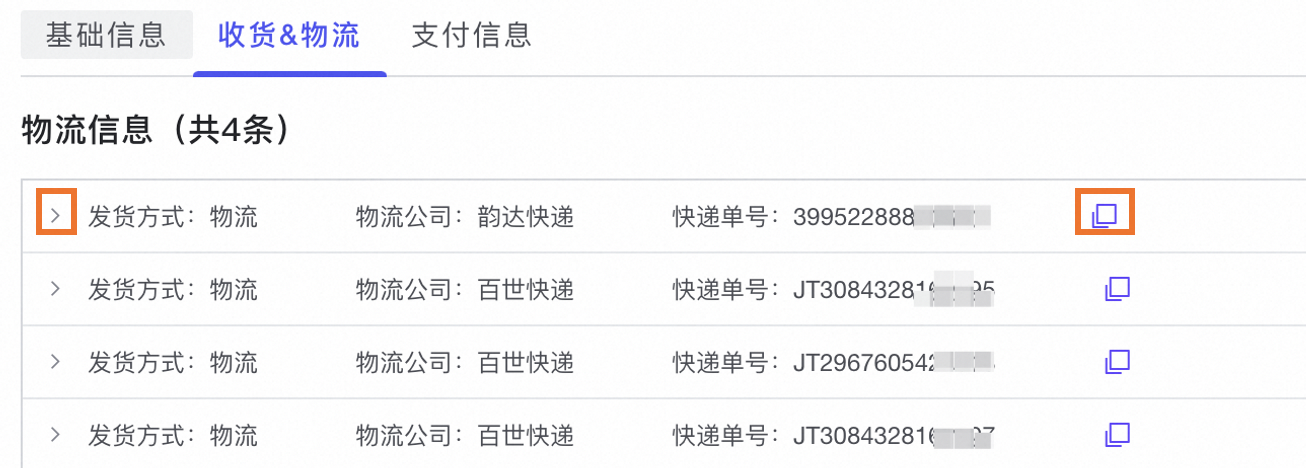
Basic logistics information: Displays information such as the Shipping Method, Logistics Company, and Tracking Number. Click
 to copy the tracking number.
Logistics details: Click
 to view the logistics tracking details.
Payment information
Displays the order's payment information, such as the order amount and Alipay transaction number.

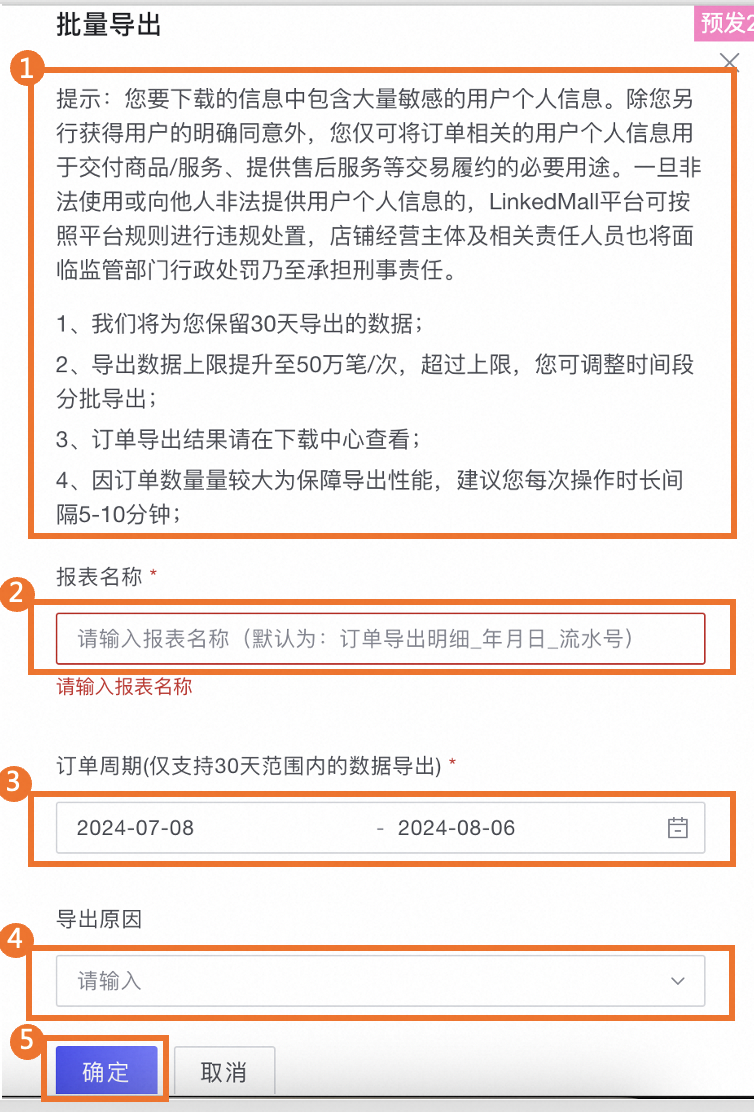
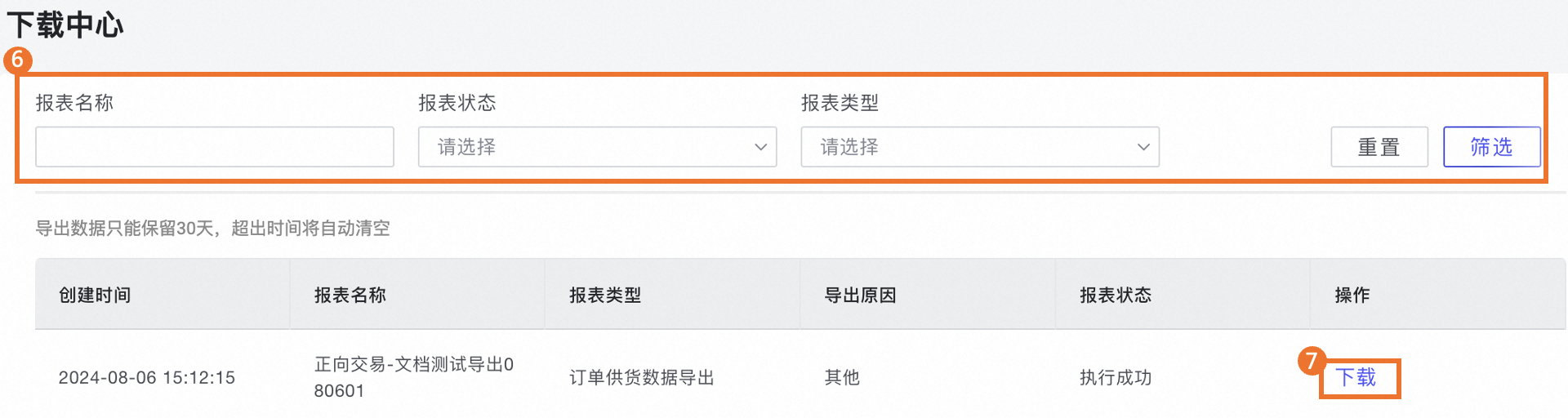
Batch export orders: Click Batch Export. In the panel that appears on the right, configure the export settings. After the export is complete, go to to view the task execution results and download the file.
No.
Description
1
Read the export instructions carefully.
2
Enter a Report Name.
3
Set the export Order Period (exports are limited to a 30-day span, and you must split the period to export data for more than 30 days).
4
Select an Export Reason.
5
Click OK.
6
Go to the Download Hub and filter for the download task that you want to view.
7
Click Download to download the exported order data. You can download the file only after the task is complete.

Orders awaiting payment
Click Awaiting Payment to view orders with the Awaiting Payment status. For more information, see All recent orders.
Orders awaiting shipment
Click Awaiting Shipment to view orders with the Awaiting Shipment status. For more information, see All recent orders.
Orders awaiting receipt
Click Awaiting Receipt to view orders in the Awaiting Receipt state. For more information, see All recent orders.
Completed orders
Click Completed to view orders that are marked as Completed, which indicates that the recipient has confirmed receipt. For more information, see All recent orders.
Closed orders
Click Closed to view orders with the Closed status. An order is closed if a user cancels the order, the payment times out, or an after-sales process is completed. For more information, see All recent orders.
After-sales orders
All after-sales orders
Click All After-sales Orders to view a list of all your recent after-sales orders.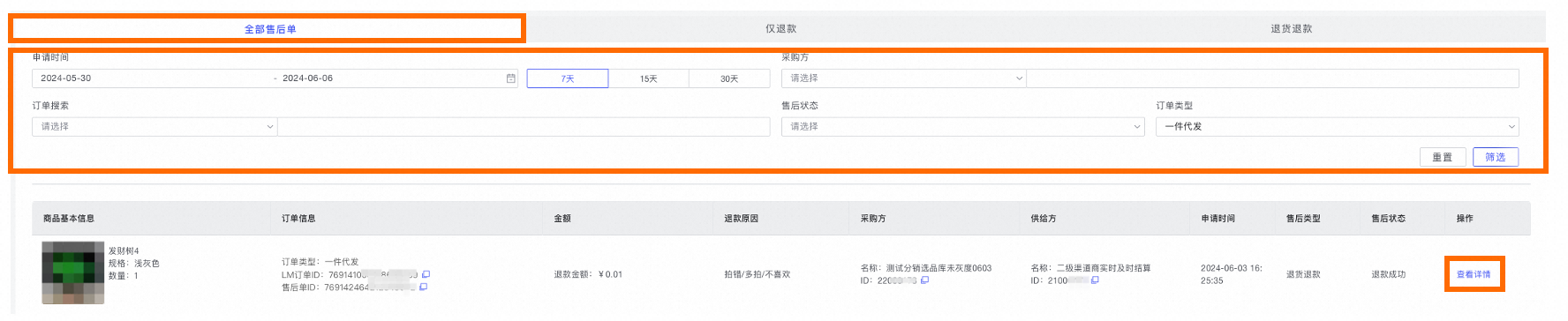
Filter after-sales orders: You can set the filter criteria and click Filter to view matching orders. You can also combine multiple filter criteria. The criteria are described as follows:
Request Time: Filter orders by their creation time. You can also quickly filter by selecting a preset time span, such as the last 7 days, 15 days, or 30 days.
Order Search: Search by LM Order ID or After-sales Order ID.
After-sales Status: Filter orders by their after-sales status.
Order Type: Filter by Dropshipping or Bulk Purchase. Orders placed through an API are considered Dropshipping orders.
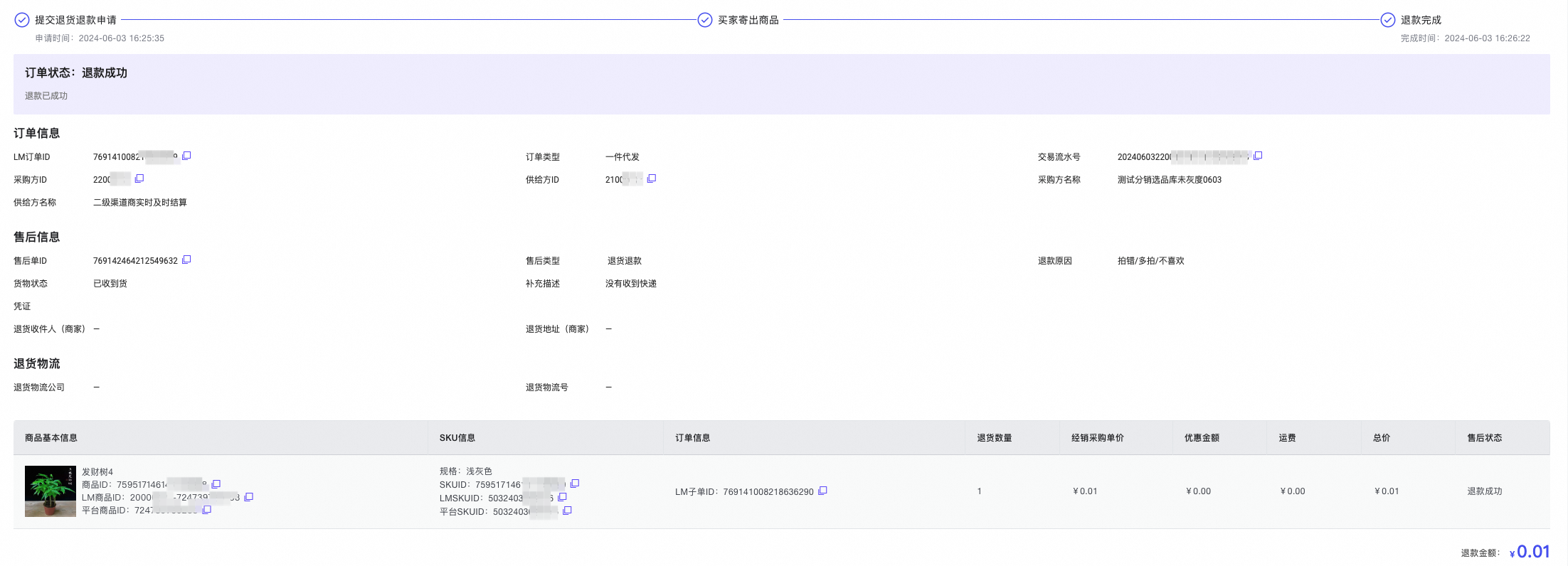
View order details: Click View Details to go to the Order Details page.
Order Status: Displays the after-sales status of the current order.
Order information: View the basic information for this order.
After-sales information: View information for this order, such as the After-sales Order ID.
NoteImages for after-sales proof are retained for one year. After this period, they are marked as Expired.
Return logistics: For after-sales orders that involve returns and refunds, this section displays the return logistics information submitted by the buyer.
Batch export refund orders: Click Batch Export. In the panel that appears on the right, configure the export settings. After the export is complete, go to to view the task execution results and download the file.
No.
Description
1
Read the export instructions carefully.
2
Enter a Report Name.
3
Set the export Order Period. (The maximum export period is 30 days. For longer periods, you must perform multiple exports.)
4
Select an Export Reason.
5
Click OK.
6
Go to the Download Hub and filter for the download task that you want to view.
7
Click Download to download the exported after-sales order data. You can download the file only after the task is complete.
Refunds only
Click Refunds Only to view after-sales orders in the Refunds Only state. For more information, see All after-sales orders.
Returns and refunds
Click Awaiting Shipment to view orders in the Awaiting Shipment state. The available operations are the same as those described in the All after-sales orders section.