Guide to opening a distributor store
Configure distributor store information
After your enterprise is onboarded, go to the Distributor Workbench. In the navigation pane, choose to start opening your distributor store.
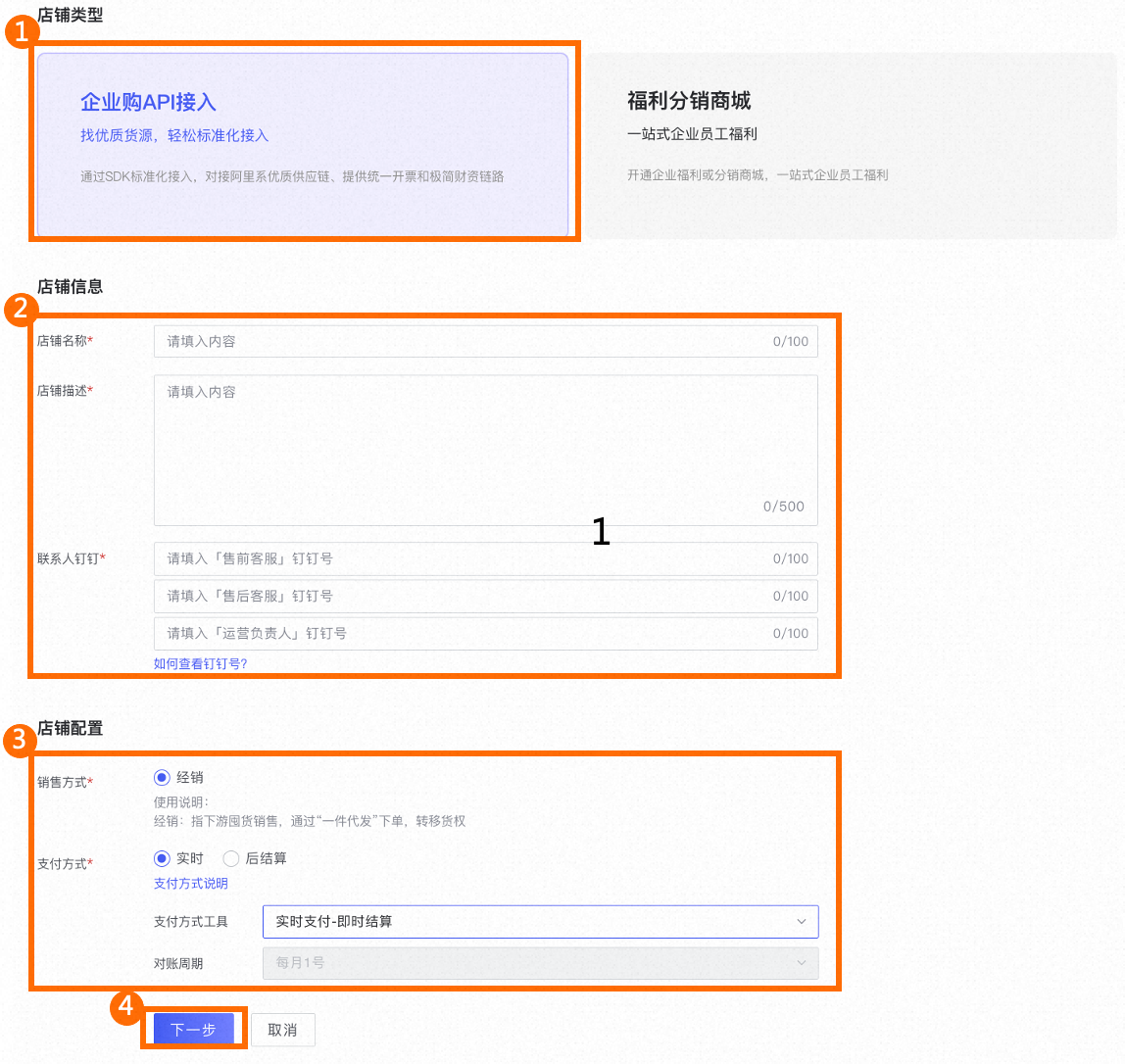
Set Store Type to Enterprise Purchase API Integration.
Enter information such as Store Name, Store Description, and Contact's DingTalk ID.
Set the store's Sales Method and Distribution Payment Method.
Sales Method
Select Distribution.
Distribution Payment Method
You can select Real-time or Post-settlement. Click
 to view detailed descriptions of each payment method.Note
Before you configure the payment method, communicate and reach an agreement with the channel provider. Configure the payment method only after both parties agree.
Real-time: Select Real-time Payment - Instant Settlement as the payment method.
Post-settlement: Select Post-settlement - Offline Transfer Settlement. The billing cycle is 90 days, and the reconciliation date is the first day of each month.
Click Next to submit your request to open the store.
Wait for approval
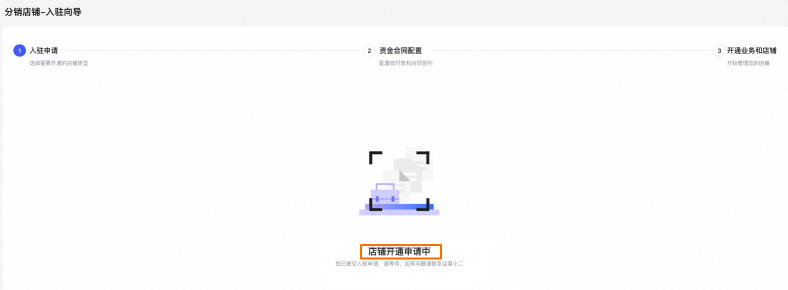
After you submit the store information, the onboarding status changes to Store Opening Request in Progress. Wait for the Alibaba Cloud operations specialist to review your request.
The Alibaba Cloud operations specialist will complete the approval within 3 business days. If the approval is overdue, contact the operations specialist (DingTalk ID: i8id7on).
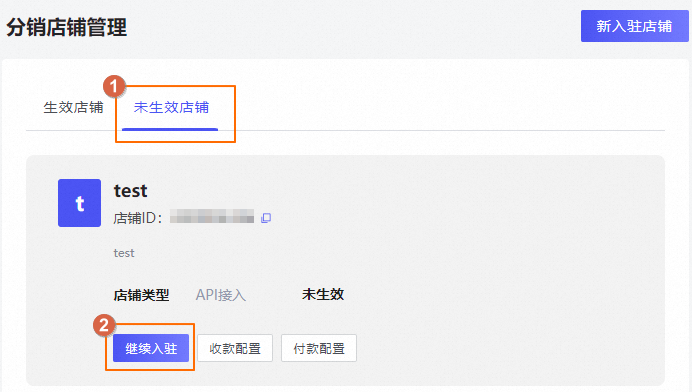
After the Alibaba Cloud operations specialist approves your request, go to the Distributor Workbench. Choose . On the Inactive Stores tab, click Continue Onboarding to finish entering your store information.
Configure financial contracts
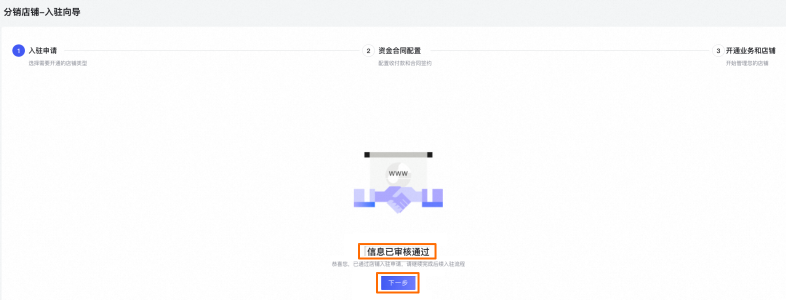
Go to the Distributor Workbench and choose . The store onboarding (opening) status shows Information Approved. Click Next to start configuring financial contracts.
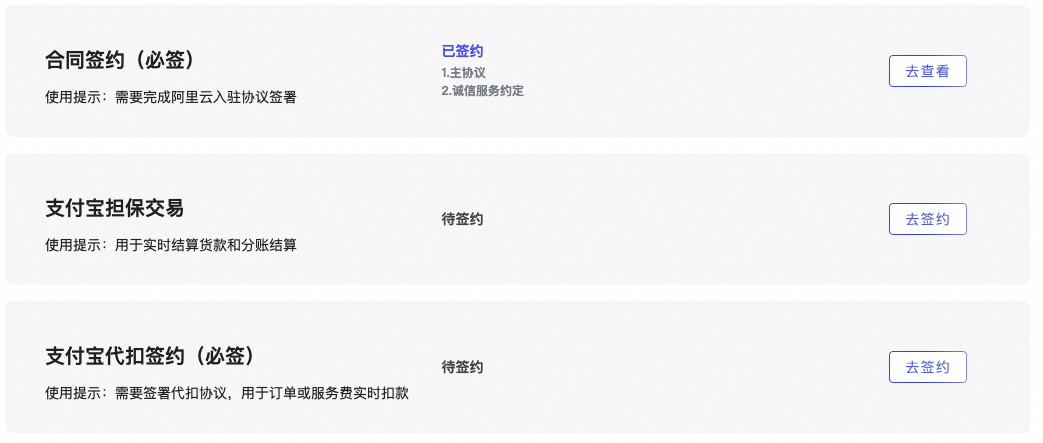
Sign up for Alipay Secured Transaction (optional) and Alipay Withholding. Then, configure your collection and payment accounts.
The contract is signed automatically and cannot be viewed online at this time. If you need a copy, contact the operations specialist (DingTalk ID: i8id7on).
Configure and enable a collection account (optional)
Configure a collection account
Use an enterprise Alipay account to enable Alipay Secured Transaction for collecting technical service fees.
To the right of Alipay Secured Transaction, click Sign Up to go to the Store Collection configuration page.
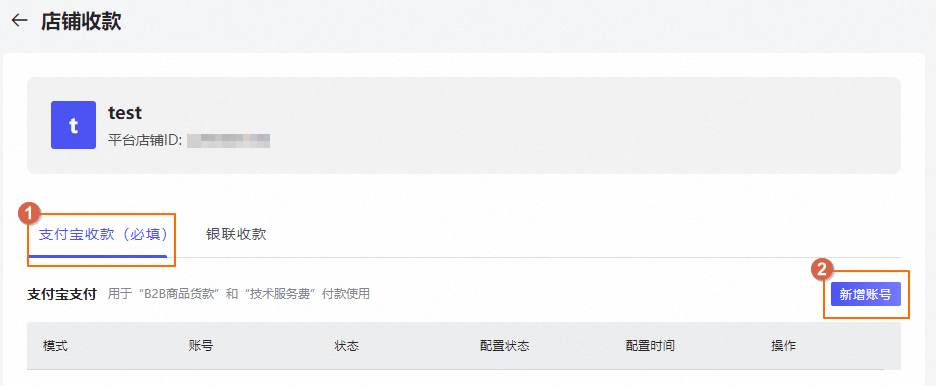
When you configure the store collection account, Alipay Collection (Required) is a required configuration item. UnionPay Collection is optional. For more information, consult the Alibaba Cloud operations specialist.
Alipay Collection (Required)
Select the Alipay Collection (Required) tab and click Add Account to go to the Enable Alipay Secured Transaction page.

Enter the Basic Information, Merchant Information, and Legal Person Information. Read and select the checkbox
to agree to the terms, then click Submit.NoteEnsure that the information you enter is correct and valid to avoid issues with approval and collection.
Log on to the Alipay Merchant Center with your signed enterprise Alipay account. On the page, complete the sign-up for the Alipay Order Collection and Settlement service.
NoteThe following figure shows the signed status.
UnionPay Collection
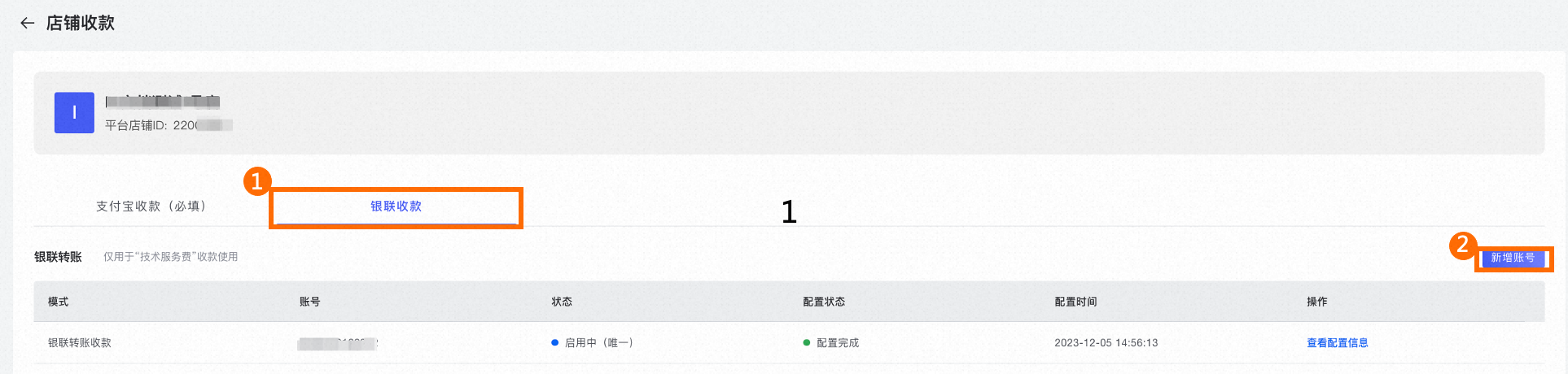
Select the UnionPay Collection tab and click Add Account.
On the Add Account Information page, enter the UnionPay account information. After you confirm the information is correct, click Confirm.
For more information, consult the Alibaba Cloud operations specialist.
NoteIf your Alipay account has already enabled Secured Transaction in LinkedMall (for example, if you are a distributor from the old system), you can view the submitted account information in the Distributor Workbench by choosing . If enabling the account fails with the reason Duplicate Entry, as shown in the following figure:
Click Reconfigure in the figure above. In the dialog box that appears, confirm the account information and click Reconfigure.
After the configuration is complete, the account status updates to Enabled.
To learn how to enable the collection account, see Enable a collection account below.
 to agree to the terms, then click Submit.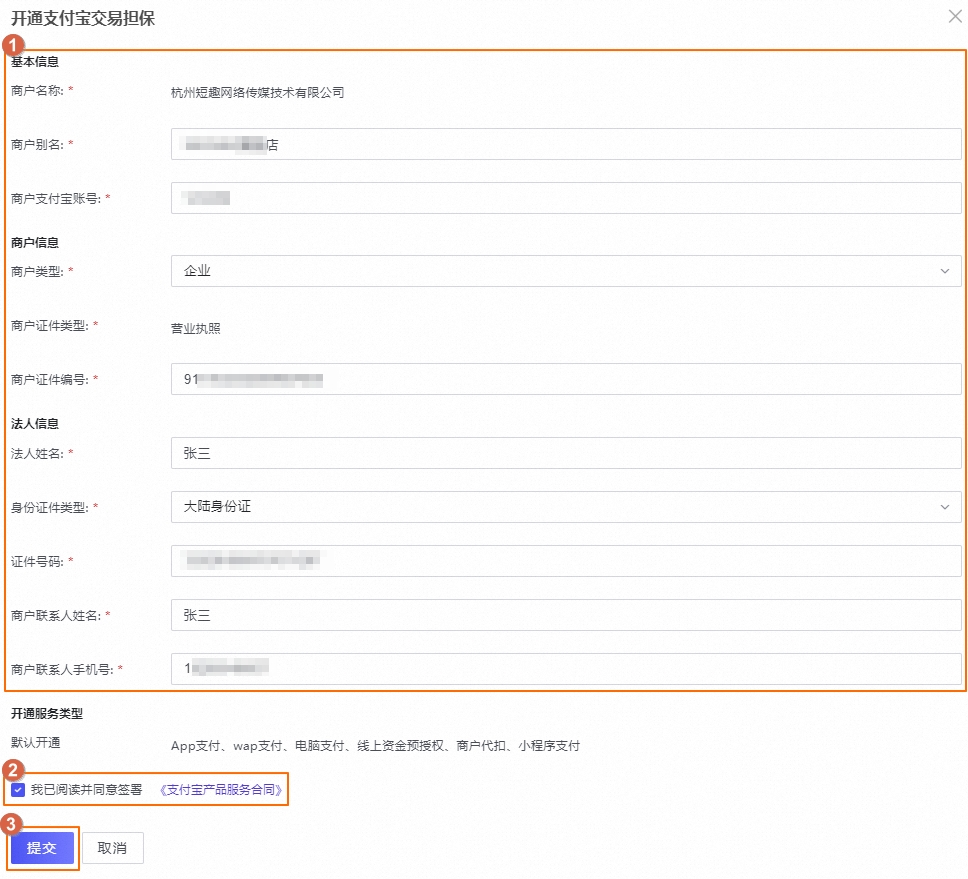

Enable a collection account
Go to the Distributor Workbench. Choose . To the right of the store, click Configure.
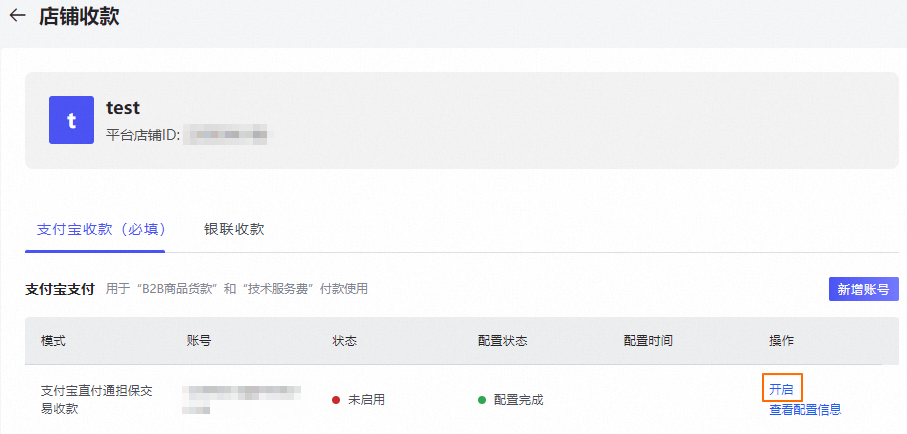
Select the Alipay account to enable and click Enable on the right.
Read the message in the Prompt dialog box carefully. After you finish reading, click OK. To modify the configuration, assess the business impact yourself.
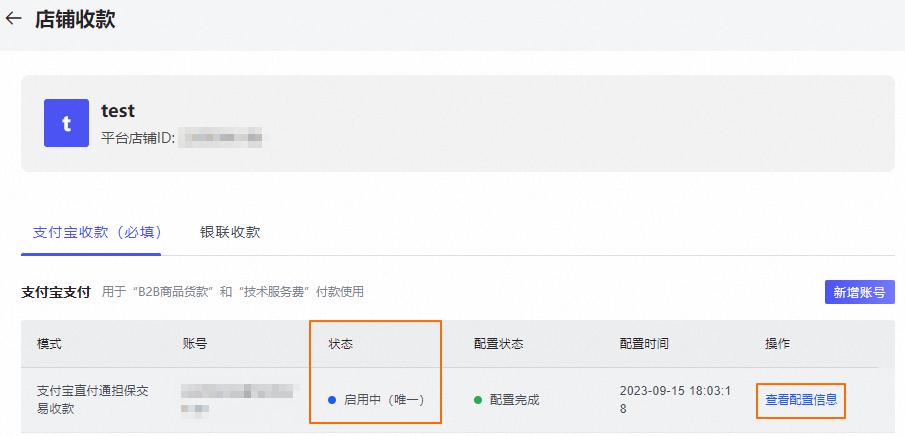
After the account is enabled, the Status updates to Enabling (Unique). Click View Configuration Information to see the details of the current account.

Configure and enable a payment account
Sign up for Alipay Withholding
Use an enterprise Alipay account to enable the Alipay Withholding service for real-time deduction of order payments or service fees.
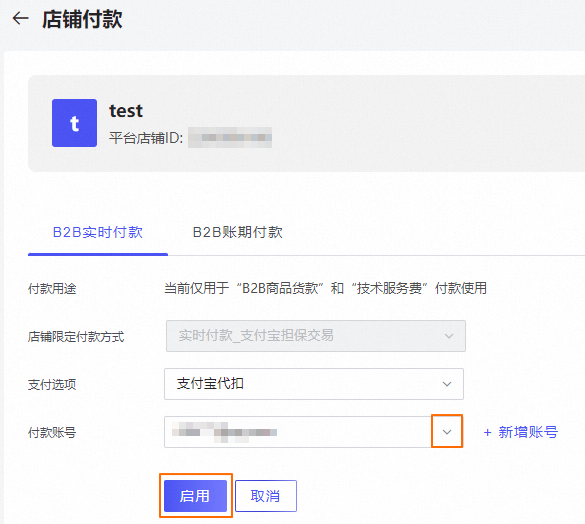
Based on the configured Distribution Payment Method, configure either B2B Real-time Payment or B2B Billing Cycle Payment. The following steps use B2B Real-time Payment as an example.
If the Distribution Payment Method is set to Real-time Payment, configure B2B Real-time Payment.
If the Distribution Payment Method is set to Post-settlement and Offline Special Payment - Alipay Transfer is selected as the payment tool, configure B2B Billing Cycle Payment.
To the right of Alipay Withholding Sign-up (Required), click Sign Up to go to the Store Payment configuration page.
Click Add Account to go to the Alipay Withholding sign-up service page. Scan the QR code to log on with the enterprise Alipay account you want to sign up.
NoteDo not use an Alipay account that is attached to Tmall for sign-up, because these accounts do not have payment capabilities.
Read the Alipay Withholding Agreement, enter the Alipay payment password for the account, and click Agree to Agreement and Submit.
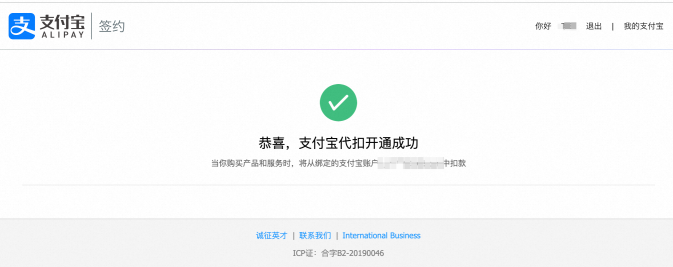
After a successful sign-up, Alipay displays the following page.
If your Alipay account has already signed up for withholding in LinkedMall (for example, if you are a distributor from the old system), Alipay will directly return the following page after you scan the QR code for sign-up. 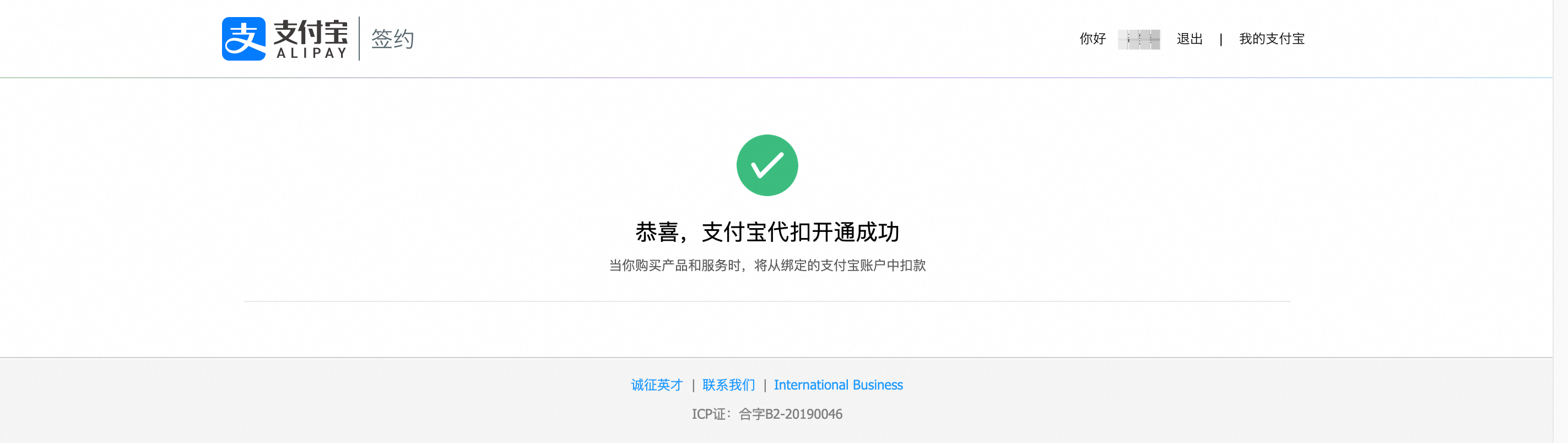
No accounts are available in the Enable payment account drop-down list.
Go to the Distributor Workbench and choose to perform a sign-up verification. This feature requires activation. To use it, provide your Enterprise ID and Alipay account to the LinkedMall operations specialist to request whitelisting.
Enter the Withholding Service Agreement Number (for instructions on how to get the service agreement number, see the prompt in the figure below) and click Verify.
As shown in the following figure, after the Verification Successful message is displayed, click Confirm Import.
The status of the new account is Enabled.
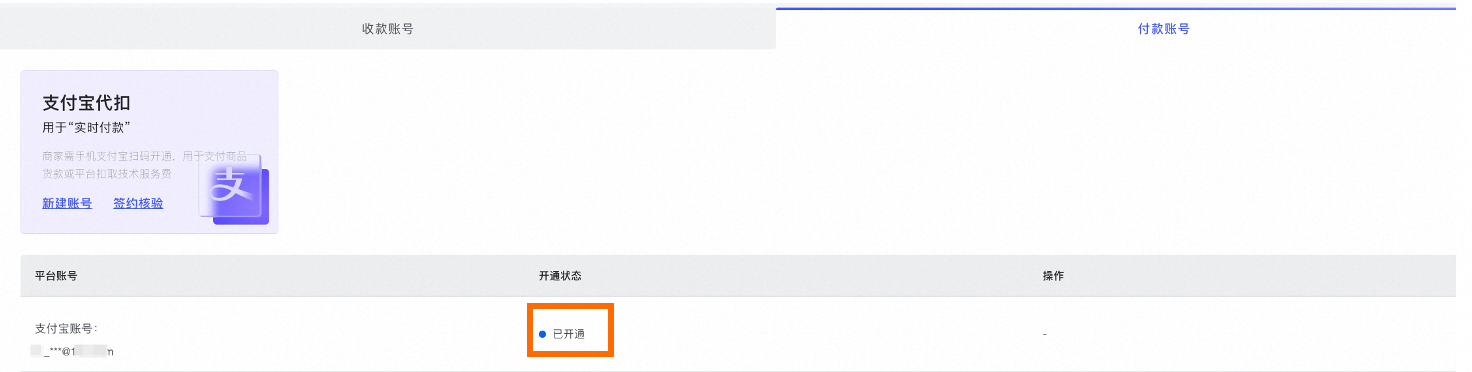
To learn how to enable the payment account, see Enable a payment account below.
Enable a payment account
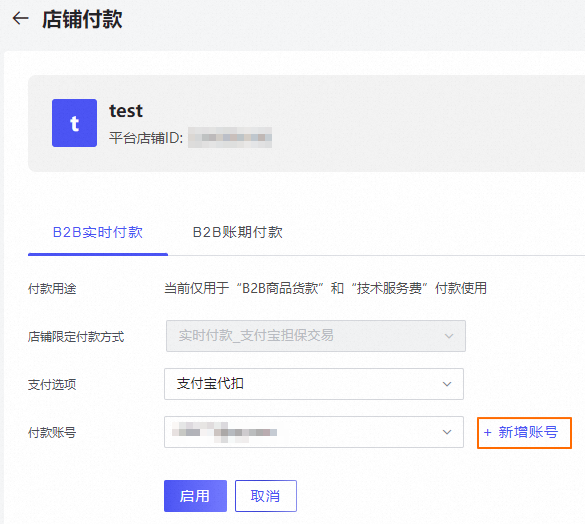
After you successfully sign up for the Alipay Withholding service, refresh the Store Payment configuration page. From the Payment Account drop-down list, select the signed-up Alipay account and click Enable.
Read the message in the Prompt dialog box carefully. After you finish reading, click OK. To modify the configuration, assess the business impact yourself.
B2B Real-time Payment
B2B Billing Cycle Payment
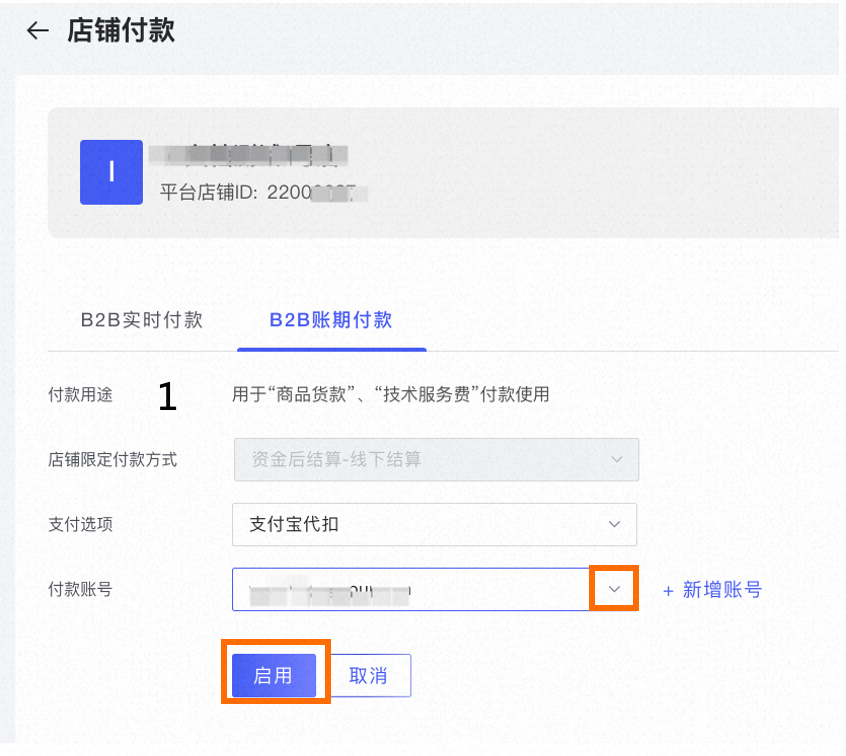
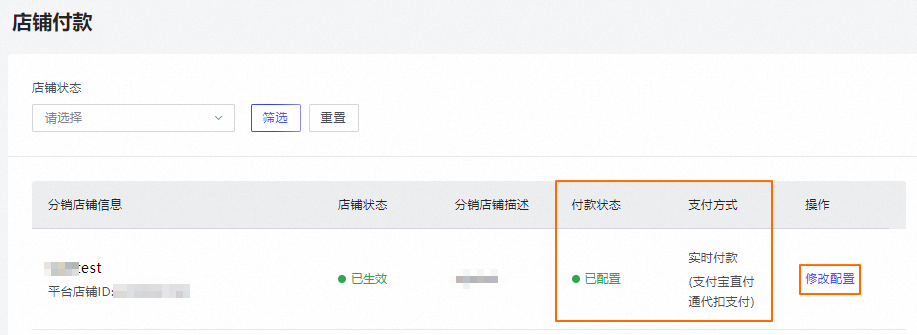
After the configuration is complete, go to to view the status. Click Modify Configuration to go to the Store Payment page. On this page, you can add or switch payment accounts.
Complete onboarding
Complete the onboarding process
Go to the Distributor Workbench. Choose . On the Inactive Stores tab, click Continue Onboarding. The system redirects you to the page.
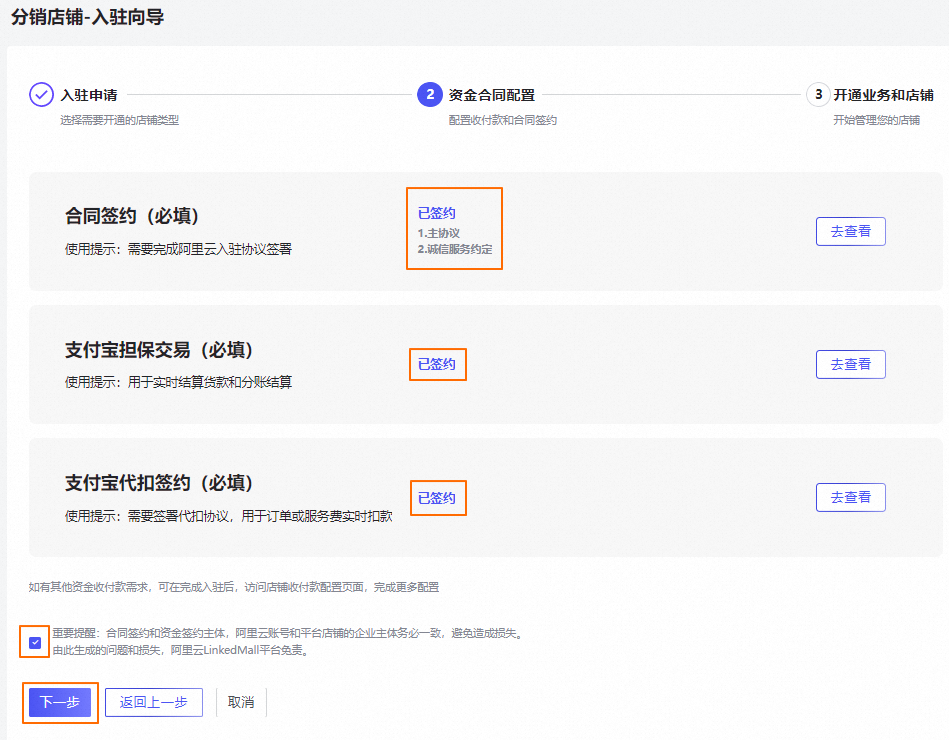
Check whether all contracts and financial account sign-ups in the Financial Contract Configuration are complete (Alipay Secured Transaction is optional). If they are complete, read the Important Reminder, select the checkbox to agree, and click Next.
Check that the store status is Activating. Follow the Developer Guide. Click
to copy the Distributor ID and Distribution Mall ID. Click Download SDK to view the help document for development assistance.
 to copy the Distributor ID and Distribution Mall ID. Click Download SDK to view the help document for development assistance.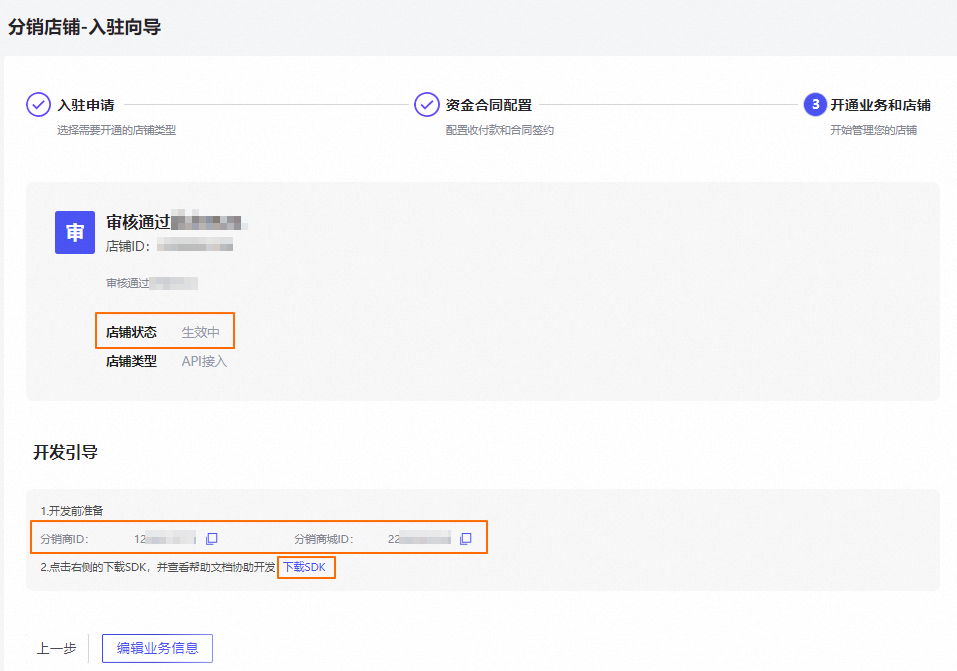
Select a channel business
For more information about selecting a channel business, see Select a channel business.
Before you select and set up a supplier, negotiate the business cooperation intent. Do not select suppliers with whom you have no intention of cooperating to avoid affecting your store's normal operations.
For more information about the features of the Distributor Workbench, see Distributor Workbench Operation Manual.
After you complete onboarding and open your store, you can start the integration development. For more information about the integration process, see Integration Guide.
After onboarding, contact the Alibaba Cloud operations specialist (DingTalk ID: i8id7on) to get development support for your distributor store. We will create a dedicated DingTalk group for you for technical integration and Q&A.