Introduction to other backend features
This topic describes common features.
Contract & payment information
In the Contract & payment information section, you can automatically fill in entity details for contract signing. Ensure that the entity information is accurate. If you do not receive payments as a supplier, you can leave the payment information blank.
In the LinkedMall Supplier Platform, go to the Store Center > Contract & Payment Information page. Click Modify in the upper-right corner, enter the Contact, Contact Number, Email, and Contact Address, and then click Confirm in the upper-right corner.
You can only modify the contact and contact address information on this page. This information is used for daily communication between LinkedMall staff and suppliers. Ensure that you enter this information accurately. For the mobile phone number, provide a number that can be added on DingTalk.
To modify information such as the company entity, see Change corporate entity or update company name.
Each Alibaba Cloud account is associated with only one entity. If a shop's entity does not match the entity of the Alibaba Cloud account, you must request a new Alibaba Cloud account. Associate shops with the Alibaba Cloud accounts of their respective entities. You must use the Alibaba Cloud account with the matching entity to sign the contract.
Shop operator management
If multiple people need to manage a LinkedMall shop, you can add new managers by having them register a new Alibaba Cloud account and request to associate it with the shop.
On the Store Center > Store Operator Management page of the LinkedMall Supplier Platform, click Associate Store in the upper-right corner, enter the LM Store ID, and click OK.
After a request is submitted, the owner of the initial Alibaba Cloud account can perform the Agree/Detach operation.
Order transaction details
In the LinkedMall Supplier Platform, go to the Financial Management > Order Transaction Details page. On this page, you can view the transaction details for various order types, such as Placed, Paid, Completed, and Refunded, within a selected time frame.
Invoice management
After a channel partner submits an invoicing request, you can view the required invoice amount in the backend and issue an invoice to the partner.
On the Financial Management > Invoicing Management page of the LinkedMall Supplier Platform, confirm that the invoicing amount is correct. Click Invoice > Add Invoice Information and accurately fill in the invoice information so that the channel partner can view the invoice issuance progress in the backend.
Failure to issue invoices to channel partners will affect future cooperation. Ensure that you issue invoices promptly.
Onboarding status
In the LinkedMall Supplier Platform, go to the Store Center > Onboarding Status page to view your store's onboarding progress.
After a shop onboarding application is submitted, the review is typically completed within one to two business days.
Taobao shop management
On the Store Center > Taobao Store Management page of the LinkedMall Supplier Platform, you can enable or modify the secured transaction information.
No. |
Option |
Description |
1 |
Apply for Onboarding |
To add multiple stores under one Alibaba Cloud account, click Apply For Entry. |
2 |
Modify invoice information, view invoice information change progress |
View/Modify shop invoice information. |
3 |
Not Enabled (Enable) |
After your store is set up, you must enable secured transactions. Click Enable on the right side of the store to do so. The status will then be updated to Enabled, and you can place orders normally. |
PO model cooperation
Before you can configure the Purchase Order (PO) model, you must first establish a partnership with a channel through an investment promotion event. For more information, see Shop registration.
PO agreement signing
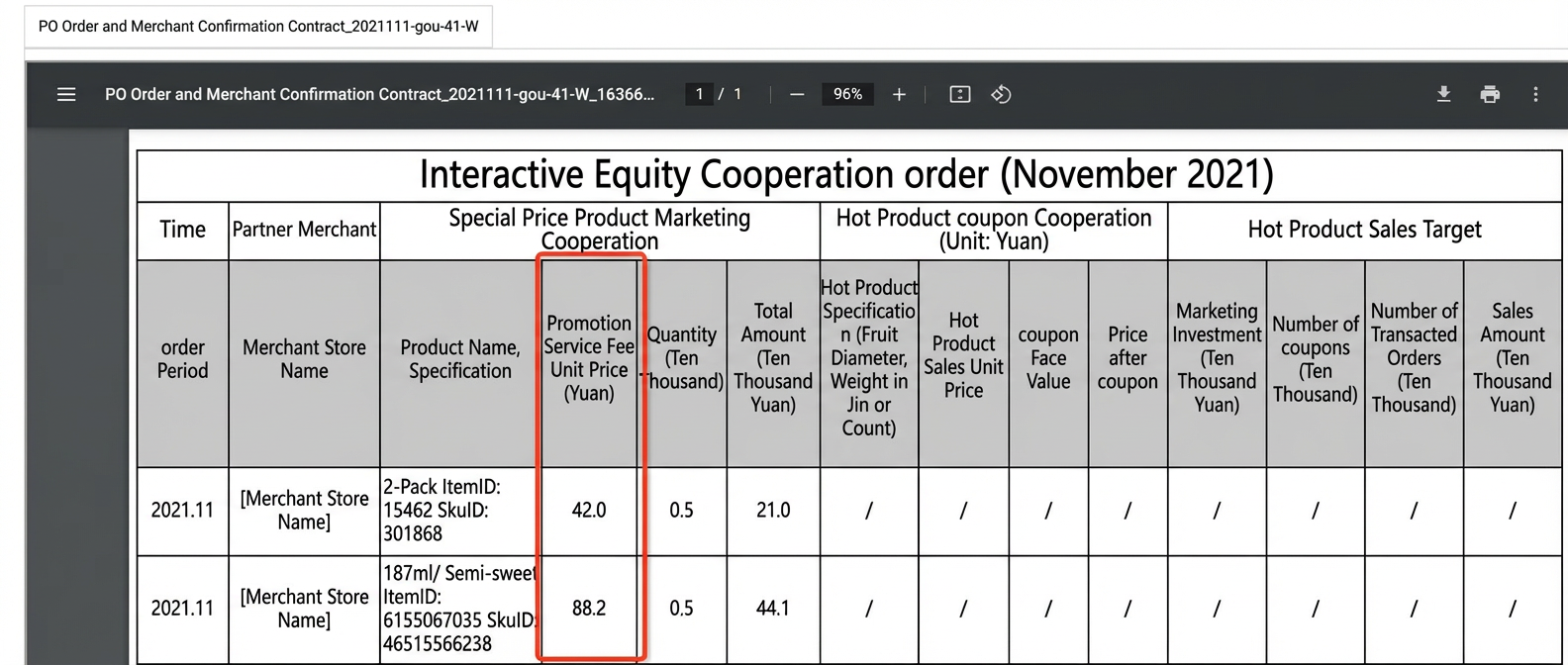
Channel partners settle payments monthly based on the promotion service fee unit price specified in the PO. Ensure that you review the agreement content carefully.
When you supply goods to PO model channel partners, do not change the supply price to a low value, such as CNY 0.01. This can cause financial loss. The final settlement is based on the price in the channel partner's PO agreement.
Product publishing
After the agreement is signed, you must wait for the channel partner to publish the product.
Settlement for PO model cooperation
PO settlement flow: After a product is published on a specific channel and a user places an order, a real-time order for CNY 0.01 is generated in the Tmall/Taobao shop backend. After the user confirms receipt, the supplier receives a real-time payment of CNY 0.01 for that order.
The remaining payment for completed orders from the previous calendar month is typically settled at the beginning of the current month. The settlement amount is calculated as follows: (Promotion fee unit price in the PO agreement - 0.01) × Number of actual consumed orders.
Check whether a settlement statement has been generated.
Before the 10th of each month, in the LinkedMall Supplier Platform, check the store registration progress on the Store Center > Registration Query page.
In Special Payment Management > Settlement Statement Management, view the settlement statements for each store's completed orders from the previous calendar month. If no statements are found, join the onboarding group and submit a ticket.
Confirm the settlement statement. In the LinkedMall Supplier Platform, click Settlement Statement Management to download the settlement statement details for reconciliation. If the details are correct, click Confirm Settlement Statement. If you find any errors, join the support group and submit a ticket.
The channel partner confirms the settlement statement. After your confirmation, the channel partner must also confirm the statement. If the channel partner does not confirm it promptly, join the onboarding group and submit a ticket.
Perform invoicing. After the channel completes the approval, a relevant KP number is generated on the Special Payment Management > Settlement Management page of the LinkedMall Supplier Platform. The supplier creates an invoice for the settlement amount, adds the KP number as a note on the invoice as shown in the example image, and sends it to the channel. The channel then verifies the KP number and amount on the received invoice, matches each transaction, and makes the payment to settle the bill.
The receiving account is the Alipay account that you used to sign up for secured transactions.