This topic describes how to manage licenses.
Overview
ApsaraVideo Live provides unified license management for Push SDK, Queen SDK, and ApsaraVideo Player SDK to simplify SDK integration.
Log on to the ApsaraVideo Live console. In the navigation pane on the left, choose . On the My Licenses page, you can manage your licenses.
License management
On the License Management tab, you can bind licenses, download certificate files, renew licenses, and view license information.

The following table describes the fields in the list.
Field |
Description |
Application Name |
The name of the application. |
Instance ID |
The ID of the order instance. |
SDK Version |
The SDK version purchased in the order, such as Push SDK or Queen SDK. |
License Type |
Official Version/Trial Version.
Note
|
Status |
Activated/Expired. To renew an expired license, see Renewal. |
Value-added Service (Validity Period) |
The value-added services selected and their expiration dates when you purchased the SDK. |
Creation Date |
The date when the license was bound. |
Expiration Date |
The date when the license expires. |
Authorized Platform |
The platform for which the license is granted. |
License binding
Click Bind License to go to the binding page. Select the SDK license order and the application that you want to bind. After you confirm the information, click Bind.
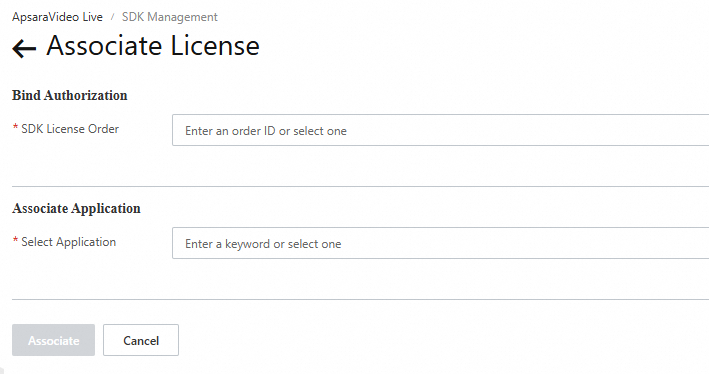
After the binding is successful, return to the License Management tab. You can view the successfully bound application and its authorization information.
Renewal
In the Actions column, click Renew to open the renewal page. Confirm the Product and Instance ID/Name, and then click Renew.

When the renewal page appears, confirm your current configuration and subscription duration. Click Buy Now to complete the renewal. We recommend that you select Enable Auto-renewal to prevent the license from expiring.
If you encounter problems during the renewal process, contact us.
Download certificate file
After you bind a license, you can Download Certificate File. If you apply for different SDKs for the same application, the LicenseKey and LicenseFile (certificate file) are the same, so you only need to configure them once. Note: Always use the latest certificate file.
Application management
To use the integrated license service, you can bind different SDK licenses to the same application.

Create application
Applications are available in two client types: Mobile and Web.
For the Push SDK, select Mobile.
If your application is already bound to another service that uses the all-in-one license and has the same client type, you do not need to create a new application.
Create application (Mobile)
Click Create Application and fill in the application information. Enter an Application Name, select a client type (the client type cannot be changed after the application is created), and enter the corresponding Android Package Name, iOS Bundle ID, and HarmonyOS Bundle ID to create the application.

Bind an Android application signature
If you select Android for Platform and select Bind Signature, this parameter is required.
Binding a signature improves security and prevents your license from being used by other applications with the same package name.
Newer SDK versions do not require a bound signature. This includes MediaBox Audio and Video SDK v1.7.0 and later, ApsaraVideo Player SDK v5.5.2 and later, Push SDK v4.4.9 and later, and the short video SDK v3.36.0 and later.
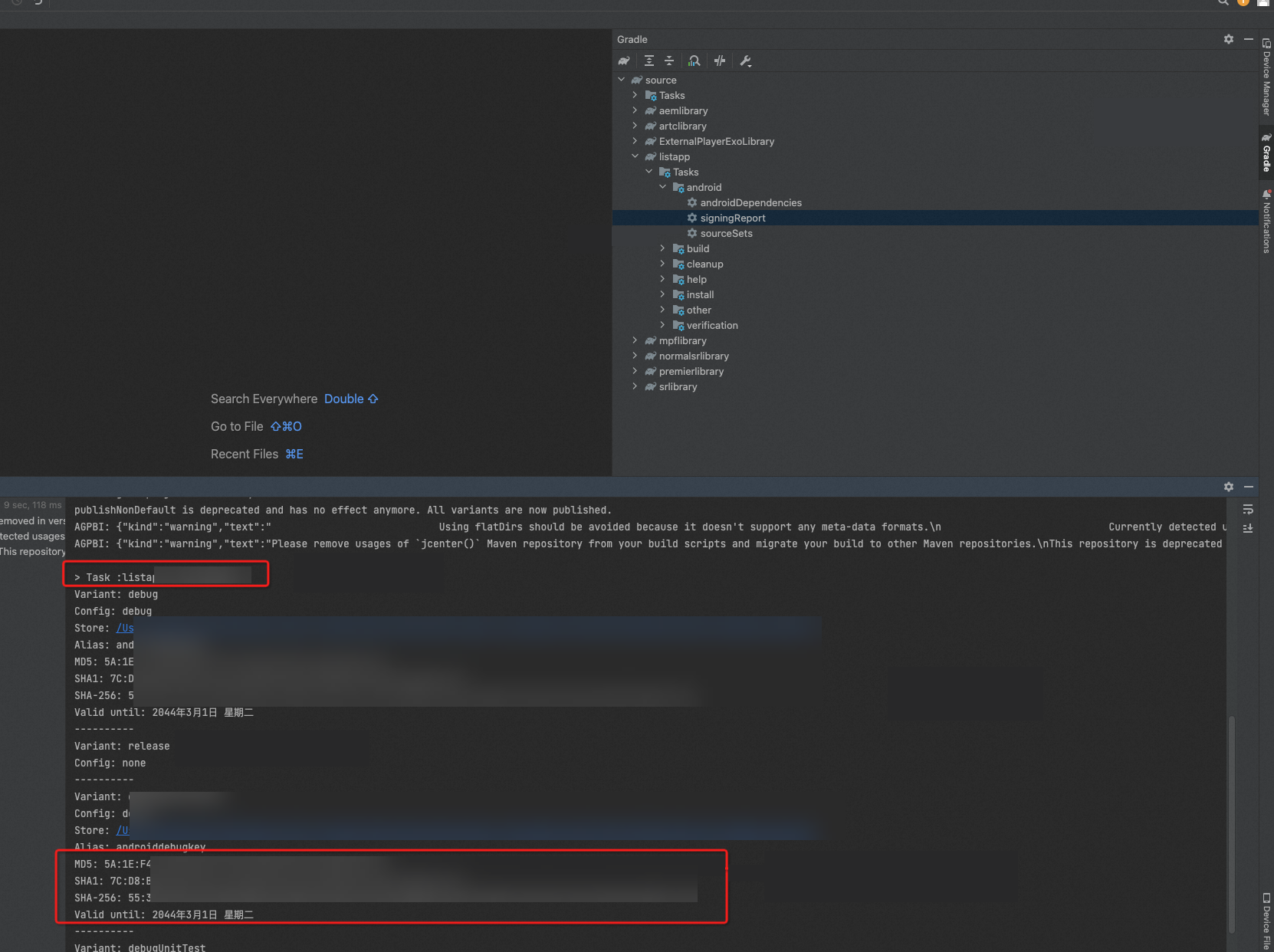
You can obtain the MD5 hash of the Android application signature in two ways:
From the command line: Run the
keytool -v -list -keystore your.keystorecommand to view the MD5 hash of the signature.From Android Studio: In the Gradle sidebar on the right, find and click signingReport under your app's Tasks > android. Convert the letters in the resulting MD5 hash to lowercase and remove the colons.

Create application (Web)
To create a web application, see the following topics:
Edit application
To modify your application information, click Edit. Note that you cannot modify the Client Type. The instructions for completing the other fields are the same as when you create an application.
Modifying the application identifier (Package Name or Bundle ID) causes authentication to fail for the application that uses the original identifier. As a result, SDK calls will fail. Proceed with caution.
After modifying the application, download the certificate file again for integration. If you encounter any problems with the license, contact us.
Order instances
On the Order Instances tab, you can purchase and bind licenses, and query orders.

License purchase
Click Purchase License to go to the purchase page. Select the SDK, platform, and version.
You can bind each license order to only one application.
After you confirm the information, click Buy Now.
License binding
After you purchase a license, you must bind it. For more information, see License binding.
FAQ
Financial Cloud user authorization
Financial Cloud users must place an order on the ApsaraVideo MediaBox purchase page. After you place the order, submit a ticket to complete the license authorization. When you submit the ticket, include the following information:
-
State that you are a Financial Cloud user and provide the order number, a screenshot of the purchase, and your Account ID.
-
Provide your application information: the domain name for a web application, or the package name for a mobile application.
-
After manual authorization, Alibaba Cloud does not send expiration reminders for SDK licenses. You must track the expiration date yourself to avoid service interruptions.
For more frequently asked questions, see License-related FAQ.