Cloud service diagnosis
Cloud Service Diagnosis is a free O&M tool provided by Alibaba Cloud for developers, system administrators, and IT managers. It features two core functions: Resource Health Status and Problem Diagnosis.
In the Cloud Service Diagnosis console, you can view the health status of your cloud resources down to the instance level, identify platform issues, and run a comprehensive diagnosis with a single click. After you select One-Click Diagnosis or a typical problem like "Website inaccessible," the system automatically identifies relevant resources such as ECS, SLB, and EIP to perform a full diagnosis. It then provides the cause of the problem and a troubleshooting suggestion. This allows you to quickly pinpoint the root cause and improve troubleshooting efficiency, even without deep technical expertise.
Core features
1. Resource health status
1.1 Resource health status definition
The health status indicates the availability of a cloud resource as affected by the underlying cloud platform. An instance is marked as Normal if available and Abnormal if unavailable.
Cloud resource:
A cloud resource is any independently manageable and runnable instance or service of a cloud product, such as an ECS instance or an OSS bucket.
Abnormal health status:
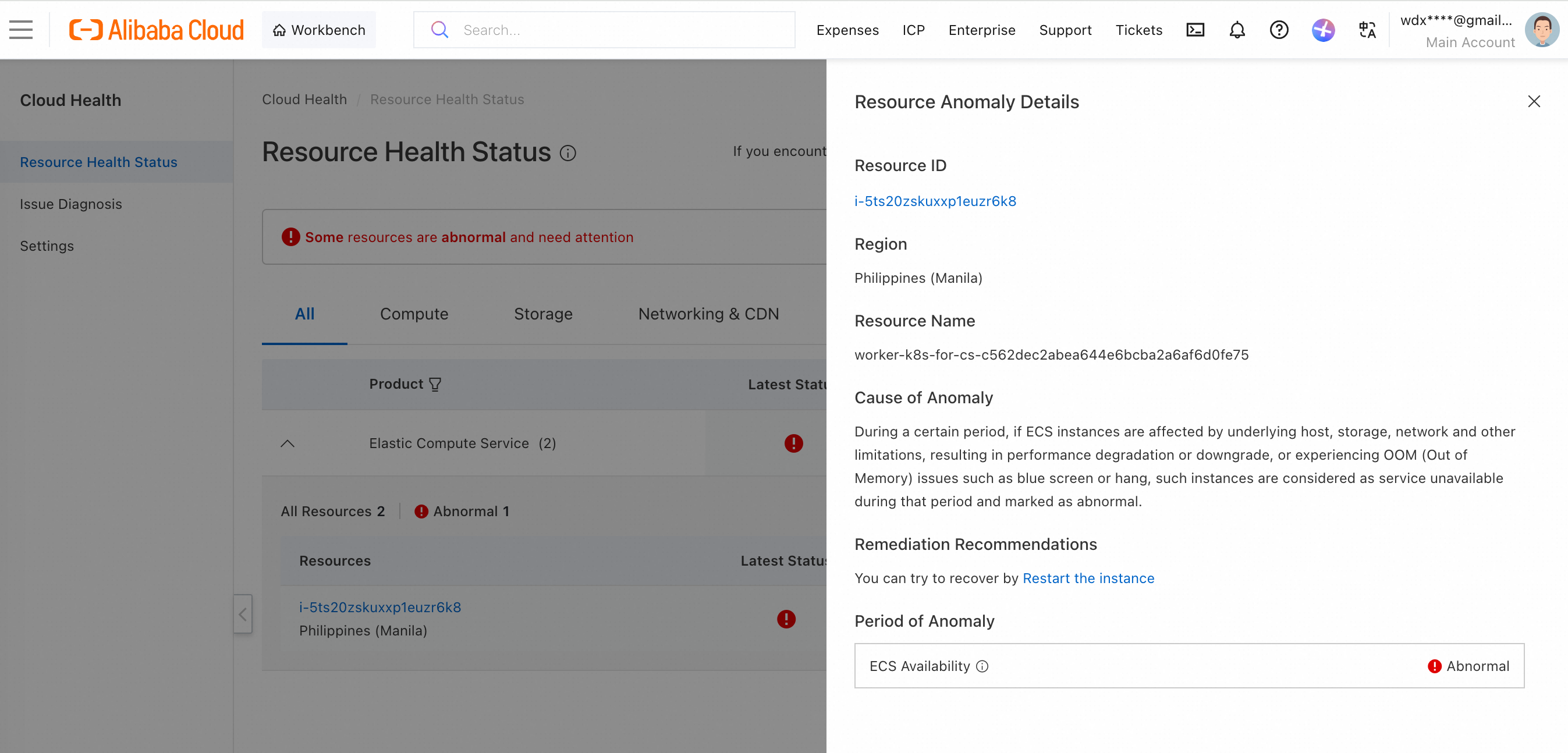
Case 1: A cloud resource is unable to respond to normal requests during a specific period due to an Alibaba Cloud-related reason, such as a failure or scheduled maintenance. This triggers an abnormal health status.
Case 2: The availability of a cloud resource drops below the normal range due to an Alibaba Cloud-related reason, such as a failure or scheduled maintenance. This triggers an abnormal health status.
Note: The criteria for determining the health status vary by cloud product. For more information, see Supported products and descriptions of the health status feature.
1.2 Importance of health status
An abnormal health status for a cloud resource indicates that the resource is malfunctioning due to an issue with the underlying Alibaba Cloud platform. Alibaba Cloud engineers typically monitor for and resolve these issues, but in some cases, you may be able to fix the problem by rebooting the instance. If an issue is not resolved promptly or is affecting your services, contact Alibaba Cloud support.
If a cloud resource's health status is normal, you can rule out platform issues and investigate other potential causes. You can use One-Click Diagnosis to quickly check for common problems related to network, configuration, performance, and security.
1.3 Usage
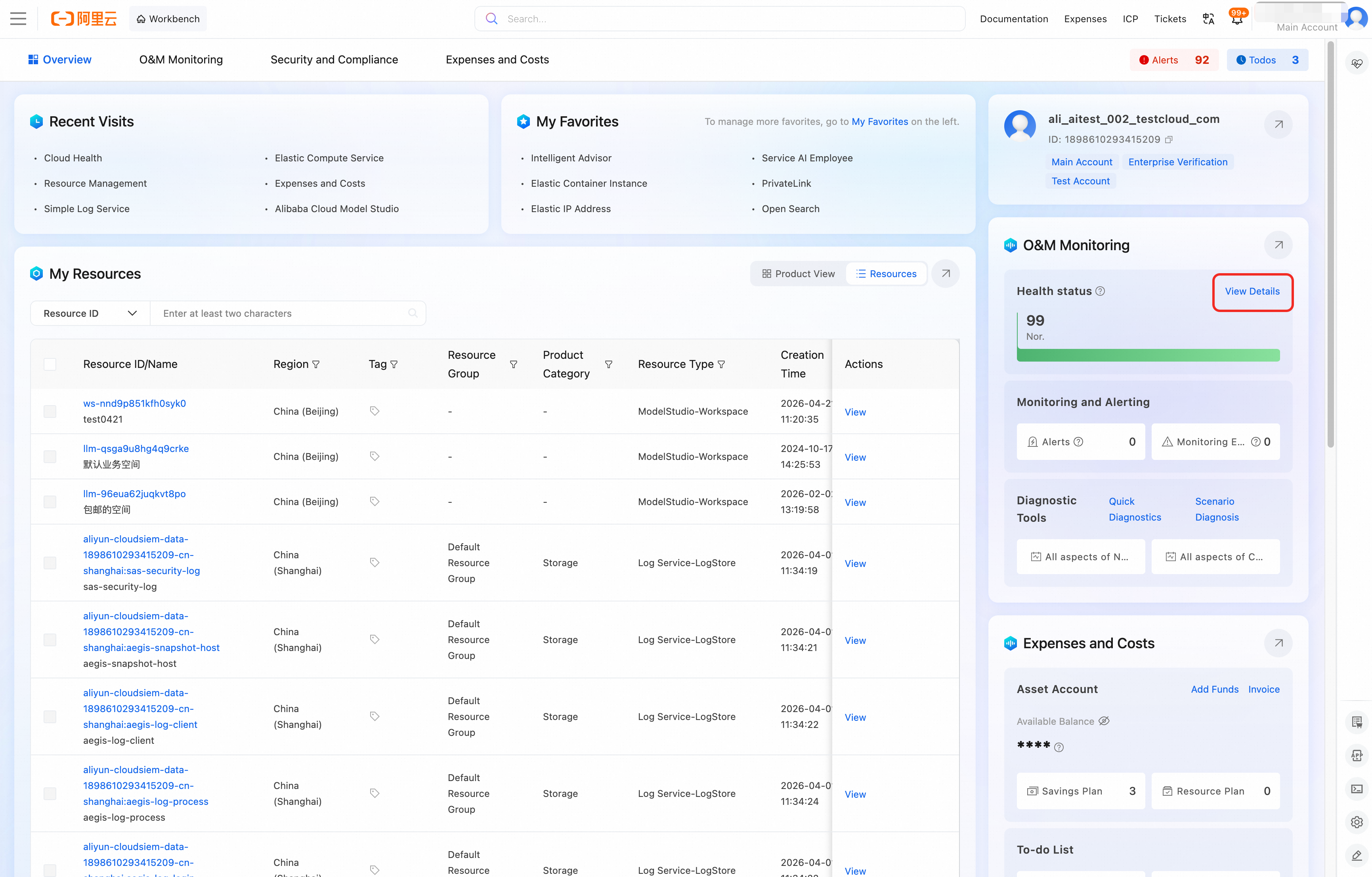
Resource health overview:
Log on to the console. On the console homepage-Overview page, you can get a quick overview of the health status of your cloud resources.
Resource health details:
Click View Details in the image above, or go to the console homepage-O&M page, to see the health status details for the last 7 days. You can view information about normal and abnormal resources, the causes of abnormalities, and troubleshooting suggestions.
2. Problem diagnosis
2.1 Diagnosis definition
Problem Diagnosis analyzes the operational state of your cloud resources, including their configuration, features, performance, connectivity, and security, to identify abnormalities and provide troubleshooting suggestions.
2.2 Importance of diagnosis
The diagnosis tool allows you to start a diagnosis in real time by simply selecting a scenario that matches your issue, without needing deep knowledge of cloud products. In just 1 to 2 minutes, you can get a detailed report that describes any abnormalities and provides troubleshooting suggestions. By following these suggestions, you can resolve the issue and quickly restore your services.
Compared to manual methods like checking each cloud product one by one, analyzing large volumes of logs, or waiting for customer support, this tool helps you locate and resolve problems faster. The One-Click Diagnosis feature further lowers the barrier to entry and makes troubleshooting even more efficient.
2.3 Usage
You must enable the service before first use. You can enable it with one click by following the on-screen prompts. For details, see the Enable and disable the service section.
The diagnosis process runs a data collection program to gather operational data and key log errors from your cloud resources. This process does not collect any business information or sensitive data.
2.3.1 Starting a diagnosis
Log on to the console. You can quickly start a diagnosis from the sidebar of the console homepage or from the O&M Monitoring section on the console homepage-Overview page.
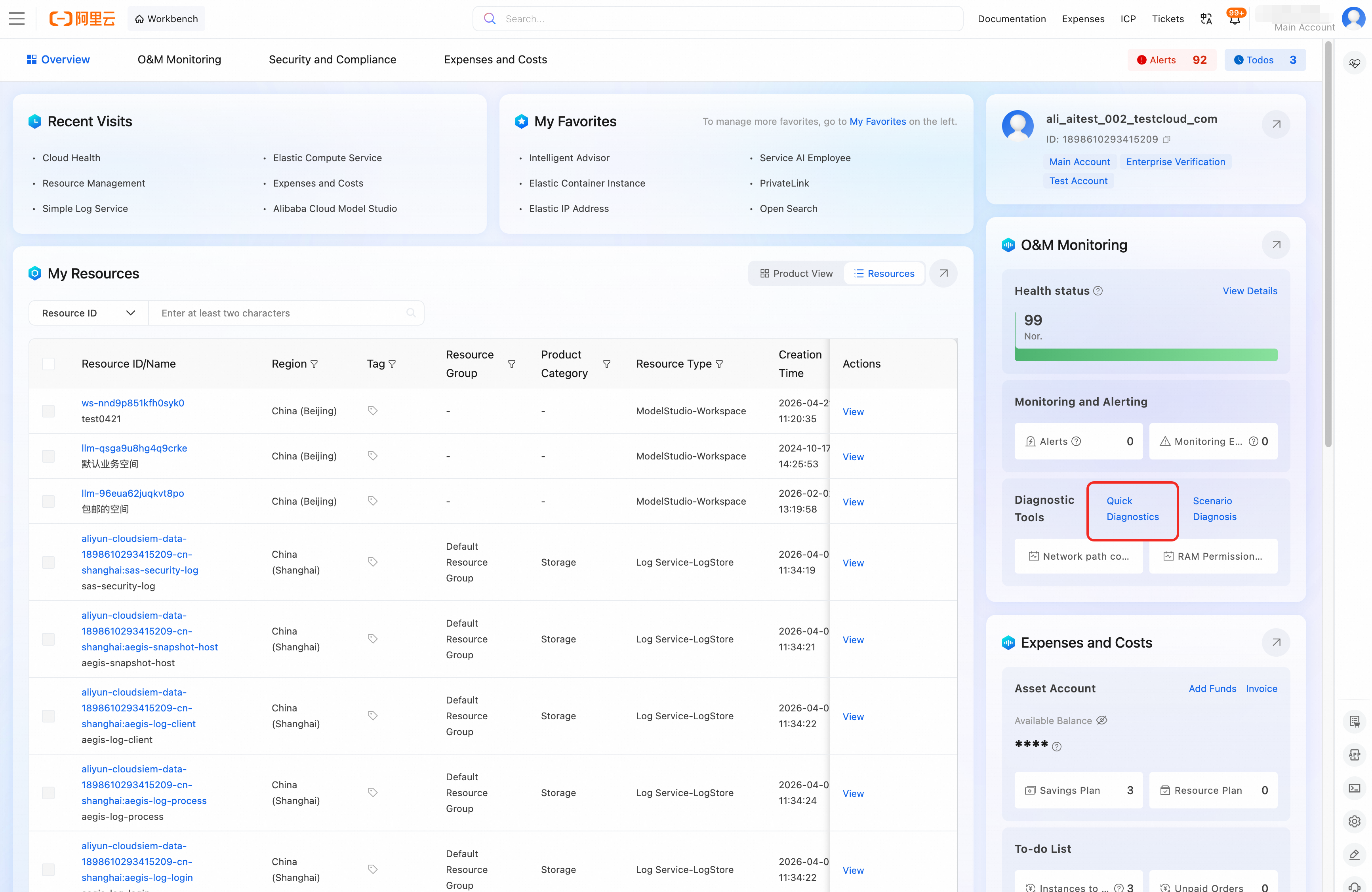
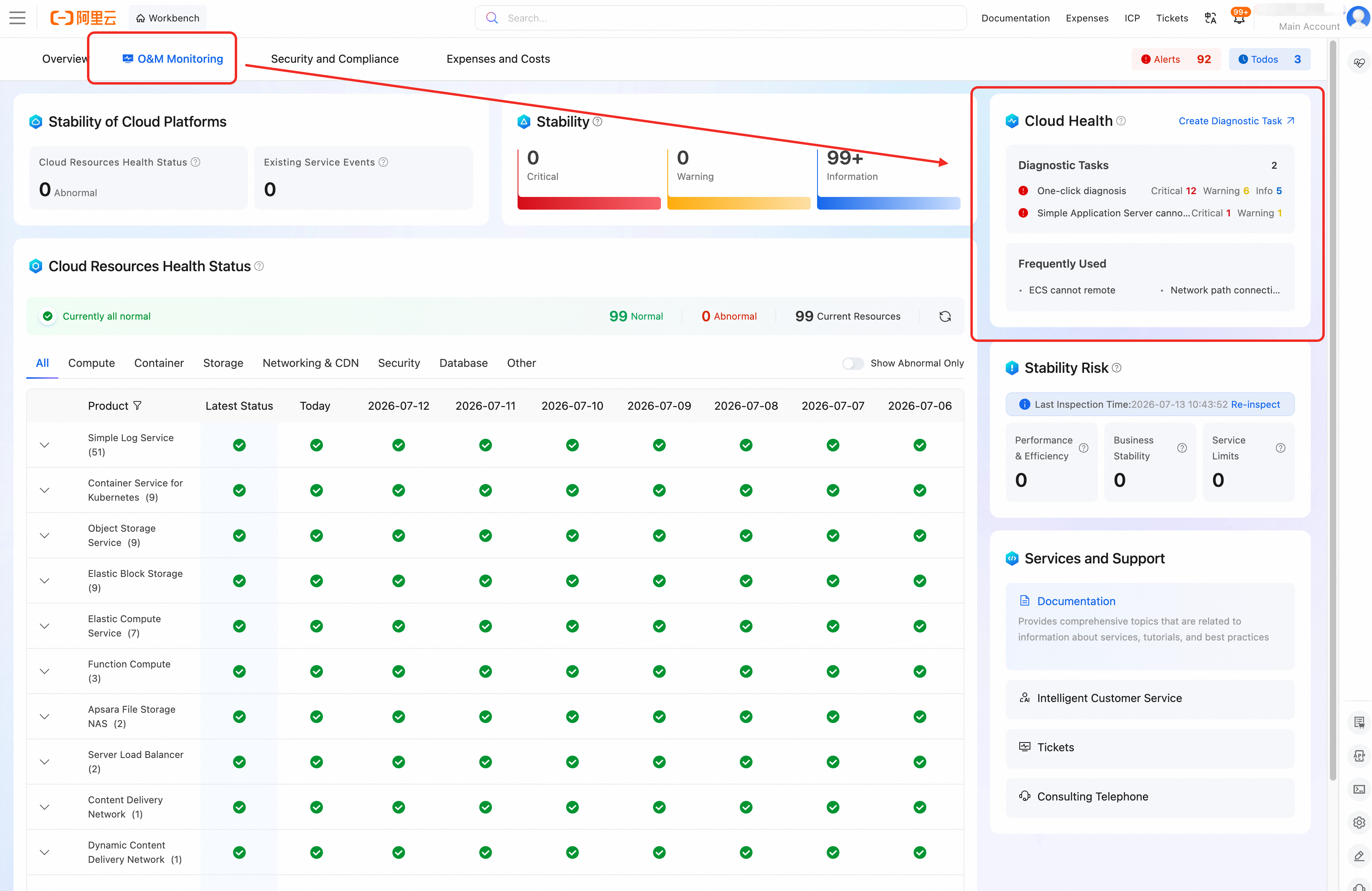
Log on to the console. In the O&M Monitoring section of the console homepage, you can quickly start a diagnosis, view recent diagnostic tasks, and see frequently used diagnostic tools.
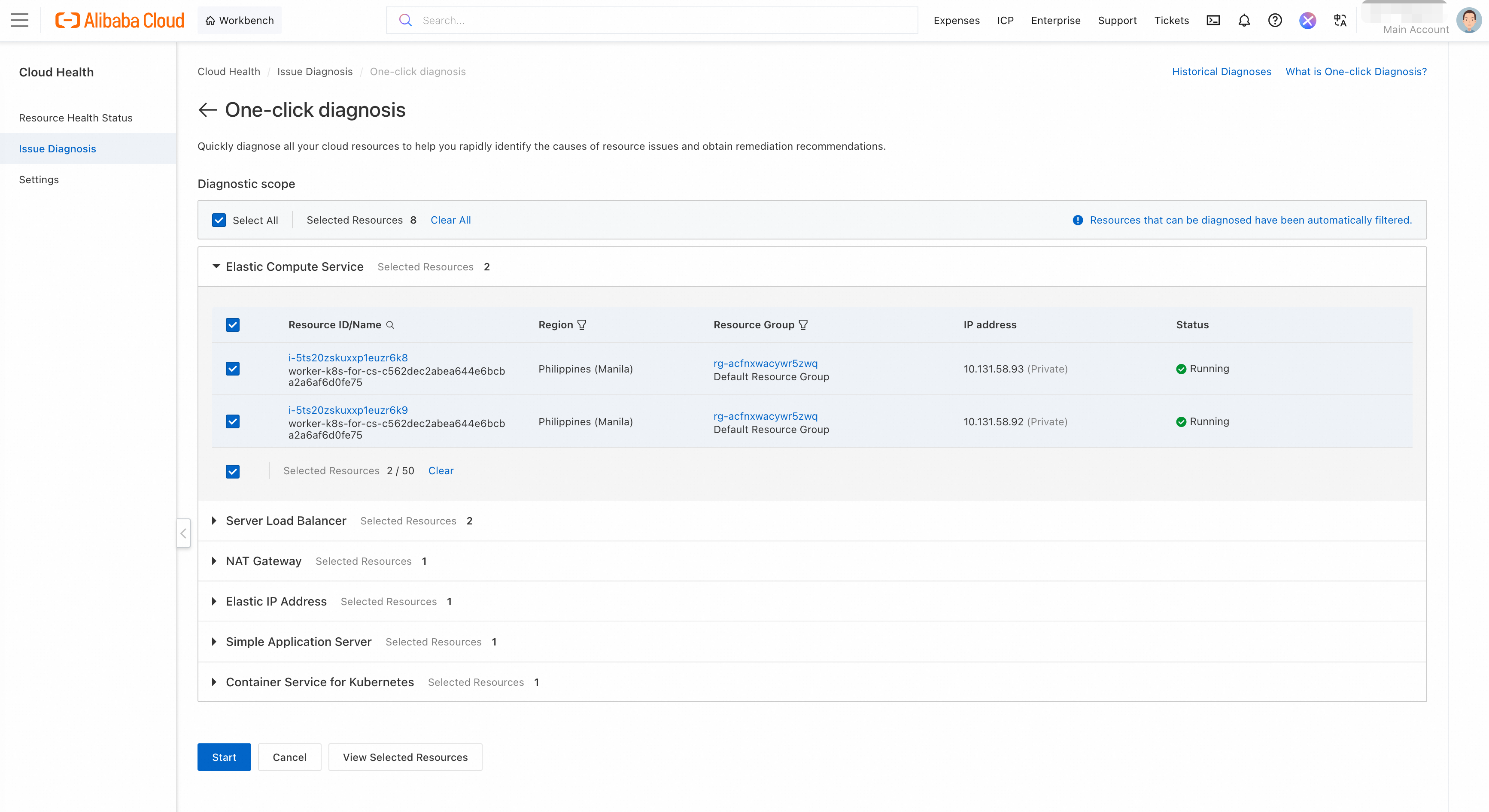
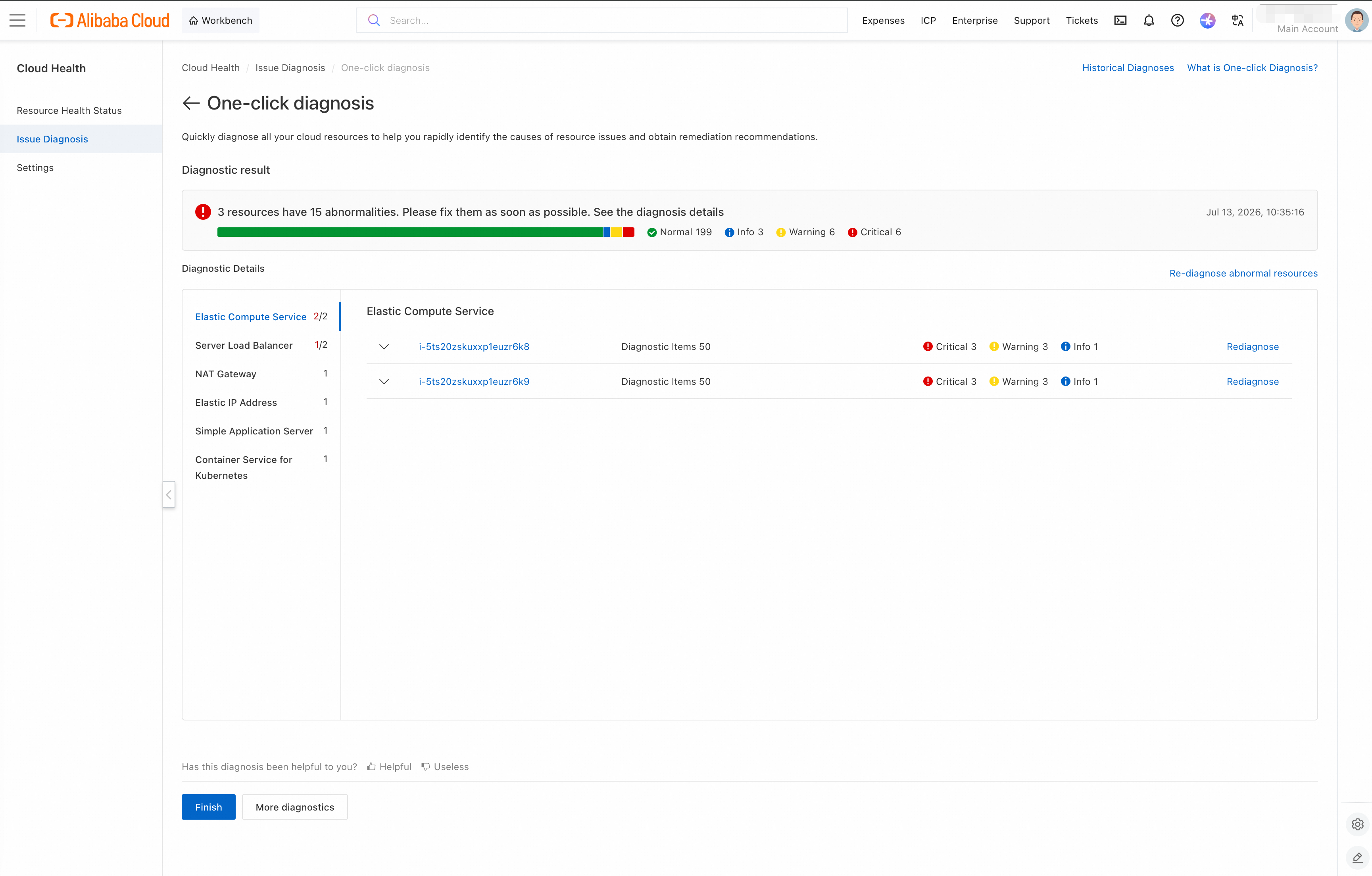
2.3.2 One-Click Diagnosis
You can run a quick diagnosis on all cloud resources under your account with a single click to find the root cause of an issue and get a troubleshooting suggestion.
2.3.3 Scenario-based Diagnosis
If you already know which cloud products are causing an issue, you can select a specific diagnostic tool in Scenario-based Diagnosis to quickly run a check and get a troubleshooting suggestion. To see all supported diagnostic scenarios, see Supported scenarios and descriptions of the diagnosis feature.
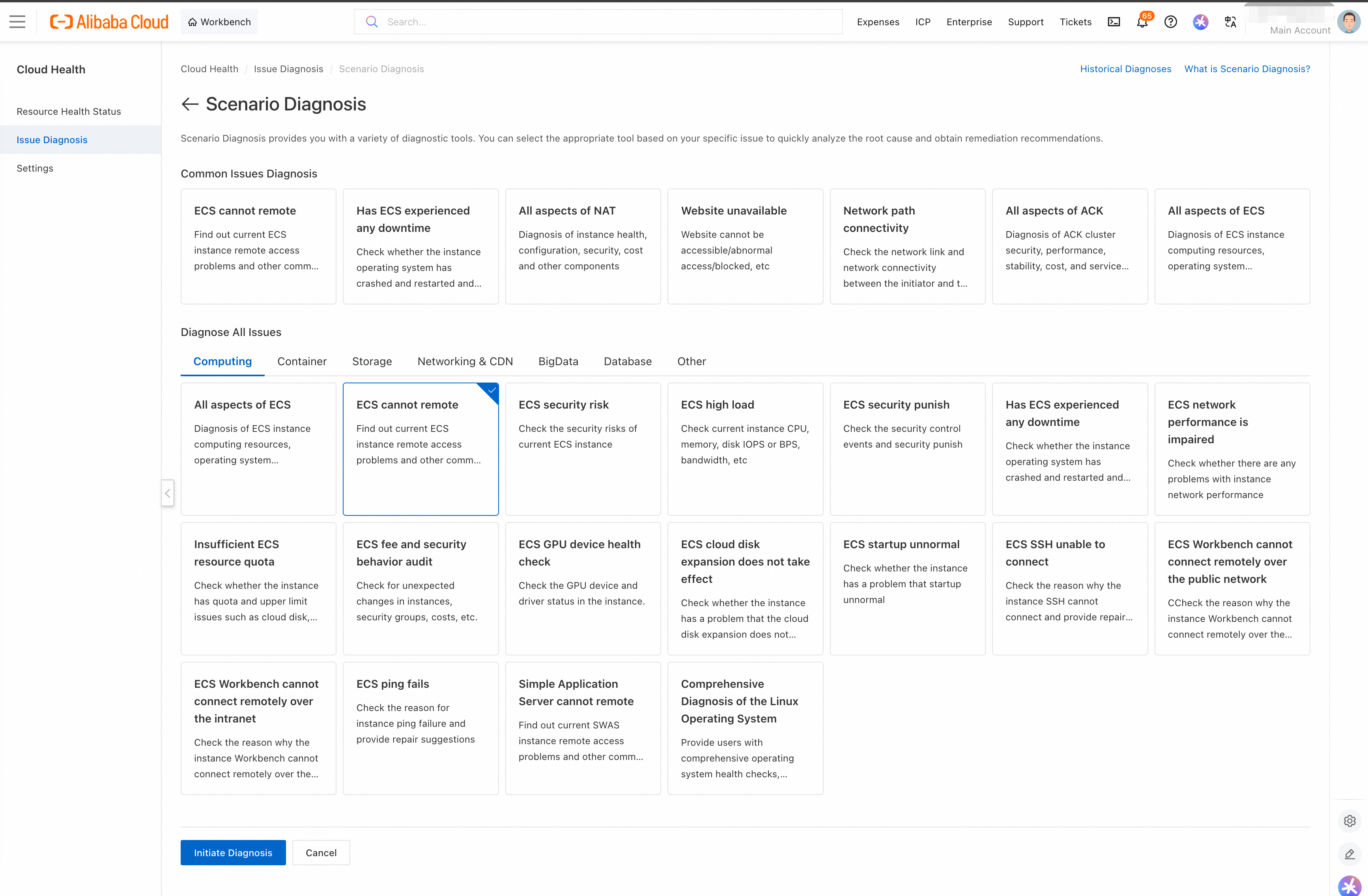
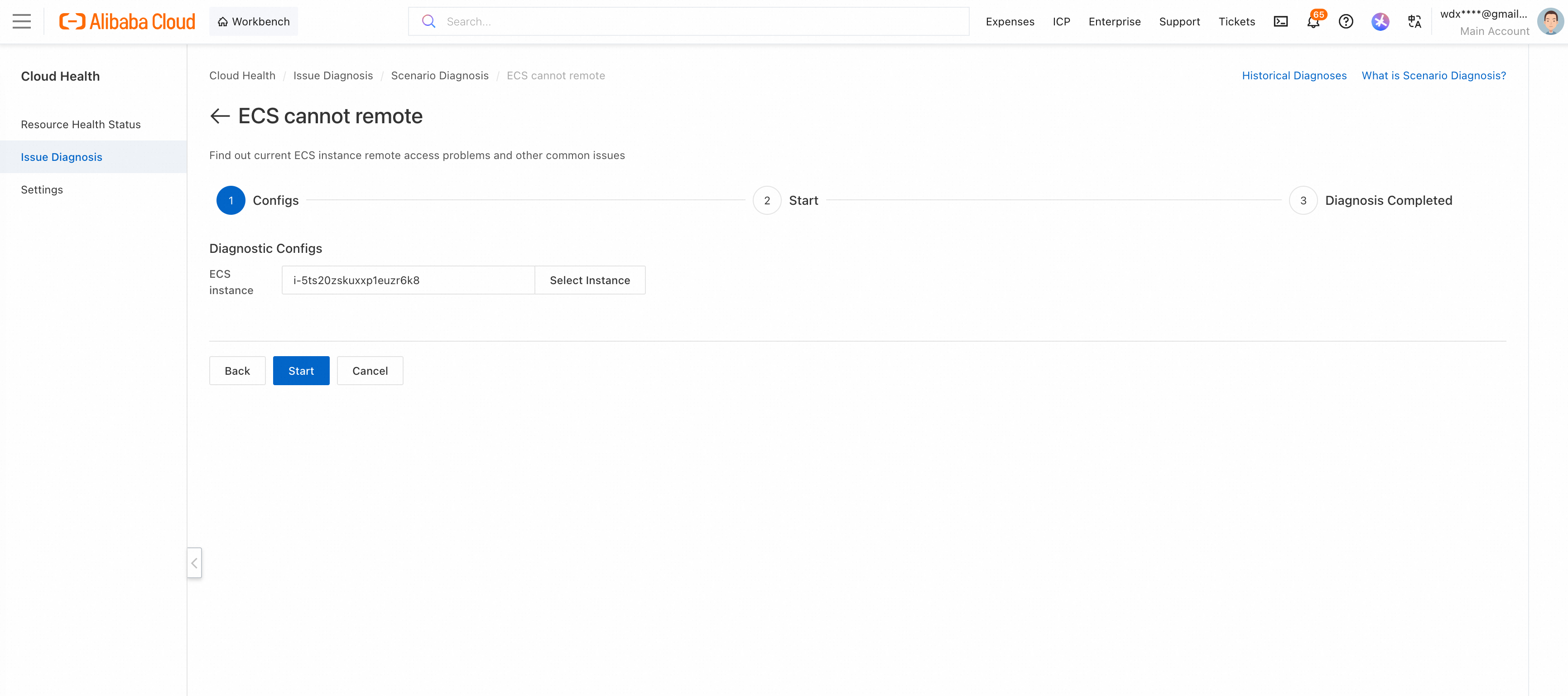
Start a diagnosis and get a troubleshooting suggestion
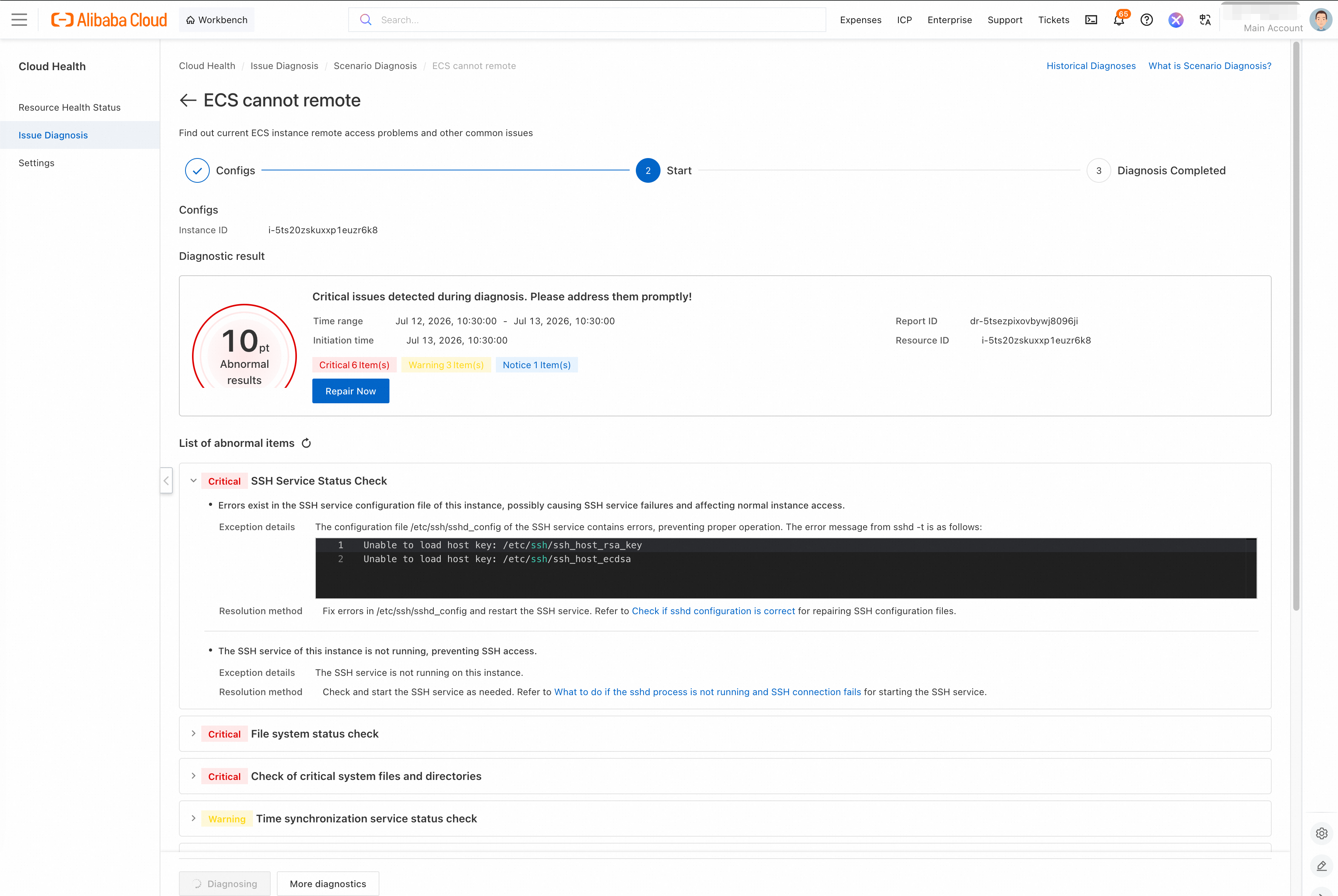
A RAM user needs the AliyunHealthFullAccess permission to run a diagnosis and the AliyunHealthReadOnlyAccess permission to only view diagnostic records. Contact your administrator to request the required permissions.
Benefits
1. User-centric health status
Unlike other cloud providers that typically show only the health status of an availability zone, Cloud Service Diagnosis displays the real-time health status of your specific cloud resources, detailed down to the instance level for any time period. You can also get a clear overview of the health status over the last 7 days. This user-centric view significantly improves troubleshooting efficiency.
2. Quick and simple diagnosis
The system provides diagnostic capabilities for many common problem scenarios, and more are constantly being added. You can start a diagnosis with a few simple steps, such as selecting a scenario and the relevant resources. Within 1 to 2 minutes, the system generates a detailed report that includes the results of each diagnostic check, details of any abnormalities, and troubleshooting suggestions. The system also features intelligent diagnosis. For example, the "Website inaccessible" diagnosis automatically discovers the relationships between your cloud resources, generates a resource topology, and runs diagnostics on them.
3. Easy O&M assistant
When an issue occurs in your business system, you can use the health status feature to quickly narrow down the scope of your troubleshooting. Then, use the diagnosis feature to rapidly identify and fix problems with your cloud resources to restore your services.
Enable and disable
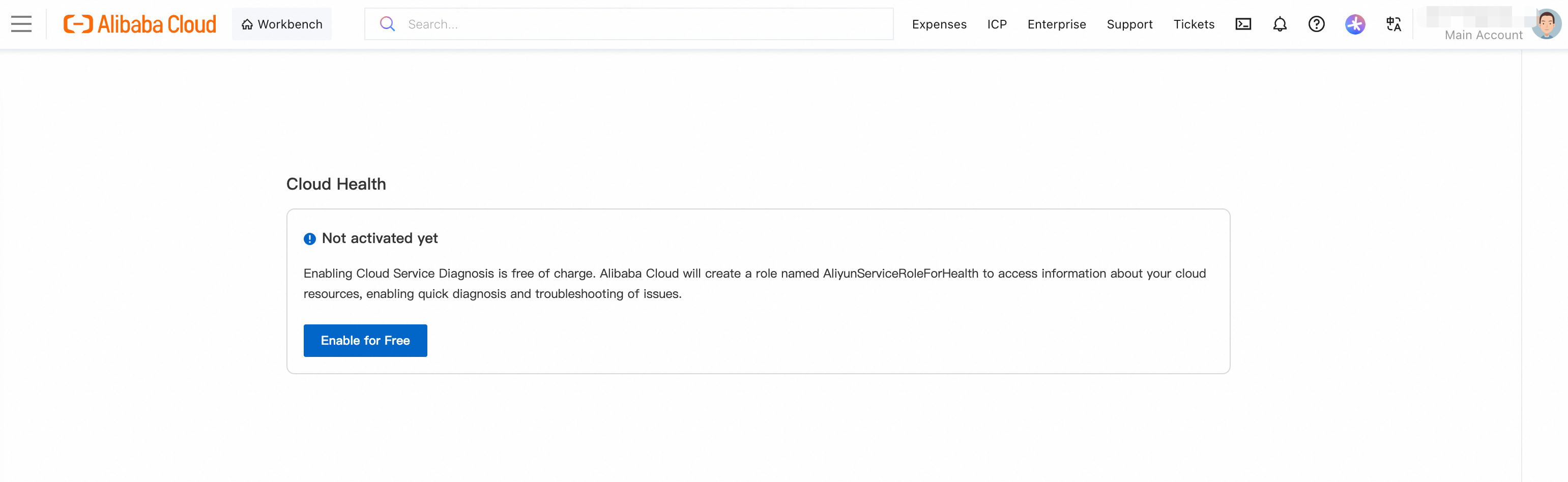
You must enable Cloud Service Diagnosis before its first use. Follow the on-screen prompts and click Enable Now to complete the process.
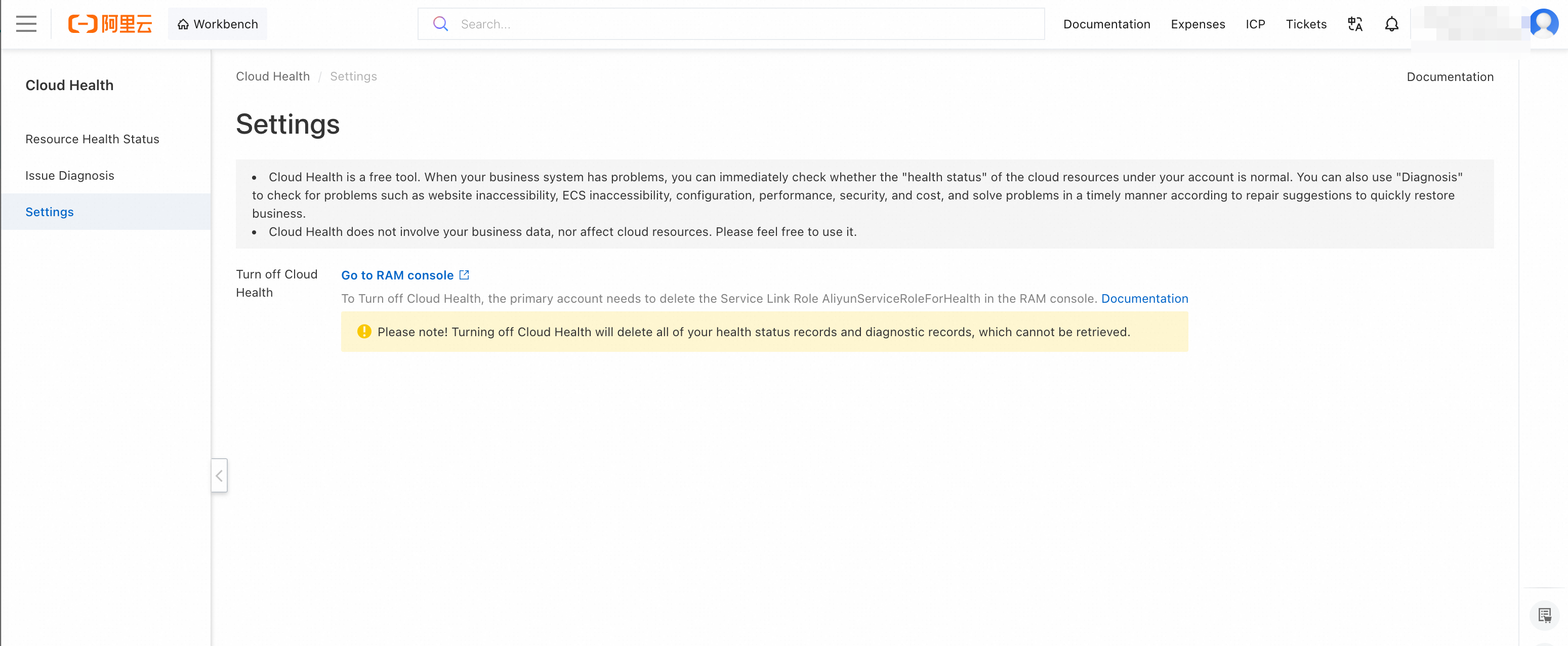
To disable Cloud Service Diagnosis, go to the Settings page and follow the on-screen instructions.
\
When you enable this service, the dependent service-linked role and associated services are also enabled. You can view the details on the activation page.
If a RAM user does not have the required permissions to enable the service, follow the on-screen prompts to request the permissions from an administrator.
The service only needs to be enabled once per account. Once enabled by a main account or a RAM user, it is available to all other users in that account.
RAM users require different permissions for different features. For details, see Read-only and management permissions.