Video calling provides AI with the visual understanding capability to perceive its surroundings, user behavior, and status. This enables richer, more engaging real-time multimodal interactions, such as artifact narration, tour guiding, cooking instructions, and mock interviews. This topic explains how to integrate video calling using the multimodal interaction suite.
Enable Video Calling Agent
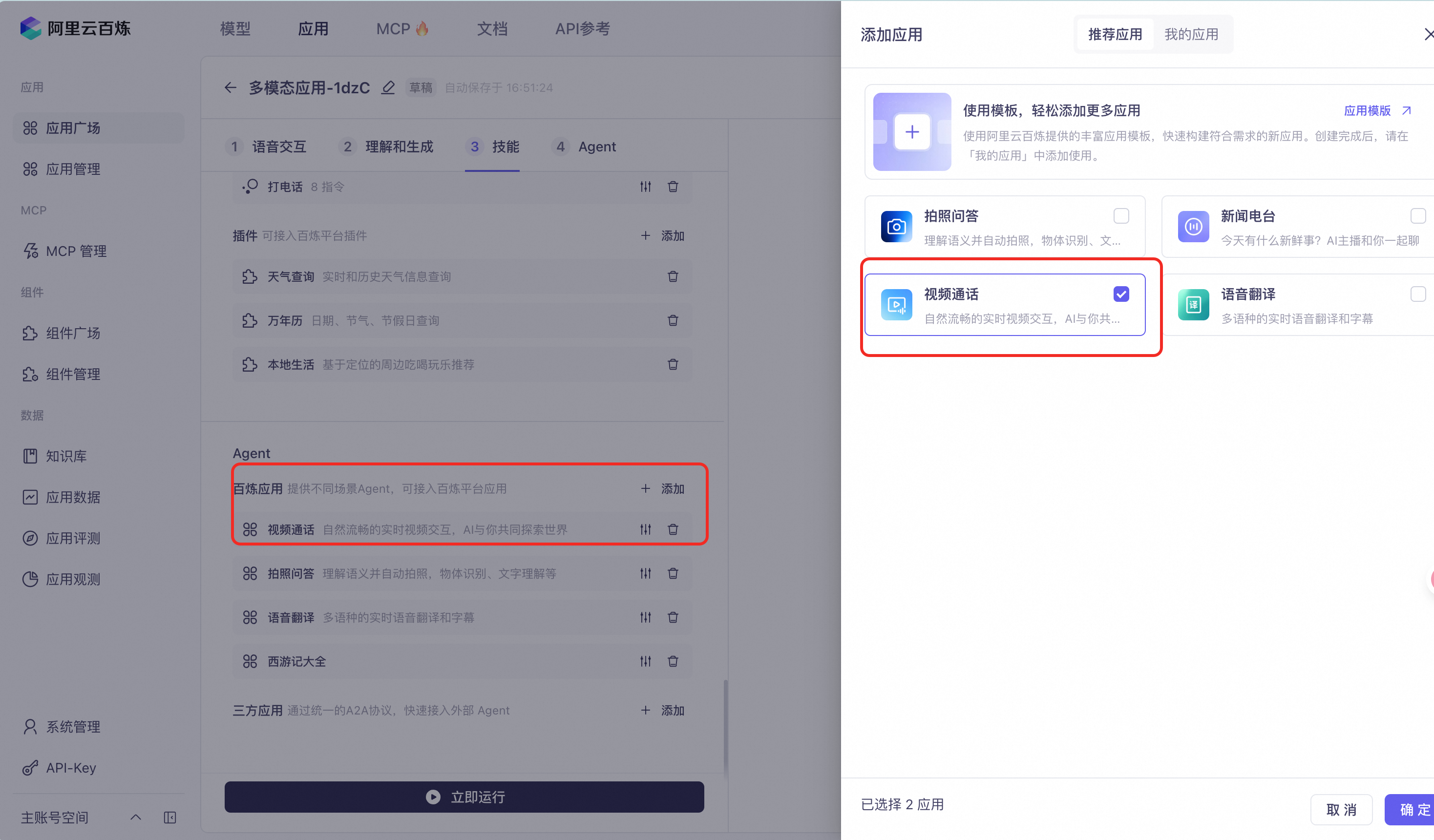
Create a multimodal application in the Multimodal Development Suite. Voice-only applications do not support video calling.
In your application configuration, go to Agent > Add > Recommended Applications, add the [Video Calling] agent, and then save the application.
Use the Official Android/iOS SDK for Video Calling
The Alibaba Cloud Model Studio multimodal interaction SDKs for Android and iOS include built-in support for the Real-Time Communication (RTC) protocol and natively handle audio and video capture and transmission. This lets you enable video calling with minimal configuration.
SDK Call Flow
-
Set the interaction chain mode (
ChainMode) toRTCand setupstream.typetoAudioAndVideo. -
Enter the video calling agent. You can switch to video calling using a voice command or by sending an instruction.
-
To enter video calling immediately after a conversation starts: After you initiate the conversation, wait until the dialog state changes to Listening, and then send the instruction to switch to video calling.
-
To enter video calling using a voice command: During the conversation, say "Enter video calling."
-
-
When the server returns the welcome message from the video calling agent, you have successfully entered video calling mode.
-
To exit the video calling agent, you can send an exit instruction or say "Exit video calling."
Request Parameter Description
Pass the following parameters when you call the requestToRespond method.
|
Top-level parameter |
Second-level parameter |
Third-level parameter |
Required |
Description |
|
parameters |
biz_params |
videos |
Yes |
Type: List. Each element in the list is an object related to the video request. |
{
    "header": {
        "action":"continue-task",
        "task_id": "9B32878******************3D053",
        "streaming":"duplex"
    },
    "payload": {
        "input":{
          "directive": "RequestToRespond",
          "dialog_id": "b39398c9dd8147********35cdea81f7",
          "type": "prompt"
        },
        "parameters":{
          "biz_params":{
            "videos": [
                  {
                    "action": "connect",
                    "type": "voicechat_video_channel"
                  },
                  {
                    "action": "exit",
                    "type": "voicechat_video_channel"
                  }
                ]
          }
        }
    }
}
Call Time Series Chart
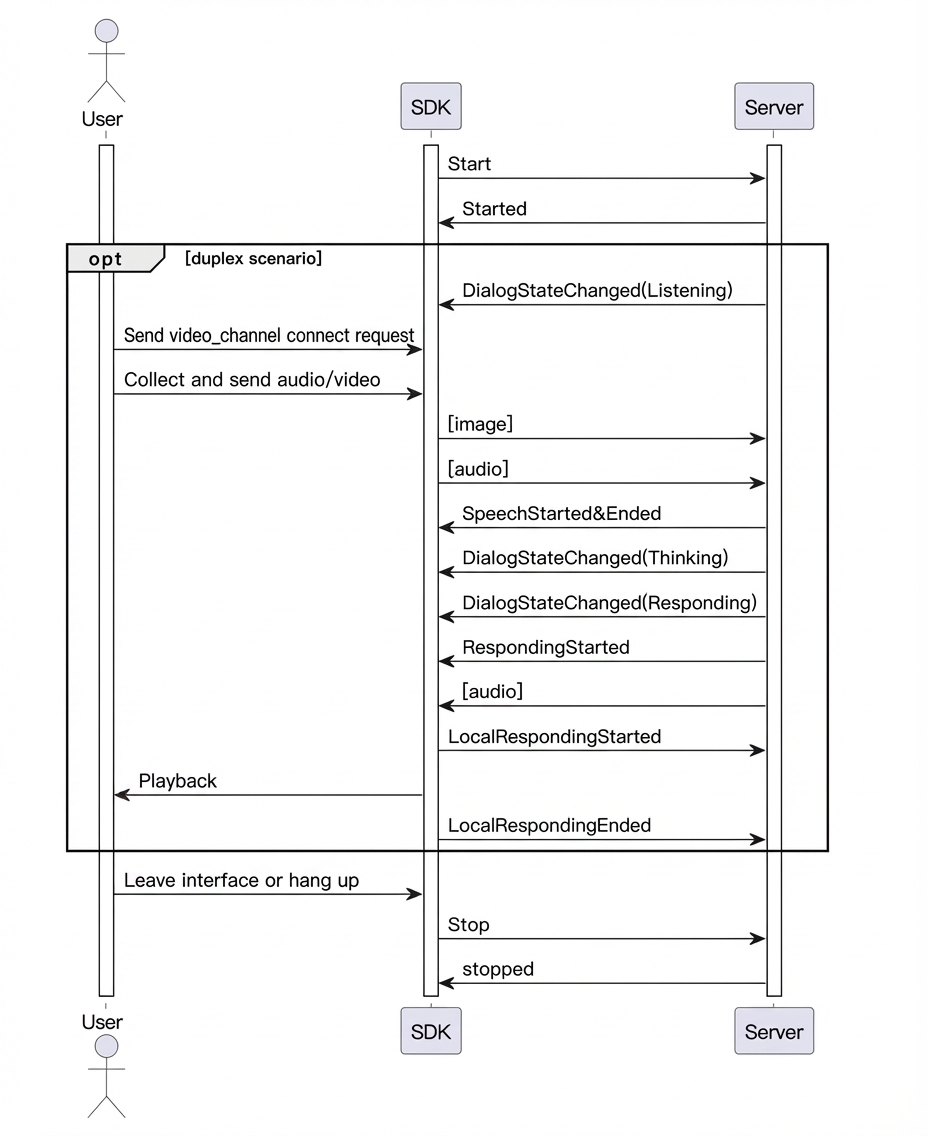
Key Code Examples
// 1. Set interaction type to AudioAndVideo
MultiModalRequestParam.UpStream.builder().mode("duplex").type("AudioAndVideo").build();

// 2. Send voicechat_video_channel request after connection is established
private void startVideoMode() {
    if (isVideoMode) return;

    try {
        MultiModalRequestParam updateParams = MultiModalRequestParam.builder().build();
        JSONObject videoObj = new JSONObject();
        videoObj.put("action", "connect");
        videoObj.put("type", "voicechat_video_channel");

        List<JSONObject> videos = new ArrayList<>();
        videos.add(videoObj);

        updateParams.setBizParams(MultiModalRequestParam.BizParams.builder()
                .videos(videos).build());

        multiModalDialog.requestToRespond("prompt", "", updateParams.getParametersAsJson());
        multiModalDialog.setVideoContainer(videoContainer, uiHandler);

        isVideoMode = true;
        runOnUiThread(() -> videoContainer.setVisibility(View.VISIBLE));

    } catch (JSONException e) {
        Log.e(TAG, "Failed to start video mode", e);
    }
}

// 3. Start audio and video interaction. Handle the interaction flow. Note the special handling for Constant.ChainMode.RTC in the demo.
private void handleOutputStarted() {
    if (!isRtcUseInternalAudio()) {
        audioPlayer.pause(true);
        audioPlayer.play();
    }
    if (authParams.getChainMode() == Constant.ChainMode.RTC) {
        // In RTC mode, TTS synthetic data plays at normal speed
        multiModalDialog.sendResponseStarted();
    }
}

private void handleOutputCompleted() {
    Log.d(TAG, "Output completed");
    if (authParams.getChainMode() != Constant.ChainMode.RTC) {
        multiModalDialog.sendResponseEnded();
        audioPlayer.isFinishSend(true);
    }
}
// 1. Set interaction type to AudioAndVideo
multiBuilder.upStream = MultiModalRequestParam.UpStream(builder: { upstreamBuilder in
upstreamBuilder.mode = mode.rawValue
upstreamBuilder.type = "AudioAndVideo"
})
// 2. Initialize MultiModalDialog instance with RTC chain mode: ChainMode.RTC
self.conversation = MultiModalDialog(url: self.HOST, chainMode: self.chain, workSpaceId:self.WORKSPACE_ID ,
appId: self.APP_ID, mode: mode)
// 3. Send voicechat_video_channel request after connection is established
private func createVideoChatParams() -> [String: Any]{
var video:[String: Any] = [
"action":"connect",
"type" : "voicechat_video_channel"
]
var videos = [video]
var updateParam = MultiModalRequestParam{ multiBuilder in
multiBuilder.bizParams = MultiModalRequestParam.BizParams(builder: {
bizBuilder in
bizBuilder.videos = videos
})
}
return updateParam.parameters
}
// 4. Start audio and video interaction. Handle the interaction flow. Note the special handling for ChainMode.RTC in the demo.
// See the sample code for the complete implementation.Implement Video Calling Using Image Sequences
For integration instructions, see Third-party RTC Integration for Video Calling.