Select server sites and verify configurations
Use the Network Intelligence Service (NIS) console to evaluate network observation data, determine the best region or zone for deployment, and verify that network configurations meet your business requirements.
Scenarios
View the network performance of each Alibaba Cloud region, select the optimal deployment region, and verify network configurations by using NIS.
Evaluate the server site before you deploy services
Evaluate regions
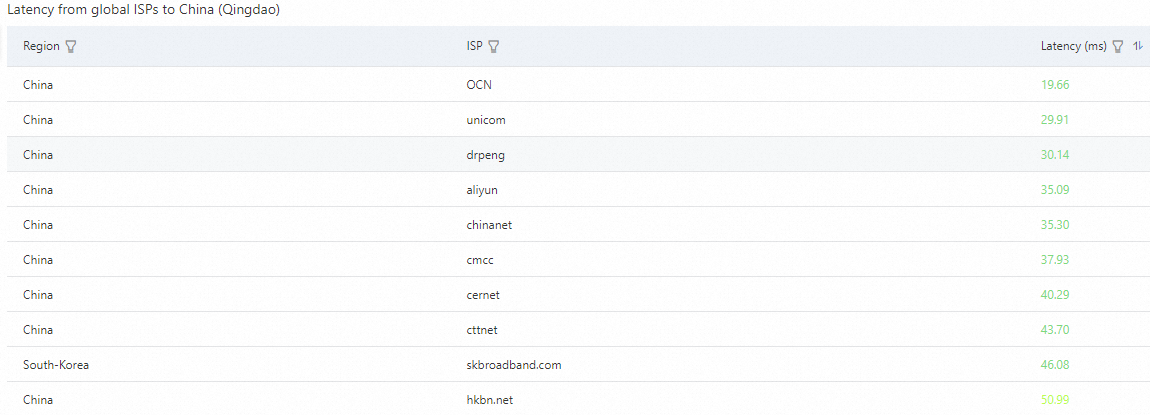
The Internet Connection Quality page displays the latencies between Alibaba Cloud regions and other regions, helping you select the most suitable region for deployment. For more information, see Internet access performance monitoring.
Log on to the NIS console.
In the left-side navigation pane, choose .
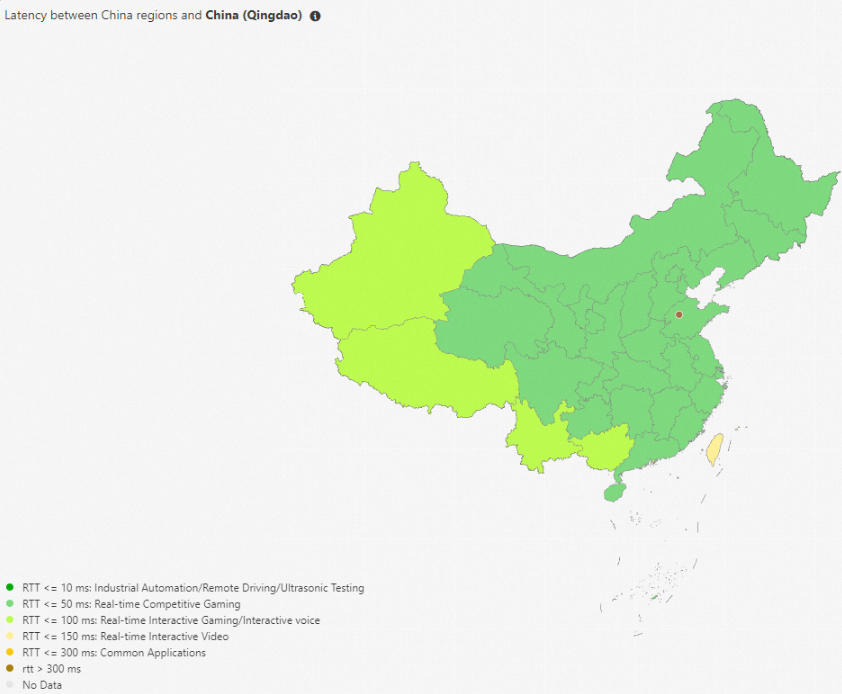
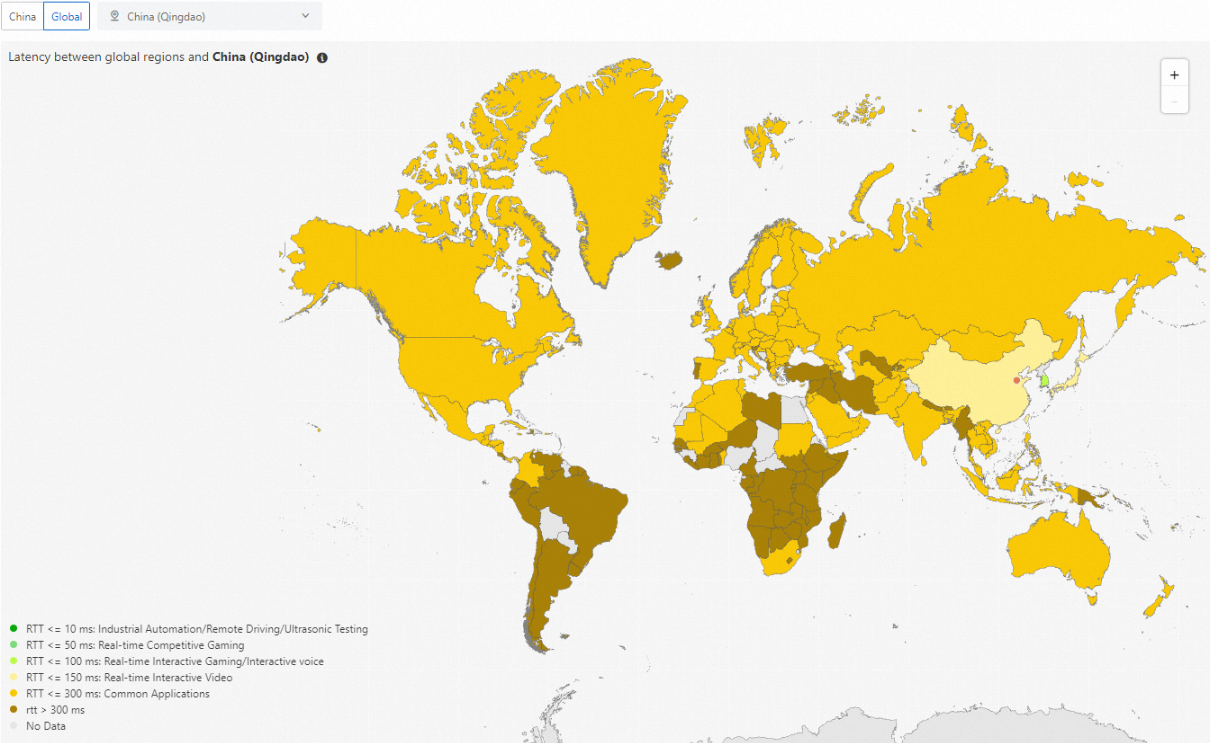
Set the perspective to China or Global, and select the desired region whose latency you want to view.
View the latencies between Chinese or global regions and the desired Alibaba Cloud region.
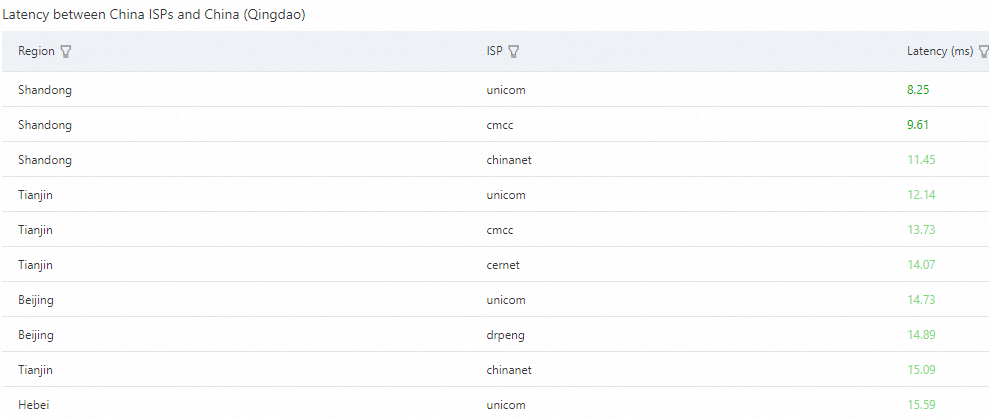
View the latencies between Chinese or global regions and the desired Alibaba Cloud region for different Internet service providers (ISPs).
Evaluate zones
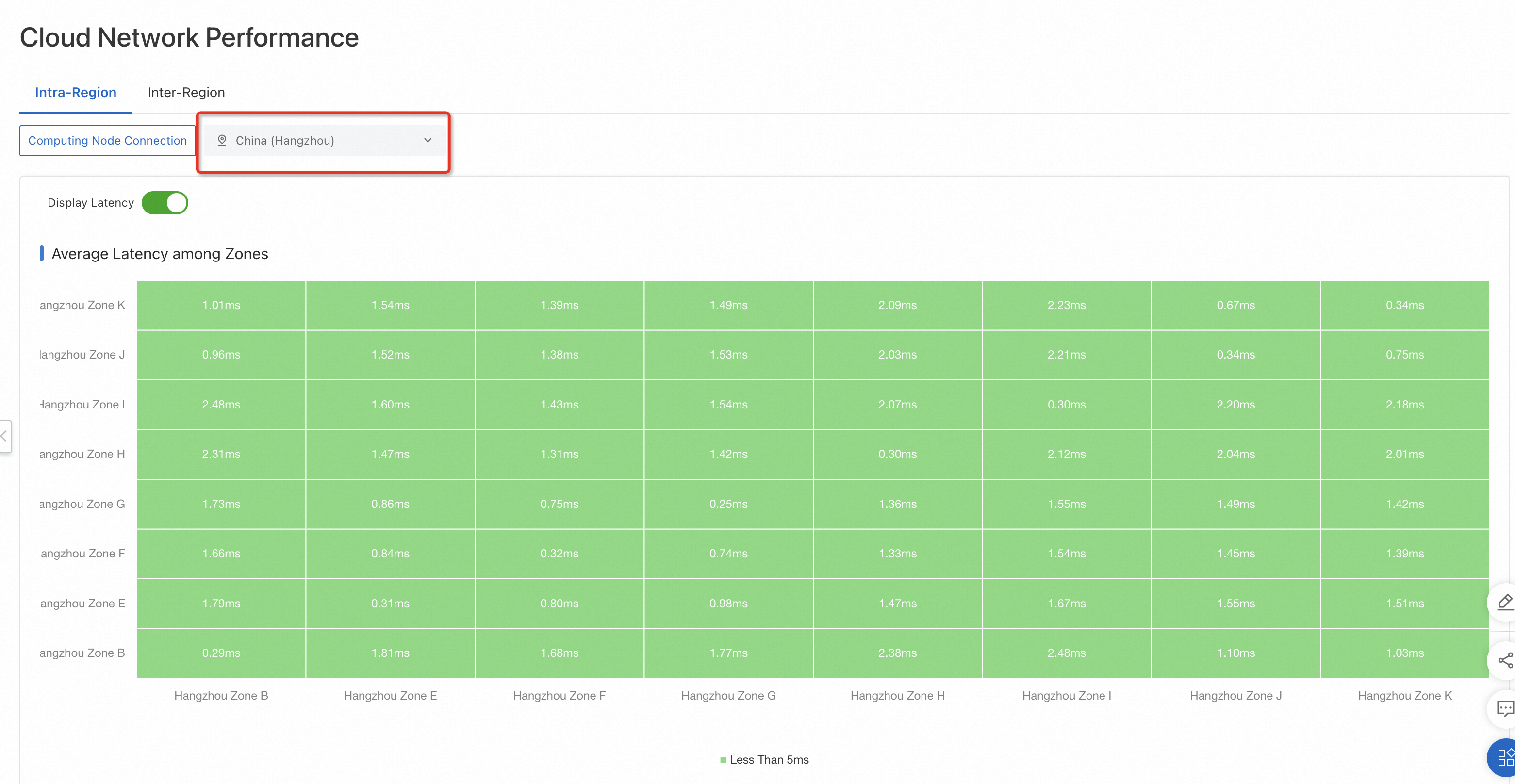
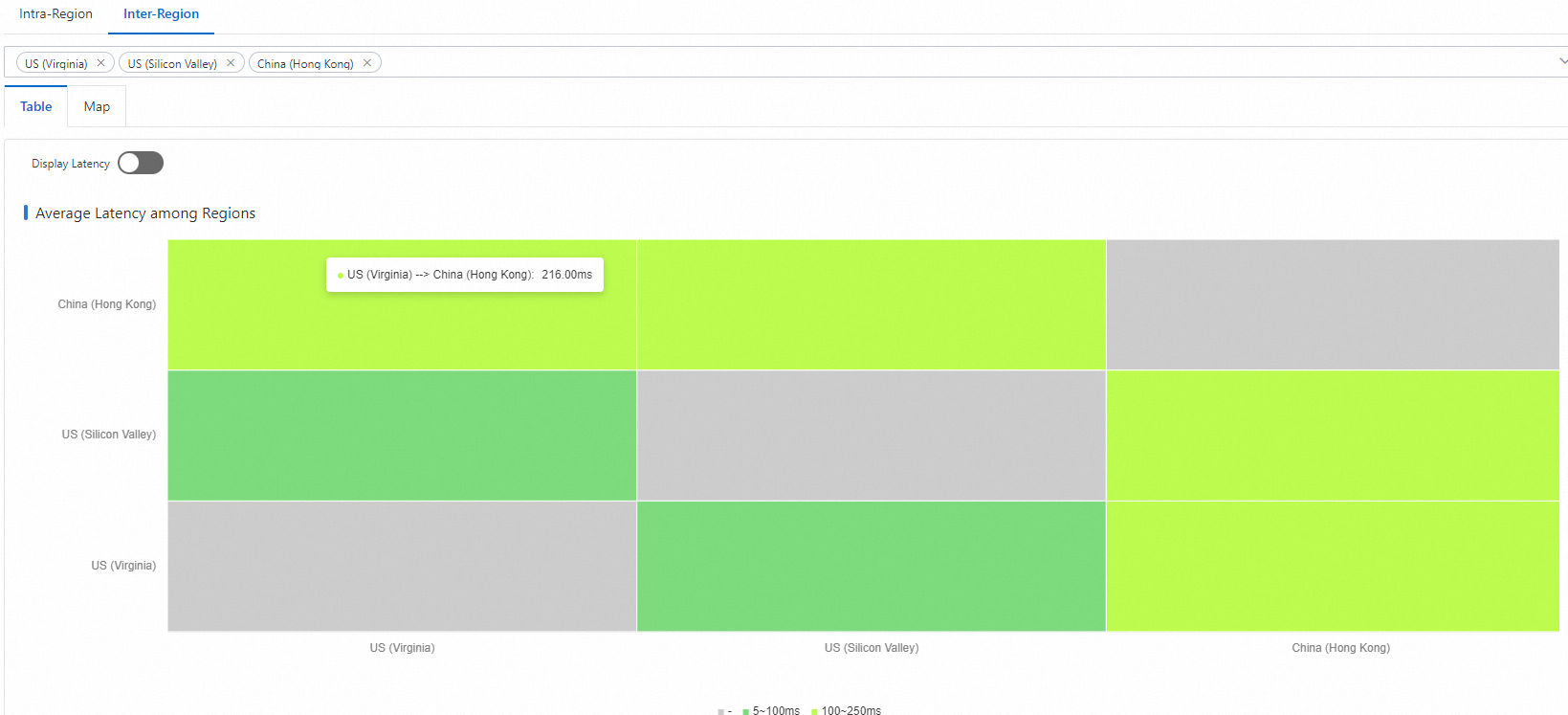
The Cloud Network Performance page displays the average network latencies between zones in the same Alibaba Cloud region or between different regions, helping you select the most suitable region and zone for deployment. For more information, see Cloud Network Inter-Access Performance Monitoring.
Log on to the NIS console.
In the left-side navigation pane, choose . View the average network latencies between zones in the same Alibaba Cloud region or latencies between different Alibaba Cloud regions.

Verify configurations after deployment
Verify instance configurations
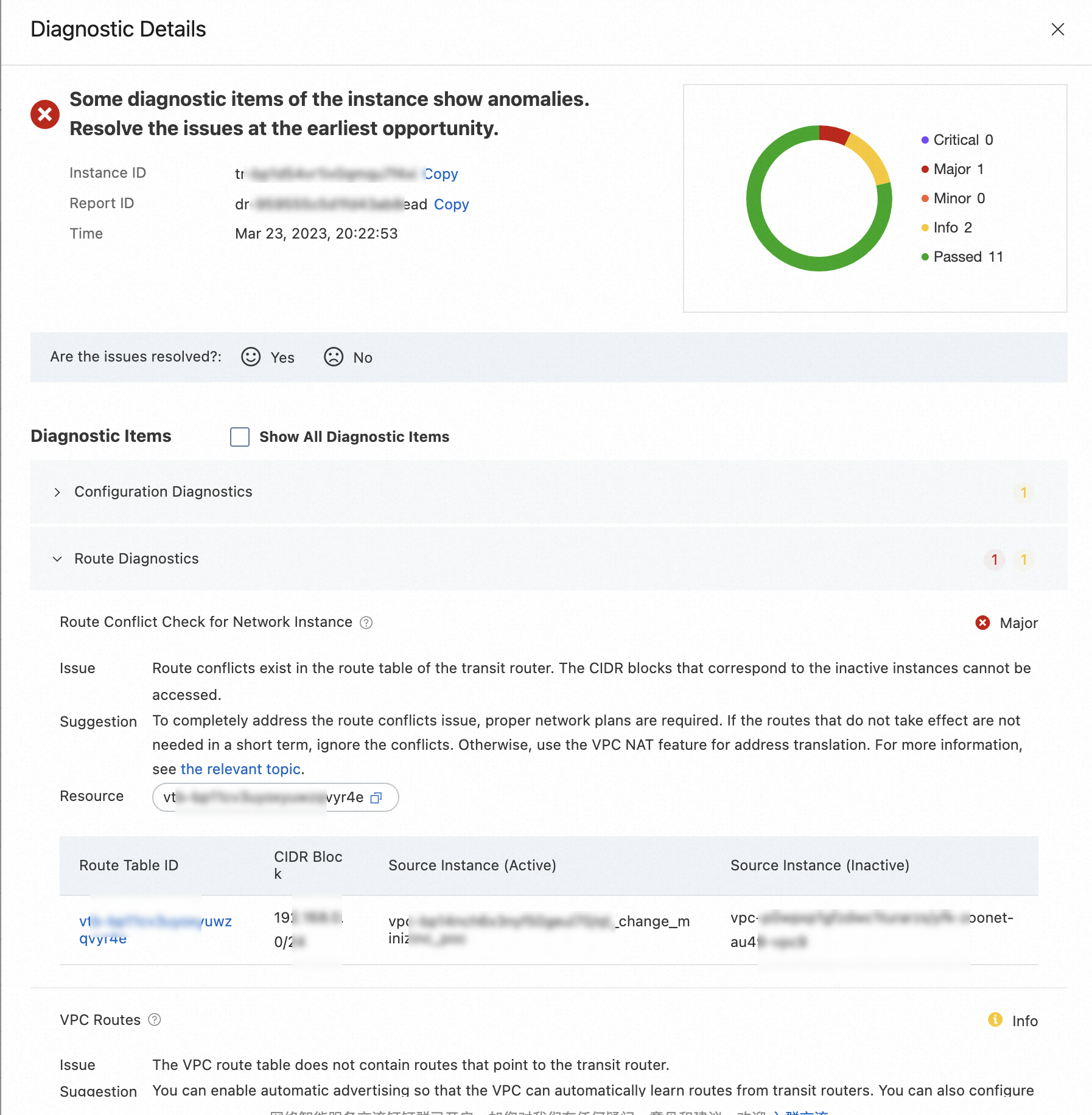
Instance diagnostics checks the configurations and status of instances, generates diagnostic reports, and provides suggestions for fixing issues. For more information, see Work with instance diagnostics.
Log on to the NIS console.
In the left-side navigation pane, choose .
On the Instance Diagnostics page, click Diagnose Instance.
In the Instance Health Diagnostics dialog box, configure the required parameters and click Start.
In the Diagnostic Details panel, view the diagnostic progress of the instance, the statistics of the diagnostic result, and the detailed diagnostic information.
Verify path configurations
The reachability analyzer checks the network connectivity of a major path. For more information, see Use Reachability Analyzer.
Log on to the NIS console.
On the Reachability Analyzer page, click Start Analysis.
On the Analyze page, configure the parameters.
Select whether to save the path. The default value is No.
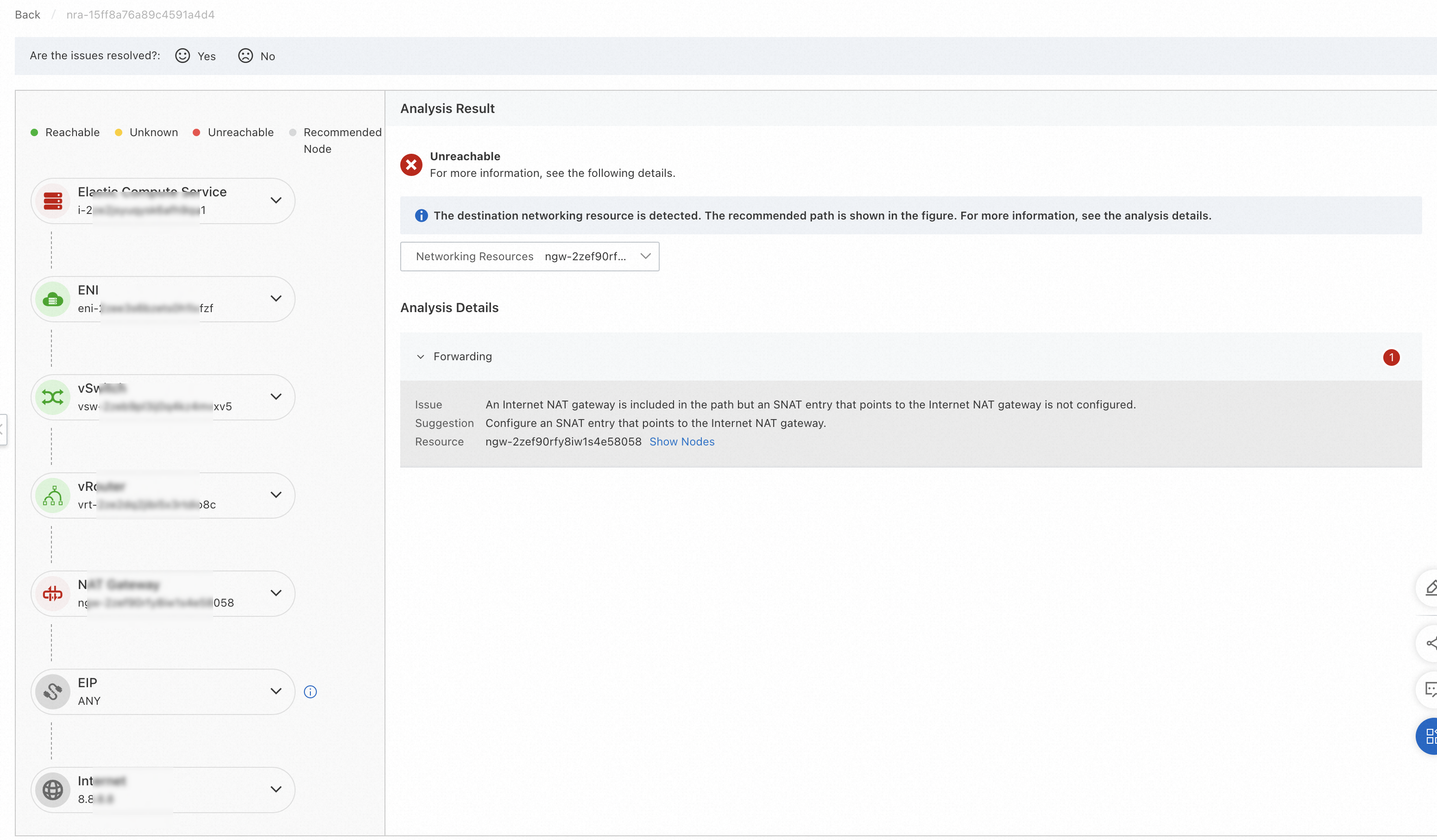
Click Analyze. View the Internet analysis result.