Identify Anomalies and Troubleshoot
You can use Network Intelligence Service (NIS) to receive timely network anomaly event notifications, and then troubleshoot instances, paths, and traffic to locate the cause of the anomaly and precisely fix it.
Scenarios
Use NIS to detect network anomalies, and troubleshoot instances, paths, and traffic to locate the causes of the anomalies, ensuring normal business operations.
Monitor event center to identify anomalies
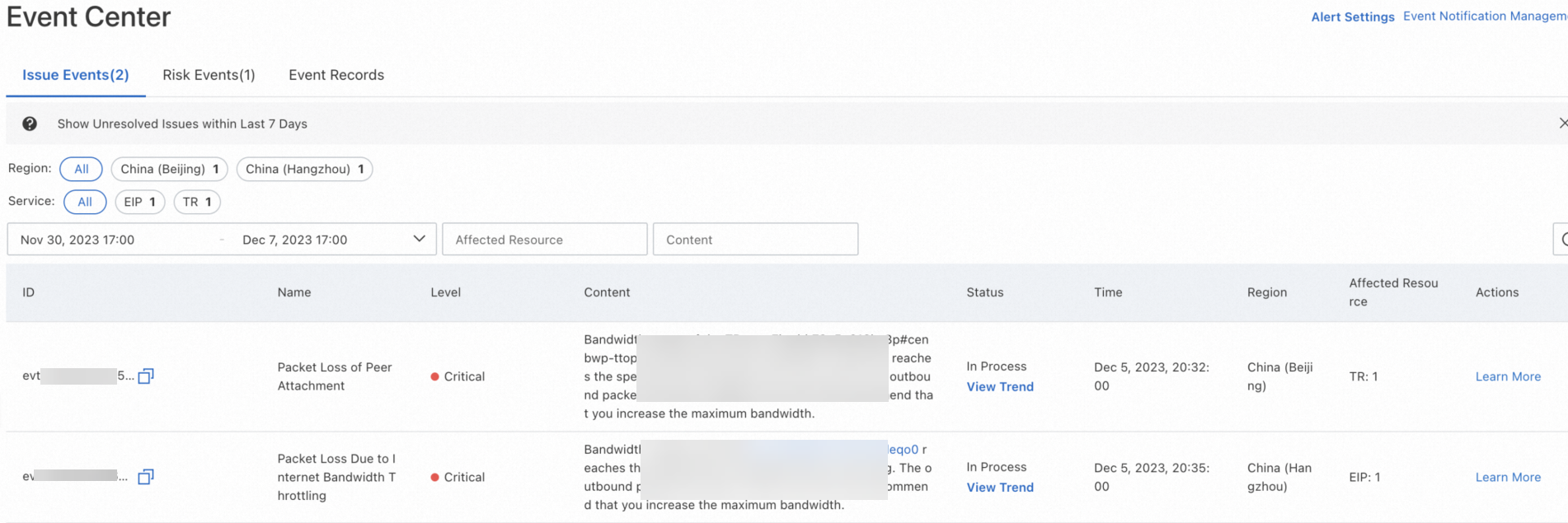
Alibaba Cloud detects network events based on custom event definitions, sends alerts, and displays results in the console. Monitor the Event Center to receive alerts for network anomalies, such as packet loss from threshold breaches, and identify affected instances. For more information, see Event center.
Log on to the NIS console.
In the left-side navigation pane, click Event Center.
On the Event Center page, you can identify the abnormal TransitRouter instance and the Elastic IP Address (EIP) whose bandwidth exceeds the limit.
Run Real-time Diagnostics on Abnormal Instances
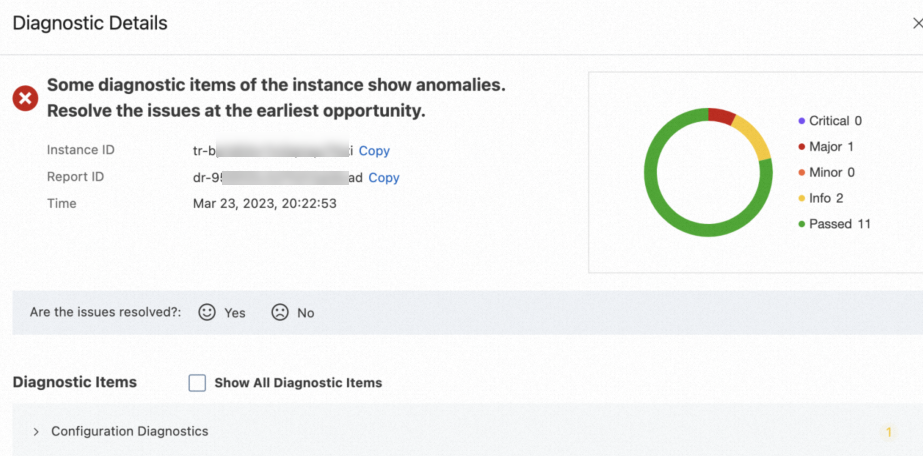
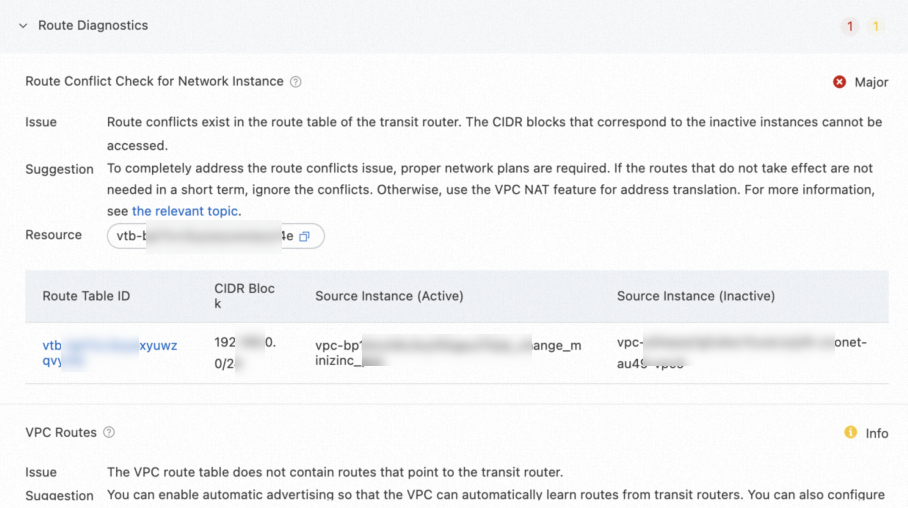
Run diagnostics on abnormal TR instances detected by the Event Center to get exception reports and recommended actions. For more information, see Work with instance diagnostics.
Log on to the NIS console.
In the left-side navigation pane, choose .
On the Instance Diagnostics page, click Diagnose Instance.
In the Instance Health Diagnostics dialog box, configure the instance information, and then click Start.
In the Diagnostic Details panel, view the diagnostics progress, diagnostics result statistics, and specific diagnostics details of the instance.
Troubleshoot bandwidth saturation
When bandwidth utilization stays consistently high, use the NIS Traffic Analyzer to analyze traffic composition and identify instances or IP addresses that consume excessive bandwidth.
View the VPC Traffic Chart or TR Traffic Chart, and use TopN Traffic Trend to identify instances or IP addresses with high bandwidth consumption.
Troubleshoot network connectivity
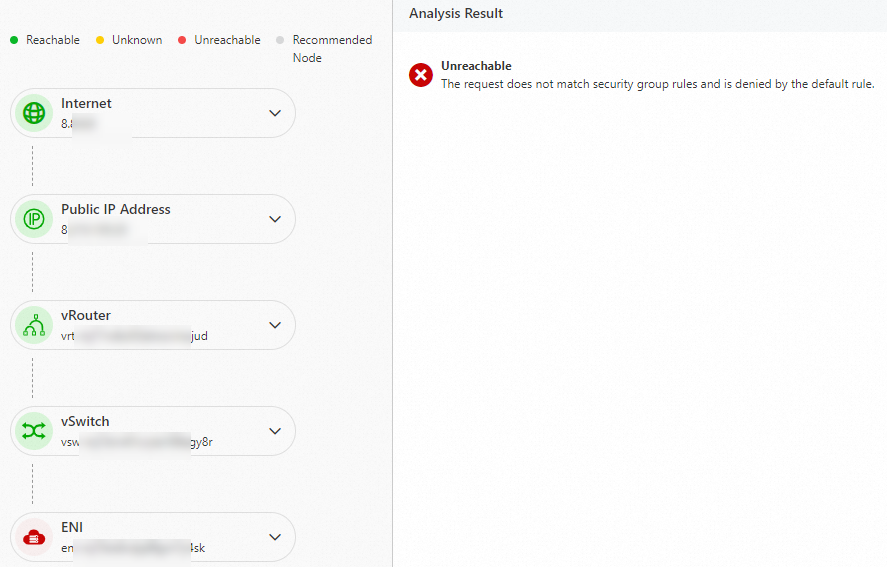
If a network connection fails, use path analysis to identify breakpoints. For more information, see Use Reachability Analyzer.
Log on to the NIS console.
On the Reachability Analyzer page, click Start Analysis.
On the Analyze page, configure the parameters.
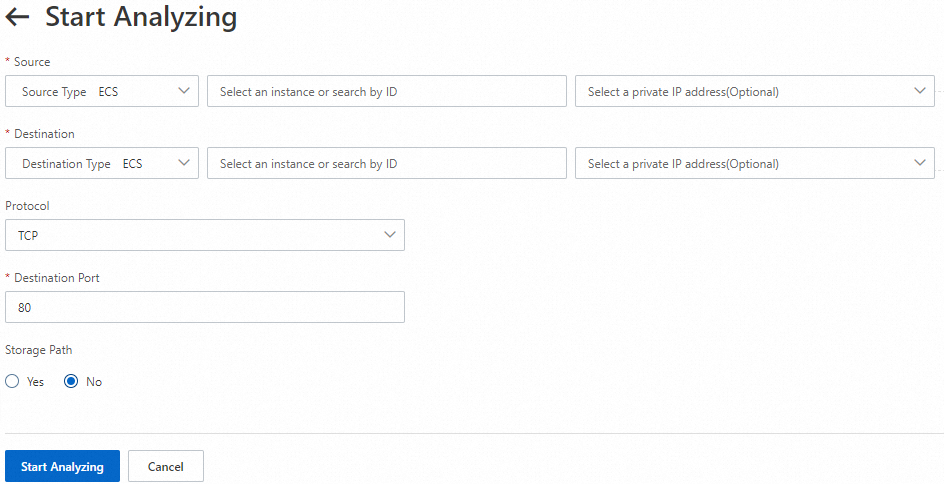
Select whether to save the path. The default value is No.
Click Analyze. View the Internet analysis results.