Use AI Assistant with command-type template parameters
The AI command assistant helps you quickly generate commands for command-type template parameters. The following example uses Send Remote Command.
Common O&M scenarios
The following table lists sample prompts for common O&M scenarios.
|
Scenario description |
Sample prompt |
|
Monitor disk space usage, especially for large files or directories. |
Provide a shell command to list the top three largest files or directories by disk space in the current directory. |
|
Identify the processes that consume the most memory when server memory usage reaches a critical level. |
Provide a shell command to display the names and IDs of the top three processes by memory usage. |
|
Periodically check whether critical files have been modified to ensure data security. |
Write a shell command to check all files in a directory and find the top three files modified in the last three days. |
|
Count the frequency of a specific error message in log files. |
Provide a shell command to count the number of times a specific error message appears in a log file. |
|
Identify service ports with high network latency to optimize response time. |
Provide a shell command to list the port numbers and service names, if available, for the three slowest network connections based on latency. |
Procedure
-
Log on to the OOS console.
-
In the left-side navigation pane, choose Common O&M Tasks. On the Common O&M Tasks page, click Batch Instance Operations. On the Batch Instance Operations page, click Create.
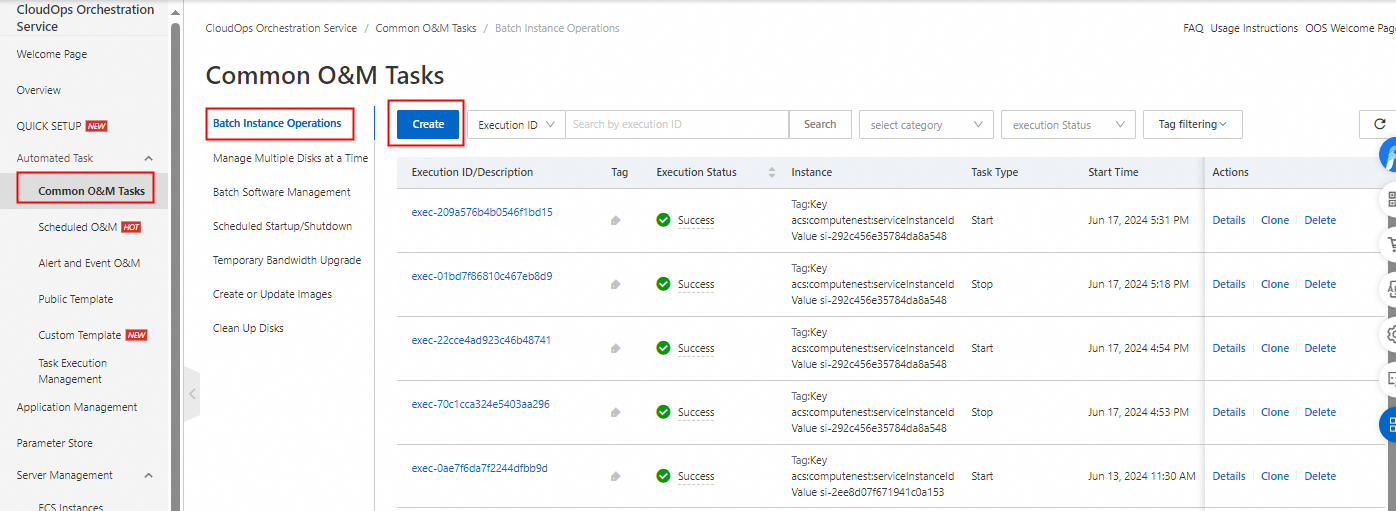
-
Select Send Remote Commands under Linux Shell. In the command input box, right-click and select AI command assistant. In the command description box that appears, describe the command that you want to generate.
NoteWhile this example uses Send Remote Commands under Linux Shell as an example, the AI command assistant is available for any command-type template parameter in a CloudOps Orchestration Service template.

-
Select instances. You can select Manually Select Instances, Specify Instance Tags, Specify Resource Group, Upload CSV File, Select All, or Specify Inventory Conditions as the instance selection method. In this example, Manually Select Instances is selected.

-
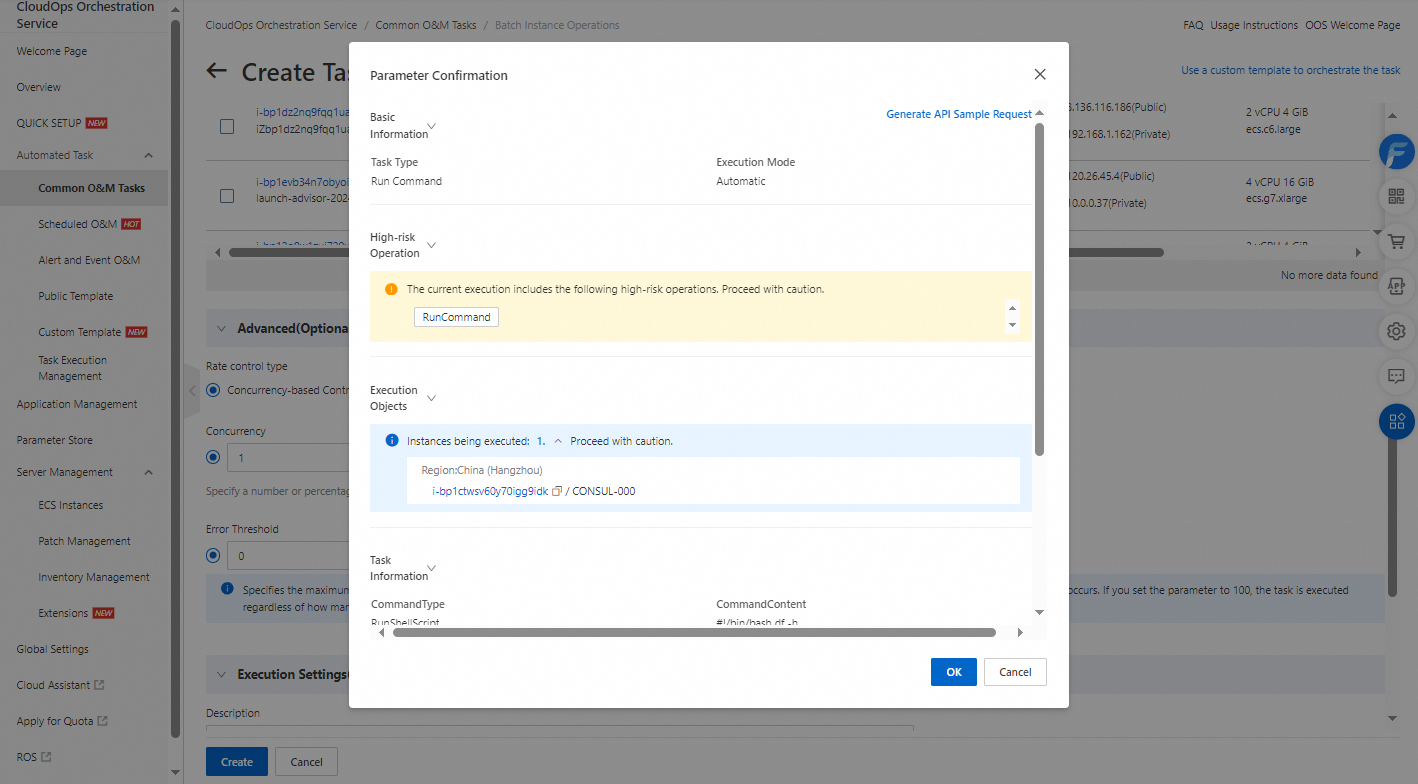
Confirm the parameter settings. If the settings are correct, click OK.