Configure an ROA-style API with a custom OOS template
Create an Object Storage Service (OSS) bucket and enable transfer acceleration by calling an ROA-style API through a custom OOS template.
Background information
Calling ROA-style APIs for some Alibaba Cloud services requires complex parameters such as Body, Headers, Method, and URI. OOS simplifies this by auto-populating parameters and guiding you through the configuration in the console.
This tutorial uses OSS bucket creation and transfer acceleration as an example. Follow the same procedure for other supported services.
OOS supports ROA-style API calls for the following cloud services:
All supported services are listed in Supported cloud services. To request support for an unlisted service, join DingTalk group 23330931.
Procedure
If you use a RAM user, ensure that your Alibaba Cloud account has granted the AliyunOOSFullAccess and AliyunOSSFullAccess policies to the RAM user.
-
Go to the CloudOps Orchestration Service > Custom Templates page and click Create Template.
-
Under Create from Sample Template, set Template to Basic Sample Template, and then click Next.

-
Use OOS to call an ROA-style API to configure an OSS bucket and its transfer acceleration feature.
This example uses the process configuration editor. If you already have the YAML commands, use the YAML editor instead.
-
On the Process Configuration tab, click Add Template Parameter on the right.
-
In the Parameters panel, set Parameter Description to a value, such as
Bucket-example. For Parameter Type, select String. Click to close the panel.
 -
On the Process Configuration tab, configure the ExecuteApi task parameters.
-
In the Task Input area, select the service name and API name.

-
Set the ROA-style API parameters.
-
Required Parameters: For the bucket parameter, select Reference Parameter/Task Output, and then select the
Bucket-exampletemplate parameter.
-
Other Parameters: Configure other parameters, such as Headers or Body, as needed.
NoteHover over the
 icon for parameter descriptions.
-
-
-
Click Add New Task at the bottom of the page, then select Execute Cloud Service API on the Quick Select page.

-
In the ExecuteApi1 step, configure the task parameters.
-
In the Task Input area, select the service name and API name.
-
Set the ROA-style API parameters.
-
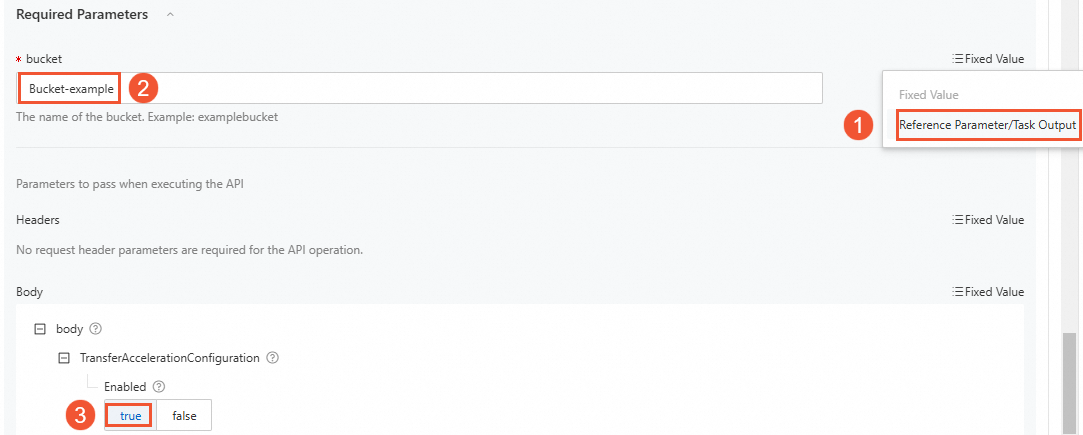
Required Parameters: For the bucket parameter, select Reference Parameter/Task Output, and then select the
Bucket-exampletemplate parameter. -
Body Parameters: Select
trueto enable the transfer acceleration feature for the target bucket.NoteHover over the
icon for parameter descriptions.
-
-
-
-
Click Create Template, enter a template name in the dialog box, and click Finish Creation.
-
Find your custom template. In the Actions column, click Create an execution, then click Next: Set Parameters.
-
Set the
Bucket-exampleparameter to a bucket name such astest-by-oos. Click Next: Confirm, then click Create.

Verify the results
-
Go to the OSS > Buckets page and click your bucket, such as
test-by-oos. -
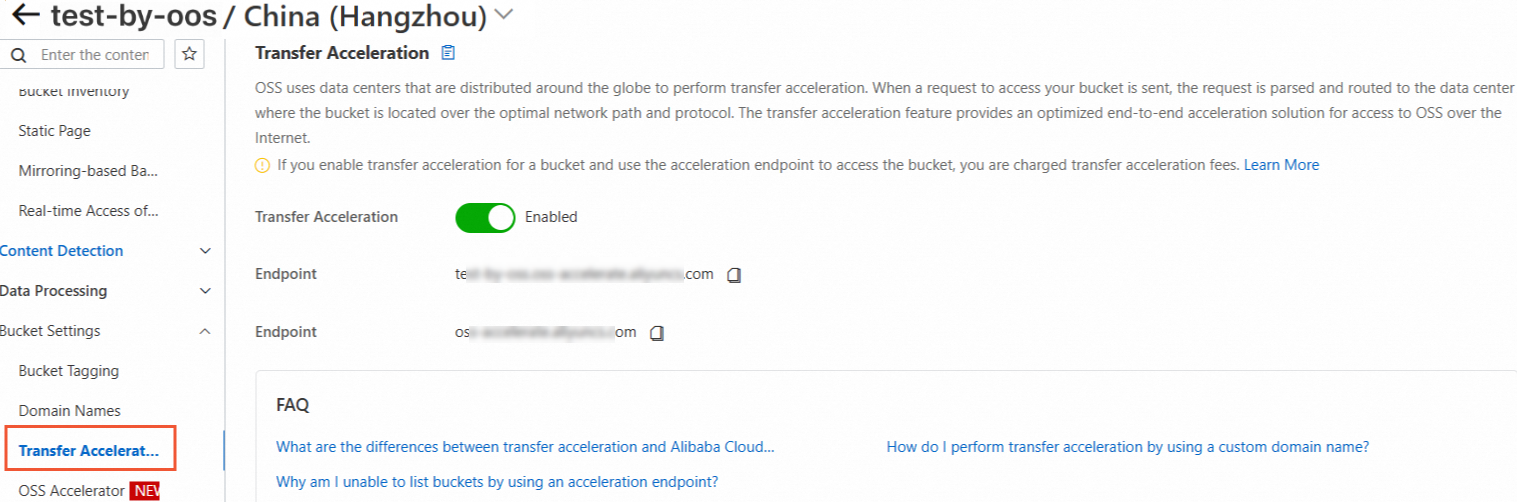
In the left-side navigation pane, choose . Confirm that transfer acceleration is enabled.
The custom OOS template successfully created the bucket and enabled transfer acceleration.