LangStudio provides an intuitive and efficient Integrated Development Environment (IDE) for building, debugging, and optimizing application flows that use Large Language Models (LLMs), Python nodes, and other tools.
Quick start
Creation methods
-
Create from template: Use application templates for various scenarios to quickly build AI applications.
-
Create by type:
-
Standard: Suitable for general-purpose application development. Use Large Language Models (LLMs), custom Python code, and other tools to build your application flow.
-
Conversational: Suitable for conversational application development. This type builds on the Standard type and adds features for managing conversation history, inputs, and outputs, as well as a dialog-style testing interface.
-
-
Import from OSS: Select the ZIP package or the OSS path of the application flow to import. This path must directly contain the application flow's flow.dag.yaml file and other code files.
-
You can export an application flow by using the Export feature in the Actions column of the application flow list in LangStudio, and then share it with others to import.
-
After you convert a Dify DSL file to the LangStudio application flow format, you can import it by using this method. For more information, see Dify-to-LangStudio migration practice guide.
-
Configure environment variables
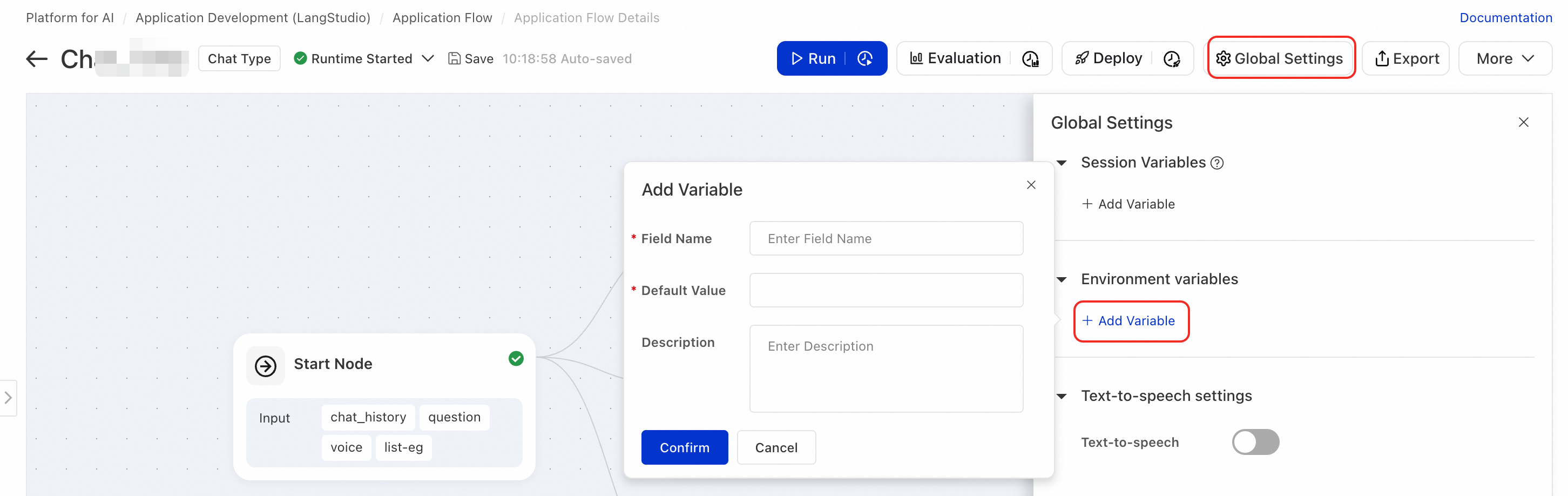
In LangStudio, you can add environment variables that are required at runtime for an application flow. The system automatically loads these variables before execution, making them available for Python nodes, tool calls, or custom logic.
Use cases
-
Sensitive information management: Store API keys, authentication tokens, and other secrets to avoid hard-coding them in your code.
-
Configuration parameterization: Flexibly set runtime parameters such as model endpoints and timeouts.
Configuration and usage
-
In the application flow editor, click Settings in the upper-right corner to add environment variables.
-
In a Python node, you can access configured environment variables by using standard Python's
os.environ:import os # Example: Get an API key api_key = os.environ["OPENAI_API_KEY"]
Configure speech interaction
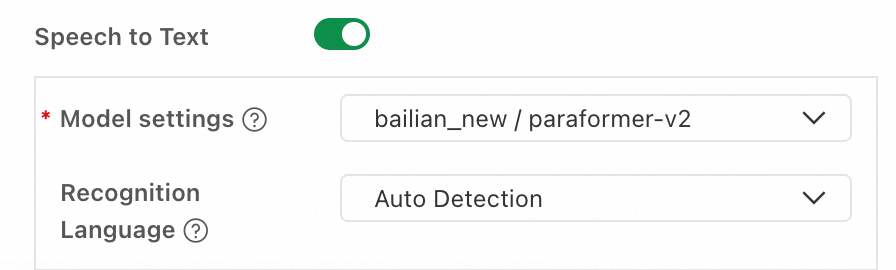
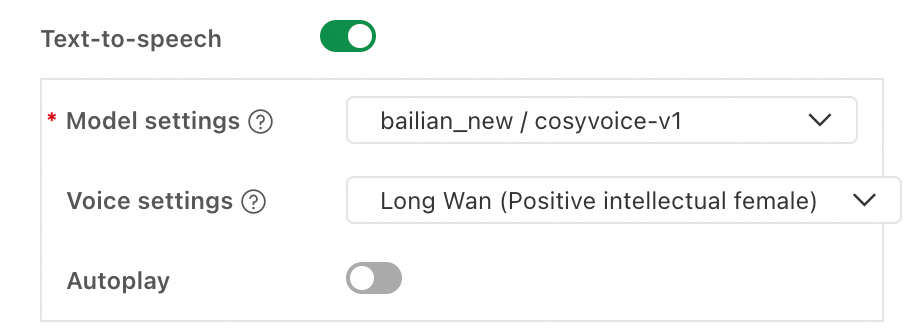
In the application flow editor, click Settings in the upper-right corner and configure speech interaction on the Global Settings tab.
Speech-to-Text (STT)
The Speech-to-Text (STT) feature converts a user's voice input into text and populates the " Chat Input " field in the Start node.
|
Parameter |
Description |
|
Model settings |
Select a configured model service connection and an ASR model. Currently, models in the Paraformer series are supported. |
|
Recognition language |
Set the language for speech recognition. Currently, only the paraformer-v2 model supports specifying the recognition language. |
Text-to-speech (TTS)
The Text-to-speech (TTS) feature automatically converts the conversational output of the application flow to speech.
|
Parameter |
Description |
|
Model settings |
Select a configured model service connection and a TTS model. Currently, models in the CosyVoice series are supported. |
|
Voice settings |
Select the voice for the synthesized speech. Multiple preset voices are supported. |
|
Autoplay |
If enabled, the synthesized speech plays automatically during a conversation. |
Deployment and API calls
After you deploy the application flow to PAI-EAS, you can use API calls to enable speech interaction. For information about general API calls, see Deploy an application flow. This section details the API changes for speech interaction.
Speech input
In the request body, add the system.audio_input field and provide the audio file URL (for the file data structure, see File Type Input and Output), and the system will automatically convert the audio to text and populate the dialogue input field.
{
  "question": "",
  "system": {
    "audio_input": {
      "source_uri": "oss://your-bucket.oss-cn-hangzhou.aliyuncs.com/audio/input.wav"
    }
  }
}
Speech output
To obtain the TTS-synthesized audio data, call the <Endpoint>/run endpoint. The simple mode does not return audio data.
|
Field |
Description |
|
audio_data |
A Base64-encoded audio data fragment. The client must decode and concatenate the fragments for playback. |
|
tts_metadata |
Audio metadata, including format (pcm), sample rate (22050 Hz), number of channels (1), and bit depth (16-bit). |
Streaming response
TTS audio is returned via the TTSOutput event in the SSE event stream:
{
  "event": "TTSOutput",
  "audio_data": "<base64-encoded audio data>",
  "tts_metadata": {
    "format": "pcm",
    "sample_rate": 22050,
    "channels": 1,
    "bit_depth": 16
  }
}
Non-streaming response
The TTS audio is included in the JSON response as the output.tts_audio field:
{
  "output": {
    "answer": "xxx",
    "tts_audio": {
      "audio_data": "<base64-encoded full audio data>",
      "tts_metadata": {
        "format": "pcm",
        "sample_rate": 22050,
        "channels": 1,
        "bit_depth": 16
      }
    }
  }
}
Pre-built components
For more information, see Application flow node reference.
Next steps
After you develop and debug the application flow, you can evaluate the application flow. Once it meets your business requirements, you can deploy the application flow to PAI-EAS for production use.