Quick BI Product Architecture Overview
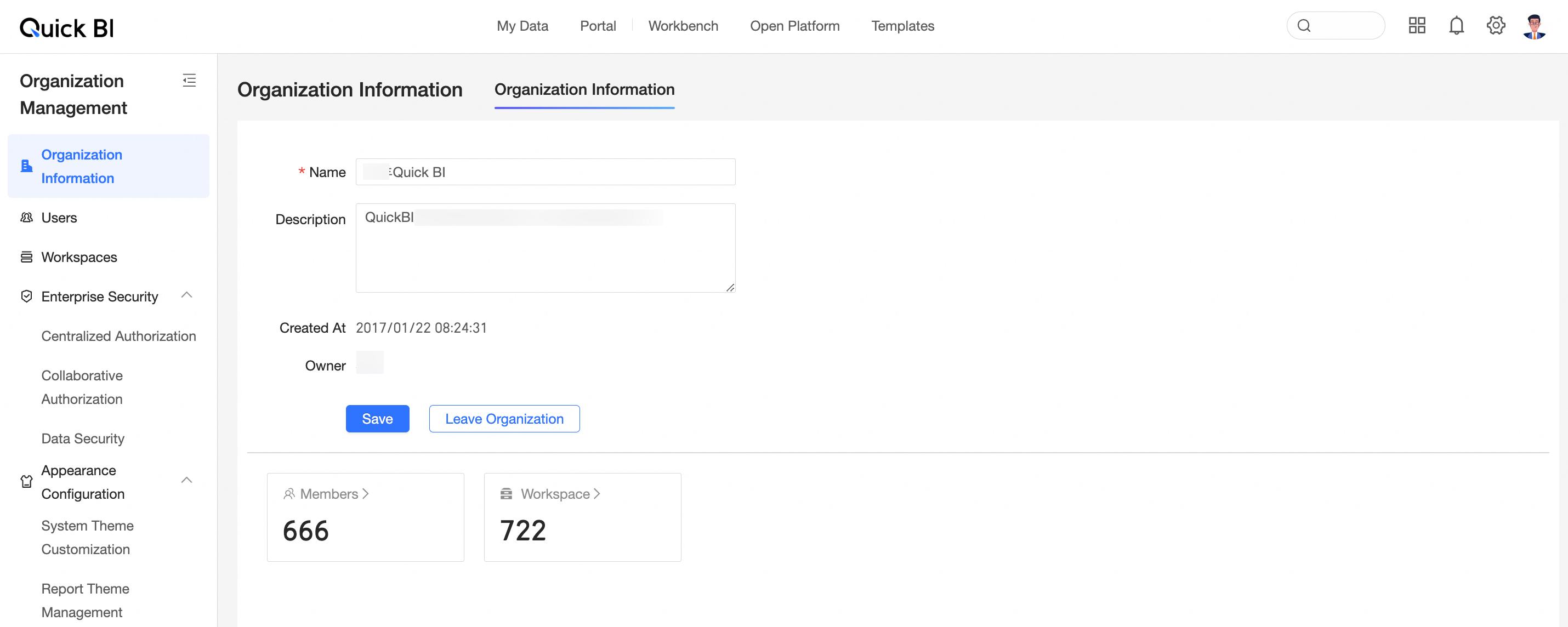
This topic describes the Quick BI console layout and the My Data, Workbench, Open Platform, and Organization Management modules.
Service architecture
Quick BI supports data consumption across all scenarios. Each module is designed for a specific role:
My Data: for executives and report viewers who use Quick BI as a personal data platform.
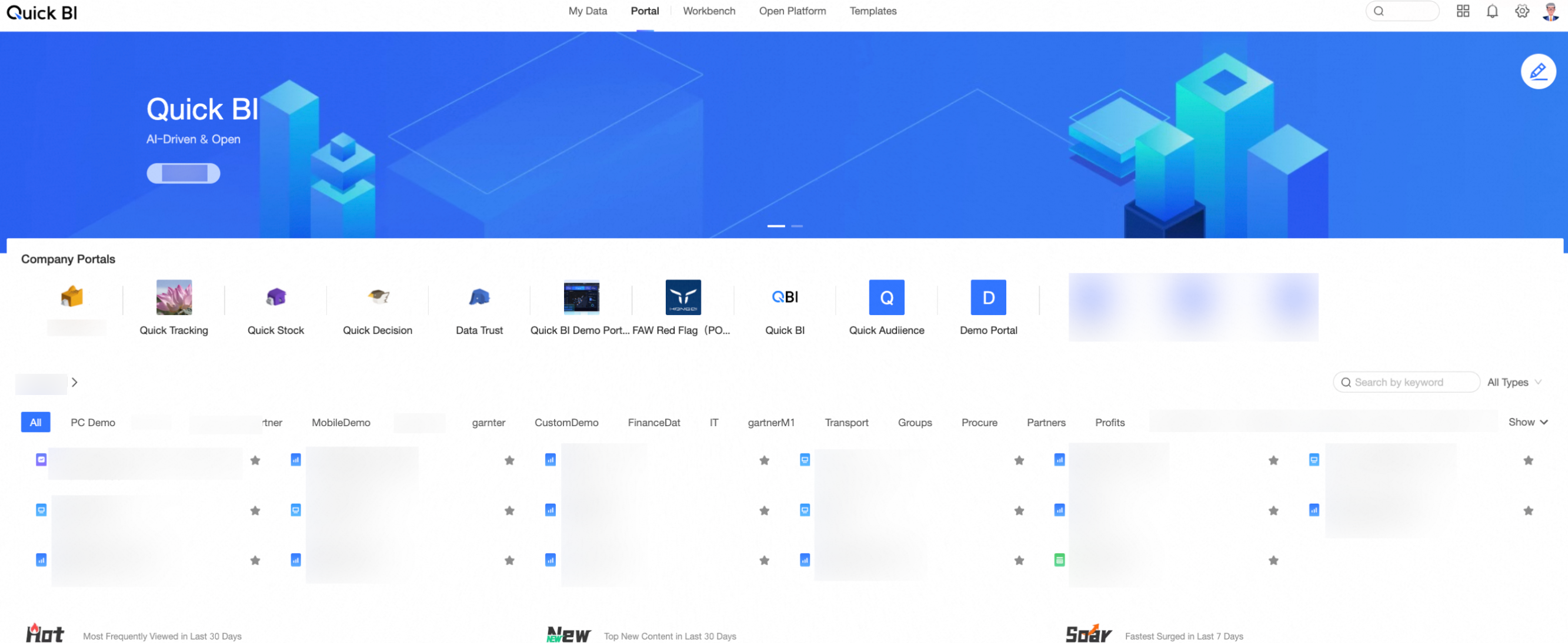
Enterprise Portal: for executives and report viewers who need an enterprise-wide BI portal (administrators can customize it).
Workbench: for developers and analysts who build and run data analyses.
Open Platform: for enterprise or community developers who need customization capabilities.
Menu bar
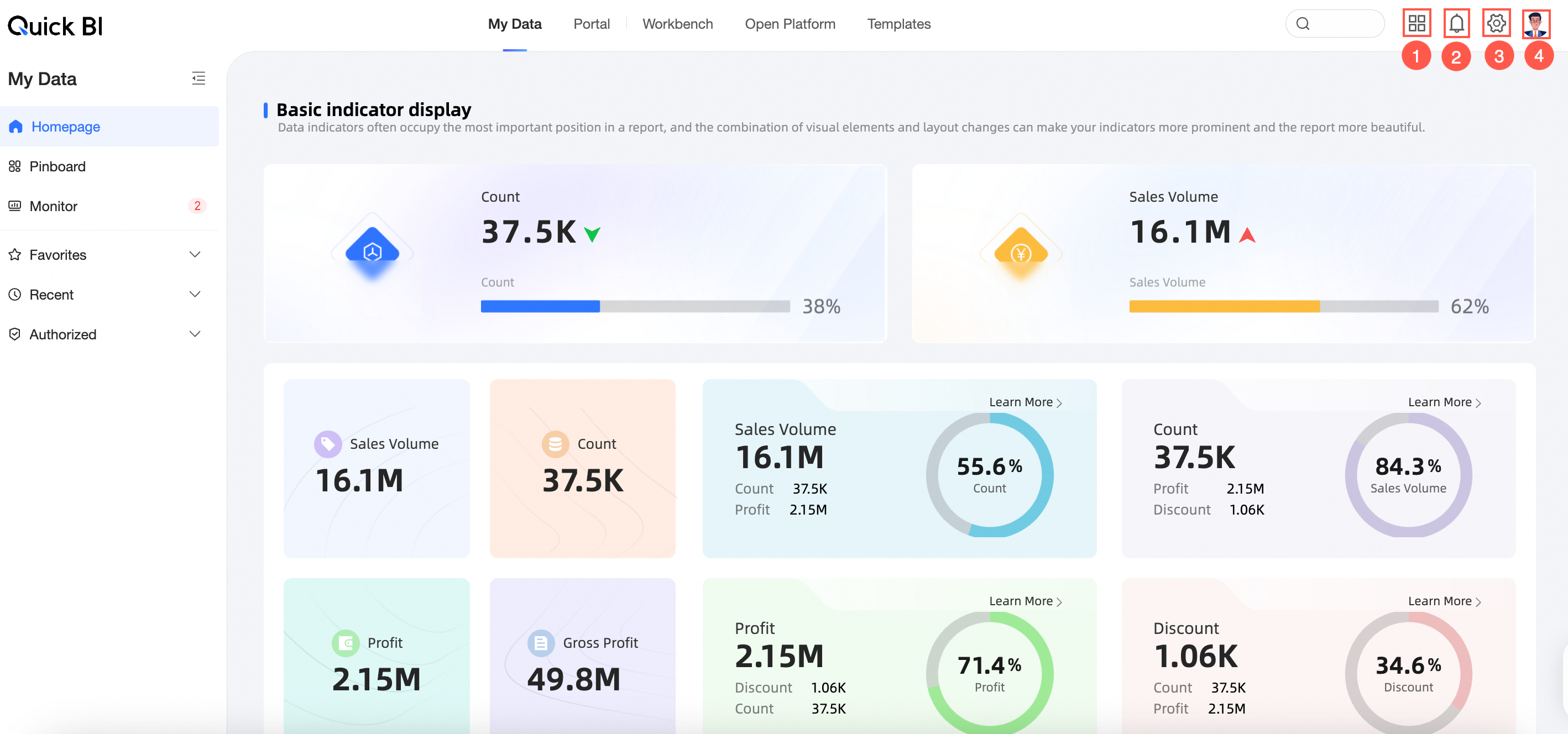
Click an icon in the menu bar to switch to the corresponding feature entry and perform related operations.
|
Number |
Feature |
|
1 |
Subscription Management, Metric Monitoring, Data Retrieval Center, Resource Plan Management |
|
2 |
System notifications |
|
3 |
Organization and workspace settings |
|
4 |
Personal Center |
My Data
-
Homepage
Set a personalized default report to display when you open My Data.
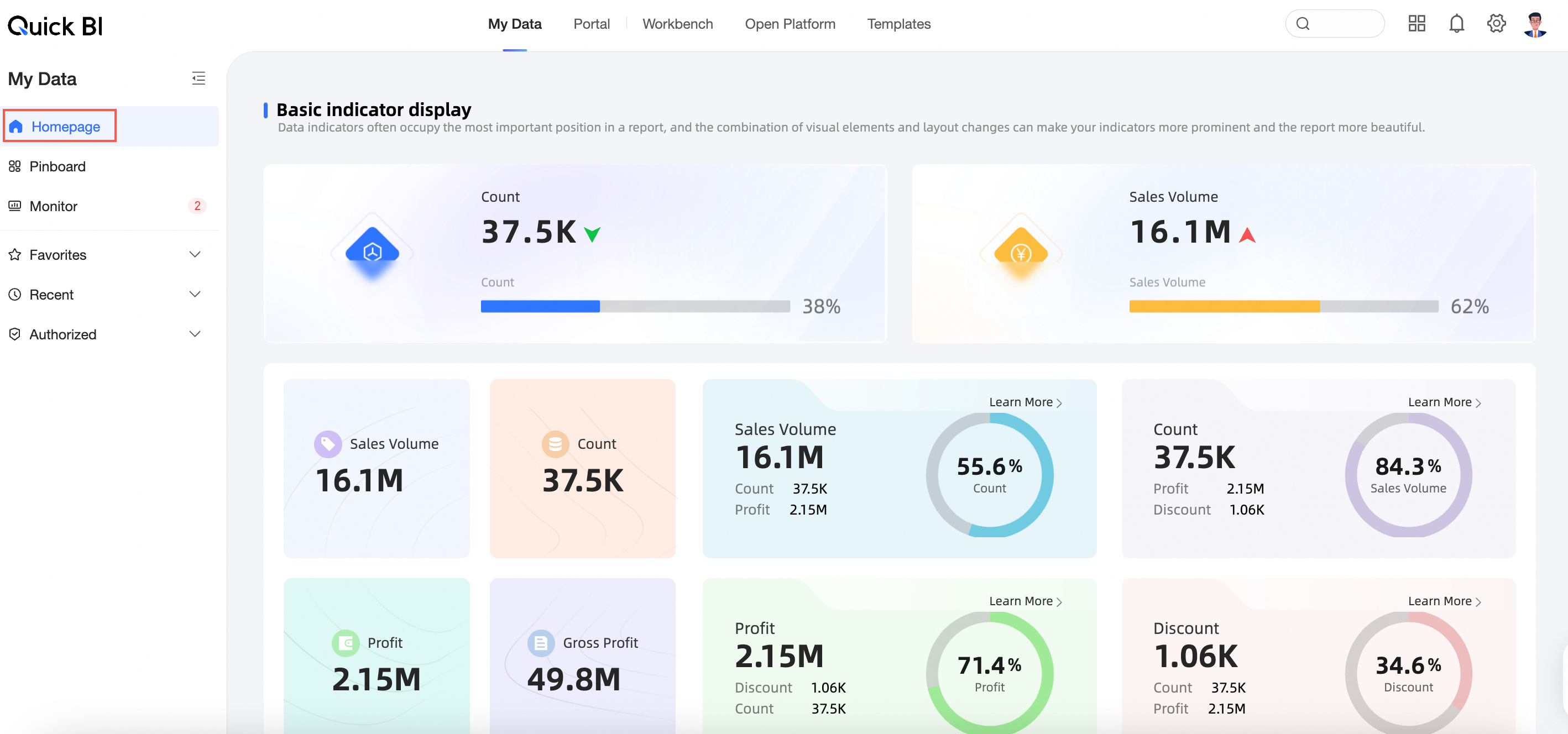
See Homepage settings.
-
Pinboard
Pin data cards from reports to track data changes in one place.
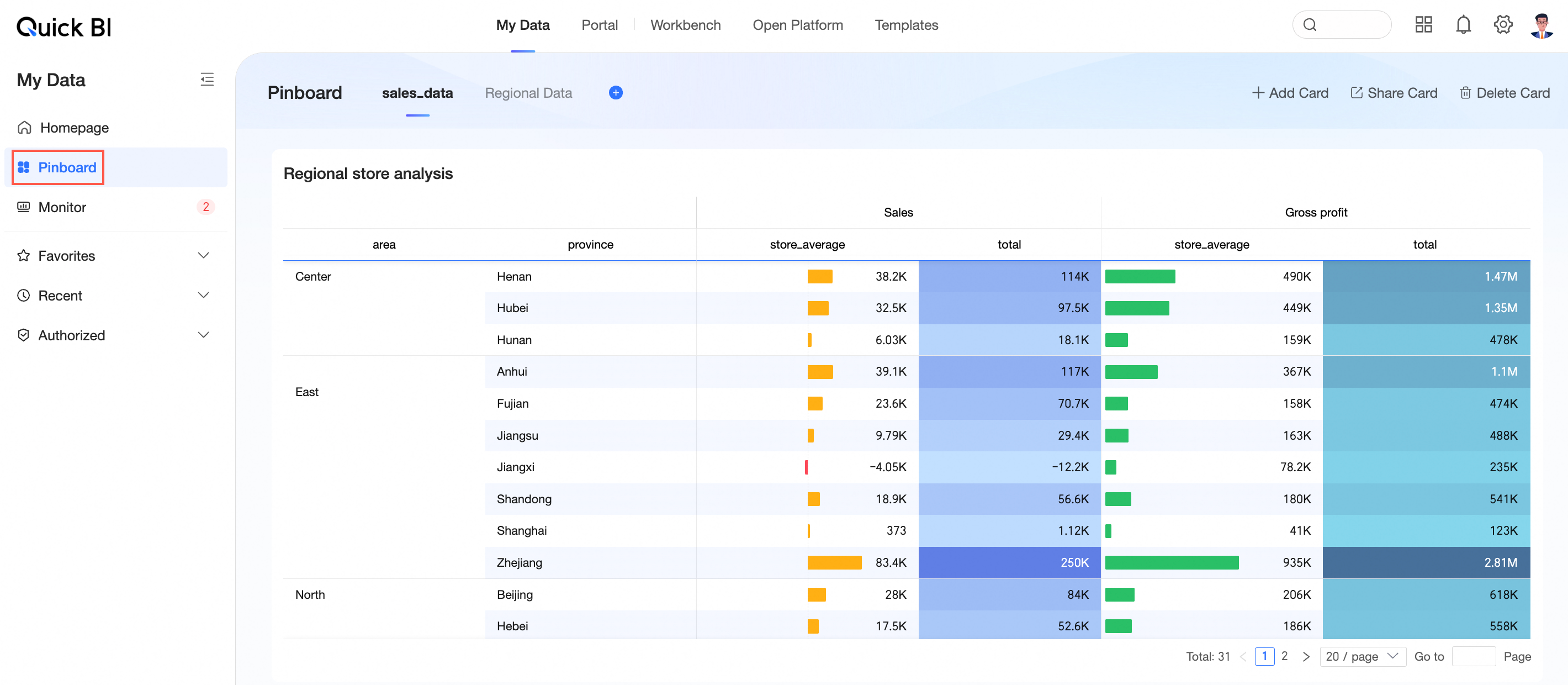
See Pinboard.
-
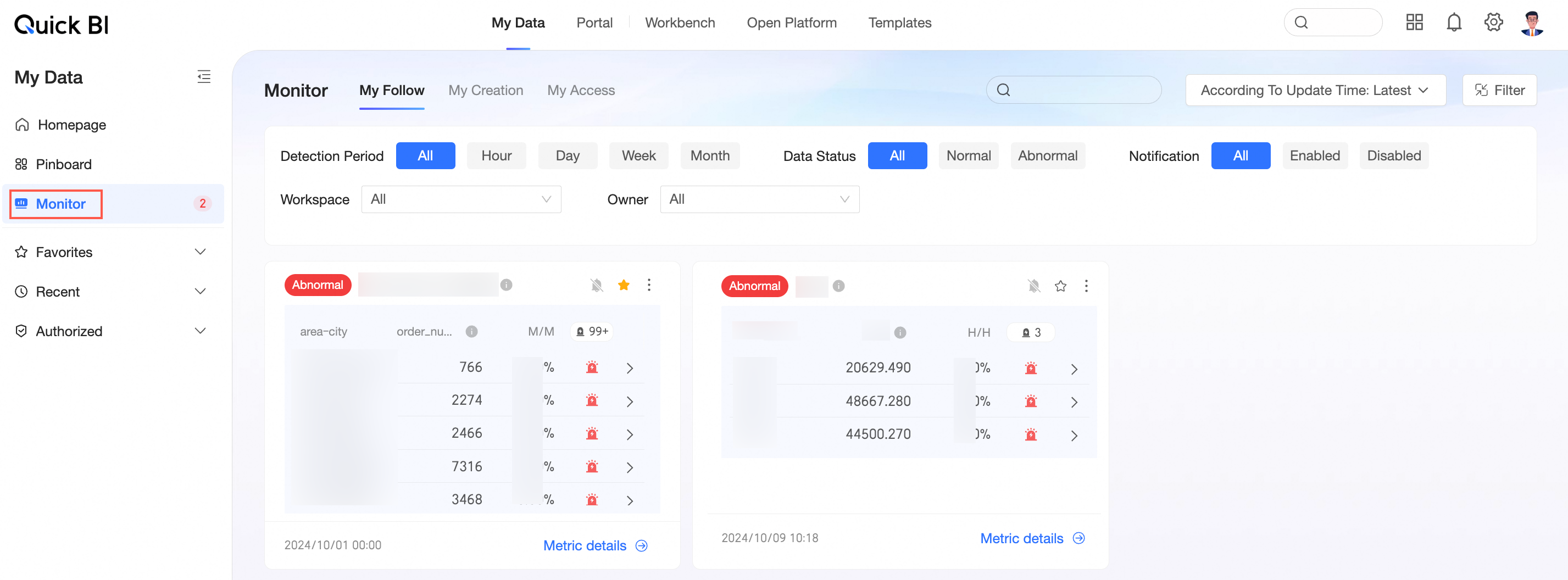
Metric Monitoring
Displays alert data for the monitoring metrics you follow.
-
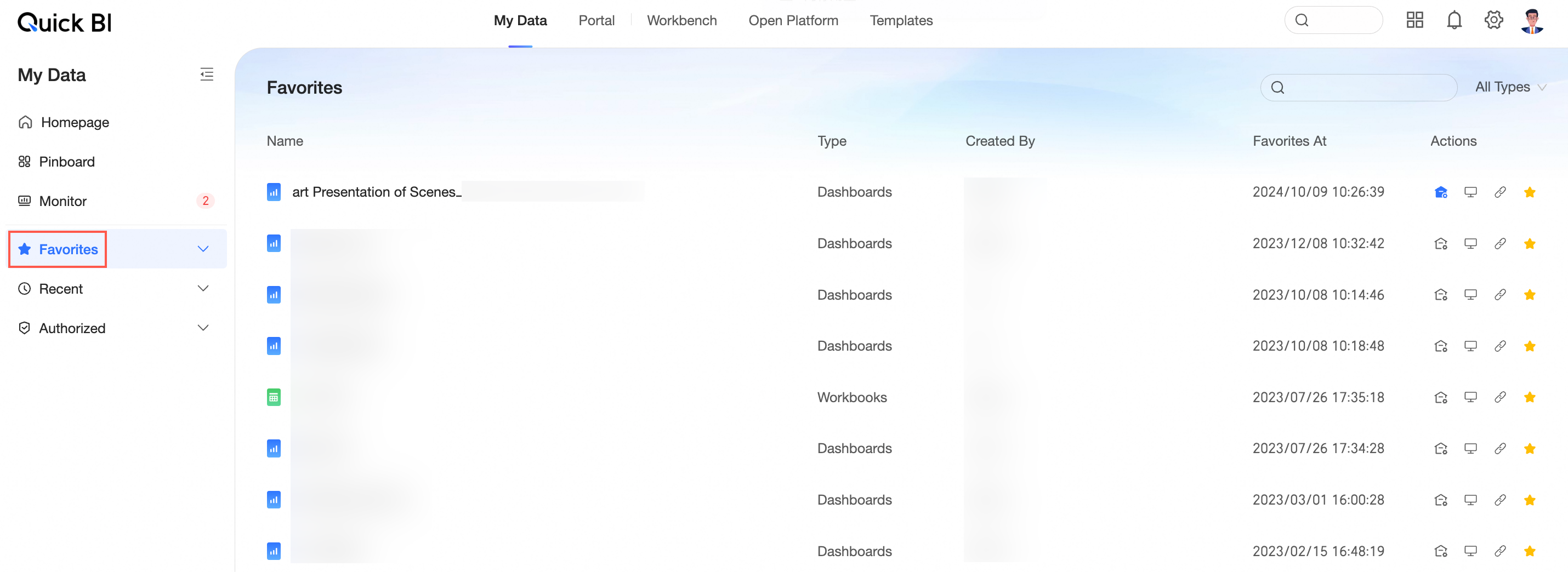
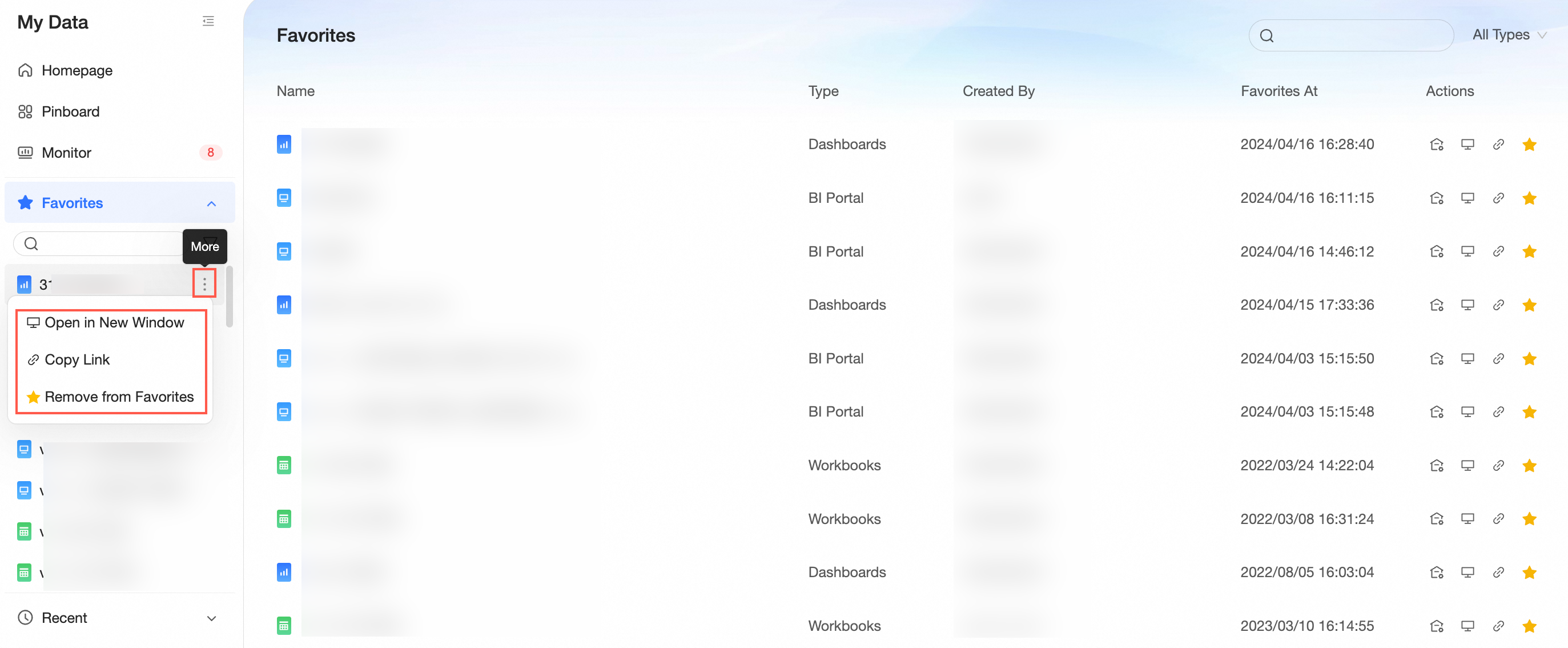
My Favorites
Resources you have added to favorites.
-
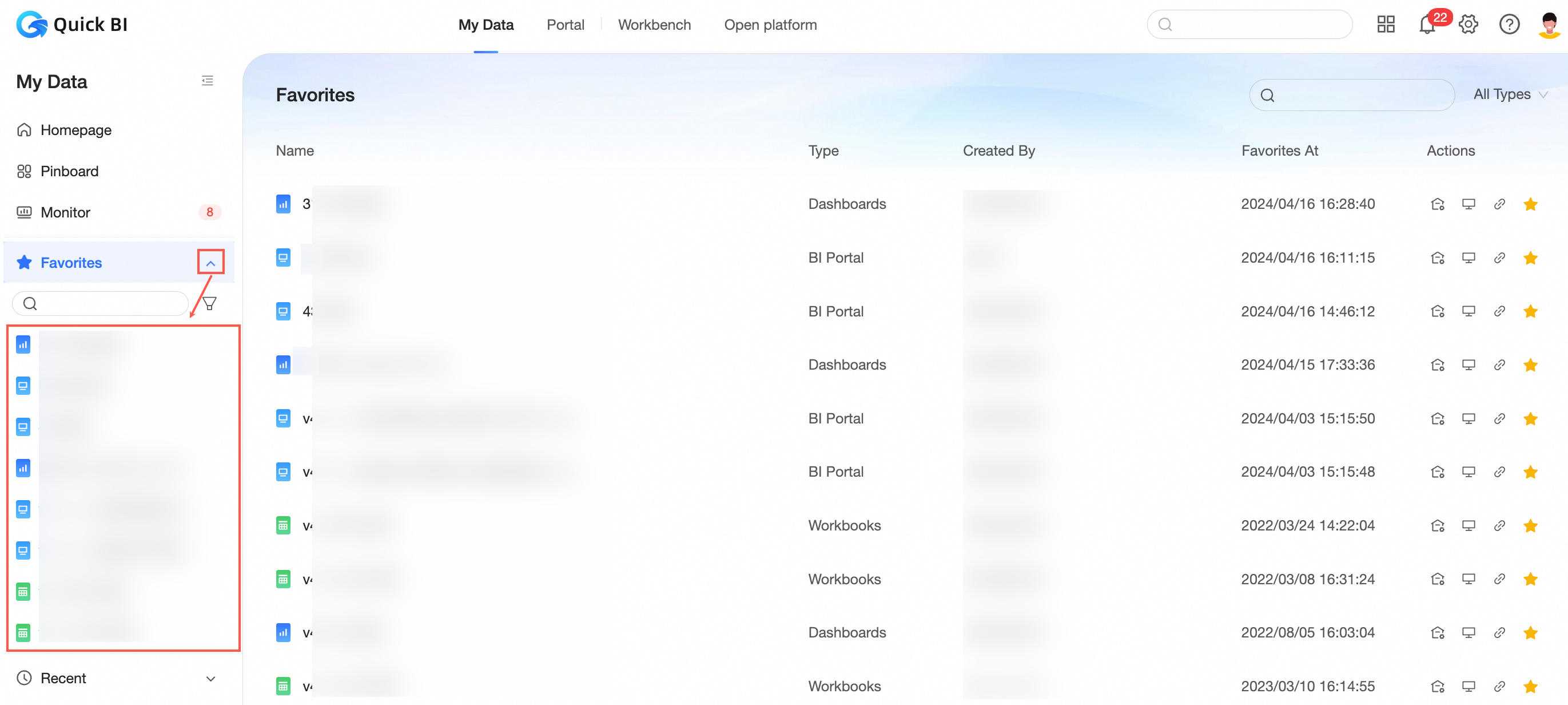
Expand the favorites list as shown in the figure.

-
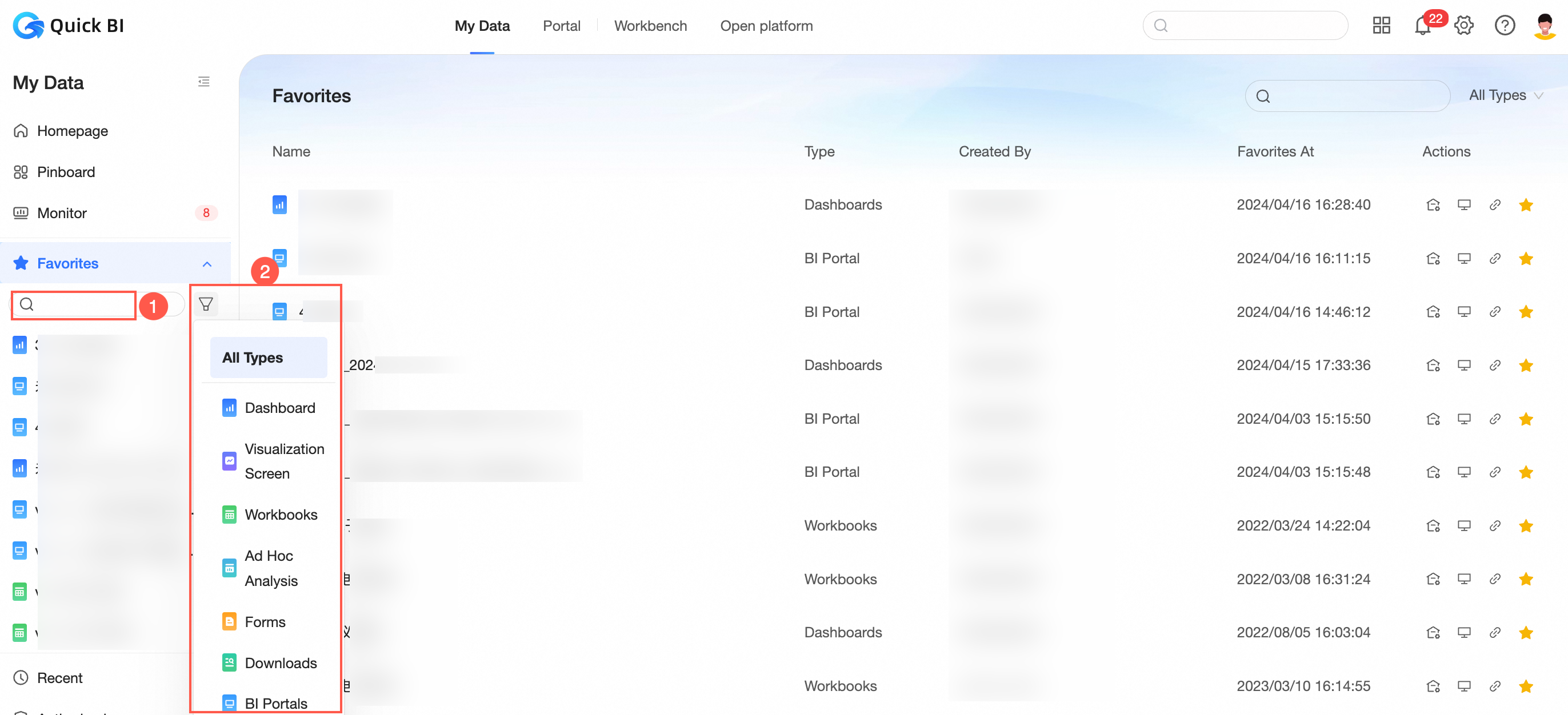
Search by keyword (1) or filter by type (2).
-
Click More to View in New Window, Copy Link, or Remove from Favorites.
-
-
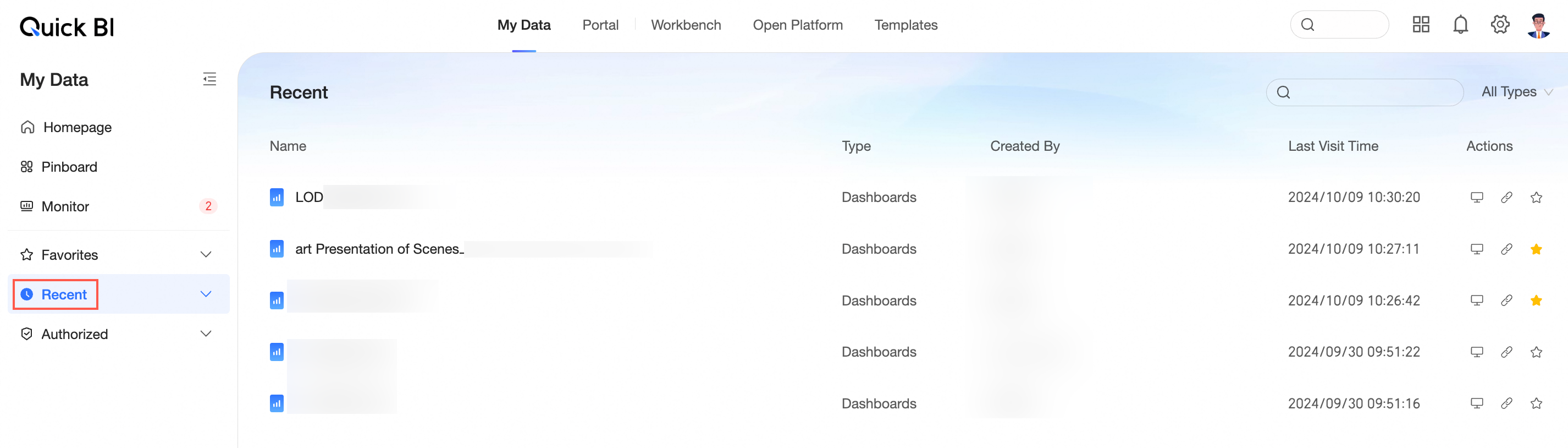
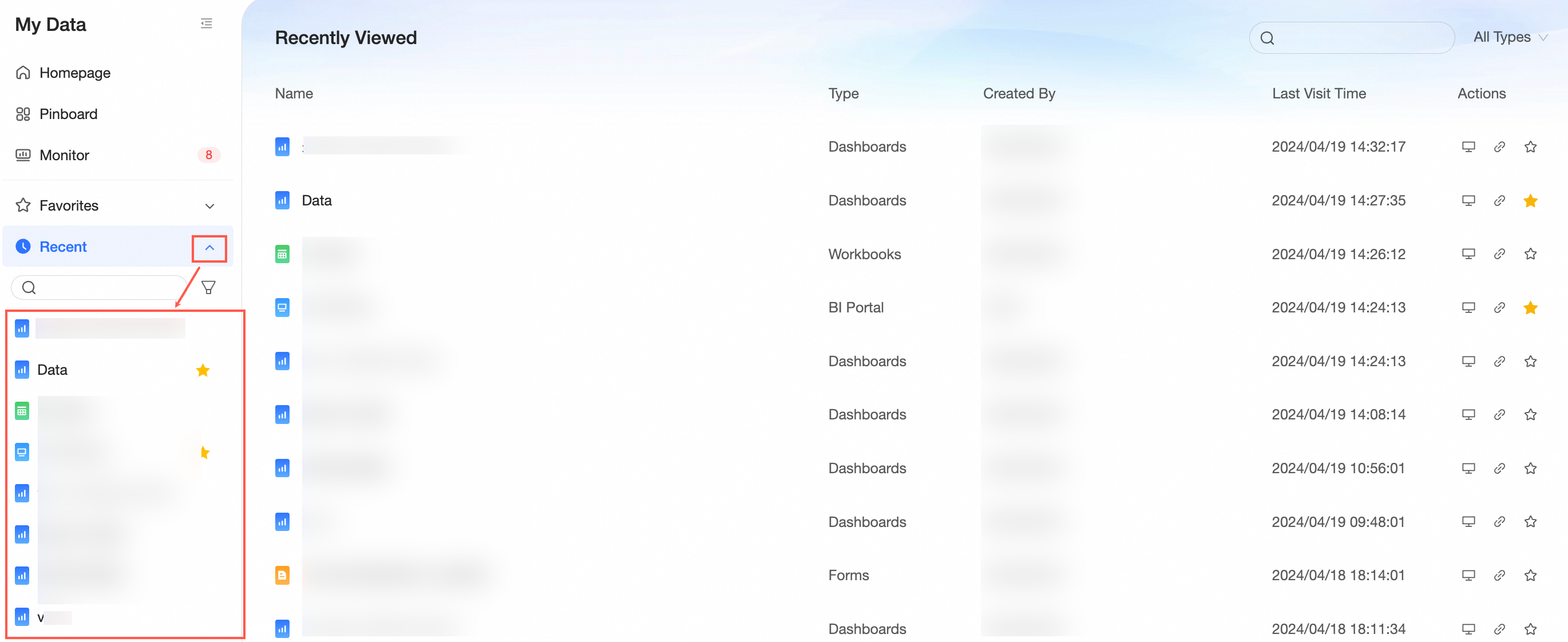
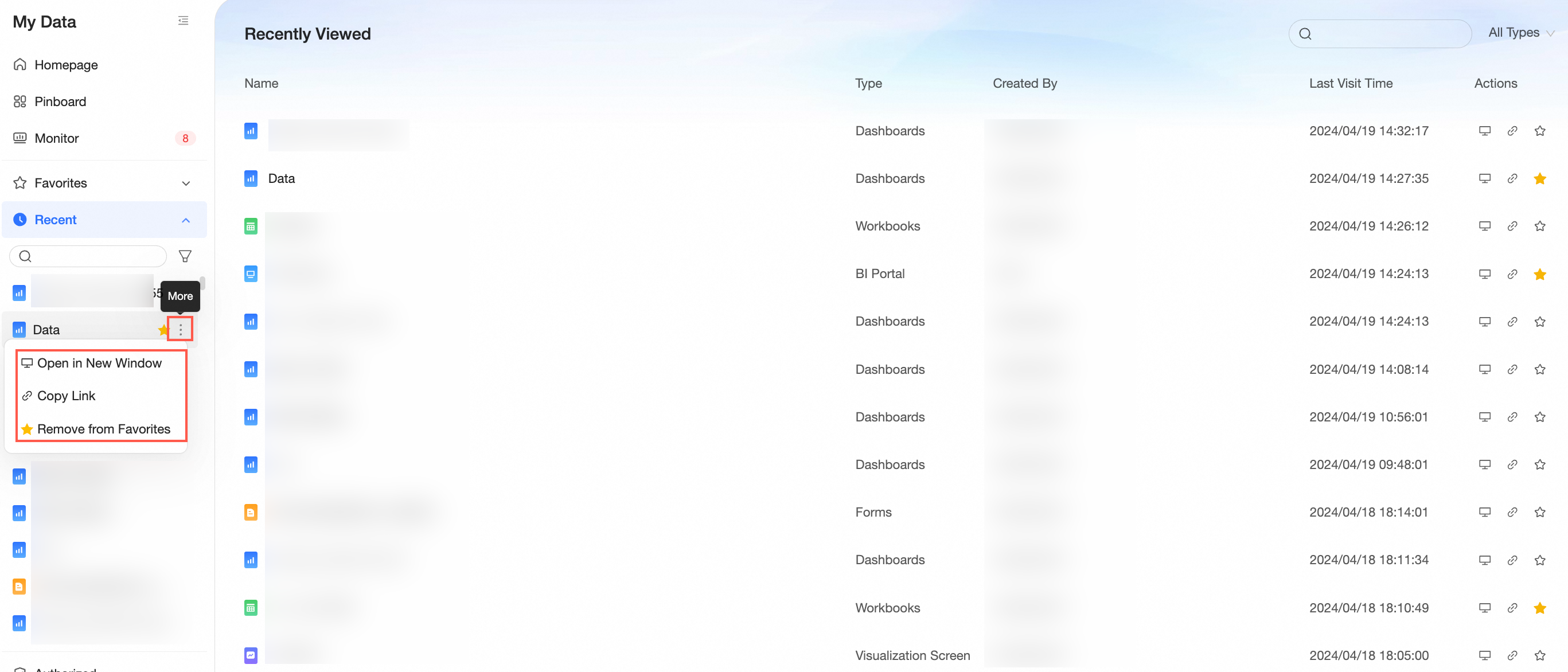
Recently Visited
Resources you have recently viewed.
-
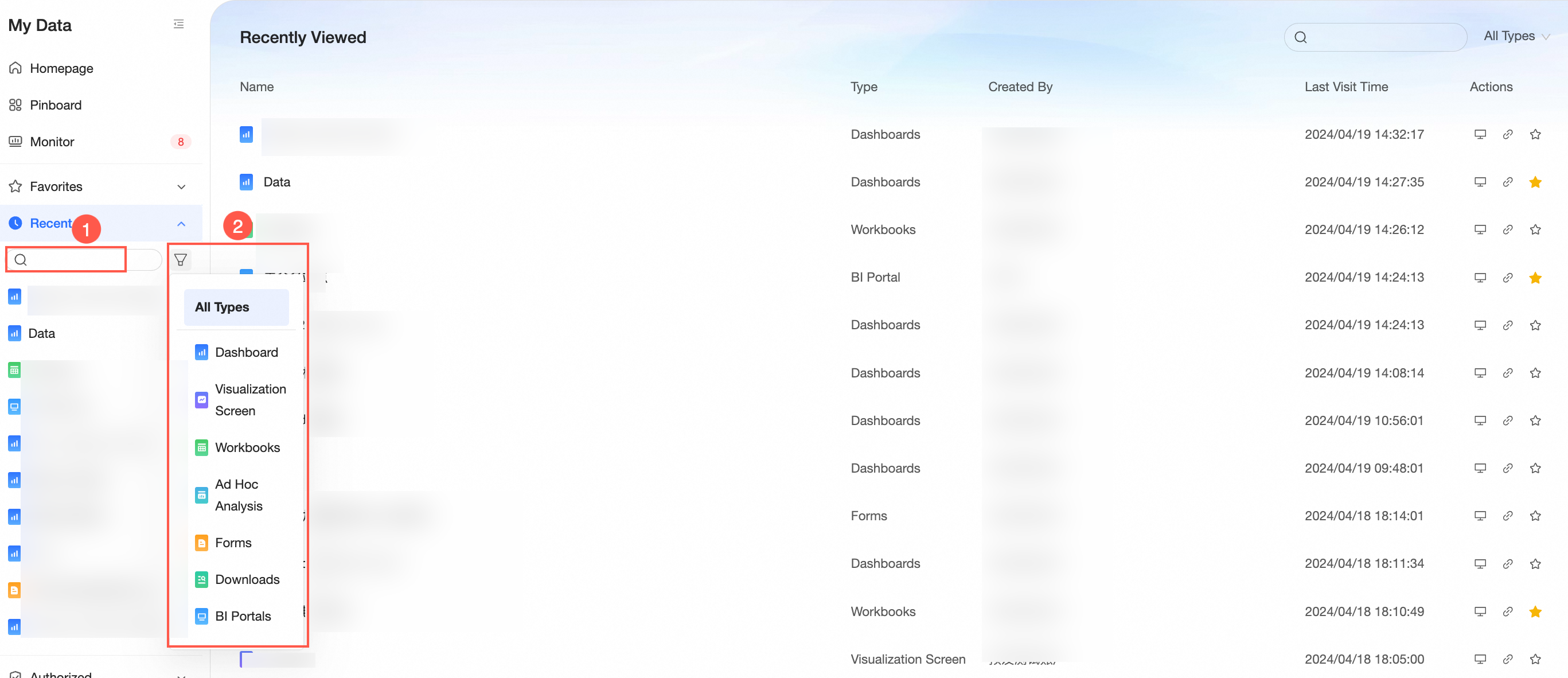
Expand the recently visited list as shown in the figure.
-
Search by keyword (1) or filter by type (2).
-
Click More to View in New Window, Copy Link, or Remove from Favorites.
-
-
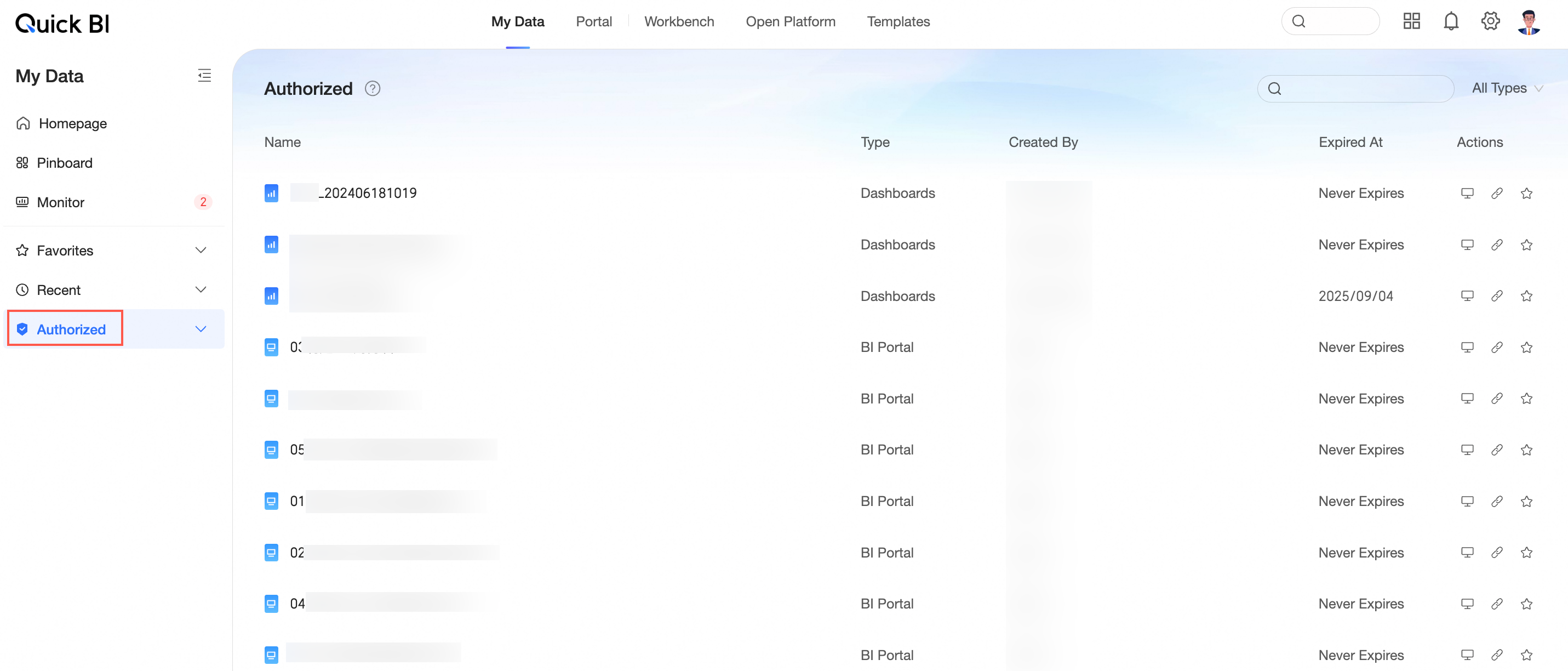
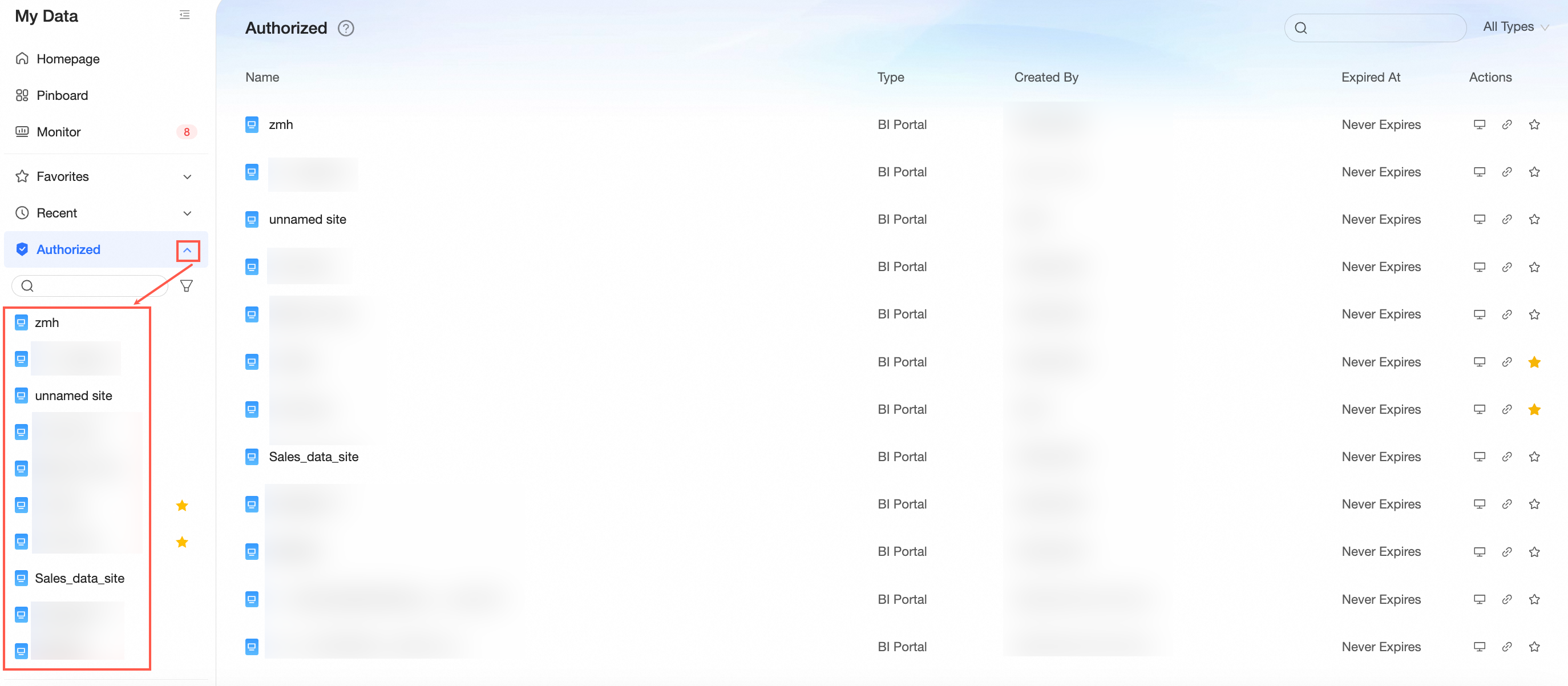
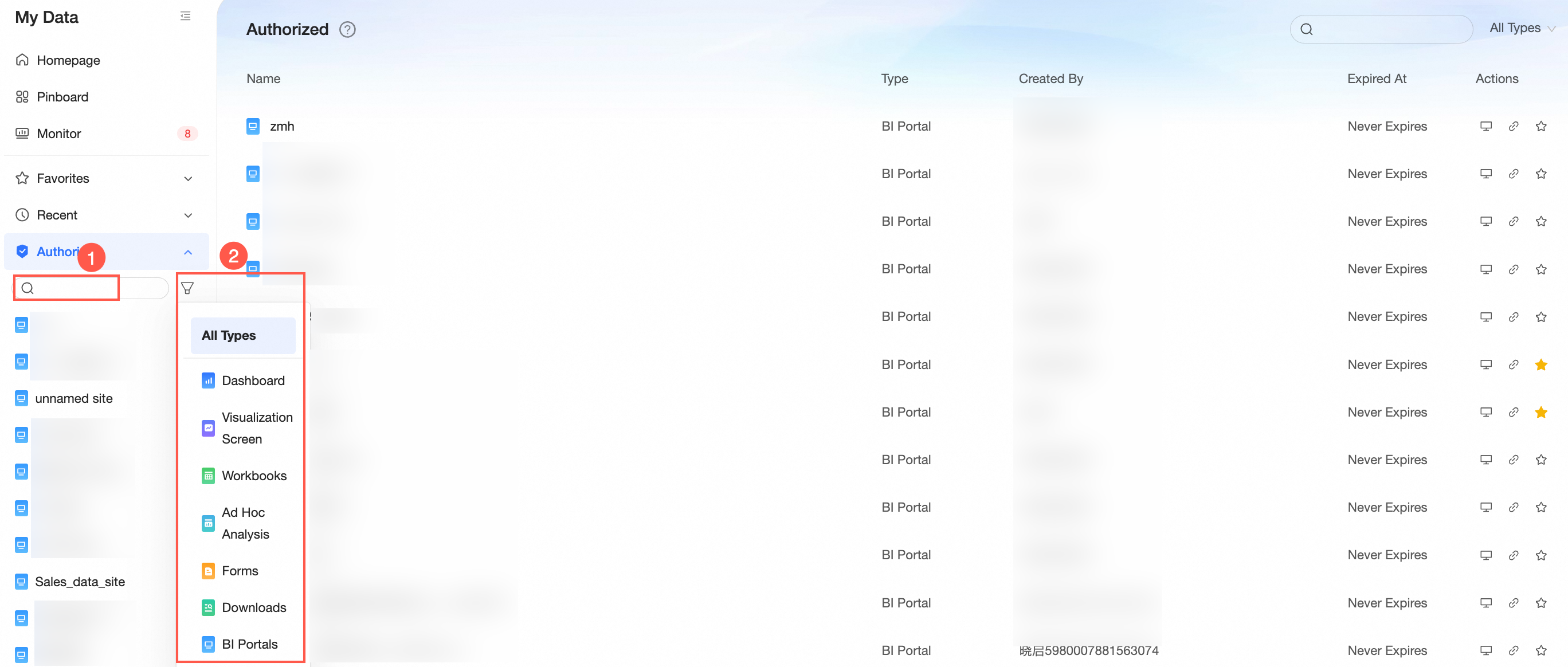
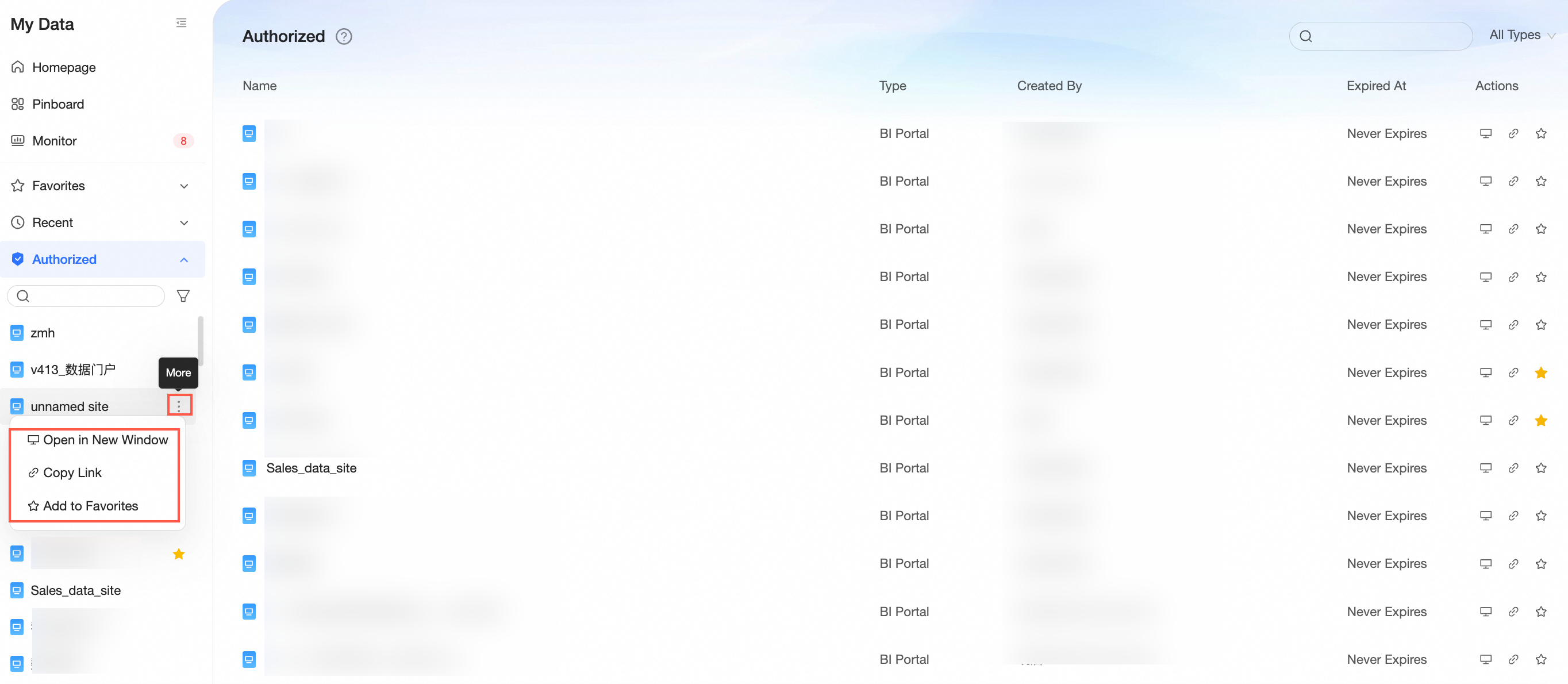
Shared with Me
Resources that others have shared with you.
-
Expand the shared with me list as shown in the figure.
-
Search by keyword (1) or filter by type (2).
-
Click More to View in New Window, Copy Link, or Remove from Favorites.
-
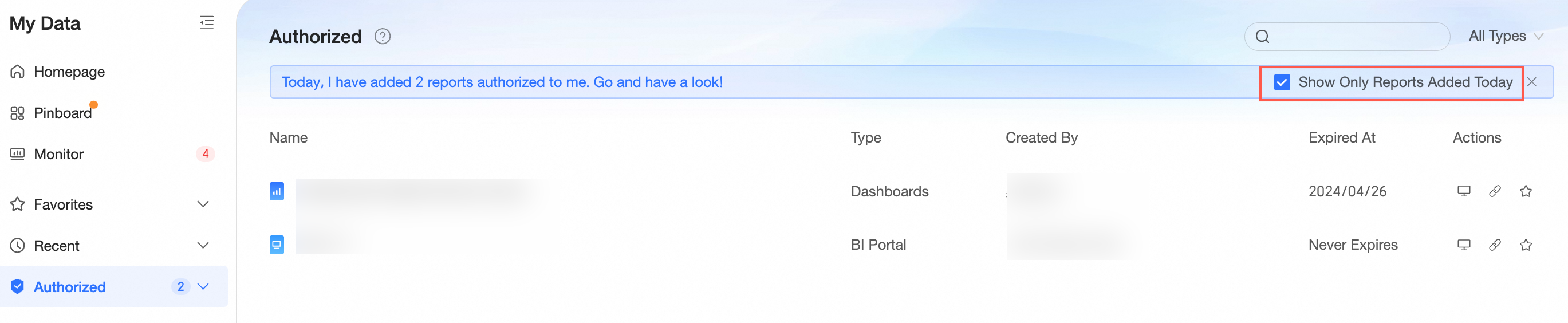
Filter to show only today's new additions.
-
-
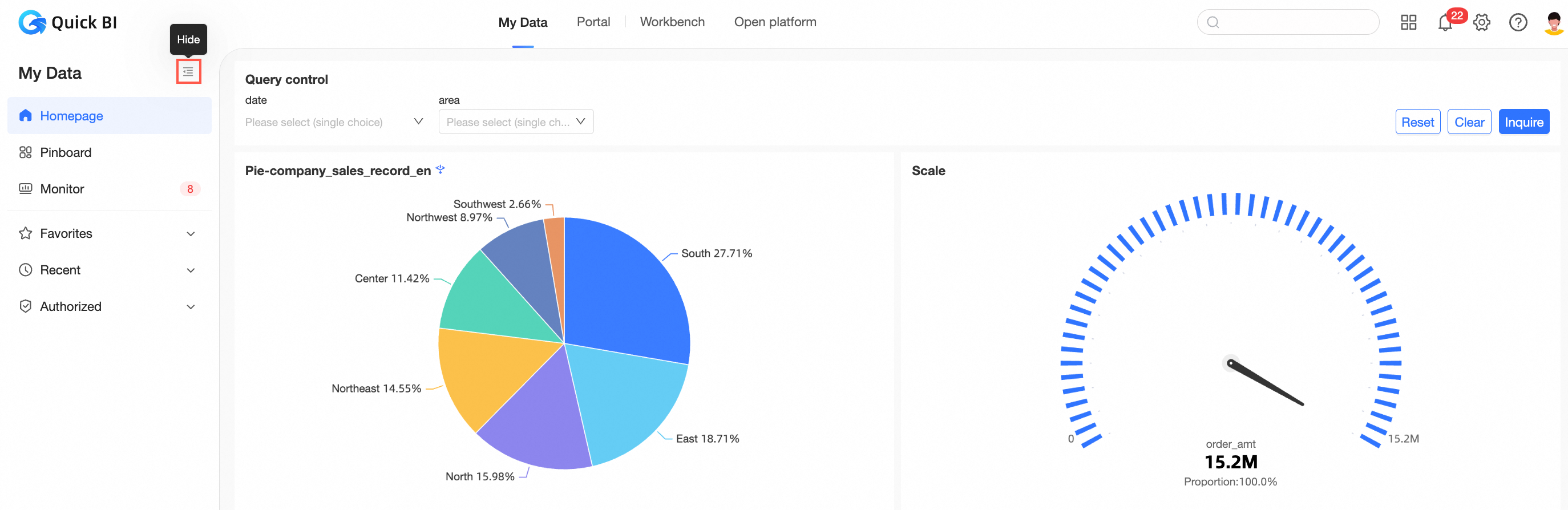
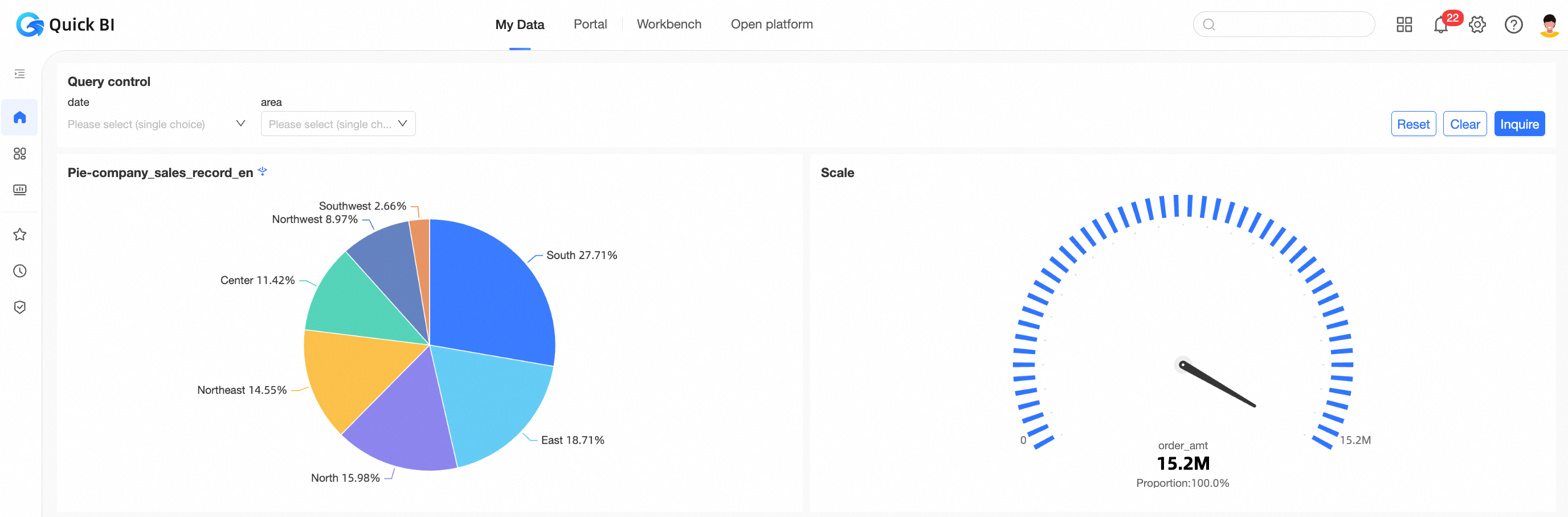
The side navigation can be collapsed.
After collapsing, the layout looks like this:
To pin the side navigation bar, hover over the
icon and click it. -
Resource preview
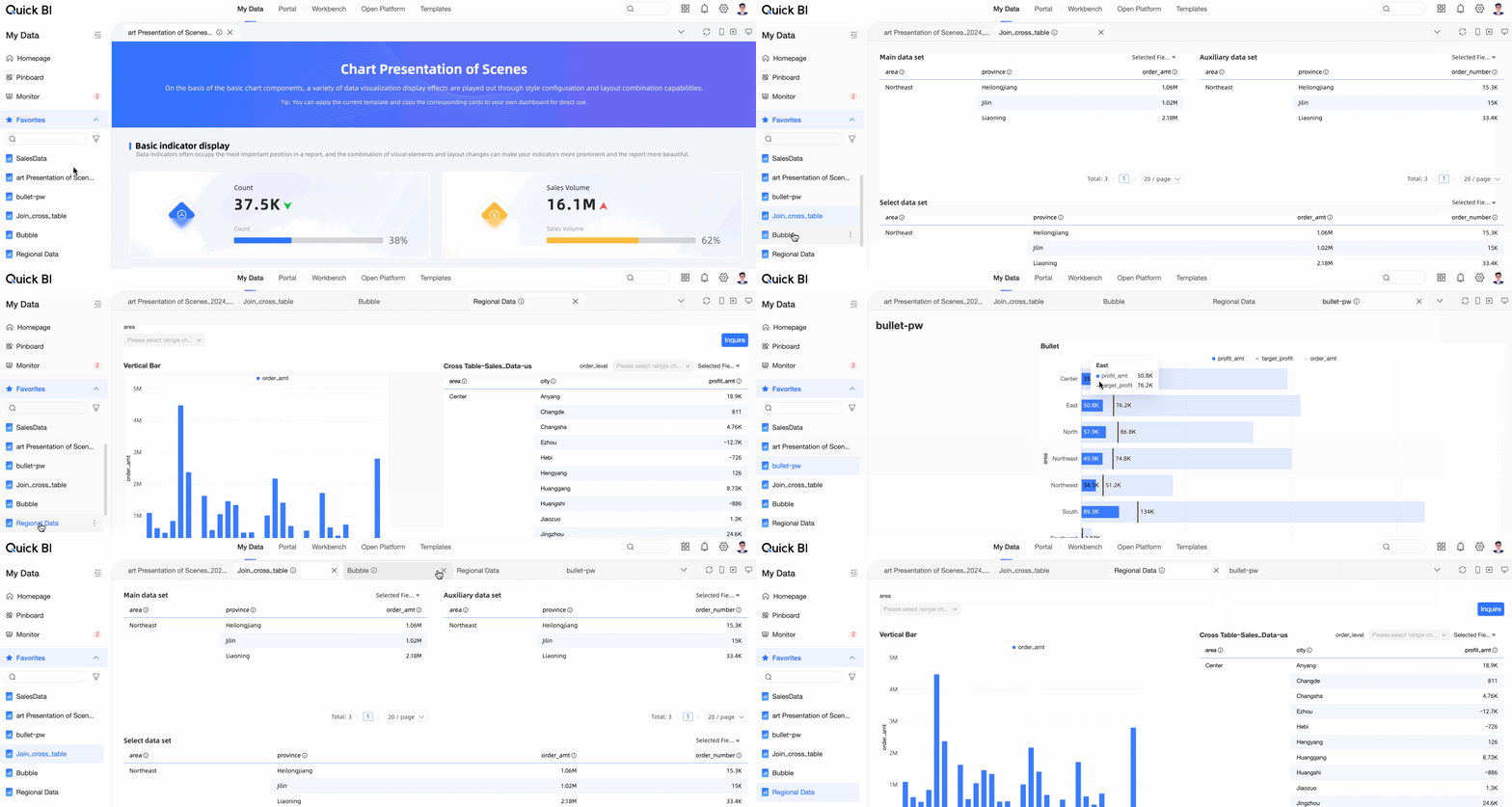
Resources in My Favorites, Recently Visited, and Shared with Me support preview.
Click a resource to enter preview mode. Open multiple previews and switch between them.
NoteA maximum of 5 menus will be kept for you.
Click the
icon in the upper-right corner to manage open previews:Close Current: closes the current preview page.
Close All: closes all open preview pages.
Close Others: closes all preview pages except the current one.
 icon and click it.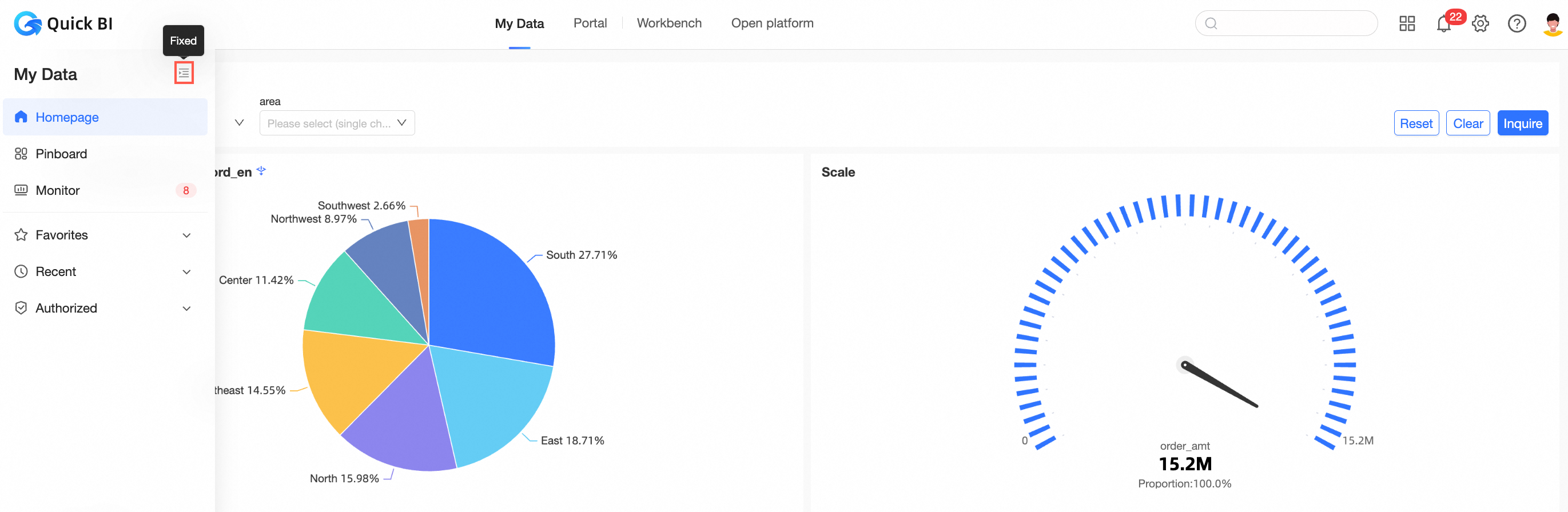
 icon in the upper-right corner to manage open previews: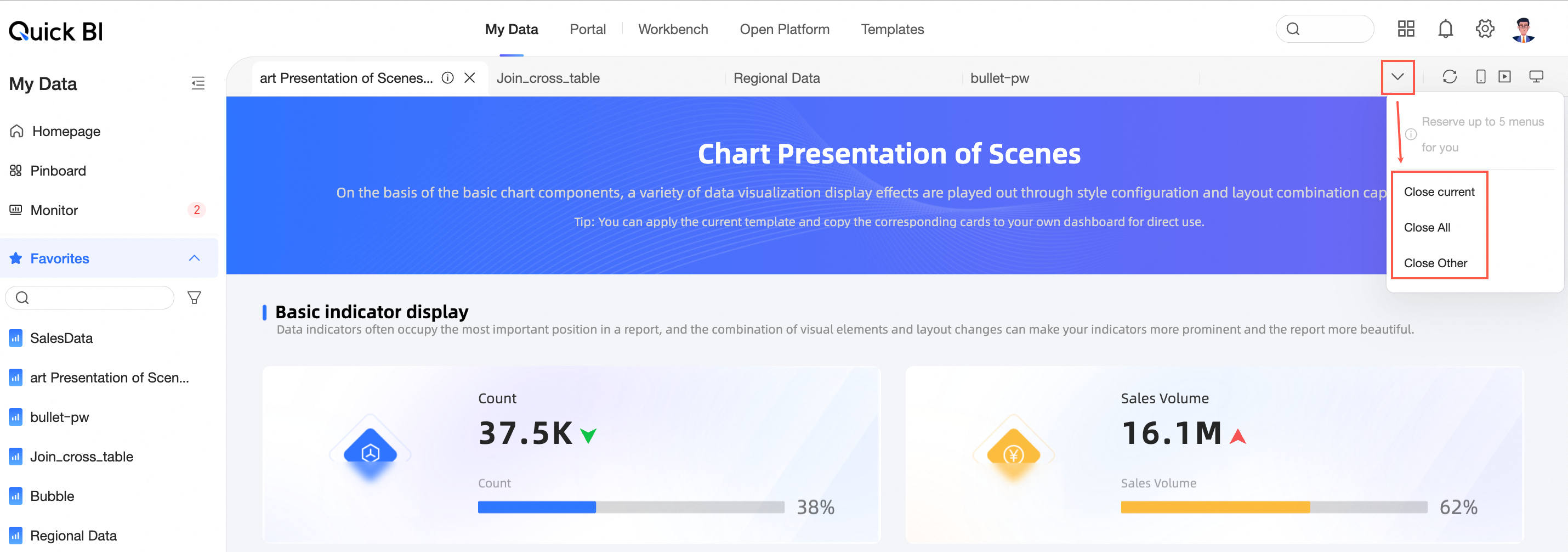
Enterprise portal
Customize a data portal for your organization. For more information, see Customize the PC enterprise portal.
Workbench homepage
On the Workbench tab, view and manage your workspaces, create resources, and quickly return to recently edited work.
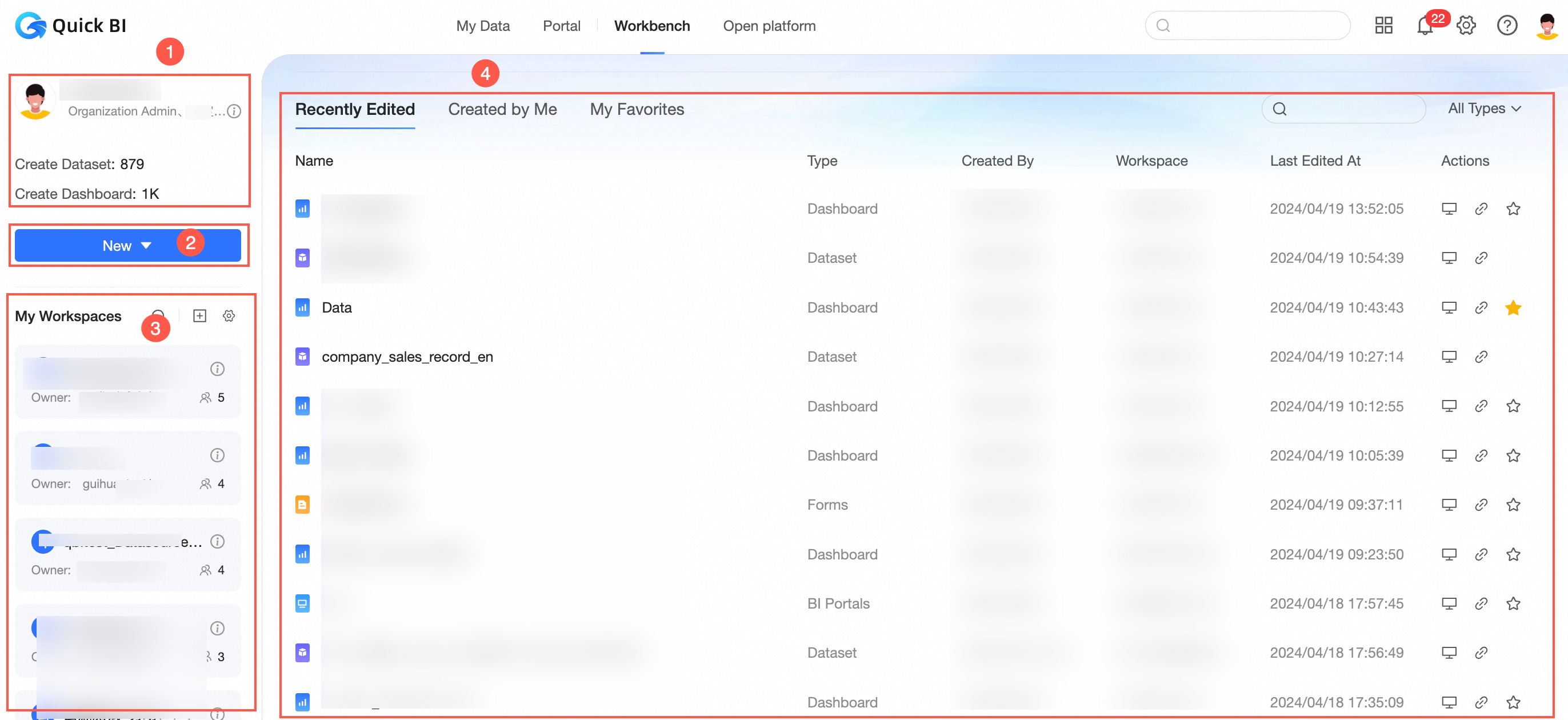
Current account information: your nickname, role, and created resources.
-
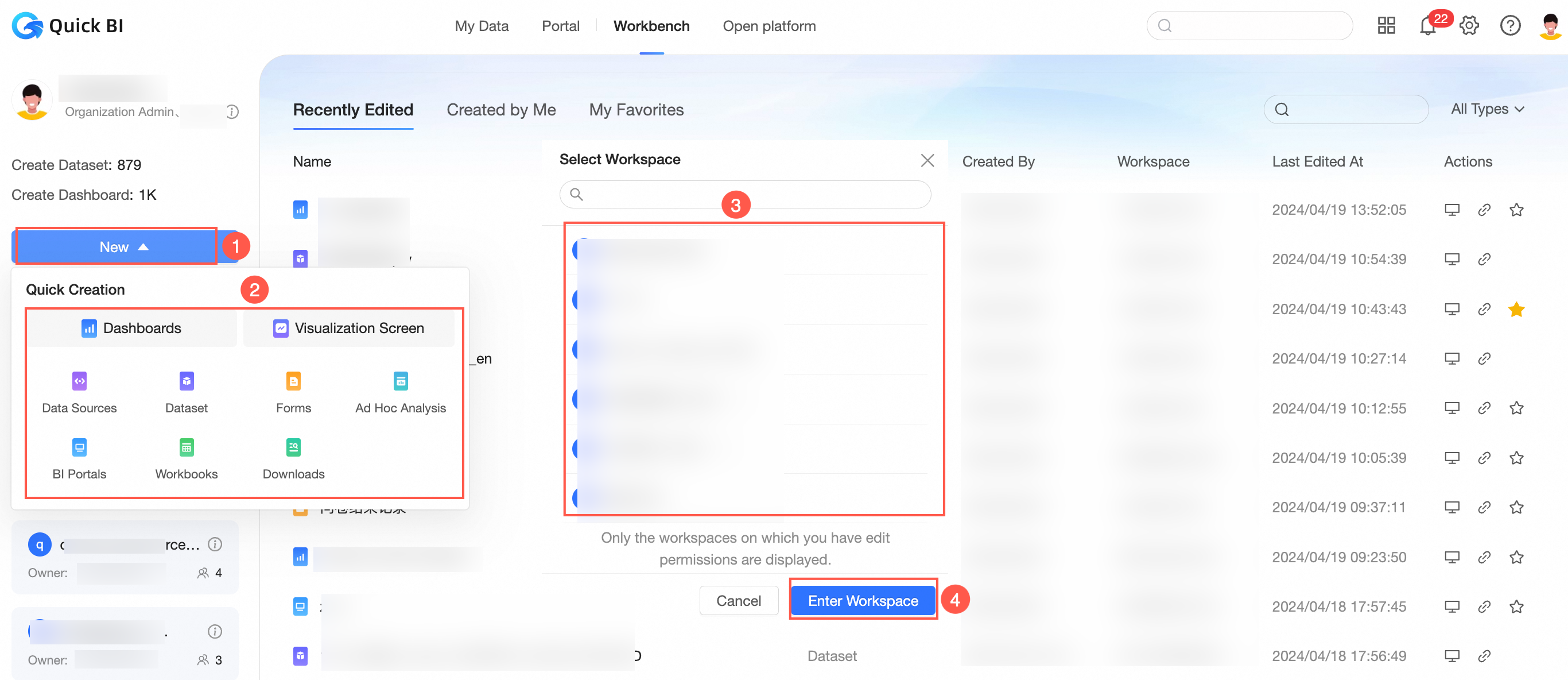
Quick Create: entry points for creating all resource types, so you can start building without navigating away.
-
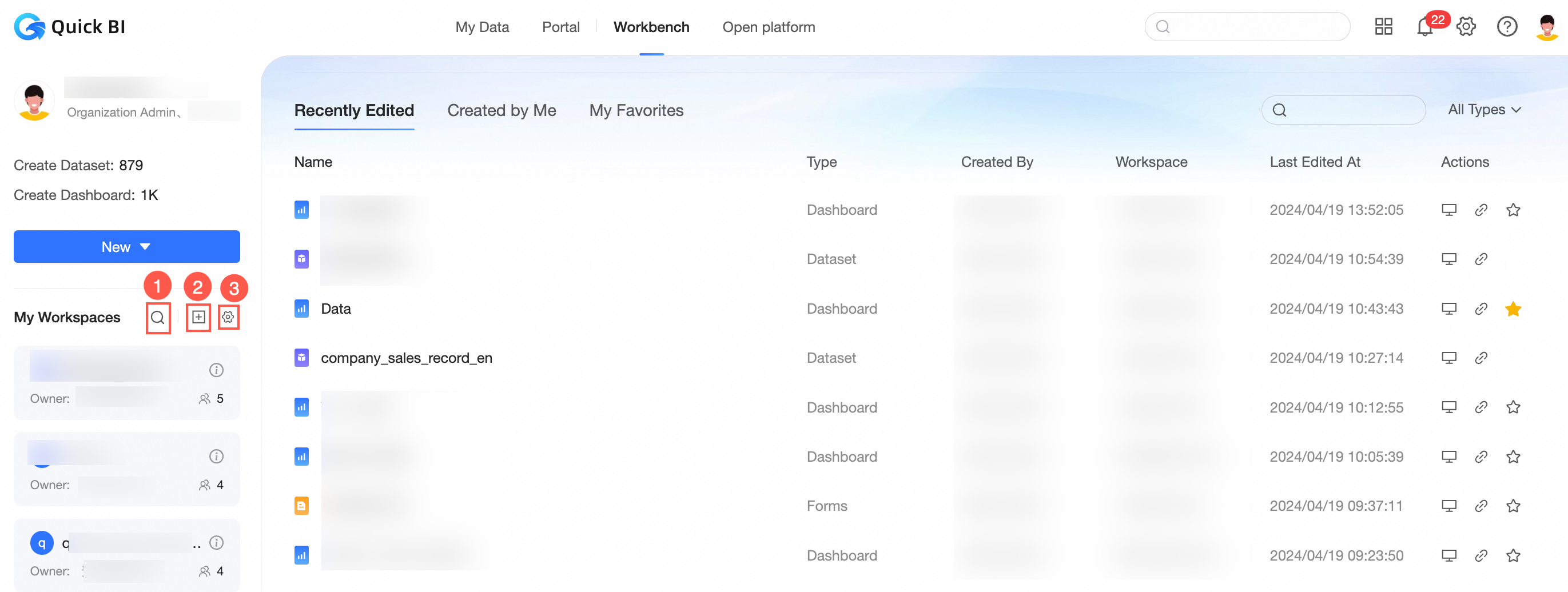
My Workspaces: a list of your workspaces for viewing resources and managing workspaces efficiently.
1. Find your workspaces
2. Join more workspaces
3. Manage your workspaces
Click a workspace to open the resource list on the Workbench tab.
-
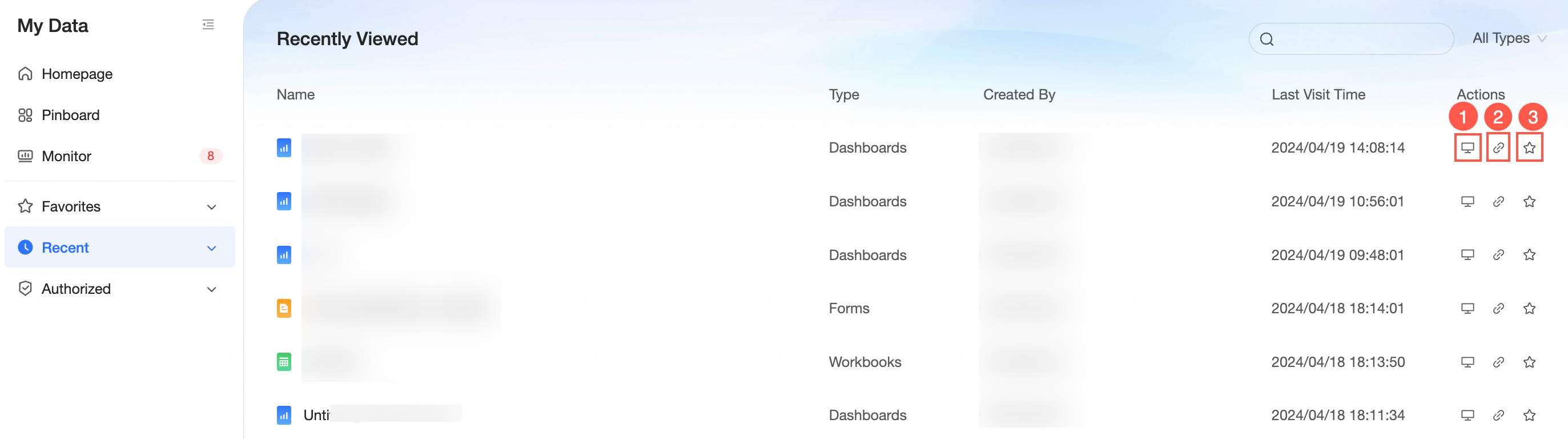
My recent operations: the Recently Edited, Created by Me, and My Favorites tabs show what you have recently edited, created, and saved. Use these to pick up where you left off without searching.
1. Open the resource in a new window
2. Copy the resource URL to share with authorized users for collaboration
3. Add the resource to favorites
Resource list on the Workbench tab
Create and manage resources from the resource list on the Workbench tab.
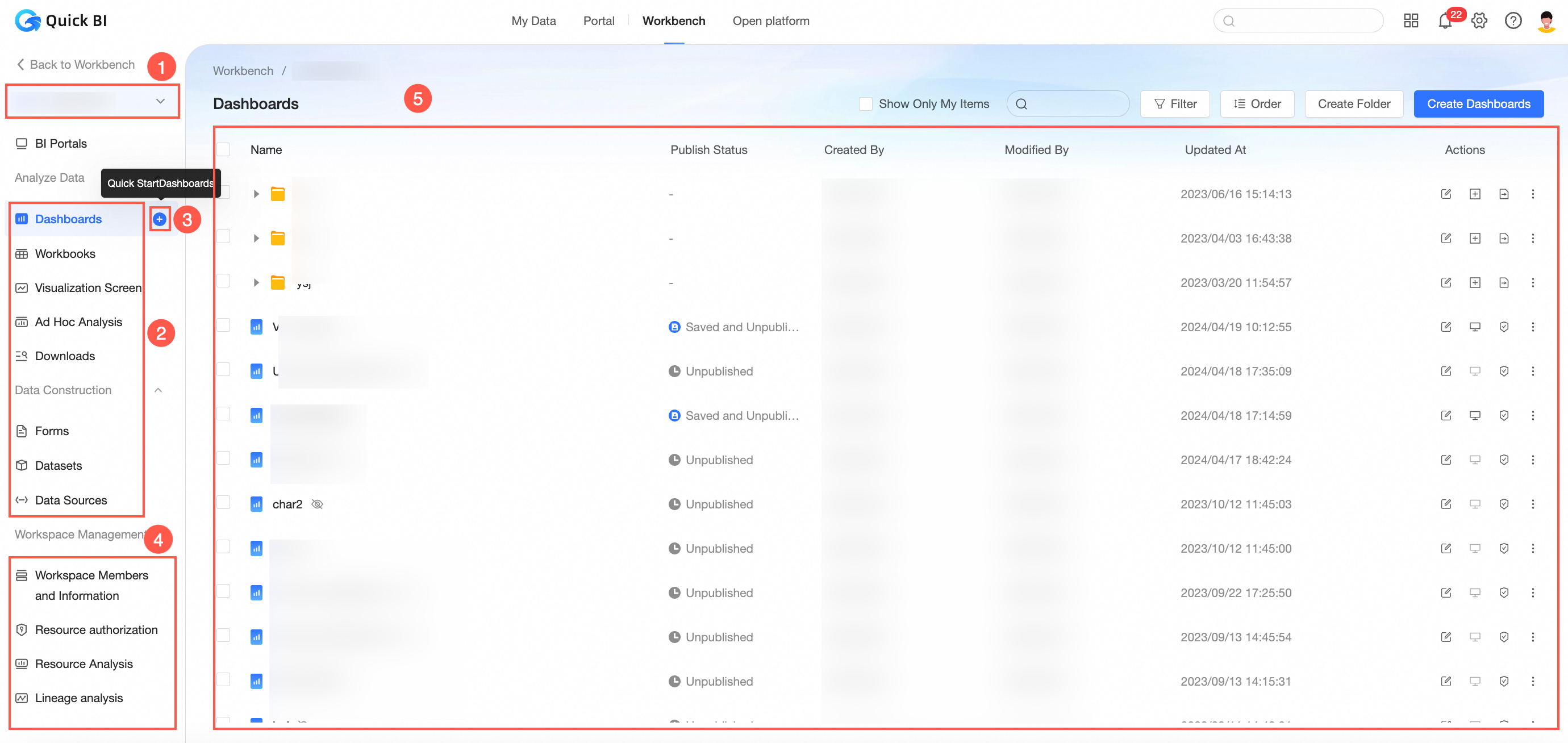
Switch between workspaces
Entry points for resources
Entry points to create a resource type
Workspace and information management (visible only to workspace administrators)
-
Entry points to manage resources
NoteWorkspace Management (Section 4) can be viewed only by users who have permissions to manage workspaces.
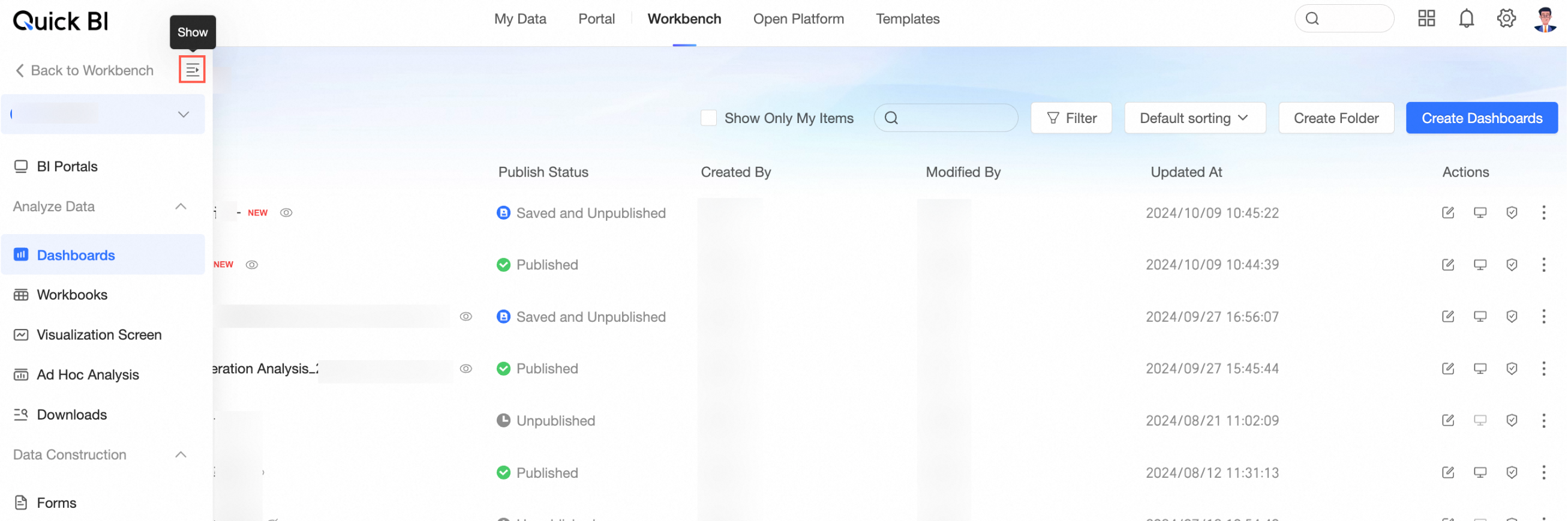
Expand or collapse the resource list on the Workbench tab as needed.
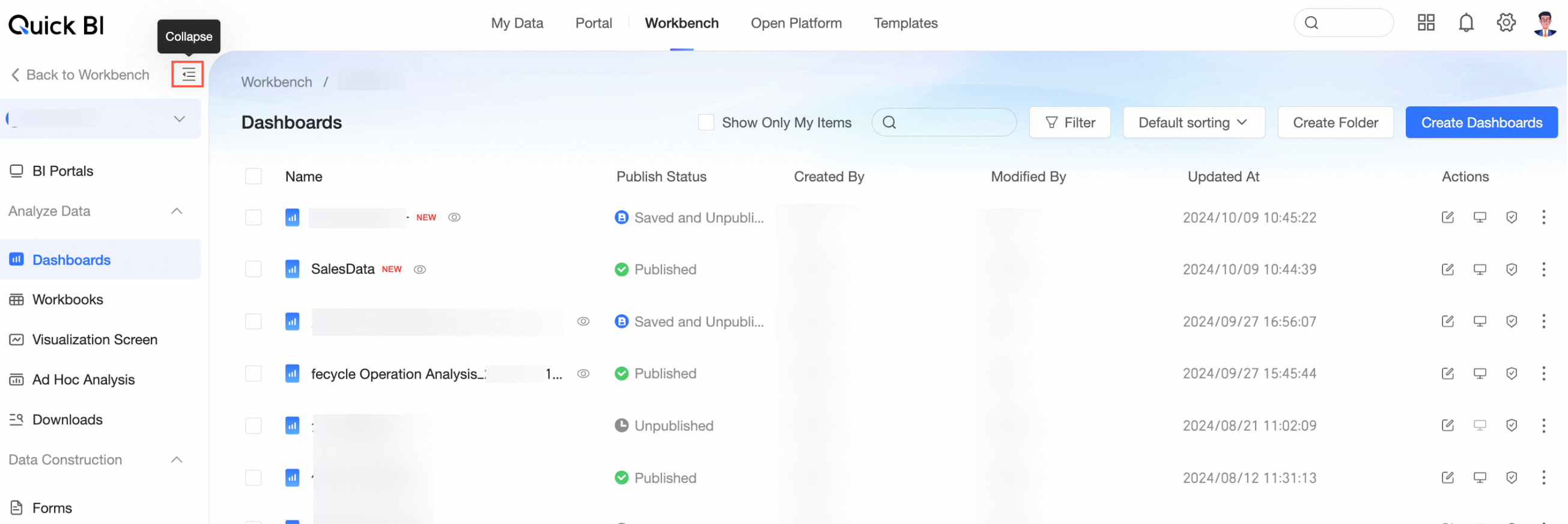
When the list is collapsed, hover over the left panel to expand it, or click the  icon to expand it.
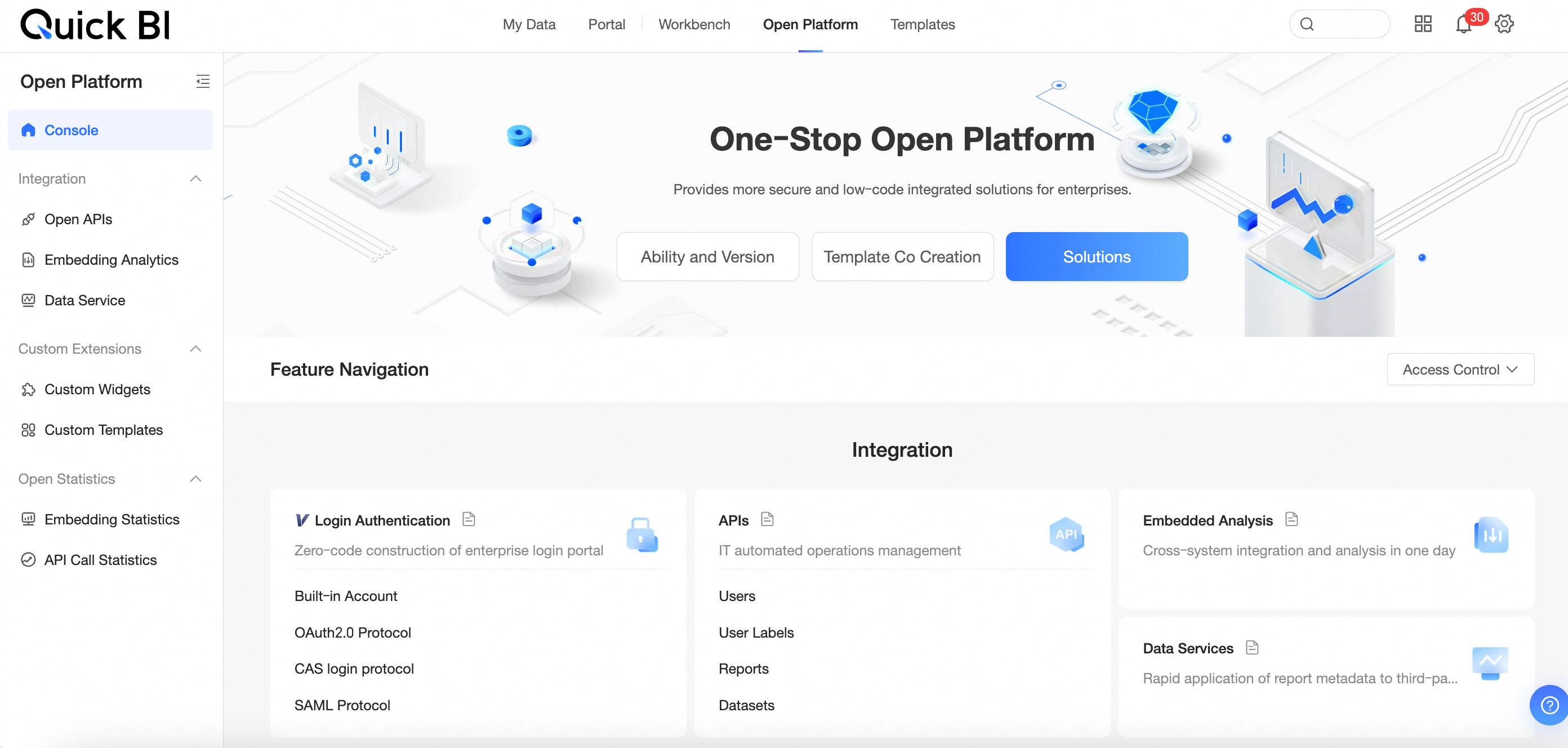
Open platform
Open Platform makes Quick BI reports and data available to third parties, so more users can interact with your data. For more information, see Overview.
Organization management
In the Pro and Professional Edition, administrators can manage Quick BI organizations from the configuration panel. This includes organization management, enterprise security management, collaborative office management, organization-level feature configuration, and AIOps (artificial intelligence for IT operations). For more information, see Organization Management.