AI Feature Management
On the AI Feature Management page, enable or disable the XiaoQ Insights and Smart Diagnostics features based on your business needs. This topic describes how to configure these AI feature switches.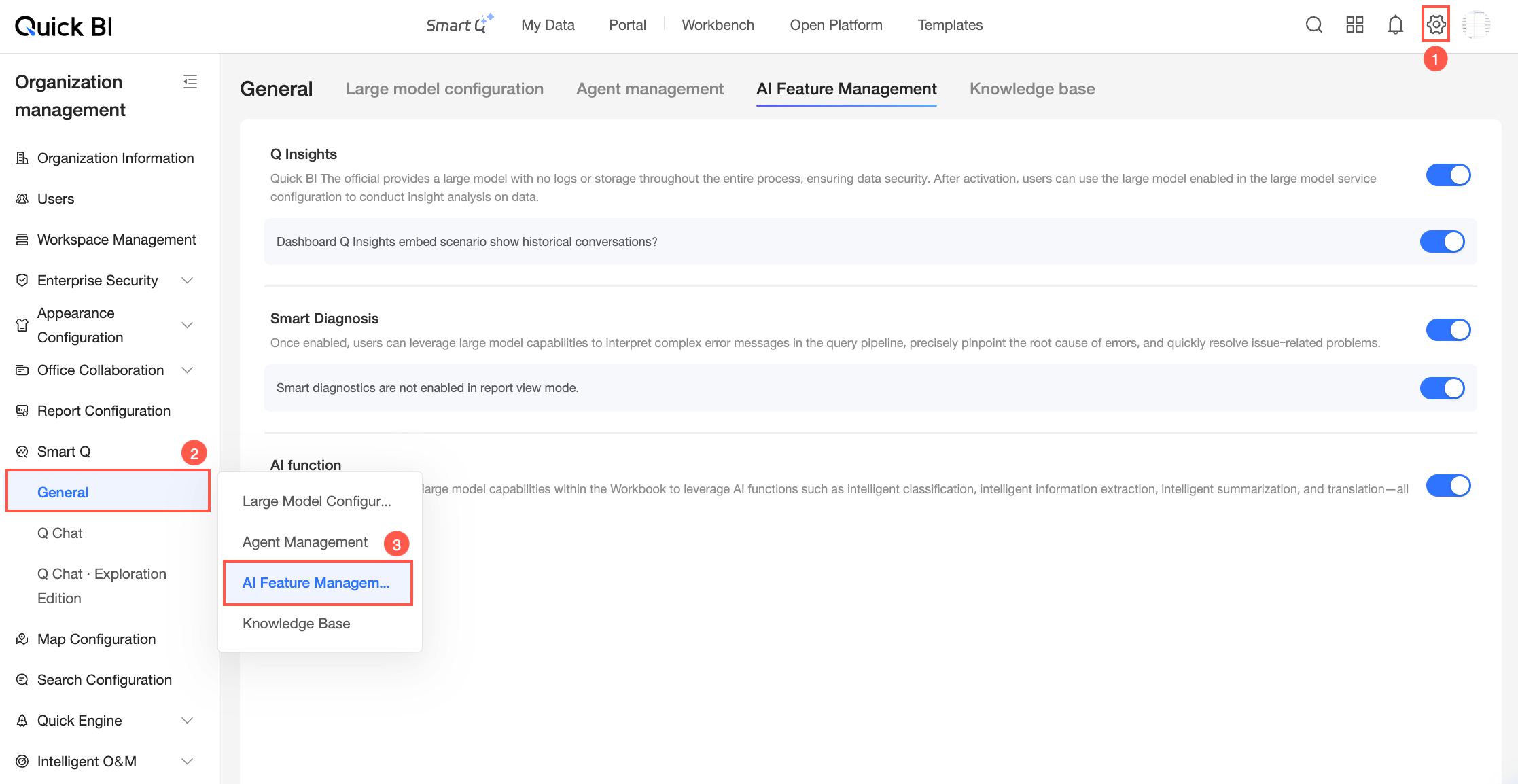
Limitations
Only organization administrators can configure settings on the AI Feature Management page.
XiaoQ Insights is a premium module. You must purchase Smart XiaoQ – XiaoQ Query to configure and use it. A limited-time free trial is currently available.
Smart Diagnostics is available only in the Premium Edition and Professional Edition. It covers the following resources: data sources, datasets, dashboards, workbooks, data dashboards, and Downloads.
XiaoQ Insights
Quick BI supports the XiaoQ Insights dashboard feature. It intelligently parses report data, automatically analyzes business trends, and generates key insight reports with one click to help you make decisions more efficiently. Enable or disable it on the AI Feature Management page under XiaoQ Insights.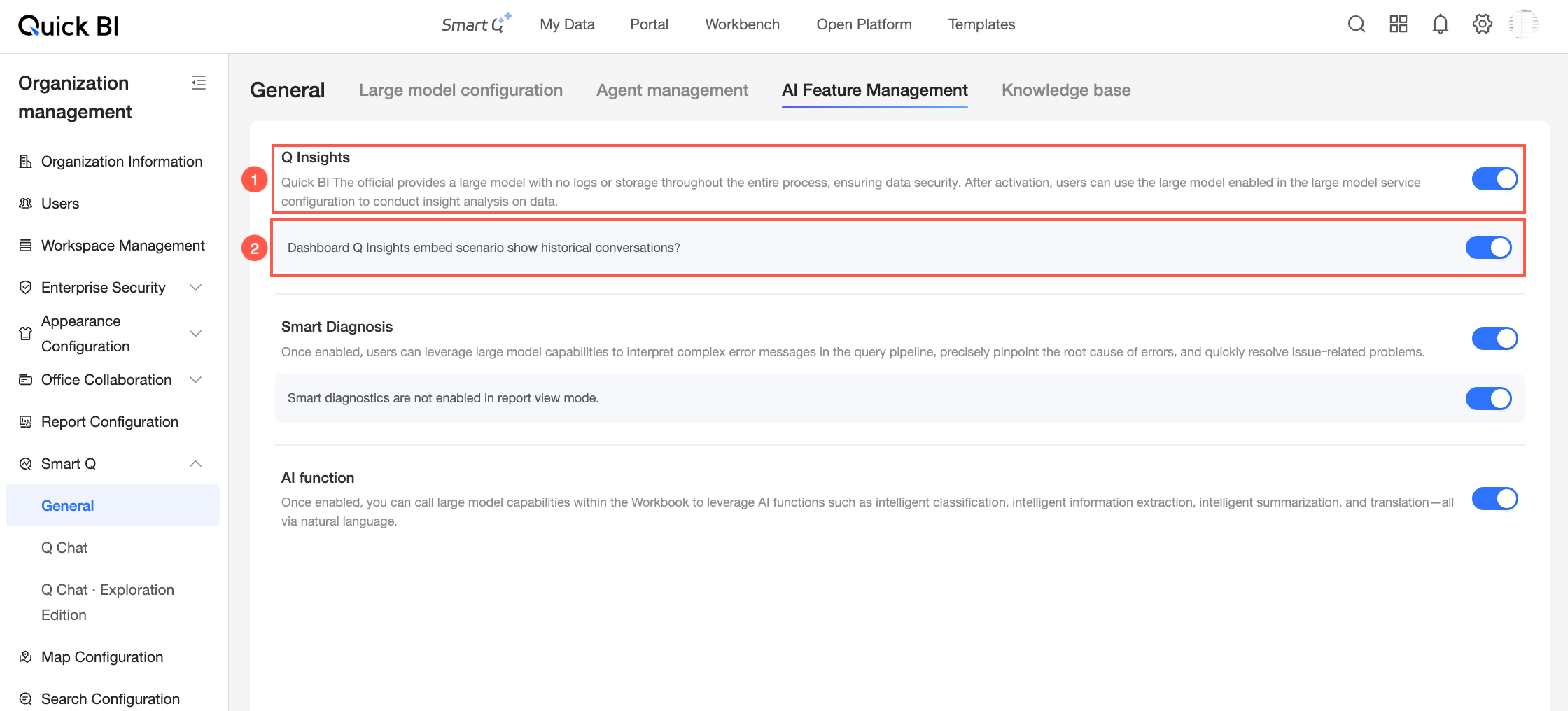
Configuration item | Description |
Area ① | The master switch for the XiaoQ Insights feature. When enabled, you can use the Large Language Model (LLM) configured in Model Configuration to perform insight analysis on dashboard data. |
Area ② | Controls whether historical sessions appear in the XiaoQ Insights embedded scenario. When enabled, past Q&A pairs appear in the XiaoQ Insights dialog box. |
After enabling XiaoQ Insights, complete additional configuration steps. For details, see XiaoQ Insights.
Smart Diagnostics
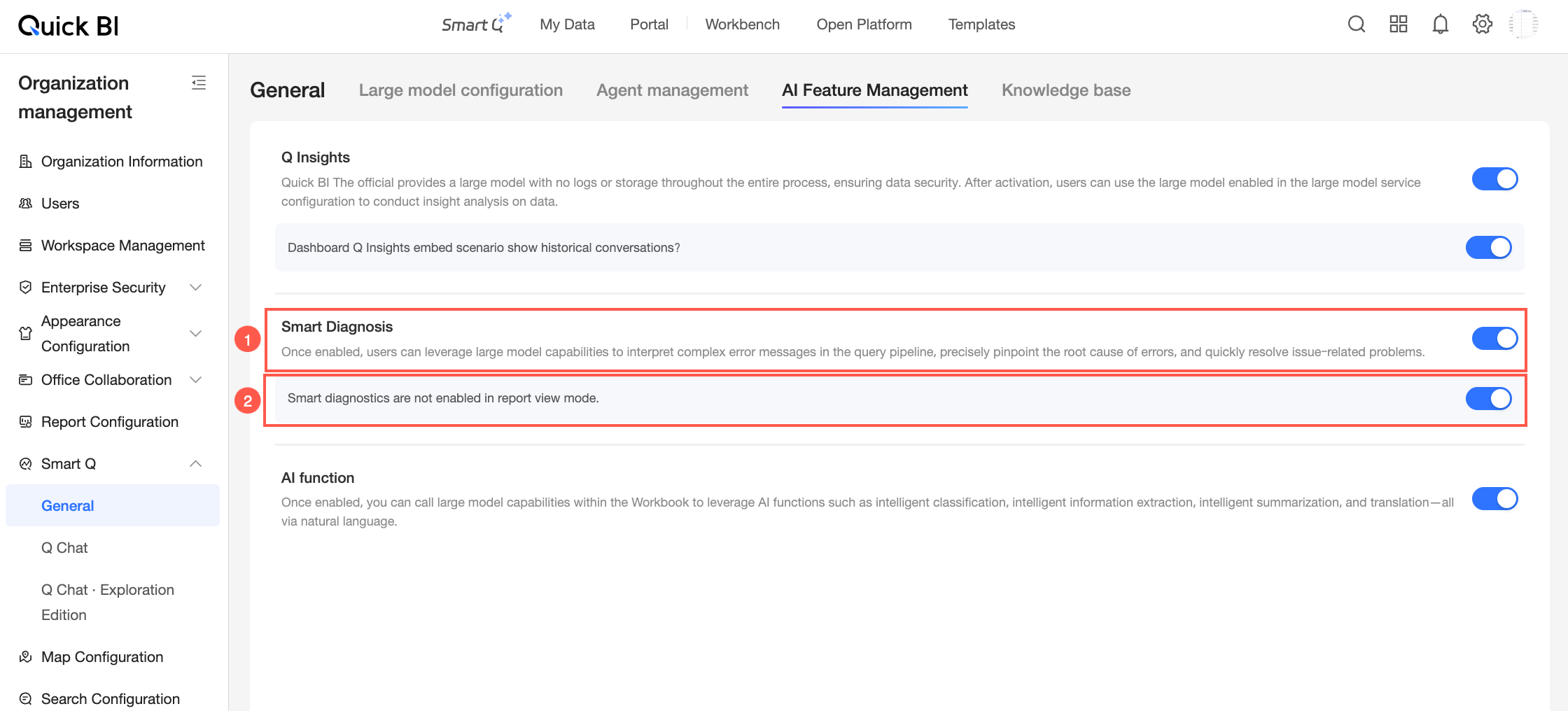
Quick BI supports the Smart Diagnostics feature. It uses Large Language Model (LLM) capabilities to automatically interpret complex error messages in query chains—such as data source connection failures or SQL syntax errors—precisely identify root causes, and recommend solutions to help you troubleshoot and resolve issues faster. Enable or disable it on the AI Feature Management page under Smart Diagnostics.
Configuration item | Description |
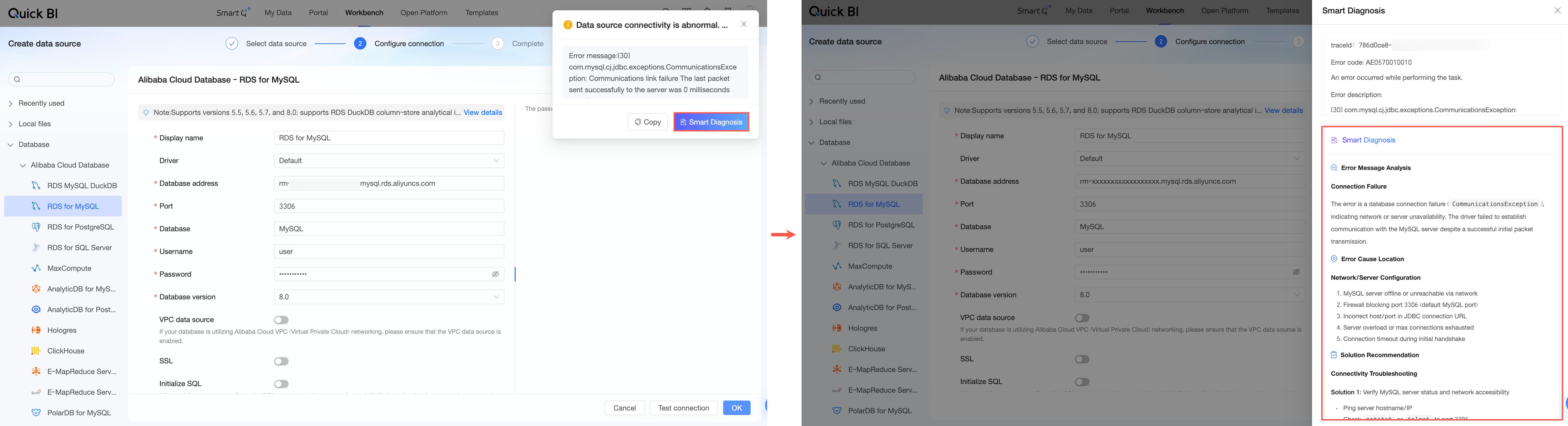
Area ① | The master switch for the Smart Diagnostics feature. When enabled, you can use the Large Language Model (LLM) configured in Model Configuration to intelligently parse error messages. For example, when a data source connection fails, click the Smart Diagnostics button in the error message dialog box. After confirming token consumption, view the LLM-generated error message, error cause, and solution in the Smart Diagnostics panel.
|
Area ② | Controls whether Smart Diagnostics is enabled in report viewing mode. When enabled, users can use the Large Language Model (LLM) to parse error messages even while viewing reports. |
AI Functions
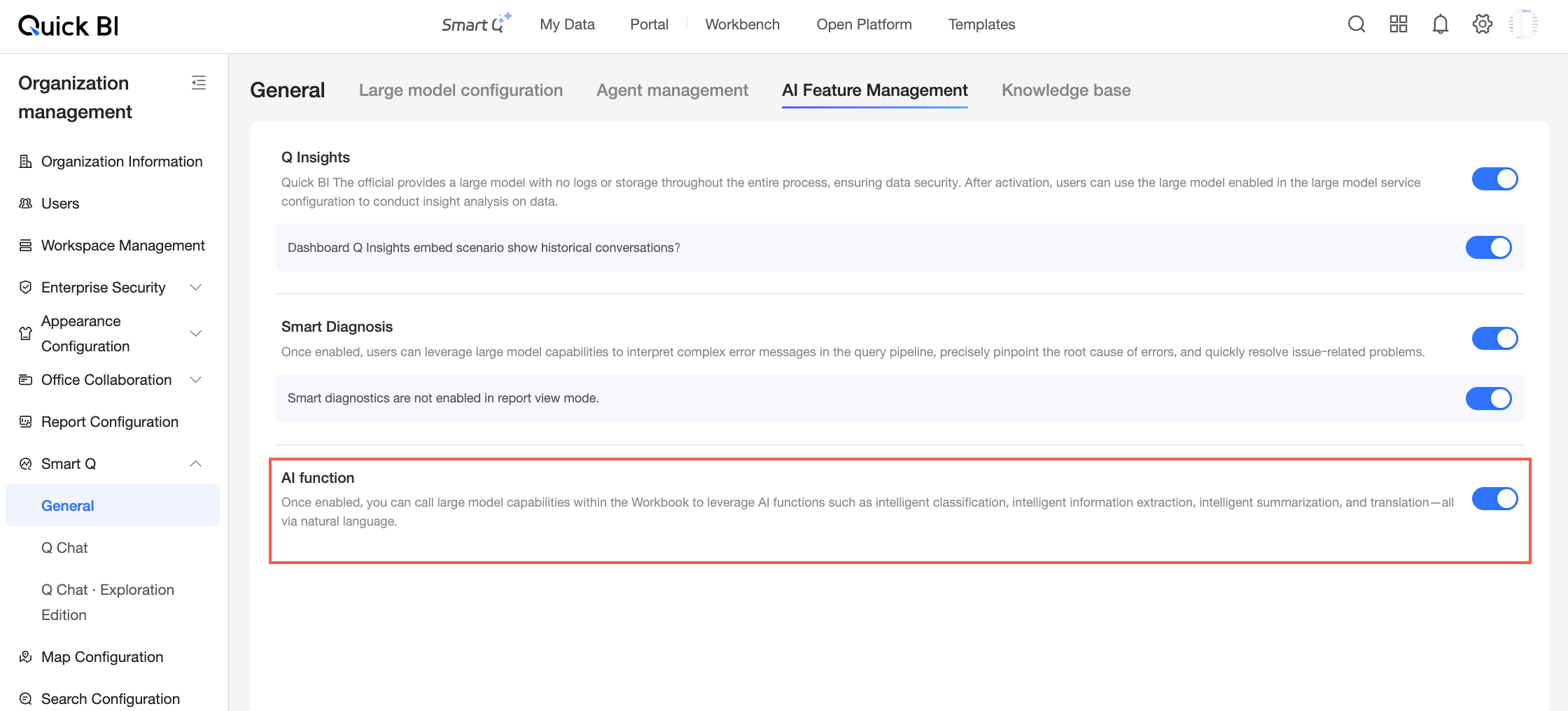
Quick BI supports AI functions. When enabled, you can invoke Large Language Model (LLM) capabilities in workbooks using natural language to perform intelligent classification, information extraction, summarization, translation, and other AI tasks. For details, see AI Function Configuration.