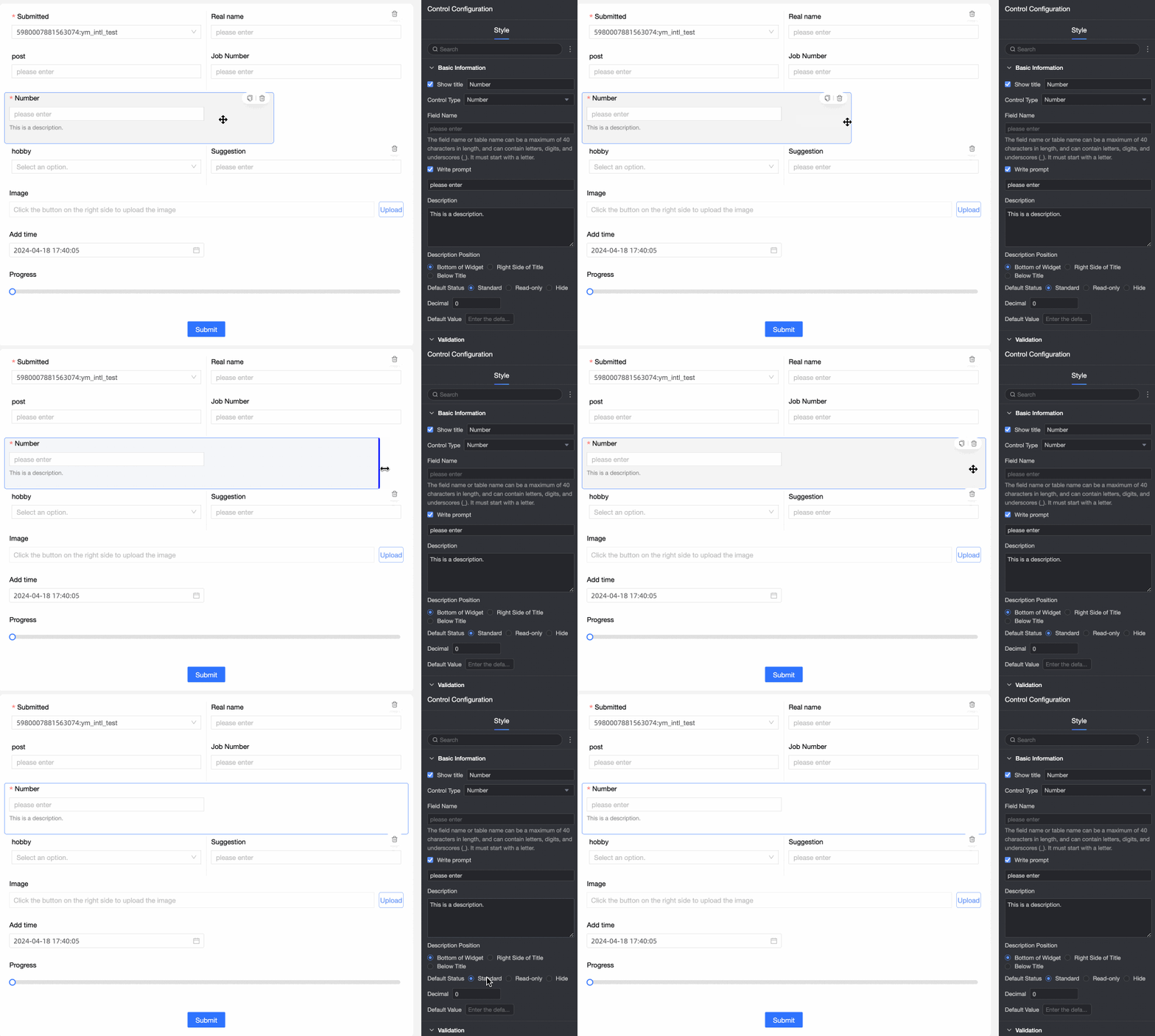
The number control is a basic control for entering numeric data.
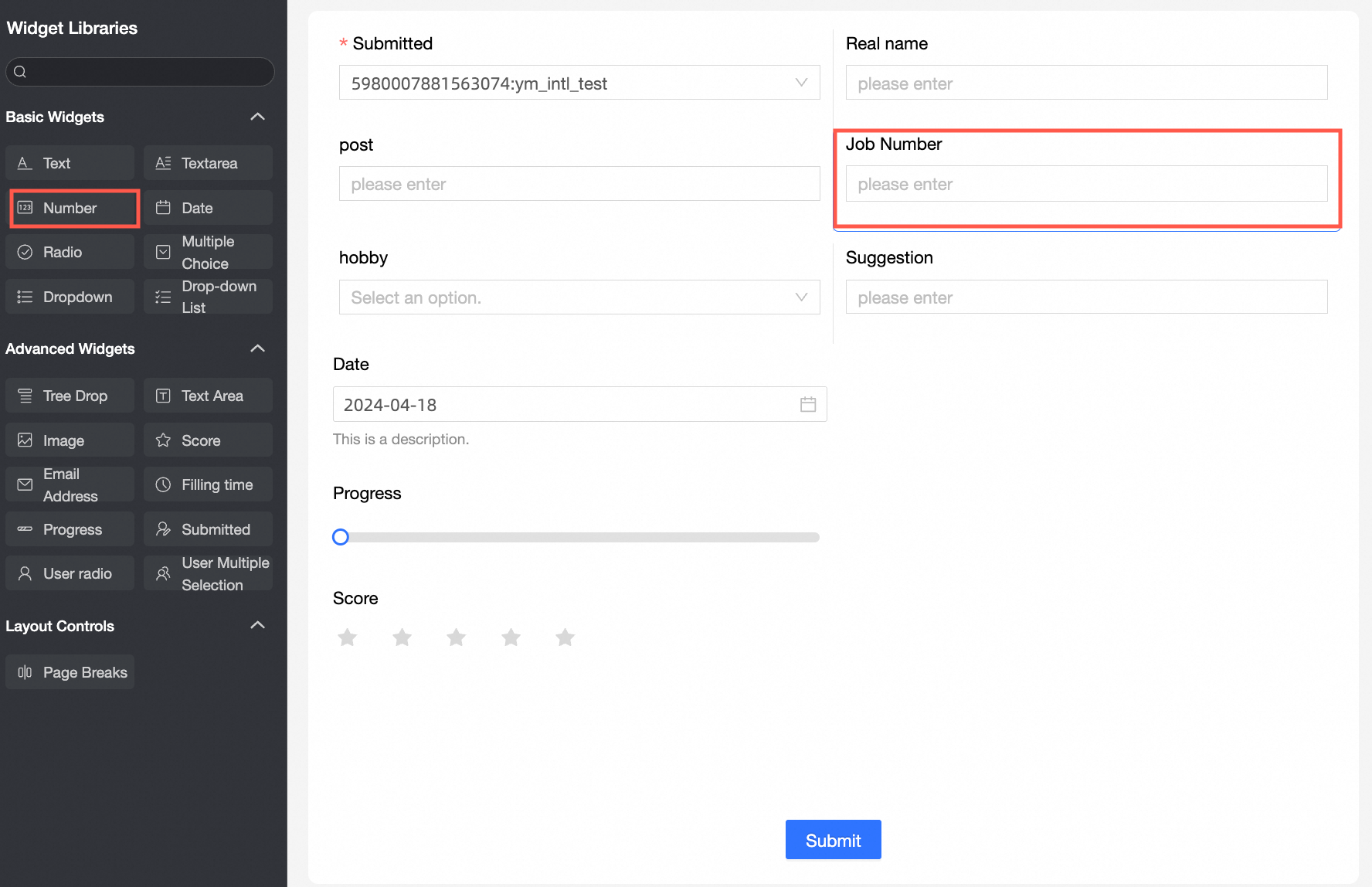
Use cases
Use this control to enter numeric data, such as competition scores and product prices.
Preview
Control configuration
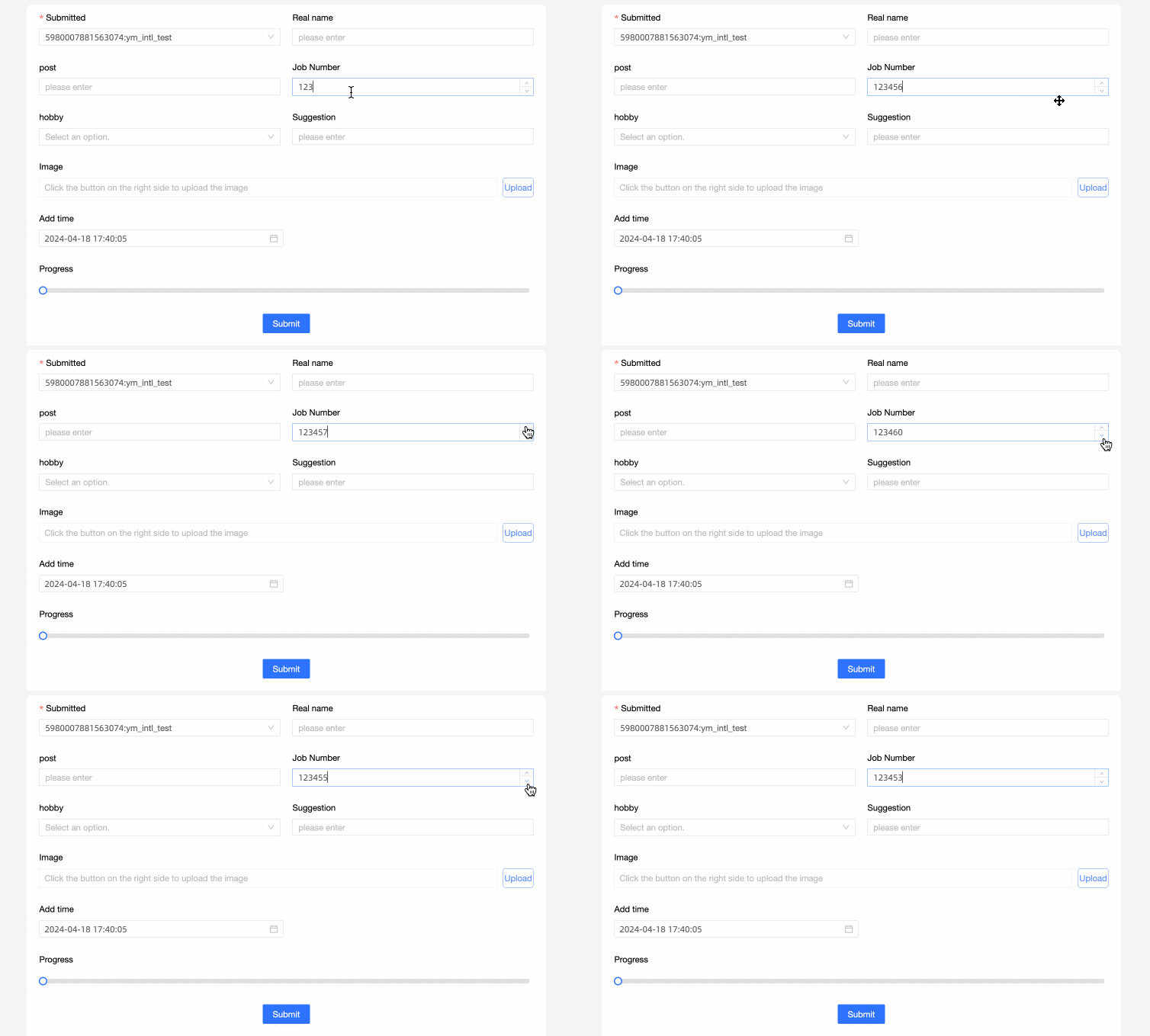
Basic configuration
Parameter | Description |
| ① Display Title: Determines whether to show the control's title. You can customize this title, which serves as the column name for data entry. |
② Control Type: Lets you change the control type. Use the drop-down list to switch to other basic and advanced control types. | |
③ Field Name: The corresponding field name in the data table created from the form. Note A field name or table name must start with a letter and can only contain letters, digits, and underscores (_). The maximum length is 40 characters. | |
④ Placeholder: Sets the placeholder text that appears in the empty input field to guide users. For example: "Enter a value". | |
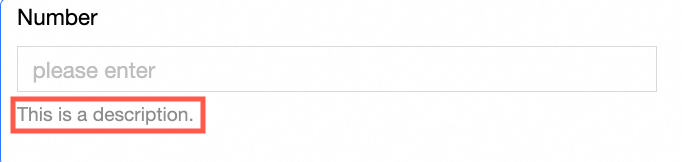
⑤ Description: Sets the control's description. | |
⑥ Description Position: Sets where the description appears. Options are Below the control, Right of the title, and Below the title. For example, the following shows a description set to the right of the title:
| |
⑦ Default State: Sets the control's default state. Options are Normal, Read-only, and Hidden. | |
⑧ Decimal Places: Sets the number of decimal places allowed for the input. | |
⑨ Default Value: Sets the default value displayed in the control. |
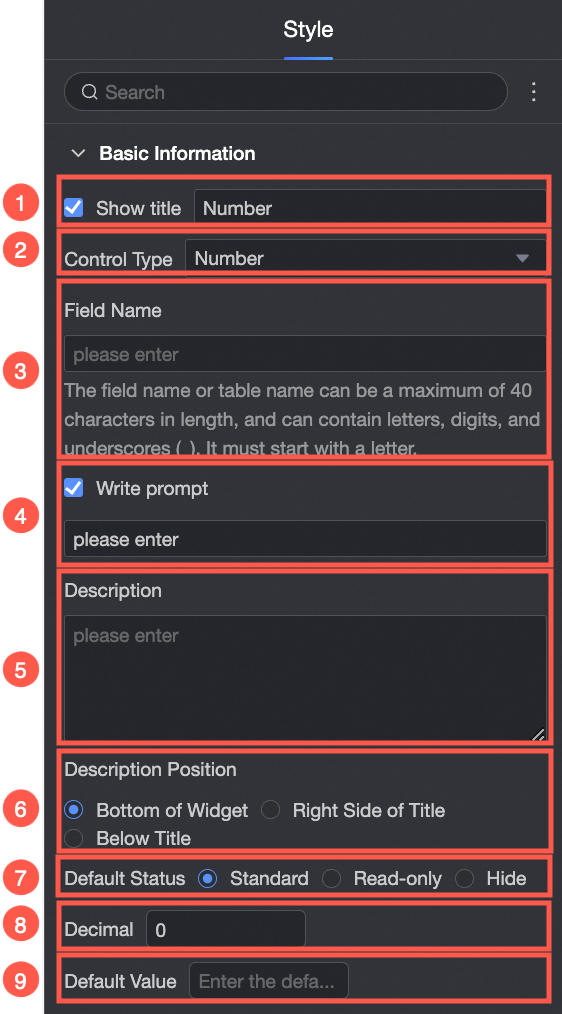
Validation
Parameter | Description |
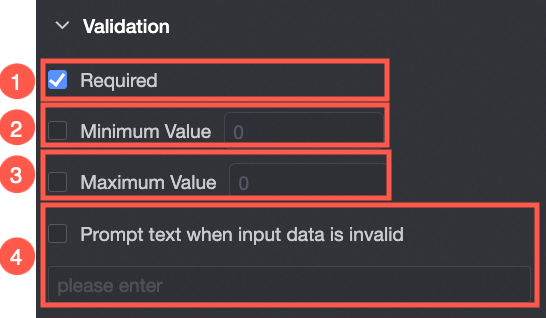
| ① Required: If selected, makes this control a required field. |
② Minimum Value: If enabled, sets a minimum value for the input. The input value cannot be less than this. | |
③ Maximum Value: If enabled, sets a maximum value for the input. The input value cannot be greater than this. | |
④ Validation Message: Sets a custom message that appears when input fails validation. For example, if the Required option is enabled and the field is left empty, this message appears. |
Style
Parameter | Description |
| Control Width: Sets the control's width. Options are: Default and Full Width. Note You can also manually resize the control on the data entry page by dragging its border.
|