Export control
Quick BI lets you export resources like dashboards and workbooks as files. This feature supports business scenarios such as report distribution, offline viewing, and data archiving, helping you efficiently communicate and analyze data. As an organization administrator, you can configure the data types and channels for exports within your organization on the export control page. This topic describes how to open and configure the export feature for your organization.
Access
From the Quick BI home page, follow the steps in the figure to navigate to the export control configuration page, where you can manage Switch settings, Basic settings, Standard export settings, and Self-service data retrieval settings for resource exports.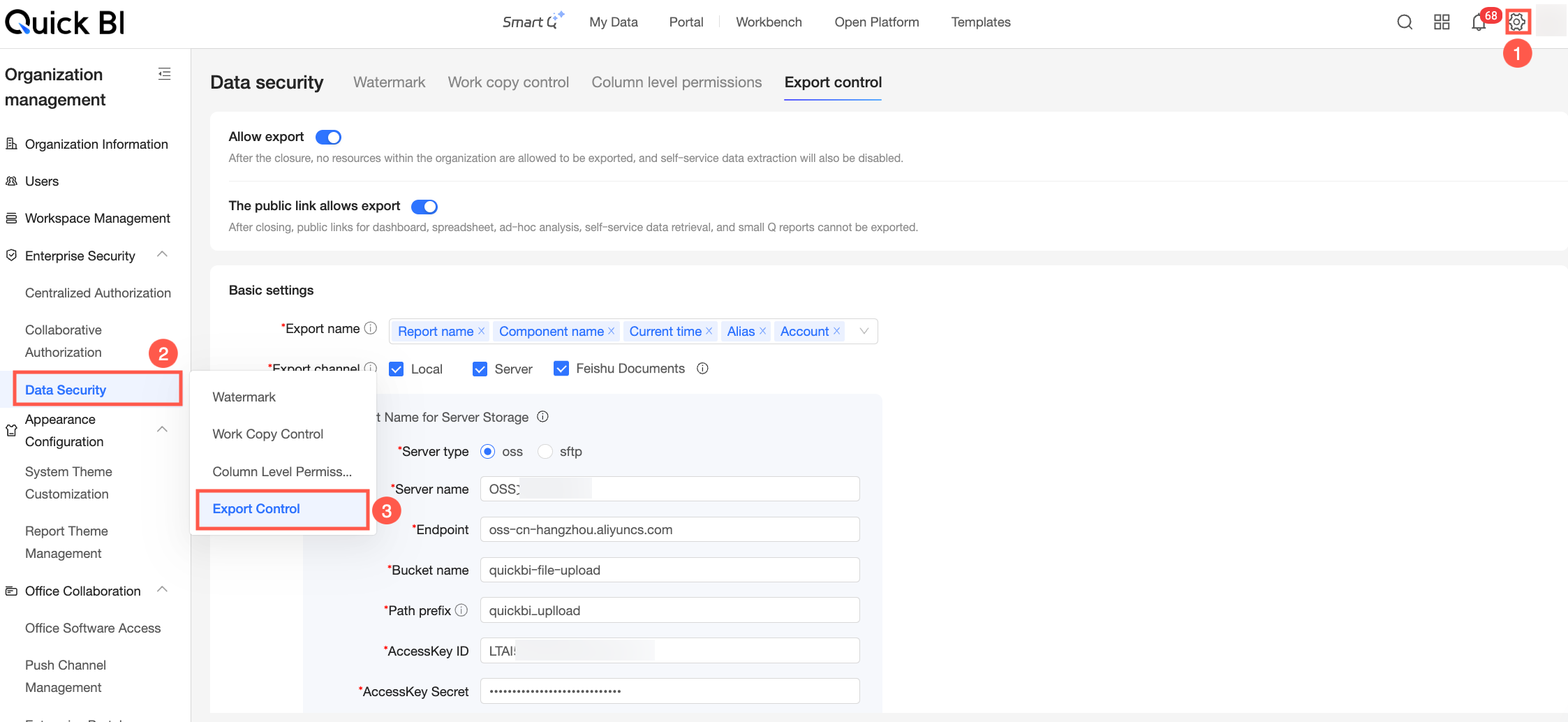
Switch settings
Use these settings to enable or disable all resource and public link exports for your organization. Turning off a switch disables the corresponding export feature for all users.

Parameter | Description |
Allow export | Controls whether users can export organization resources and self-service data retrieval files. If you turn this off, users cannot export any resources in the organization, and the self-service data retrieval feature is also disabled. |
Allow export from public link | Controls whether users can export public links for organization resources and self-service data retrieval. If you turn this off, users cannot export public links for dashboards, workbooks, ad-hoc analysis, or self-service data retrieval. |
Basic settings
You can customize the default filename for exported files to include specific business information, making them easier to identify and manage. For example, you can include a timestamp to quickly find reports from a specific period. You can also set the export channels to Local, Server, and Feishu Docs to support flexible file storage and distribution.
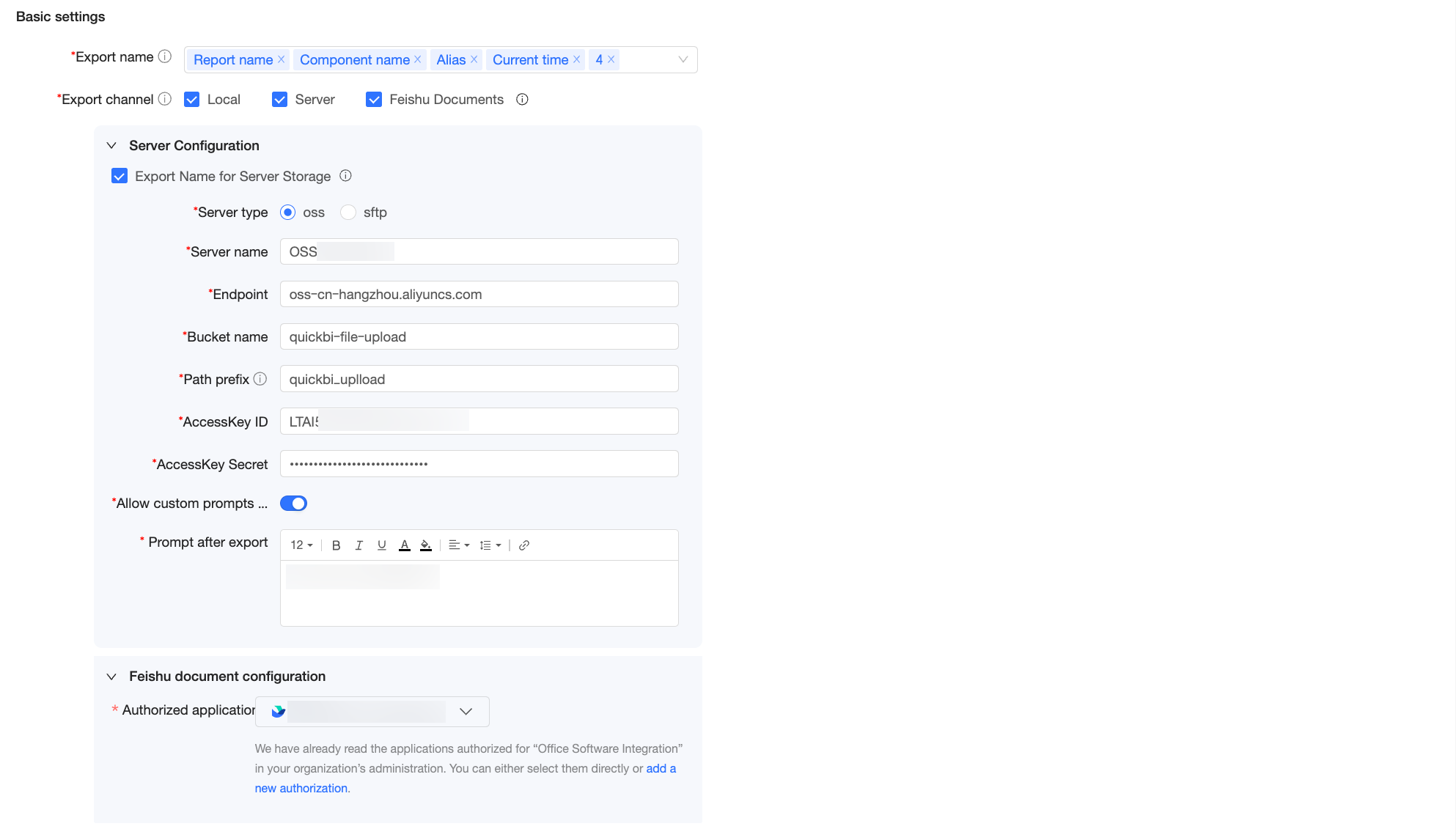
Parameter | Description | |
Export name | Defines the default naming convention for exported files. Click the
| |
Export channel | Sets the available export channels. You can select one or more options, including Local, Server, or Feishu Docs.
| |
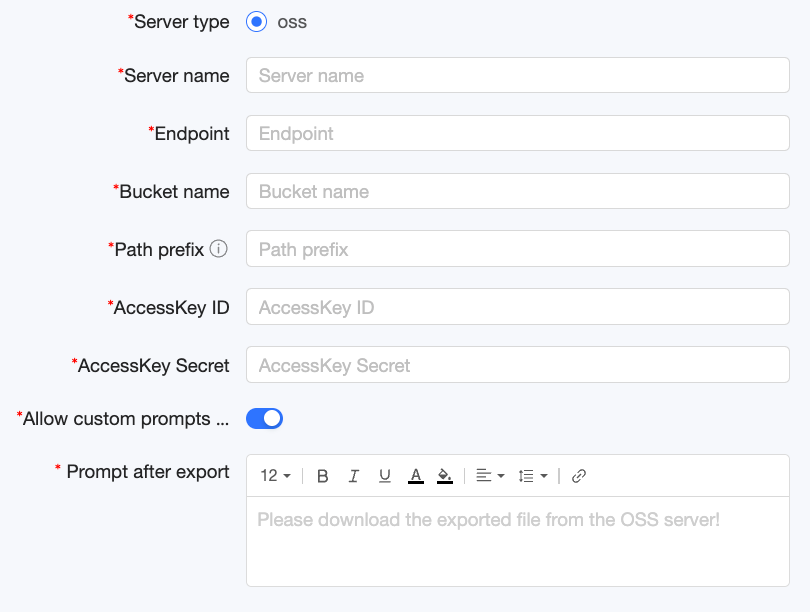
Use export name for server storage | When you select Server as an export channel, this option determines whether the default Export name convention is applied to files stored on the server. If you select this option, the configured naming rule is enforced, and the filename cannot be changed during the export. You can set the Server type to OSS. | OSS (Object Storage Service) stores exported reports in a cloud-based bucket. This method is suitable for scenarios requiring internet access to files or integration with other cloud-based applications. The following parameters must be configured:
|
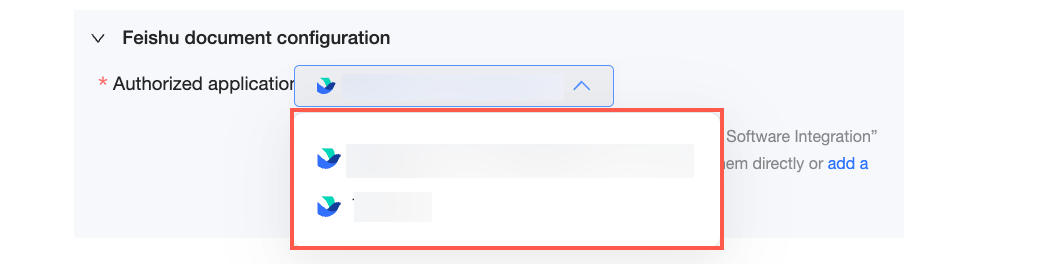
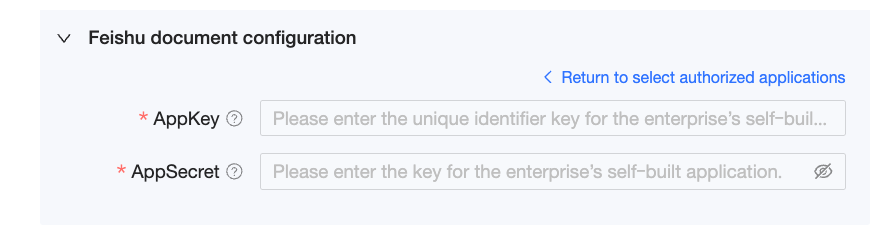
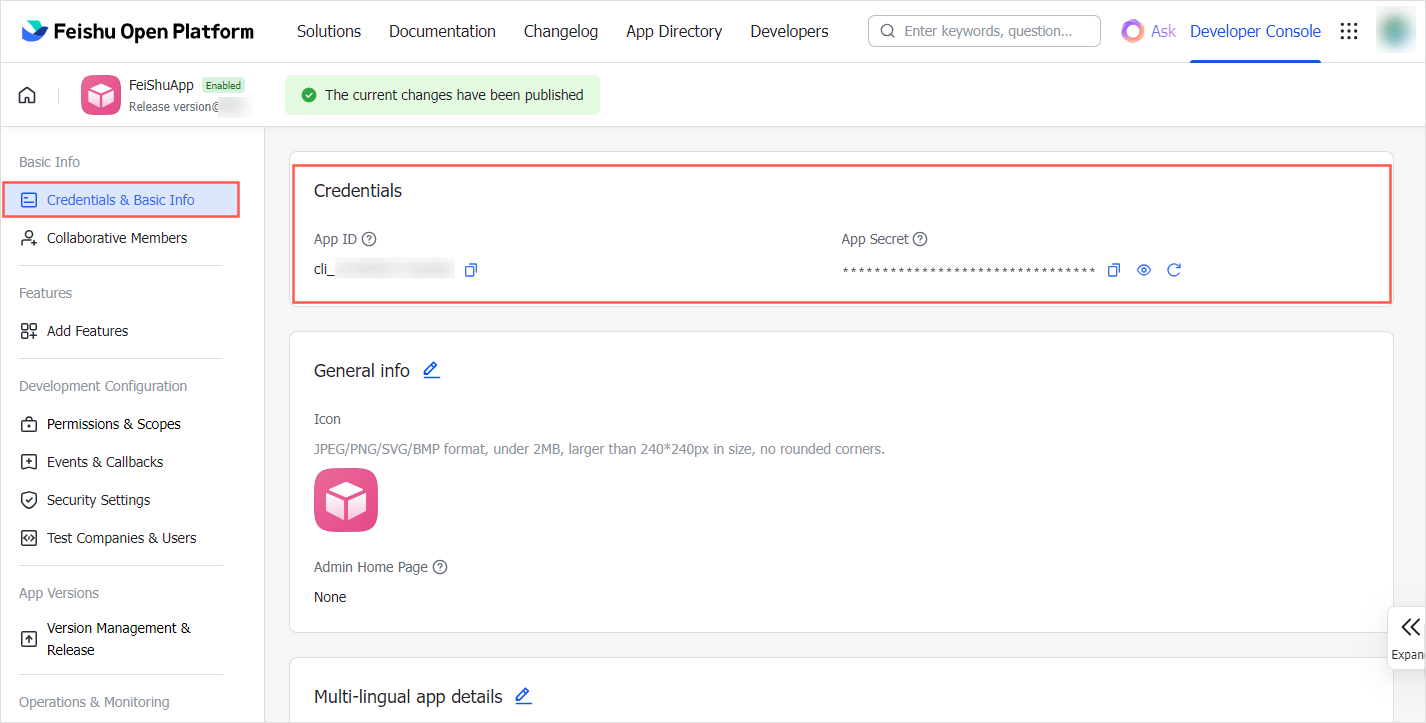
Authorize Feishu application | When you select Feishu Docs as an export channel, you must authorize a Feishu application. The system automatically detects Feishu applications that you have already authorized in Office Software Integration. You can select an existing application from the drop-down list without re-entering authorization credentials. To add a new application, click Add new authorization and enter the AppKey and AppSecret for the application you want to authorize. Note
| |
 icon to open the Field Expression Editor window. You can combine the following variables to create the default filename. Variables are separated by underscores (_).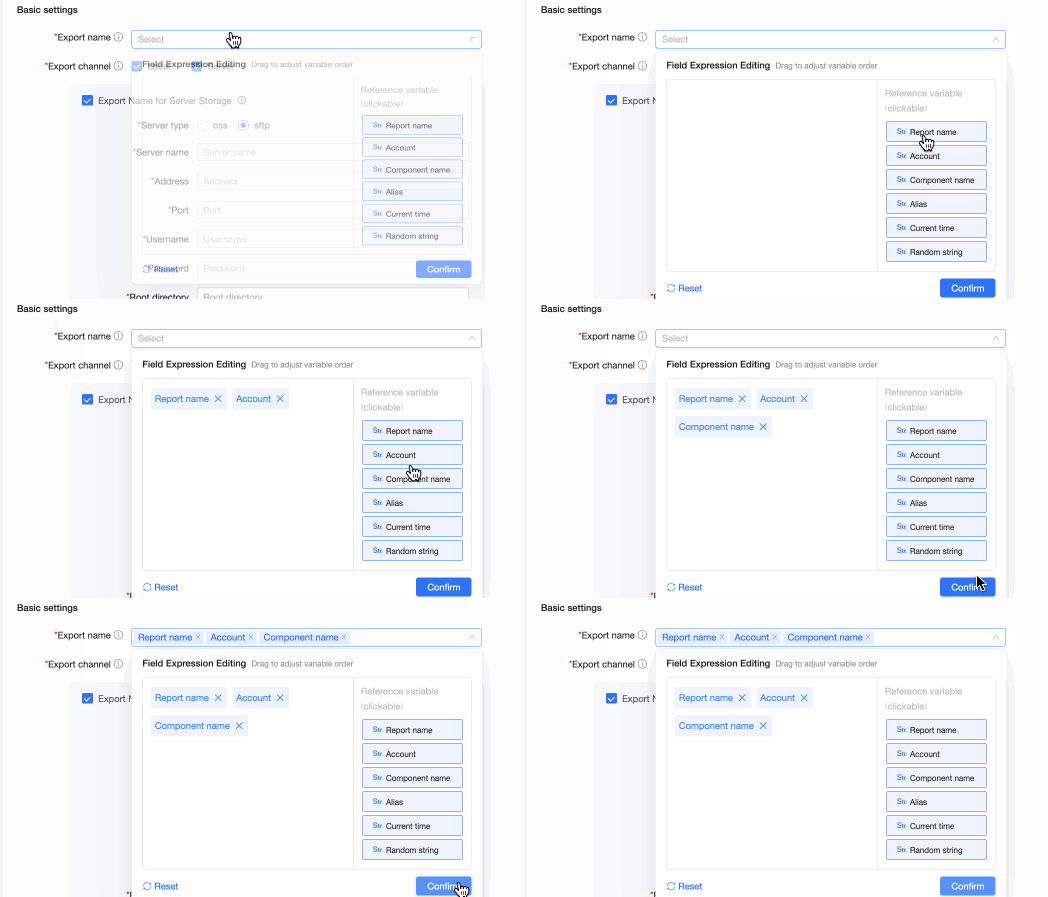
Standard export settings
The standard export feature allows you to quickly export the data currently displayed on a dashboard. This method is suitable for exporting small datasets (up to 10,000 rows).
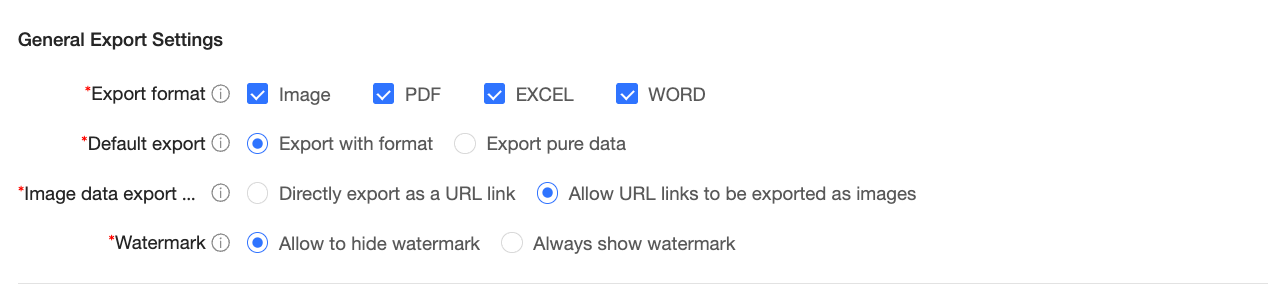
Here, you can configure the export format, default export type, image data export method, and watermark settings for fine-grained control. For example, you can restrict the export format to PDF only, ensure that EXCEL files retain their original formatting, or enforce watermarks on all exported files.
For a crosstab with more than 10,000 rows, you can create a self-service data retrieval task directly from the dashboard to export the large dataset without reconfiguring fields. For more information, see Create a data retrieval task from a crosstab.
The standard export settings only apply to exports of up to 10,000 rows.
Parameter | Description |
Export format | Select the file formats available for report exports. Supported formats are Image, PDF, EXCEL, and WORD. Note Only XiaoQ reports can be exported to WORD. |
Default export type | If you select EXCEL in the Export format list, you must specify whether the exported Excel file retains its formatting.
Note
|
Image data export method | If you select EXCEL as the export format and choose export with formatting, you can specify whether to export image fields from a dashboard as embedded images in the Excel file.
Note
|
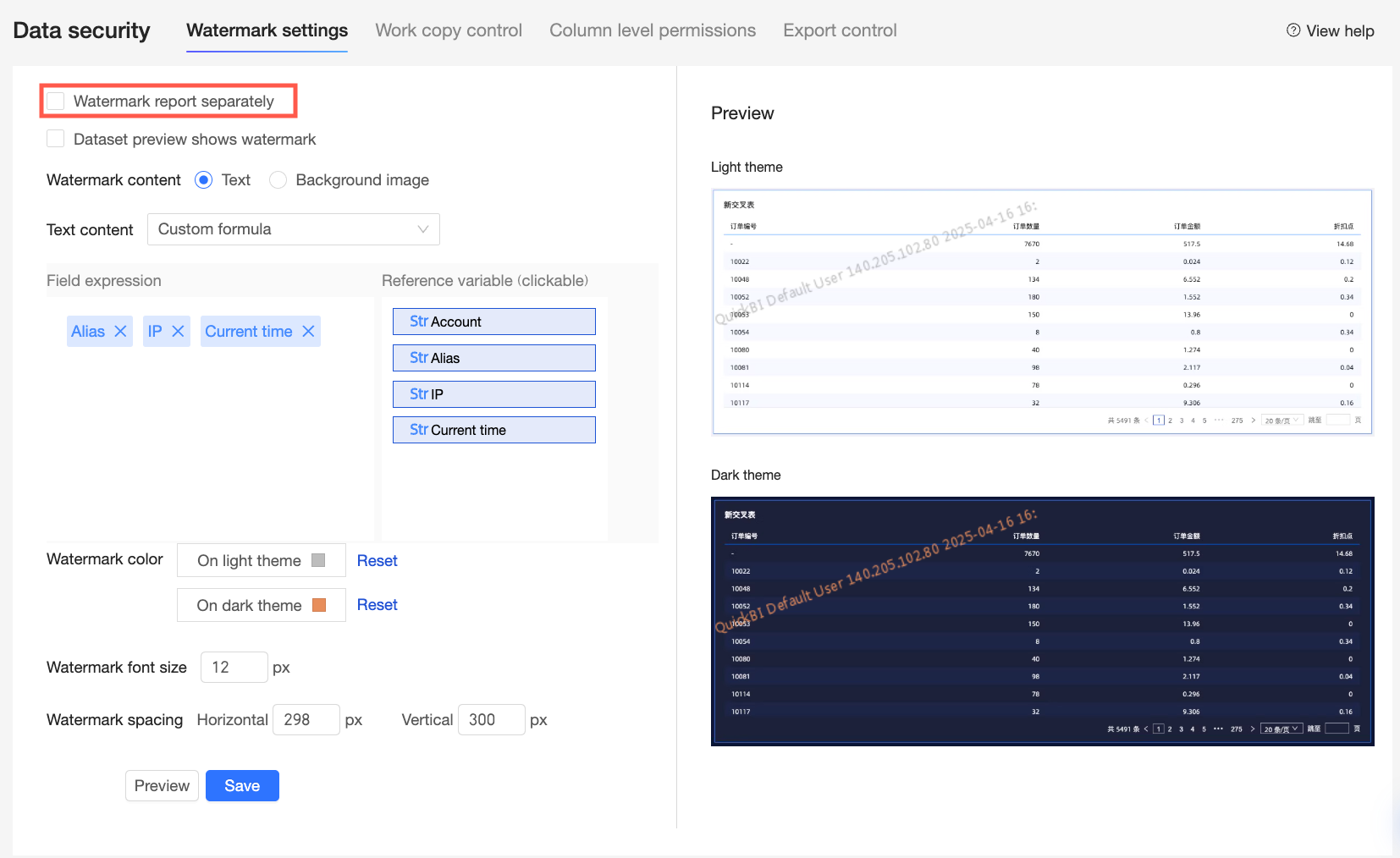
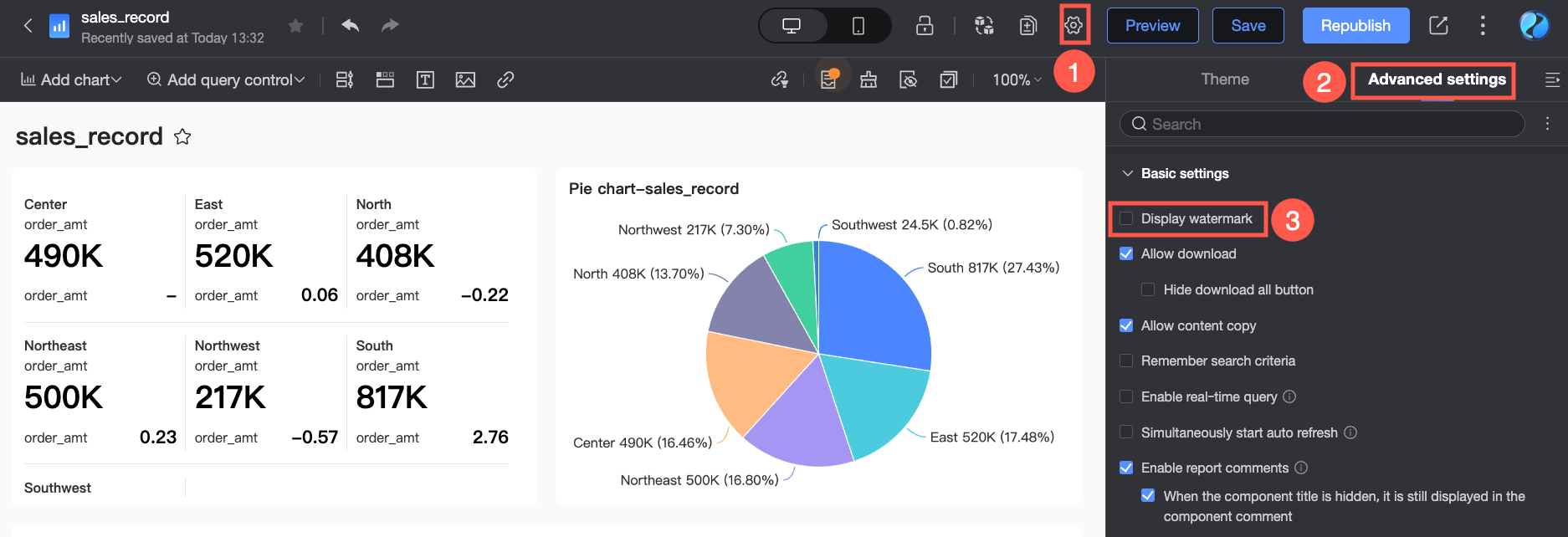
Watermark settings | In the watermark settings, you can control whether users can hide watermarks on individual reports. If you disable this control, report creators cannot turn off the Show watermark option in the dashboard editor (Page Settings > Advanced > Basic Settings). |
Self-service data retrieval settings
Unlike standard exports, the self-service data retrieval feature is designed for exporting large datasets with millions of rows. Here, you can configure the export settings for self-service data retrieval files.

Parameter | Description |
Self-service data retrieval file | Sets the number of times a self-service data retrieval file can be downloaded. By default, users can download files multiple times. If you select Single use only, users can download the generated file only once. This helps prevent data leaks and unauthorized distribution, for example, by stopping a former employee from re-downloading a file with sensitive business data. |
Related operations
These settings apply at the organization level. If you disable exporting at the organization level, it is disabled for all workspaces by default. However, even if exporting is enabled for the organization, you can still disable it for individual workspaces. Workspace settings inherit from the organization-level configuration. For example, if you disallow EXCEL format exports at the organization level, this option is unavailable at the workspace level.
For information about workspace-level export settings, see Configure export controls for a workspace.