Column-level Permissions
Column-level permissions let you control access to specific fields across your organization. Use them to apply data masking or hide sensitive fields such as phone numbers and ID cards.
Scenarios
To protect sensitive data such as phone numbers and ID cards, configure Data Masking or Do Not View rules in column-level permissions at the organization level. After rules take effect, users can only view field values allowed by the rules.
Limits
-
Only organization administrators and custom-role users with the enterprise security feature can configure organization-level column-level permissions.
-
This feature requires the updated version of row and column permissions. If you use the previous version, upgrade to the new version.
-
A maximum of 10 column-level permission rules can be created.
Procedure
-
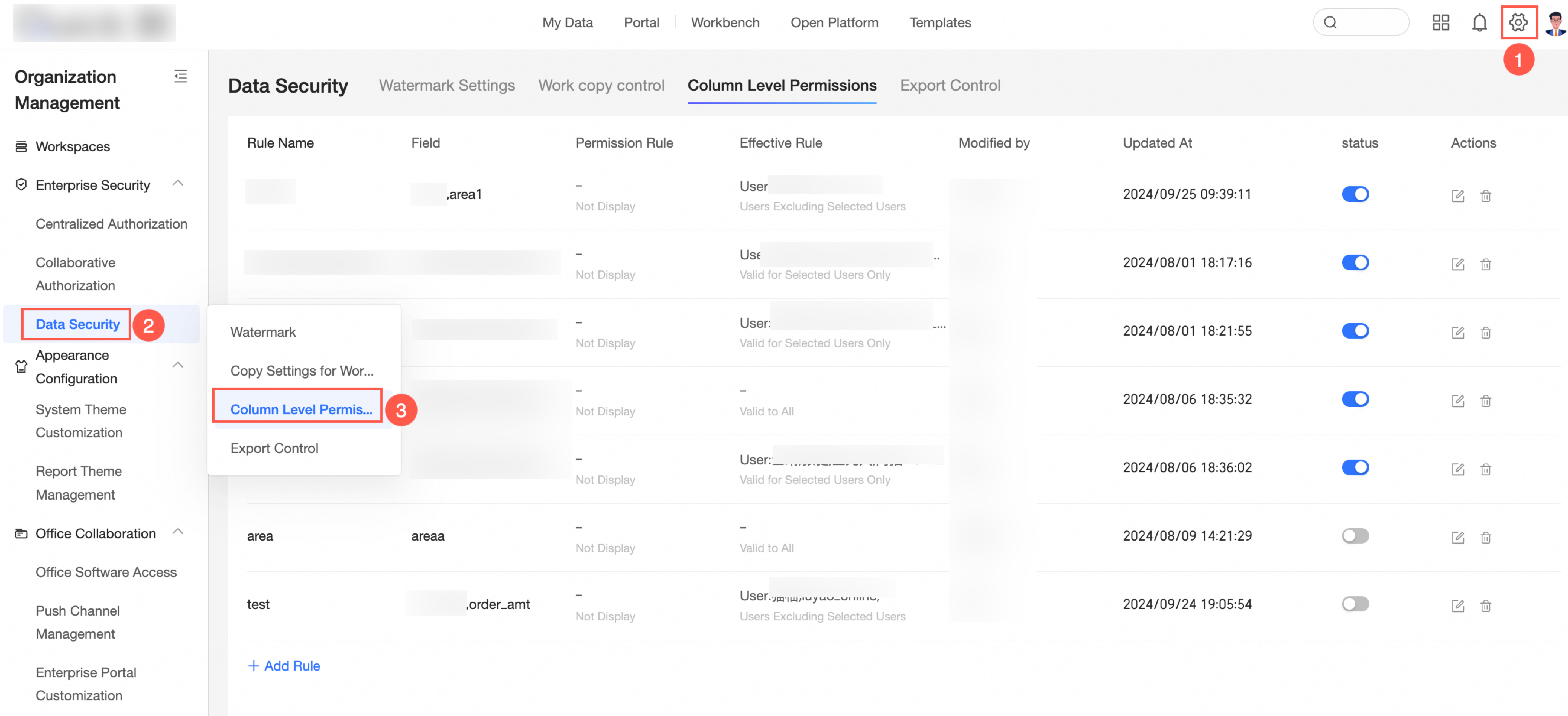
Log on to the Quick BI console or the .
-
Go to the column-level permissions settings page.
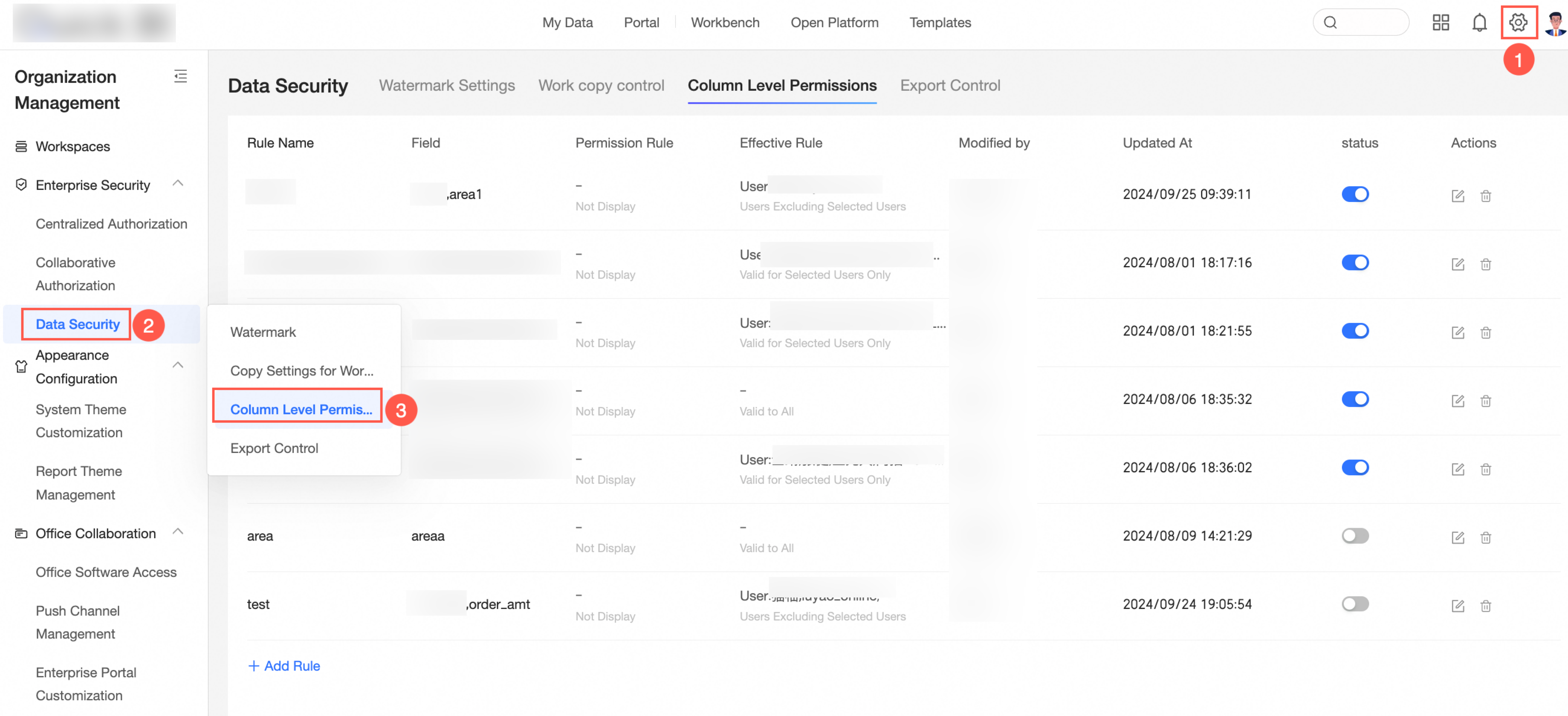
-
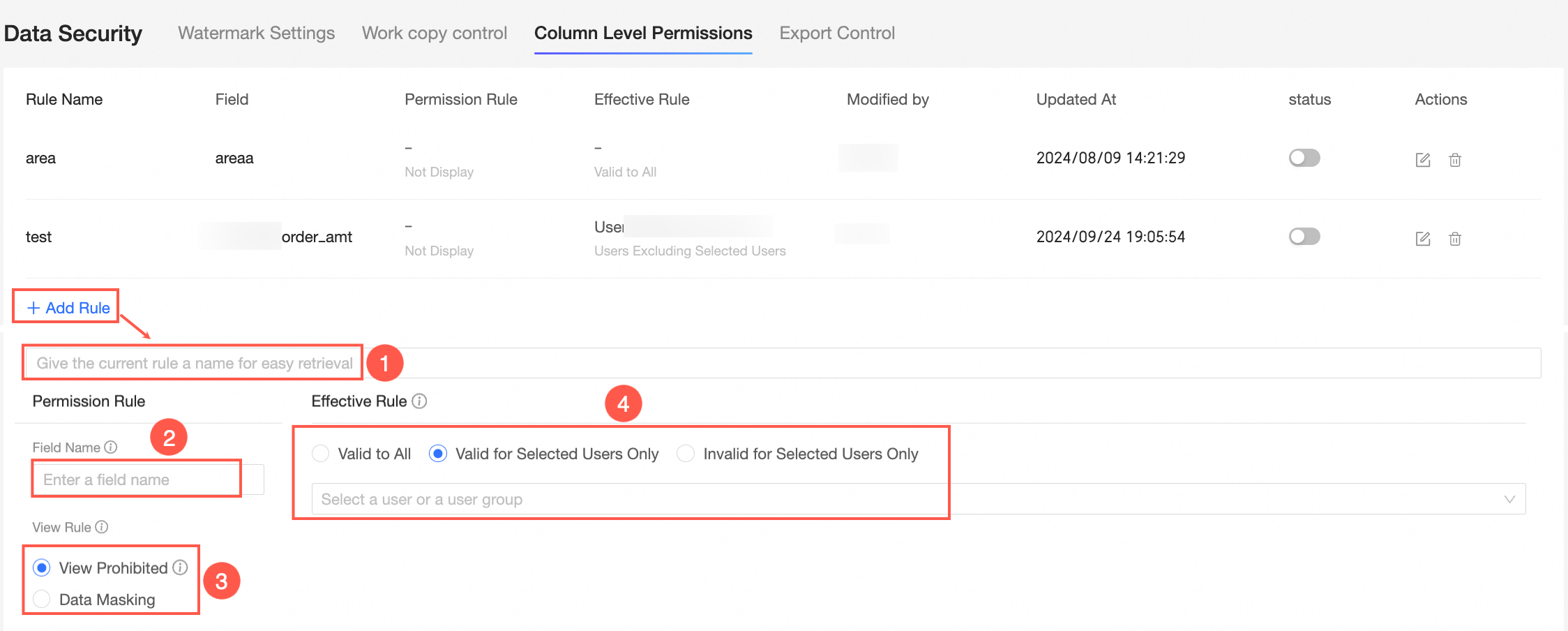
Click Add Rule and configure the following settings.
Configuration item
Description
① Rule Name
Enter a custom rule name. Duplicate names are not allowed.
② Field Name
Fields matching the specified name are masked. Separate multiple field names with commas. Duplicates are not allowed.
③ Set Rule
-
Do Not View
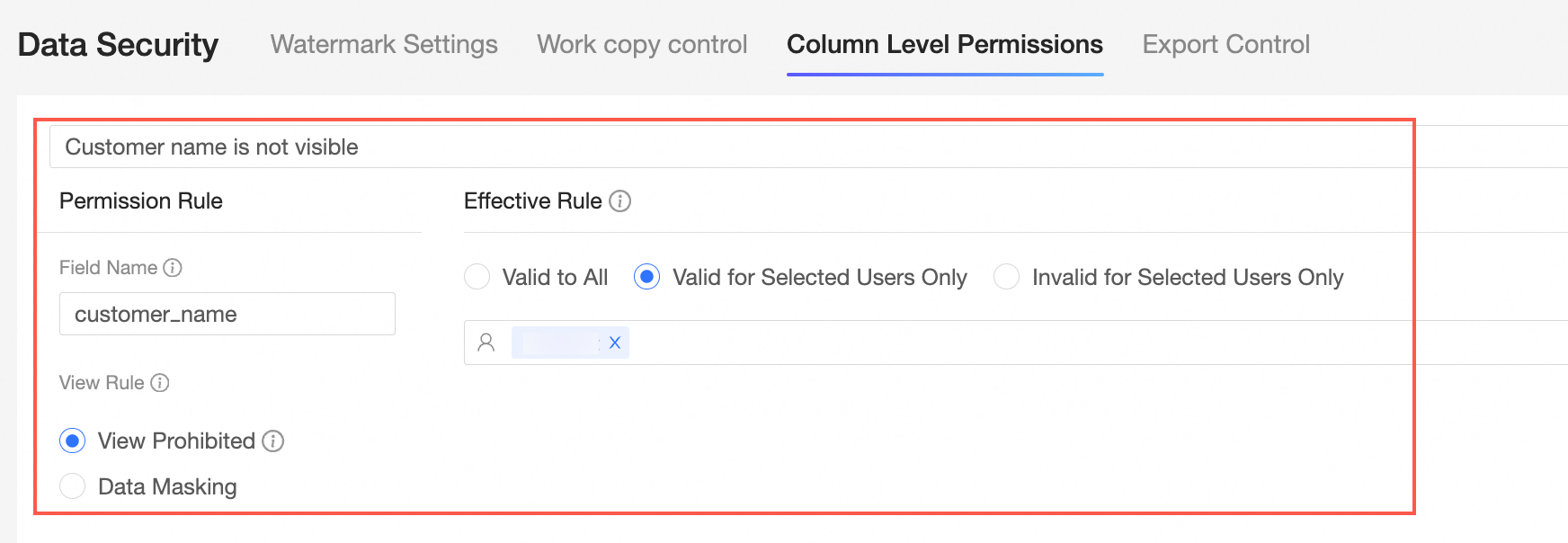
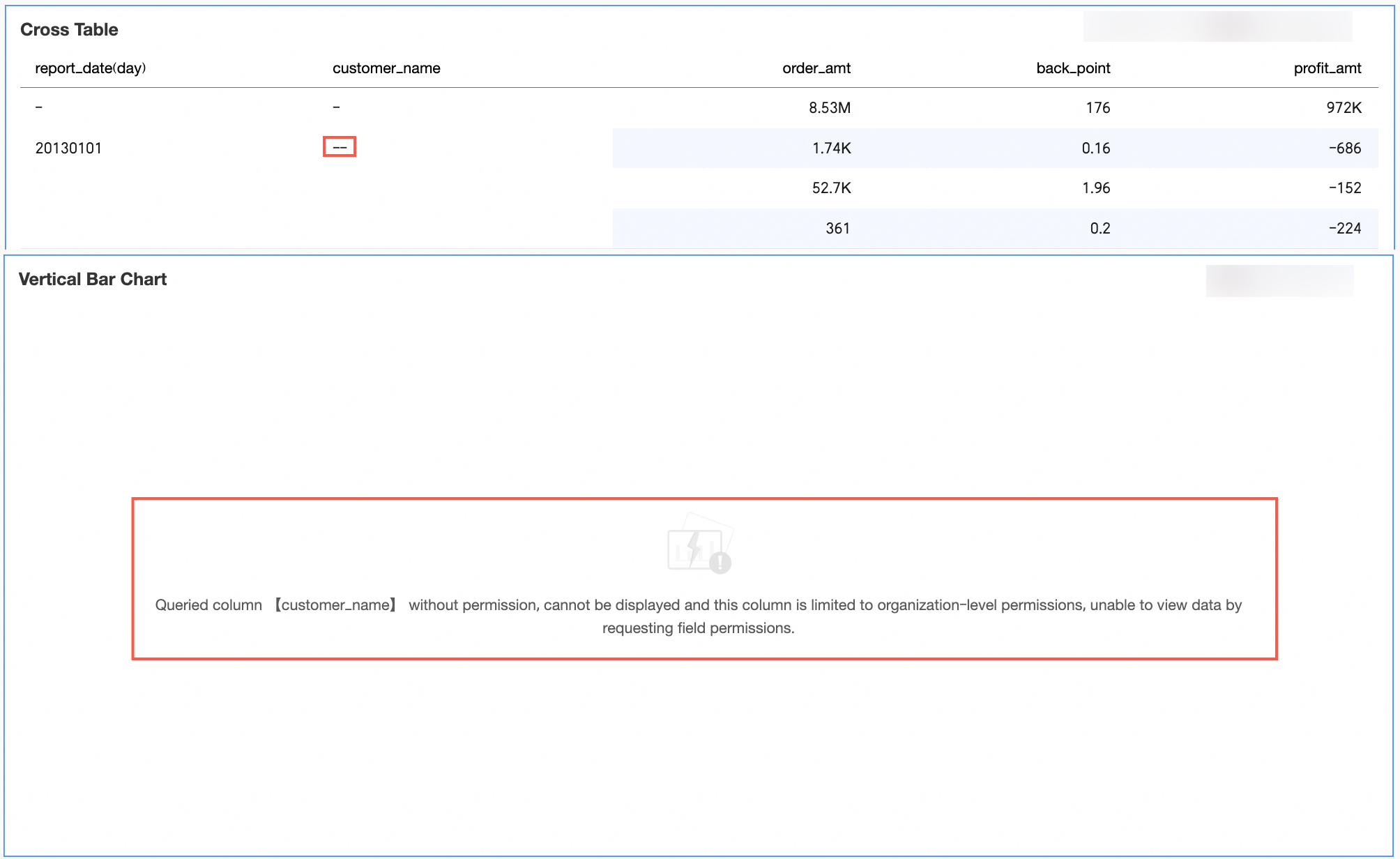
Fields set to Do Not View show "- -" in cross tables and are hidden in other charts.
-
Data Masking
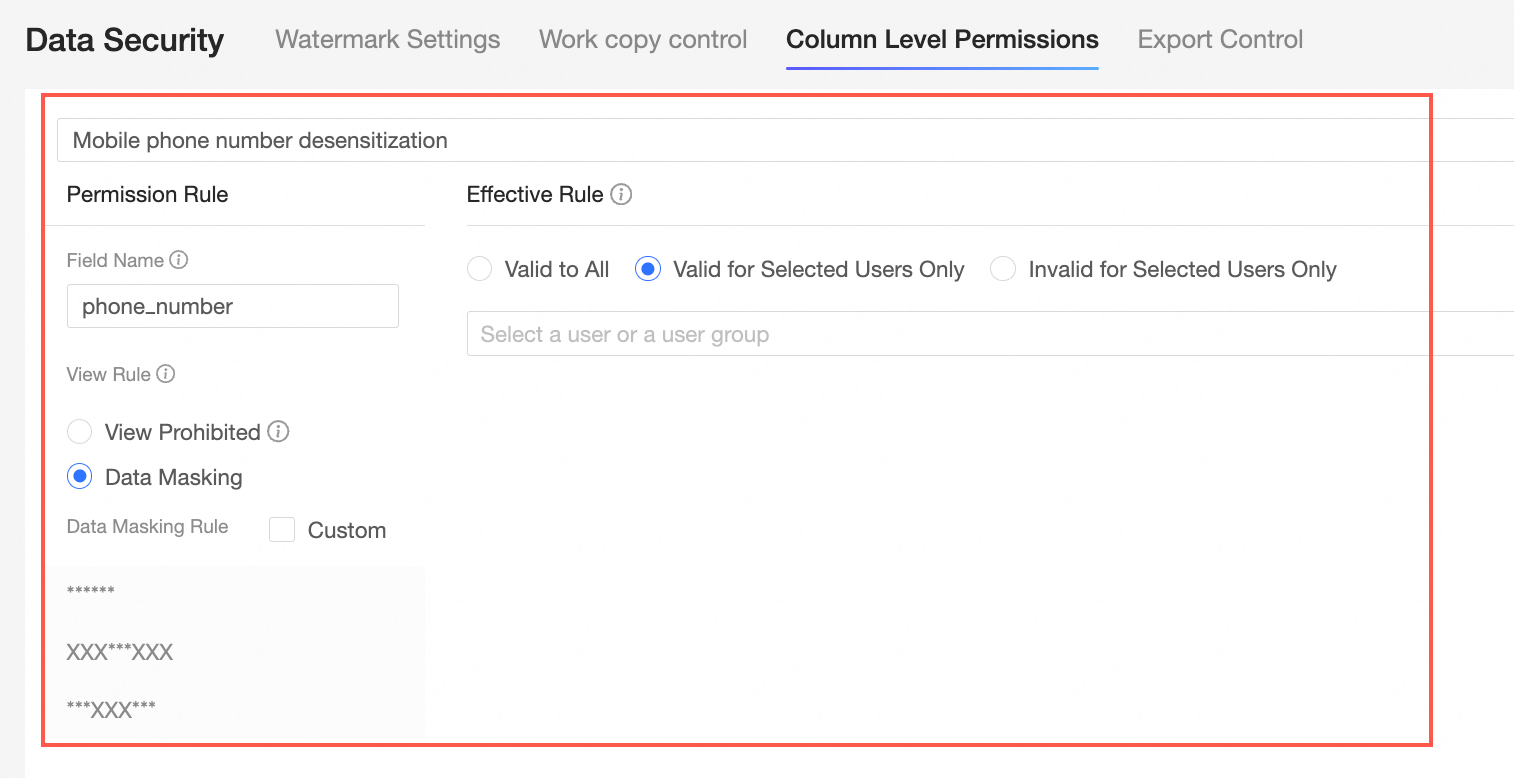
Specify fields to mask. The system blurs sensitive data and displays masked values in dashboards, workbooks, and downloads.
④ Who is it effective for
Choose Effective for Everyone, Valid for Selected Users Only, or Invalid for Selected Users Only.
Users must have both dataset and organization-level permissions to view the data.
Rules for each scope are described in Effect Display and Rule Description.
-
-
Click Complete.
Effect display and rule description
Do Not View
-
Set Rule
Example: Create a rule to hide the customer name field.
-
Effect Display
After the rule takes effect, the field shows "- -" in cross tables and is hidden in other charts such as bar charts.
Data Masking
-
Set Rule
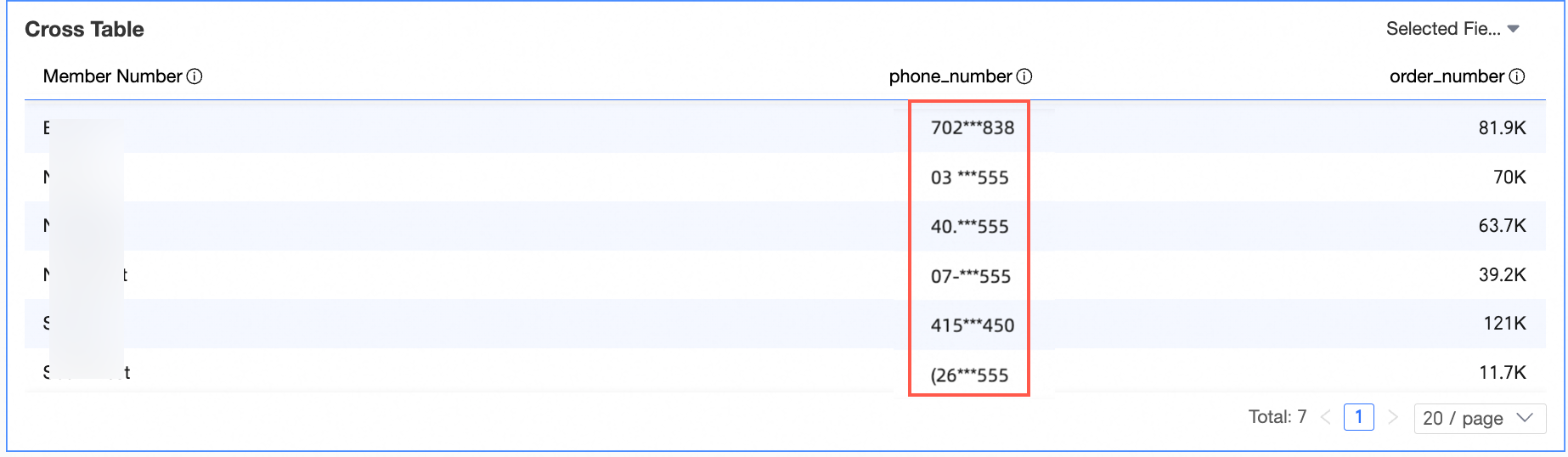
Example: Create a rule to mask phone numbers for all users.
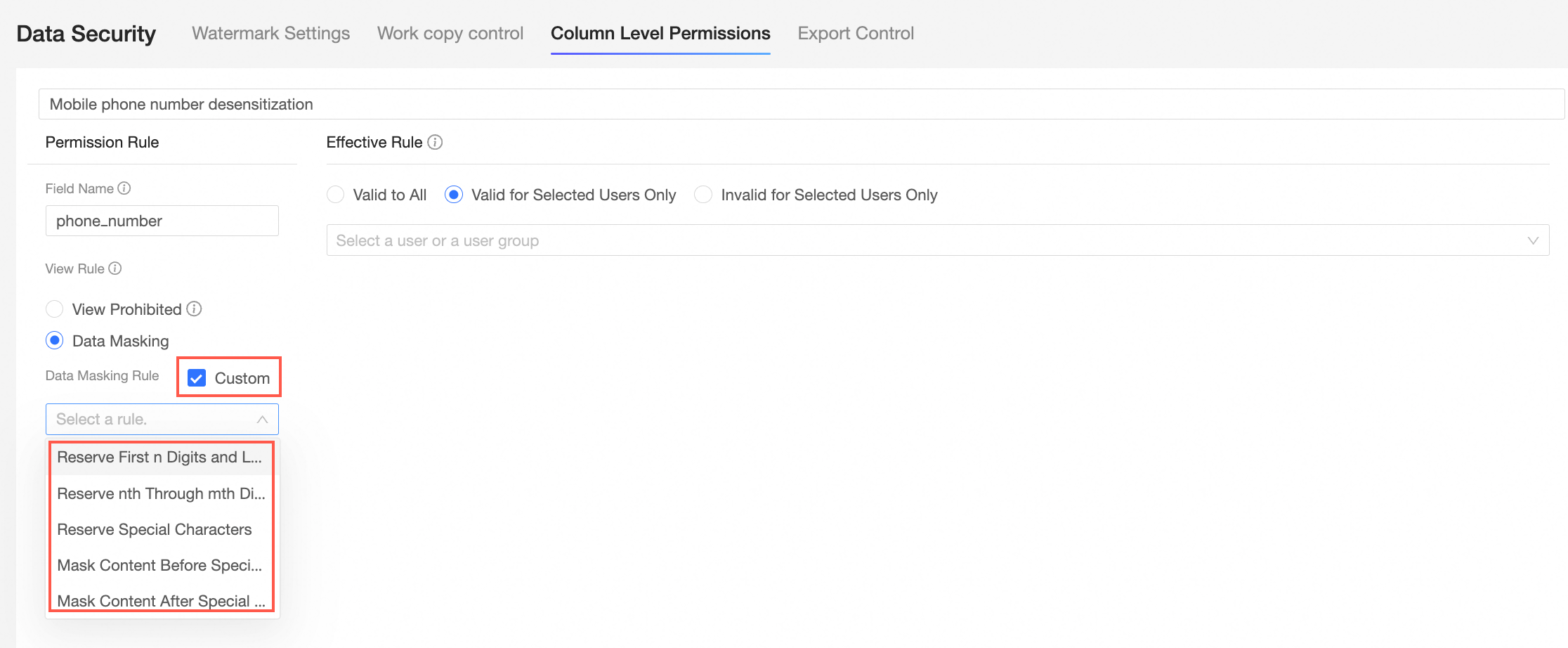
You can also create custom masking rules in Data Masking.

-
Effect Display
After the rule takes effect, all users see only the masked phone numbers.
Effect description
|
Scope |
Behavior |
|
Effective for Everyone |
For the specified fields:
|
|
Valid for Selected Users Only |
For the specified fields:
|
|
Invalid for Selected Users Only |
For the specified fields:
|
Usage notes
-
Users must have both dataset and organization-level permissions to view data.
-
Organization-level column-level permissions take precedence over dataset permissions. When fields are governed by organization-level rules, masking applies regardless of dataset-level settings.
For an explanation of column-level permissions within a dataset, refer to Column-level Permissions.
Manage column-level permissions
-
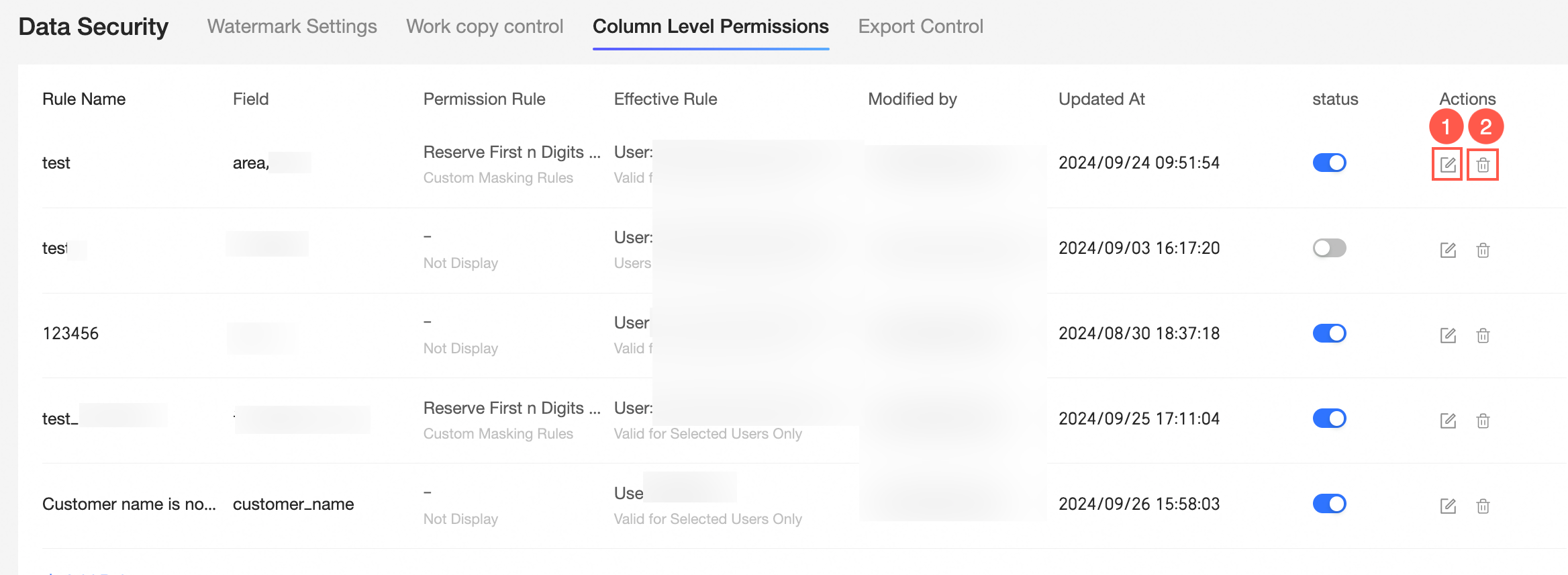
Access the column-level permissions settings page.
-
On the management page, edit (①) or delete (②) existing permission rules.