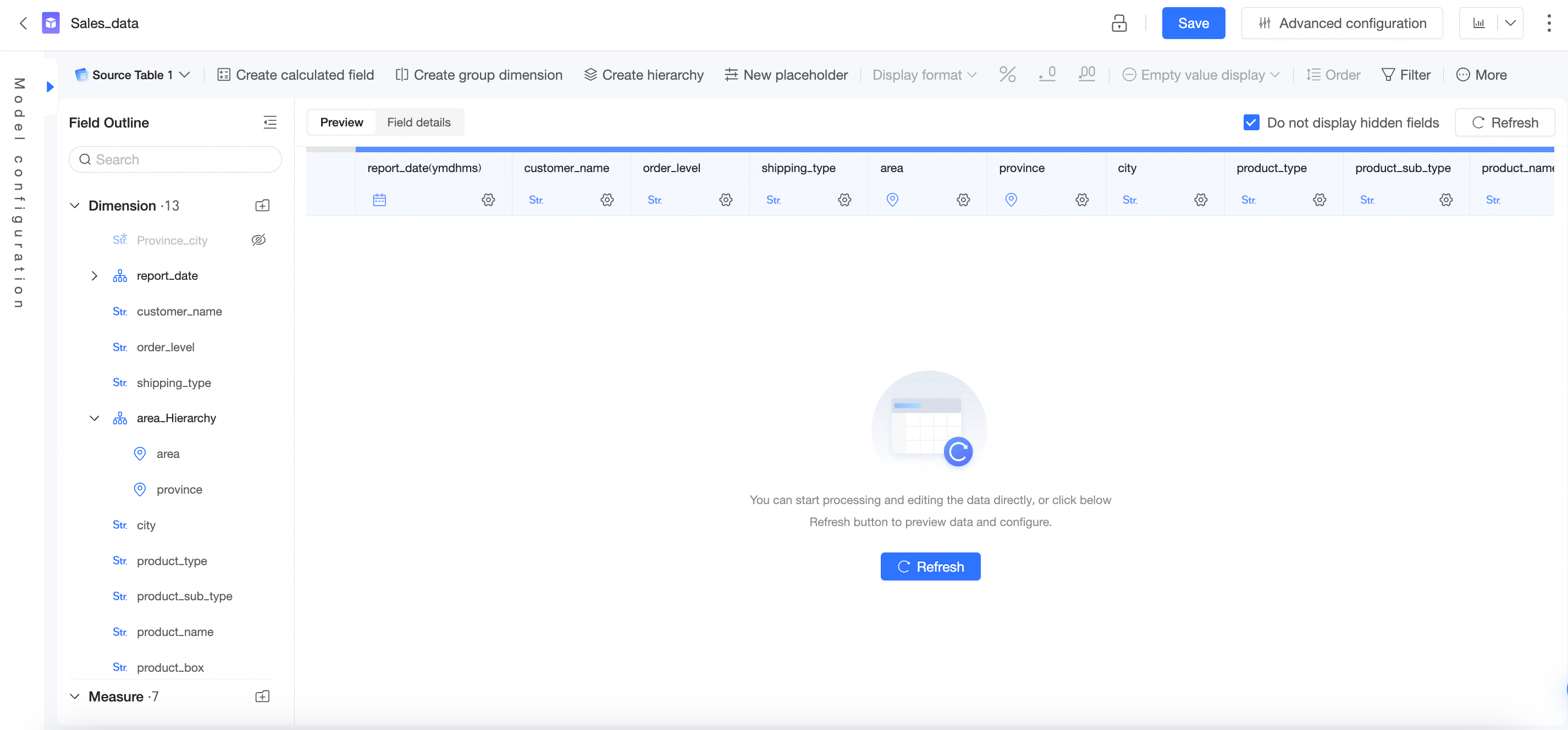
Preview a dataset's data from the dataset list to quickly locate the dataset you need.
Limitations
-
You can preview up to the first 100 rows of a dataset.
-
The Dataset Preview page does not support exporting query results. To export the data, create a chart or use self-service data retrieval.
Access
If you have permission to use a dataset, click the  icon next to it in the dataset list to open the Dataset Preview page.

Procedure
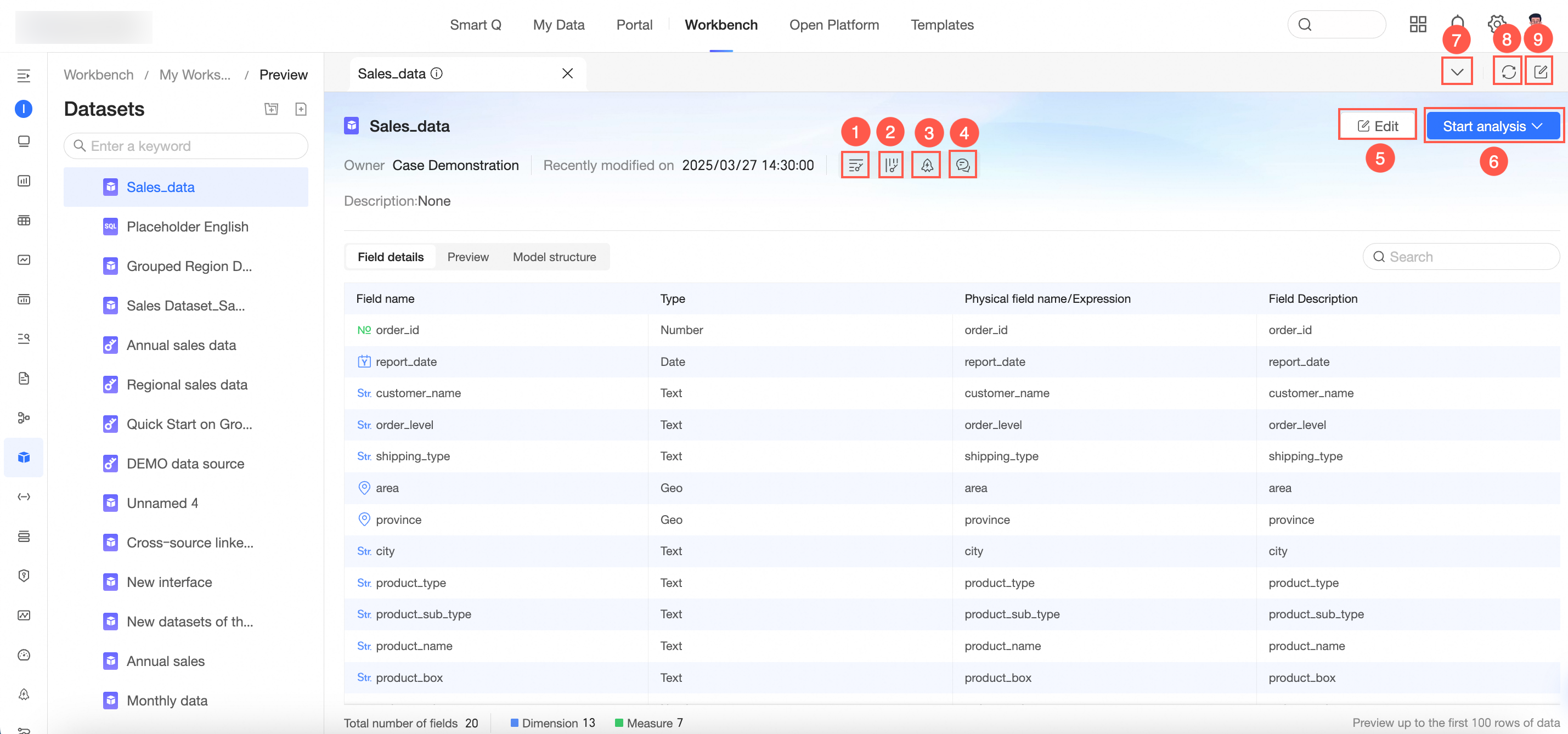
The Dataset Preview page shows Field Details, a data preview, and the Model Structure. You can also perform the following operations.
|
Parameter |
Description |
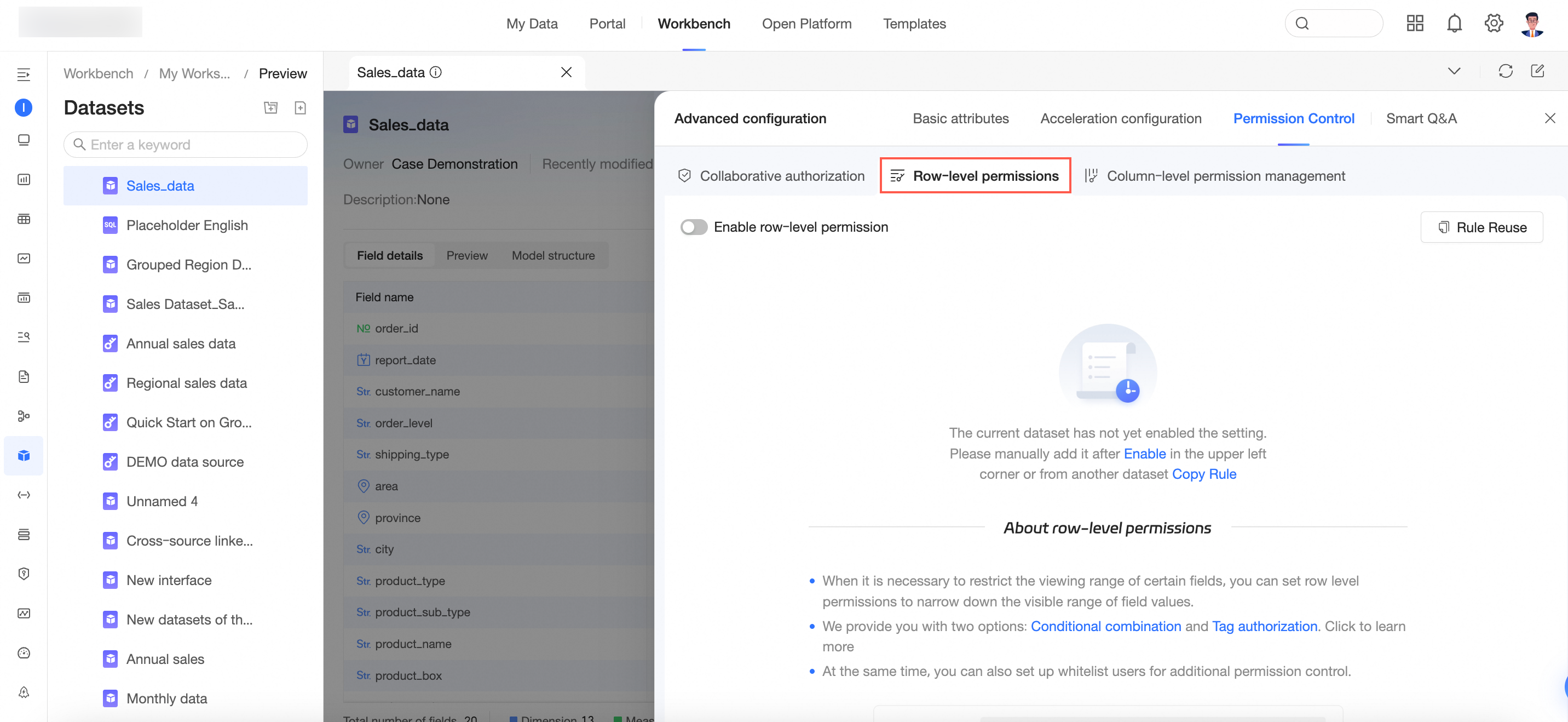
|
① Row-level security |
Opens the row-level security configuration page. For more information, see row-level security.
Note
Only the dataset owner or a workspace administrator can configure row-level security. |
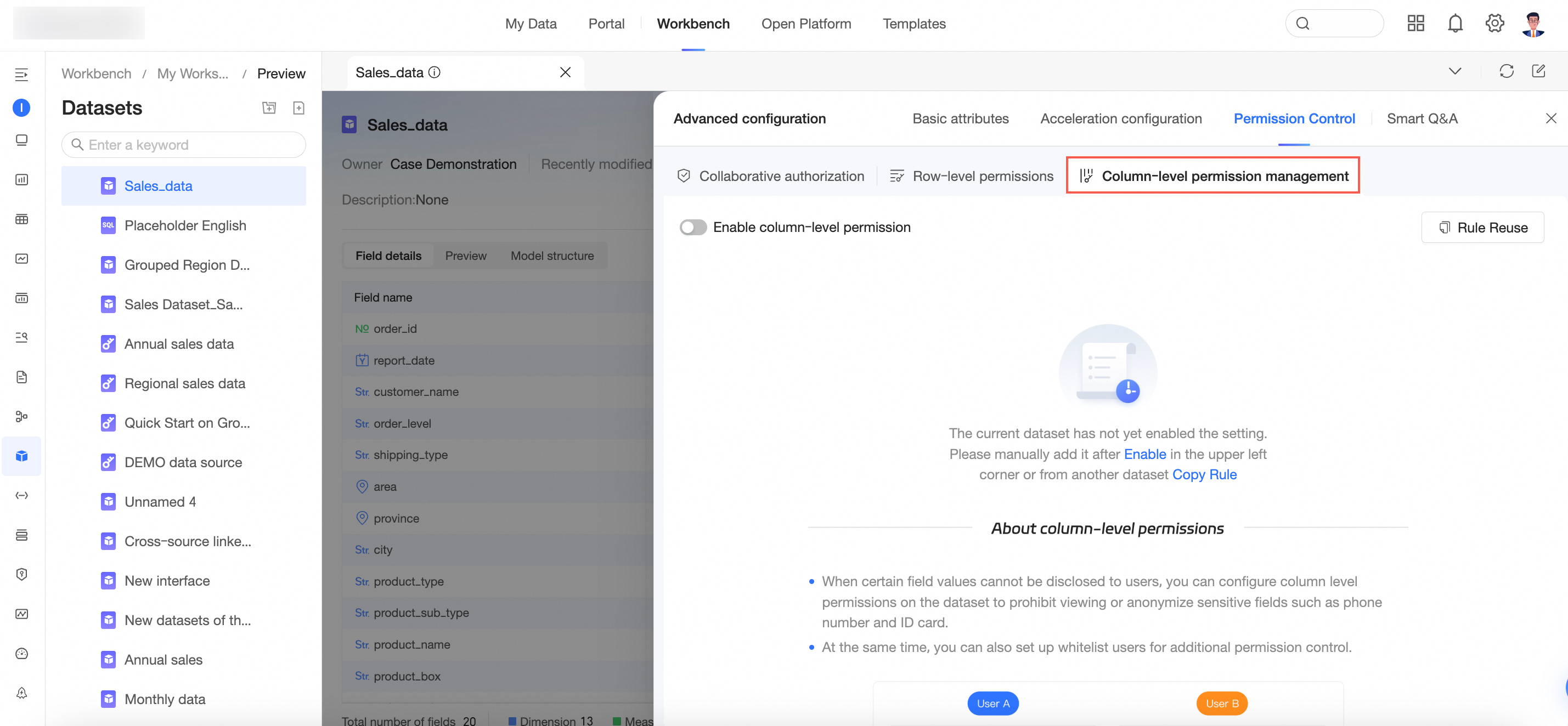
|
② Column-level security |
Opens the column-level security configuration page. For more information, see column-level security.
Note
Only the dataset owner or a workspace administrator can configure column-level security. |
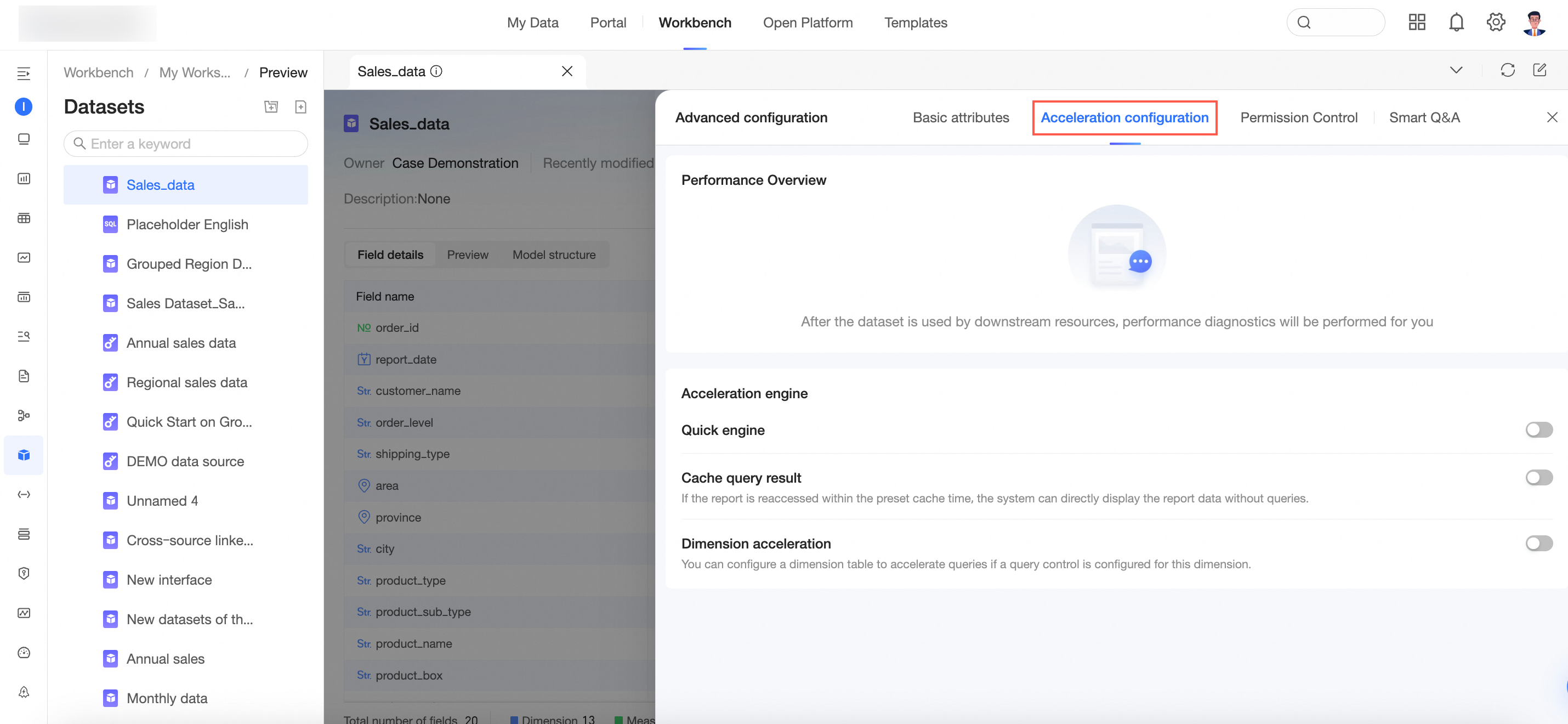
|
③ Acceleration settings |
Opens the acceleration settings page. For more information, see Configure Quick Engine.
Note
Only users with edit permissions for the dataset can configure acceleration settings. |
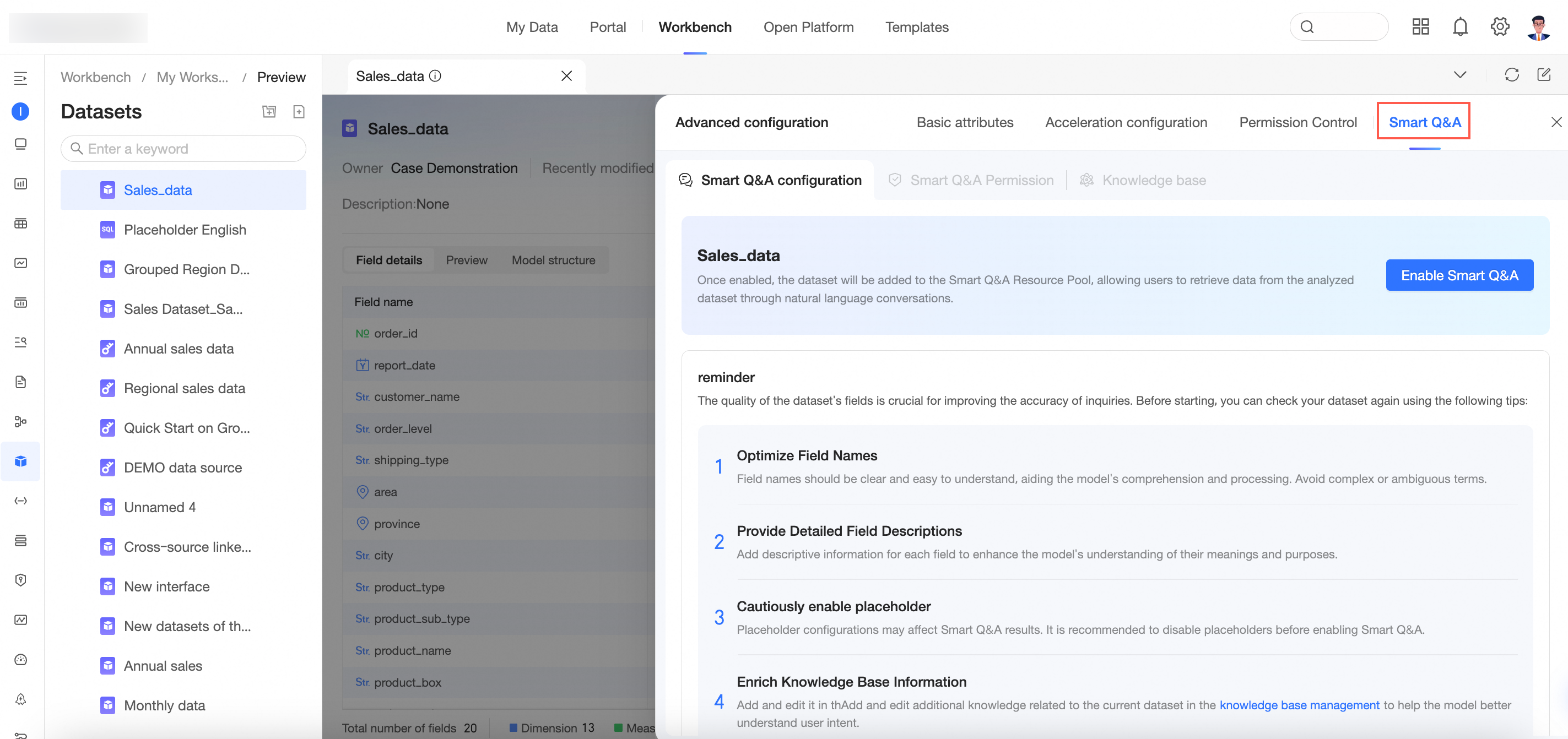
|
④ Intelligent Q&A |
Opens the Intelligent Q&A configuration page. For more information, see Intelligent Q&A.
Note
Only users who have Intelligent Q&A management permissions and are the data source owner or a workspace administrator can configure Intelligent Q&A. |
|
⑤ Edit |
Opens the dataset edit page.
|
|
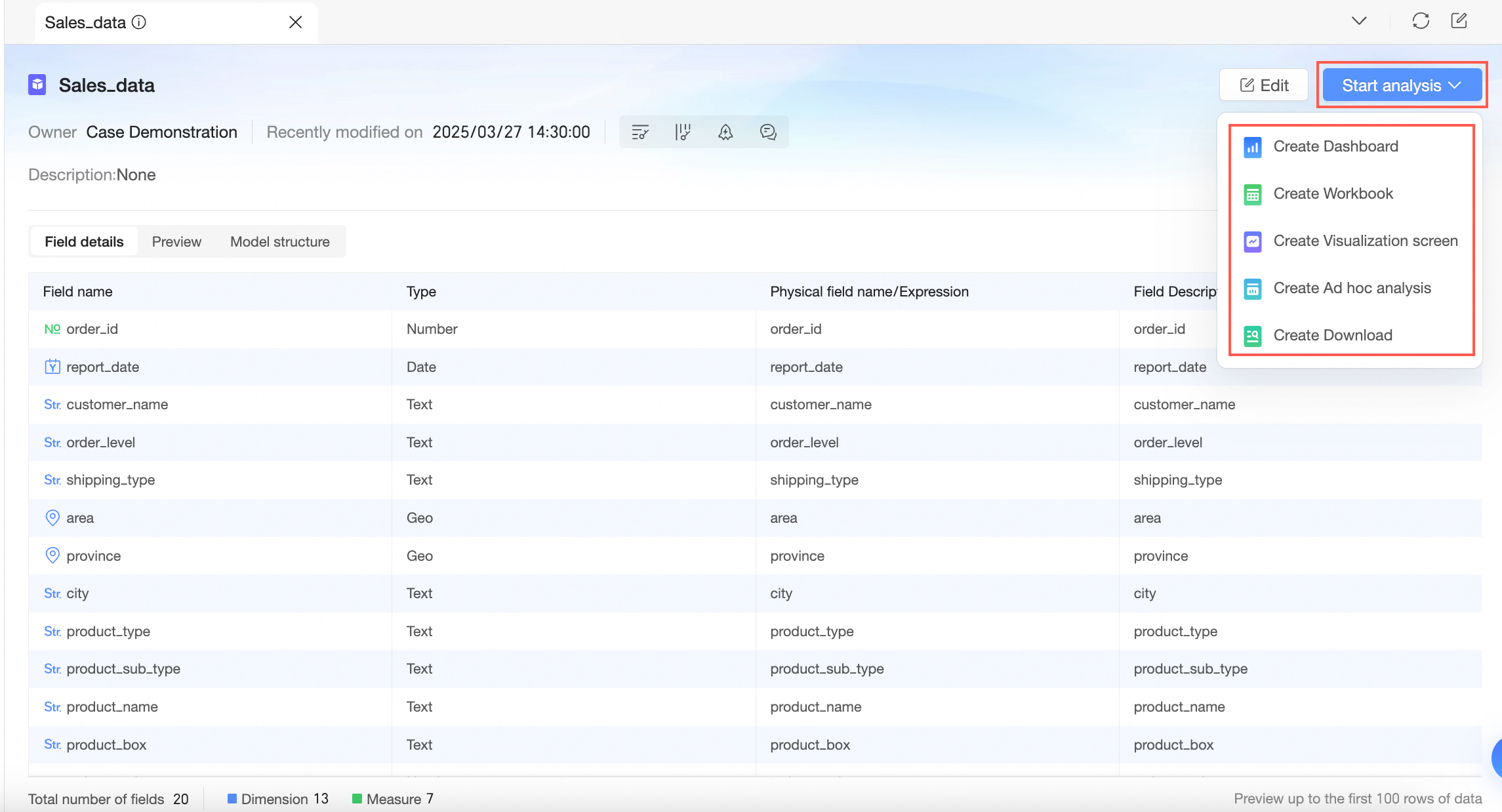
⑥ Start analysis |
Click Start Analysis to create a dashboard, spreadsheet, data screen, ad hoc analysis, or self-service data retrieval.
|
|
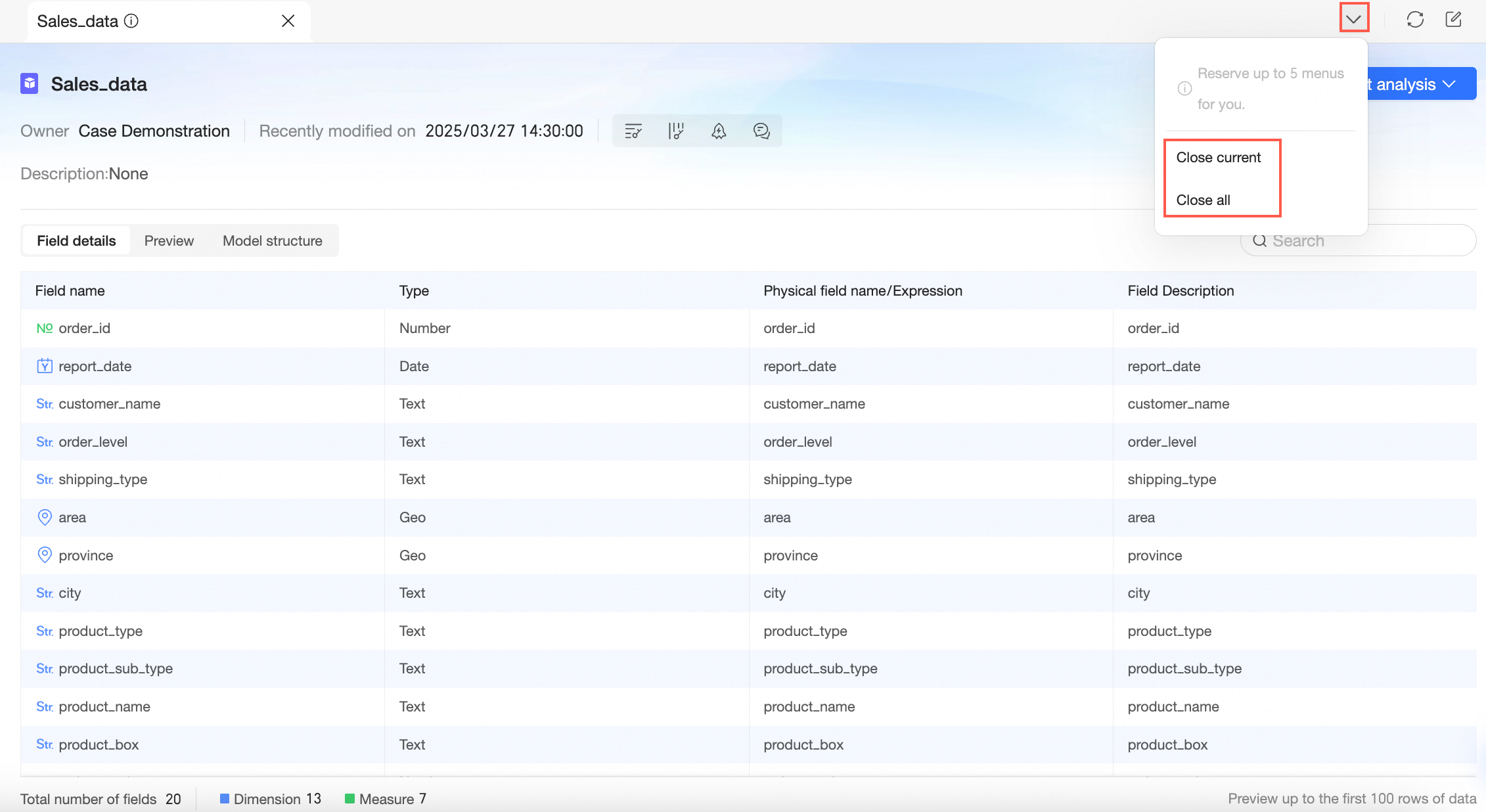
⑦ Close current/all pages |
Closes the current tab or all open tabs. Note
You can keep a maximum of five tabs open.
|
|
⑧ Refresh |
Refreshes the data on the current page. |
|
⑨ Edit |
Opens the dataset edit page. |