This topic provides real-world examples of using the embedded JS SDK.
Configure embedding permissions
To integrate pages with the embedded JS SDK, you must configure Single Sign-On (SSO) between your system and Quick BI. Otherwise, the embedded page redirects to the Quick BI login page. Enabling SSO provides a seamless user experience. You can implement account authentication between Alibaba Cloud and your host system. For instructions, see Alibaba Cloud SSO.
To embed a login-free page, see Basic solutions for report embedding.
React framework
The following examples use the React framework.
Example 1: Embed a workspace
To embed a Quick BI workspace page in your host system, pass the source information for the workspace when you render the EmbedComponent component.
For example, if the URL for your workspace is https://xxx.com/workspace?workspaceId=yyy, pass the src prop as shown in the following code.
import { EmbedComponent, EmbedRouteKey} from "@quickbi/bi-embed-client-react";

export const MyPage: React.FC = () => {
  const src = {
    origin: 'https://xxx.com',
    page: EmbedRouteKey.workspace,
    search: { workspaceId: 'yyy' }
  };
  return  <EmbedComponent src={src} />
}
The following figure shows the result.
Example 2: Hide the header
When embedding Quick BI pages, you can customize the UI. For example, if your host system has its own header, you can hide the embedded Quick BI page's header by configuring a feature.
export const SdkDemo: React.FC = () => {
  return (
    <EmbedComponent
      src={src}
      feature={{
        [EmbedRouteKey.homeRoot]: {
          header: {
            show: false, // For details, see the API reference.
          },
      }}
    />
  );
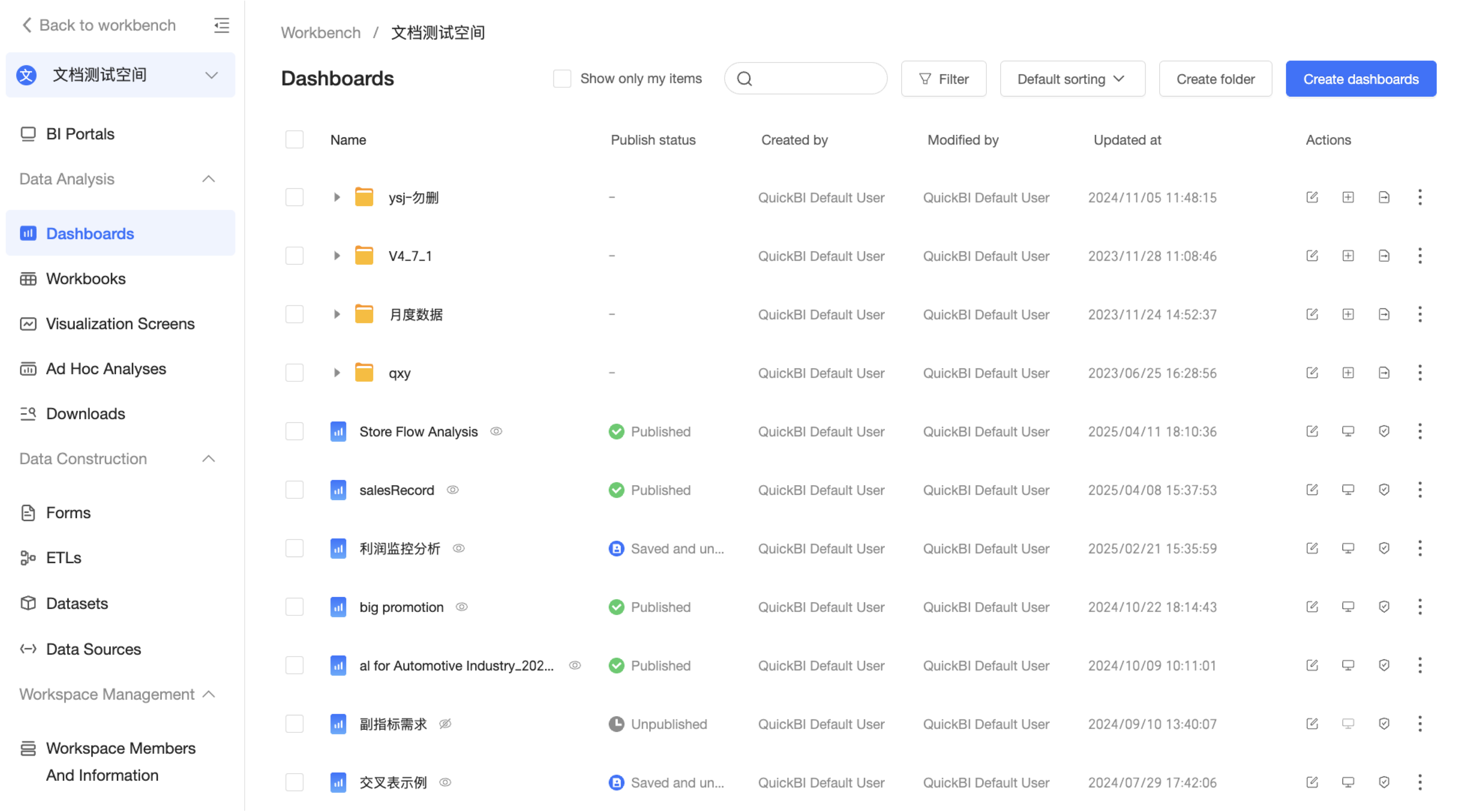
The following figure shows the result. Compared to the workspace embedding example, the header is now hidden.
Example 3: Adjust button positions
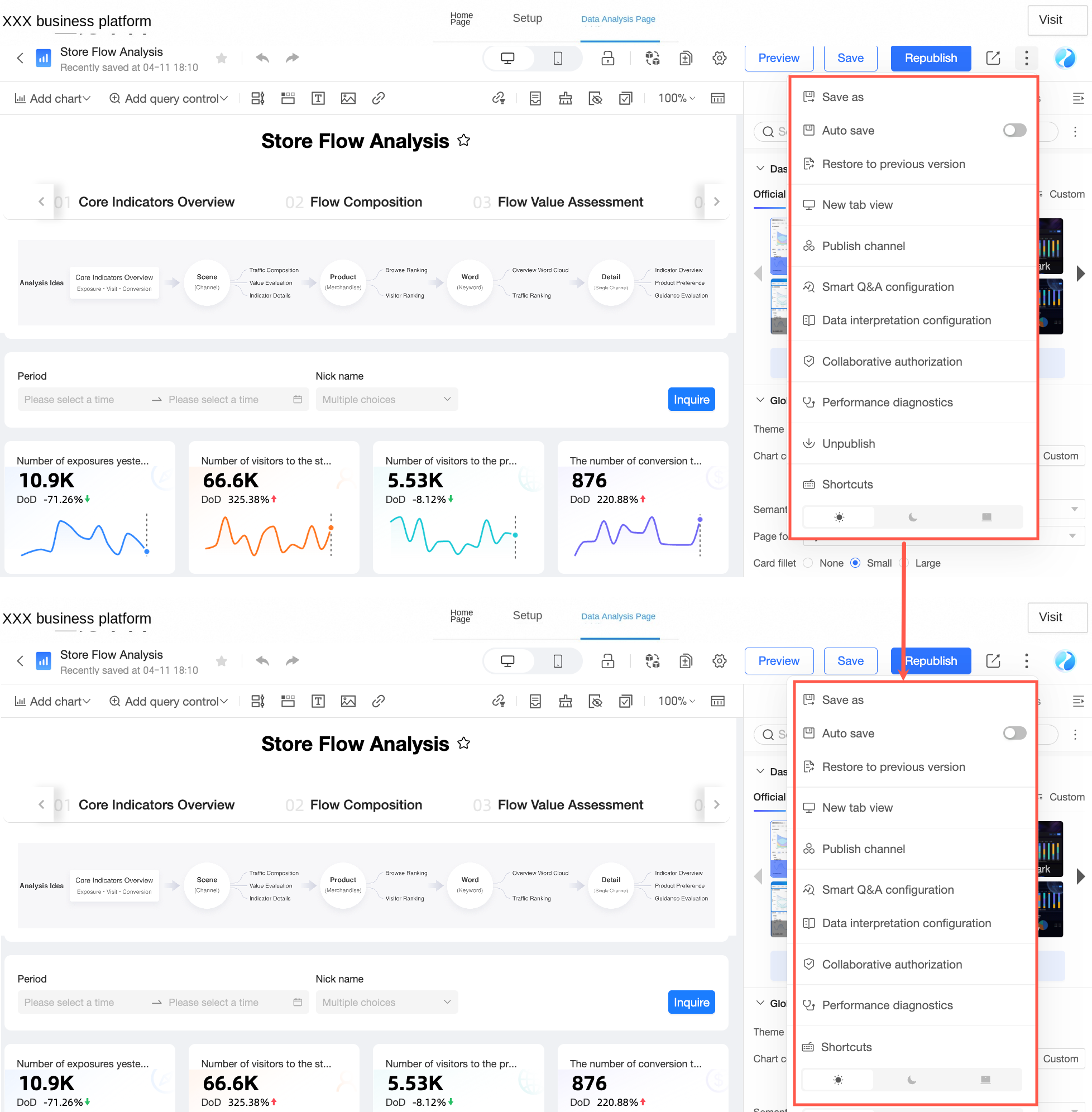
You can customize the buttons on the dashboard edit page. For example, you can hide the publish button, offline button, and share button, move the save as button next to the save button, and set it as a primary button. To do so, configure the feature prop as shown in the following code.
export const SdkDemo: React.FC = () => {
  return (
    <EmbedComponent
      src={src}
      feature={{
        [EmbedRouteKey.dashboardEdit]: {
          /** Publish button */
          publish: {
            show: false
          },
          /** Offline button */
          offline: {
            show: false
          },
          /** Share button */
          share: {
            show: false
          },
          /** Save as button */
          saveAs: {
            group: 'state',
            order: 3,
            type: 'primary'
          }
        }
      }}
    />
  );
The following figure shows the result. The buttons in the header of the dashboard edit page are customized from the original layout (top) to the new layout (bottom).
Example 4: Intercept page change events
After you embed a Quick BI workspace and hide its header, clicking an item to edit opens a new dashboard edit page. This action navigates the user away from the host environment. To prevent this, you can handle the page change event by using the events parameter.
When Quick BI navigates, listen for the destination URL, update the EmbedComponent component's src parameter, and re-render the EmbedComponent on the current page. This process ensures that the new Quick BI page also opens within the host environment. The specific code is shown below. Returning false from the event blocks the default navigation logic of Quick BI, which prevents the application from leaving the host environment.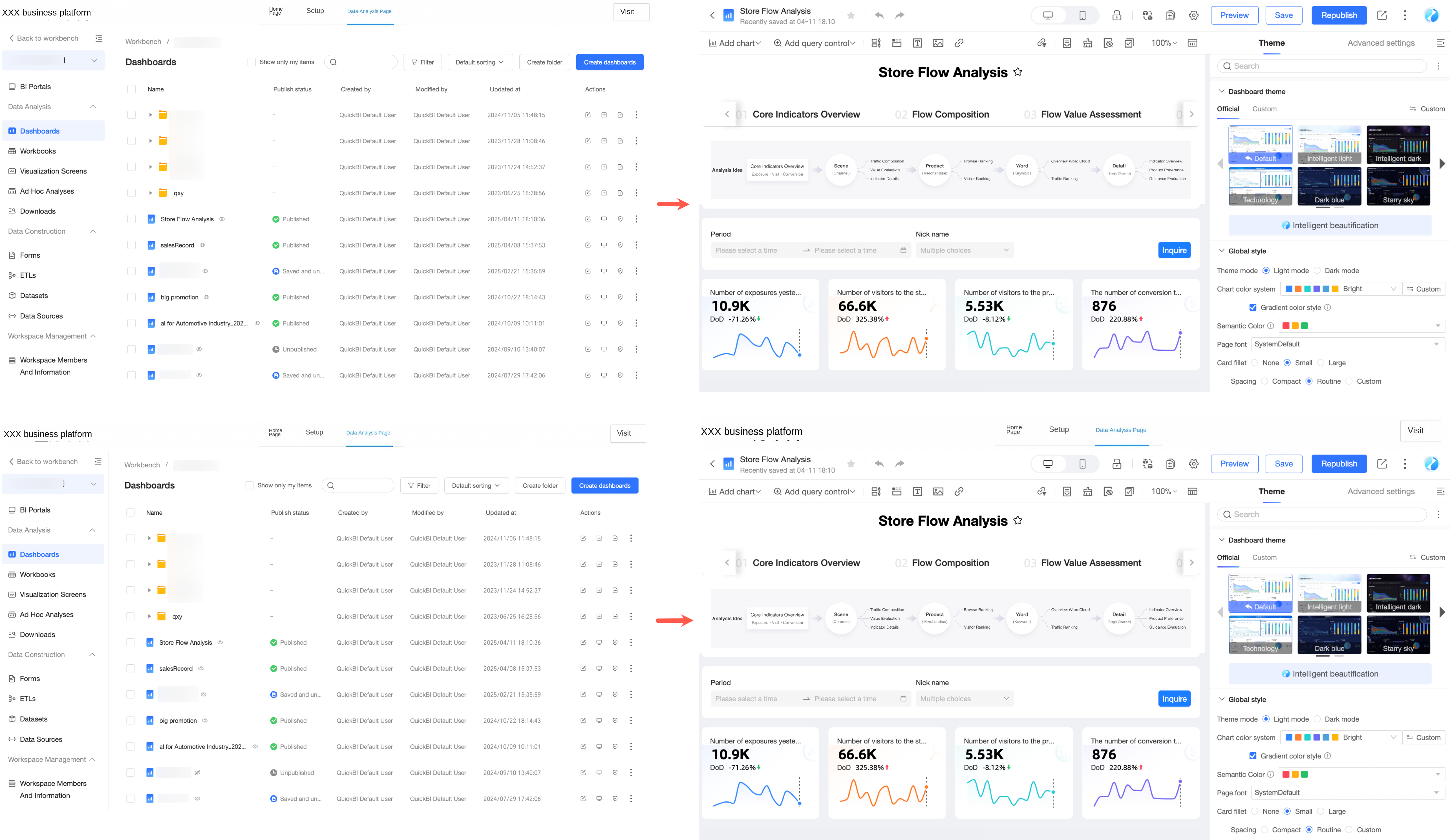
export const SingleSdk: React.FC = () => {
  return (
    <EmbedComponent
      src={src}
      feature={{ ... }}
      events={{
        [EmbedEventType["before-page-change-event"]]: async (message: any) => {
          /** Update the src prop of EmbedComponent to re-render the embedded page after navigation. */
          setSrc(message.payload.src);
          /** Cancel the default Quick BI navigation behavior. */
          return false;
        },
      }}
    />
  );
};
Complete example
For a complete example of embedding with the React framework, see this CodeSandbox demo: CodeSandbox SDK DEMO
Vue 2 framework
The following examples use the Vue 2 framework.
Example 1: Embed a page
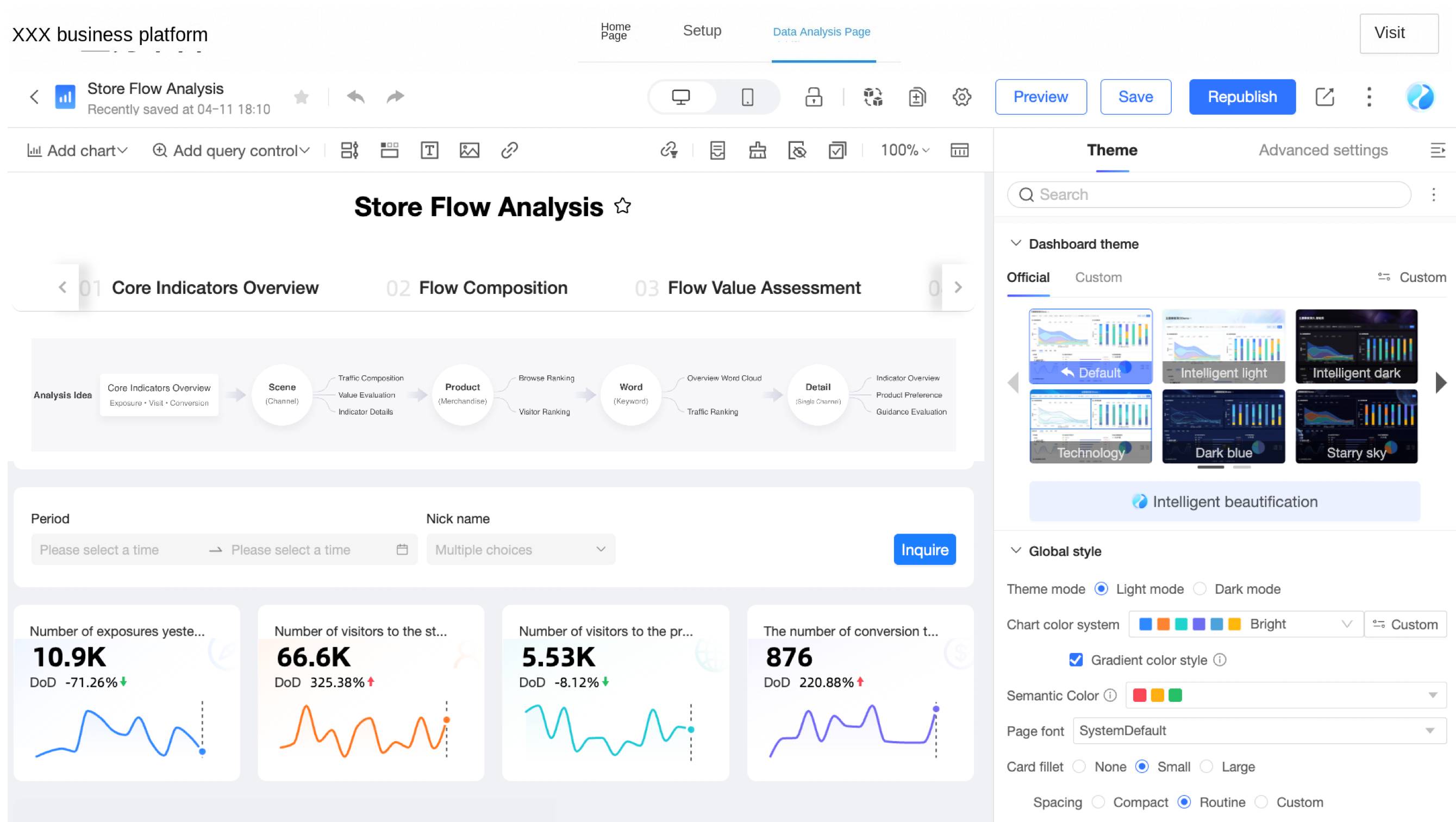
To embed a Quick BI dashboard edit page, import the @quickbi/bi-embed-client-vue2 npm package, provide the page's source properties, and then render the exported EmbedComponent component:
<template>
  <embed-component
    :src="embedSrc"
    :feature="embedFeature"
    :events="embedEvents"
    class="my-embed"
  />
</template>

<script lang="ts">
interface EmbedComponent {
  /** Container class name */
  className?: string;
  /** Container style */
  style?: CSSProperties;
  /** Embedded source information */
  src: EmbedSrcUnion;
  /** Embedded initial configuration */
  feature?: EmbedFeatureIntersect;
  /** Embedded initial event listeners */
  events?: EmbedEventListenerUnion;
  /** Client options */
  option?: Partial<PostMessengerParam>;
}
  export default Vue.extend({
  name: 'SDK',
  components: {
    EmbedComponent
  },
  data(): EmbedComponent {
    return {
      embedSrc: {
        origin: "https://xxx",
        page: EmbedRouteKey.dashboardEdit,
        search: {
          workspaceId: '**-****-*****-********',
          id:"*************"
        }
      },
    }
  },
})
</script>
For descriptions of the source properties, see embedded JS SDK API. The following figure shows the result.
Example 2: Configure embedding features
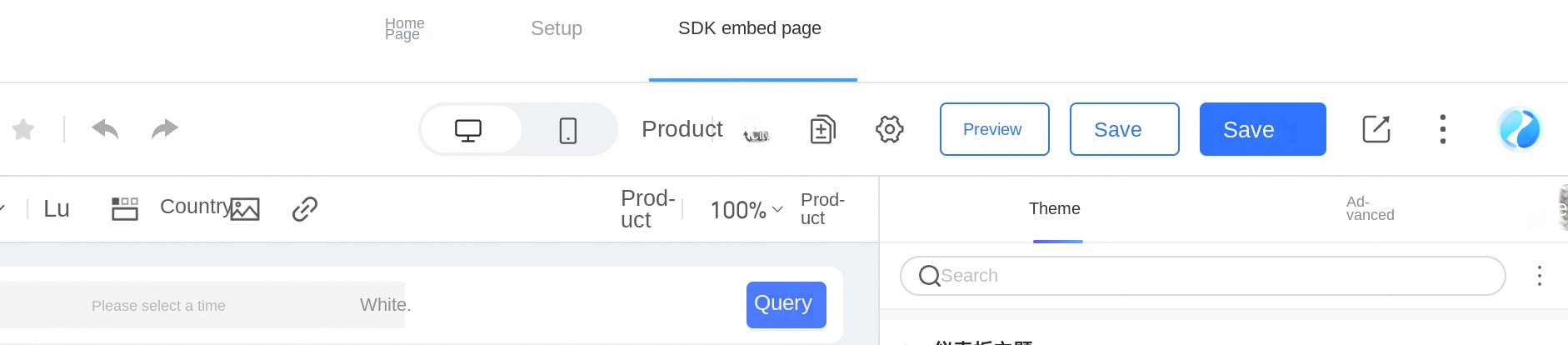
To customize an embedded Quick BI page, you can configure its features. For example, to hide the publish button and offline button and adjust the order and style of the save as button, you can configure the feature toggles.
<script lang="ts">
export default Vue.extend({
  data(): EmbedComponent {
    return {
      embedFeature: {
        [EmbedRouteKey.dashboardEdit]:  {
          publish: {
            show: false
          },
          // For details, see the Features section of the API documentation.
          ...
      },
}
</script>
For more information about feature properties, see embedded JS SDK API. The following figure shows the result.
Example 3: Listen for embedding events
To prevent a new page from breaking out of the host environment, the SDK exposes a navigation listener event. When a navigation is triggered, you can listen for the target page's URL and opening behavior, update the EmbedComponent component's src parameter, and then re-render the EmbedComponent on the current page. This ensures that the new page remains within the host environment. The following code provides an example. Returning false from the event stops the default Quick BI navigation logic.
<script lang="ts">
export default Vue.extend({
  data(): EmbedComponent {
    return {
     embedEvents: {
        [EmbedEventType['before-page-change-event']]: async ({ payload }) => {
          /** Update the src property of EmbedComponent to re-render the page after navigation */
          this.$set(this, 'embedSrc', {
            ...payload.src
          })
          /** Prevent the default Quick BI route navigation behavior */
          return false
        }
      }
}
</script>
Complete example
For the complete code, see the following CodeSandbox demo: CodeSandbox SDK VUE2 DEMO
Vue 3 framework
The following examples use the Vue 3 framework.
Embed a page
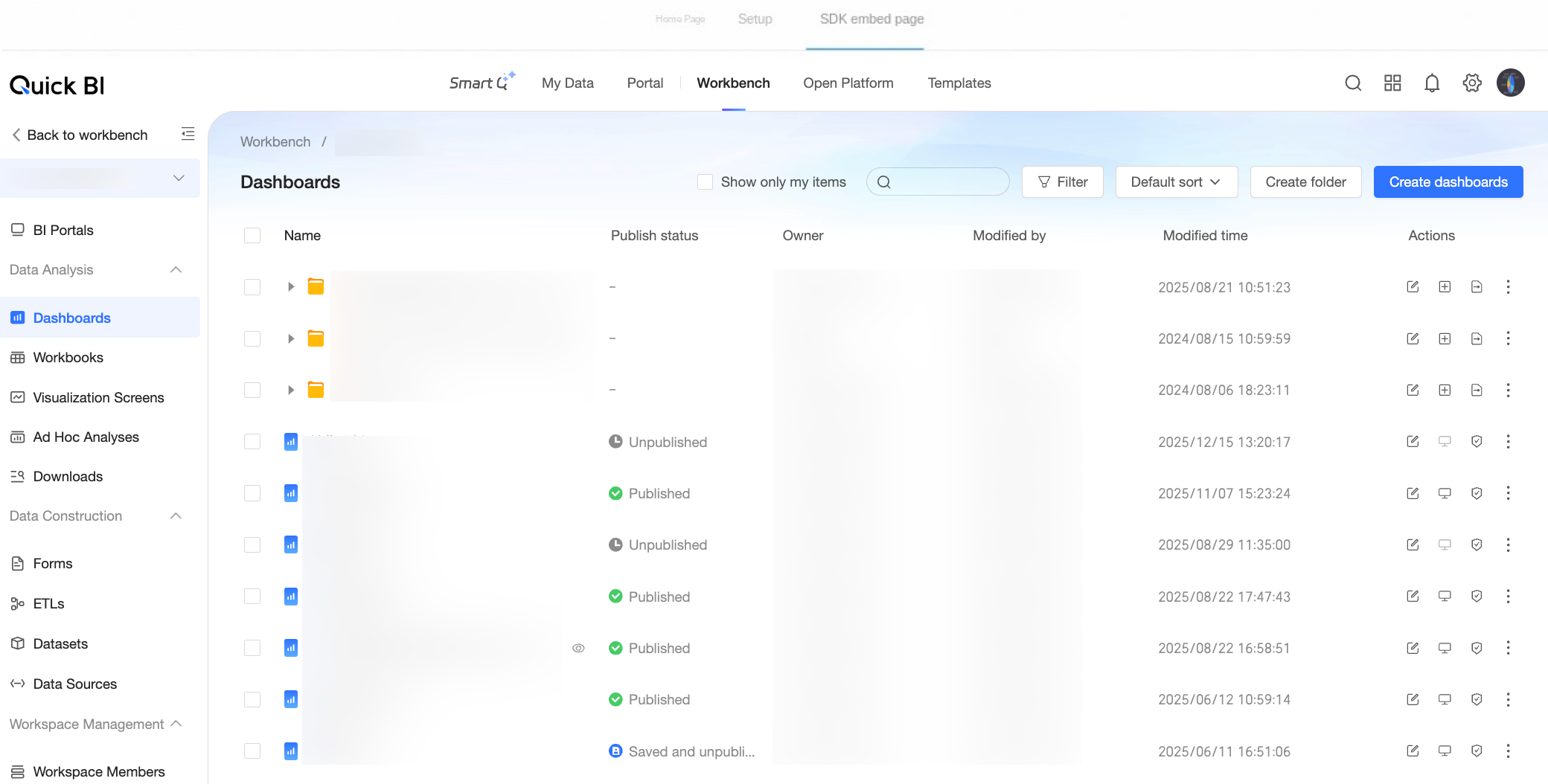
This example shows how to embed a Quick BI workspace page. After you import the @quickbi/bi-embed-client-vue npm package, pass the source properties for the workspace page to render the EmbedComponent component.
<script setup lang="ts">
import {
  EmbedEventType,
  EmbedRouteKey,
  EmbedComponent,
} from "@quickbi/bi-embed-client-vue";
import type { EmbedSrcUnion } from "@quickbi/bi-embed-client-vue";
import { ref } from "vue";

const embedSrc = ref<EmbedSrcUnion>({
 origin: "https://xxx",
 page: EmbedRouteKey.workspace,
 search: {
  workspaceId: '**-****-*****-********',
  id:"*************"
}
});
</script>

<template>
  <EmbedComponent
    :src="embedSrc"
  />
</template>
The following figure shows the result.
Configure embedding features
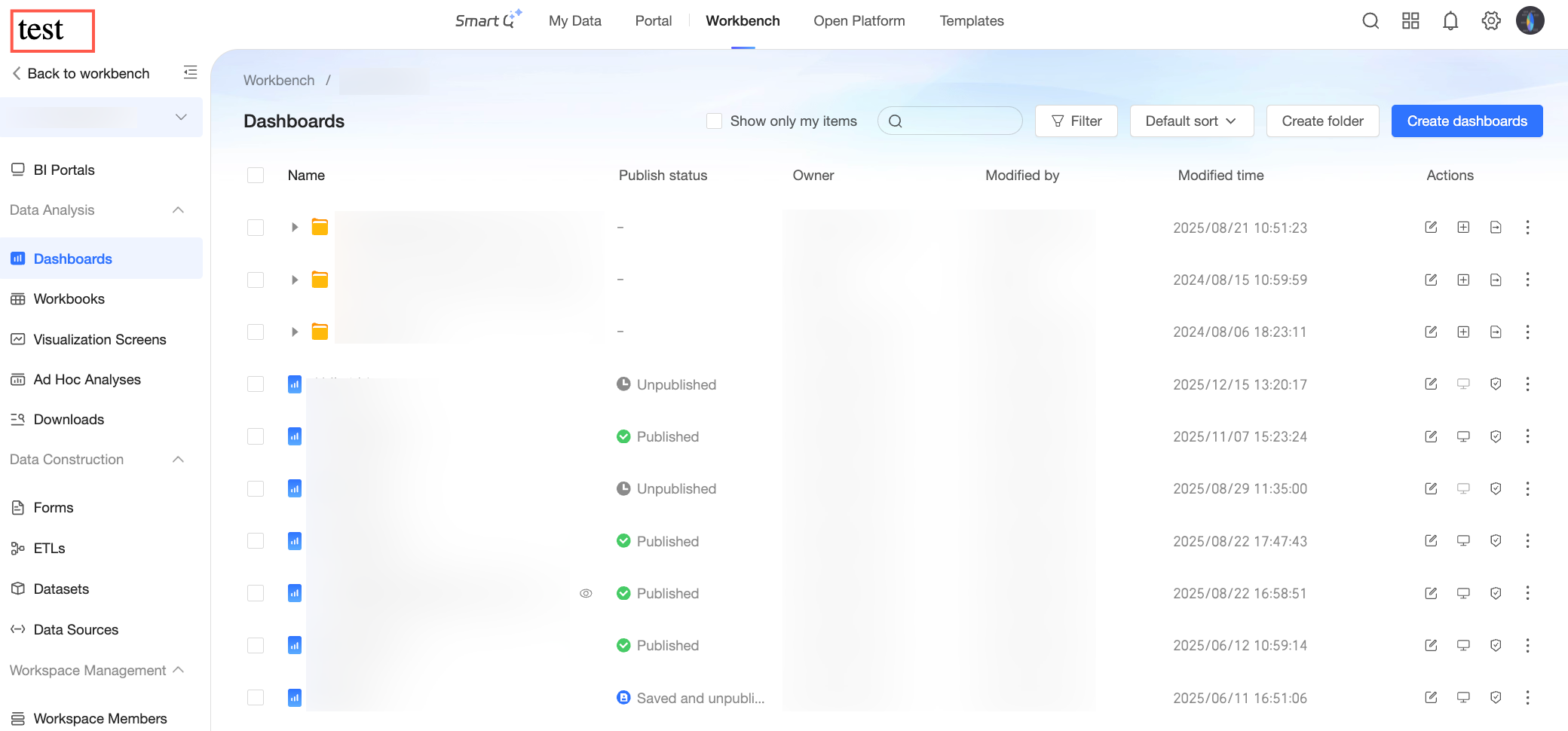
To customize an embedded Quick BI page, you can configure its features. For example, to hide the header and breadcrumb, and to customize the text for the link that returns to the workspace, you can configure the feature toggles.
//...
const embedFeature = ref<any>({
  [EmbedRouteKey.workspace]: {
    header: {
      show: false,
    },
    goBack: {
      text: "Custom",
    },
    switchWorkspace: {
      show: false,
    },
    breadcrumb: {
      show: false,
    },

  },
});
//...

<template>
  <EmbedComponent
    :src="embedSrc"
    :feature="embedFeature"
  />
</template>
For more information about feature properties, see embedded JS SDK API. The following figure shows the result.
Listen for embedding events
To prevent a new page from breaking out of the host environment when it is opened from the embedded environment, the SDK exposes a navigation event listener. This listener allows you to monitor all navigation actions within the application. When a navigation action occurs, you can capture the URL and opening behavior of the target page, update the src parameter of the EmbedComponent component, and then re-render the EmbedComponent on the current page. This ensures that the new page also remains within the customer's host environment. The following code shows an example. Returning false from the event stops the default navigation logic of Quick BI.
//...
const embedEvents = {
  [EmbedEventType["before-page-change-event"]]: async ({ payload }) => {
    /** Update the src property of EmbedComponent to re-render the page after navigation */
    embedSrc.value = { ...payload.src };
    /** Prevent the default Quick BI route navigation behavior */
    return false;
  },
};
//...

<template>
  <EmbedComponent
    :src="embedSrc"
    :feature="embedFeature"
    :events="embedEvents"
  />
</template>
Complete example
For the complete code, see the following CodeSandbox demo: CodeSandbox SDK-DEMO-VUE3