Export and import resource packages
You can export and import resource packages to migrate resources between workspaces.
Access resource package management
Log on to the Quick BI console.
-
On the Quick BI homepage, go to the resource package management page.
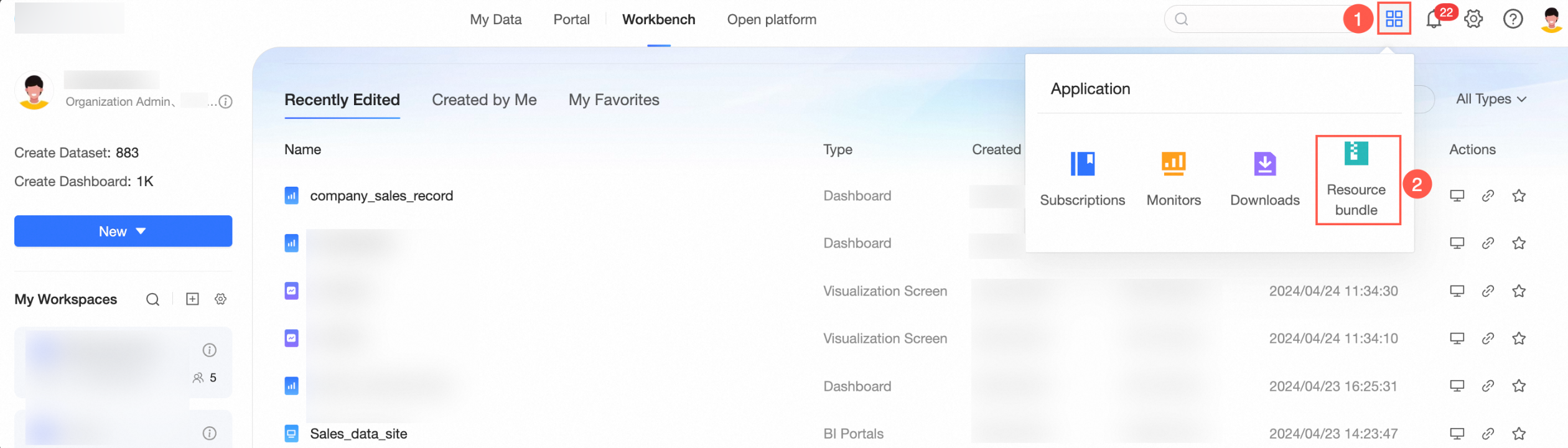
Export a resource package
-
On the resource package management page, on the resource package configuration tab, select a resource package and click the Export icon.

-
In the dialog box, enter a name, set a validity period for the resource package, and save the resource package extraction code.

-
The extraction code is required for importing. You can also find it in the export records.

-
The resource package can only be imported within its validity period. After this period, import attempts will fail.
-
In the export records, click the
 icon to View Export Log. The log displays the Exported Resource List.
-
Under the Actions column, click the
icon to download the Resource Package Content Details.The content details include the resource name, modifier, and modification time. Because these details are parsed in real time, download the file promptly.
NoteThe resource package can include assets from an exploration space.
-
-
-
Click OK.
After the export completes, the resource package is downloaded to your local device as a compressed file.

 icon to download the Resource Package Content Details.
Import a resource package
-
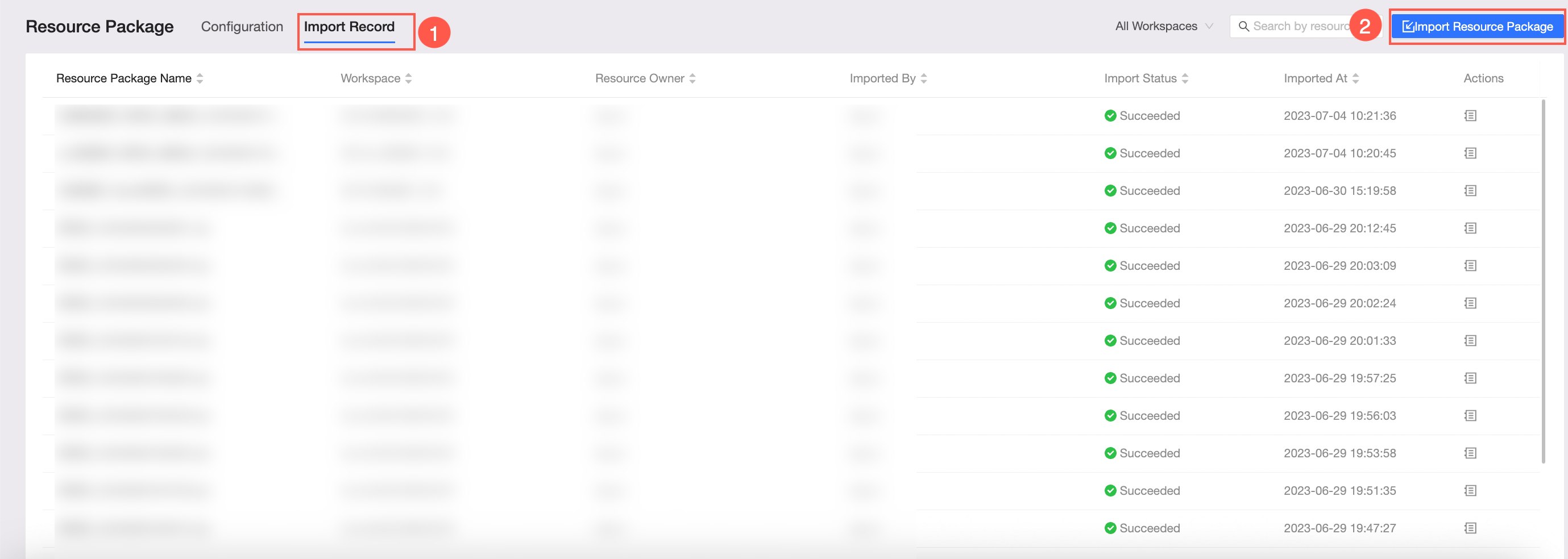
On the resource package management page, on the Import Records tab, click Import resource package.
-
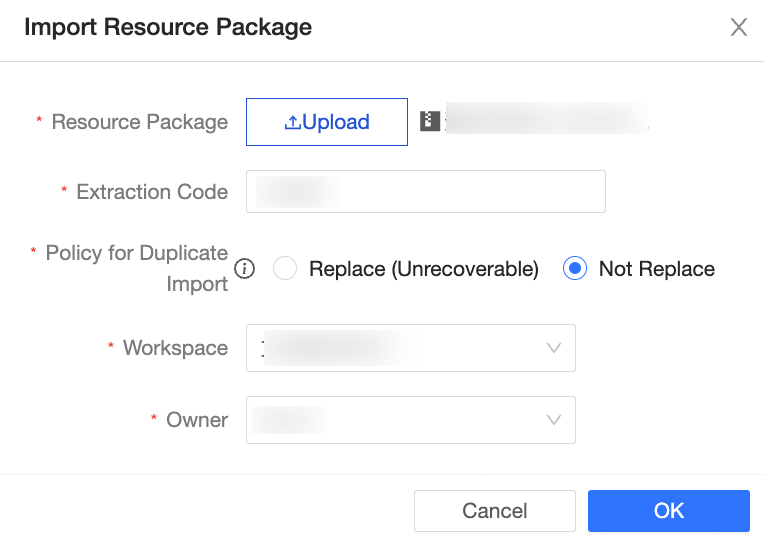
In the Import resource package dialog box, select the resource package file to upload, enter the resource package extraction code, select a duplicate import policy, and specify the destination workspace and the resource owner.
NoteYou cannot import resources into the same workspace from which they were exported. For example, resources from workspace A cannot be imported back into workspace A.
-
Click OK.
After the import completes, you can view the imported resources in the destination workspace. The Import Records tab shows the destination workspace, owner, importer, import status, and import time.
In the import records, click the icon to View Import Log, which shows the Imported Resource List and the Imported Parameter List.Note-
Duplicate import policy: Quick BI matches duplicate data objects by their object IDs. Replace: The imported object overwrites the existing one in the workspace. Do not replace: The existing object in the workspace is not replaced. For more information, see Principle Description.
-
If the resource package contains assets from an exploration space:
-
If the destination workspace does not have an exploration space: Quick BI imports the datasets, dashboards, and other assets, but does not create their data source.
-
If the destination workspace has an exploration space: Quick BI directly imports assets from standard workspaces. For assets from the exploration space, it imports datasets and dashboards and creates the underlying table structure without data. A 0 B file upload record then appears in the exploration space, which you can use to append a file with data.
For more information, see Create a file data source.
-
-
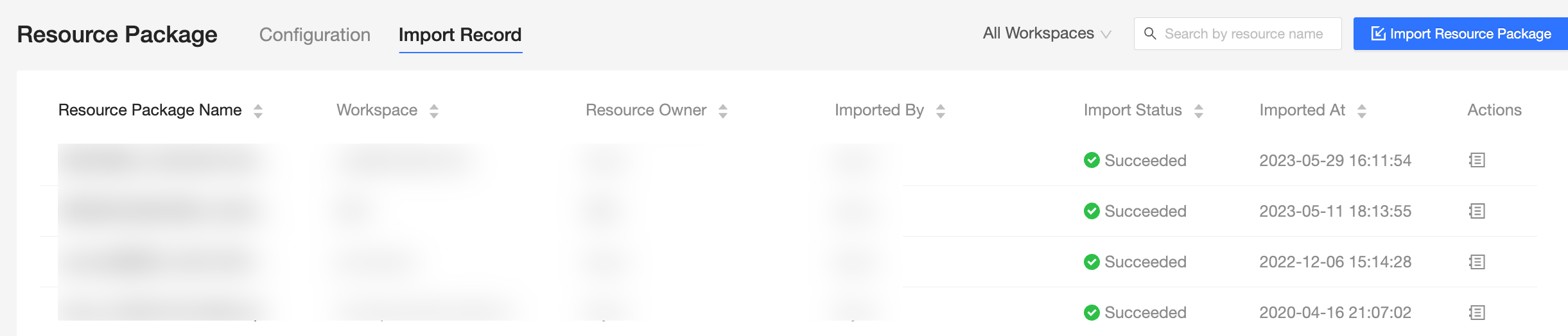 In the import records, click the
  icon to View Import Log, which shows the Imported Resource List and the Imported Parameter List.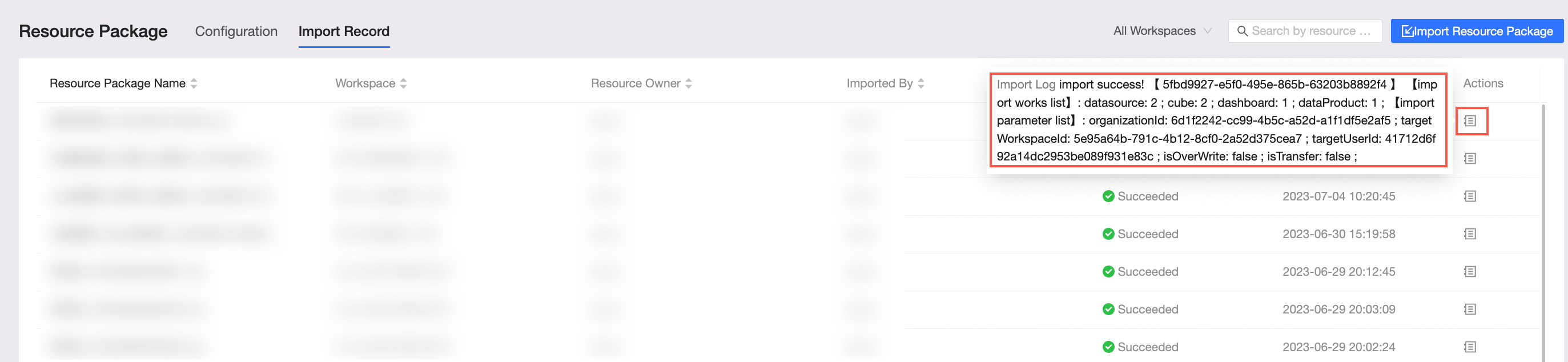
Update data source
To protect your data, resource packages do not include data source credentials. After importing a resource package, reconfigure the data source connections before using the imported assets.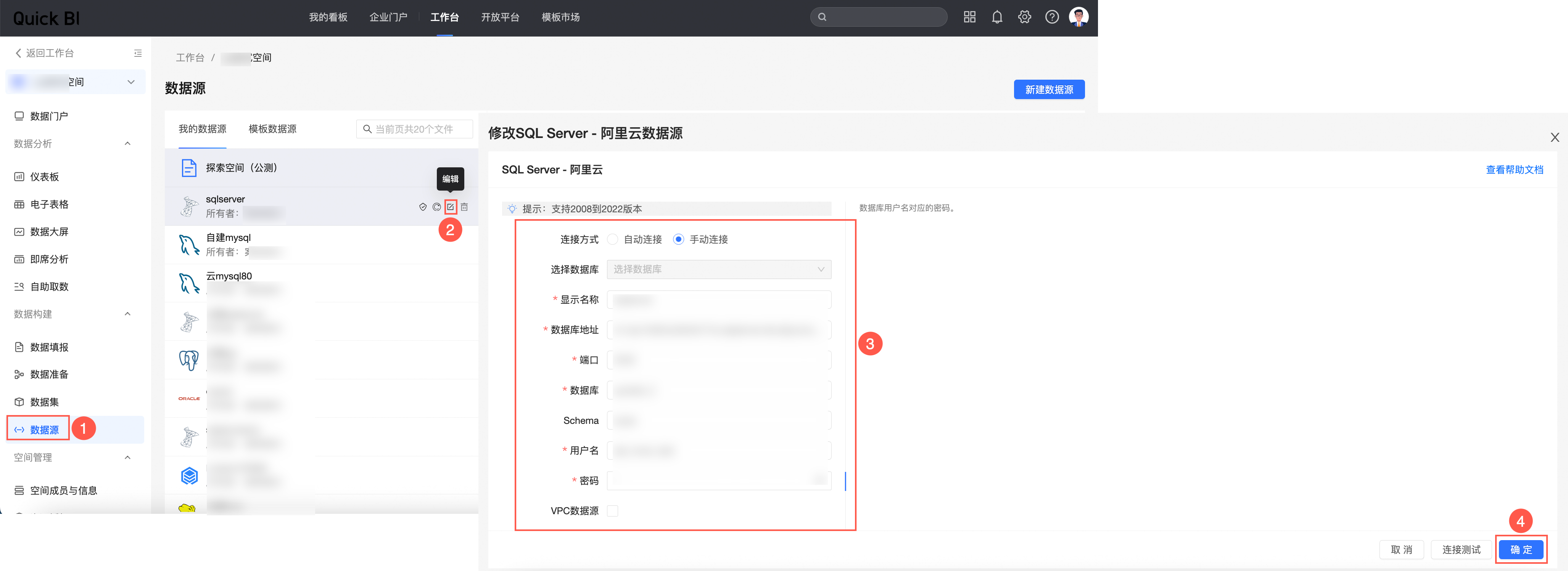
-
In the destination workspace, click Data Sources and select the data source associated with the imported assets.
-
Click the Edit icon.
-
On the Modify Data Source page, enter the correct connection information, test the connection, and click OK.
Cross-workspace import
-
On the Resource Package Configuration tab of the Resource Package Management page, click the
icon to go to Cross-space One-click Import. -
On the One-click cross-workspace import page, select the duplicate import policy, the workspace, and the resource package owner.
-
Click OK to complete the import.
 icon to go to Cross-space One-click Import.
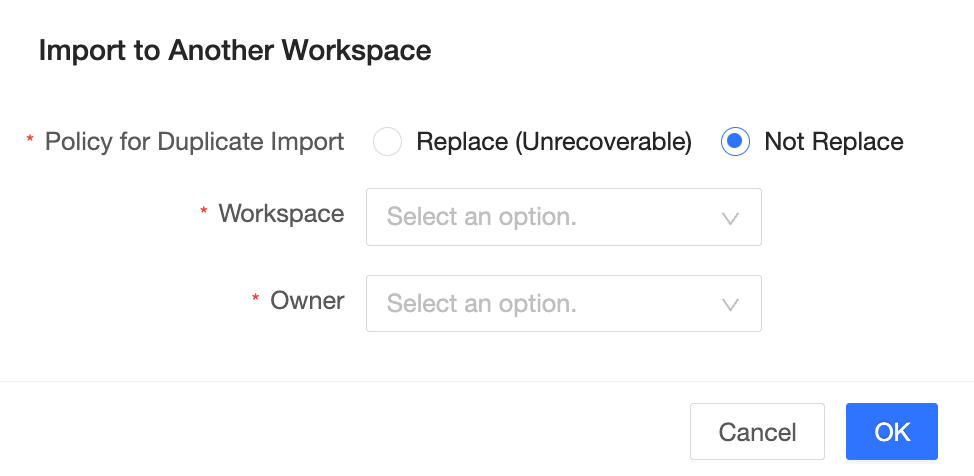
Unlike a standard import, a cross-workspace import transfers resources between workspaces within the same organization, so you do not need to re-enter data source credentials.