Grant dataset permissions
Collaborative authorization for a dataset includes use and edit permissions. This topic describes how to grant these permissions.
Background information
An organization administrator, permission administrator, workspace administrator, or the resource owner (creator) can grant permissions.
-
 Indicates that the user can perform this action only with the required permission.
 -
 Indicates that the user cannot perform this action and cannot be granted the required permission.
|
Category |
User type |
Edit |
Use |
|
Workspace member |
developer |
|
|
|
analyst |
|
|
|
|
Organization member (outside this workspace) |
developer |
|
|
|
analyst |
|
|
|
|
visitor |
|
|
The permissions are defined as follows:
-
edit permission: A user can be granted edit permission for a specific dataset if their associated workspace role includes the Create/Edit Dataset functional permission. This permission allows the user to create, edit, replace, and delete the dataset.
-
use permission: A user can be granted use permission for a specific dataset if their associated workspace or organization role includes the Use Dataset functional permission. This permission allows the user to analyze data by using the dataset.
Entry points
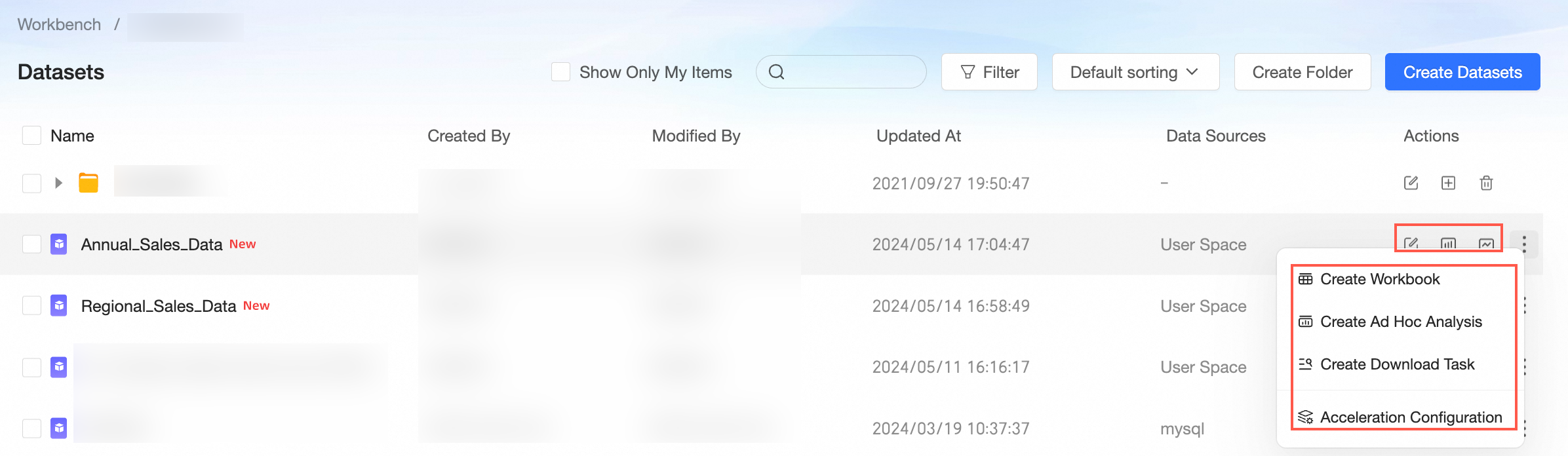
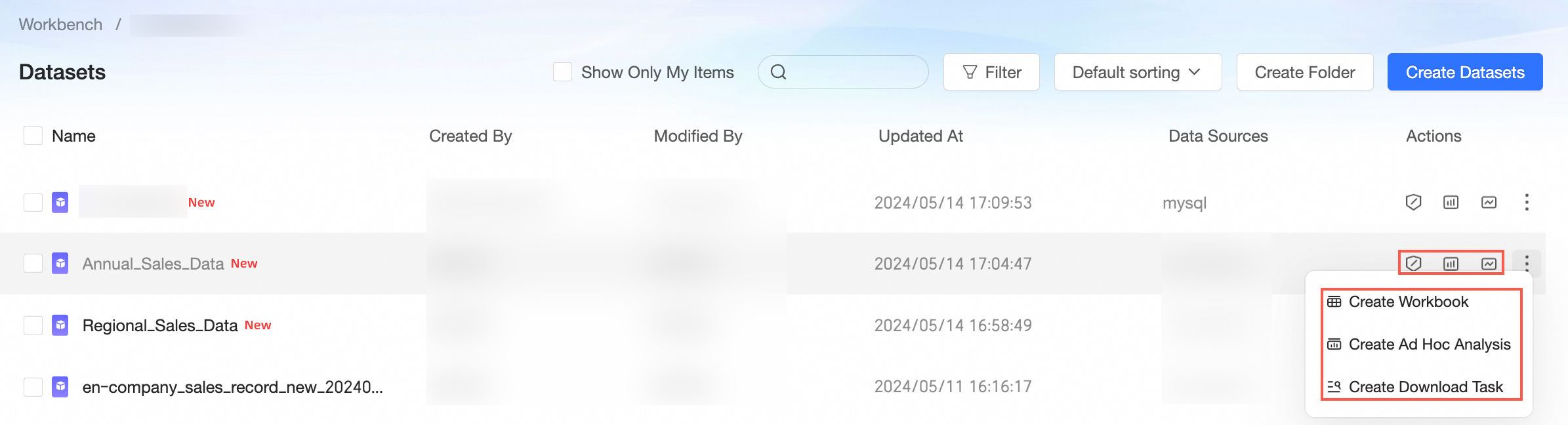
Log on to the Quick BI console. Access the collaborative authorization settings for a dataset from one of the following entry points:
-
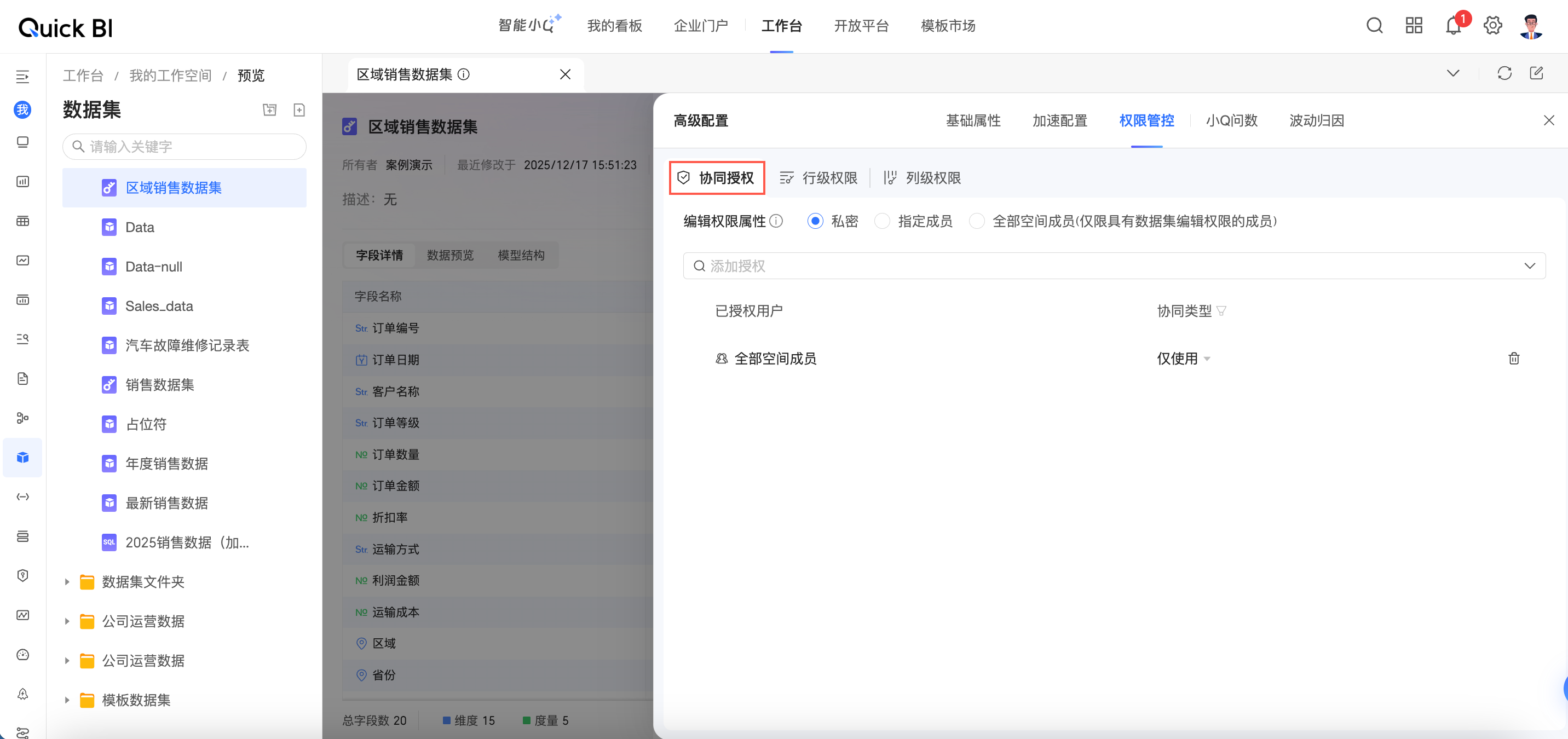
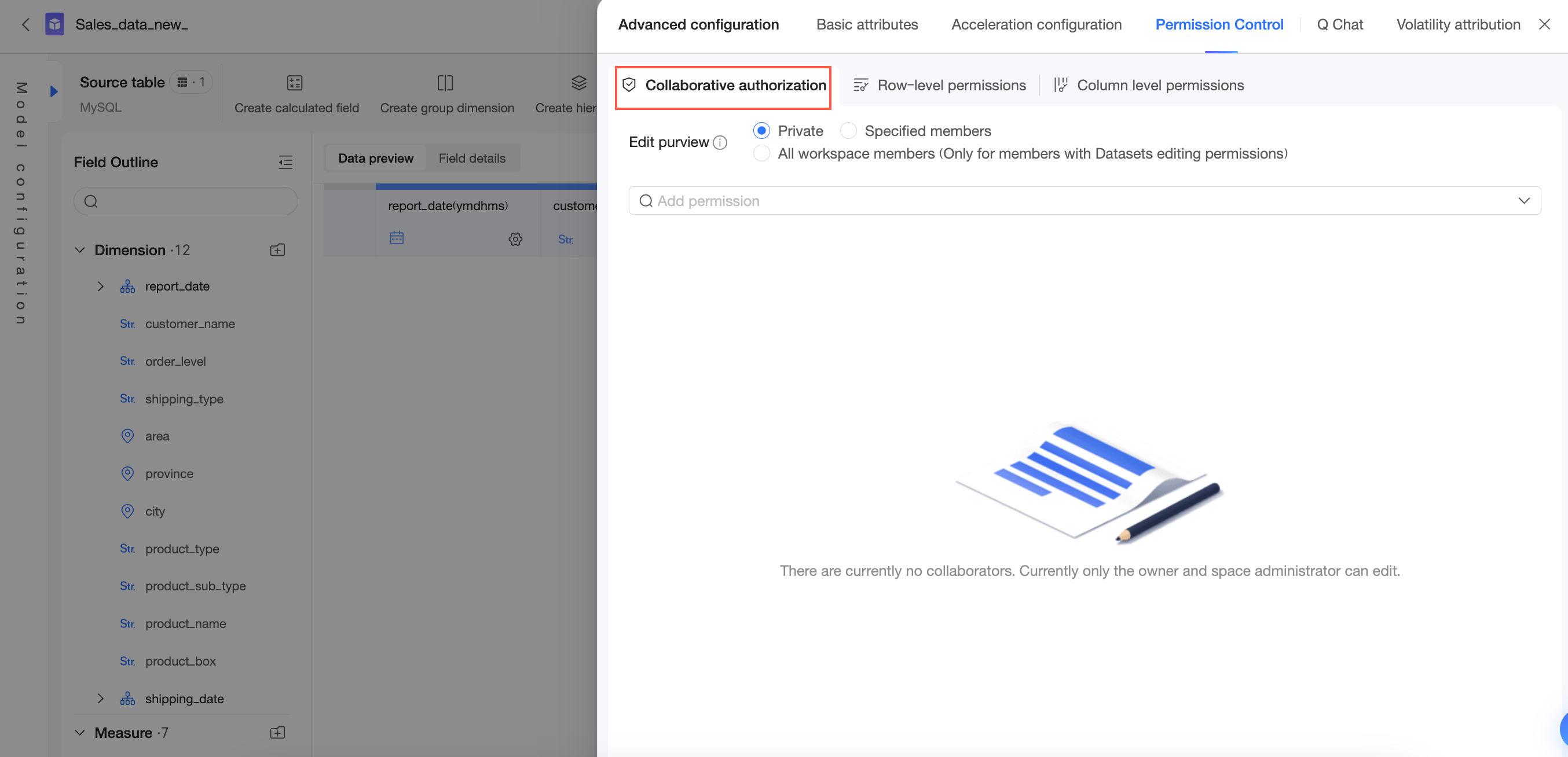
Entry 1: On the dataset list page of a workspace.

-
Entry 2: On the dataset preview page.
-
Entry 3: In the advanced settings section of the dataset edit page.

Grant edit permission
When a dataset is set to Private, only the resource owner and workspace administrators have edit permission. To grant edit permission to other members, you must change the setting to specified members.
-
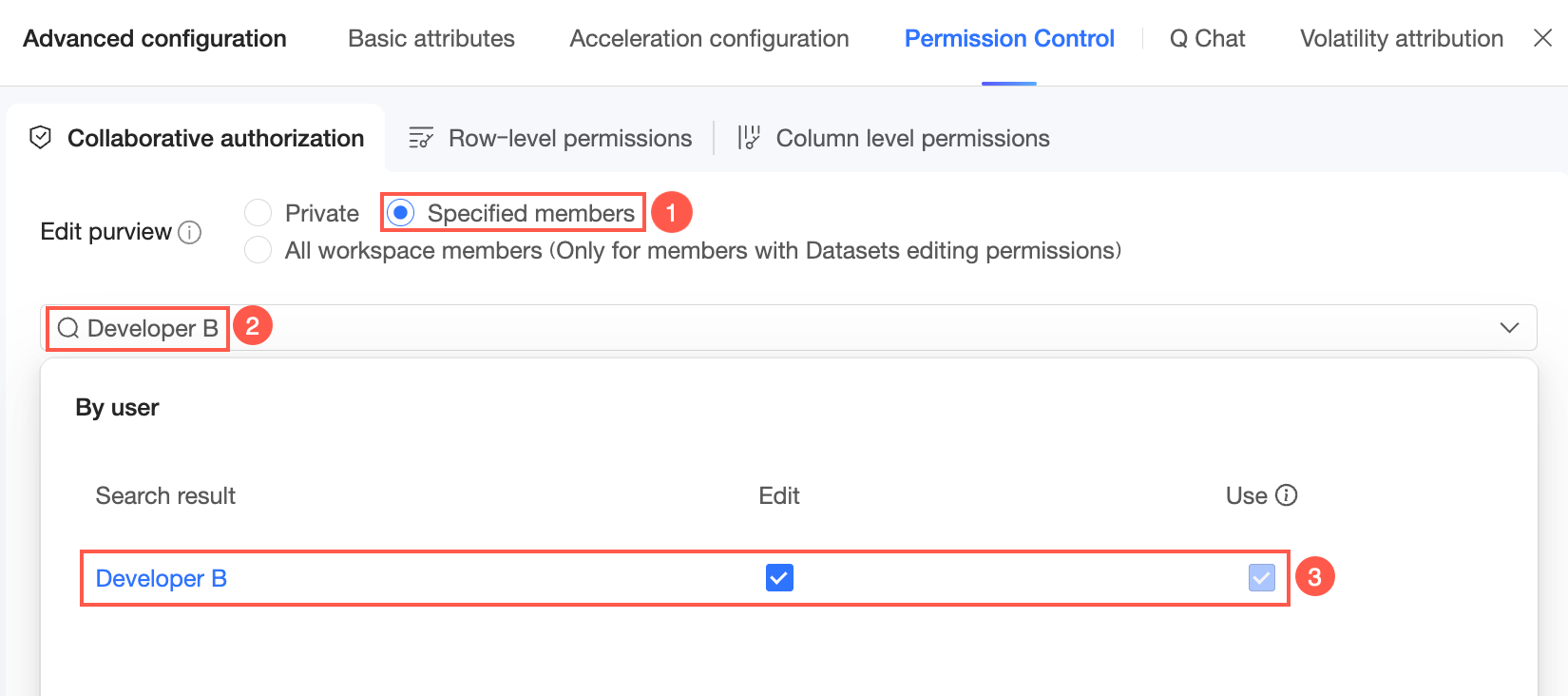
When you select specified members, you can grant edit permission to specific members in the workspace.
-
When you select All workspace members (only for members with dataset edit permissions), all eligible members in the workspace can edit the dataset.
-
On the collaborative authorization page, grant the permission.
The following figure shows an example of selecting specified members to grant edit permission to Developer B.
-
Developer B can then log on to the Quick BI console, access the dataset, and edit it.
Grant use permission
You can grant use permission to users or user groups within your organization who have the Use Dataset functional permission.
-
Workspace members: You can grant use permission to members whose associated workspace role supports this action.
-
Organization members: You can grant use permission to members whose associated organization role supports this action.
-
User groups: You can grant use permission to any user group in the organization.
Authorized operations
Once permission is granted, the available operations depend on whether the user is in the same workspace as the dataset:
-
Members of the same workspace: Can create resources such as dashboards and workbooks based on the dataset.
-
Members of other workspaces: Can perform exploratory analysis based on the dataset.
In the authorization targets section of the collaborative authorization page, switch between the By user and By user group tabs.
-
By user: Select individual members and grant them Use permission.
-
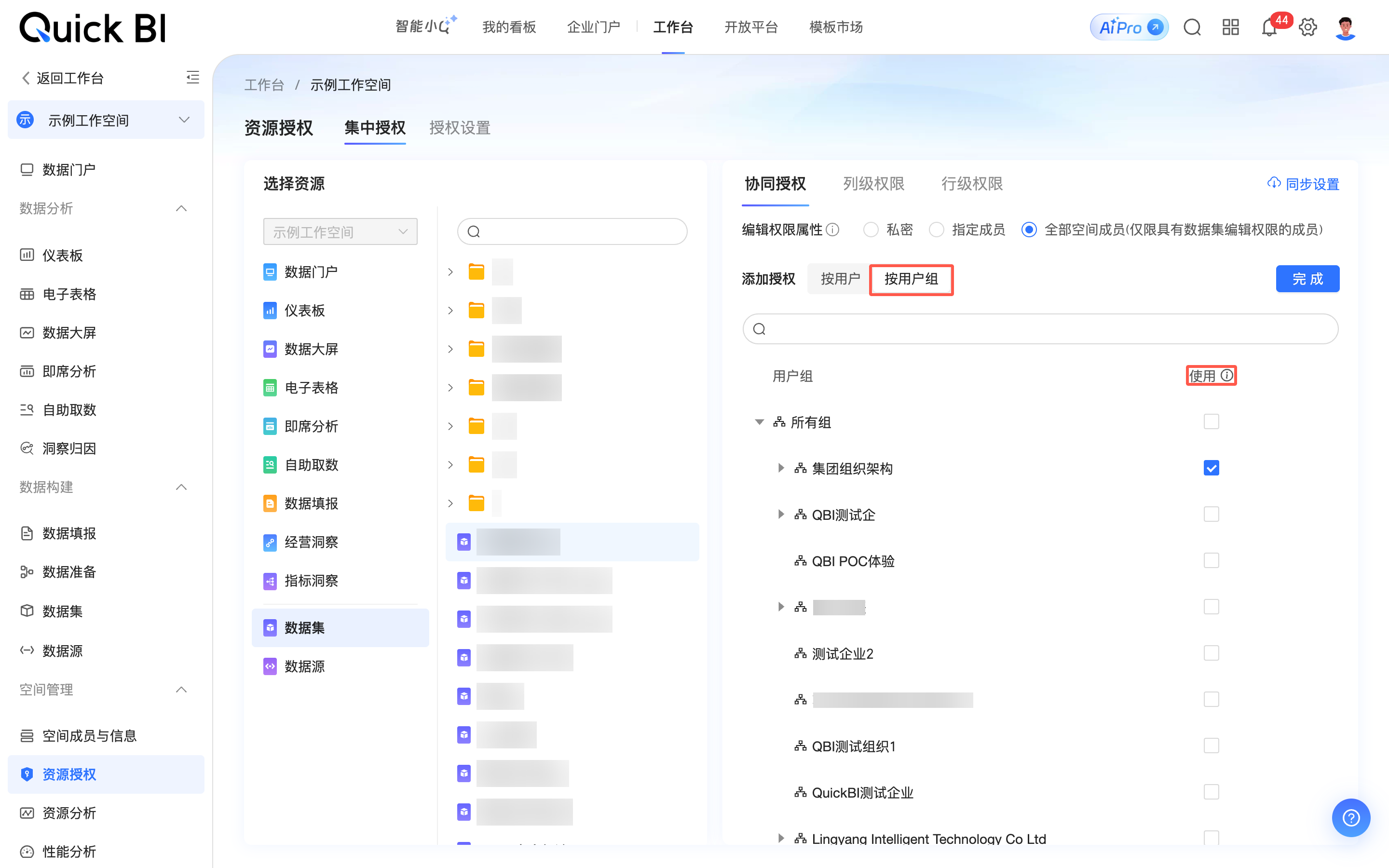
By user group: Expand the organizational structure to find and select the target user group, then grant it Use permission. After authorization, all members of the group then inherit this permission. You do not need to reauthorize individual members if the group's membership changes.
When you grant permission to a user group, it applies only to members whose organization or workspace role includes the Use Dataset permission. Other members in the group without this prerequisite role cannot use the dataset. To enable access for them, you must first assign them a role that includes the Use Dataset permission. For more information about role configuration, see role management.
-
On the collaborative authorization page, grant the permission.
The following figure shows an example of granting use permission to a target user group.
-
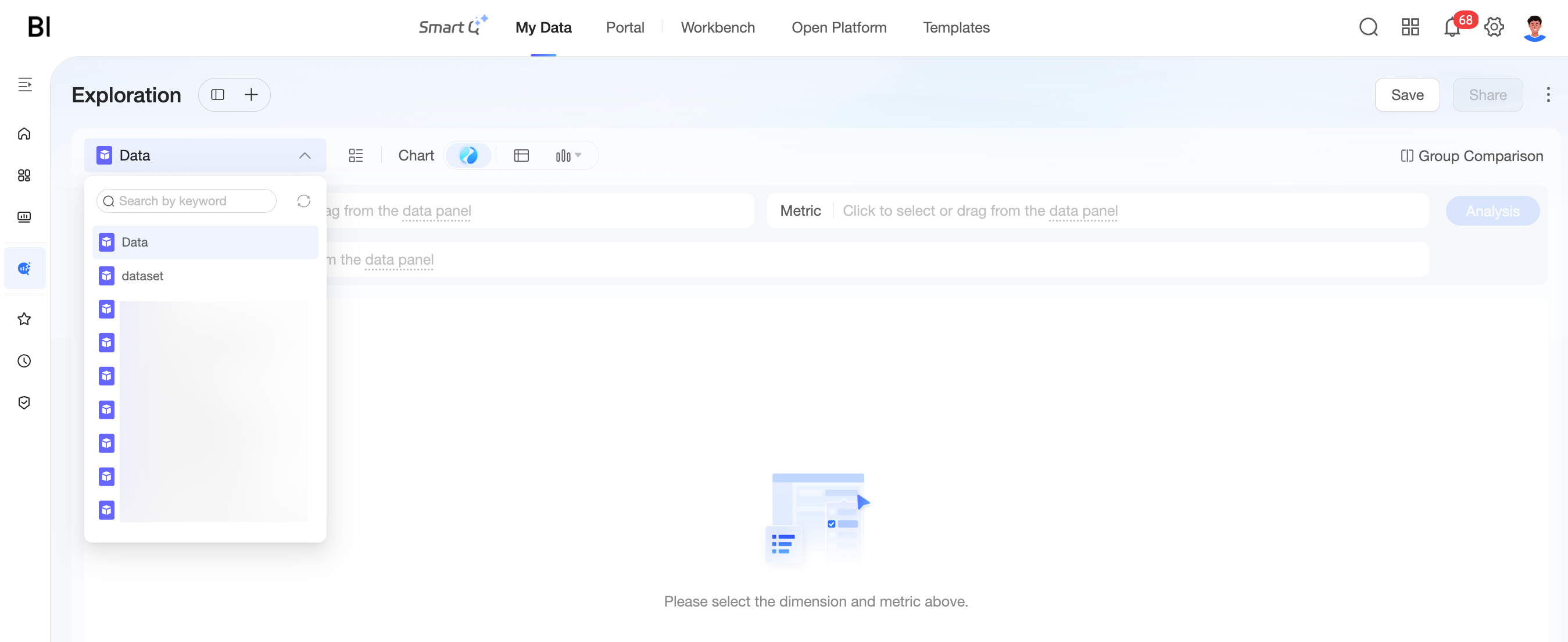
Members of the group can then log on to the Quick BI console, access the dataset, and create resources like dashboards, workbooks, and ad hoc queries.
Group members can also use the dataset for exploratory analysis.
NoteThe exploratory analysis feature is currently in invitation-only beta.
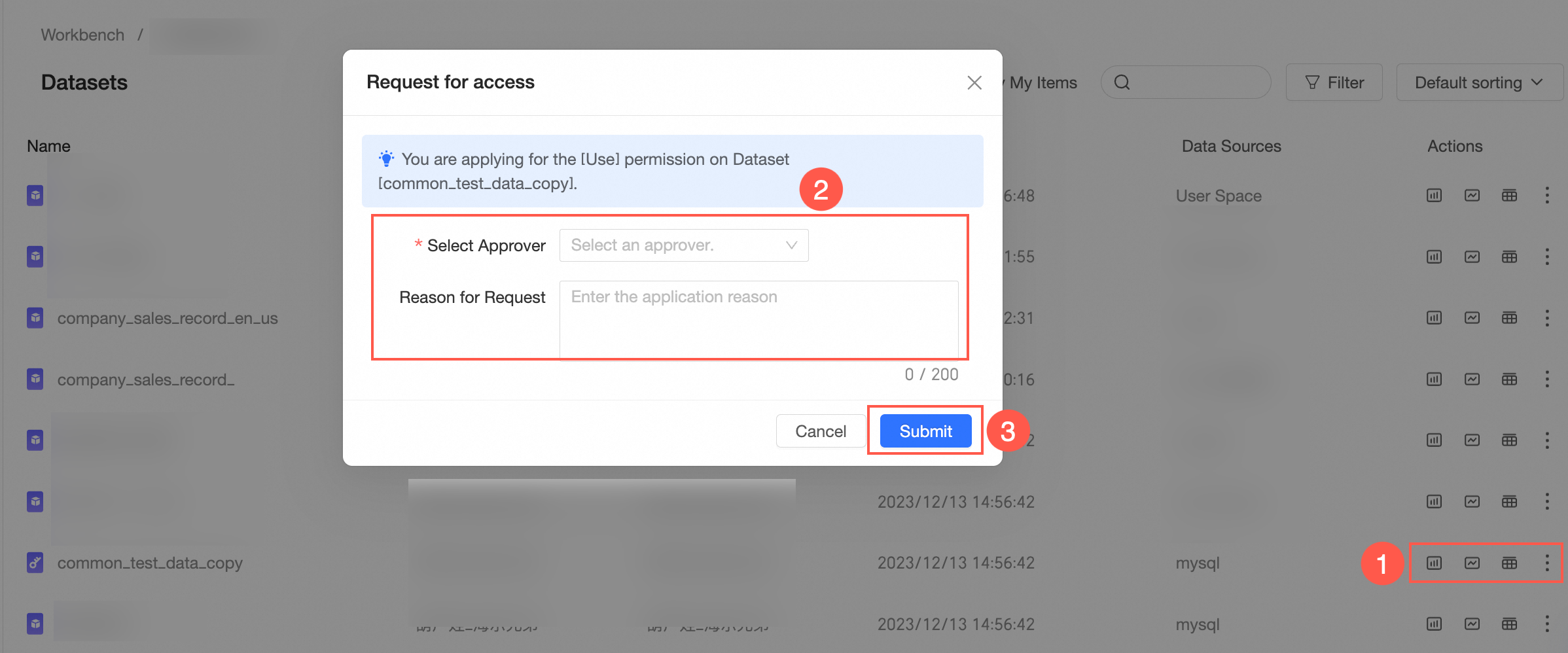
Request use permission
If you need to access a dataset but do not have permission, you can request it as shown in the following figure.