Grant users the permissions on forms
You can grant collaborative permissions on forms, including Edit, Manage Own Data, Manage All Data, and Submit Data.
Background information
Resource permissions include Edit, Manage Own Data, Manage All Data, and Submit Data:
-
Edit: allows you to edit data forms and manage and submit data.
Permission Attributes
Management Permissions
Development permissions
Analyze permissions
View permissions
Private


Specified Members

All workspace members (only members with the data forms editing permission)
-
If you set Edit Permission to Private, only users with administrative permissions can edit the resource.
-
If you set Edit Permission to Specified Members, only users with management permissions and authorized developers can edit the resource.
-
If you set Editing Permission to All Workspace Members (Only Members with the Edit permission on a Form), only users with the Manage permission and all developers can edit the resource.
Note indicates supported. indicates not supported. -
-
Manage Data: allows you to manage only your own data.
-
Manage All Data: allows you to manage all data in the form.
-
Submit Data: allows you to submit data only.
All organization members can be granted the manage their own data, manage all data, and submit data permissions. By default, organization administrators, permission administrators, workspace administrators, or resource owners have these permissions.
Entry
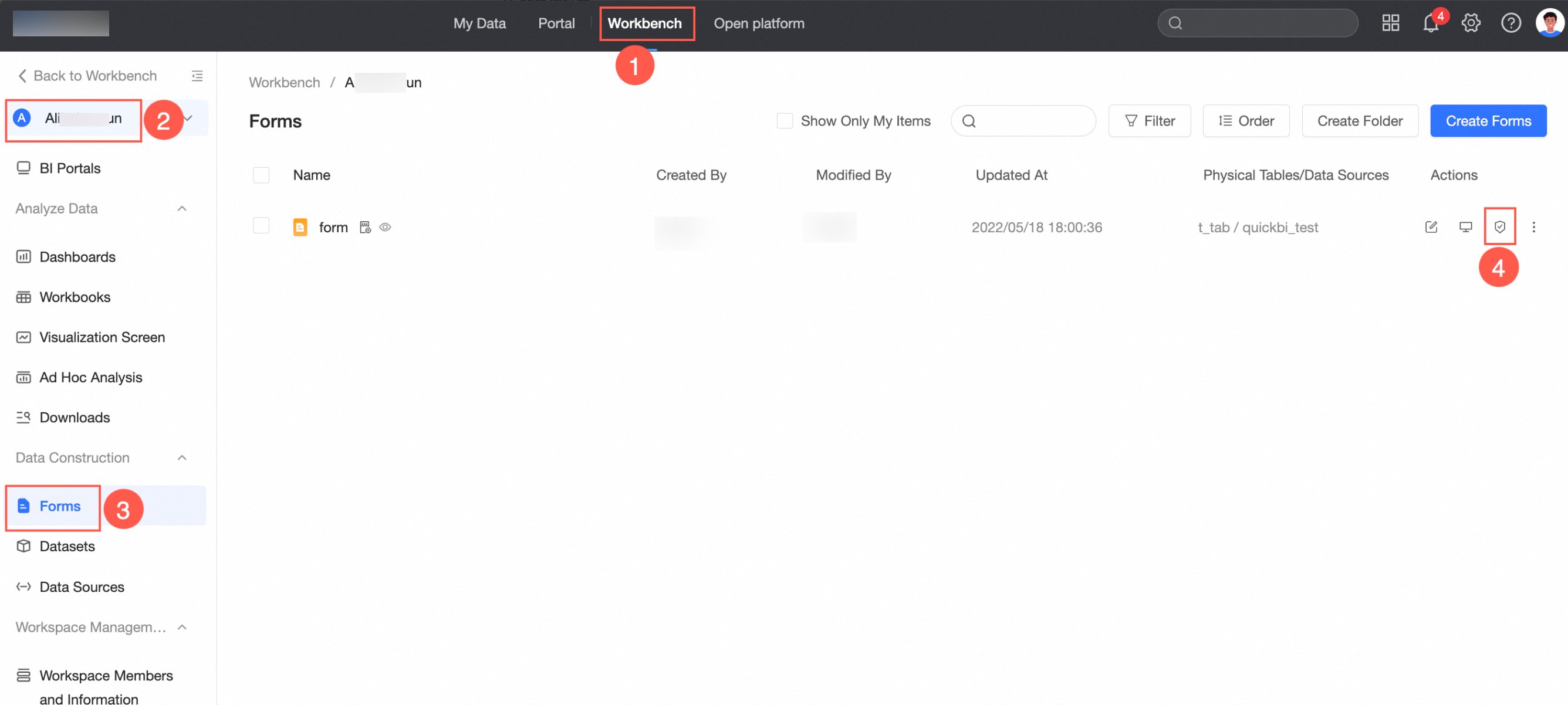
Log on to the Quick BI控制台Quick BI控制台 and configure collaborative authorization for the specified report resources in the workspace.
Grant a user the permissions to edit a specified form
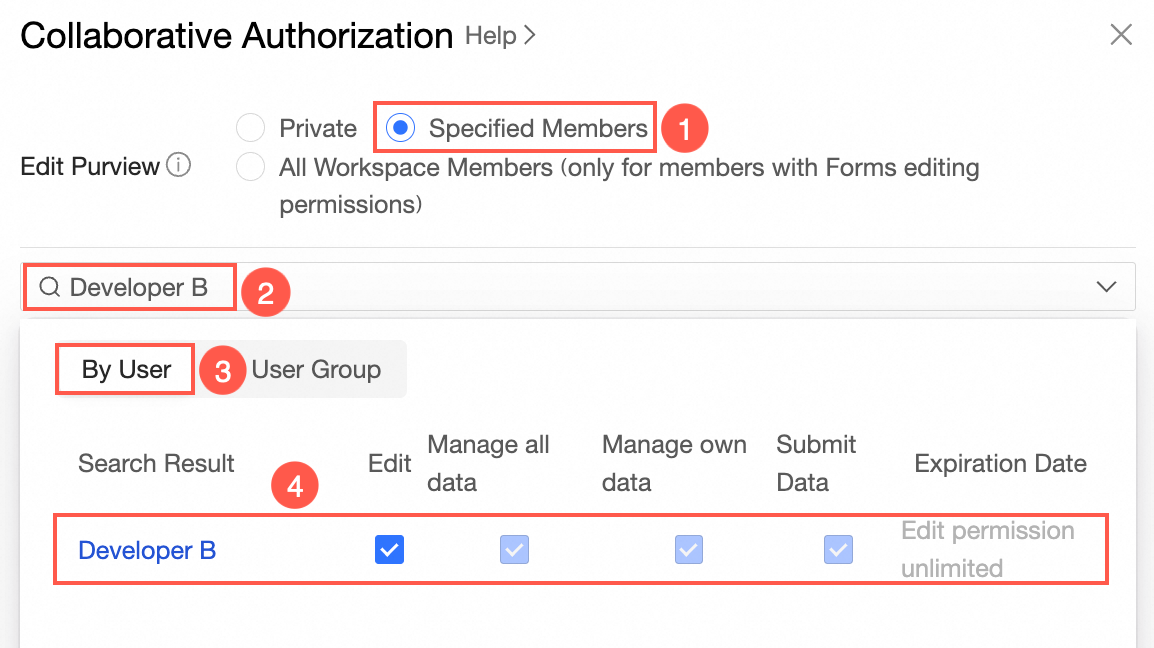
Workspace developers can edit data forms only when Editing Permission is set to Specified Members or All workspace members (only members with the Edit permission on specific forms).
A user with the Edit permission on a form can edit it upon access.
-
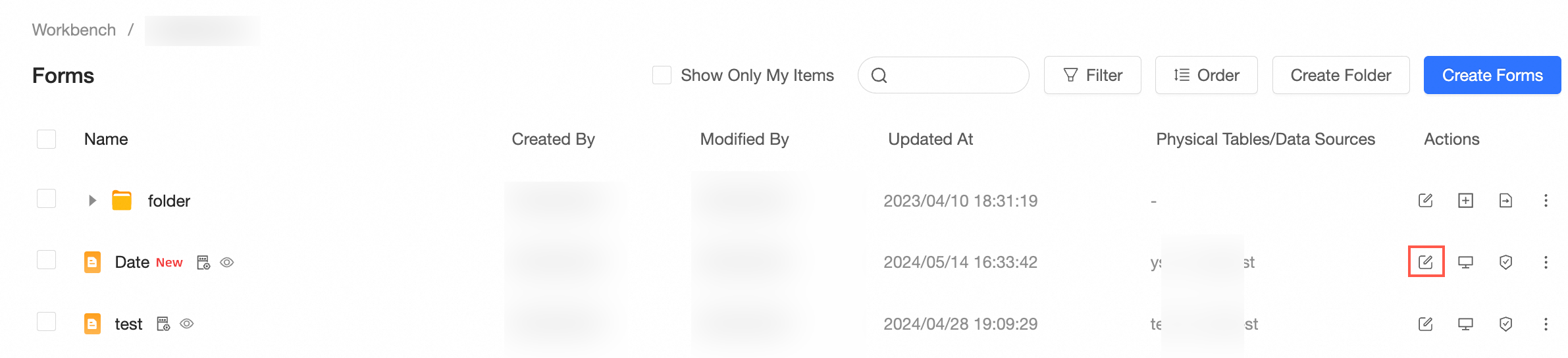
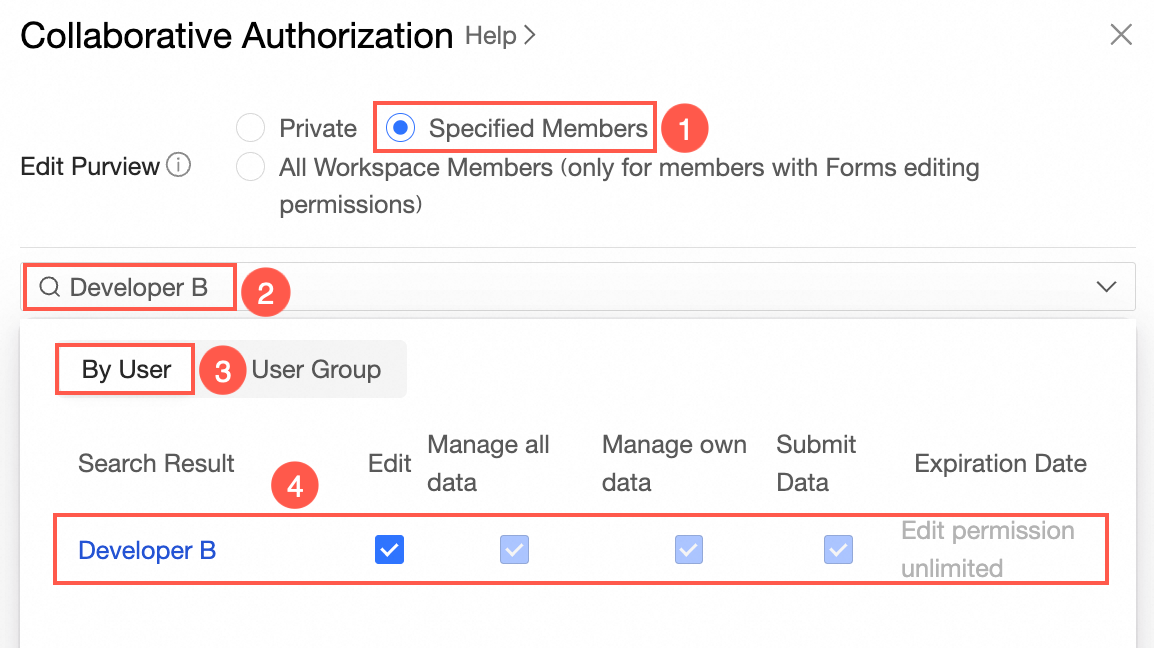
On the Forms page, find the form that you want to manage and click Collaborative Authorization in the Actions column. In the Collaborative Authorization panel, configure Editing Permission and grant the permissions.
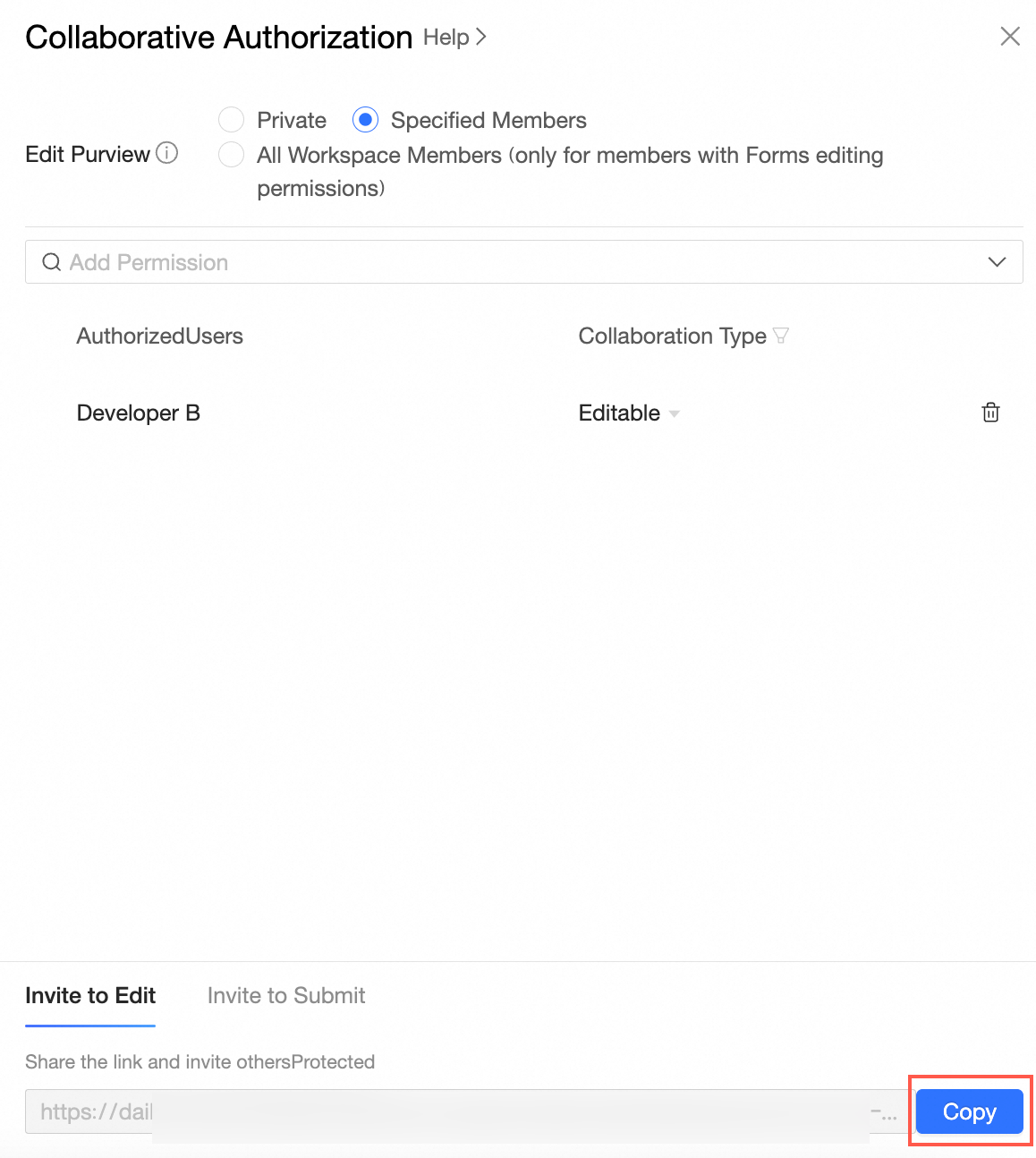
The following figure shows that Specified Members is selected for Editing Permission and Developer B is granted the Edit permission.
-
On the Invite to Edit tab, click Copy to copy the URL and send it to the user that is granted the Edit permission.
Grant permissions to manage your own data
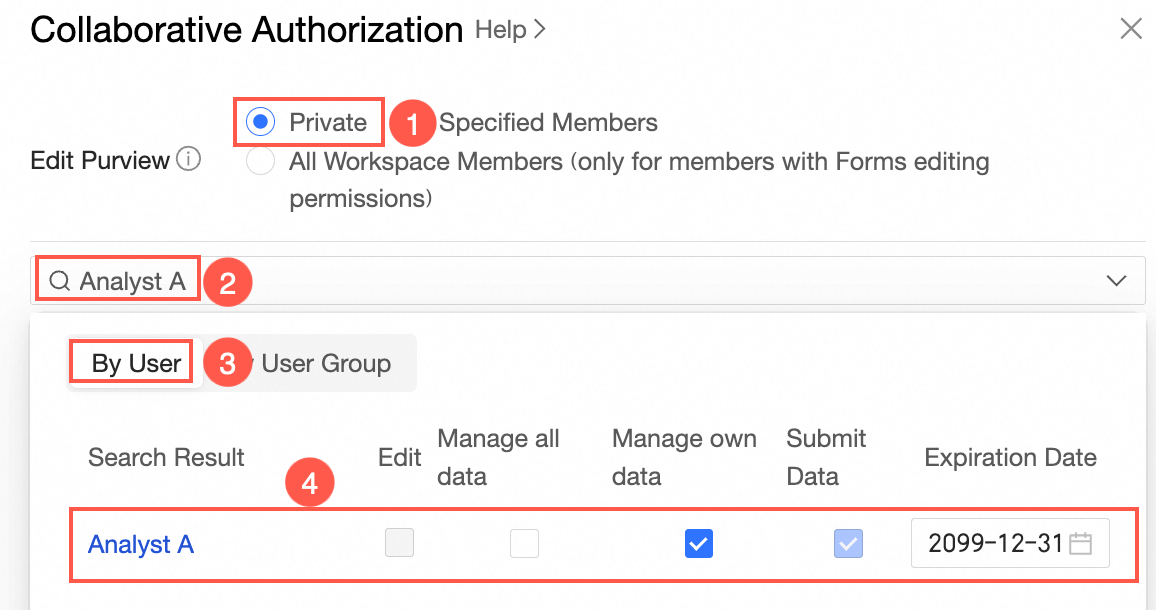
When the editing permission is set to Private, you can grant analysts the permissions to submit and manage their own data.
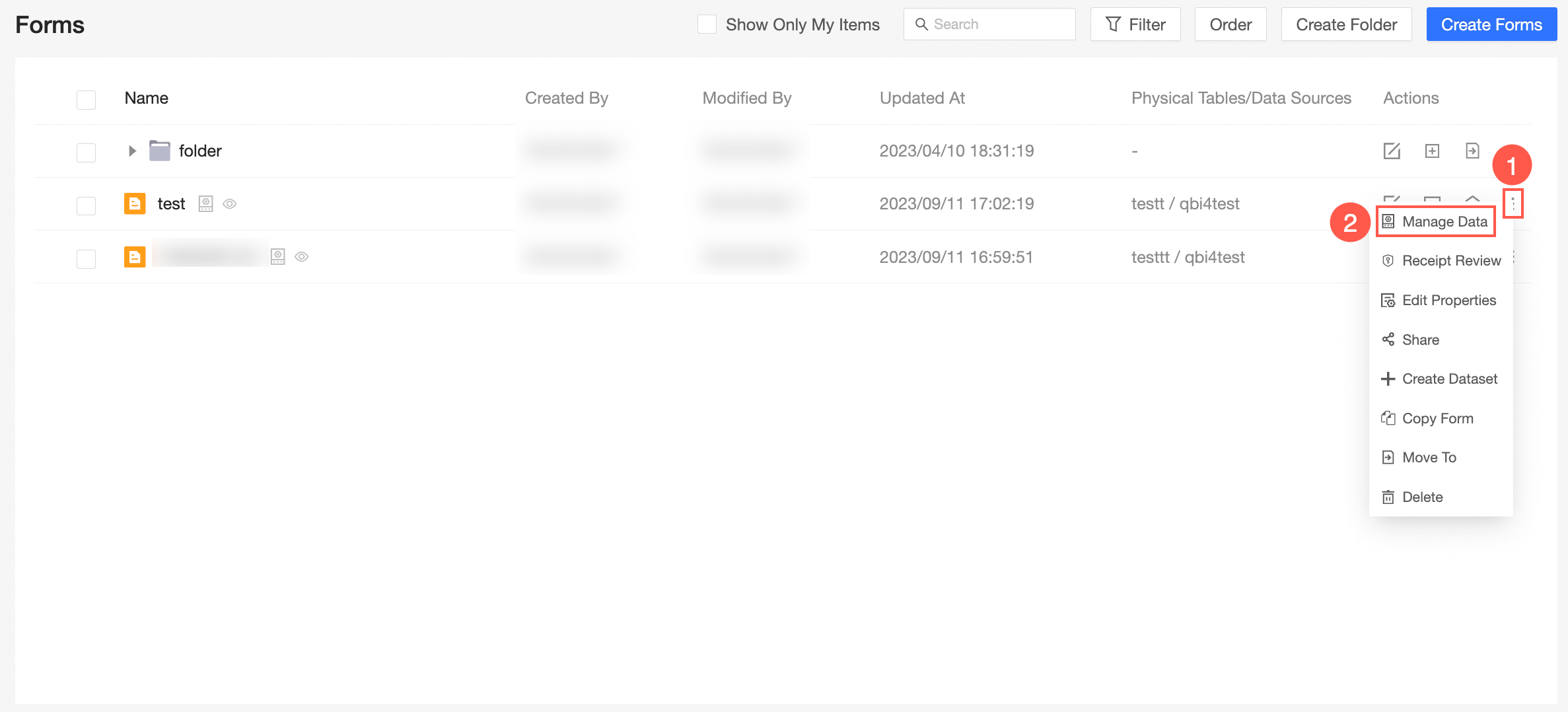
After you grant the Manage Data permission on a form, the user can submit and manage submitted data upon accessing the resource.
-
On the Forms page, find the form that you want to manage and click Collaborative Authorization in the Actions column. In the Collaborative Authorization panel, configure Editing Permission and grant the permissions.
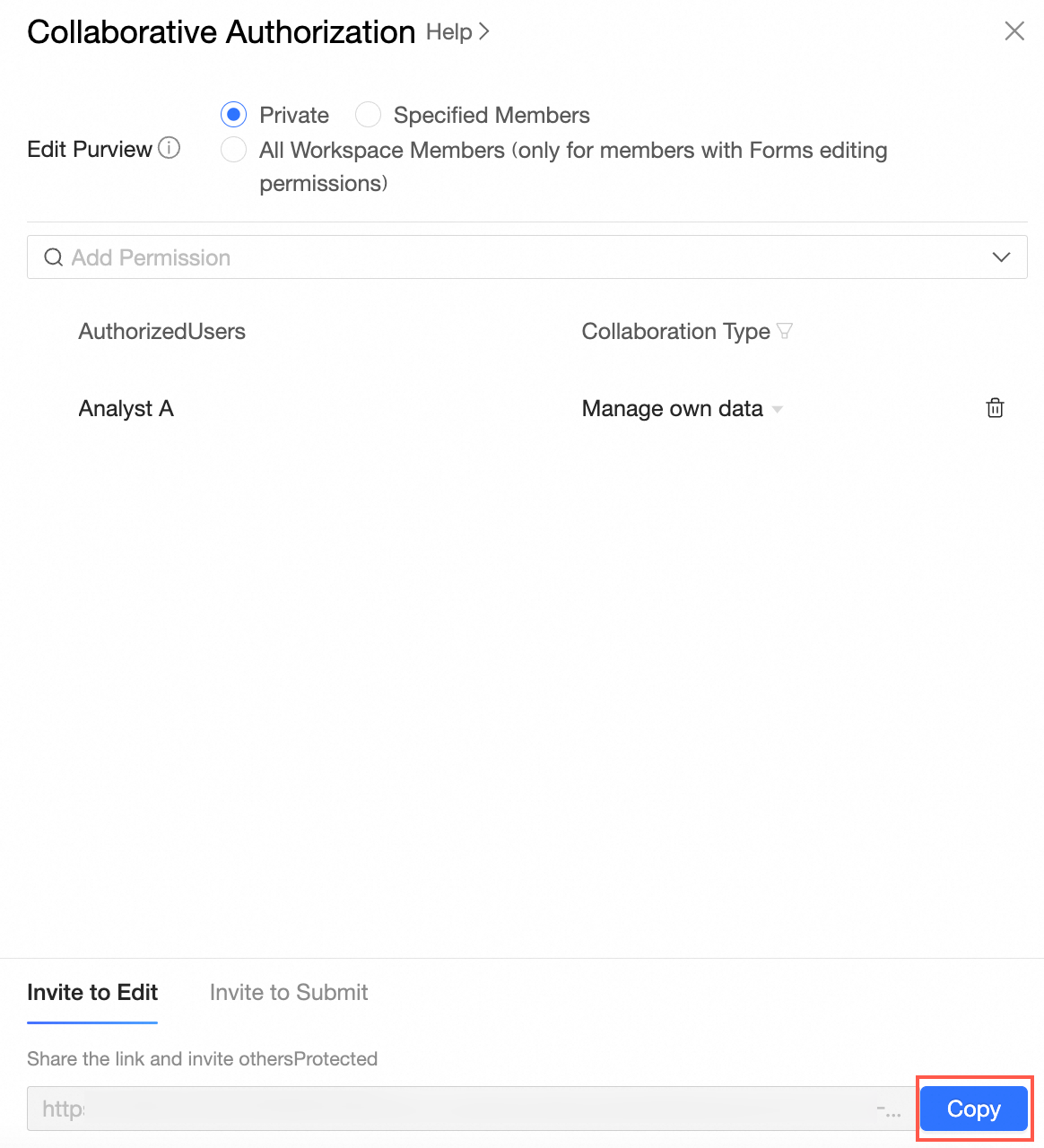
The following figure shows that the Editing Permission parameter is set to Private. Analyst A is granted the Manage Data permission and the Submit Data permission is selected by default.
-
On the Invite to View tab, click Copy to copy the URL and send it to the user that is granted the Submit and Manage Data permission.
Grant permissions to manage all data
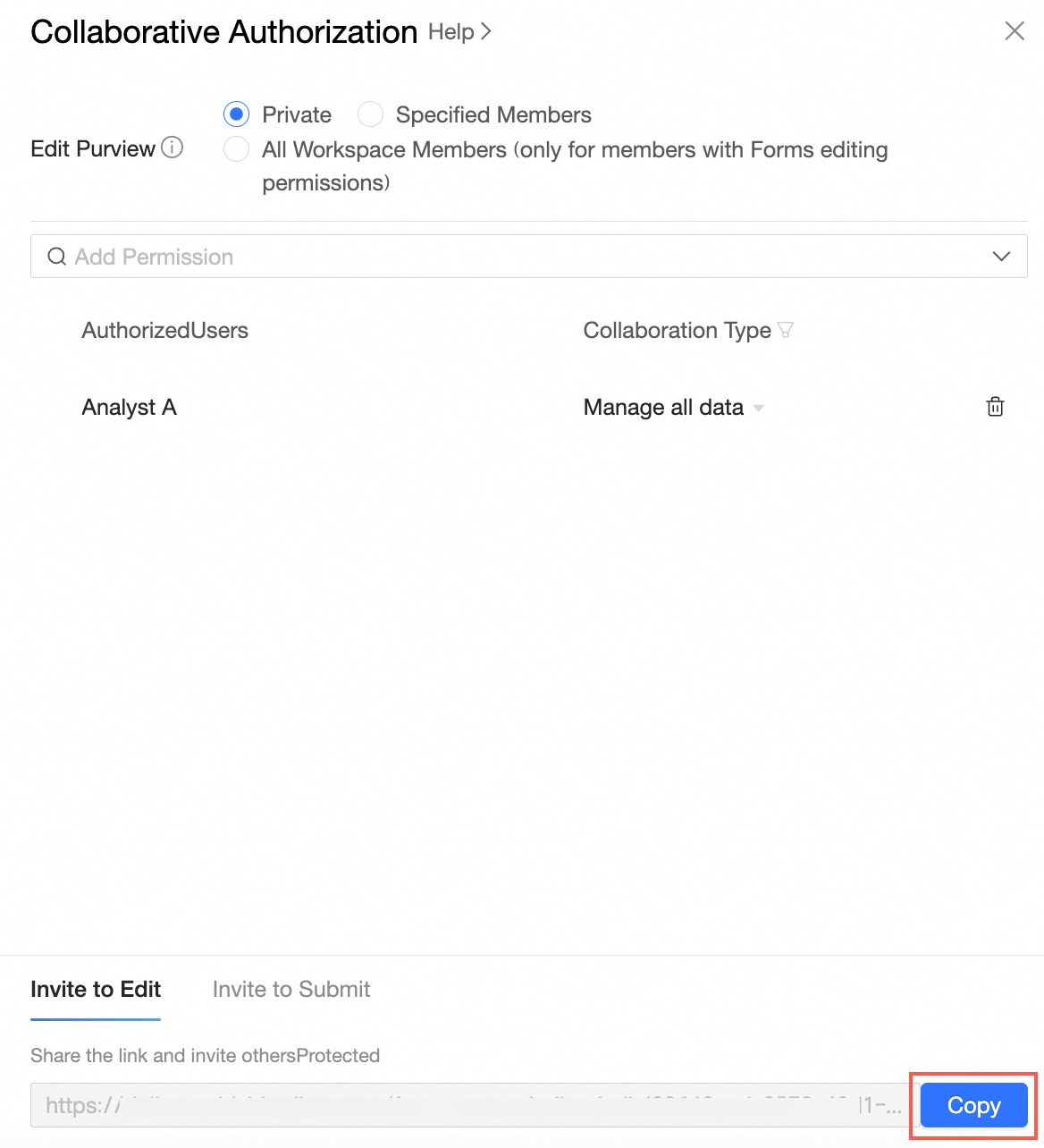
When the editing permission is set to Private, you can grant analysts the permissions to manage all data.
After the Manage All Data permission is granted, the user can submit and manage all data in the form upon accessing the resource.
-
On the Forms page, find the form that you want to manage and click Collaborative Authorization in the Actions column. In the Collaborative Authorization panel, configure Editing Permission and grant the permissions.
The following figure shows that the Edit Permission parameter is set to Private. Analyst A is granted the Manage All Data permission. Analyst A is also granted the Manage Own Data and Submit Data permissions by default.
-
On the Invite to View tab, click Copy to copy the URL and send it to the user that is granted the Submit and Manage Data permission.