Manage workspace members
Add, modify, search for, or remove workspace members to control access and role assignments.
Access workspace management
Log on to the Quick BI console.
-
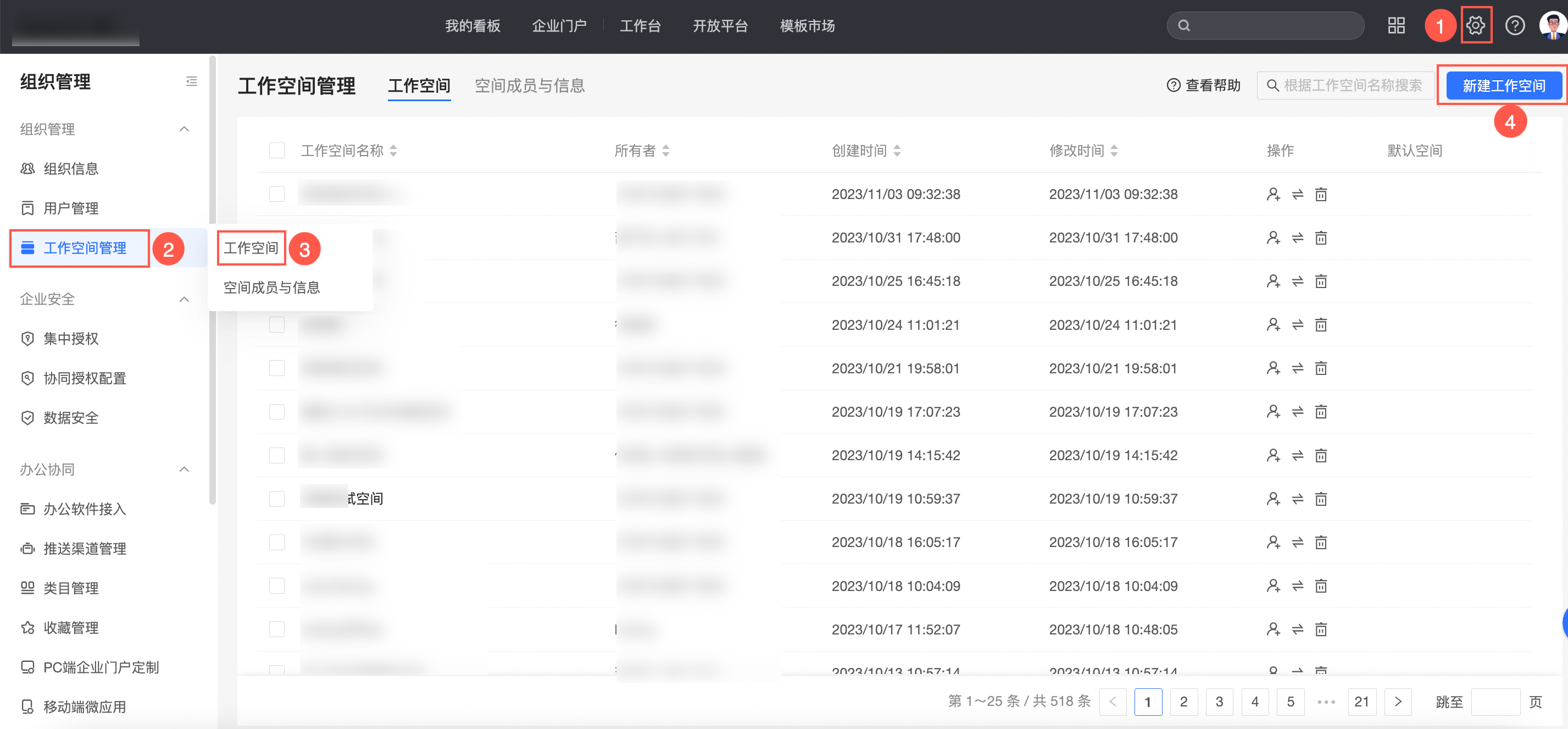
From the Quick BI homepage, go to the workspace management page.
Add workspace members
Only users with developer or analyst accounts can be added as workspace members. Visitor accounts cannot be added to a workspace.
-
Select a workspace. On the Members tab, click Add Members.

-
Select a user or user group and assign a workspace role.
You can add users and user groups as members.
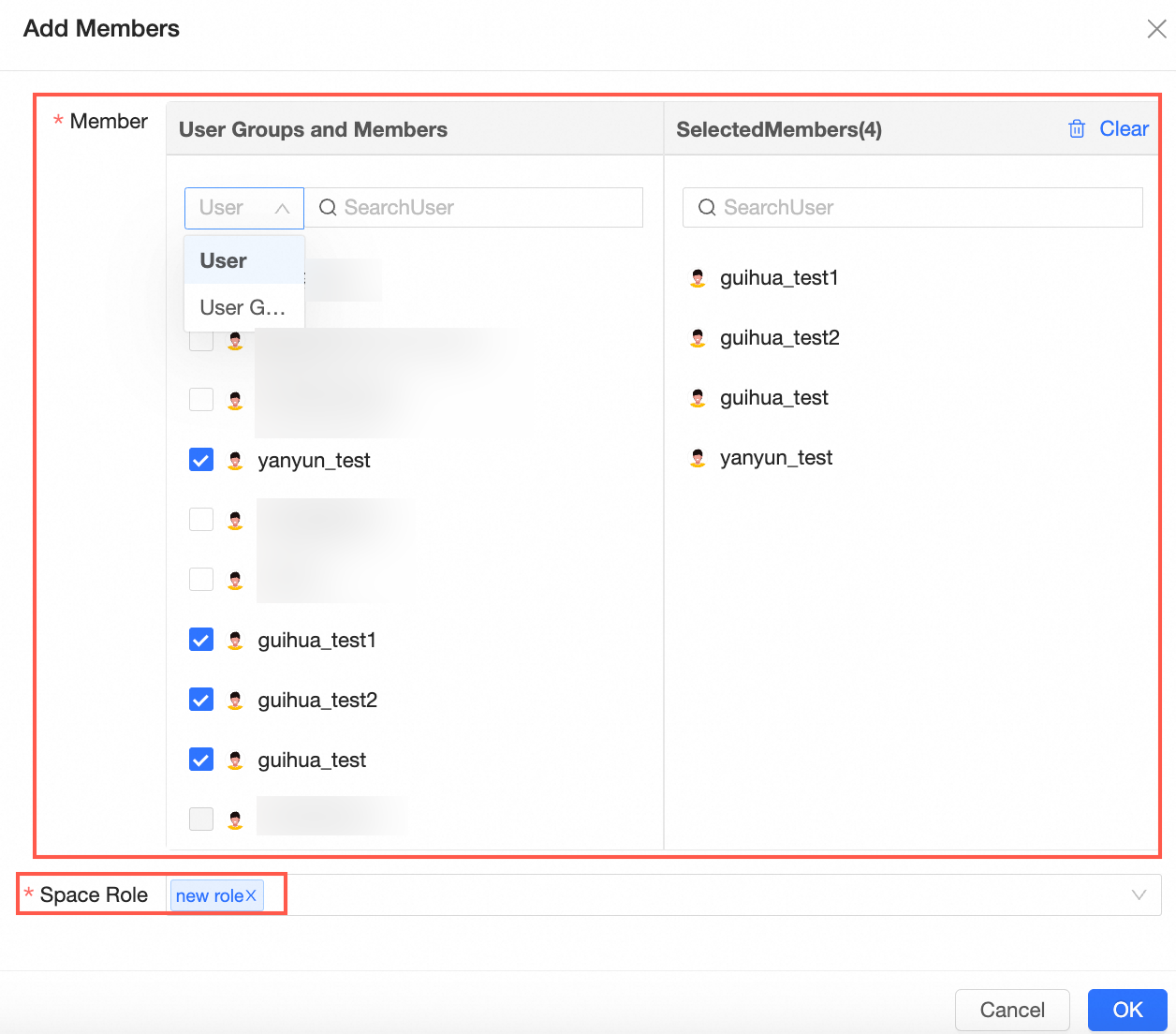
Quick BI provides four predefined workspace roles. You can also add custom workspace roles.
-
workspace administrator: Has the highest permissions in the workspace. Can create, edit, use, and view all modules, and manage other members and their assets.
-
workspace developer: Can create, edit, use, and view all modules.
-
workspace analyst: Can create, edit, and view modules such as Data Portal, dashboards, large screen displays, spreadsheets, ad hoc queries, self-service data retrieval, and data preparation. This role can view data entry and data sources, and use and view datasets.
-
workspace viewer: Can only view all modules.
-
custom workspace role: Create custom roles to match your business requirements. For more information, see Role Management.
-
-
Click OK to add the workspace member.
Change member permissions
You can change the permissions for any member except the workspace owner.
-
From the Quick BI homepage, go to the workspace management page.
-
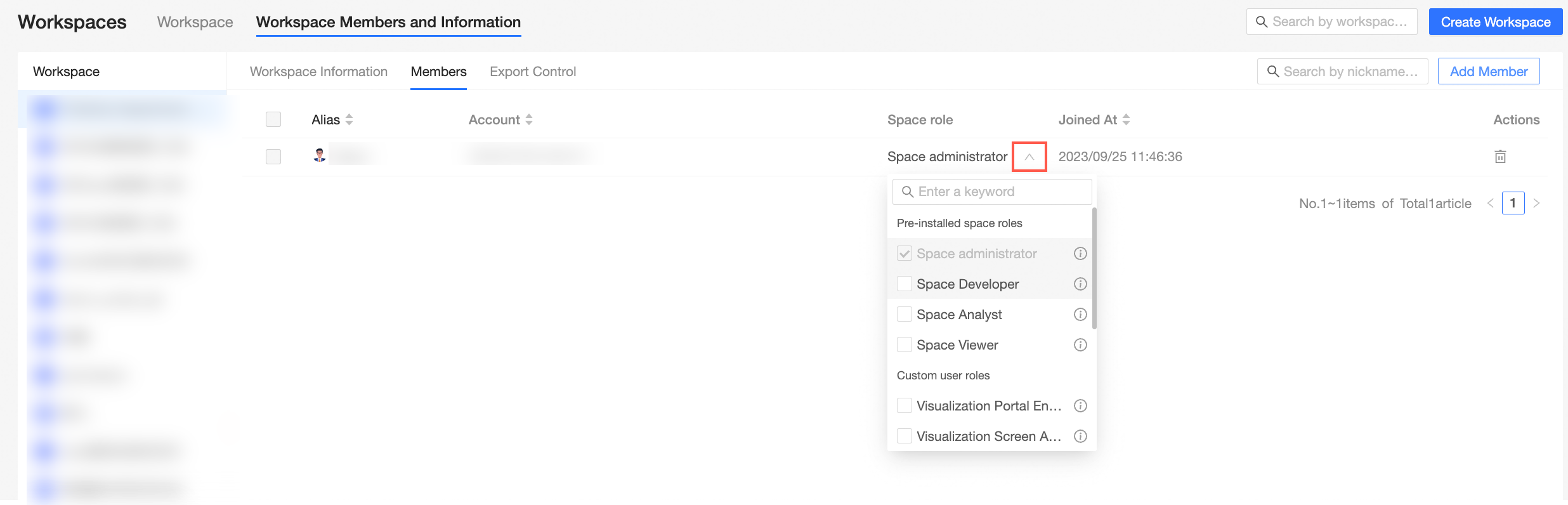
Click the Members tab, find the member, and change their role in the Workspace Role column.
 Note
NoteA user with the analyst organization role can only be assigned the workspace analyst or workspace viewer role.
A user with the developer organization role can be assigned the workspace administrator or workspace developer role.
Search for workspace members
-
From the Quick BI homepage, go to the workspace management page.

-
Click the Members tab. In the search box on the right, enter the member's nickname or account name.
-
Click the
icon to start the search.

 icon to start the search.
Remove workspace members
-
From the Quick BI homepage, go to the workspace management page.
-
Click the Members tab, find the member, and click the Delete icon in the Actions column.
-
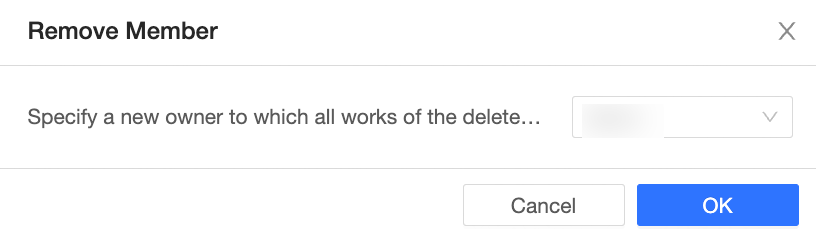
In the Remove Member dialog box, specify a new owner and click OK.