This topic describes how to configure placeholders and task runs in Data Preparation.
Prerequisites
You have processed and exported your data. For more information, see Output data.
Placeholder management
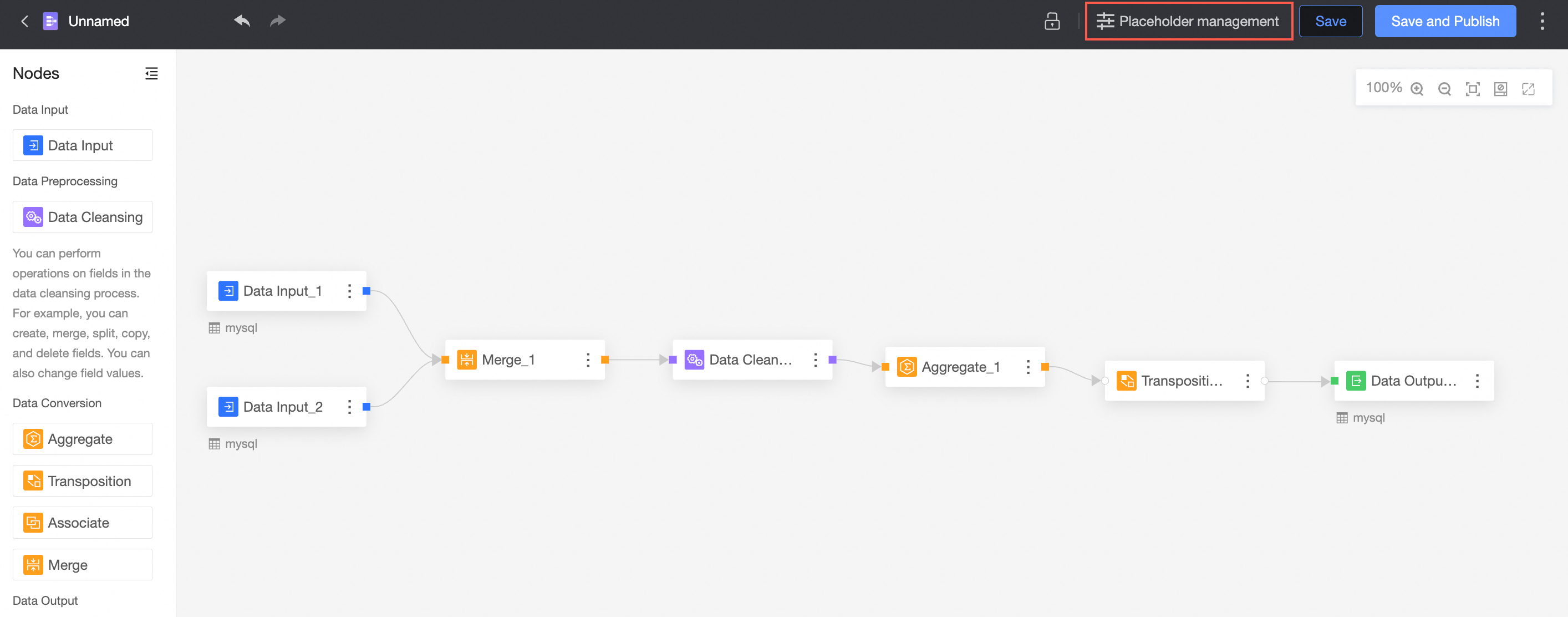
Placeholder management lets you configure placeholders for input and output components in Data Preparation (lightweight ETL). You can configure static and dynamic placeholders to run tasks on a dynamic schedule. To configure placeholders, click the  icon in the main toolbar.
In the placeholder management dialog box, enter a variable name and a default query value.
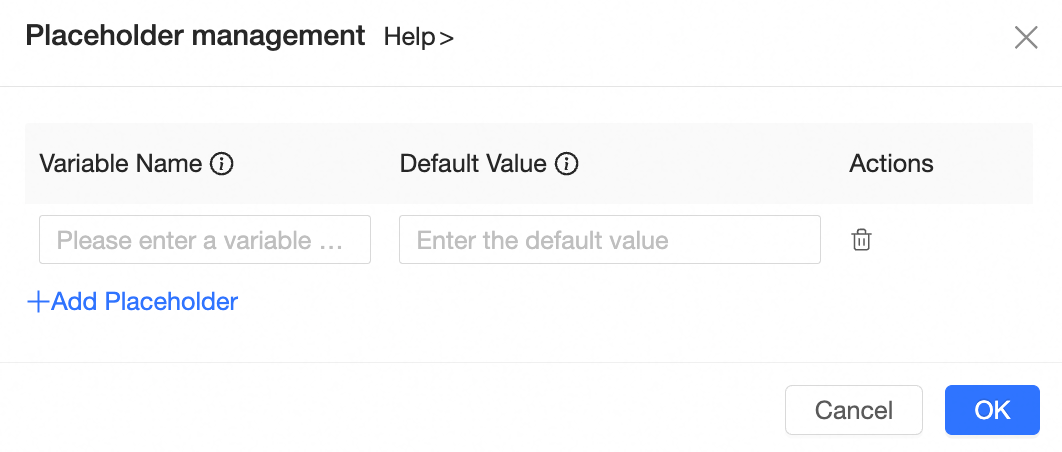
Placeholders come in two types: static placeholders and dynamic placeholders. You can reference them in the filter conditions of input components and the partition settings of output components.
Placeholder format
A placeholder uses the format
KeyA = ValueA, whereKeyAis the variable name andValueAis the value.Two placeholder formats are supported:
Fixed value format, for example:
user=mynameDynamic value format, for example:
mydate=${bizdate}
Dynamic placeholders
The value of a dynamic placeholder changes based on the run time, allowing you to run tasks on a dynamic schedule. A dynamic placeholder consists of two parts: a base date placeholder and a time offset.
Date-based dynamic placeholders: You can use the business date or the execution date.
{yyyyMMdd}represents the business date, which is the day before the current data update date (T-1).[yyyyMMdd]represents the execution date, which is the current data update date (T). The granularity is daily.
Hour offset: You can apply hour-based offsets.
HHrepresents the hour.mmrepresents the minute.ssrepresents the second.Hour offset:
delta/24
For example, the expression for one hour before the specified execution time is
$[HH-1/24].Minute offset: You can apply minute-based offsets.
HHrepresents the hour.mmrepresents the minute.ssrepresents the second.Minute offset:
delta/24/60
For example, the expression for one minute before the business date is
${HHmmss-1/24/60}.Offsets in seconds are not supported.
Type | Placeholder format | Description |
system dynamic placeholder |
| The business date. The default format is For example, if the current date is 2021-12-29, |
| The execution date. The default format is For example, if the current date is 2021-12-29, then |
The following table provides examples of time-based dynamic placeholders.
Current date | Business date (T-1) | Actual value | Execution date (T) | Actual value |
2022-01-10 | ${yyyyMMdd} | 20220109 | $[yyyyMMdd] | 20220110 |
2022-01-10 | ${yyyyMMdd-1} | 20220108 | $[yyyyMMdd-1] | 20220109 |
2022-01-10 | ${yyyyMMdd-7} | 20220102 | $[yyyyMMdd-7] | 20220103 |
2022-01-10 | ${yyyy-MM-dd} | 2022-01-09 | $[yyyy-MM-dd] | 2022-01-10 |
2022-01-10 | ${yyyy-MM} | 2022-01 | $[yyyy-MM] | 2022-01 |
2022-01-10 | ${yyyy-MM-1} | 2021-12 | $[yyyy-MM-1] | 2021-12 |
2022-01-10 | ${yyyy} | 2022 | $[yyyy] | 2022 |
2022-01-10 | ${yyyy+1} | 2023 | $[yyyy+1] | 2023 |
2022-01-10 | ${yyyy/MM/dd HH:mm:ss} | 2022/01/09 00:00:00 | $[yyyy/MM/dd HH:mm:ss] | 2022/01/10 00:00:00 |
2022-01-10 | ${yyyy/MM/dd HH:mm:ss-1/24} | 2022/01/08 23:00:00 | $[HH:mm:ss-5/24/60] | 23:55:00 |
2022-01-10 | ${HH} | 00 | $[HH] | The hour of the execution time |
2022-01-10 | ${HH-1} ${HH-1/24} | 23 | $[HH-1] $[HH-1/24] | The hour of the execution time - 1 |
Task run configuration
After you create a Data Preparation task, you must run it to write data to database tables.
Go to the Data Preparation page.
On the main toolbar, click the run configuration icon.
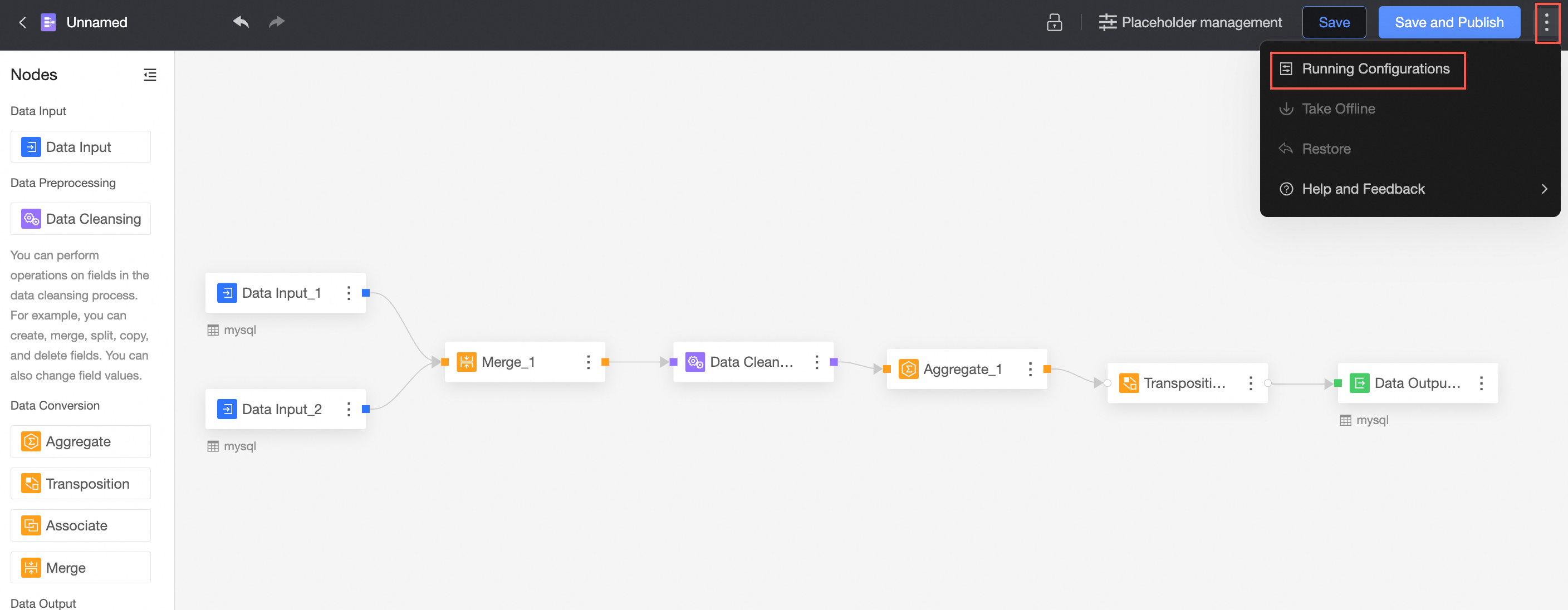
In the run configuration dialog box, configure the run type and schedule, and then click OK.
Two run types are supported: scheduled run and manual run.
If you select manual run, the task updates data only when you trigger it manually.
If you select scheduled run and configure a schedule, the task automatically updates the data on a monthly, weekly, or daily basis.
Click Save and Publish.
After completing the configuration, you can view the run status of the new task on the Data Preparation page.
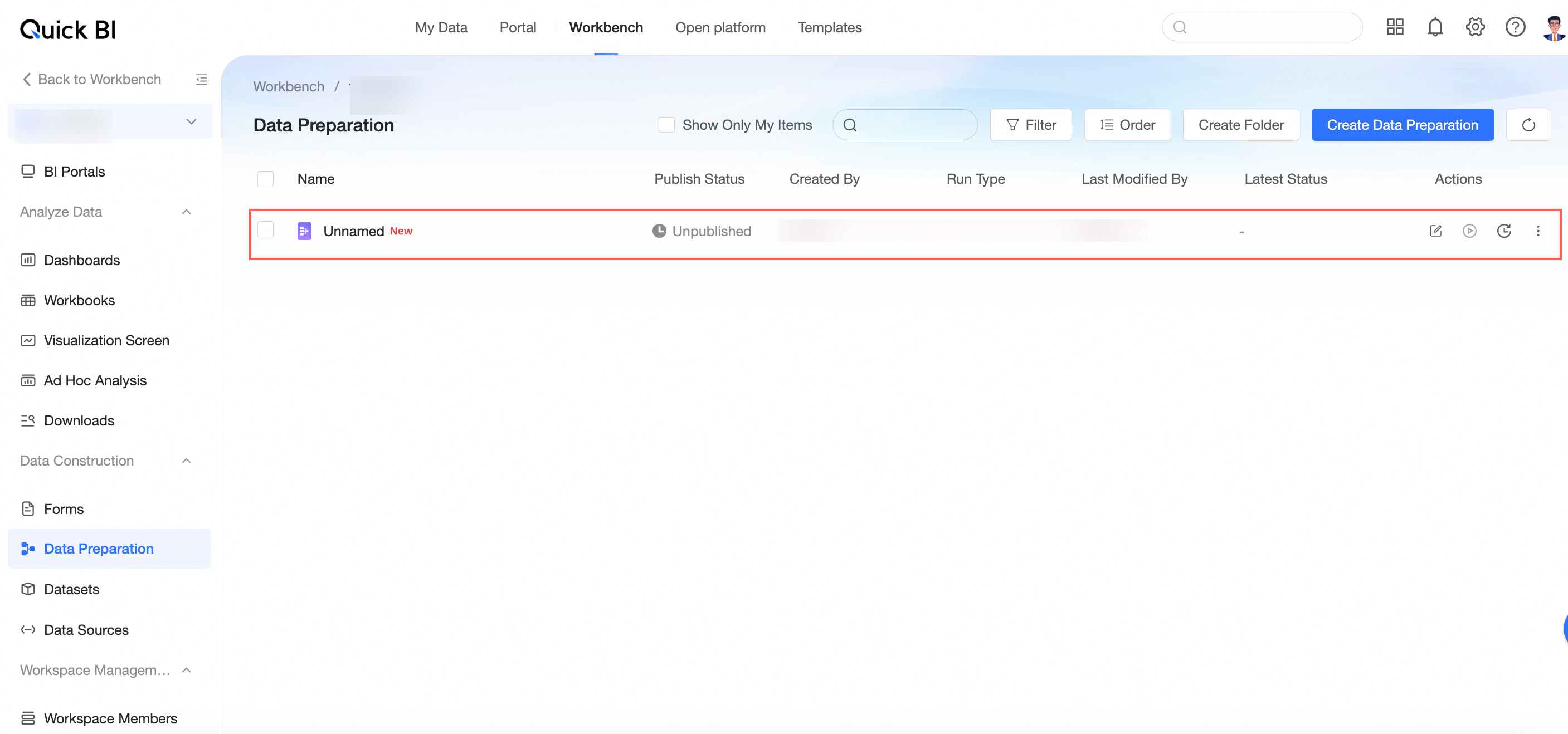
For more information, see View task run status.