Publish an Ad Hoc Analysis
After you create an ad hoc analysis, save and publish it to collaborate with other users. If an analysis is outdated or no longer needed, unpublish and delete it.
Prerequisites
You have logged on to the Quick BI console and created an ad hoc analysis. For more information, see Create an Ad Hoc Analysis.
Background information
The save and publish features for ad hoc analyses are separate. You can save an analysis without publishing it, or save and publish, unpublish, and republish it.
Save
Click the Save button (①) in the upper-right corner of the page. Edit the report name, select a save location (②), and click the OK button (③).
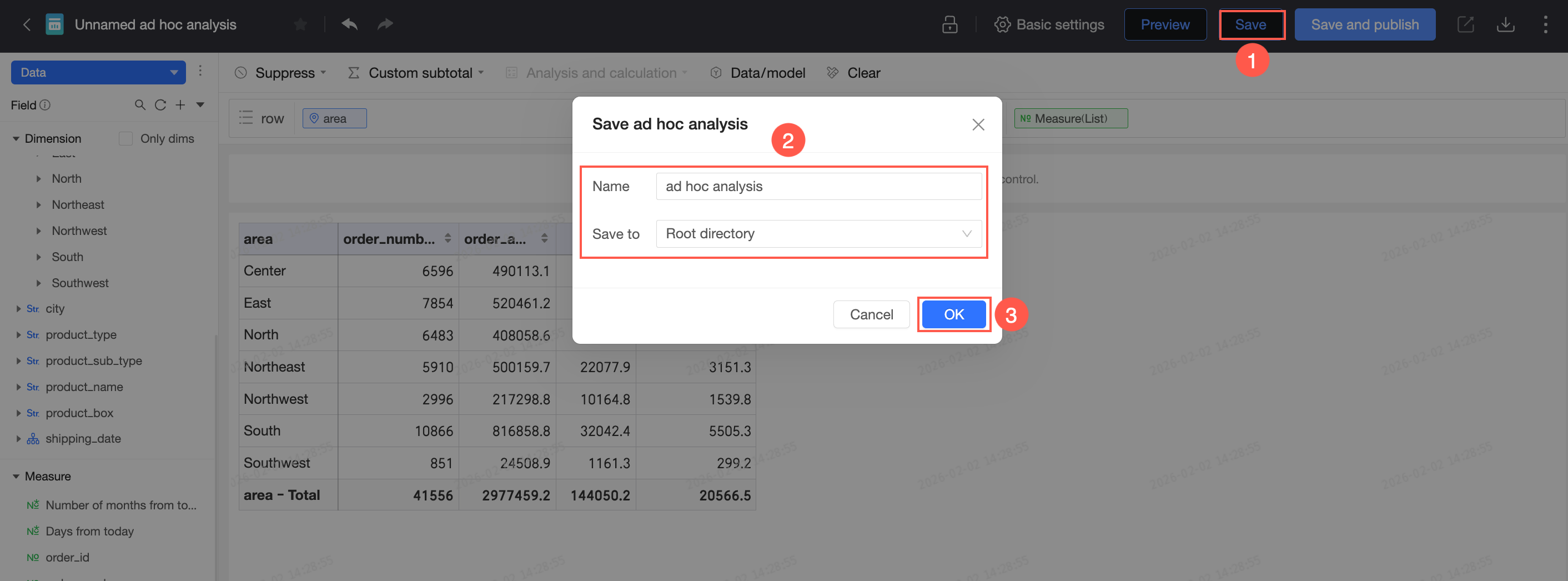
If you only save an ad hoc analysis, your changes are not visible to other users:
-
When you create a new ad hoc analysis, its status is Unpublished after you save it. To publish the analysis, click Save and Publish.
-
When you update a published ad hoc analysis, click Republish to publish your changes.
Save and publish
Click Save and Publish in the upper-right corner to save your changes and publish the analysis. Configure the settings in the dialog box that appears.
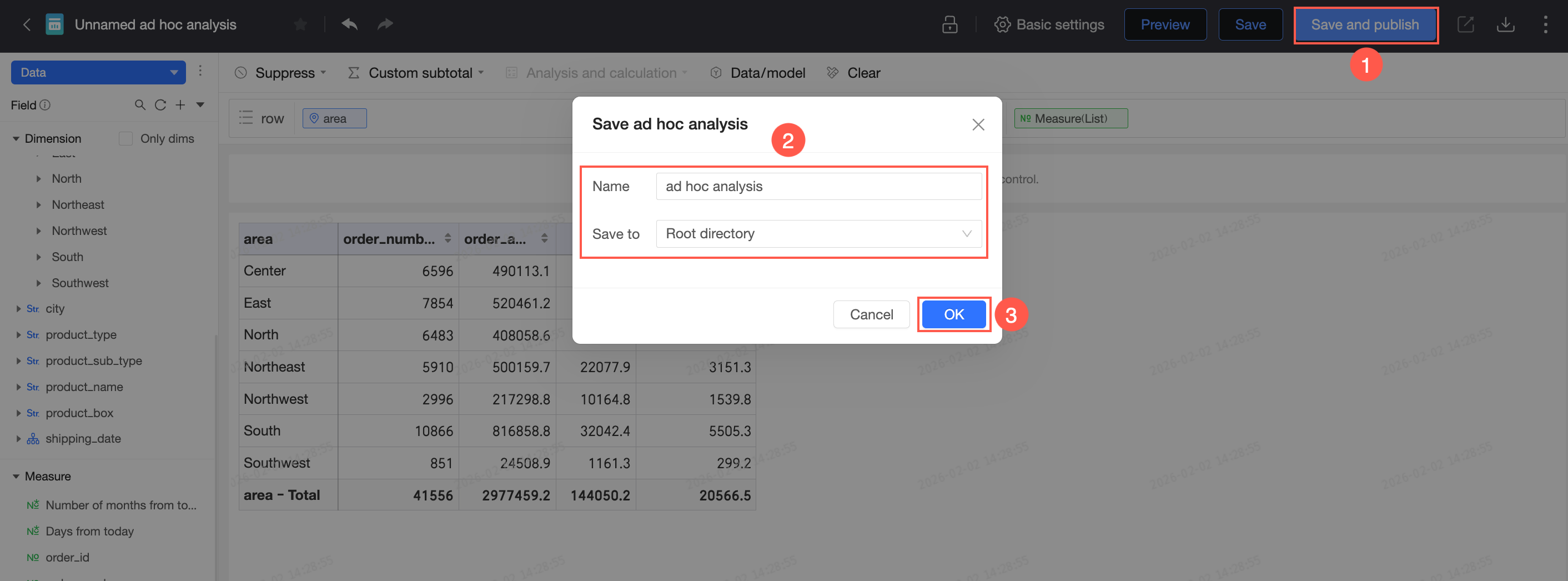
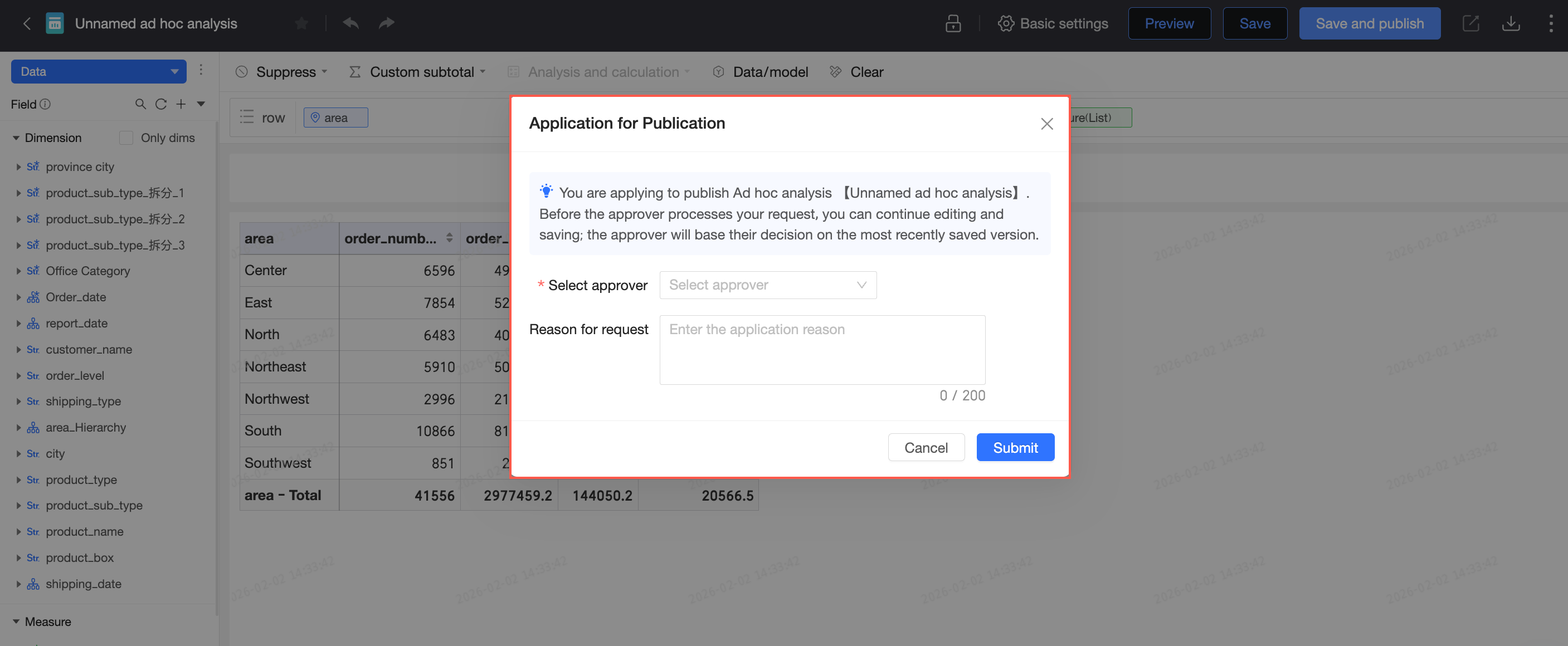
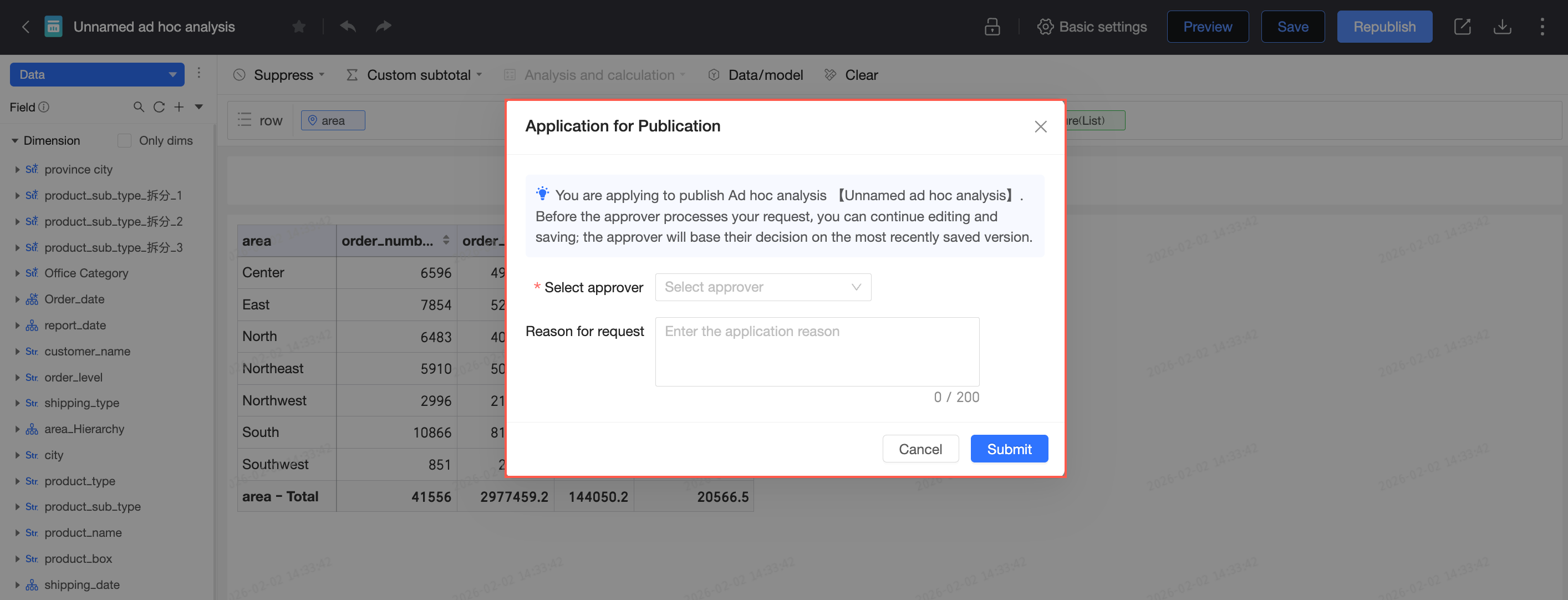
If release approval is enabled for the workspace, you must submit a request. Release approval is enabled if Publish Work is selected under Approval Settings for the workspace. To submit a request, select an approver, enter a reason if required, and click Submit Request. The report is published after your request is approved. For more information, see Create and Manage Workspaces.
-
After you request to publish, you can continue editing. If you save your edits, the most recently saved version will be published.
-
Workspace administrators can publish without approval.
Unpublish
Unpublish a published ad hoc analysis to make it invisible to other users.
-
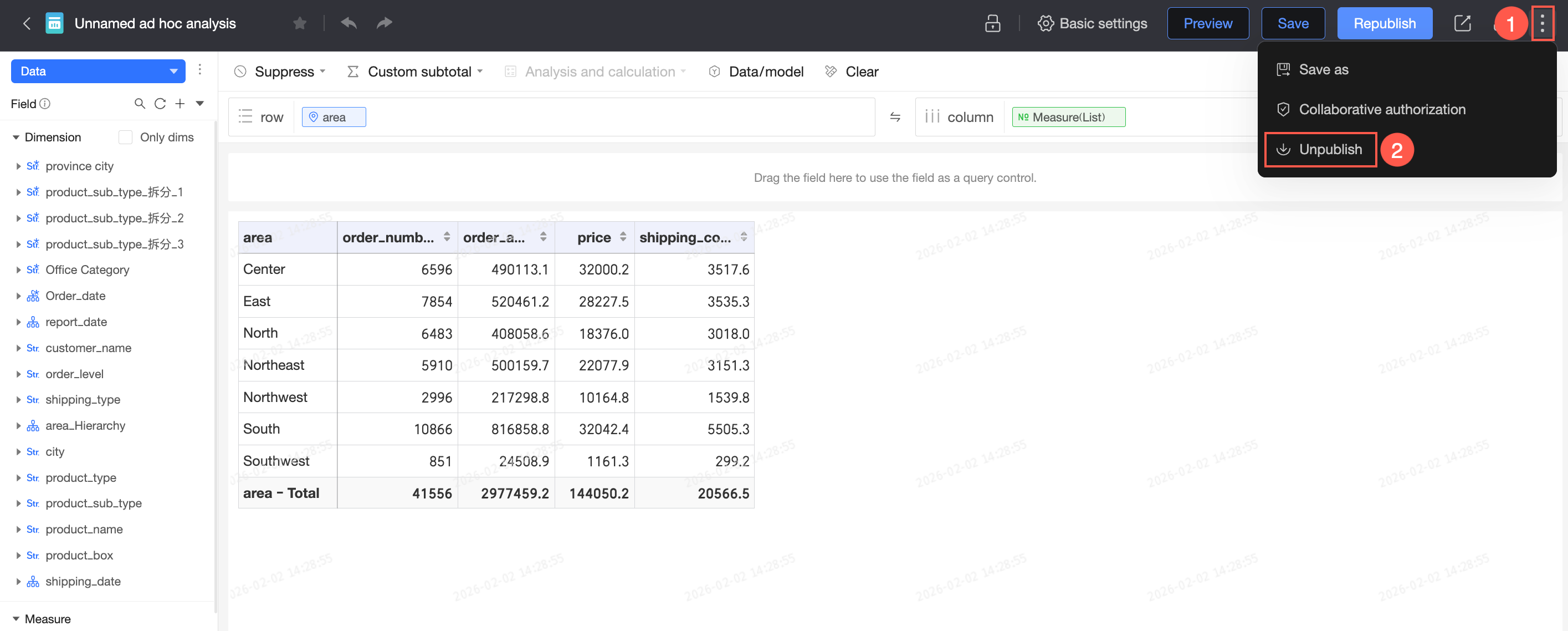
In the upper-right corner of the ad hoc analysis edit page, click the
 icon and select Unpublish.
-
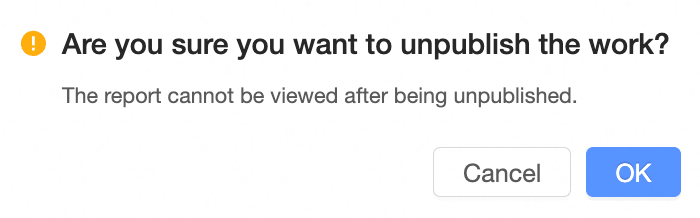
In the confirmation dialog box, click OK.
Republish
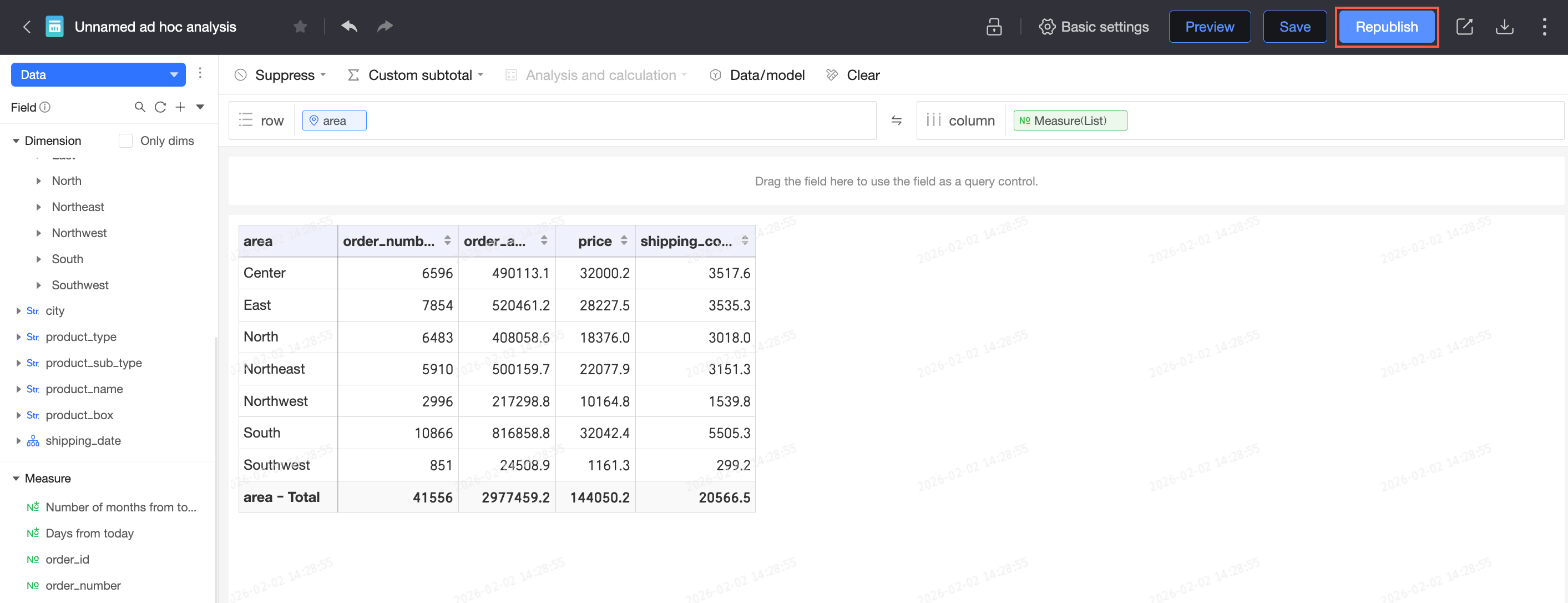
After you update a published ad hoc analysis, republish it to make the changes available to other users. An update notification appears on the edit page, and the status changes to Saved, Unpublished.
 If release approval is enabled for the workspace, where Publish Work is selected under Approval Settings, each republication triggers an approval process. The analysis is republished only after the request is approved. For more information, see Create and Manage Workspaces.
-
You can continue to edit after you submit a publish request. If you save your changes, the most recently saved version will be published.
-
Workspace administrators can publish without approval.