Manage ad hoc analyses
After you create an ad hoc analysis, you can edit, find, share, move, and delete it on the ad hoc analysis management page. The ad hoc analysis feature is available only in group spaces of Quick BI Professional Edition.
Go to the ad hoc analysis page
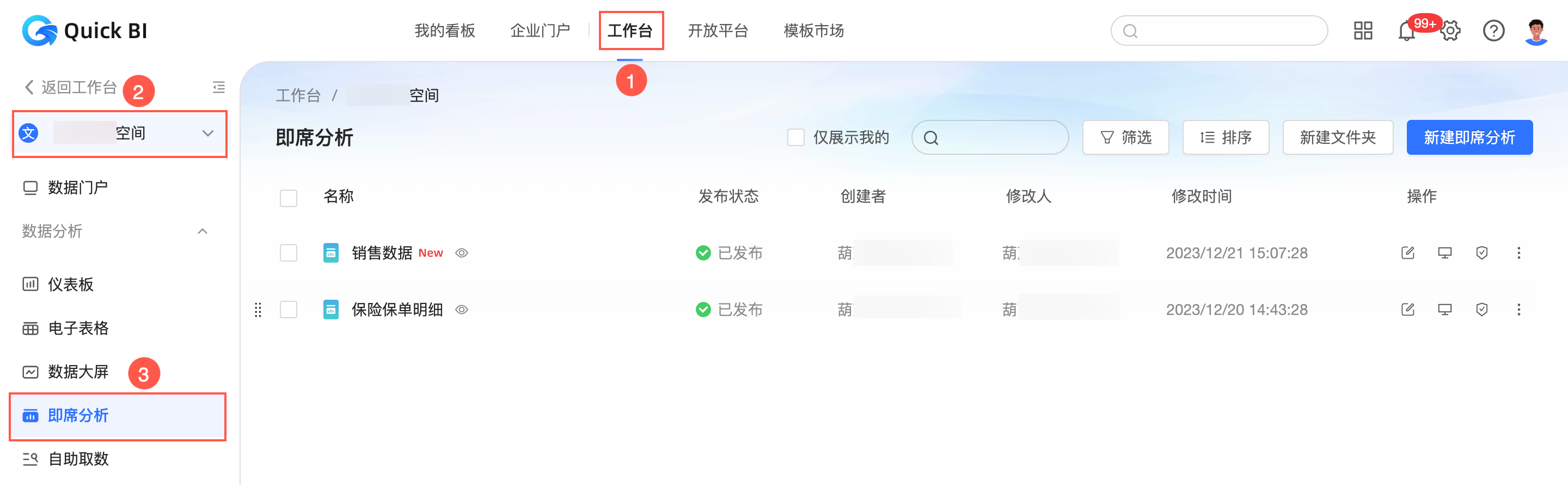
Log in to the Quick BI console and navigate to the ad hoc analysis management page as shown in the following figure.
Preview an ad hoc analysis
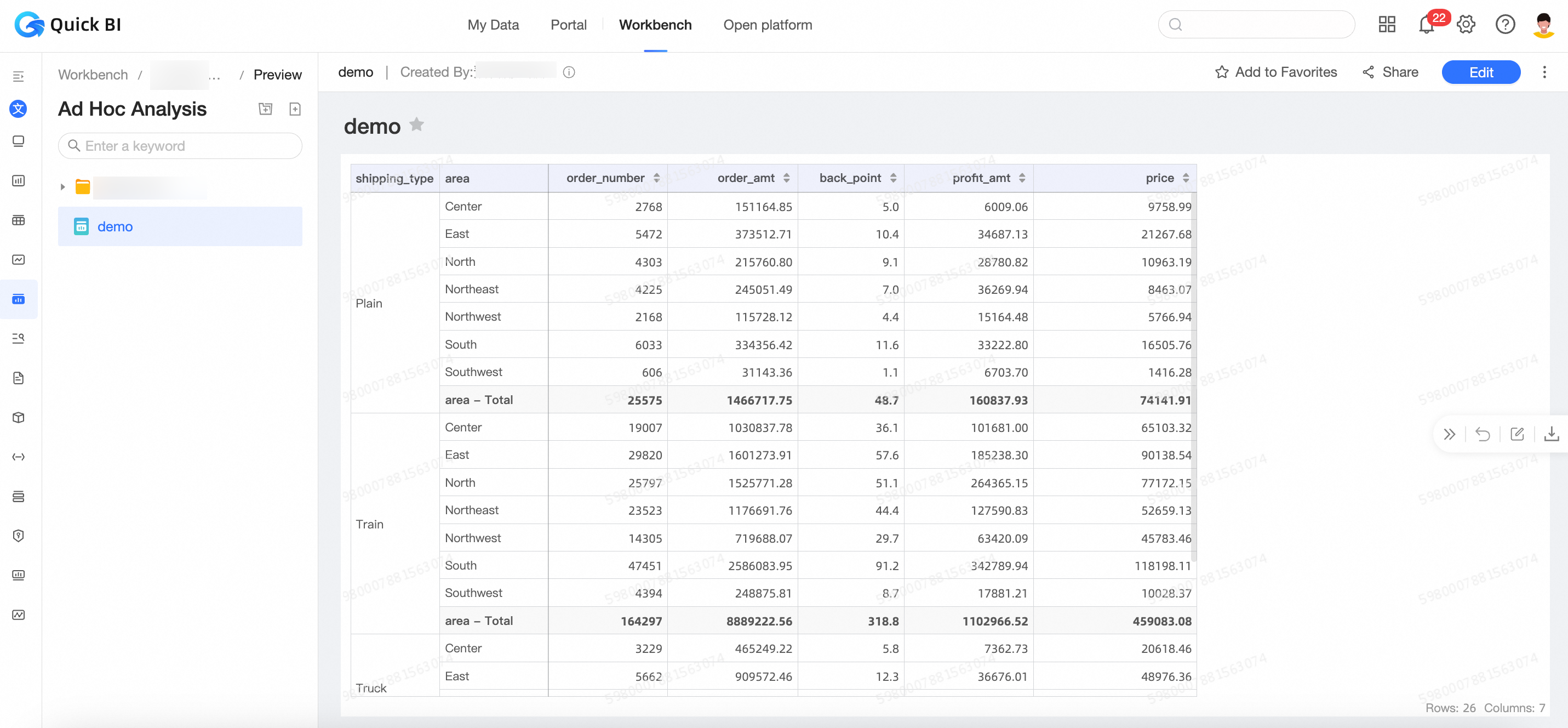
On the ad hoc analysis management page, find the target ad hoc analysis and click the
 icon.
icon.The ad hoc analysis preview page appears.
Edit an ad hoc analysis
In the ad hoc analysis list, find the target ad hoc analysis, right-click it, and select Edit.
Alternatively, click the
 icon in its row.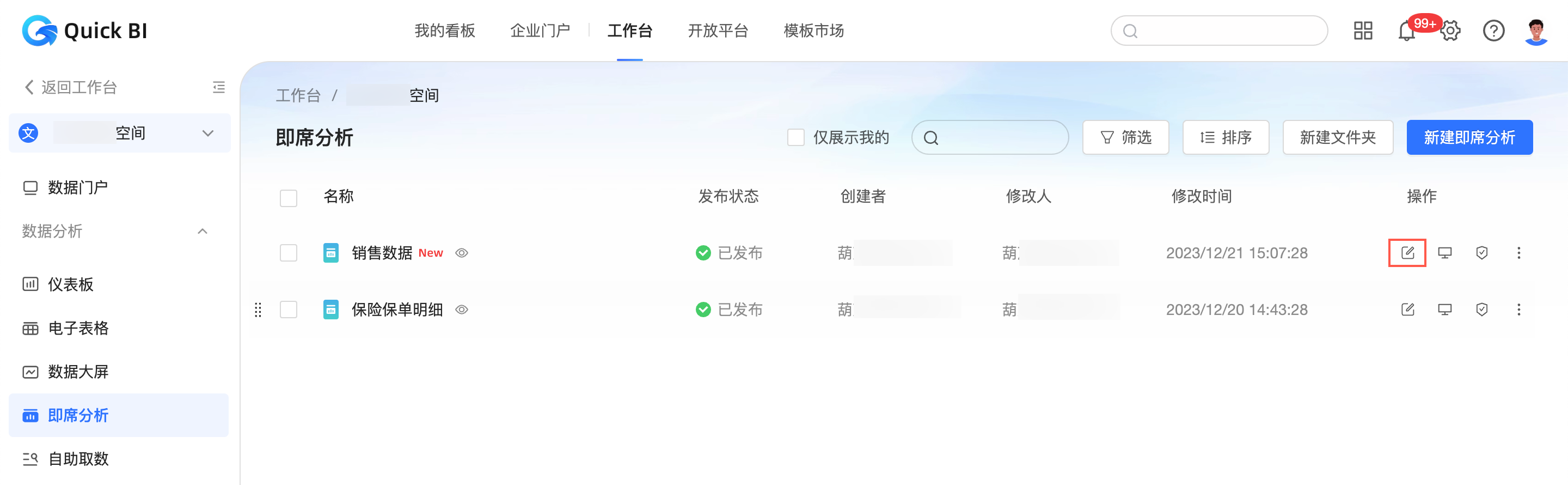
On the ad hoc analysis edit page, modify the ad hoc analysis.


Find ad hoc analyses
Find the target ad hoc analysis.
Search
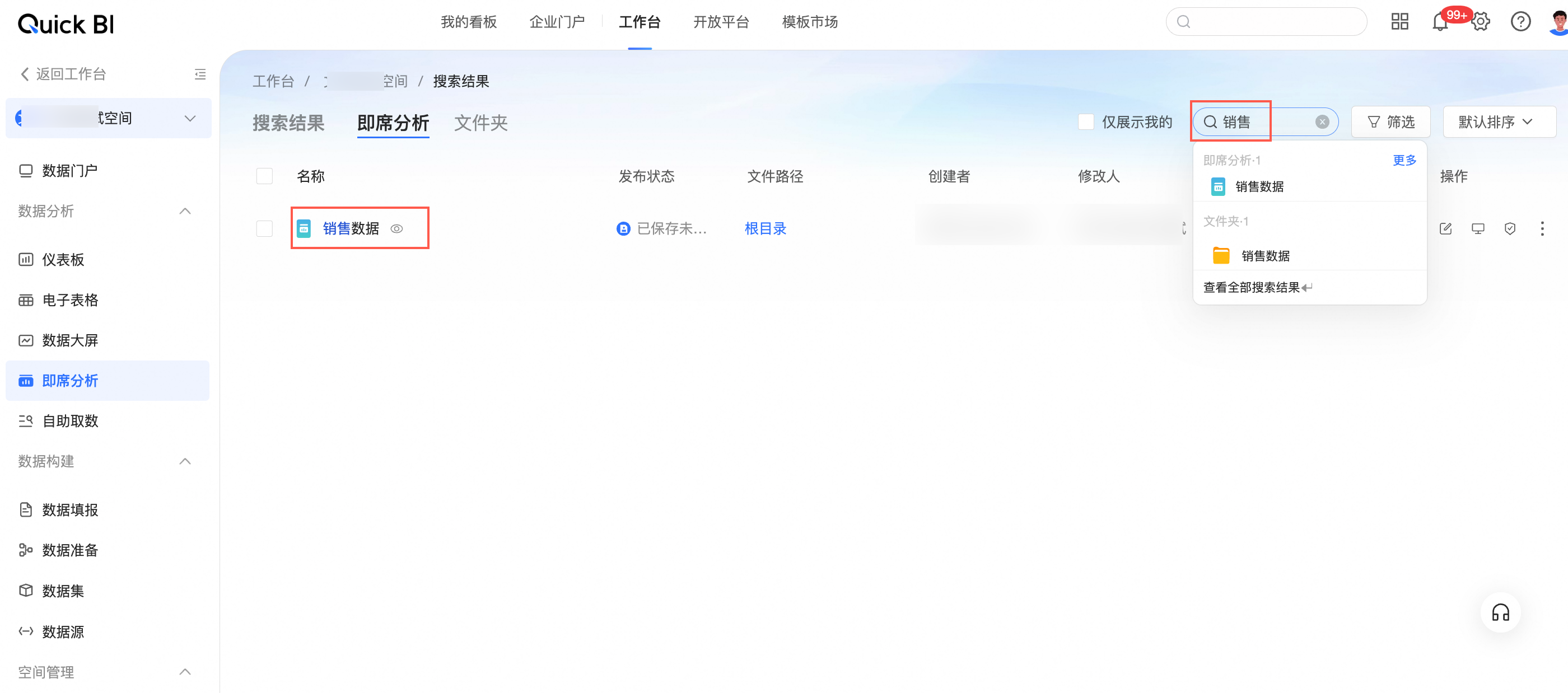
On the ad hoc analysis management page, enter a keyword from the analysis name in the search box to quickly find it.
Filter
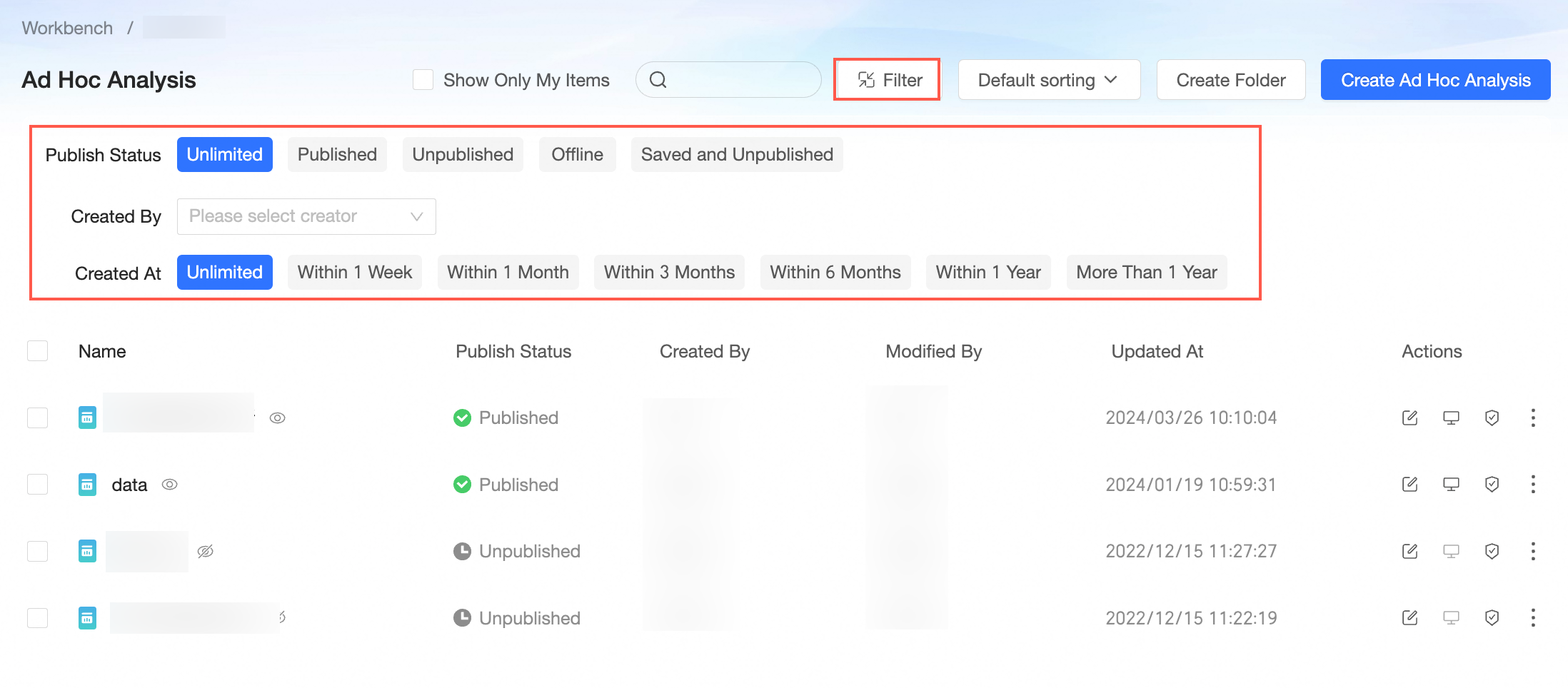
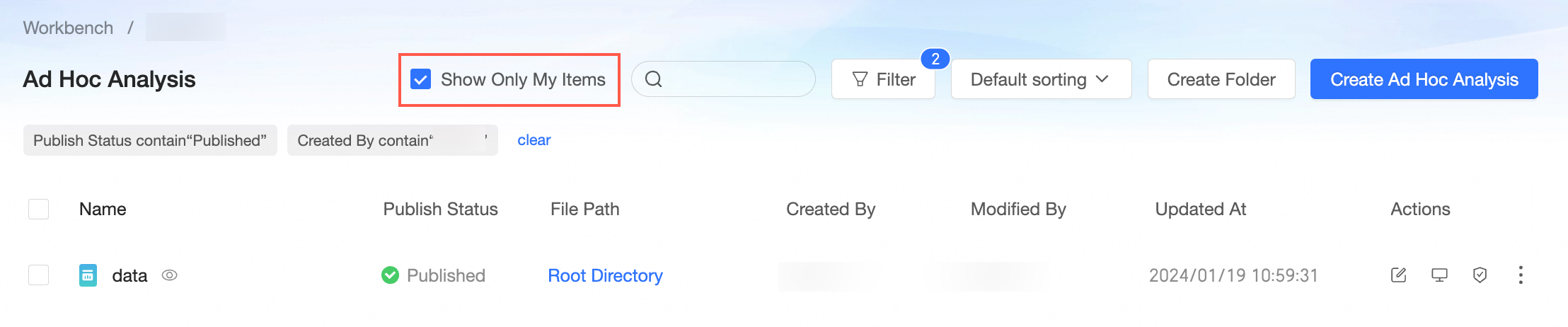
Click Filter to display the filter area. You can filter by publish status, creator, and creation time.
Click the
icon to hide the filter area. The applied filter criteria are still visible, and you can remove individual criteria or clear all of them.You can also select the Show mine only checkbox to view only the analyses you created.
Sort
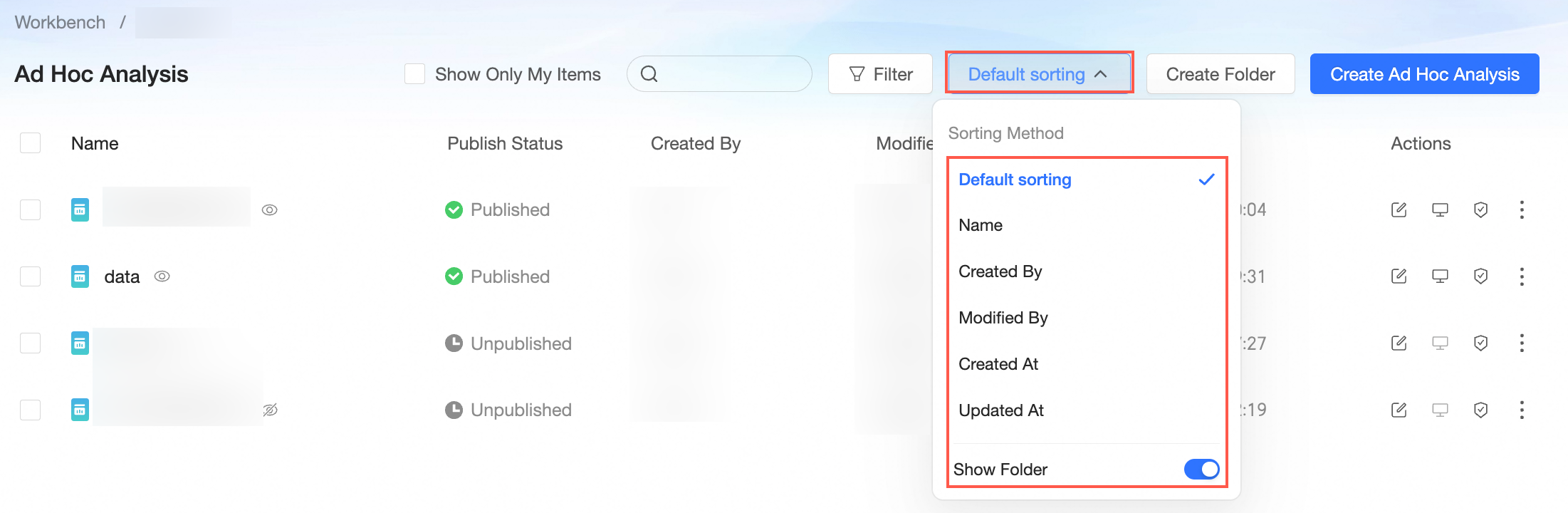
You can sort ad hoc analyses by Name, Creator, Modified by, Creation Time, or Modification Time. The Keep Folder Structure option is selected by default, which excludes folders from sorting.
 icon to hide the filter area. The applied filter criteria are still visible, and you can remove individual criteria or clear all of them.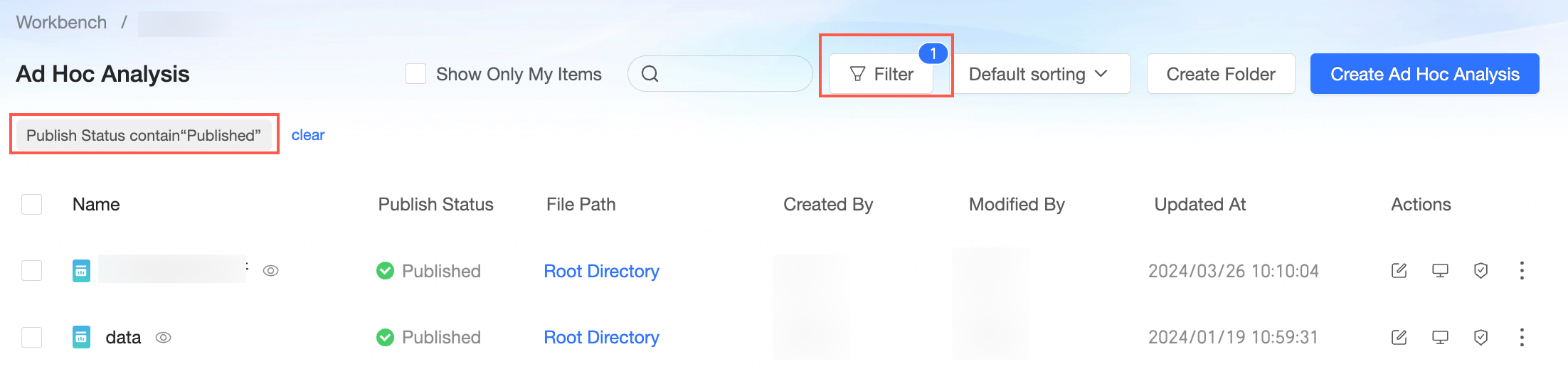
Grant permissions
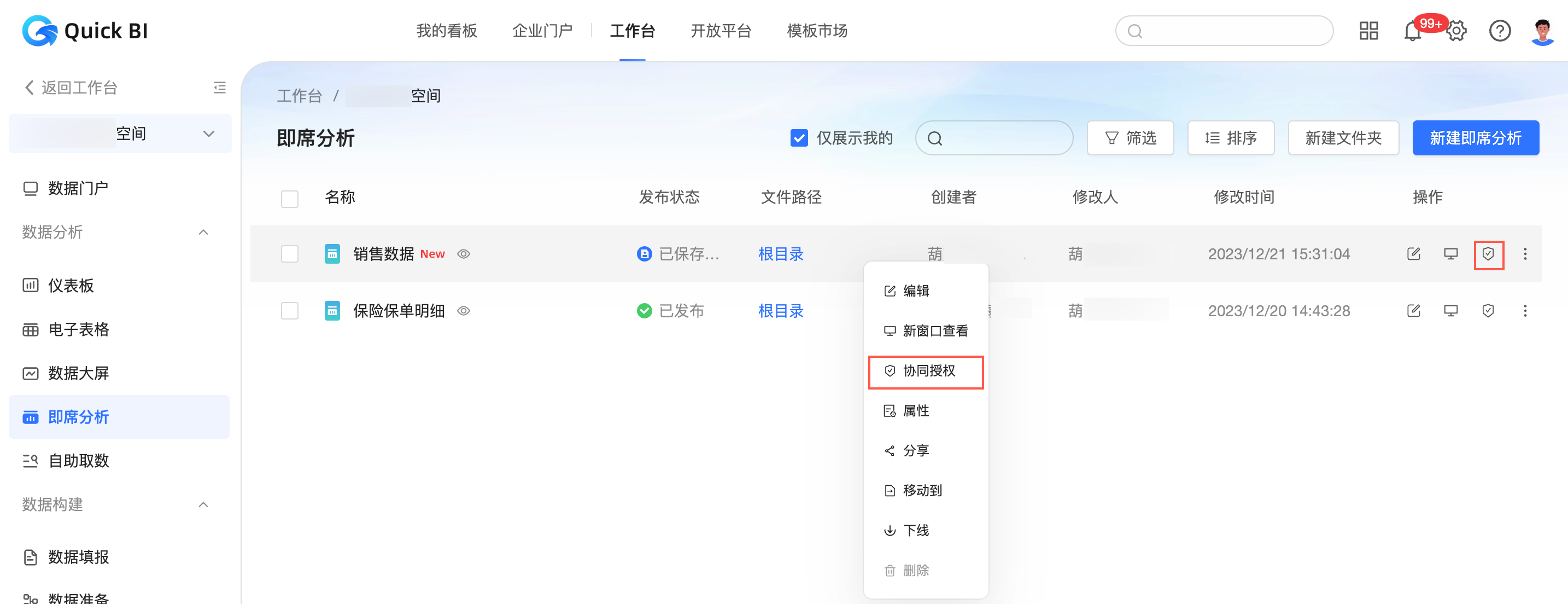
In the ad hoc analysis list, find the target ad hoc analysis, right-click it, and select Authorize.
Alternatively, click the
icon in its row.For more information, see Grant permissions on data works.
 icon in its row.
 For more information, see
 Share an ad hoc analysis
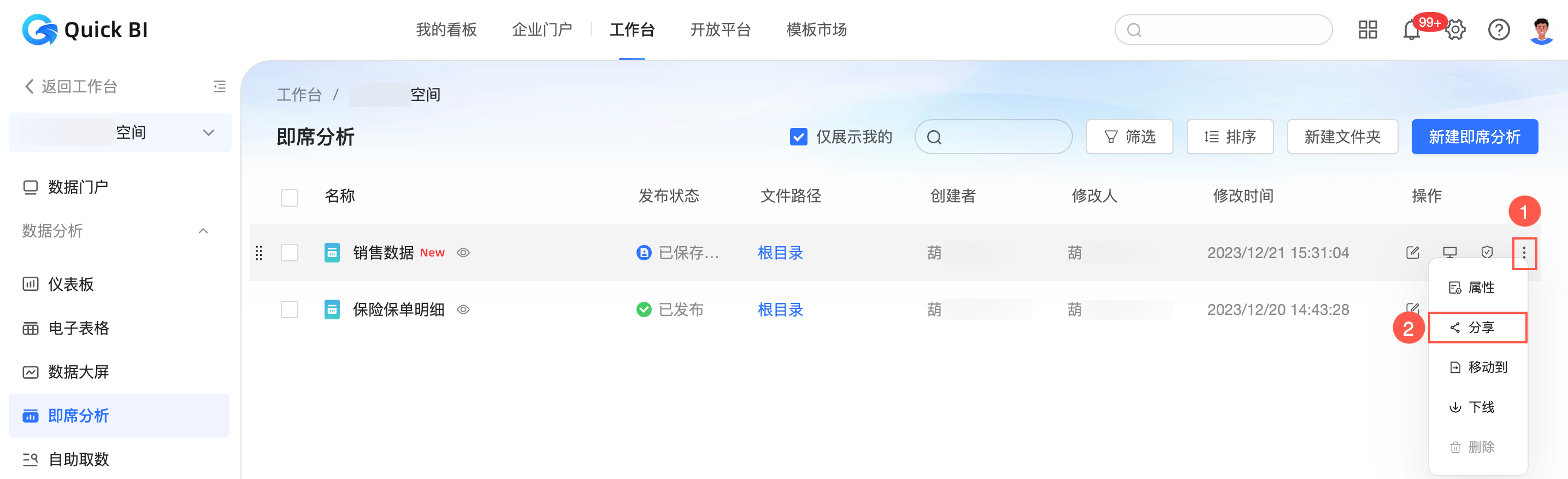
In the ad hoc analysis list, follow the steps in the figure below to open the sharing page.
Share by link
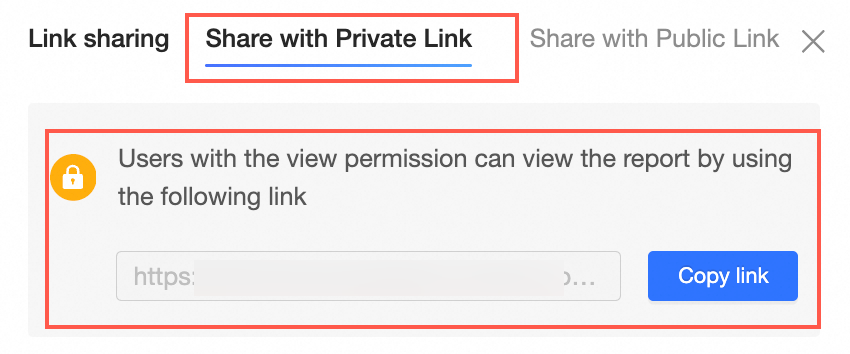
Share with a private link
On the Share via link page, click private link.
Click Copy link to copy the link and send it to users with view permissions.
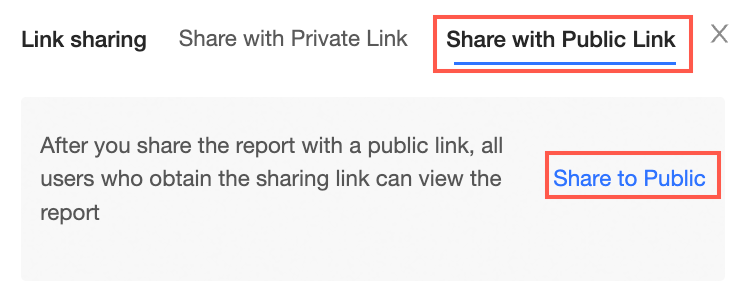
Share with a public link
After you share the report publicly, the system generates a URL. This link can be accessed by anyone without logging in to an Alibaba Cloud account.
On the Share via link page, click public link.
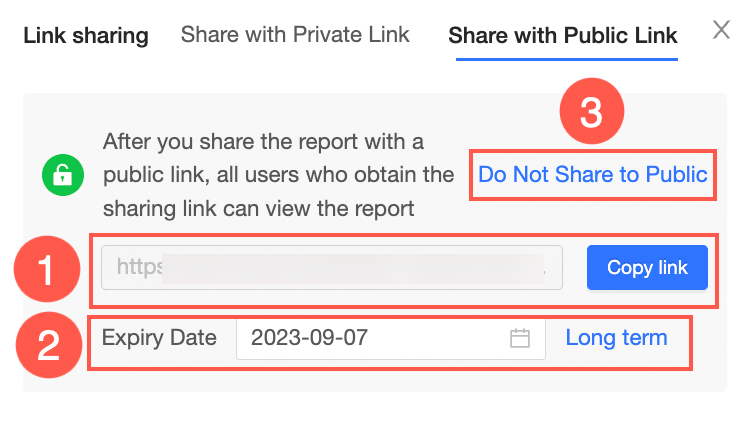
Click Share publicly. You can then see ① the link URL, ② the Expiration date, and ③ the Make private option.
You can set an expiration date for the link. Click Permanent to make the link valid indefinitely. If you no longer want to share the report publicly, you can click Make private.
Click Copy link to share the link with other users.
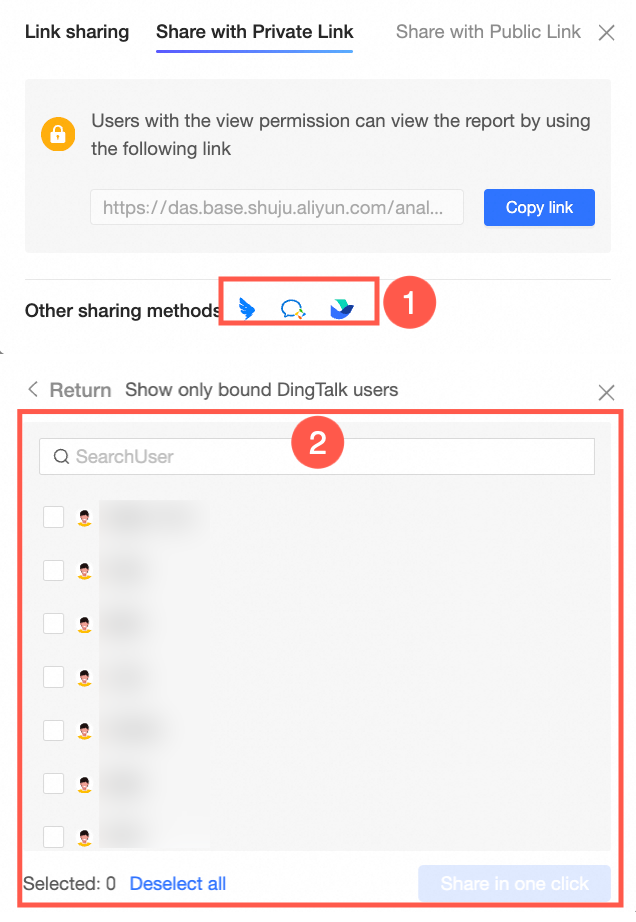
Other sharing methods
At the bottom of the page, you can select Other sharing methods to share the analysis with users of integrated applications in DingTalk, Lark, and WeCom.
NoteThis sharing method is unavailable if no third-party applications are integrated. An organization administrator must perform API authorization for the applications. For more information, see (public cloud) Enable DingTalk mini apps, (public cloud) Enable WeCom mini apps, and (public cloud) Enable Lark mini apps.
Copy an ad hoc analysis
You can copy an ad hoc analysis by using the Save as feature.
On the ad hoc analysis management page, click the target ad hoc analysis.
On the ad hoc analysis edit page, click the
icon and select Save as.In the Save ad hoc analysis dialog box, enter a name, select a location for the analysis, and then click OK.
 icon and select Save as.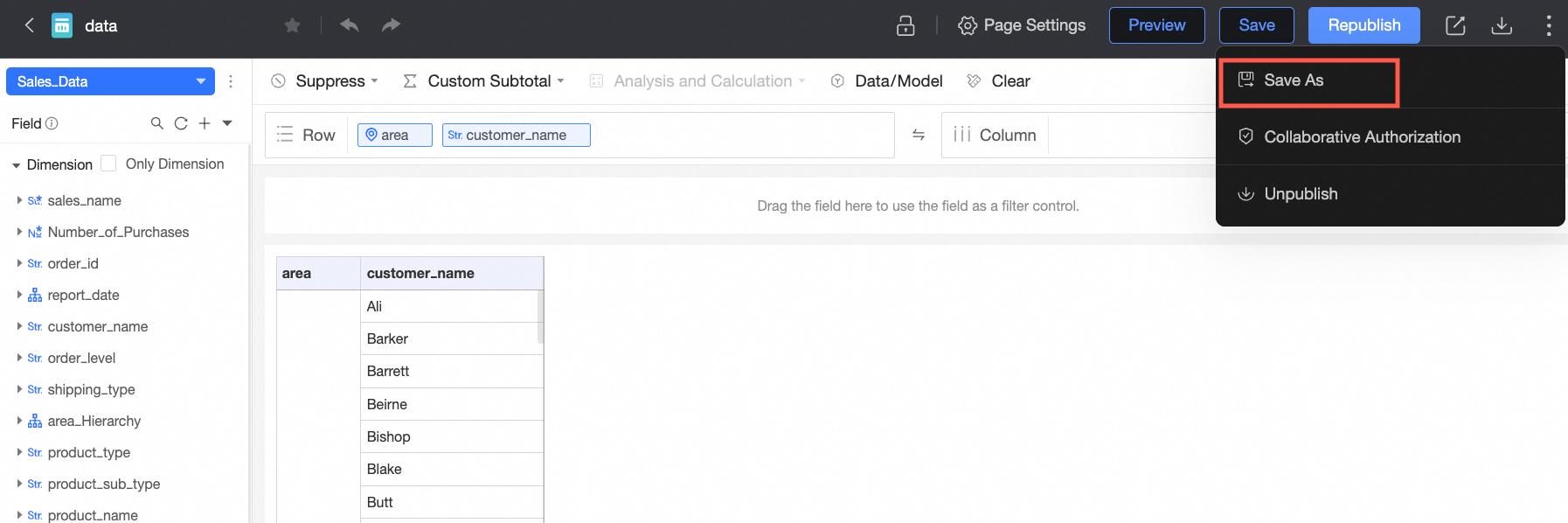
Rename and transfer
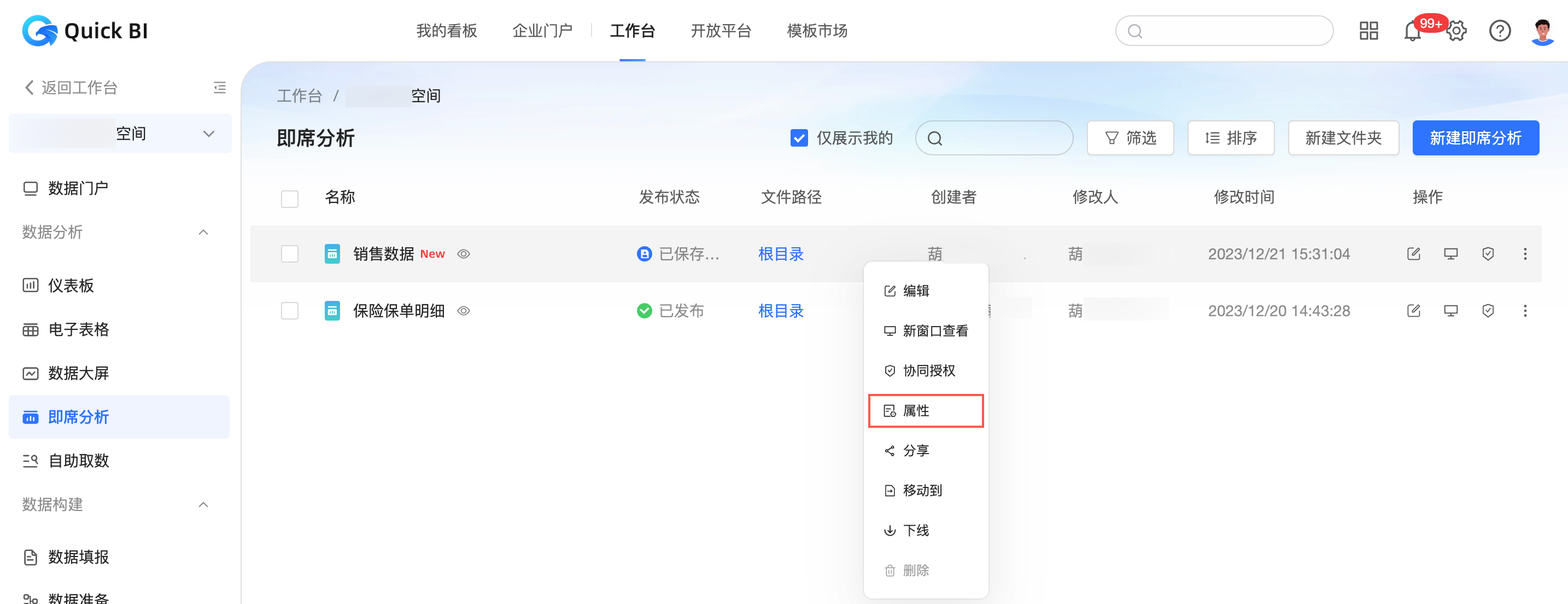
In the ad hoc analysis list, find the target ad hoc analysis, right-click it, and select properties.
In the properties panel, configure the following parameters.
Parameter
Description
Name
Enter a new name for the ad hoc analysis.
NoteAd hoc analysis names must be unique within a folder. You can use the same name for analyses in different folders.
Owner
Click the drop-down arrow and select a new owner to transfer the ad hoc analysis.
Description
Add a description for the ad hoc analysis.
Click OK.
Move an ad hoc analysis
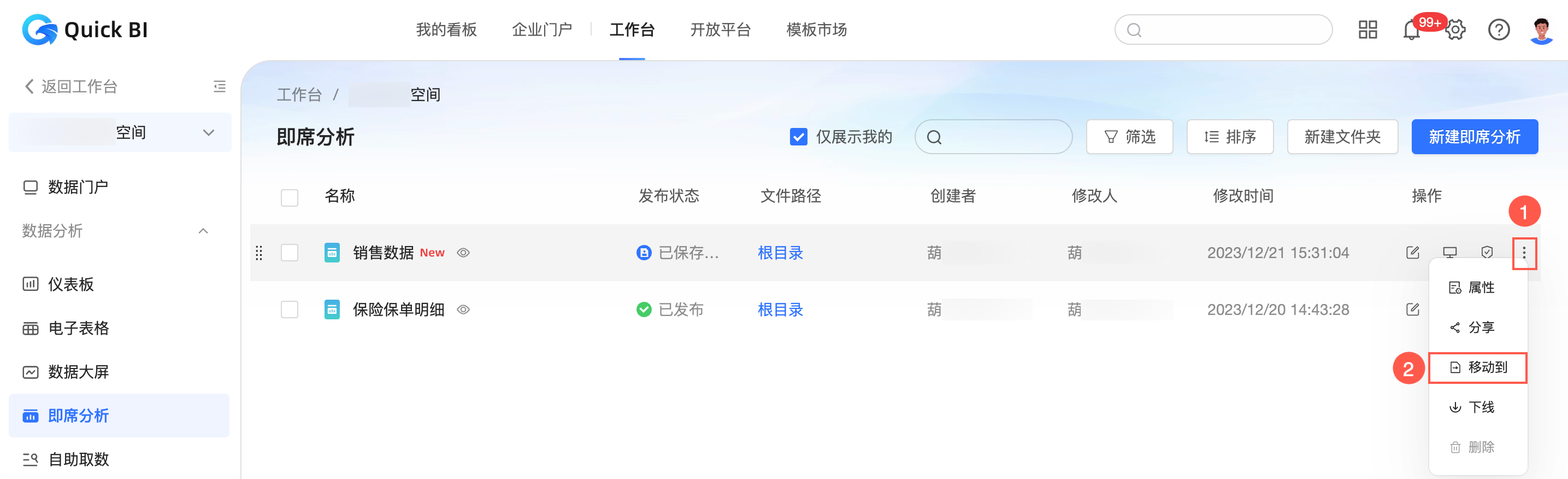
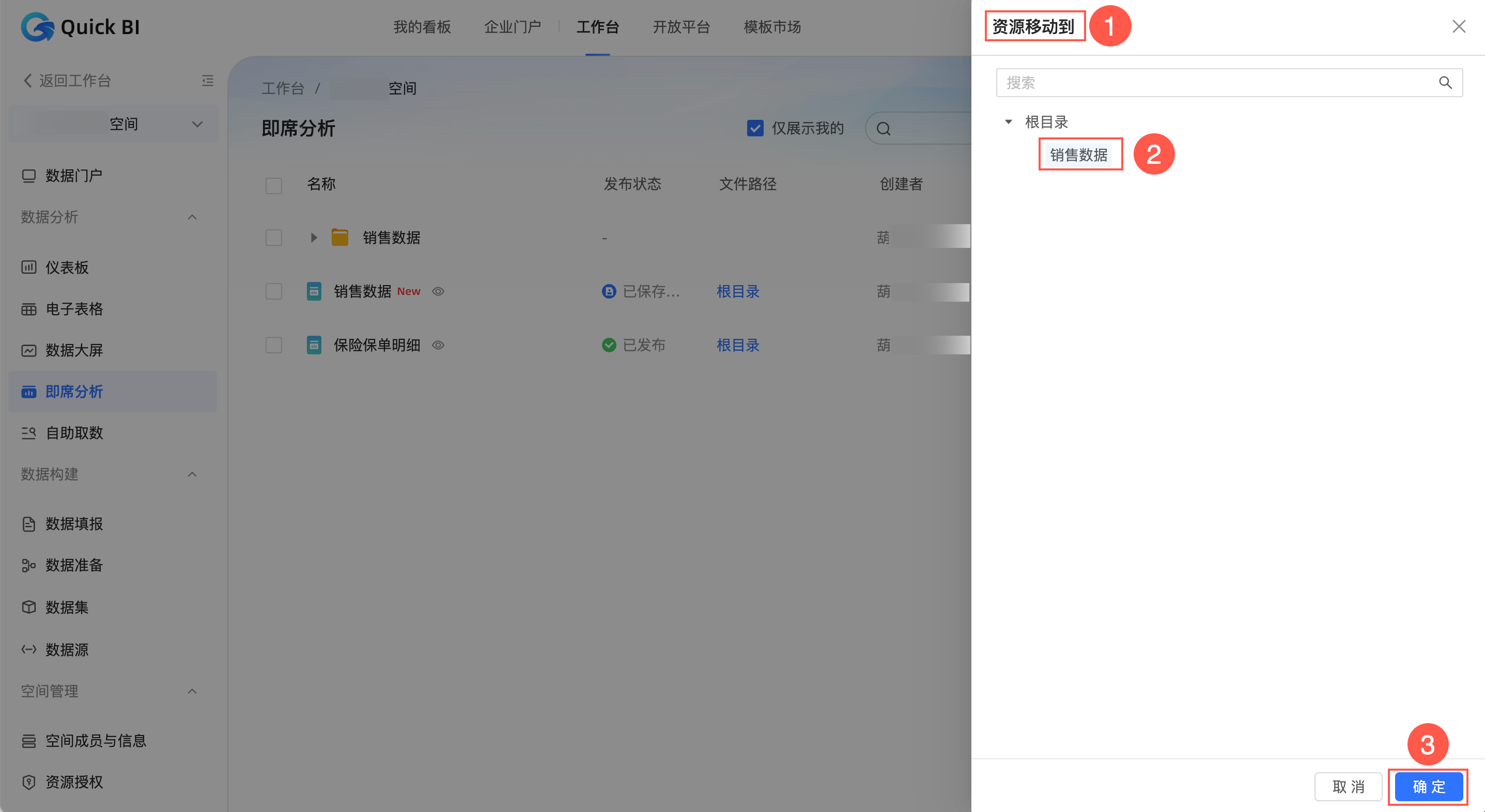
In the ad hoc analysis list, follow the steps in the figure below to open the Move resource to page.
In the Move resource to panel, select the destination directory and click OK.
Unpublish an ad hoc analysis
You can use the unpublish feature to retract a published ad hoc analysis. After it is unpublished, the ad hoc analysis becomes invisible to users.
Go to the ad hoc analysis edit page, click the
icon, and select unpublish.In the confirmation dialog box that appears, click OK.
 icon, and select unpublish.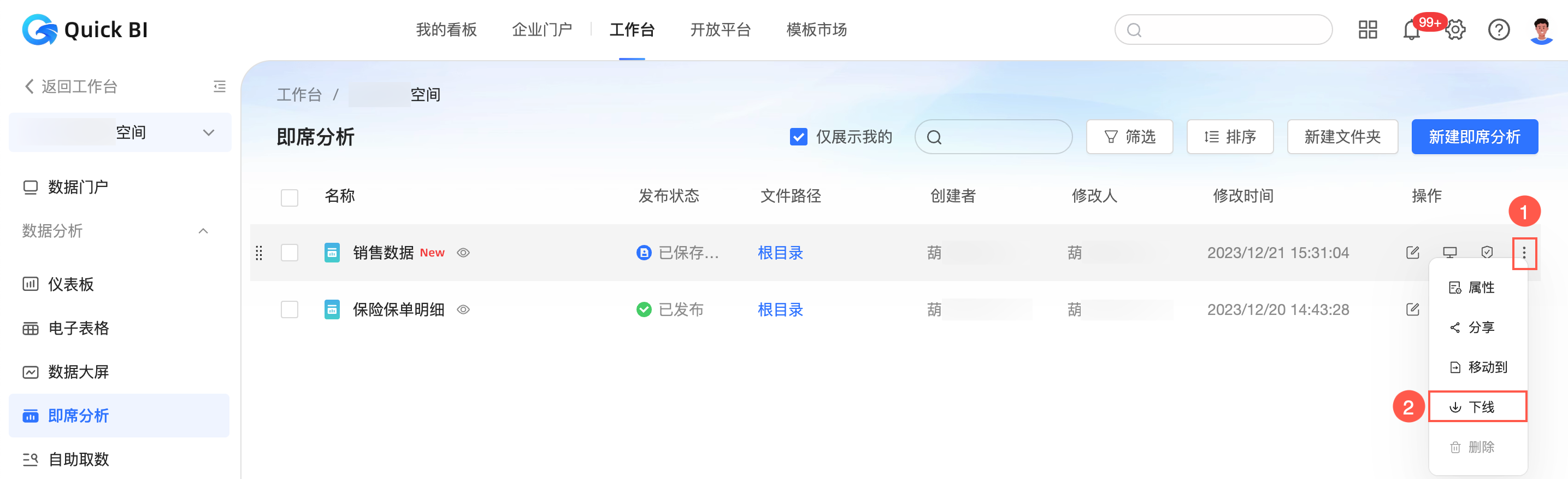
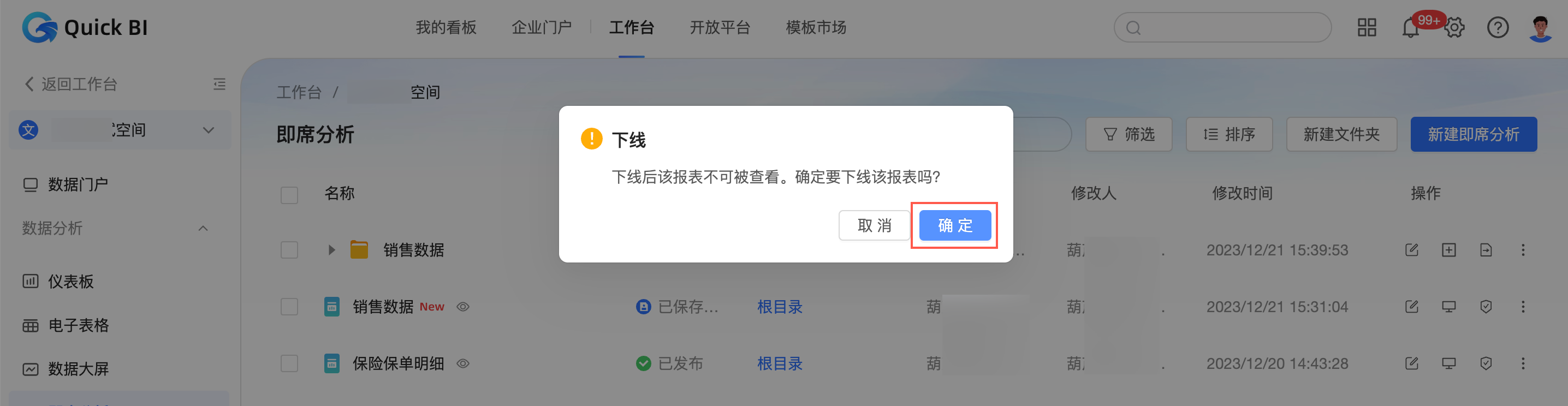
Delete an ad hoc analysis
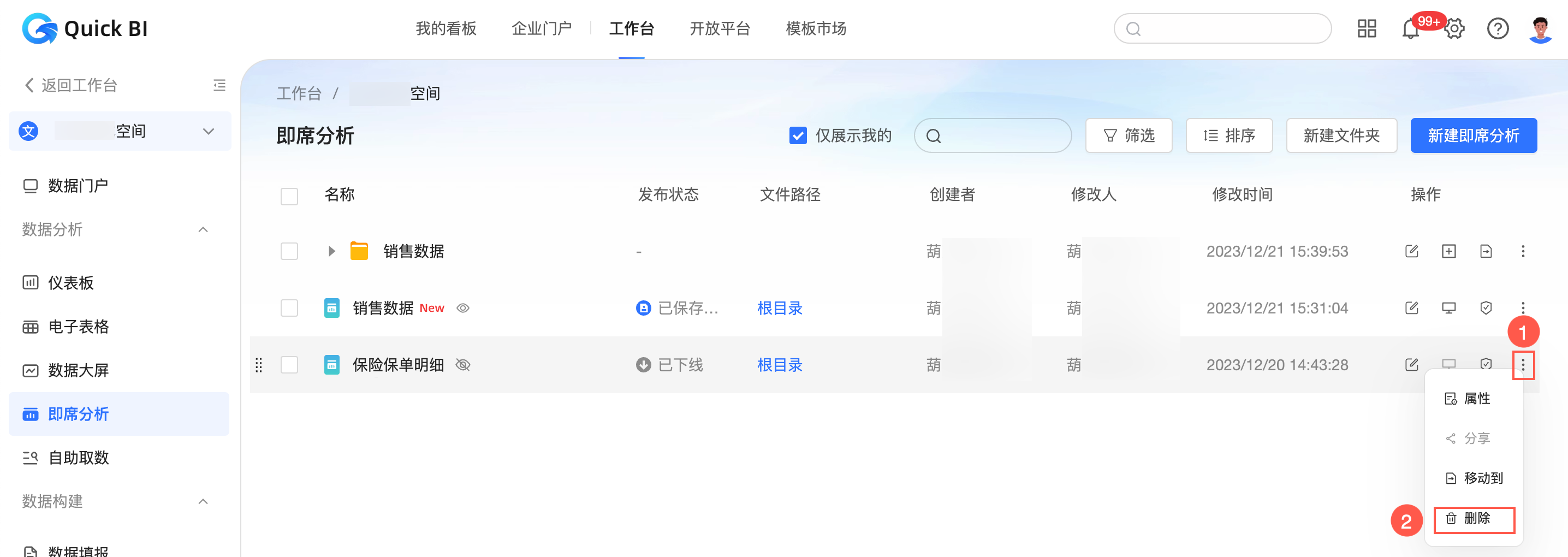
In the ad hoc analysis list, follow the steps in the figure below to delete the resource.
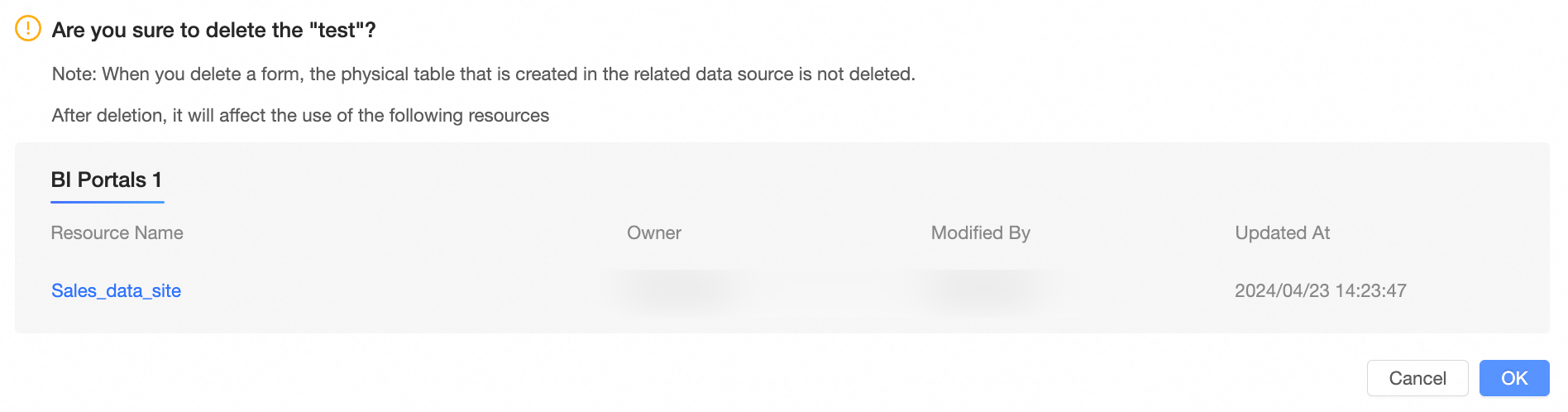
If you created a data portal from this ad hoc analysis, a message appears when you try to delete it. The message lists information about the affected published resources, such as their name, owner, modifier, and modification time.
In the dialog box that appears, click OK.