Analysis configuration
This topic describes the analysis configuration for spreadsheets.
Analysis configuration
On the Analysis tab of the spreadsheet editor, you can configure analysis settings that apply to the entire spreadsheet.
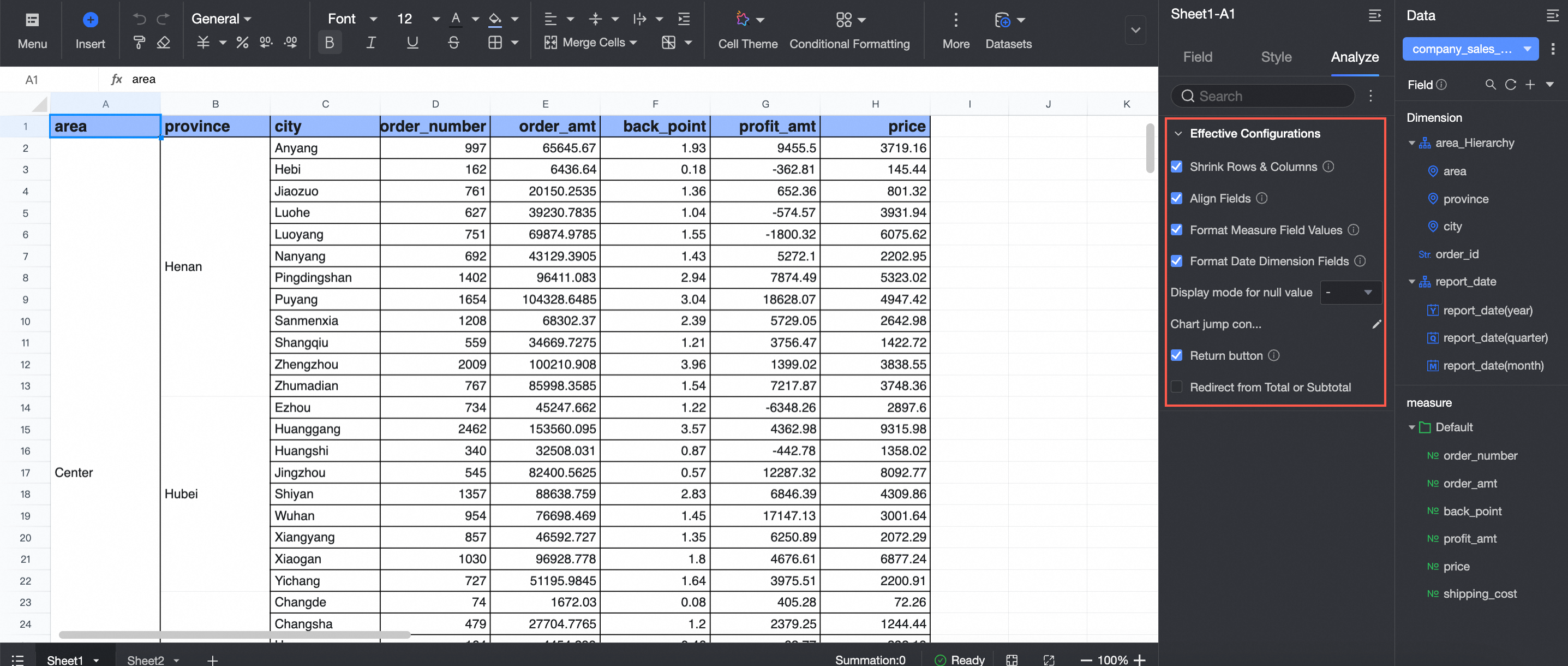
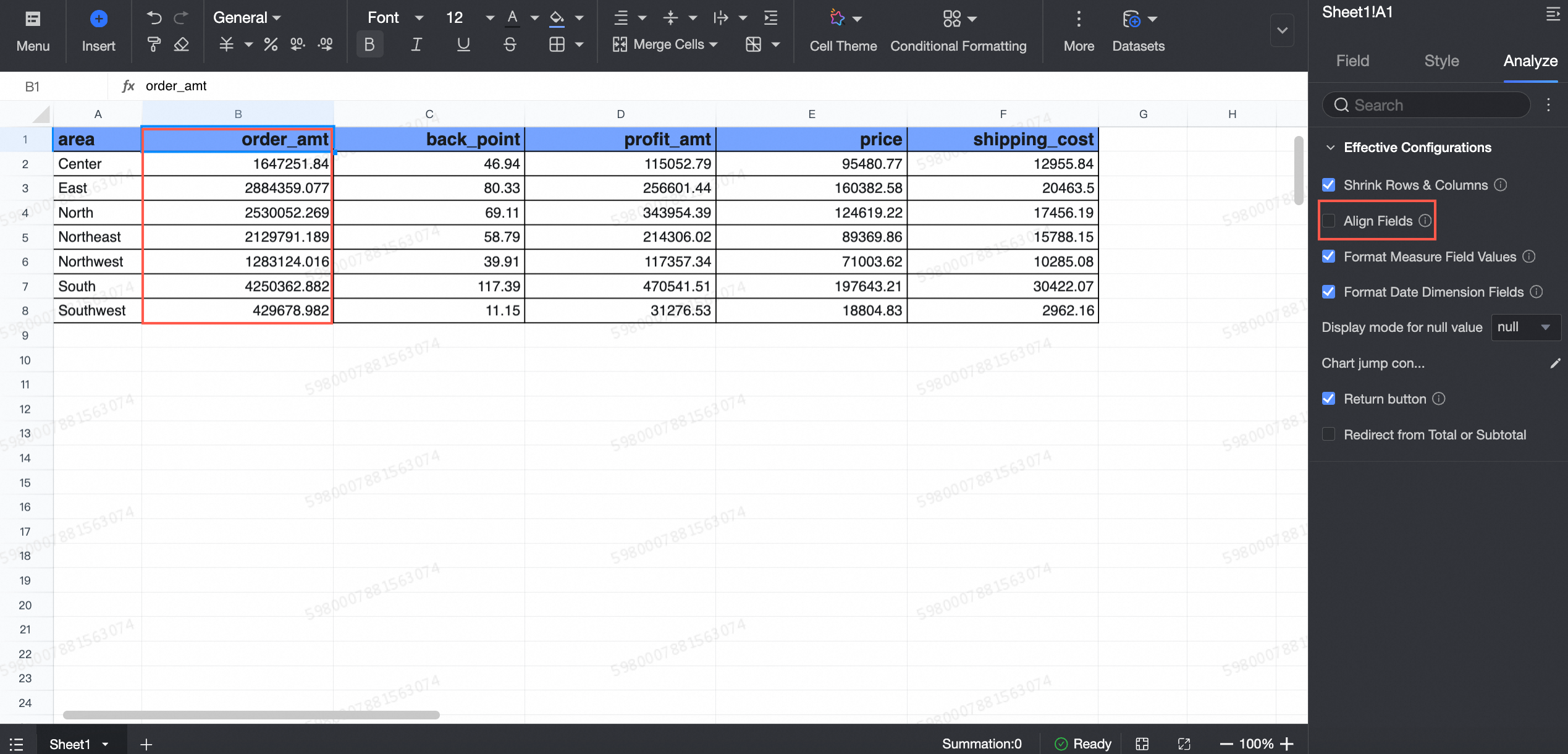
To use the spreadsheet's native settings instead of inheriting them from the dataset, disable the Field alignment, Measure value formatting, and Date dimension formatting options.
Row and column collapsing
This feature is enabled by default. When disabled, the spreadsheet no longer automatically collapses rows and columns when the dataset changes, and their original formatting is retained.
For example:
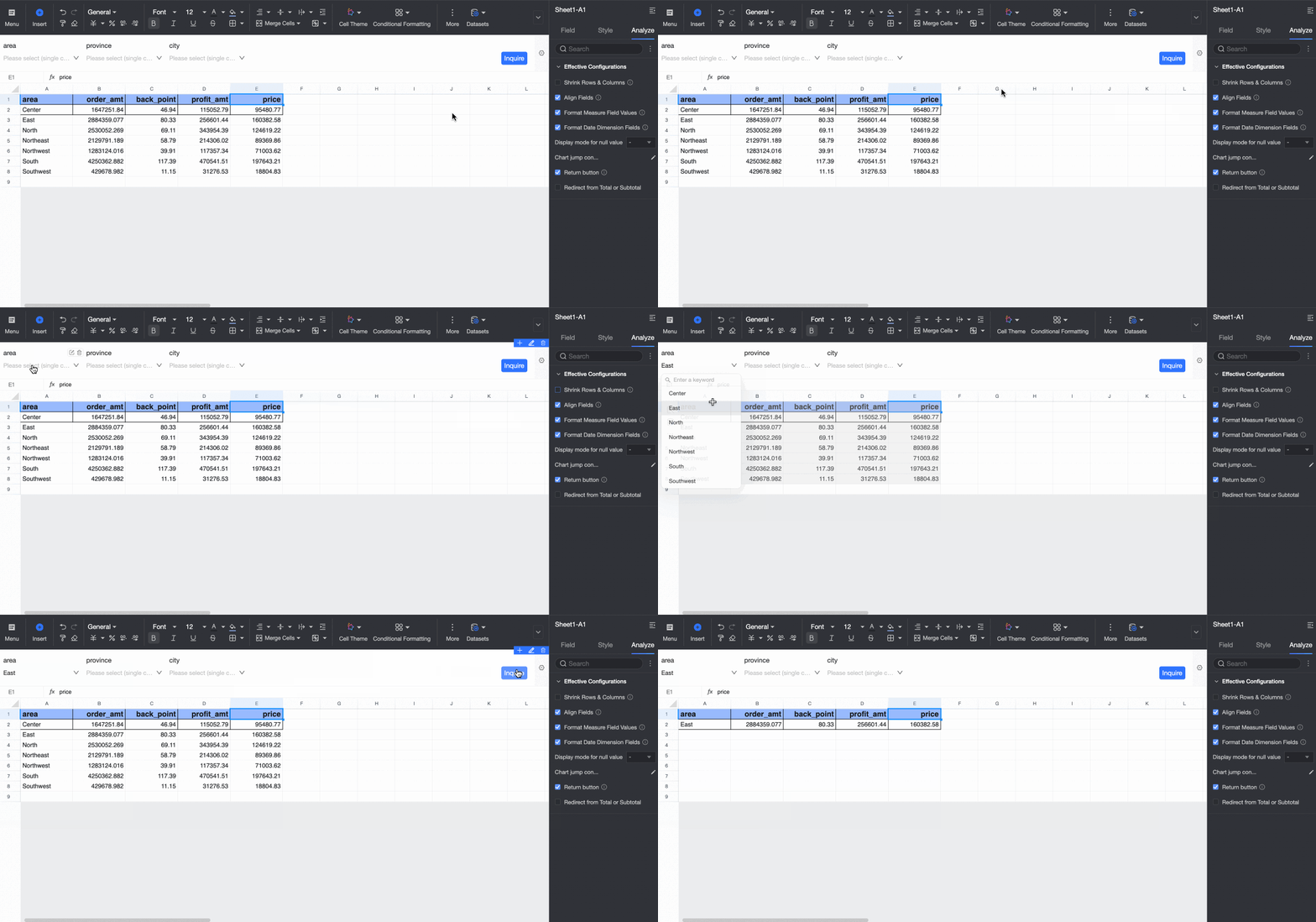
Enabled: When you filter the region to "East China," the spreadsheet rows and columns automatically collapse.
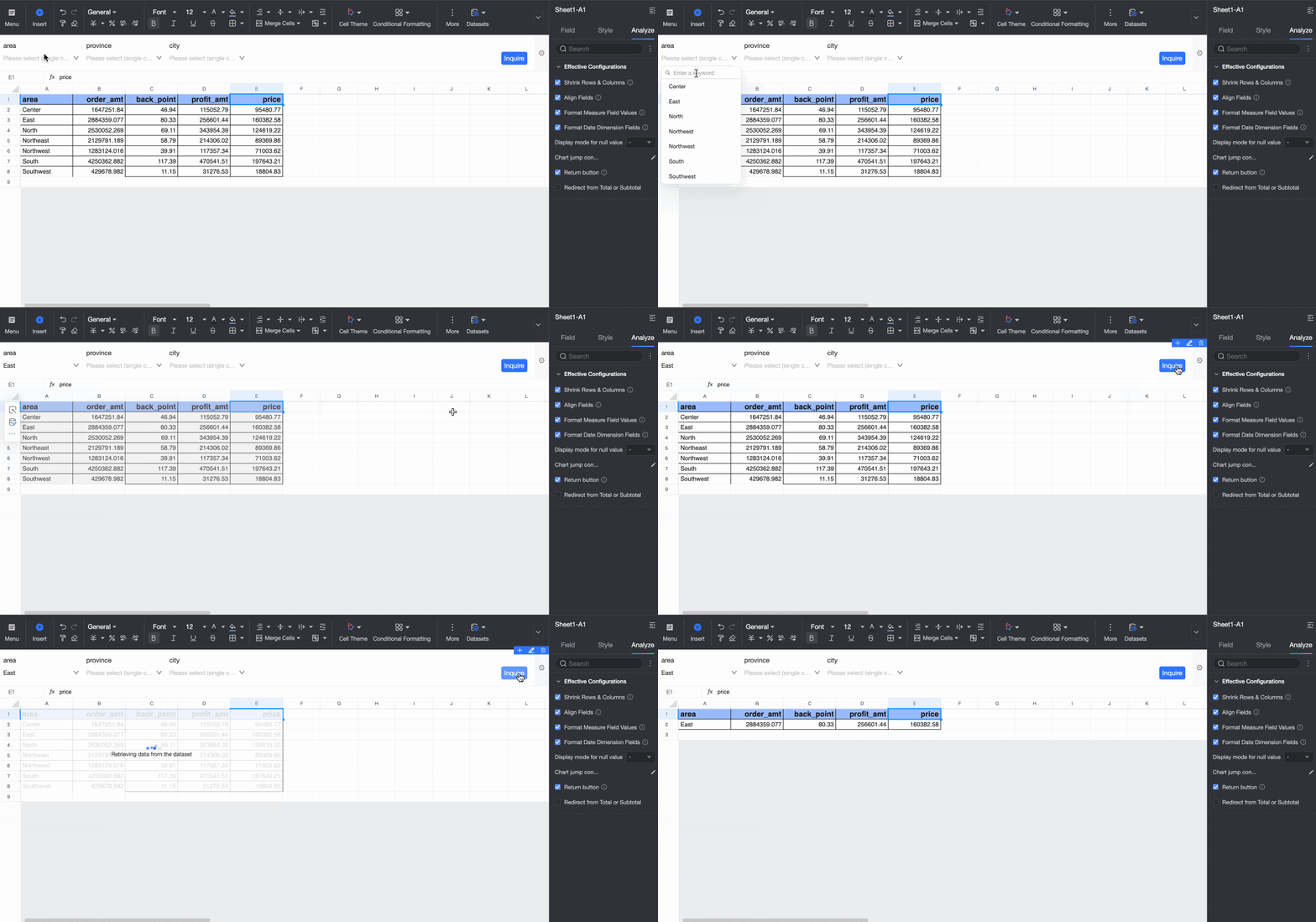
Disabled: When you filter the region to "East China," the spreadsheet rows and columns do not automatically collapse, and the original number of rows is displayed.
Field alignment
This feature is enabled by default. When disabled, field alignment settings configured in the data pane no longer apply.
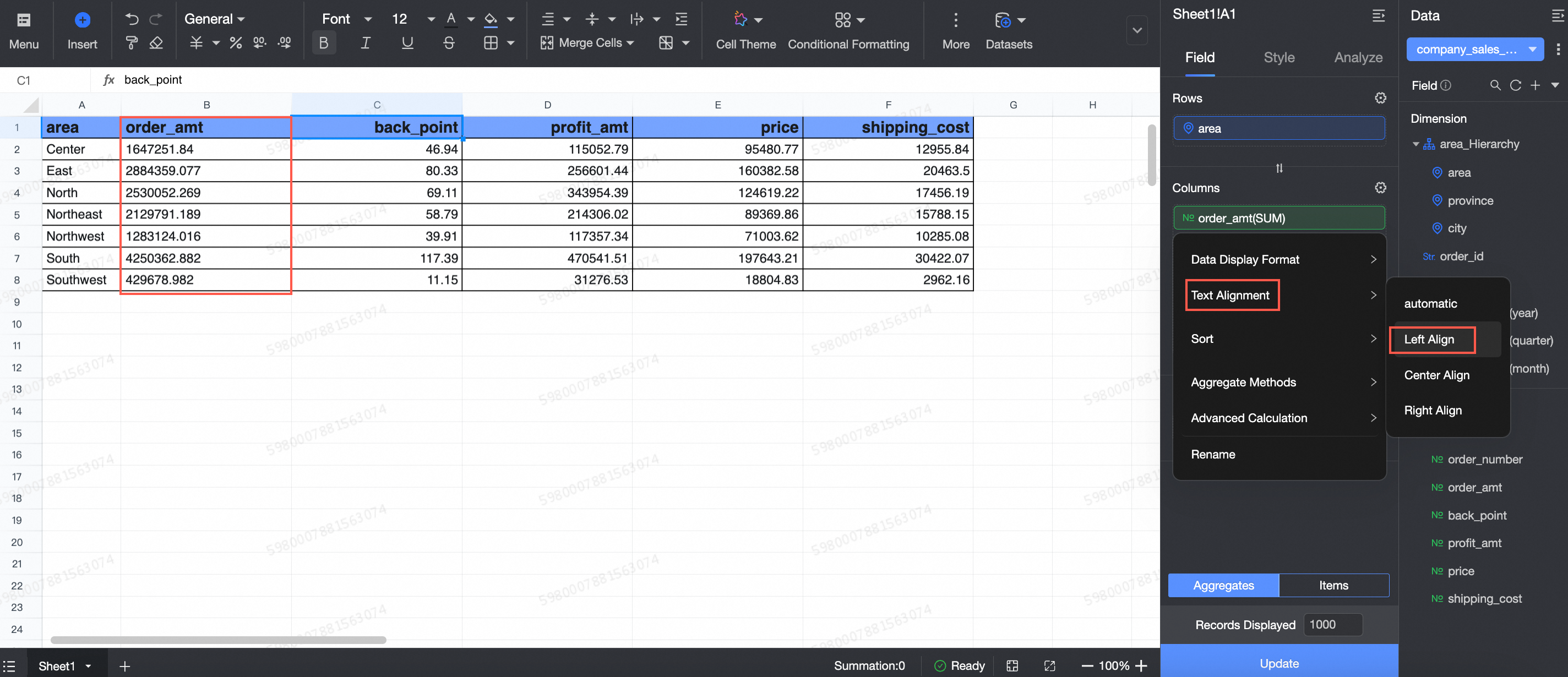
For example, set the alignment for the "Order Amount" field to Left.
When field alignment is disabled, the custom alignment for the "Order Amount" field is ignored, and the field reverts to its default alignment.
Measure value formatting
You can set the display format for measures to Auto, None (displays the original value), Integer, 1 Decimal Place, 2 Decimal Places, Percentage, Percentage (1 decimal place), Percentage (2 decimal places), and Custom.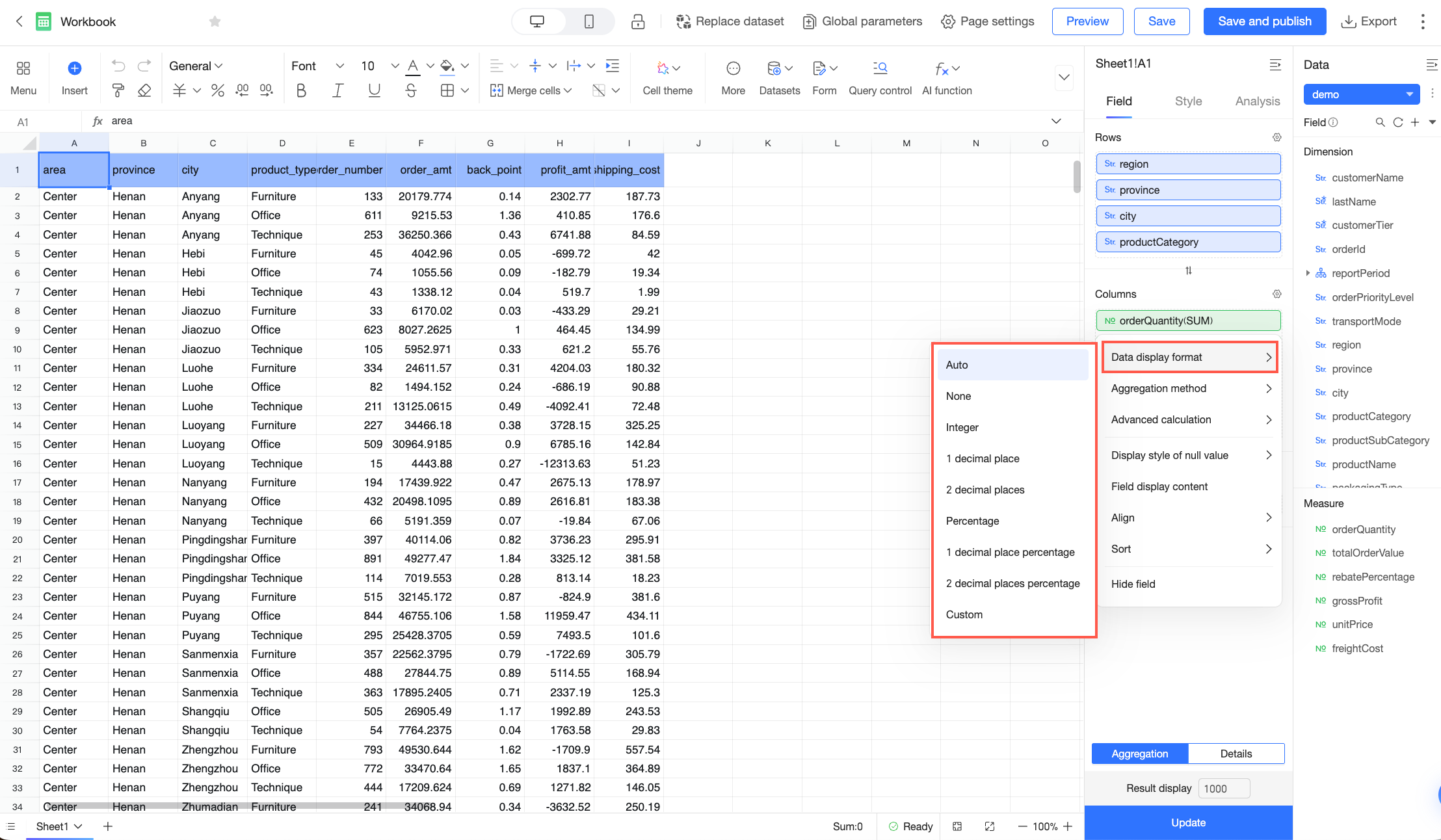
For more information about configuring custom display formats, see Custom data display format.
Date dimension formatting
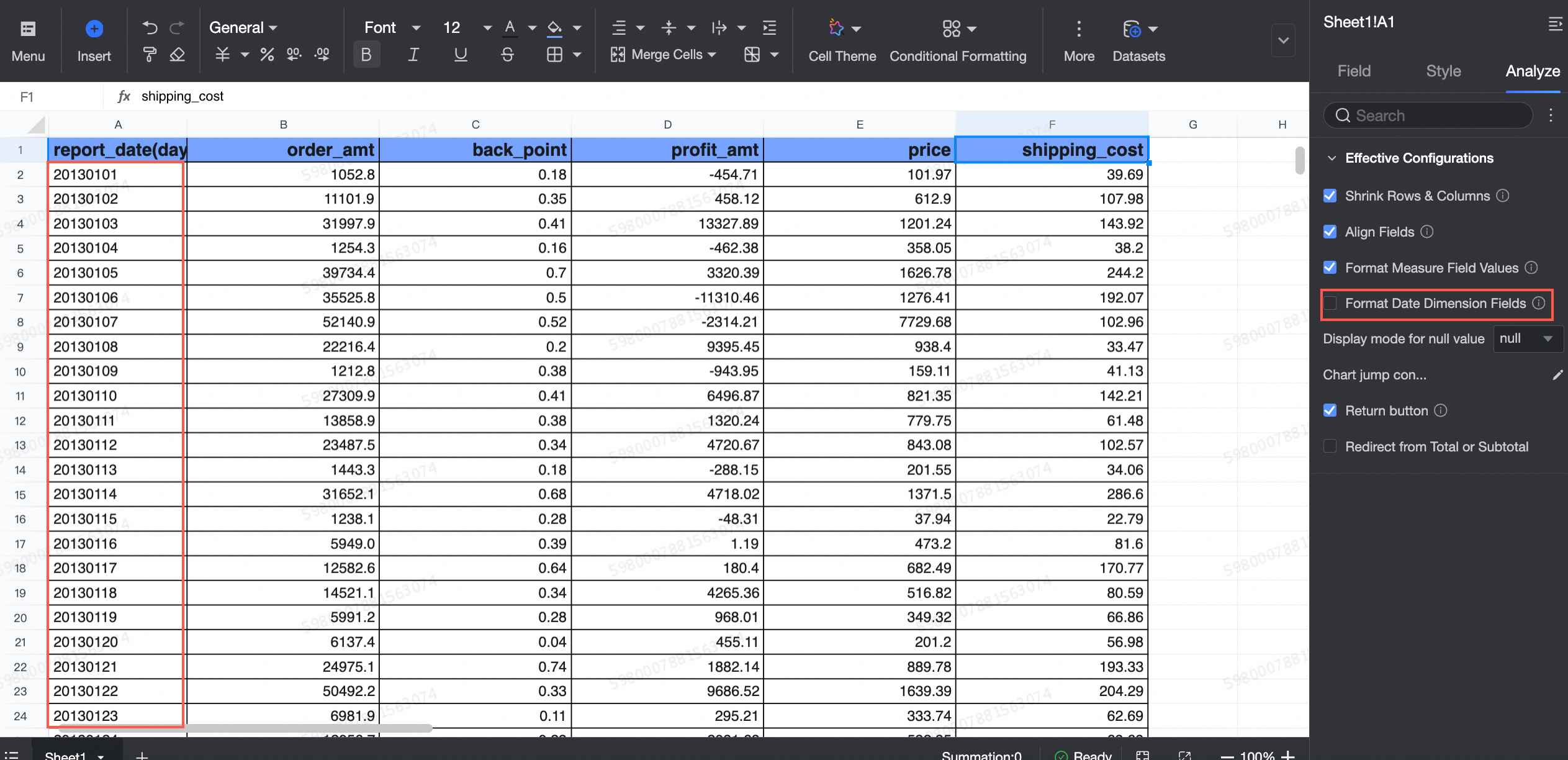
This feature is enabled by default. When disabled, date format settings for a date dimension no longer apply.
For example, set the date format for the "Order Date (day)" field to YYYY-MM-DD.
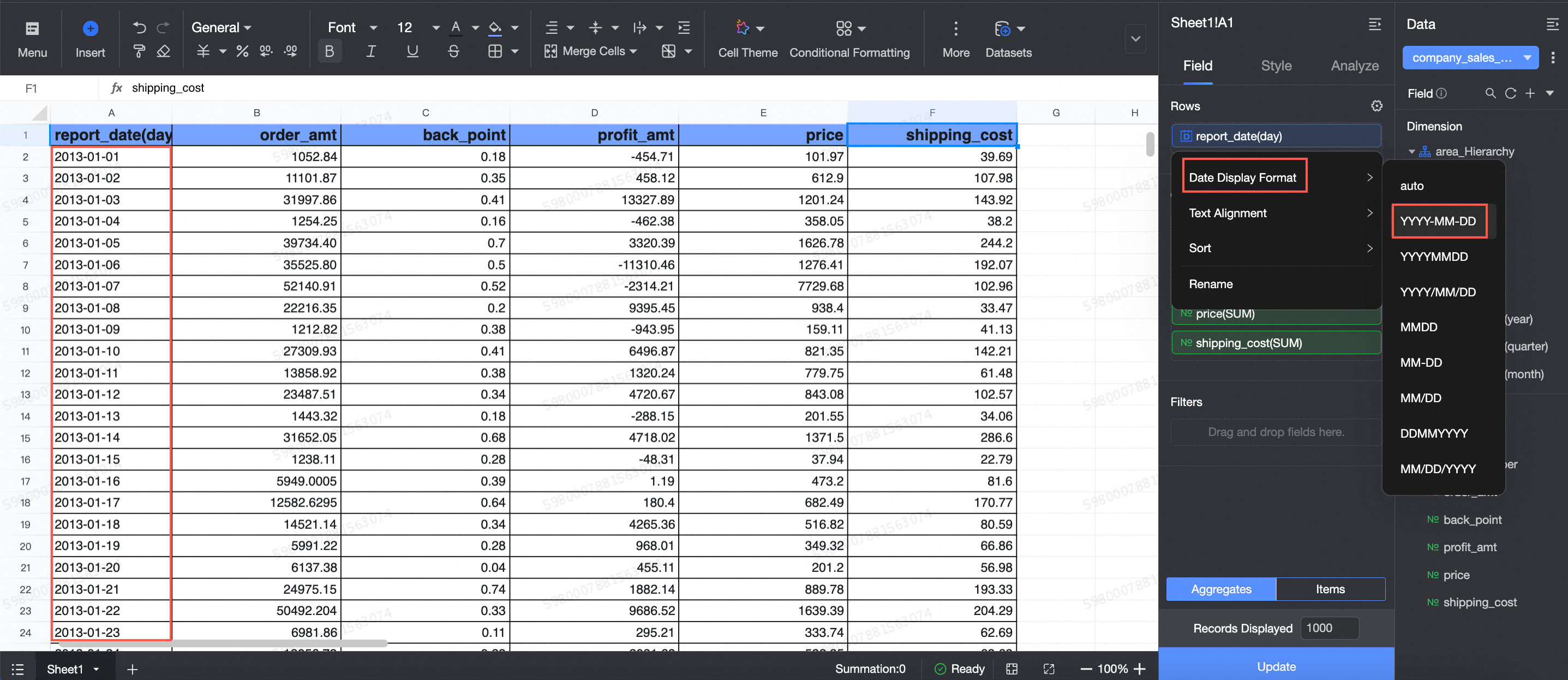
When date dimension formatting is disabled, the custom date format for the "Order Date (day)" field is ignored, and the field reverts to the default format.
Jump configuration
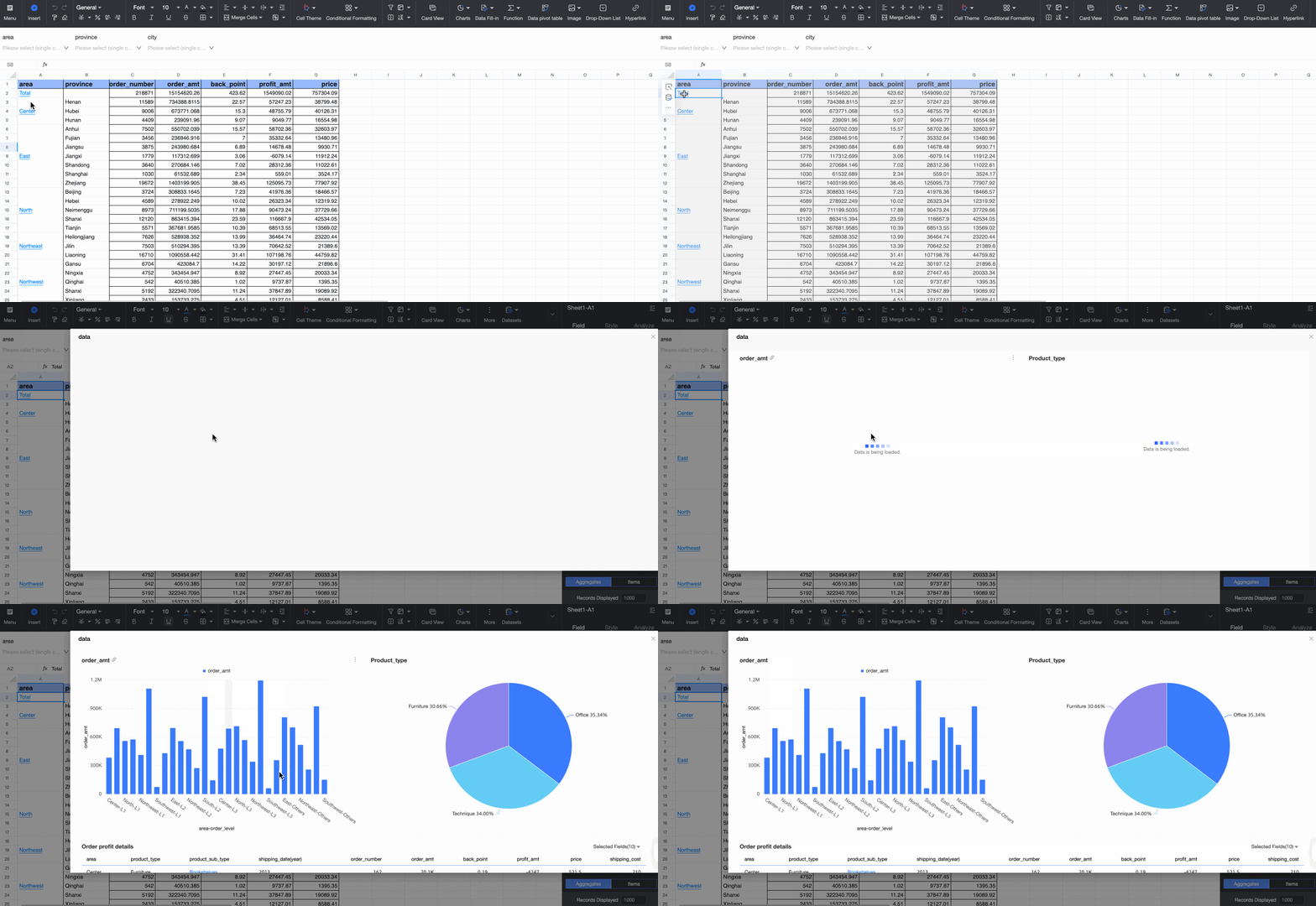
Spreadsheets support the jump feature. To configure a jump, follow the steps in the diagram.
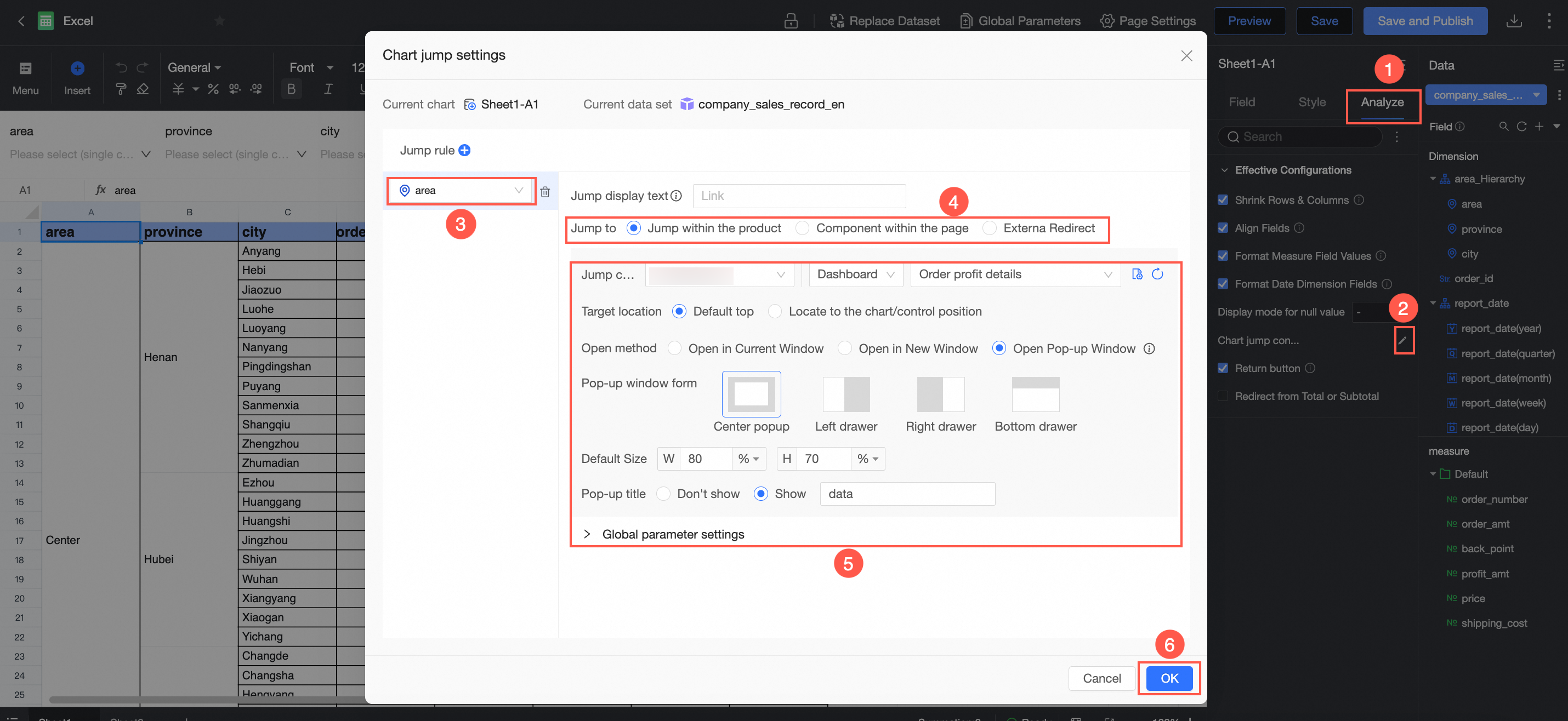
A jump can be one of three types: an internal jump, an in-page component, or an external link. An internal jump requires a global parameter.
After a jump is configured, clicking a target field in the spreadsheet takes you to a related report.
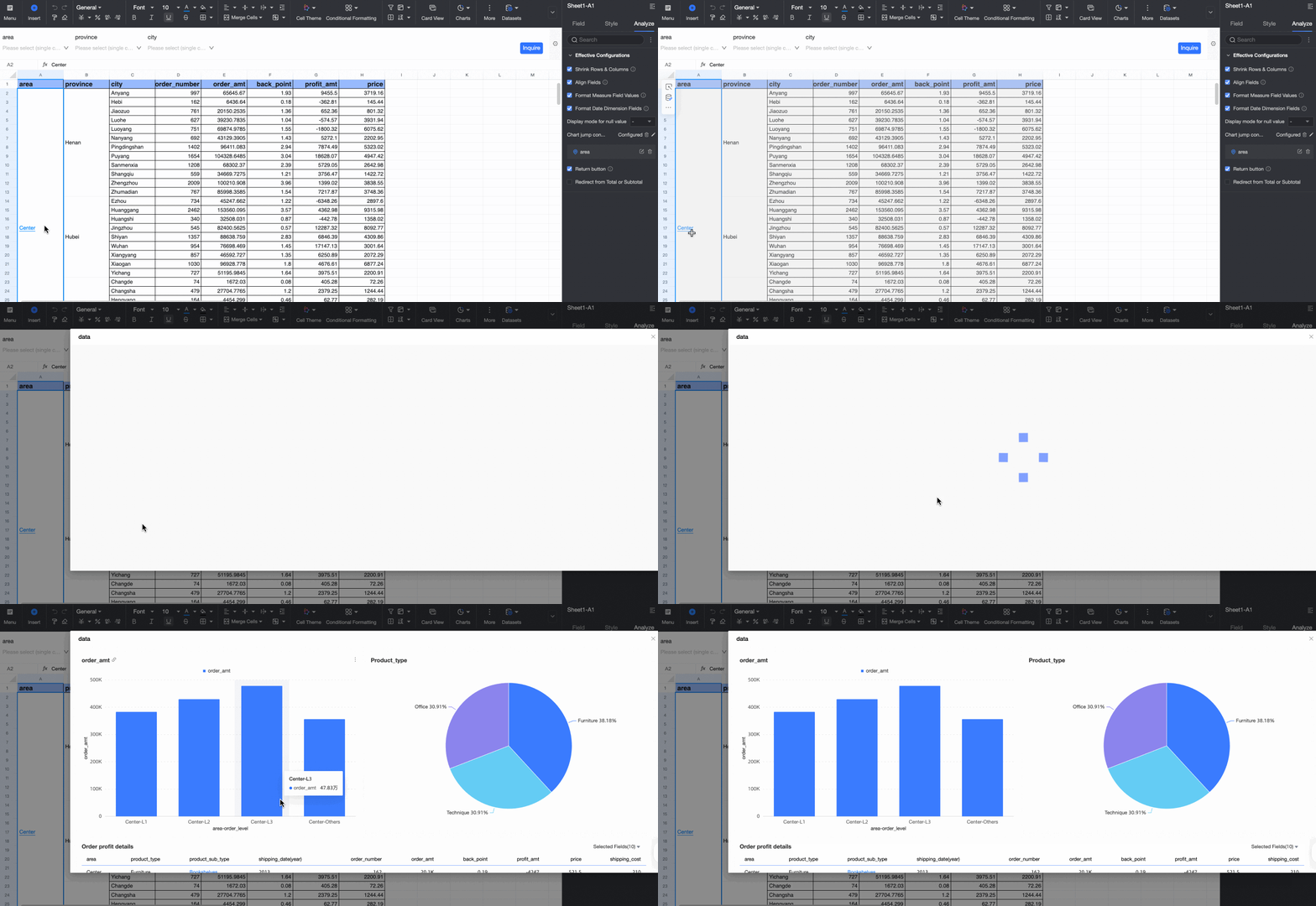
For detailed instructions, see Jump.
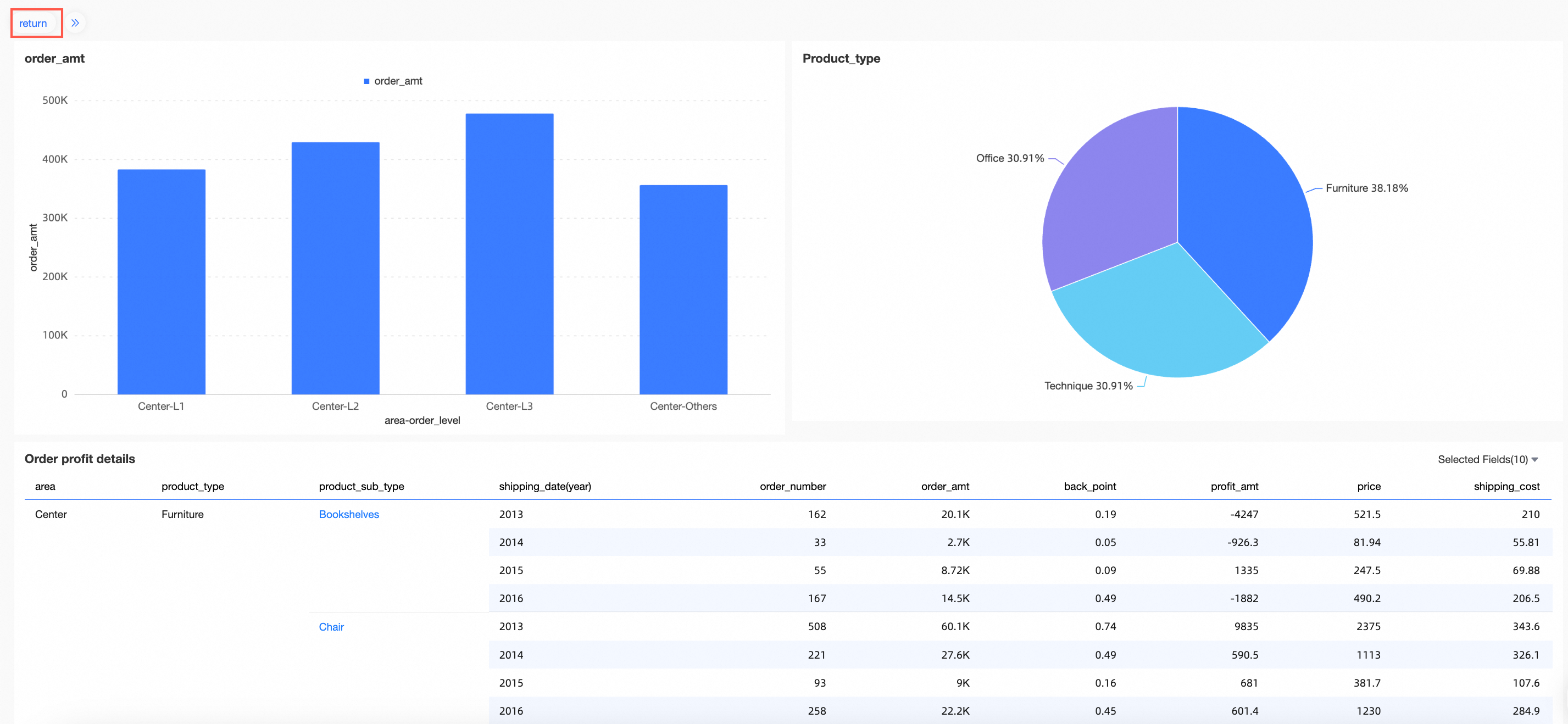
You can configure a back button. This setting applies only to jumps that open in a new window or the current window.

You can enable jumps for totals and subtotals. When this option is enabled, you can also click a total or subtotal to jump.