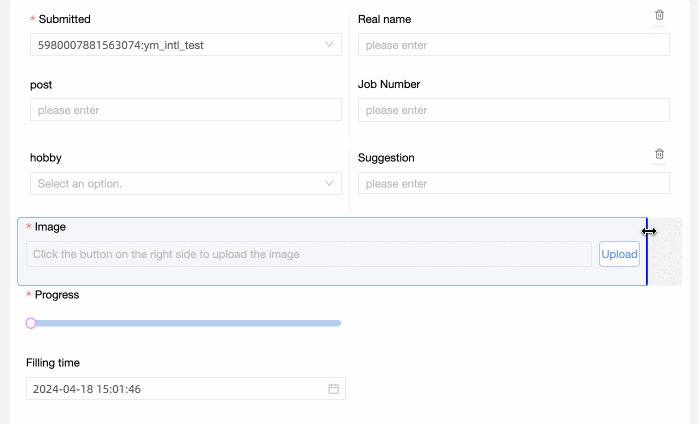
The image upload control is an advanced control that lets you select and upload images on a data entry form.
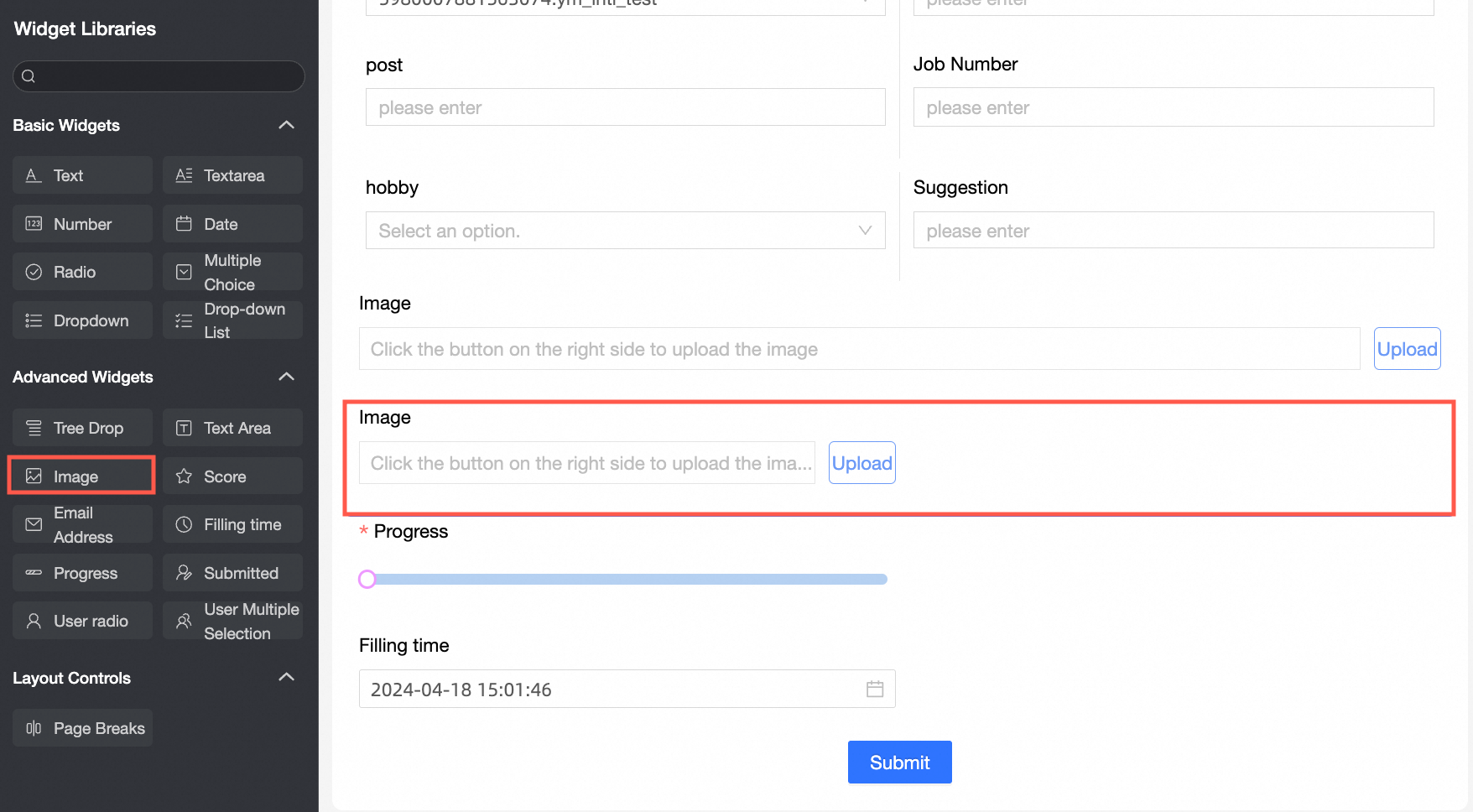
Scenarios
Use this control for scenarios that require uploading images as supporting documentation, such as income verification or ID photos.
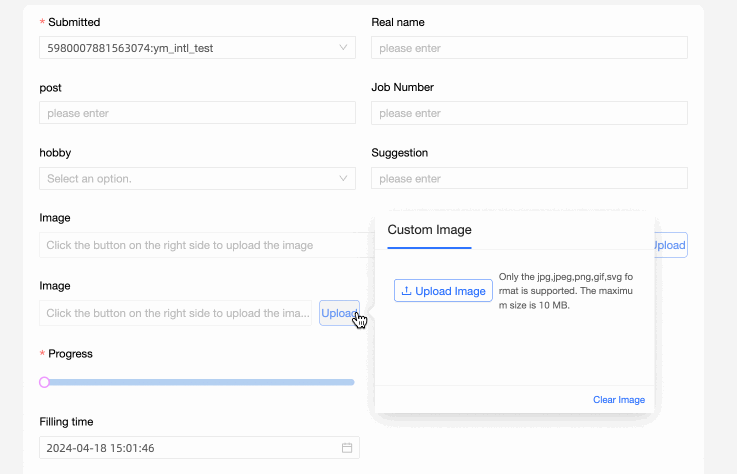
Preview
Configuration
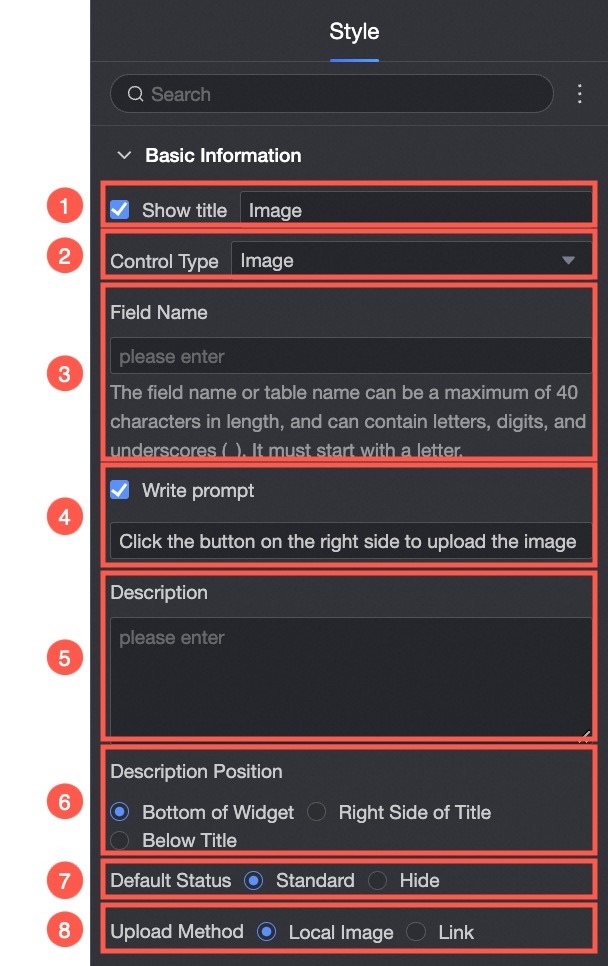
Basic settings
Parameter | Description |
| ① Display title: Shows or hides the control's title. You can customize this title, which serves as the column name for data entry. |
② Control type: Lets you change the control type after selection. The dropdown menu lets you replace it with other basic and advanced controls. | |
③ Table field name: The name of the corresponding field in the table created from this data entry form. Note A field name or table name must begin with a letter and can contain only letters, numbers, and underscores (_). The maximum length is 40 characters. | |
④ Placeholder: Sets the prompt message displayed in the control before user input. For example: Click the button to upload. | |
⑤ Description: A custom description for the control. | |
⑥ Description position: Sets the position of the description. Options include Bottom of control, Right of title, and Below title. | |
⑦ Default state: Sets the default state of the control. Options include Normal and Hidden. | |
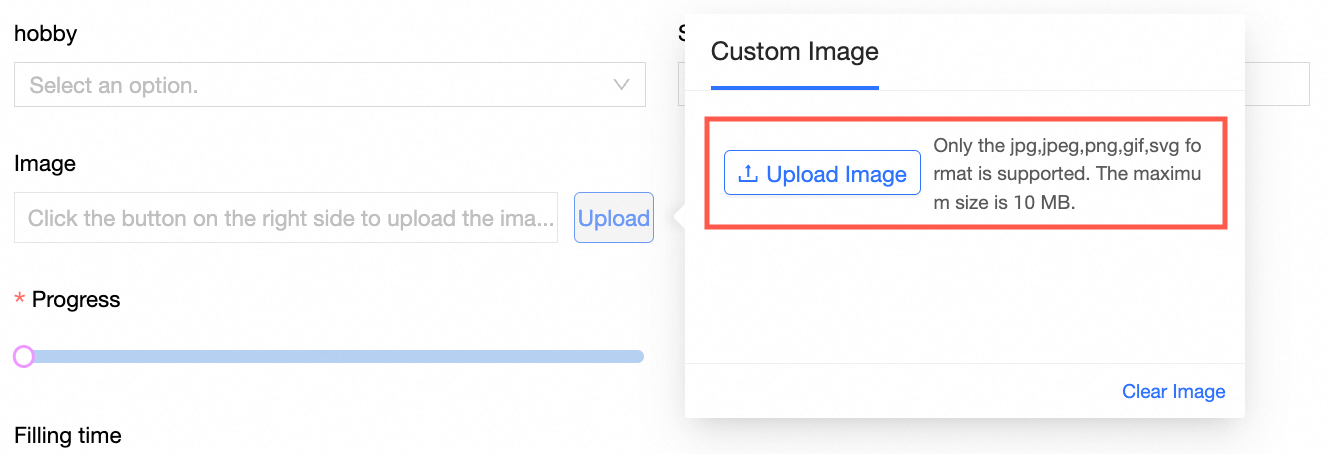
⑧ Upload method: Sets the upload method: local image or link. If you select the local image upload method, you can import an image from your device: Note Only .jpg, .jpeg, .png, .gif, and .svg formats are supported. The maximum file size is 10 MB.
If you select the link upload method, you can upload an image by entering its URL:
|

Validation
Parameter | Description |
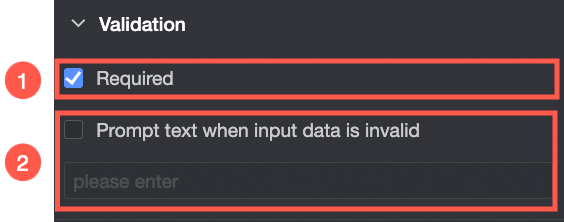
| ① Required: If selected, this control becomes required. |
② Prompt for invalid input data: This setting is available only when a validation rule is active. For example, if you select Required and do not enter a value, this custom error message appears. |
Style
Parameter | Description |
| Control width: Sets the control's width. The options are Default and Full Row. Note On the data entry page, you can also adjust the width by manually dragging the control's border.
|