ChromeTab
Close
close()
Method description
Close the browser.
Code sample: rpa.app.chrome.ChromeTab.close
# Requires the Alibaba Cloud RPA extension for Chrome to be installed and enabled.
# Call this method on a ChromeTab instance.
# Code sample:
page = rpa.app.chrome.create('www.aliyun.com')
page.close()
Navigation
navigate(url, wait=True, timeout=100)
Description
Go to the specified URL.
Parameters
url<str> The URL to open.
wait<bool> Specifies whether to wait for the load to complete.
timeout<int>The timeout duration in seconds. Defaults to 100.
Sample Code: rpa.app.chrome.ChromeTab.navigate
# This method requires the Alibaba Cloud RPA Chrome extension to be installed and enabled.
# Call this method on a ChromeTab instance.
# Code sample:
url = 'www.aliyun.com'
page = rpa.app.chrome.create(url)
page.navigate('help.aliyun.com/document_detail/175379.html')
Back
back(wait=True, timeout=100)
Method description
Going back in the browser
Parameters
wait<bool>Whether to wait until loading is complete.
timeout<int>The timeout duration. Defaults to 100s.
Sample Code: rpa.app.chrome.ChromeTab.back
# Requires the Alibaba Cloud RPA extension for Chrome to be installed and enabled.
# Call this method on a ChromeTab instance.
# Code sample:
url = 'www.baidu.com'
page = rpa.app.chrome.create(url)
page.input_text('Baidu search box', 'Alibaba Cloud')
page.click('Baidu search button', simulate=True)
page.back()
Forward
forward(wait=True, timeout=100)
Description
Forward
Parameters
wait<bool> Whether to wait for the load to complete.
timeout<int>The timeout in seconds. Default: 100.
Example: rpa.app.chrome.ChromeTab.forward
# Requires the Aliyun RPA extension for Chrome.
# Call this method on a ChromeTab instance.
# Code sample:
url = 'www.aliyun.com'
page = rpa.app.chrome.create(url)
page.navigate('help.aliyun.com/document_detail/175379.html')
page.back()
page.forward()
Activate
activate()
Description
Activation page
Example: rpa.app.chrome.ChromeTab.activate
# Note: The Alibaba Cloud RPA extension for Chrome must be installed and enabled to use this method.
# This method must be called on a ChromeTab instance.
# Code sample:
url = 'www.aliyun.com'
page = rpa.app.chrome.create(url)
page.activate()
URL
url()
Description
Get the url
Return value
Returns url<str>
Code Sample: rpa.app.chrome.ChromeTab.url
# This method requires the Alibaba Cloud RPA extension for Chrome to be installed and enabled.
# Call this method on a ChromeTab instance.
# Example:
page = rpa.app.chrome.create('www.aliyun.com')
url = page.url()
Title
title()
Description
Get the title
Return value
Returns the title<str>
Example: rpa.app.chrome.ChromeTab.title
# Requires the Alibaba Cloud RPA Chrome extension to be installed and enabled.
# Call this method on a ChromeTab instance.
# Code sample:
page = rpa.app.chrome.create('www.aliyun.com')
title= page.title()
Reload
reload(bypass_cache=False, wait=True, timeout=100)
Method description
Refresh the page
Parameters
bypass_cache<bool> Specifies whether to bypass the cache.
wait<bool> Whether to wait for load completion.
timeout<int>The timeout in seconds. The default is 100.
Sample call: rpa.app.chrome.ChromeTab.reload
# Requires the Alibaba Cloud RPA extension for Chrome to be installed and enabled.
# Call this method on a ChromeTab instance.
# Code sample:
page = rpa.app.chrome.create('www.aliyun.com')
page.reload()
get_cookie
get_cookie()
Description
Gets all cookies for the current website.
Return value
Returns all cookies for the current website<list>
Code example: rpa.app.chrome.ChromeTab.get_cookie
# This method requires the Alibaba Cloud RPA extension for Chrome to be installed and enabled.
# This method must be called on a ChromeTab instance.
page = rpa.app.chrome.create('www.aliyun.com')
cookie = page.get_cookie()
network_capture_start
network_capture_start(url='', use_regular=False, capture_types=[])
Description
Start the web request listener.
Parameters
url<str>The URL to monitor. An empty string (default) monitors all URLs.
use_regular<bool>Specifies whether to use a regular expression for URL matching.
capture_types<list>Specifies the request types to capture. The supported values are: XHR/Fetch, XHR, Fetch, JS, CSS, image, font, document, WebSocket, and other.
Return value
The key for the web request listener. Use it to retrieve the listener's result or to stop the listener.<string>
Example: rpa.app.chrome.ChromeTab.network_capture_start
# Note: This method requires the Alibaba Cloud RPA Chrome extension to be installed and enabled.
# Call this method on a ChromeTab instance object.
# Code sample:
# Open the Alibaba Cloud page in Google Chrome.
page = rpa.app.chrome.create('www.aliyun.com')
# Start capturing network requests.
capture_key = page.network_capture_start(url='', use_regular=False, capture_types=[])
# Reload the page.
page.reload()
# Get the result of the network request capture.
web_respond_body = rpa.app.chrome.get_network_capture_result(capture_key)
# Stop capturing network requests.
rpa.app.chrome.network_capture_stop(capture_key)
# Log an informational message.
rpa.console.logger.info(web_respond_body)
Wait for load completion
wait_load_completed(timeout=100)
Method Description
Wait for the page to finish loading.
Parameters
timeout<int>The timeout in seconds. Defaults to 100.
Example: rpa.app.chrome.ChromeTab.wait_load_completed
# This method requires you to install and enable the Aliyun RPA extension for Chrome.
# You must call this method on a ChromeTab instance.
# Code sample:
page = rpa.app.chrome.create('www.aliyun.com')
page.wait_load_completed()
Copy
copy()
Method
Creates a copy from the current page.
Return value
Indicates whether the operation was successful<bool>
Code sample: rpa.app.chrome.ChromeTab.copy
# Notes:
# 1. To use this method, you must install and enable the Alibaba Cloud RPA Chrome extension.
# 2. This method only performs a copy operation. You must select the content to copy before calling this method.
# 3. This method writes the content to the system clipboard.
# Code sample: This example double-clicks a cell to select its text, and then copies it:
page = rpa.app.chrome.create('https://help.aliyun.com/document_detail/175379.html')
page.double_click('queryClientViews-chrome')
page.copy()
Paste
paste()
Description
Pastes on the current page.
Return value
Indicates whether the operation was successful<boolean>
Example: rpa.app.chrome.ChromeTab.paste
# Notes:
# 1. Ensure the Alibaba Cloud RPA Chrome extension is installed and enabled before using this method.
# 2. This method only runs the `paste` command. Ensure the target area is selected or focused before calling this method.
# 3. This method pastes the clipboard's content into the target area.
# Code sample: This example copies a cell's content, clicks the search box, and then runs the `paste` command.
page = rpa.app.chrome.create('https://help.aliyun.com/document_detail/175379.html')
page.double_click('queryClientViews-chrome')
page.copy()
page.click('search-box-chrome')
page.paste()
Cut
cut()
Description
Cuts content from the current page.
Return value
Indicates whether the operation was successful<bool>
Example: rpa.app.chrome.ChromeTab.cut
# Notes:
# 1. This method requires the Alibaba Cloud RPA extension for Chrome to be installed and enabled.
# 2. This method only runs the cut command. You must first select the content using another method. This action has no effect on content that cannot be cut.
# 3. This method writes the content to the system clipboard.
# The following is a sample. In this example, you must first manually open the Baidu homepage and enter some text in the input box.
# The program then double-clicks the input box to select the text and cuts it:
page = rpa.app.chrome.catch('www.baidu.com',mode='url')
page.double_click('Baidu input box-chrome')
page.cut()
execute_js
execute_js(code, element=None, index=1, timeout=10)
Description
Executes JavaScript.
Parameters
code<str>The JavaScript code to execute.
element<str>The control whose domain is used to execute JavaScript for cross-domain operations.
index<int>The index of the control to select if multiple are found.
timeout<int>The timeout period.
Return value
Returns the execution result as a JSON string.<str>
Example: RPA.app.chrome.ChromeTab.execute_js
# Ensure the Aliyun RPA Chrome extension is installed and enabled.
# Call this method on a ChromeTab instance object.
# Code sample:
js_code = """
    function test(){
    var div1 = document.getElementById("su").getAttribute('%s');
    return(div1)
    } ;
result = test() ;
console.log(result) ;
alert(result);
return result;
"""%'value'

url = 'www.baidu.com'
page = rpa.app.chrome.create(url)

value = page.execute_js(js_code)
print(value)
Table
table(value, type='index', return_type='text', parent_element=None)
Description
Get the table
Parameters
type<str>The match type.
Options:
index: Matches by index.
text: Matches by text.
HTML: Matches by HTML.
return_type<str>The return type.
Optional:
text: Text format
html: HTML format
Return value
Returns the two-dimensional array for the matched table or an html list.
Example: rpa.app.chrome.ChromeTab.table
# Notes:
# 1. To use this method, install and enable the Alibaba Cloud RPA Chrome extension.
# 2. This method retrieves a standard table (an element with a <table> HTML tag) from a web page by index (starting from 1) or a regular expression.
# Code sample: The following code retrieves the first table from the web page. This is the first <table> HTML tag encountered in the HTML source.
page = rpa.app.chrome.create('https://help.aliyun.com/document_detail/175379.html')
table_data = page.table(1)
Scroll
scroll(height=0, element=None, index=1, parent_element=None, timeout=10, direction='top')
Description
Scroll the page
Parameters
height<int>Scrolls the page by the specified value, or to the bottom if omitted.
element<str>The control element.
index<int>The index of the control, used when multiple are found.
parent element<Element>The parent element.
timeout<int>The timeout value.
direction<str>The direction of the scrollbar.
Options:
left: scroll left
top: scroll down
Code Sample: RPA.app.Chrome.ChromeTab.scroll
# Notes:
# 1. This method requires the Alibaba Cloud RPA Chrome extension to be installed and enabled.
# 2. The method scrolls the page to the bottom if no parameters are passed or the height parameter is set to 0.
# Code sample:
page = rpa.app.chrome.create('https://help.aliyun.com/document_detail/175379.html')
page.scroll()
# To scroll a list on the page, specify parameters such as height and element. For example:
page.scroll(height=200, element='scrollable_list', index=1, parent_element=None, timeout=10, direction='top')
The control to record is the scroll bar itself.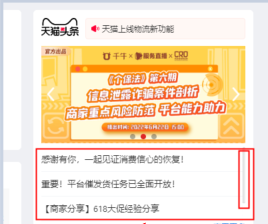
get_element_by_name
get_element_by_name(element, index=1, parent_element=None, timeout=10)
Description
Get Object
Parameters
control<str>The target control.
index<int>The index to use when multiple controls match.
parent element<Element>The parent element.
timeout<int>The timeout in seconds.
Return value
Returns an <element> object
Code example - rpa.app.chrome.ChromeTab.get_element_by_name
# Notes:
# 1. This method requires the Aliyun RPA Chrome extension to be installed and enabled.
# 2. You must first use the capture control feature to capture an element from the page.
# Code sample:
url = 'https://www.baidu.com/'
page = rpa.app.chrome.create(url)
element = page.get_element_by_name('Baidu Search button-chrome')
text = element.text()
get_element_by_css
get_element_by_css(css, index=1, parent_element=None, timeout=10)
Method
Get a control by a CSS expression.
Parameters
CSS<str>CSS expression
index<int>Index of the control to select if multiple are found.
parent_element<str> The parent element.
timeout<int>The timeout in seconds.
Return value
Returns a control object for an <element>
Example: rpa.app.chrome.ChromeTab.get_element_by_css
# Notes:
# 1. To use this method, ensure the Alibaba Cloud RPA Chrome extension is installed and enabled.
# 2. This method uses a standard CSS selector expression to locate the target element.
# Code sample:
url = 'https://help.aliyun.com/document_detail/175379.html'
page = rpa.app.chrome.create(url)
css_selector = "span.lake-fontsize-11" # Selects a span tag with the class "lake-fontsize-11".
element = page.get_element_by_css(css_selector)
text = element.text()
Count
count(element, parent_element=None)
Method description
Get the number of controls
Parameter
element<str>The target UI element
parent_element<str> The parent element.
Example: rpa.app.chrome.ChromeTab.count
# Notes:
# 1. Before using this method, ensure the Alibaba Cloud RPA extension for Chrome is installed and enabled.
# 2. Use this method to count similar controls that have been captured.
# Code sample:
url = 'www.aliyun.com'
page = rpa.app.chrome.create(url)
element_count = page.count('Login button-chrome')
wait_loaded
wait_loaded(element, index=1, parent_element=None, timeout=10, ignore_error=True)
Description
Wait for the control to load.
Parameter description
element<str>The target element.
index<int>The index of the control to use if more than one is found.
parent_element<str>The parent element.
timeout<int>The timeout period.
ignore_error<bool>Whether to ignore errors.
Code sample: rpa.app.chrome.ChromeTab.wait_loaded
# Notes:
# 1. Make sure the Alibaba Cloud RPA Chrome extension is installed and enabled.
# 2. Make sure you have recorded the target page element using capture control.
# Code sample:
page = rpa.app.chrome.create('www.taobao.com')
flag = page.wait_loaded('Taobao logo')
wait_disappear
wait_disappear(element, index=1, parent_element=None, timeout=10)
Method
Wait for the control to disappear
Parameters
element<str>The identifier for the target control.
index<int>The index of the control to select when multiple controls match.
parent_element<str>The parent element.
timeout<int>The timeout, in seconds.
Code sample: rpa.app.chrome.ChromeTab.wait_disappear
# Notes:
# 1. Ensure the Alibaba Cloud RPA Chrome extension is installed and enabled.
# 2. Ensure you have captured the target page element using the capture control.
# Code sample:
page = rpa.app.chrome.create('www.taobao.com')
page.wait_disappear('Taobao logo')
Handle JavaScript dialog
handle_javascript_dialog(value='ok', text=None)
Method description
Handling JavaScript dialog boxes
Parameters
value<string>The action to perform on the dialog box.
Optional:
OK: Confirms the operation.
cancel: Cancels the operation.
text<str>The text to enter in the dialog box.
Sample call: rpa.app.chrome.ChromeTab.handle_javascript_dialog
# Notes:
# 1. Before using this method, ensure the Alibaba Cloud RPA Chrome extension is installed and enabled.
# Sample code:
page = rpa.app.chrome.catch('W3School TIY Editor', mode='title', pattern='contain')
page.click('Trigger pop-up')
page.handle_javascript_dialog()To create a page pop-up:
Open the W3Schools page.
Enter the HTML script in the script box on the left.
Click Run Code. A pop-up button will be created on the right.
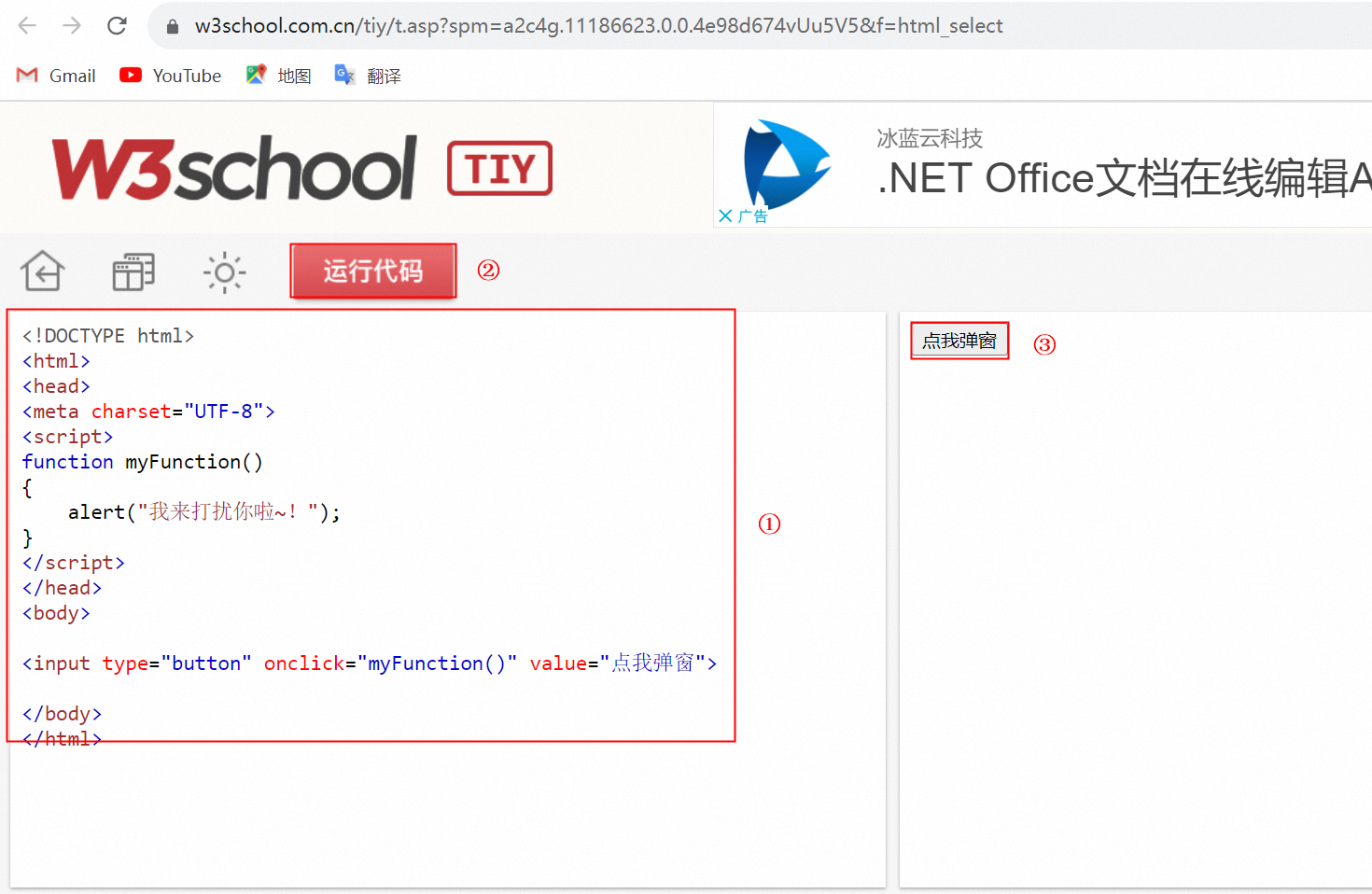
<!DOCTYPE html>
<html>
<head>
<meta charset="UTF-8">
<script>
function myFunction()
{
    alert("This is a popup message!");
}
</script>
</head>
<body>

<input type="button" onclick="myFunction()" value="Show Popup">

</body>
</html>
Click
click(element, index=1, parent_element=None, simulate=True, button='left', offset_x=0, offset_y=0, move_mode="without-track", speed_mode="uniform", timeout=10)
Description
Click
Parameters
element<str>The target control.
index<int>The index of the control to use if multiple are found.
parent_element<str> The parent element.
simulate<bool>Whether to simulate the click.
button<str>Mouse button.
Options:
left button
right button
offset_x<int>: The horizontal offset.
offset_y<int>Vertical offset.
move_mode<str>Specifies the mouse movement mode for the click, effective only when simulate=True.
Optional:
without-track: Instantly moves the mouse to a control and clicks.with-track: Simulates human-like mouse movement to a control and clicks.
speed_mode<str>Sets the speed mode for mouse movement. This parameter applies only when simulate is True and move_mode is with-track.
uniform: moves at a constant speed
timeout<int>The timeout duration.
Code example: rpa.app.chrome.ChromeTab.click
# Notes:
# 1. This method requires the Alibaba Cloud RPA Chrome extension to be installed and enabled.
# 2. Before use, ensure the page element has been captured using capture control.
# 3. If `simulate=True`, the method simulates a click. The target page element must be in the visible area.
# 4. If `simulate=False`, the method sends a click command directly to the element.
# Code sample:
url = 'www.aliyun.com'
page = rpa.app.chrome.create(url)
page.click('Login button-chrome')
(Not recommended) input_text
input_text(element, value, index=1, parent_element=None, simulate=True, replace=True, sent_raw=False, wait_mili_seconds=20, timeout=10)
Description
Inputs text into an element.
For client versions 4.10.3.1033 and later, use input_text_simulated or input_text_directed.
This method remains functional and does not affect existing automation workflows.
Parameters
element<str> The selector for the element.
value<str> The content to input.
index<int> Specifies which element to use by index if multiple elements are found.
parent_element<str> A selector for the parent element, which scopes the search for the target element.
simulate<bool> Specifies whether to use simulated input.
replace<bool> If True, clears any existing content before inputting.
sent_raw<bool> If True, sends raw keystrokes. This parameter applies only in non-simulated mode.
wait_mili_seconds<int> The delay between keystrokes in milliseconds. This parameter applies only to simulated input. The default is 20, and the maximum is 100. Setting this value too high may cause a timeout.
timeout<int> The timeout in seconds for finding the element.
Example of using rpa.app.chrome.ChromeTab.input_text
# Notes:
# 1. This method requires the Alibaba Cloud RPA extension for Chrome to be installed and enabled.
# 2. Before use, record the page element using the element capture feature.
# Code sample:
url = 'www.aliyun.com'
page = rpa.app.chrome.create(url)
page.input_text('search-input','RPA')
input_text_simulated
input_text_simulated(element, value, index=1, mode = 'native', parent_element=None, replace=True, keystroke_interval=20, timeout=10)
Description
Simulates typing text into an element.
This feature is available in client versions 4.10.3.1033 and later.
Parameters
element<str> The name of the element.
value<str> The text to enter.
index<int> The index of the element to use if multiple matches are found.
mode<str> The input mode. Supported values are native, cdp, and driver.
native: Uses the operating system interface to enter the text.
cdp: Uses the browser extension to simulate typing.
driver: Uses the driver to simulate keyboard input.
ImportantFor details on the limitations, see Limitations of driver input.
parent_element<str> The parent element object.
replace<bool> Specifies whether to clear the existing content before entering text.
keystroke_interval<int> The interval between keystrokes, in milliseconds. The default is 20, and the maximum is 100. An excessively high value may cause a timeout.
timeout<int> The timeout in seconds for finding the element.
Code Sample
# Notes:
# 1. Ensure the Aliyun RPA browser extension for Chrome is installed and enabled.
# 2. Before use, ensure that you have captured the page element using the element capture feature.
# Code sample:

url = 'www.aliyun.com'
page = rpa.app.chrome.create(url)

page.input_text_simulated('search-input','Aliyun RPA')
input_text_directed
input_text_directed(element, value, index=1, parent_element=None, replace=True, timeout=10)
Description
Sets an element's text by directly modifying its HTML attributes.
This feature is available in client versions 4.10.3.1033 and later.
This method is fast but may be incompatible with some web pages due to varied front-end implementations.
For greater reliability, use input_text_simulated instead.
Parameters
element<str> The name of the element.
value<str> The text to enter.
index<int> The index of the element to use when multiple elements are found.
parent_element<str> The name of the parent element.
replace<bool> Whether to clear the element's existing content.
timeout<int> The maximum time in seconds to wait for the element.
Code Sample
# Notes:
# 1. This method requires the Alibaba Cloud RPA extension for Chrome to be installed and enabled.
# 2. Before use, ensure the page element has been recorded with the capture element feature.
# Code sample:

url = 'www.aliyun.com'
page = rpa.app.chrome.create(url)

page.input_text_directed('search-input','Alibaba Cloud RPA')
input_hotkeys
input_hotkeys(element, value, index=1, parent_element=None, timeout=10)
Description
Simulates a hotkey press. See input_hotkey usage and list of virtual key codes for details.
Parameters
element<str>The control to which the hotkey is sent.
value<str>The virtual key code.
index<int>The control index to use if multiple matches are found.
parent_element<str>The parent of the target control.
timeout<int>The timeout in seconds.
download_by_element
download_by_element(path, element, index=1, parent_element=None, wait=True, suffix=None, complete_timeout=120)
Description
Initiates a file download by clicking a specified element and waits for the download to complete. The file is first downloaded to the browser's default download location and then automatically moved to the specified file path.
Disable the Ask where to save each file before downloading option in your browser settings, as shown in the following figure.
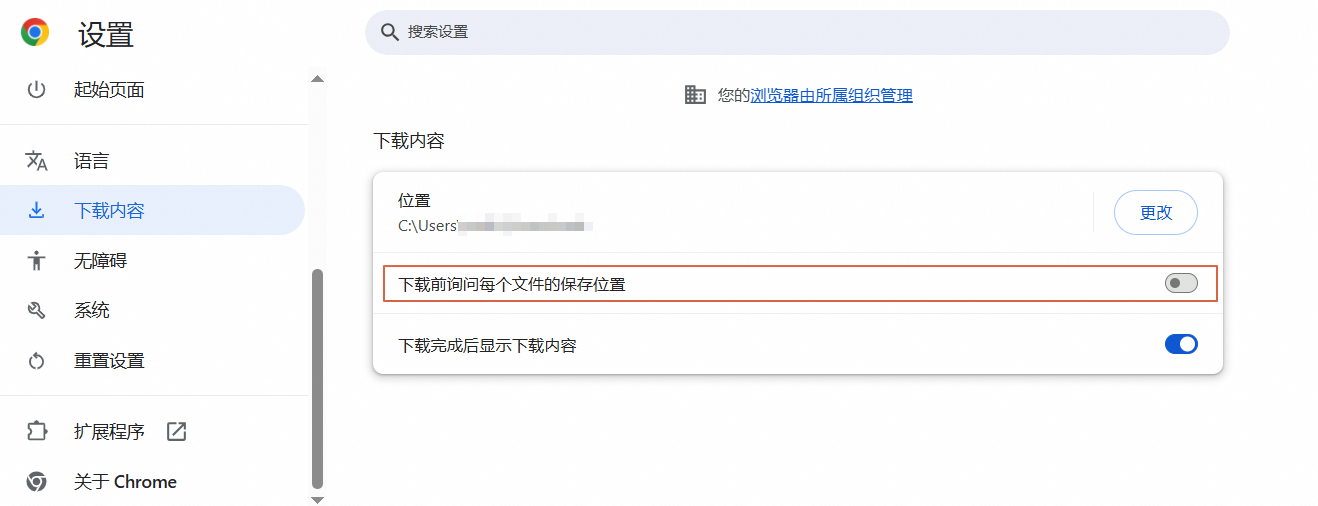
If disabled: Files with duplicate names are automatically overwritten.
If enabled: A confirmation dialog appears if a file with a duplicate name is found in the download location, which interrupts the automation workflow.
Parameters
path<str>The path to save the downloaded file to.
element<str>The element that triggers the download when clicked.
index<int>The element index to use if multiple matches are found.
parent_element<Element>The parent element.
complete_timeout<int>The download completion timeout in seconds.
wait<bool>Specifies whether to wait for the download to complete.
suffix<str>Determines the format of the suffix automatically appended to the filename. The available values are as follows:
datetime: Appends the date and time (YYYYMMDDHHmm).
date: Appends the date (YYYYMMDD).
Code example
# Notes:
# 1. This method requires the Alibaba Cloud RPA extension for Chrome to be installed and enabled.
# 2. Before using this method, capture the download button element on the page by using the capture element feature and verify that it is available.
# Code example:
url = 'https://www.cninfo.com.cn/new/disclosure/detail?plate=hke&orgId=9900042435&stockCode=09988&announcementId=1209275224'
page = rpa.app.chrome.create(url)
download_path = r'D:\Alibaba-SW-Public-Disclosure.pdf'
page.download_by_element(download_path,'download-announcement-chrome')
download_by_url
download_by_url(url, path, wait=True, complete_timeout=120)
Description
Downloads a file from the specified URL and waits for the download to complete. The browser first downloads the file to its default download location, then automatically moves it to the specified file path.
Disable the "Ask where to save each file before downloading" option in your browser.
If disabled: Files with duplicate names are automatically overwritten.
If enabled: A confirmation dialog appears when a file with a duplicate name is detected in the download location. This will interrupt the automation workflow.
Parameters
url<str> The URL of the file to download.
path<str> The path to save the downloaded file.
complete_timeout<int> The download timeout in seconds.
wait<bool> Specifies whether to wait for the download to complete.
Code Sample
# Notes:
# 1. This method requires the Aliyun RPA extension for Chrome to be installed and enabled.
# The following code sample downloads the specified file to the designated path:
url = 'https://www.cninfo.com.cn'
page = rpa.app.chrome.create(url)
download_url = 'https://www.cninfo.com.cn/new/announcement/download?bulletinId=1209275224&announceTime=2021-02-10'
download_path = r'D:\Alibaba-SW.pdf'
page.download_by_url(download_url,download_path)
Upload
upload(element, file, index=1, parent_element=None, timeout=10)
Method
Upload files
Parameters
element<str>The target control.
file<str>The path to the file to upload.
index<int> The index of the control to use if multiple are found.
parent_element<str> The parent element.
timeout<int>Timeout in seconds.
Sample call: rpa.app.chrome.ChromeTab.upload
Text
text(element=None, index=1, parent_element=None, timeout=10)
Description
get text
Parameters
element<str>The target control.
index<int>The index of the control to select if multiple exist.
parent_element<str>The parent element.
timeout<int>The timeout in seconds.
Return value
Returns the text of a specified control, or all text from the browser if no control is specified.<str>
Code sample: rpa.app.chrome.ChromeTab.text
# Notes:
# 1. The Alibaba Cloud RPA extension for Chrome must be installed and enabled.
# 2. The page element must be recorded with capture control before use.
# Code sample:
url = 'https://help.aliyun.com/document_detail/175379.html'
page = rpa.app.chrome.create(url)
text = page.text(element='pre-sales-consultation-bottom-chrome')
HTML
html(element=None, index=1, parent_element=None, timeout=10)
Method description
Get HTML
Parameters
element<str>The target control.
index<int>The index of the control to use if multiple are found.
parent_element<str>The parent element.
timeout<int>The timeout in seconds.
Return value
Returns the HTML for a specified control or, if no control is specified, returns all HTML from the browser.<str>
Example: rpa.app.chrome.ChromeTab.html
# Notes:
# 1. Ensure the Alibaba Cloud RPA Chrome extension is installed and enabled.
# 2. Ensure you have captured the page element using capture control.
# Code sample:
url = 'https://help.aliyun.com/document_detail/175379.html'
page = rpa.app.chrome.create(url)
html = page.html('page-bottom-pre-sales-consultation-chrome')
Value
value(element, index=1, parent_element=None, timeout=10)
Description
Returns the value.
Parameters
element<str>The target control.
index<int>The index of the control to use if multiple exist.
parent_element<str> The parent element.
timeout<int>The timeout period in seconds.
Example: rpa.app.chrome.ChromeTab.value
# Notes:
# 1. The Alibaba Cloud RPA extension for Chrome must be installed and enabled.
# 2. Before using this method, ensure that the page elements have been recorded using capture control.
# Code sample:
url = 'https://help.aliyun.com/document_detail/175379.html'
page = rpa.app.chrome.create(url)
value = page.value('Bottom of page - pre-sales consultation-chrome')
Option
option(element, text, index=1, parent_element=None, type='match', timeout=10)
Description
Select an option from the drop-down list.
Parameters
element<str>The target element.
text<str> The display text for the option.
index<int>The index of the control to use when multiple are found.
type<str>The match type.
Options:
match: fuzzy matchfull: exact matchregex: regex match
parent_element<str>The parent element.
timeout<int>Timeout in seconds
This action supports only HTML select elements. To interact with other types of dropdown lists, see Example: Dynamically select from a dropdown list.
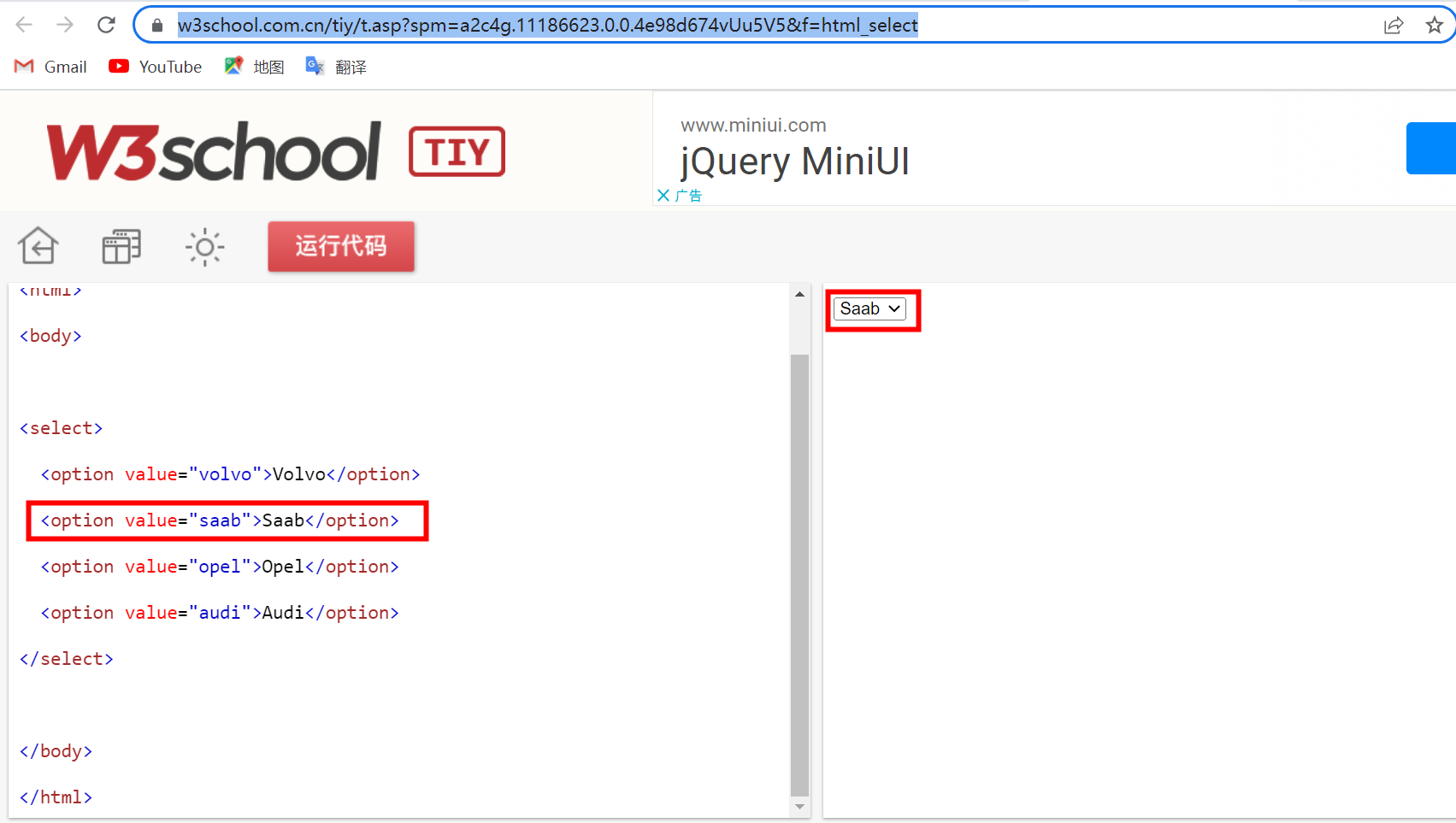
Code sample: rpa.app.chrome.ChromeTab.option
# Notes:
# 1. This method requires the Alibaba Cloud RPA extension for Chrome.
# 2. Before using this method, use the capture control feature to capture a standard dropdown element (an element with the <select> HTML tag).
# 3. Ensure the dropdown includes the specified text option.
# Code sample:
url = 'https://kyfw.12306.cn/otn/leftTicket/init'
page = rpa.app.chrome.create(url)

page.option('dropdown-chrome','00:00--06:00')
get_checked_state
get_checked_state(element, index=1, parent_element=None, timeout=10)
Method
Get the checked state
Parameters
element<str>Target element.
index<int>The index to select a control when multiple controls match.
parent_element<str>The parent element.
timeout<int>The timeout in seconds.
Return value
Returns the checked state<boolean>
Code example: rpa.app.chrome.ChromeTab.get_checked_state
# Notes:
# 1. Ensure the Alibaba Cloud RPA Chrome extension is installed and enabled.
# 2. Ensure the page element has been recorded using capture control beforehand.
# Code sample:
url = 'https://kyfw.12306.cn/otn/leftTicket/init'
page = rpa.app.chrome.create(url)
check_state = page.get_checked_state('checkbox-high-speed-train-chrome')
set_checked_state
set_checked_state(element, value=True, index=1, parent_element=None, timeout=10)
Method description
Set the state to checked
Parameters
control<str>The UI control.
value<boolean> Pass True to check the box, or False to uncheck it.
index<int>The index of the target control when multiple controls match.
parent_element<str>The parent element.
timeout<int>The timeout period in seconds.
Code Sample: rpa.app.chrome.ChromeTab.set_checked_state
# Notes:
# 1. Install and enable the Aliyun RPA Chrome extension before using this method.
# 2. Before use, ensure the page element has been recorded using capture control.
# Code sample:
url = 'https://kyfw.12306.cn/otn/leftTicket/init'
page = rpa.app.chrome.create(url)
page.set_checked_state('checkbox-high-speed-train-chrome', value=True)
Attribute
attr(element, attrname, index=1, parent_element=None, timeout=10)
Description
Get properties
Parameters
element<str> The target control
attrname<str>The attribute name.
index<int>The index of the control to use when multiple are found.
parent_element<str>The parent element.
timeout<int>The timeout in seconds.
Return value
Returns the attribute value<str>.
Example: rpa.app.chrome.ChromeTab.attr
# Notes:
# 1. The Alibaba Cloud RPA extension for Chrome must be installed and enabled.
# 2. The page element must be recorded with the capture control feature.
# Code sample:
url = 'https://help.aliyun.com/document_detail/175379.html'
page = rpa.app.chrome.create(url)
attribute = page.attr('Sign in button-chrome','class')
process_alert
process_alert(option='ok', element=None, simulate=True, index=1, parent_element=None, timeout=10)
Description
Click in the dialog box.
Parameters
value<str>Dialog box action.
Optional:
ok: Click OK
cancel: Click cancel
element<str>The target control. If omitted, this action applies to the browser pop-up.
simulate<bool>Simulates the action.
index<int>The index of the control to select when multiple are found.
parent element<Element>The parent element.
timeout<int>The timeout in seconds.
Code sample: rpa.app.chrome.ChromeTab.process_alert
# Notes:
# 1. Requires an installed, enabled Alibaba Cloud RPA Chrome extension.
# 2. Handles only confirm or alert dialogs.
# Code sample:
page = rpa.app.chrome.catch('W3School TIY Editor', mode='title', pattern='contain')
page.click('Trigger pop-up')
page.process_alert()Creating a dialog box:
Open the W3Schools page.
Enter your HTML script in the left script pane.
Click Run Code to display a popup button on the right.
<!DOCTYPE html>
<html>
<head>
<meta charset="UTF-8">
<script>
function myFunction()
{
    alert("Hello! I'm a pop-up window!");
}
</script>
</head>
<body>

<input type="button" onclick="myFunction()" value="Show pop-up">

</body>
</html>
process_prompt
process_prompt(text, option='ok', element=None, simulate=True, index=1, parent_element=None, timeout=10)
Description
Enter text in the input box and click.
Parameters
text<str>The input string.
option<str>The input box click action.
Options:
OK: Click to confirm.
Cancel: Click to cancel.
element<str>The target element. If omitted, the browser popup is clicked.
simulate<bool>Specifies whether to simulate the action.
index<int>The control's index to use when multiple are found.
parent_element<Element>The parent element.
timeout<int>The timeout duration.
Sample Code: rpa.app.chrome.ChromeTab.process_prompt
# Notes:
# 1. This method requires the Alibaba Cloud RPA Chrome extension to be installed and enabled.
# 2. This method only handles prompt dialogs.
# Code sample:
url = 'https://help.aliyun.com/document_detail/175379.html'
page = rpa.app.chrome.create(url)
page.execute_js('prompt("Enter content:","")')
page.process_prompt('RPA_TEST')
POS
pos(element, index=1, parent_element=None, timeout=10)
Method
Get Control Coordinates
Parameters
element<str>The target control.
index<int>The index of the control to use if multiple matches are found.
parent_element<str>The parent control or widget object.
timeout<int>The timeout period in seconds.
The control must be visible on the screen. Therefore, you may need to:
Activate the browser tab using activate.
Scroll the page using scroll_into_view or scroll.
Example: rpa.app.chrome.ChromeTab.pos
# Notes:
# 1. This method requires the Alibaba Cloud RPA extension for Chrome to be installed and enabled.
# 2. This method returns the coordinates of a page element relative to the top-left corner of the screen (the origin). Moving the browser window changes these coordinates.
# Code sample:
url = 'https://help.aliyun.com/document_detail/175379.html'
page = rpa.app.chrome.create(url)
pos = page.pos('Login button-chrome')
Screenshot
screenshot(element, file, index=1, parent_element=None, timeout=10)
Method description
Take a snapshot.
Parameters
element<str>The control.
file<str>The file path for saving the screenshot.
index<int>The index of the control to use when more than one is found.
parent_element<str>The parent control.
timeout<int>The timeout in seconds.
The control must be visible on the screen. You may need to:
Activate the browser tab using activate.
Scroll the control into view using scroll_into_view or scroll.
Code Sample: rpa.app.chrome.ChromeTab.screenshot
# Notes:
# 1. To use this method, ensure you have installed and enabled the Alibaba Cloud RPA extension for Chrome.
# 2. Before using this method, ensure you have recorded the page element with capture control.
# Code sample:
url = 'https://help.aliyun.com/document_detail/175379.html'
page = rpa.app.chrome.create(url)
save_path = r'D:\Alibaba_Cloud_footer_text_screenshot.jpg'
page.screenshot('Page footer - pre-sales consultation-chrome',save_path)
mouse_move
mouse_move(element, index=1, parent_element=None, timeout=10)
Description
Hover
Parameters
element<str>The target control.
index<int>The index of the control to select when multiple controls match.
parent_element<str>The parent control object.
timeout<int>The time to wait before the operation times out.
Code sample: rpa.app.chrome.ChromeTab.mouse_move
# Notes:
# 1. Requires the Alibaba Cloud RPA Chrome extension to be installed and enabled.
# 2. Before using this method, record the page element using capture control.
# Code sample:
url = 'https://help.aliyun.com/document_detail/175379.html'
page = rpa.app.chrome.create(url)
page.mouse_move('page-footer-pre-sales-consultation-chrome')
Visibility
isvisible(element, index=1, parent_element=None, timeout=10)
Description
Returns true if the control is visible.
Parameters
element<str>The target element.
index<int>The index of a specific control, used when multiple are found.
parent_element<str>The parent element.
timeout<int>The timeout period, in seconds.
Return value
Returns whether the control is visible<boolean>
Example: rpa.app.chrome.ChromeTab.isvisible
# Notes:
# 1. This method requires the Alibaba Cloud RPA Chrome extension to be installed and enabled.
# 2. Before using this method, ensure you have recorded the page element using capture control.
# 3. This method checks a page element's visibility. If the element does not exist, the method throws a wait for control timeout exception.
# This example opens a web page, hides a page element using JavaScript, and then calls this method:
url = 'www.baidu.com'
page = rpa.app.chrome.create(url)
js = """
function set_display(){
    var div1 = document.getElementById("su");
    div1.style.display = "none";
};
set_display()
"""
page.execute_js(js)

flag = page.isvisible('BaiduSearch-chrome')
Drag
drag(element, x=0, y=0, speed_mode='uniform', index=1, parent_element=None, timeout=10)
Description
Drag an element by a specified offset.
Parameter description
element<str>The target control.
x<int>The offset on the X-axis.
y<int>The offset on the y-axis.
speed_mode<str>Specifies the speed mode for the drag gesture.
uniform: Drags at a constant speed.fast-slow-pause: Accelerates, then decelerates, and pauses for precise alignment, simulating human-like motion.
index<int>The index of the control to use when multiple exist.
parent_element<str>Parent element.
timeout<int>Timeout in seconds.
Example: RPA.app.chrome.ChromeTab.drag
# Notes:
# 1. This method requires you to install and enable the Alibaba Cloud RPA extension for Chrome.
# 2. You must also record the page element using the capture control feature.
# Code sample:
url = 'https://help.aliyun.com/document_detail/175379.html'
page = rpa.app.chrome.create(url)
page.drag('login button-chrome',x=-500,y=100)
clear_input (not recommended)
clear_input(element, index=1, parent_element=None, timeout=10)
Description
Clears an input box.
For client versions 4.10.3.1033 and later, we recommend using clear_input_simulated or clear_input_directed.
This method remains functional and does not affect existing automation flows.
Parameters
element<str> The name of the control.
index<int> The index of the control to use if multiple matching controls are found.
parent_element<str> The name of the parent control.
timeout<int> The maximum time in seconds to wait for the control.
Code sample
# Notes:
# 1. The Alibaba Cloud RPA extension for Chrome must be installed and enabled.
# 2. Before you use this method, you must record the page element using the capture control feature.
# Code sample:
url = 'www.aliyun.com'
page = rpa.app.chrome.create(url)
page.clear_input('search-input')
clear_input_simulated
clear_input_simulated(element, index=1, parent_element=None, mode = 'native', timeout=10):
Description
Simulates clearing the content of an input field.
This feature is available in client version 4.10.3.1033 and later.
Parameters
element<str> The name of the element.
index<int> The index of the element to use when multiple elements are found.
parent_element<str> The parent of the target element.
mode<str> The input mode. Supported values are native, cdp, and driver.
native: Uses the operating system interface to clear the content.cdp: Uses the browser extension to simulate clearing the content.driver: Uses the driver to simulate keyboard actions to clear the content.ImportantFor usage limitations, see Limitations of driver input.
timeout<int> The number of seconds to wait for the element.
Sample code rpa.app.chrome.ChromeTab.clear_input_simulated
# notes:
# 1. This method requires the Alibaba Cloud RPA extension for Chrome to be installed and enabled.
# 2. Before using this method, record the page element using the capture control feature.
# The following sample code first enters text into an input field and then clears the content.

url = 'www.aliyun.com'
page = rpa.app.chrome.create(url)
page.input_text_simulated('search-input','Alibaba Cloud RPA')
page.clear_input_simulated('search-input')
clear_input_directed
clear_input_directed(element, index=1, parent_element=None, timeout=10)
Description
Clears an input element by directly modifying its HTML attributes.
This feature is available in client version 4.10.3.1033 and later.
This method is fast but may be incompatible with some web pages due to varying front-end implementations.
For better reliability, use clear_input_simulated.
Parameters
element<str> The name of the element.
index<int> The index of the target element if multiple matches are found.
parent_element<str> The parent element object.
timeout<int> The element search timeout in seconds.
Code sample
# Notes:
# 1. You must install and enable the Alibaba Cloud RPA extension for Chrome to use this method.
# 2. Before using this method, capture the required page elements with the element capture feature.
# The following code enters text into an input field and then clears it.

url = 'www.aliyun.com'
page = rpa.app.chrome.create(url)
page.input_text_simulated('search-input','Alibaba Cloud RPA')
page.clear_input_directed('search-input')