1. Component introduction
Required preceding components: Launch Excel or Get Opened Excel
Use this component to retrieve the cell content of a specified row in an Excel file.
2. Inputs
For more information about each input, see the help information in the component panel of the ROS Visual Editor.
3. Outputs
For more information about each output, see the help information in the component panel of the ROS Visual Editor.
4. Component usage example
4.1. Component configuration example
For
Opened Sheet Object, select v_Sheet_obj_1. This is the output of the preceding Get Active Sheet or Activate Sheet component.Set
Row Numberto 1.For
Max Column Count, use the default value of 5000.Defaults for advanced options
4.2. Example execution result
None
5. Flow creation example
Setup flow
Use the Launch Excel component to open a specified Excel file.
Use the Get Active Sheet component to retrieve the active sheet object.
Use the Get Excel Row Values component to retrieve the cell values of the specified row.
Use the Record Log component to print the specified content.
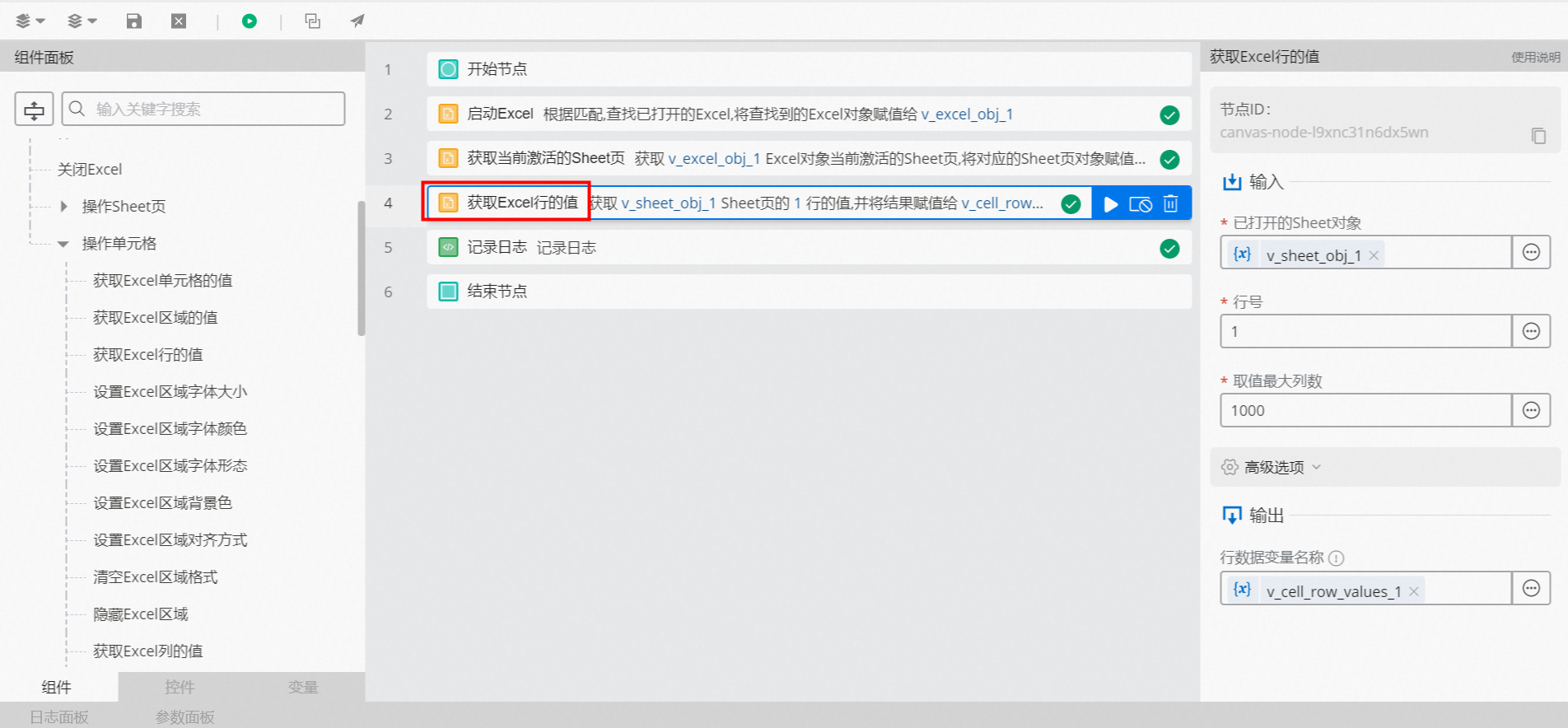
Execution result
The following figures show the result. When the flow runs, it automatically opens the Excel file, retrieves the cell content from the specified row, and prints the content.