Recognize quota invoices with OCR
1. Component overview
Required preceding component: None
Recommended subsequent component: Conditional Branch. You can use a conditional branch to check whether the OCR call is successful and then design the subsequent flow.
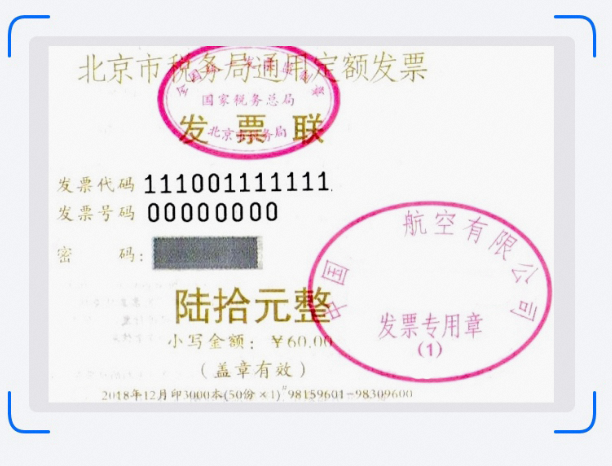
Use this component to recognize key fields on quota invoices, such as the invoice code, number, and amount, using Optical Character Recognition (OCR) technology. For an example, see Quota invoices.
2. Inputs
For more information about each input, see the help text for the component in the application flow editor.
3. Outputs
For more information about each output, see the help text for the component in the application flow editor.
3.1. Key API return results
This output returns a dictionary that contains the key recognition results from the API. The following table describes the key-value pairs in the dictionary.
Key |
Key concepts |
Data type |
invoiceCode |
Invoice code |
String |
invoiceNumber |
Invoice number |
String |
AmountInWords |
Amount in words |
String |
Amount |
Amount in numbers |
String |
title |
Invoice title |
String |
formType |
Copy |
String |
3.2. Error message
The output is a string containing the error code and the error message. For more information, see the OCR Error Center.
https://next.api.aliyun.com/document/ocr-api/2021-07-07/errorCode
4. Component usage example
4.1. Component configuration example
For AI engine, select Alibaba Cloud OCR.
For Path of the image file to recognize, enter the path of the image file. This example uses the following image.
Keep the default values for the advanced options.
4.2. Example execution result
5. Flow example
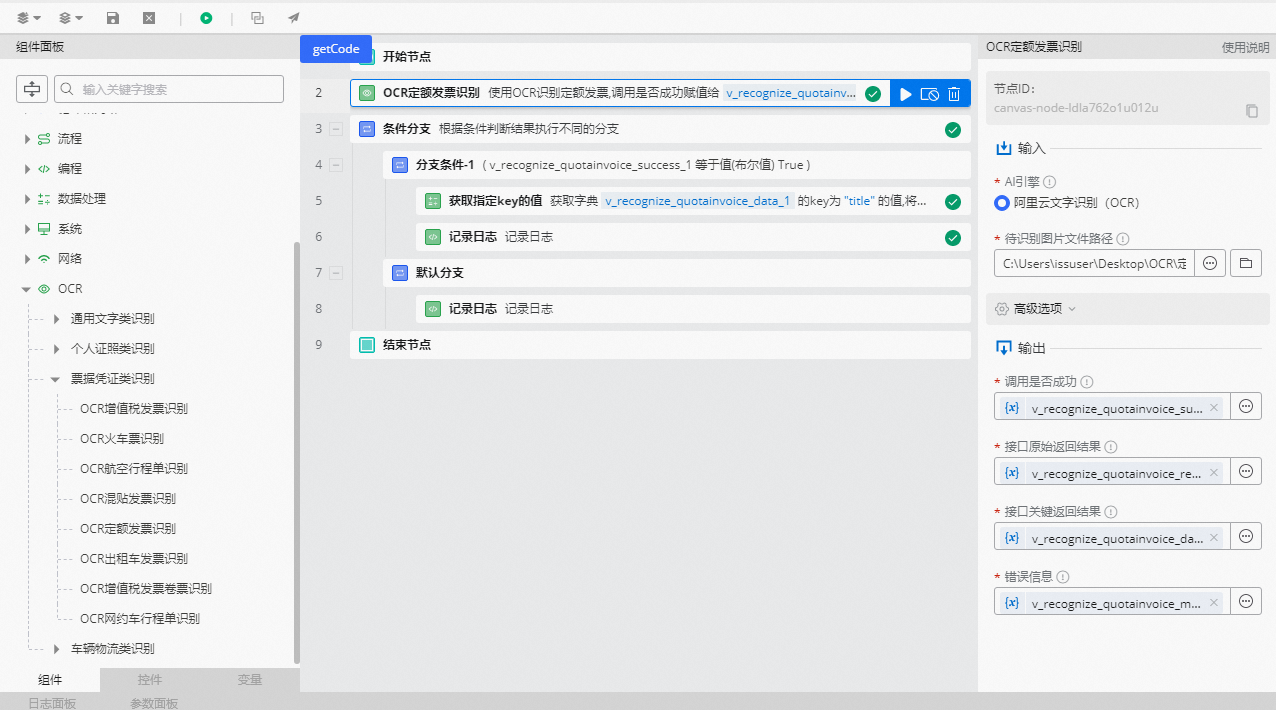
5.1. Build the flow
Use the Recognize Quota Invoice with OCR component and select the path of the image file to recognize.
Use the Conditional Branch component to check whether the OCR call is successful. Set the branch condition so that v_recognize_quotainvoice_success_1 is equal to the Boolean value True.
In the success branch, use the Get Value of Specified Key component to retrieve the value of a specified key from the dictionary of key API return results. This example uses the title key (invoice title).
Use the Record Log component to print the key recognition result.
In the failure branch, use the Record Log component to print the error message.
5.2. Execution result
As shown in the following figure, after the OCR call succeeds, the recognition result is printed to the log panel.